 Mars0hod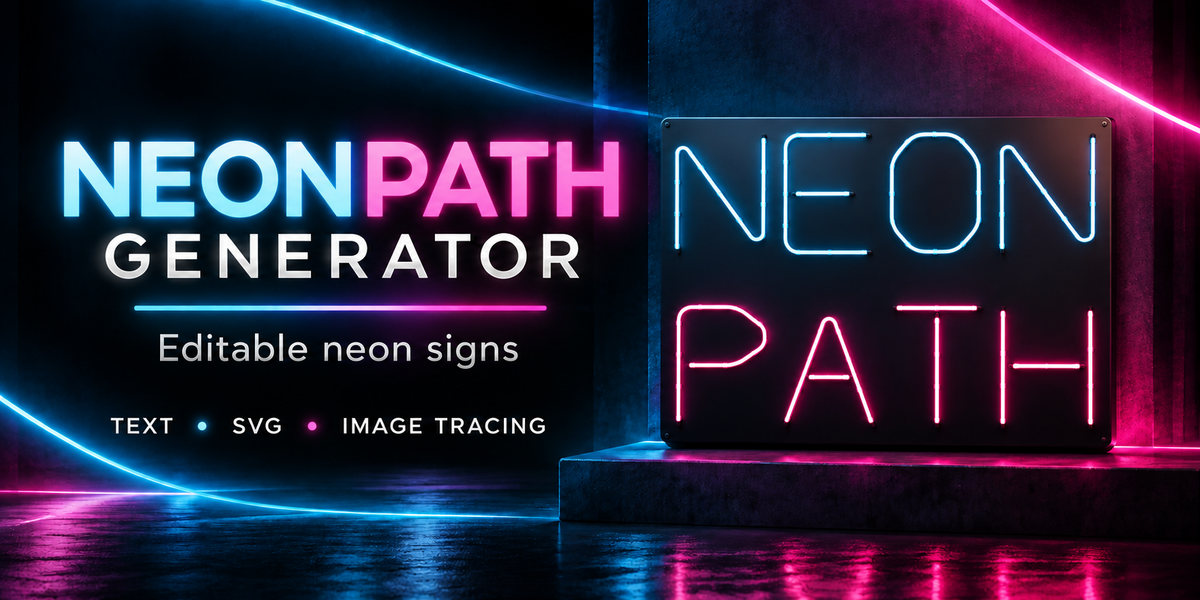
NeonPath Generator — Quick Start Guide
Requirements and installation
Requires Blender 5.2.2 or later. Tested with Blender 5.2.2 on Windows 10.
Download neonpath_generator-1.2.0.zip. Do not unzip it.
In Blender, open Edit → Preferences → Get Extensions.
Open the menu and choose Install from Disk.
Select the downloaded ZIP and enable NeonPath Generator.
In the 3D Viewport, press N and open the NeonPath tab.
Use Object Mode when creating and configuring signs.
Create your first sign
Position the 3D cursor and click Create Text.
Enter your text. Use Edit Lines for multiline lettering.
Choose Tube Neon for built-in lettering or Outline Neon for font outlines.
Adjust Letter Height, Tube Diameter, Neon Width and Neon Color.
Add holders and a backplate if needed.
Save your Blender project.
New signs use Close-up geometry quality by default. Standard and Draft modes are available for lighter editing. Geometry quality does not change global render samples or image resolution.
Custom fonts and multilingual text
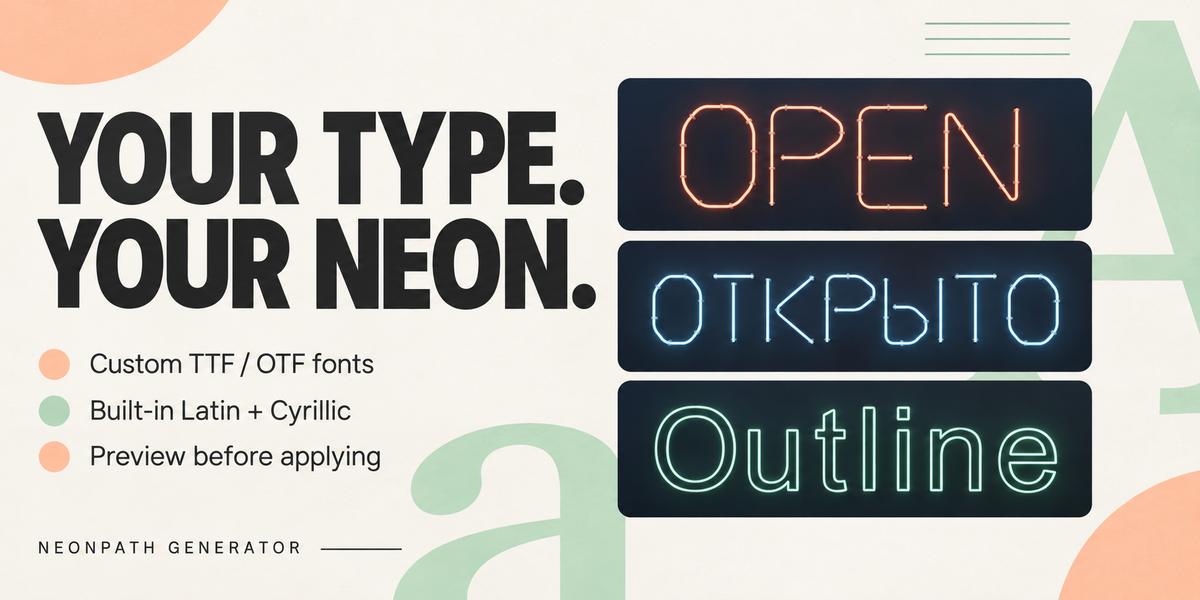
In Outline Neon mode, use Load Outline Font to select a local TTF or OTF file.
To preview a font, open Font Library → Preview Font File. Choose Apply Font to confirm or Cancel to discard the preview. Recent and favorite fonts are stored per scene.
Tube Neon supports uppercase Latin and Cyrillic, numbers and punctuation. Outline Neon preserves case and supports additional characters through compatible fonts. Character coverage and text shaping depend on the selected font and Blender’s text support.
Fonts are not included or automatically packed. Keep the original font accessible when moving a project or editing its text later.
Import SVG or use curves
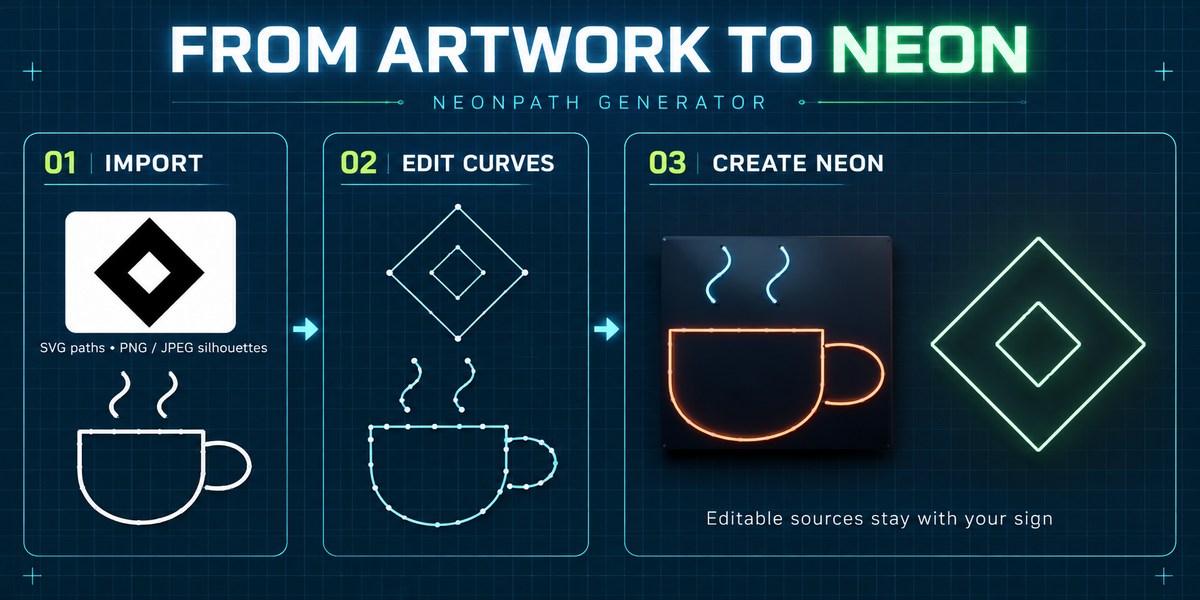
Choose Import SVG Logo to import supported plain vector paths. Convert text to paths before exporting your SVG.
For an existing planar POLY or BEZIER curve, select it and choose From Selected Curve.
To change the shape later, use Select Source Curve, edit the curve, return to Object Mode, select the sign and press Update Sign. Direct source-curve edits require this update even when Auto Update is enabled.
Trace PNG or JPEG artwork
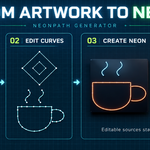
Choose Trace Image and select a PNG or JPEG.
Select Dark, Light or Alpha foreground to match the artwork.
Adjust the threshold, minimum area, simplification and smoothing while watching the preview.
Click Create Neon to create the sign and retain its editable source curve.
Use simple, high-contrast artwork. Tracing follows silhouette boundaries, not stroke centerlines. Thick strokes may produce contours on both sides.
The original image is not required after the trace has been converted to a curve.
Add Image Reference is a separate tool for placing an image as a drawing guide; it does not trace automatically.
Colors, holders and backplates
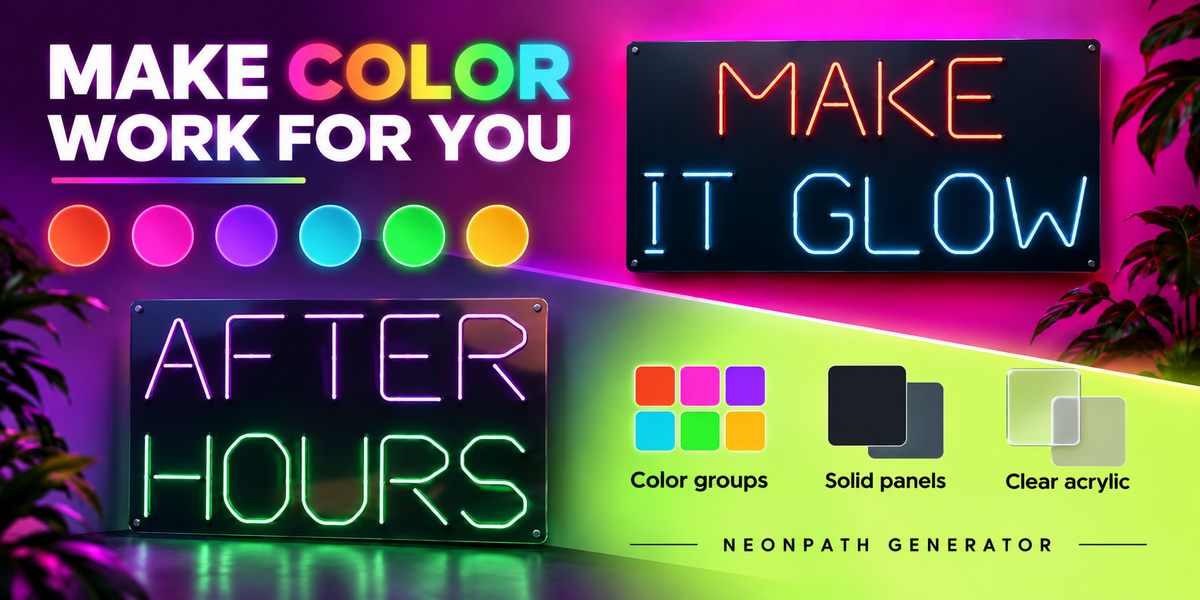
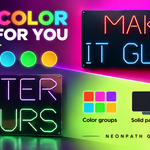
Adjust Neon Color and Brightness. Enable Colors by Line / Spline to use up to six color groups.
Choose the holder type and adjust spacing and tube clearance. Backplate options include Solid Panel and Clear Acrylic. Use Rounded Rectangle for a symmetric rectangular plate and adjust its padding, thickness and corner radius.
Editing and mesh copies
Auto Update applies valid parameter changes immediately. Turn it off to stage geometry changes, then use Update Sign or Revert Pending.
Use Bake Mesh Copy before manually editing vertices. It creates an ordinary mesh while retaining the editable original. Direct vertex edits on a generated sign are replaced when the sign is rebuilt.
Glass and glow
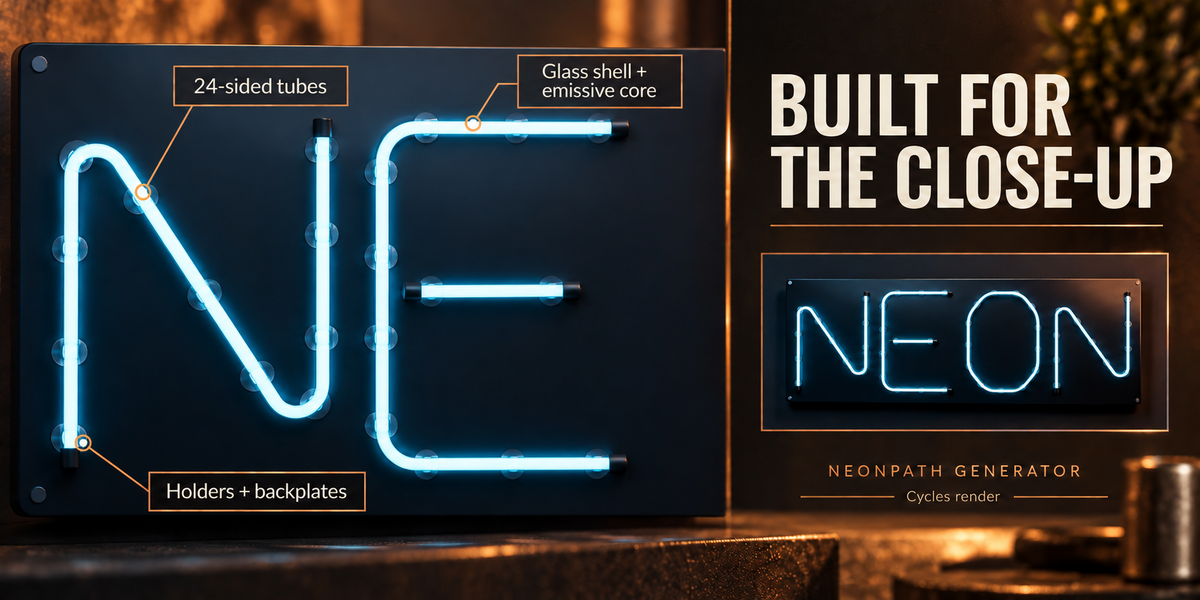
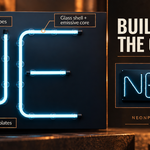
Diffused Neon creates an emissive tube. Glass Neon adds a glass shell around a glowing core.
Cycles uses physical refraction. Eevee uses a transparency and reflection approximation.
Click Set Up Glow to add the managed compositor glow effect. Emission alone does not create a visible halo. This effect operates across the scene and can also affect other bright objects.
Troubleshooting
• Missing panel: enable the extension, open the 3D Viewport and press N.
• Unavailable controls: switch to Object Mode and select an editable NeonPath sign.
• Unsupported characters: switch to Outline Neon and load a font containing those characters.
• Missing font after moving a project: restore access to the original font file.
• Curve changes not visible: select the sign and press Update Sign.
• Unusable image trace: adjust the foreground mode and threshold, or simplify the artwork.
• SVG import fails: convert text to paths and remove unsupported SVG features.
For support, include your Blender version, operating system, steps to reproduce the issue and a screenshot of any error.
The download contains the installable add-on, Python source, README and GPL-3.0-or-later license. Fonts are not bundled.
Have questions about this product?
Login to message
| Blender Extension Compatible | Yes |
| Published | 5 days ago |
| Blender Version | 4.5 - 5.2 |
| Extension Type | Add-on |
| Render Engine Used | Cycles, Eevee |
| License | GPL |
Discover more products like this
typography curves Multilingual text custom fonts Image Tracing SVG signage neon signs backplate Emission neon