 AFX LAB


Node Deck
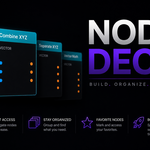
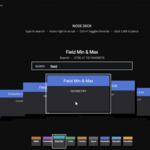
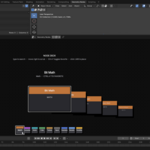
Node Deck is a fully customizable visual node explorer for Blender's Geometry Nodes editor. It adds a palette/deck interface for browsing, searching, favoriting, and placing nodes faster.
Compatibility
- Blender: 5.1.0 or newer
- Editor: Geometry Nodes inside the Node Editor
Installation
- Download the
node_deck_v0_1.zipfile. - In Blender, go to Edit → Preferences → Add-ons.
- Click Install from Disk... and select the zip file.
- Enable the add-on by searching for Node Deck and checking the box.
Quick Start
- Open a Geometry Nodes node tree.
- Use the fixed palette at the bottom of the Node Editor.
- Hover a palette tab to open that group.
- Move over a card to select it.
- Click a card to add the node.
- Click and drag a card into the editor to drop the node at that location.
- Type while the deck is open to search.
Palette Modes
Fixed
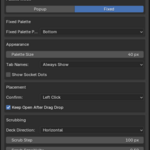
Fixed mode keeps the palette visible in the Node Editor. The default release setup uses this mode with the palette at the bottom.
Default fixed behavior:
- Palette Mode:
Fixed - Fixed Palette Position:
Bottom - Palette Size:
40 px - Tab Names:
Always Show - Show Socket Dots:
Off
Popup
Popup mode opens the deck with a configurable hotkey.
Default popup hotkey:
Alt + D
Popup placement options:
-
Center— opens in the center of the Node Editor. -
Left of Cursor— opens near the current cursor position.
Node Groups
Node Deck scans Blender for nodes that can be added to a GeometryNodeTree, then organizes them into palette groups:
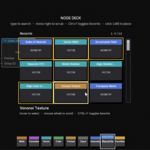
- Favorites
- Recents
- Geometry
- Input
- Texture
- Color
- Vector
- Converter
- Math
Texture, image, noise, gradient, and pattern nodes are grouped under the dedicated Texture tab.
Favorites
Use Favorites for nodes you place often.
- Select or hover a card.
- Press
Ctrl + Fto add it to Favorites. - Press
Ctrl + Fagain to remove it. - Favorite cards always show a yellow outline.
- Hovered favorite cards also show a white outline.
Recents
The Recents tab updates automatically after placing nodes. It uses the same grid view as Favorites.
Search
Type while the deck is open to filter visible nodes.
Search checks:
- Node label
- Blender node ID
- Node group label
Search works in the regular deck and inside Favorites/Recents grids. The active search text appears in a visible search bar between the deck/grid and the card info.
Placement
Node Deck supports two placement workflows.
Click To Add
The default release behavior is Left Click.
- Hover/select a card.
- Left-click the card.
- The node is added to the current Geometry Nodes tree.
Drag And Drop
- Click and drag a card.
- The palette hides while dragging.
- Release over the node editor.
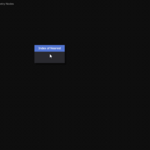
- The card shrinks at the drop location.
- The node is created at the dropped location.
Drag/drop placement accounts for Blender DPI scaling and node dimensions.
Scrubbing
Scrubbing controls how the deck moves through cards as the cursor moves.
Default release values:
- Deck Direction:
Horizontal - Scrub Step:
100 px - Scrub Sensitivity:
0.50 - Scrub Zone:
80 px
Lower scrub step values move through cards faster. Higher values move through cards slower.
Grid Views
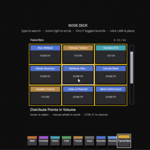
Favorites and Recents use a 3×3 grid.
Grid behavior:
- Hover cards to select.
- Use the mouse wheel to scroll.
- Use the wide scrollbar on the right for direct scrolling.
- Type to filter the grid.
Preferences
Node Deck settings are available in Blender's Add-on Preferences and the Node Editor sidebar panel.
Main preference groups:
- Palette mode
- Fixed palette position
- Popup hotkey and popup placement
- Palette size
- Tab name display
- Socket dot visibility
- Confirm mode
- Keep open after drag/drop
- Deck direction
- Scrub speed and sensitivity
- Palette header colors
Palette header colors can be customized per tab. Use Restore Defaults to return all tab colors to the shipped defaults.
Version
Current release: 0.1
Have questions about this product?
Login to message
| Published | 5 months ago |
| Blender Version | 5.1 |
| Extension Type | N/A |
| License | GPL |