 Diego Gangl
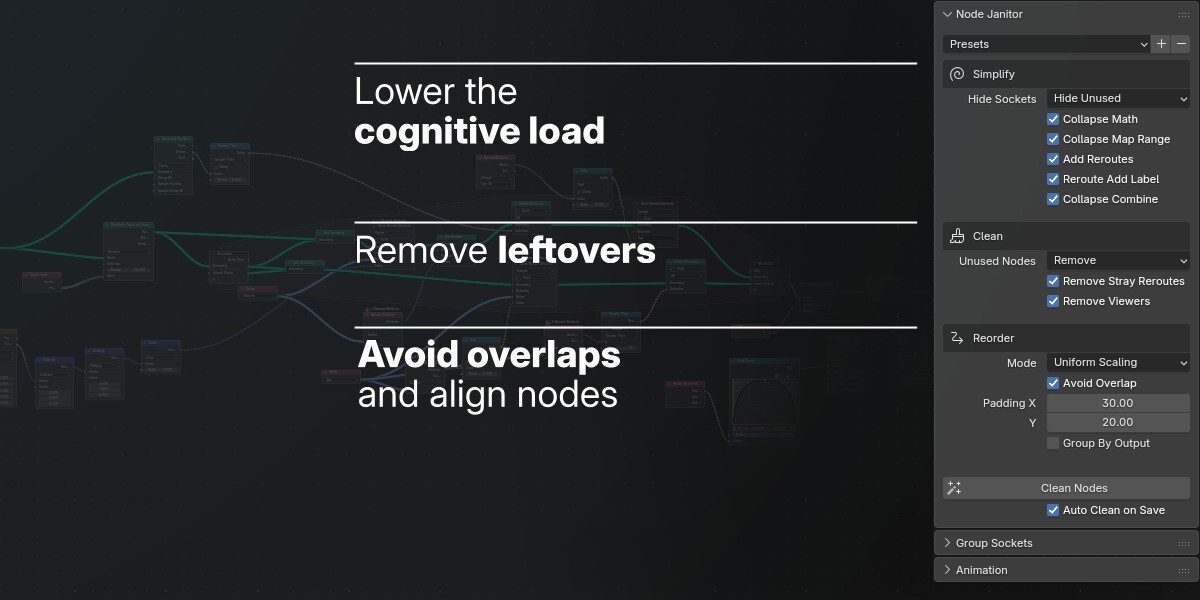


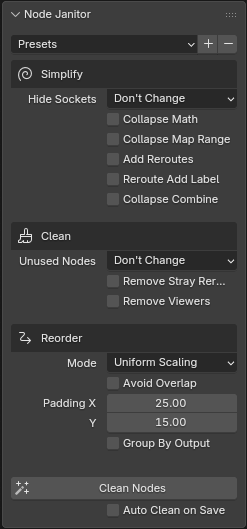
Once installed, Node Janitor adds a panel to the Node Editor sidebar. Open the sidebar by pressing N while the Node Editor is focused. You will find the Node Janitor panel under the Group category.
Click Clean Nodes at the bottom of the panel to apply all current settings to the node tree.
Auto Clean on Save
Automatically clean the node tree whenever you save the file. This is off by default and can be changed at the bottom of the panel.
Simplify
Hide Sockets
Choose whether to leave sockets as they are, hide unused sockets, or show every socket. Sockets are considered unused if they are unlinked and have the default value set.
Collapse Math
Collapse Math and Vector Math nodes with the operation and input values represented with text in the label.
Collapse Map Range
Collapse Map Range nodes just like the math node option above. The label summarizes the range they map between.
Add Reroutes
Add a reroute where one output connects to several inputs, making the branching connections easier to follow.
Reroute Add Label
Give each added reroute a label that identifies the node and socket it comes from. This only applies when Add Reroutes is enabled.
Collapse Combine
Make Combine and Separate nodes more compact while keeping connected sockets visible (just like the math node option).
Clean
Unused Nodes
Choose what to do with nodes that are not linked (directly or indirectly) to an output node:
Don’t Change — Leave them as they are.
Remove — Delete them.
Group — Move them to an “Unused Nodes” frame.
Mark — Highlight them in red.
Remove Stray Reroutes
Remove reroutes that have no useful connections left.
Remove Viewers
Remove Viewer nodes when cleaning.
Reorder
Mode
Choose how to arrange nodes after cleaning:
Don’t Change — Keep the current layout.
-
- Force Directed — Arrange connected nodes together while
spreading other nodes apart. This works like a physics simulation where nodes repel each other, but links make them attract.
-
- Uniform Scaling — Spread the layout uniformly to help prevent
overlaps.
Align Grid — Snap nodes to a grid, aligning them.
Group By Output
Place nodes in frames based on the output they contribute to.
Avoid Overlap
Move nodes apart when they overlap. This can be used with any mode.
Padding
Set the horizontal and vertical spacing between nodes. This appears when using Uniform Scaling or Align Grid, or when Avoid Overlap is enabled.
When Force Directed is selected, these additional settings appear:
Attraction
Adjust how strongly linked nodes are drawn toward each other.
Repulsion
Adjust how strongly nodes are pushed apart.
Flow
Adjust how strongly nodes spread from left to right.
Min Gap
Set the minimum horizontal space between nodes.
Anti-Vertical
Encourage connected nodes to sit side by side instead of directly above or below one another to avoid vertical links.
