Node Master
 Anvil Interactive Solutions


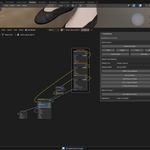
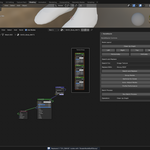
# NodeMaster - Shader Node Management Tool
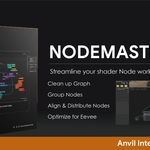
NodeMaster is a powerful Blender add-on designed to streamline your shader node workflows. It offers a suite of tools to organize, optimize, and manage nodes in the Shader Editor, saving you time and enhancing productivity. Whether you're a material artist or a technical director, NodeMaster helps you create cleaner, more efficient node setups.
Features
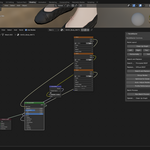
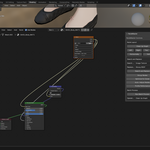
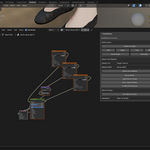
- Clean Up Graph: Organize messy node layouts with a single click.
- Group Nodes: Automatically group related nodes (e.g., texture nodes) into labeled frames.
- Align & Distribute: Align nodes to the left, right, top, or bottom, and distribute them evenly horizontally or vertically.
- Optimize for Eevee: Simplify node setups for better Eevee performance, replacing heavy nodes like Subsurface Scattering with lighter alternatives.
- Auto-Adjust Nodes: Adjust node parameters for realistic or cartoon rendering styles.
- Profile Performance: Analyze node setups for Cycles and Eevee performance, with metrics like FPS and memory usage.
- Batch Process: Apply operations (cleanup, optimization, grouping, auto-adjust) to multiple materials at once.
- Save & Apply Templates: Save node setups as reusable templates and apply them to new materials.
- Search and Replace: Find and replace specific node types (e.g., Principled BSDF to Diffuse BSDF) while preserving connections.
Compatibility
- Blender 4.4 (recommended). May work with earlier versions (4.0+), but not guaranteed.
- Tested on Windows, macOS, and Linux.
Installation
1. Download: Purchase and download `node_master_base.zip` from Superhive marketplace.
2. Install:
- Open Blender 4.4.
- Go to `Edit > Preferences > Add-ons`.
- Click `Install`, select `node_master_base.zip`, and click `Install Add-on`.
- Enable the add-on by checking the box next to "NodeMaster".
3. Verify: Open the Shader Editor, select a material, and look for the "NodeMaster" panel in the sidebar (`N` key > Tools tab).
Usage
1. Select a Material:
- In the 3D Viewport, select an object.
- In the Properties panel (Material tab), select or create a material.
- Open the Shader Editor and ensure the material’s node tree is visible.
2. Access NodeMaster:
- Press `N` in the Shader Editor to open the sidebar.
- Navigate to the "Tools" tab and find the "NodeMaster" panel.
3. Use Features:
- Clean Up Graph: Click to organize nodes into a tidy layout.
- Group Nodes: Group texture-related nodes into a frame.
- Align/Distribute: Select nodes, then align or distribute them as needed.
- Optimize for Eevee: Simplify nodes for better Eevee performance.
- Auto-Adjust Nodes: Adjust nodes for realistic or cartoon styles.
- Profile Performance: Check performance metrics for your node setup.
- Batch Process: Apply operations to all materials in your project.
- Save/Apply Templates: Save node setups and reuse them later.
- Search and Replace: Replace node types (e.g., Principled BSDF with Diffuse BSDF) while keeping connections intact.
4. Demo File:
- Open `NodeMaster_Demo.blend` (included in the zip) to see NodeMaster in action. It includes a sample material with a Principled BSDF node you can replace using the "Search and Replace" feature.
Troubleshooting
- Add-on Not Visible: Ensure you’re in the Shader Editor and have a material selected. Check that NodeMaster is enabled in `Edit > Preferences > Add-ons`.
- Search and Replace Fails: Confirm the material is active on the selected object, and the node type (e.g., Principled BSDF) exists in the node tree.
- Errors in Console: Open the Blender console (Window > Toggle System Console on Windows) and share any error messages with support.
Support
- Contact: Reach out via Superhive’s messaging system for assistance.
- Updates: Check Superhive for future updates, including bug fixes and new features.
- Feedback: Your feedback helps us improve! Let us know how NodeMaster works for you.
License
- One-time purchase for personal and commercial use within Blender projects.
- Do not redistribute or resell the add-on itself.
About the Developer
NodeMaster was created by Anvil Interactive Solutions, an innovative software development company dedicated to improving artist workflows. Stay tuned for a premium version with advanced features like AI-assisted node adjustments and real-time performance monitoring.
$15
Have questions about this product?
Login to message
| Published | over 1 year ago |
| Blender Version | 4.0 - 5.0 |
| Extension Type | N/A |
| Render Engine Used | Cycles, Eevee |
| License | GPL |
Discover more products like this
advanced Blender nodes 3d-workflow-automation 3D nodes align nodes 2025 addon automate