Node Vault
 martinworks


Installation:
In Blender, go to Edit > Preferences > Get Extensions (or Add-ons on older versions).
Click the dropdown arrow in the top right and choose Install from Disk.
Select the Node Vault zip you downloaded and confirm.
Make sure the checkbox next to Node Vault is enabled.
You can also drag the zip straight into the Blender window to install it.
Requires Blender 4.2 or newer.
Finding the panel:
Open any node editor (Shader Editor, Geometry Nodes, Compositor or Texture),
press N to open the sidebar, and click the Node Vault tab.
Saving a setup:
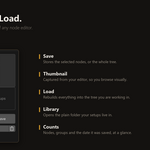
- Select the nodes you want to save. If you select nothing, the whole tree is saved.
- Click Save.
- Type a name and confirm.
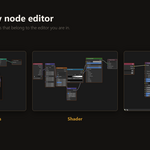
A thumbnail is captured automatically from your node editor and the setup
appears in your gallery.
Loading a setup
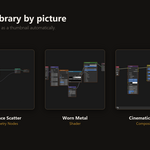
- Click the gallery image to browse your saved setups. Only setups matching your current editor type are shown.
- Pick one and click Load.
The nodes appear in your current tree, already selected, so you can press G to
position them straight away.
In the Shader Editor, Node Vault also handles the busywork: if the object has
no material, one is created; if the material still contains the untouched
default Principled BSDF, it is removed; and if your setup has no Material
Output of its own, its final shader is connected to one. Any of this can be
switched off in the operator options panel in the bottom left corner
immediately after loading.
Sharing and syncing:
Each setup is a .json file plus a matching .png thumbnail in your library
folder. Click Library in the panel to open that folder. To share a setup, send
someone both files and have them drop the pair into their own library folder.
To sync between machines, point the library at a Dropbox or Google Drive
folder in the add-on preferences.
Preferences
Edit > Preferences > Add-ons > Node Vault:
- Library Folder: where setups are stored. Defaults to Documents/BlenderNodeVault.
- Thumbnail Size and Popup Size: how large the previews appear in the sidebar and in the selection popup.
Messages you may see:
- "This setup is for a Shader editor" (or Geometry, Compositor, Texture): the setup belongs to a different editor type. Switch editors and try again.
- "Datablock not found in this file": the setup referenced an image, object or material that does not exist in the current file. The node still loads with that slot empty.
- "Link skipped": a connection could not be recreated, usually because the node type does not exist in your Blender version. Everything else loads normally.
Support:
Email [email protected] with the setup that gave you trouble and the
Blender version you are using.
 Included
Includes 12 months of
- Support from martinworks
- Product updates
Extend this product’s Support Period +12 months: 100% of product price
Have questions before purchasing?
Login to message
| Blender Extension Compatible | Yes |
| Dev Fund Contributor | |
| Published | 2 months ago |
| Blender Version | 4.2 - 5.2 |
| Extension Type | Add-on |
| Render Engine Used | Cycles, Eevee |
| License | GPL |
Discover more products like this
materials 3D nodes node groups geometry nodes Workflow shader nodes presets productivity node-library Node Editor compositor asset management