 pikopiko


Nom Nom Vox v1.0.1 User Manual
(Compatible with Blender 4.2 and above / Windows version)
1. About this Add-on
Nom Nom Vox is a Blender add-on that allows you to control:
Lipsync (AIUEO mouth shapes) with the Left channel (Vocal)
Sound-reactive effects (mesh shape keys & shaders) with the Right channel (BGM)
It supports both real-time preview and baking animations into keyframes.
Perfect for music-driven animations, MMD-style reactive effects, and more!
1-1. Package Contents
Nom Nom Vox is provided in two formats inside the ZIP:
• nom_nom_vox_ext.zip …… Blender 4.2+ “Extension” package
- Self‑contained, appears in Preferences > Get Extensions
- Recommended for users who prefer the new Extensions system
• nom_nom_vox_addon.zip …… Legacy “Add‑on” package
- Installed via Preferences > Add‑ons > Install
- For users who want the traditional add‑on workflow or use older Blender builds
Both packages contain identical features. Choose the one that fits your workflow.
2. Recommended Environment
Item Minimum Recommended
Blender 4.2.0+ (tested 4.2–4.5) Latest LTS version
OS Windows 10/11 (64-bit) –
GPU OpenGL supported RTX 3060 or higher
Audio Stereo WAV (44.1/48kHz) 48kHz preferred
Memory 8GB+ 16GB+
3. What It Can Do
Automatic Lipsync
Detects vocals (Left channel) and drives A/I/U/E/O shape keys.
Sound-Reactive Effects
Drives mesh shape keys or shader parameters based on BGM (Right channel).
Real-Time Preview & One-Click Bake
Check in preview, then bake directly to keyframes.
Light Mode
Automatically optimizes viewport during preview/bake for better performance on low-spec PCs.
4. Basic Workflow
Using Nom Nom Vox is just 4 simple steps:
Prepare a Stereo WAV file
Install the Add-on
Prepare your model’s shape keys and settings
Preview or Bake the animation
4-1. Preparing a Stereo WAV
Nom Nom Vox uses different audio from each channel:
Left channel → Vocal (lipsync)
Right channel → BGM (sound-reactive effects)
If vocals and BGM are separate files, you can easily combine them using vocal separation tools.
Recommended tools:
Moises → Free online tool to separate vocals & instruments
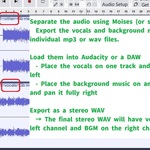
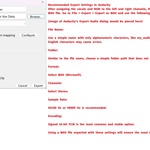
Audacity → Load both tracks, pan vocals LEFT & BGM RIGHT, then export as stereo WAV
Quick example with Audacity:
Import both vocal & BGM tracks
Select Vocal track → Pan Left
Select BGM track → Pan Right
File > Export > WAV (Stereo)
4-2. Installing the Add-on
Blender > Edit > Preferences > Add-ons > Install
Select the ZIP file (do NOT unzip)
Enable the checkbox → Nom Nom Vox tab appears in the Sidebar (N key)
4-3. Preparing Your Model
Lipsync Shape Keys
Add A, I, U, E, O shape keys to your character
Default object name: Face (can be changed later)
Sound-Reactive Shape Keys (optional)
Add a shape key named AudioVolume for parts like chest or shoulders
Up to 2 target objects supported
Shader Control (optional)
Example: drive Emission Strength or Color Ramp with audio volume
Note your target node name & socket name beforehand
4-4. Blender Setup
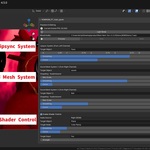
Sidebar > Nom Nom Vox > Playback & Baking
Load your Mixed Stereo WAV
Enable Light Mode for smoother playback
Set Lipsync Target Object Name
Adjust lipsync scales & smoothing
Set Sound Mesh System 1/2 target objects
Adjust scale, smoothing, and curve
Enable Shader Control (optional) & set:
Audio Source (Left/Right channel)
Target Object, Node Name, and Socket
5. How to Run
Preview Playback
Click Preview → Audio plays and:
Left channel drives Lipsync
Right channel drives Sound/Shader
Press ESC to stop
Bake to Keyframes
Click Bake → Processes audio at current FPS
All movements baked as keyframes
Audio strip is auto-added to VSE after baking
Recommended Playback Mode: Audio Sync
6. Light Mode Details
When Light Mode is ON, it reduces viewport load during preview/bake:
Viewport → Solid mode
Subdivision = 0
Child particles disabled
Simplify settings auto-enabled
Baking keyframe density adjusts to FPS (e.g. 60fps → every 2 frames)
After Preview/Bake ends, settings automatically revert to original.
7. FAQ
Q: Preview plays audio but lipsync doesn’t move?
→ Check if vocals are in the Left channel. Mono or silent files won’t be detected.
Q: Bake timing is off?
→ Make sure Playback Mode = Audio Sync.
Q: “Audio device couldn’t be opened” error?
→ Happens if WASAPI can’t open device (e.g. after plugging/unplugging headphones). Check Windows sound settings & restart Blender.
Q: Too many shape keys make it slow?
→ After Bake, use Graph Editor > Channel > Simplify F-Curves to reduce keyframes.
8. Troubleshooting
Addon update but old behavior?
→ Preferences > Remove > Restart Blender > Reinstall
register_class error (duplicate)?
→ Happens if you repeatedly “Run Script” in Scripting tab. Press F8 to refresh scripts.
Extremely slow playback?
→ Enable Light Mode & set viewport to Solid.
9. Install / Uninstall
Install:
Save the ZIP (don’t extract)
Blender > Preferences > Add-ons > Install
Uninstall:
Preferences > Add-ons > Search Nom Nom Vox → Disable → Remove
Scene properties will be auto-cleaned
10. Pro Tips
RTX 3060+ GPU recommended for complex scenes & shader control
Use Moises or similar tools for easy vocal extraction
After Bake, simplify F-Curves for lighter data
11. Support
Questions or bug reports? Contact:
X (Twitter): @BLENDER3D73
https://x.com/BLENDER3D73
Tutorial Video on YouTube
https://www.youtube.com/watch?v=T0ita9etRKc&t=76s
Nom Nom Vox v1.0.1
© 2025 pikopiko
License Notice (Important)
This product is composed of different parts, each with its own license. Please read carefully.
Add-on Script Code (__init__.py)
The Python script for this addon is distributed under the GNU General Public License (GPL) v3.0 or later. In accordance with the GPL, you are free to modify and redistribute the script itself.
Included Assets (3D Models, Manuals, etc.)
The 3D models, textures, images, and user manuals included with this product are the copyrighted work of the author (piko012345).
You MAY use these assets for personal and commercial projects.
You MAY NOT resell, redistribute, or share these assets, whether modified or not.
Works Created Using This Add-on
Any works that you create using this addon (such as videos, images, or avatars) are
your property. The GPL license of the script does
not affect your creations, and you can use or sell them freely
Have questions about this product?
Login to message
| Blender Extension Compatible | Yes |
| Published | about 1 year ago |
| Blender Version | 4.2 - 4.5 |
| Extension Type | Add-on |
| Render Engine Used | Cycles, Eevee |
| License | GPL |