Note Scatter — Notes, Stickers & Magnets
 VertexModeler Inc.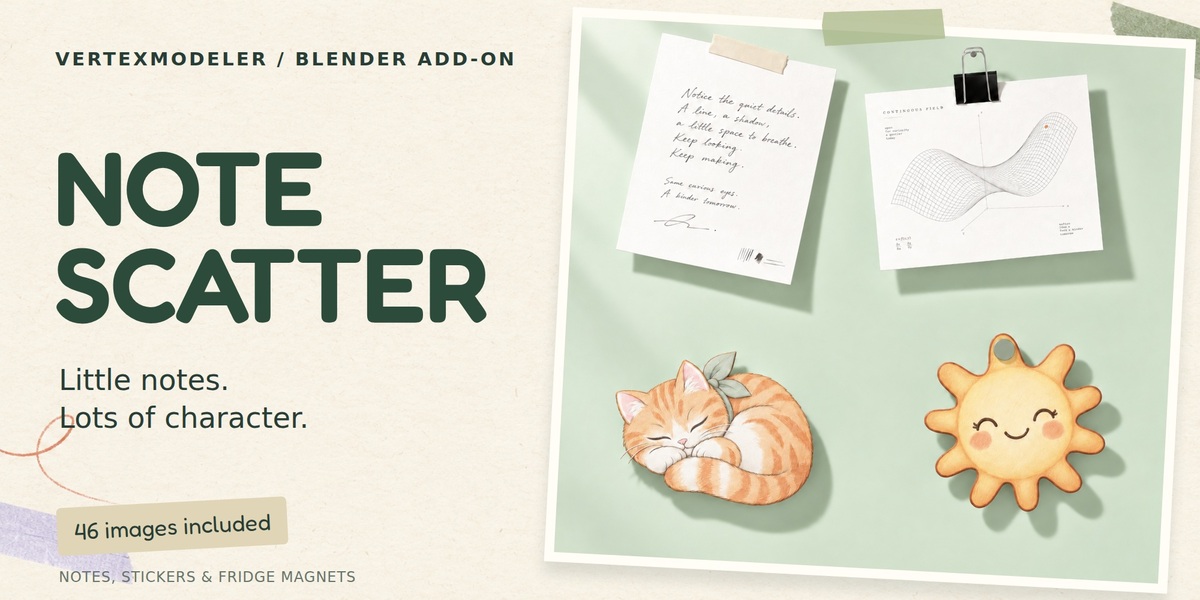




NOTE SCATTER — USER GUIDE
Version 0.6.3 | VertexModeler | Blender 5.2 LTS
WHAT IS NOTE SCATTER?
Turn images into paper notes, transparent stickers and fridge magnets. Generate a random wall or place notes individually on mesh surfaces. Keep the original image proportions, choose mounting styles, adjust curls and folded corners, and edit notes after generation.
FILES INCLUDED
Note_Scatter_v0.6.3.zip is the installable Blender extension. Install this ZIP without extracting it. Note_Scatter_Demo.blend is an editable example scene with packed images. User_Guide.txt and FAQ.txt provide complete written help. The demo was saved with the 5.2.1 runtime; install the extension before editing its generated notes.
INSTALLATION AND UPGRADES
1. In Blender, open Edit > Preferences > Add-ons > Install from Disk.
2. Select Note_Scatter_v0.6.3.zip and enable Note Scatter.
3. Restart Blender after replacing an older version so all Python modules reload.
4. In the 3D Viewport, press N and open Note Scatter.
The panel has three work areas: Images, Place and Edit. Advanced controls stay in collapsed sections. Existing notes are not automatically rebuilt when upgrading.
CHOOSE YOUR IMAGES
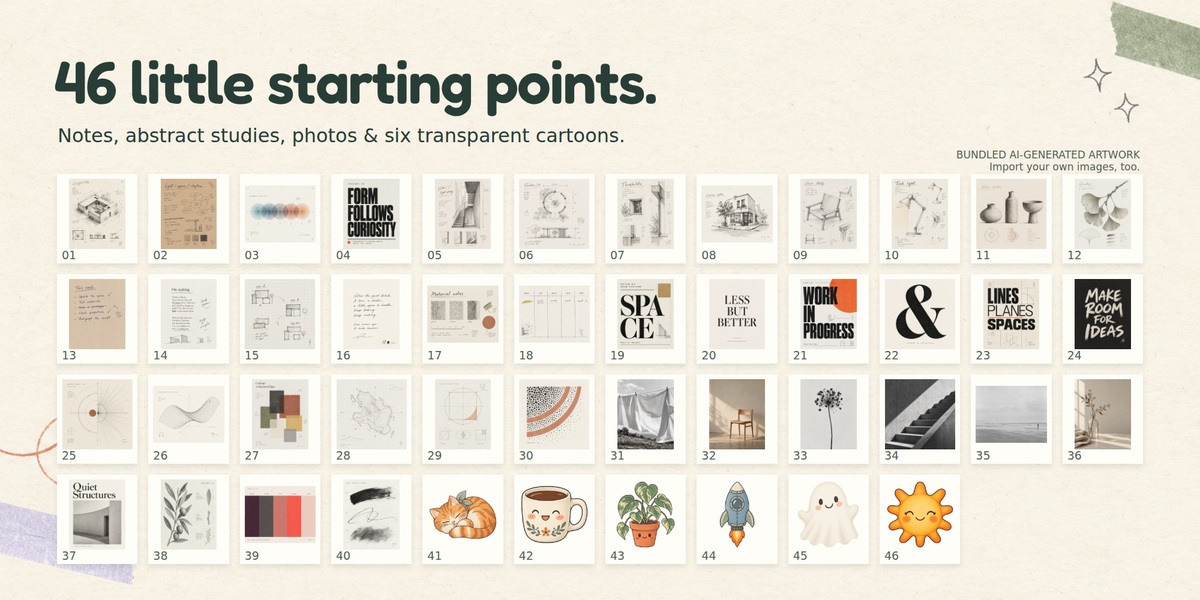
Open Images. Use the built-in collection or expand Import & Manage to import image files, a folder or an image ZIP. Load / Refresh Previews refreshes thumbnails. Search, category and favorite filters change what is displayed; they do not disable hidden list entries. Enable Shown / Disable Shown affects only the filtered entries.
Each checked image with a positive weight joins the random pool. A weight of 3 gives roughly three times the draw chance of a weight of 1, not a guaranteed count in a small batch. A zero weight excludes random use. Clearing the list restores the built-in collection as the default source.
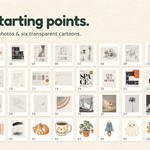
The 46 bundled files and default browser titles are English. Stock titles from older scenes migrate automatically; custom titles are retained. The bundled artwork is AI-generated. Import your own artwork if you prefer.
CREATE A BATCH
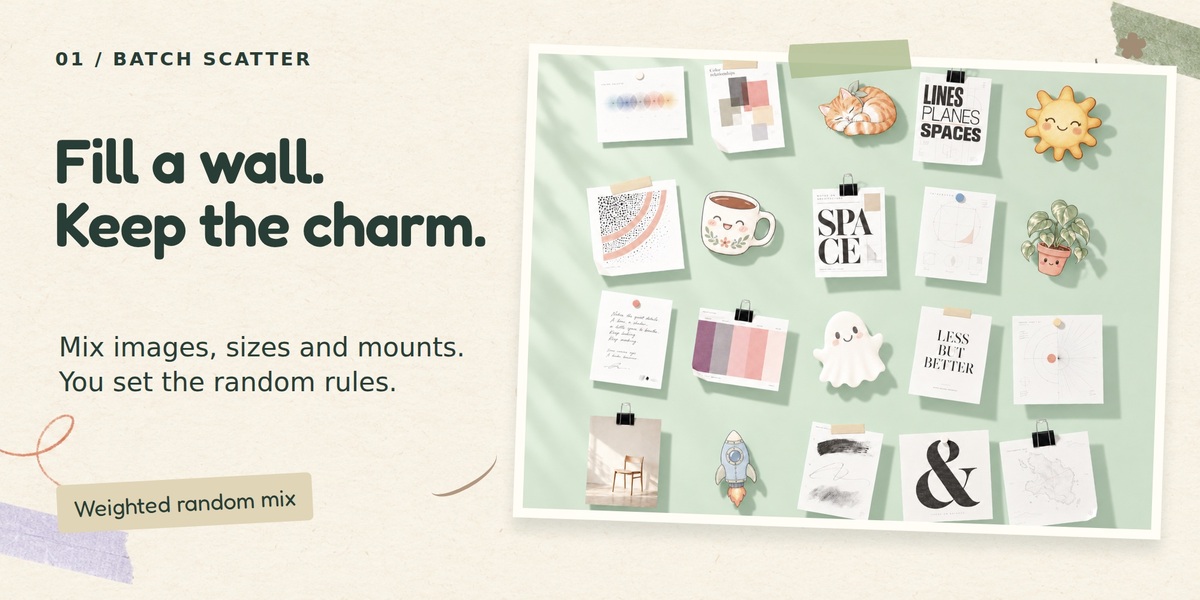
Go to Place > Batch. Choose a count, longest-side size range and area dimensions, then Generate Batch. Every Image uses each eligible image once; it ignores relative frequency weights but still excludes unchecked and zero-weight entries. Otherwise the count is drawn randomly, with repeats possible.
Expand Batch Layout for grouped or even scatter, spacing, rotation, alignment, seed and overlap. A normal vertical wall is built at the 3D cursor, facing world -Y. If notes do not fit, enlarge the area, reduce the count or reduce note sizes. The maximum is 500 notes per batch.
Update Batch rebuilds an existing unbound batch using current settings. Reshuffle changes the seed and layout. Locked notes remain untouched. Use Load Selected Batch Settings before changing a batch created with different settings.
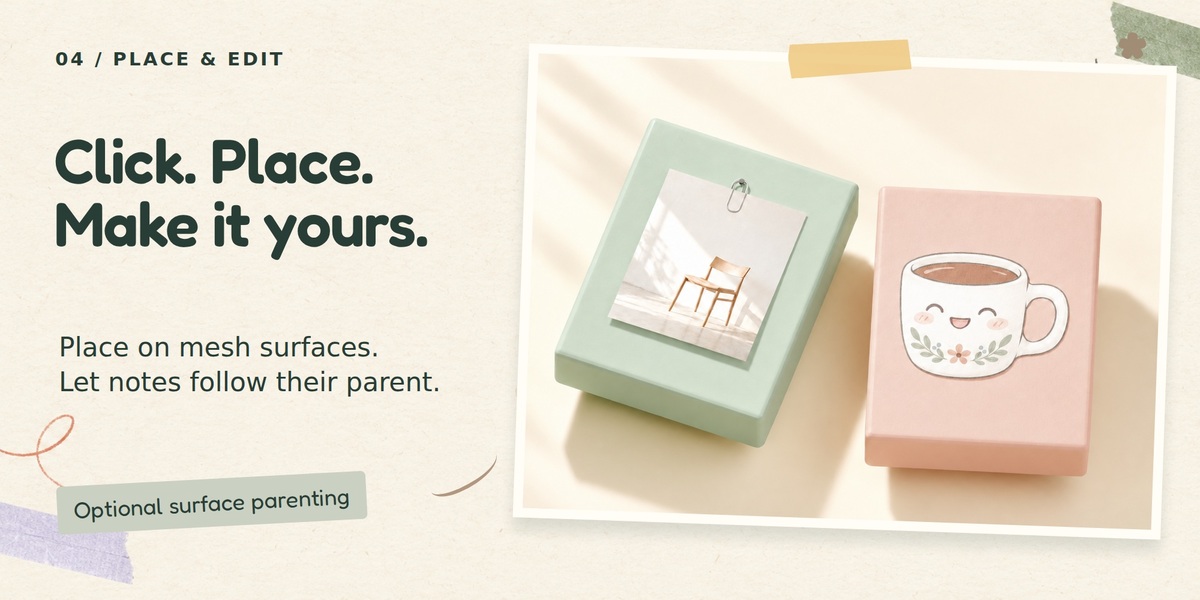
CLICK TO PLACE
Go to Place > Click to Place. Set the size, Random Next and optional Parent to Surface before pressing Start Placing. Move into the starting viewport and hover over a visible mesh. The preview shows the deformed image, its footprint, attachment markers and a shortcut HUD. Full fastener and caption geometry appears after placement.
Left mouse: place a note.
Wheel: change note size.
Shift + Wheel: rotate the note in 5-degree steps.
R: rotate 15 degrees.
N: choose another eligible image.
Backspace or Ctrl+Z: remove the last note from this placement session.
Enter or right mouse: finish and keep the session's notes.
Esc: cancel all notes from this placement session.
Middle mouse / Shift + Middle mouse: viewport navigation. Ctrl + Wheel: viewport zoom.
Moving outside the starting viewport hides the preview. Turning off Overlays pauses placement. Local View and visible object filtering are respected. If navigation consumes a mouse-release event, the preview recovers after view movement settles.
The image and geometry settings are captured when the session starts. Finish and restart to change the session's settings.
PARENT TO SURFACE
This checkbox is off by default. Turn it on before starting placement to make each note a child of the actual mesh object hit by the pointer. Fasteners remain children of the note. The world-space placement is preserved, so attaching it does not make it jump. Notes can have different surface parents within the same logical batch.
Parented notes follow object transforms, not vertex deformation. Turning the option off does not detach existing notes. Single-note edits, locking, local randomization and session undo still work. Full planar Update / Reshuffle is disabled for surface-parented batches; use Edit or Local Randomize instead.
MOUNTS AND RANDOM WEIGHTS
Eight mounting types are available: round magnet, pin, tape, hidden adhesive, binder clip, paper clip, staple and shaped magnet. Open Random Mix & Weights to enable candidates and set relative weights. The same rule applies to random paper stocks and Natural Mix shapes. Manual fixed choices override the corresponding random pool.
Transparent irregular cutouts randomly use compatible adhesive, magnets, pins or tape with a single-point arrangement. The rule does not exclude padded rectangular cards from edge clips. Disconnected Alpha islands may need separate attachments. If no compatible positive-weight mount remains, the tool asks you to enable one or choose a fixed mount manually.
Hidden adhesive has no front fastener. A photo magnet is a rigid image magnet and also needs no extra front mount. Sticky paper stock describes the paper, not its mounting method.
CURLS, FOLDS AND PAPER
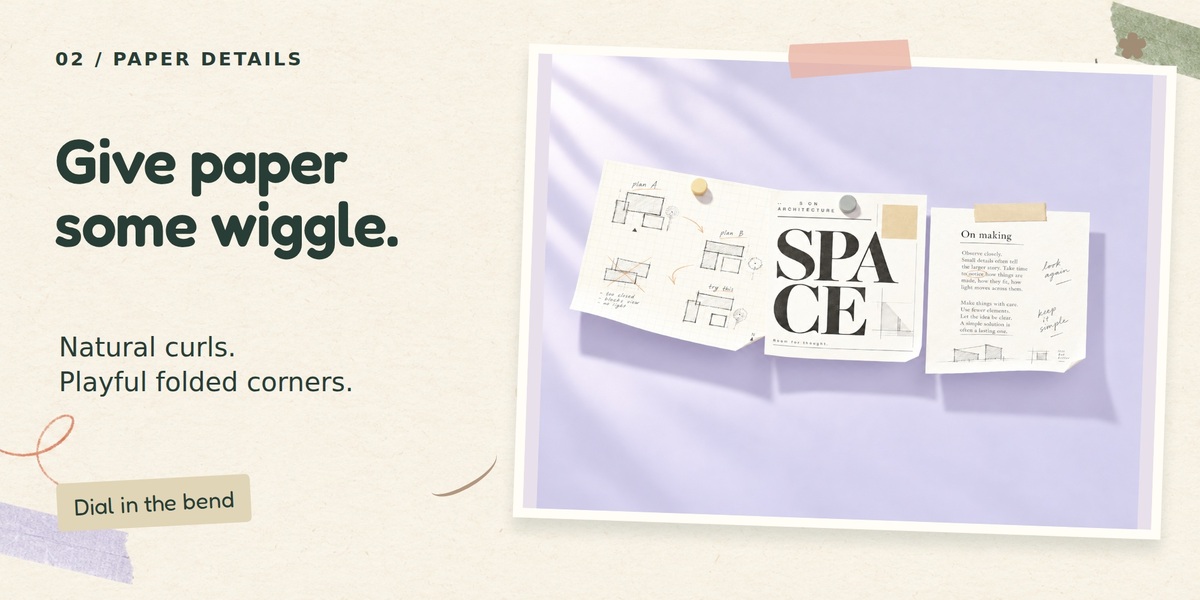
In Shape & Finish, choose a shape or Natural Mix. Curl controls the base deformation. Strong Curl Chance controls the frequency of more pronounced curls; Max Edge Curl caps their additional angle. Fold Chance and fold angle control corner folds. Curl 0 disables curls; Fold Chance 0 disables folds.
Print, Sticky, Kraft and Photo stocks use different thickness, stiffness, roughness and back colors. Four-corner mounts and rigid magnets limit bending. There is no paper-wrinkle feature or cloth solver.
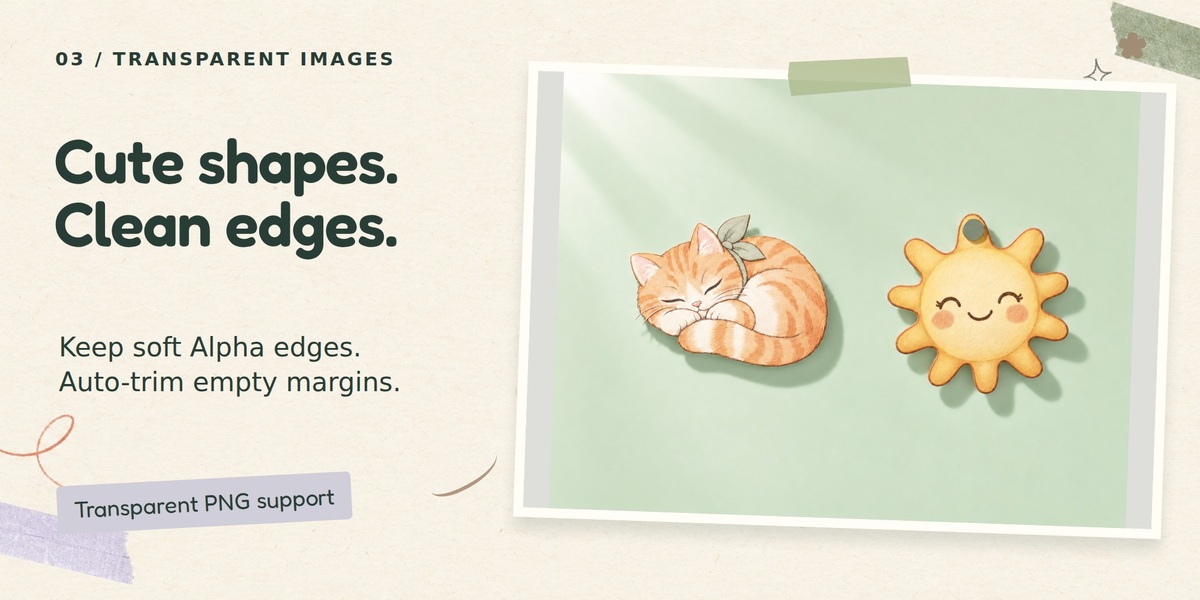
TRANSPARENCY AND AUTO TRIM
Image Alpha uses the source's continuous Alpha for soft front, back and shadow edges. View it in Material Preview or Rendered mode. Solid and Edit modes show the underlying rectangular surface.
Trim Transparent Margins fits the size to nonzero Alpha content plus two pixels of padding. It does not overwrite the original. Faint stray pixels can keep extra margin. Turn trim off when original canvas spacing is intentional. An opaque white background or a painted checkerboard is not transparency. Fully transparent images are rejected.
Image Alpha uses a two-sided single surface without an opaque rectangular thickness shell. Mesh Outline is optional when physical contour geometry and side walls are needed; fine silhouette accuracy depends on outline detail.
Thin Wall is shown only when the active Cycles environment exposes the required socket. It is hidden in EEVEE or unsupported environments. Image Alpha's single-surface behavior is retained with Thin Wall off.
BORDERS AND CAPTIONS
Choose None, Sticker White Border, Photo Border or Polaroid. Border width is relative to the image. Transparent trimming happens before borders. Processed border images are packed and the original remains intact. The working border image is limited to a 1024-pixel longest side.
Polaroid captions can contain up to 80 characters and follow the paper's deformation. Choose a font containing the glyphs you need. Generated text is converted to mesh; editing a caption later requires the font file again.
EDIT, LOCK AND RANDOMIZE
Select a note or its fastener, then open Edit. Load Note Controls if shown. Adjust the image, size, mounting, stock or shape, then Apply to This Note. Use Active Image applies the current browser image. Root position, rotation and scale are kept; unrelated notes are not rebuilt.
Generated child meshes are replaced during an edit, so manual edits or modifiers on those meshes may be lost. Manually added child objects are preserved. Lock a note to protect it from plugin rebuilds and randomization.
Local Randomize can change images, fasteners, stocks, shape or all appearance. Choose Selected Notes or Unlocked in Batch. Image-only randomization preserves the old mounting; randomize fasteners separately if a new image needs a new mount. Full appearance randomization keeps border and caption choices.
PERFORMANCE AND PORTABILITY
Detailed clip models share mesh data. Editing a shared fastener mesh affects its other users; make Object Data single-user before editing one manually. Note surfaces remain independent. Mesh Detail controls generated detail. A 40-note single-binder test reduced fixed-part data from 321 blocks in v0.5.1 to 3 blocks in v0.6.0; actual performance depends on the scene.
Keep Pack Images into Blend enabled and save the file for portable image data. Custom fonts used for future caption edits still need to be available. The extension operates offline with Blender's bundled Python and NumPy.
TROUBLESHOOTING AND VALIDATION
For a missing-node or NoneType.inputs error in an old build, install v0.6.2 or later and restart Blender. Nodes are now identified by type rather than their English names. Incomplete plugin materials are rebuilt on regeneration; similarly named user materials are preserved.
Backend tests use Blender 5.2.1 LTS. Actual Cycles renders, EEVEE/Alpha material checks, simulated modal events, parenting transforms and save/reopen tests pass. Full Windows native mouse, live GPU preview and GUI undo/redo behavior have not all been manually verified in the development environment.
Placement uses the local tangent plane. It does not fully conform a sheet to arbitrary curved surfaces or solve collisions. Artistic overlap can intersect. For support, contact VertexModeler through the product's Superhive support channel and include Blender version, renderer, action steps and the full error traceback when available.
 Included
Includes 12 months of
- Support from VertexModeler Inc.
- Product updates
Extend this product’s Support Period +12 months: 50% of product price
Have questions before purchasing?
Login to message
| Blender Extension Compatible | Yes |
| Published | 5 days ago |
| Blender Version | 5.0 - 5.2 |
| Extension Type | Add-on |
| Render Engine Used | Blender-Internal, Cycles, Eevee, Vray |
| License | GPL |
Discover more products like this
productivity scatter Stickers surface placement Fridge Magnets paper blender addon scene decoration Interior procedural sticky notes notes