 Novacrat


Nova Bounds Documentation
Installation
Nova Bounds uses Blender’s extension system, available since Blender 4.2.
After downloading the addon’s zip file, open Edit > Preferences in Blender and navigate to either the Add-ons or Get Extensions section. Click the dropdown menu in the top-right corner and select Install from Disk. Browse to your downloaded file and confirm installation.
Getting Started
Once installed, the Nova Bounds panel appears in the 3D Viewport sidebar (press N to open). By default, it opens in its own separate 🅝 Bounds tab, but you can configure it to use the built-in Item or Tool tab in the addon preferences.
Bound Selection
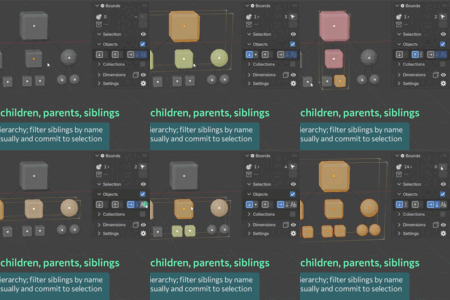
Nova Bounds operates on a Bound Selection — an intelligent combination of directly selected objects (selected by Blender’s regular means), their derived relatives (children, parents, siblings), and collected objects (objects from selected collections).
Selection Overview
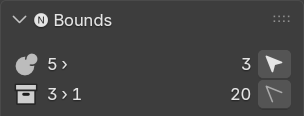 At the top of the panel, you’ll see a quick overview of your current bound selection. On the left, icons display selection counts:
- Objects (Objects icon) — Directly selected objects count and derived objects count (two numbers separated with ›)
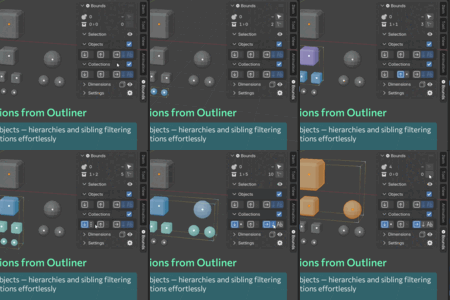
- Collections (Collection icon) — Objects from selected collections and from derived collections
Tip: Click the icons to quickly toggle whether Nova Bounds operates over objects or collections.
On the right side are two buttons for committing bound selection into direct selection:
- Commit Selection — Transfers the entire bound selection to direct selection. The number shows the current total bound selection count.
- Commit Collected — Transfers only collected objects to direct selection. The number shows the currently collected objects count.
Configuring Selection Options
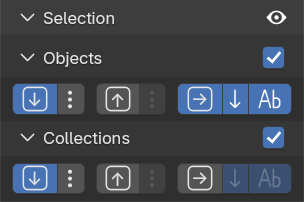 The Selection section contains two subsections to control options for objects and collections independently. Use the checkboxes in each subsection header to toggle whether bound selection operates on them.
For both objects and collections, deriving options are available to automatically include related items in the bound selection:
-
Include Child Objects/Collections (Squared Arrow Down icon)
- Toggle Inclusion Depth — immediate children only or all hierarchy levels (Single/Multiple Dots icon)
-
Include Parent Objects/Collections (Squared Arrow Up icon)
- Toggle Inclusion Depth — immediate parent only or all hierarchy levels (Single/Multiple Dots icon)
-
Include Sibling Objects/Collections (Squared Arrow Sideways icon) — Items that share the same parent
- Include Children of Siblings (Arrow Down icon) — Automatically include children of siblings when Include Child is enabled
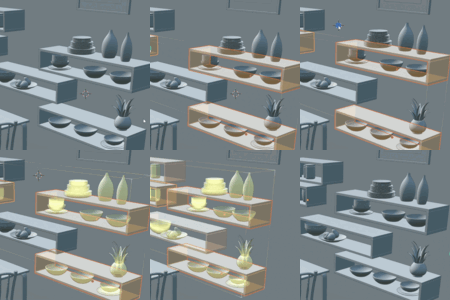
- Match Siblings by Name (Ab icon) — Auto-include only siblings that share name patterns (e.g., differ only in suffix). See Settings for suffix configuration and name matching rules
Working with Selections
Simply select objects normally in the 3D Viewport or Outliner — derived objects will automatically be included in the bound selection based on your settings.
Note: If multiple Outliners are open in your Blender interface, selection synchronization between them may be inconsistent due to Blender API limitations.
Selection Overlay
The selection overlay visualizes your bound selection with color-coded overlays. Toggle visibility with the Eye icon on the Selection section header.
Each selection type displays in a different color:
- Direct selections
- Child, parent, and sibling objects
- Collected objects (from directly selected collections or their child/parent/sibling collections)
Customize overlay colors and shading mode visibility in the addon preferences. Adjust opacity, detail level, and other display parameters in the Settings section.
Bound Dimensions
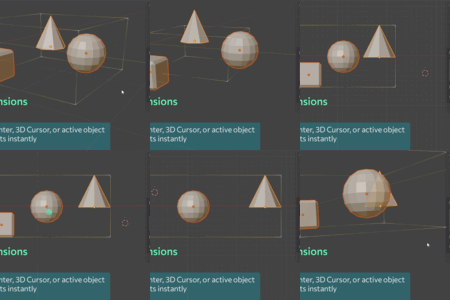
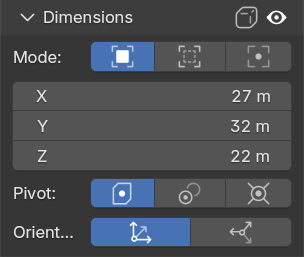 The Dimensions section displays the real-time size of your entire bound selection in scene units, based on the active Bounds Mode and Bounds Orientation. You can edit these values directly to reposition objects on-the-fly. When you adjust dimensions, objects move according to the active Bounds Pivot.
Bounds Mode
Choose how dimensions are calculated:
- Bounding Boxes — Uses objects’ bounding box dimensions
- Centers — Uses objects’ bounding box centers
- Origins — Uses object origins
Bounds Pivot
Set the reference point for dimension adjustments:
- Median Point — Pivot around the bounds’ center
- Active Object — Pivot around the active object (if included in selection)
- 3D Cursor — Pivot around the 3D cursor (if inside the bounds)
Bounds Orientation
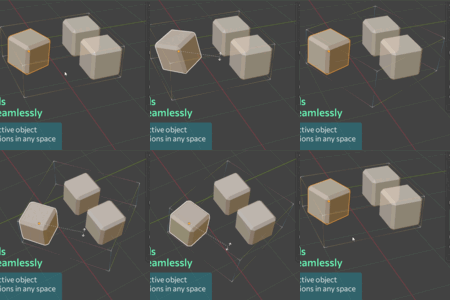
Choose the coordinate space for bounds calculation:
- Global — Align bounds to world axes. Box overlay displays in uniform color.
- Active Object — Align bounds to active object's rotation. Box overlay displays with axis colors (red for X, green for Y, blue for Z).
Bounds Accuracy
Toggle the Soft/Hard Cube icon in the section header to choose bounds accuracy:
- Fast — Use pre-calculated bounding boxes. Less accurate for rotated objects, modifiers, and curves
- Precise — Calculate from actual geometry vertices. More accurate but slower for heavy scenes
Bounds Overlay
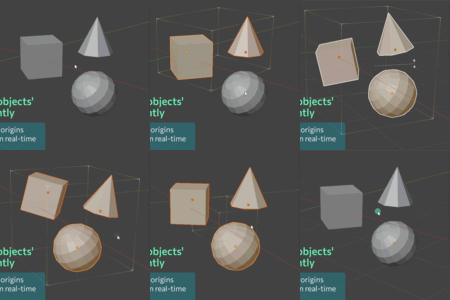
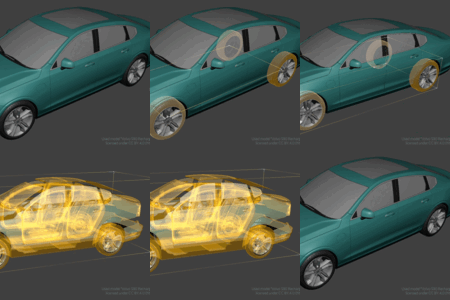
The bounds overlay visualizes your selection’s overall dimensions in real-time with a bounding box. Toggle visibility with the Eye icon on the section header.
The box color indicates the active orientation:
- Global orientation — Uniform color
- Active Object orientation — Box edges colored by axis (red for X, green for Y, blue for Z)
The box corner colors indicate selection composition:
- White — Only direct/derived objects are included
- Bluish — Collected objects are also present
Adjust opacity and see-through settings in the Settings section.
Settings
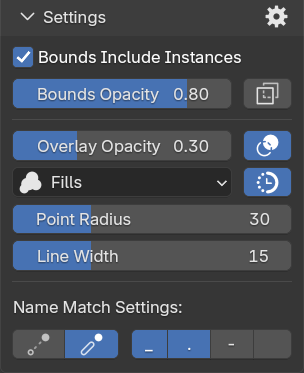 The Settings section provides control over visual appearance and performance.
Click the Gear icon in the section header for quick access to addon preferences.
- Bounds Include Instances — Calculate bounds with instanced geometry (from geometry nodes, particles, and collection instances)
- Bounds Opacity — Transparency of the bounds box overlay
- Show Bounds Through — Display bounds through occluding objects
- Overlay Opacity — Transparency of the selection overlay
- Accented Overlay — Add extra highlighting using additive blending
-
Detail Level — Selection overlay can be displayed with various levels of detail:
- Fills — Complete filled overlay (highest detail, most CPU intensive). For objects with mesh-like representation, fills will be shown over their polygons; for curve-like objects, lines will be overlaid over their segments.
- Bounds — Filled bounding box overlay (balanced performance)
- Points — Single point at origin or bounds center (best performance)
- Auto Degrade — Automatically reduces overlay detail to maintain smooth performance. When enabled, the addon switches from Fills to Bounds mode if rendering timing exceeds the threshold set in the addon preferences. A small warning indicator appears near the Eye icon when degradation is active.
- Point Size — Size of overlay points in viewport
- Line Width — Width of overlay lines in viewport
Note: Objects without geometry (like cameras/lights/empties) will be overlaid with points regardless of the detail level.
Name Match Settings
When auto-including siblings, you can filter to include only siblings that match specific name patterns.
Names are split into chunks by active delimiters. Configure matching behavior:
-
Name Match Mode — Choose matching logic:
- Base — Match names if they share any matching chunks at their beginning
- Suffix — Match names that differ only in the last chunk (names without a last chunk also match)
- Delimiters — Choose which characters separate name parts: Underscore, Dot, Dash, Space
Addon Preferences
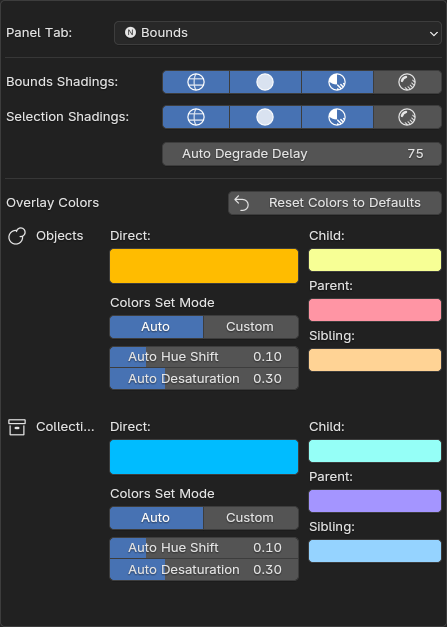 Access addon preferences through Edit > Preferences > Add-ons > Nova Bounds, or click the Gear icon in the Settings section header.
Panel Configuration
Panel Tab — Choose where the panel appears in the 3D Viewport sidebar. Either integrate the panel into the built-in Item or Tool tab, or use a separate 🅝 Bounds tab.
Viewport Display
Selection Shadings — Define which viewport shading modes display the selection overlay (Wireframe, Solid, Material Preview, Rendered)
Bounds Shadings — Define which viewport shading modes display the bounds box overlay
Auto Degrade Delay — Time in milliseconds before automatic overlay degradation is triggered. Lower values prioritize performance; higher values keep detail longer before switching to simpler display modes
Overlay Colors
Set separate colors for the selection overlay to distinguish between direct selections and derived relations: child, parent, and sibling. This applies to both objects and collections.
Colors Set Mode:
-
Auto — Define only the direct selection color. Derived colors are calculated automatically:
- Child and Parent colors shift along the hue scale based on the Auto Hue Shift parameter (parent shifts down the scale, child shifts up)
- Sibling color is a desaturated version of the direct color, controlled by the Auto Desaturation parameter
- Custom — Set any color you like for each selection type independently.
Enjoy a faster, clearer workflow with Nova Bounds!
For questions, suggestions, issues, or support, please contact me:
— Novacrat
Have questions about this product?
Login to message
| Blender Extension Compatible | Yes |
| Sales | 10+ |
| Dev Fund Contributor | |
| Published | 8 months ago |
| Blender Version | 4.2 - 5.2 |
| Extension Type | Add-on |
| Render Engine Used | Arnold, Blender-Internal, Blender-Game-Engine, Cycles, Eevee, Freestyle, Luxrender, Mental-Ray, Octane, Vray, Yafaray |
| License | GPL |
Discover more products like this
productivity Selection Multi-Object bounding box visual overlay real-time bounds Workflow Scene Management bound selection children parents siblings hierarchy dimensions