 Novacrat


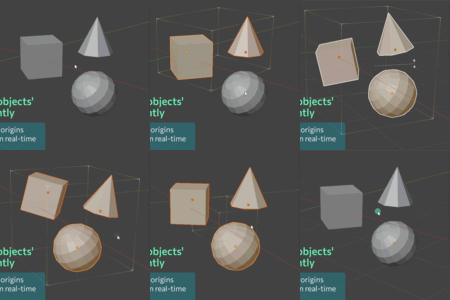
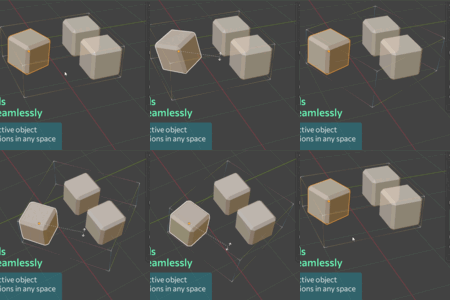
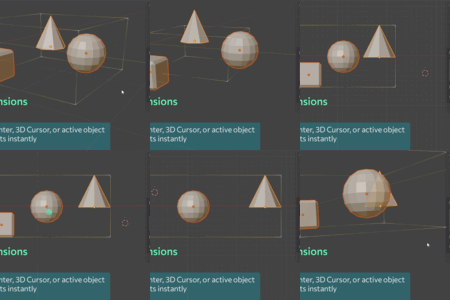
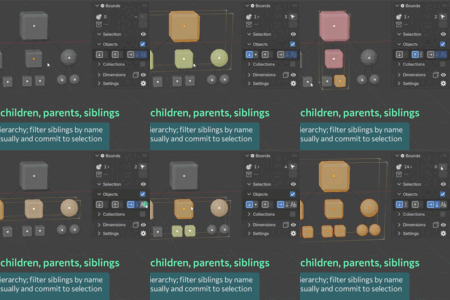
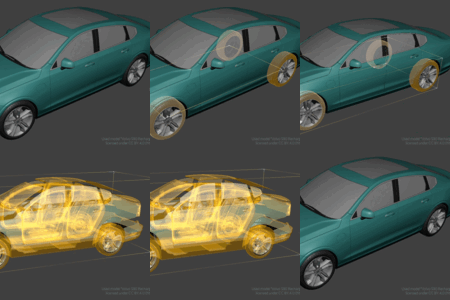
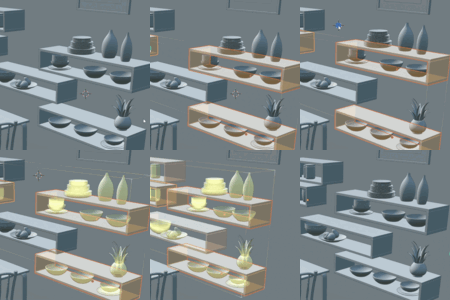
Bound selection intelligently combines your directly selected objects with related objects (children, parents, siblings) and objects from selected collections. This lets you work with complex hierarchies without manually selecting every object. You can commit bound selection to direct selection at any time.
It repositions all selected objects at once so their new bounds match the dimensions you set. In the Dimensions section, simply edit the X, Y, or Z dimension values. All objects in your bound selection will reposition based on your chosen Bounds Mode (overall bounds, centers, or origins) and Bounds Pivot (median point, active object, or 3D cursor).
Global aligns bounds to world axes—useful for world-aligned measurements. Active Object aligns bounds to your active object's rotation—essential for getting accurate dimensions of rotated objects or assemblies.
Fast mode uses pre-calculated bounding boxes—quick but less accurate for rotated objects, modifiers, and curves. Precise mode calculates from actual geometry vertices—more accurate but slower for heavy scenes. Toggle between them with the cube icon in the Dimensions section header.
Of course! If you have a simple scene and don't need advanced selection functionality, simply don't enable auto-inclusion. Bounds dimensions and adjustments will work with directly selected objects just as smoothly.
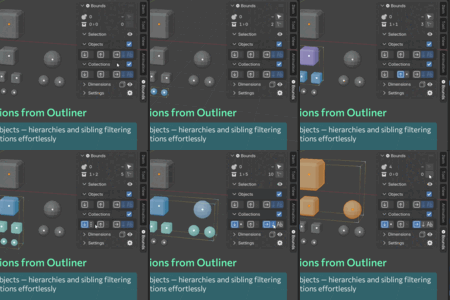
Yes! You can select entire collections from the Outliner with full support for auto-including child, parent, and sibling collections—just like with objects. Toggle collection support with the checkbox next to the collection icon in the Selection section.
Try enabling Auto Degrade in the Settings section. This automatically reduces overlay detail when rendering takes too long, switching from filled overlays to bounding boxes. You can also manually reduce Detail Level or adjust Auto Degrade Delay in addon preferences. For maximum performance in heavy scenes, you can disable selection overlays or temporarily disable the addon's operation over objects and collections with a single click.
Go to `Edit > Preferences > Add-ons > Nova Bounds > Overlay Colors` (or use shortcut of `Gear` icon on Settings Panel). You can use Auto mode (define only direct selection color, derived colors calculated automatically) or Custom mode (set each color independently).
This filters sibling objects to include only those that share name patterns. Configure matching in the Name Match Settings section.
Name Match Mode:
-
Base — Match names if they share any matching chunks at their beginning
— Example: "Chair_Red_01", "Chair_Blue_02", and "Chair" all match (share "Chair") -
Suffix — Match names that differ only in the last chunk
— Example: "Table_01", "Table_02", "Table_L", and "Table" all match (differ only in suffix)
— Example: "Table_Red_01" and "Table_Blue_02" do NOT match (differ in more than just the last chunk)
Names are split into chunks by active Delimiters. You can use any combination of: underscore, dot, dash, and space. By default, underscore and dot are enabled (following Blender naming conventions).
Have questions about this product?
Login to message
| Blender Extension Compatible | Yes |
| Sales | 10+ |
| Dev Fund Contributor | |
| Published | 8 months ago |
| Blender Version | 4.2 - 5.2 |
| Extension Type | Add-on |
| Render Engine Used | Arnold, Blender-Internal, Blender-Game-Engine, Cycles, Eevee, Freestyle, Luxrender, Mental-Ray, Octane, Vray, Yafaray |
| License | GPL |
Discover more products like this
Selection dimensions bounding box real-time bounds hierarchy bound selection children parents siblings Workflow productivity Scene Management visual overlay Multi-Object