Object Groups
 Tachyon Studio

TACHYON STUDIO · DOCUMENTATION
Object Groups
The complete user manual.
Nested groupsSelection setsBlender 3.3–5.2Tachyon Studio · version 0.6.10
Blender 3.3–5.2. Tested on Windows. macOS and Linux have not been tested. See the usage notes for specific operational limits.
JUMP TO A SECTION
CHAPTER 01
Installation and updates
Save your work and make a backup. Install object_groups_legacy_3.3-4.1.zip in Blender 3.3–4.1 through Edit → Preferences → Add-ons → Install. In Blender 4.2–5.2, use Preferences → Get Extensions → menu → Install from Disk with object_groups_extension_4.2-5.2.zip. Menu placement may differ between versions. Verify that Object Groups is enabled in the Add-ons page.
Do not extract the installer, install the source folder, or install both versions. The documentation/demo download is separate and should be extracted normally.
When updating, disable the older copy first. Keep only one enabled Object Groups installation. Restart if Blender still shows the previous UI. Back up project files before testing an update; do not assume older add-on versions can interpret newer saved metadata.
Find the interface in 3D Viewport → Object Mode → N sidebar → Groups. If missing, check the current editor and mode, the enabled add-on entry and any startup errors. Object menu/context menu and viewport header entries are also provided.
Back to contents ↑CHAPTER 02
How groups differ from parenting and Collections
A Group is a logical boundary stored using tagged Collections. Creating one does not add an Empty, replace object parenting or reorganize ordinary Scene Collections. Existing object transforms, geometry and material assignments are preserved by membership operations.
Objects have one direct logical group owner; groups can nest inside other groups. Use Selection Sets for overlapping membership. Groups and Sets are different systems, even though they share the same sidebar.
Disabling the add-on does not delete the assets. Group behavior, selection interpretation and its UI require the add-on. Do not manually edit hidden group metadata or delete its tagged Collections to manage groups.
Back to contents ↑CHAPTER 03
Create groups and nested assemblies
Select objects in Object Mode and choose Create Group. To wrap existing groups, click the first group name, Shift-click another, then Create Group. Two or more selected groups must be siblings, or all roots. Existing nested branches remain intact.
To form a subgroup from direct members, use Edit Contents on the parent, select the members and Create Group. Opening changes editing focus; expanding a triangle merely changes the list display.
If the selected groups have different parents, move them to a common level first. Linked/read-only definitions, ambiguous memberships and invalid structures are rejected before the operation changes the tree.
Back to contents ↑CHAPTER 04
Selection, inspection and editing focus
Group Select is on by default. A viewport click selects a closed group; Shift adds to selection. Double-click enters a group, Alt with the native selection gesture bypasses group selection, and Esc steps out. These are the default bindings; custom keymaps and third-party selection operators can change interaction.
In the sidebar:
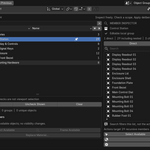
- Click a name to select the group's members; Shift-click adds.
- Click a row background, or use list arrow keys, to inspect without changing object selection.
- Click a triangle to expand/collapse the tree without entering a group.
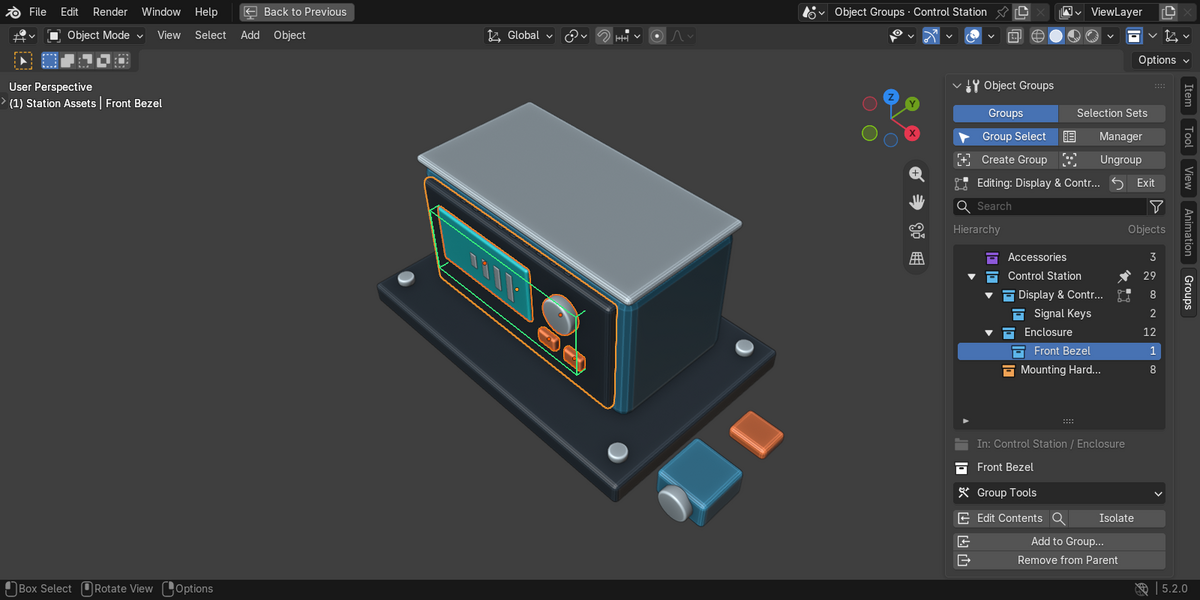
- Edit Contents enters the inspected group; the Editing indicator and Exit control show the active focus.
- Frame adjusts the view. Isolate uses Blender's Local View; it is not a saved visibility preset.
The highlighted row is the inspected group, not a promise that all its members are selected. If hidden, excluded or locked members prevent complete selection, selection remains unchanged while inspection is still possible. Use an explicitly labeled Available action when partial selection is intended.
Group Select startup behavior is configurable. Its temporary toggle lasts until a file load or add-on re-enable applies your saved startup default. Undo/Redo does not forcibly re-enable it.
Back to contents ↑CHAPTER 05
Add, remove, move or ungroup
| Intent | Action | Result |
|---|---|---|
| Put the current selection in an existing group | Add to Group… | Choose the destination explicitly; complete groups stay nested and individual objects transfer direct membership. |
| Keep a subgroup, but take it out of its parent | Remove from Parent | Moves it out exactly one level. A child of a root becomes another root. |
| Take an individual object out | Edit Contents, select it, Remove from Parent | Moves into its owner's parent; leaving a root makes it ungrouped. |
| Delete just a boundary | Ungroup | Keeps objects; child groups move up one level. |
| Move one inspected subgroup | Group Tools → Overview → Move Into… / Move Out | Changes only its logical parent. |
You do not need Edit Contents to add a selection. It is needed only to select individual members inside a closed boundary. Add to Group captures the source selection before presenting the destination dialog. Items already inside the destination retain their existing nesting.
Root groups and loose objects are unchanged by Remove from Parent. The separate Dissolve Entire Hierarchy… removes all logical boundaries in a branch. It is distinct from Delete Group & Objects, which is genuinely destructive: that action removes Object IDs from every Scene and Collection in the file. Never use Delete Group & Objects merely to ungroup.
Ungroup may refuse an asset that exists only in the group Collection. Link it to an ordinary Scene Collection first, so removing the boundary cannot orphan it. Unsupported, cyclic, ambiguous or read-only membership changes are blocked as a whole.
Back to contents ↑CHAPTER 06
Hierarchy browser and Group Tools
Search includes names, tags and notes. Multiple search words must all match. Ancestors remain visible for context, and matching branches are revealed even when normally collapsed.
The filter popup offers All, Favorites, Selected, Editable, Library and Empty. Sort siblings by name, member count or favorites. Adjust Visible Rows from 4 to 30; the default is six. Expand/Collapse All affects the browser display only.
The full-width Group Tools button opens three pages:
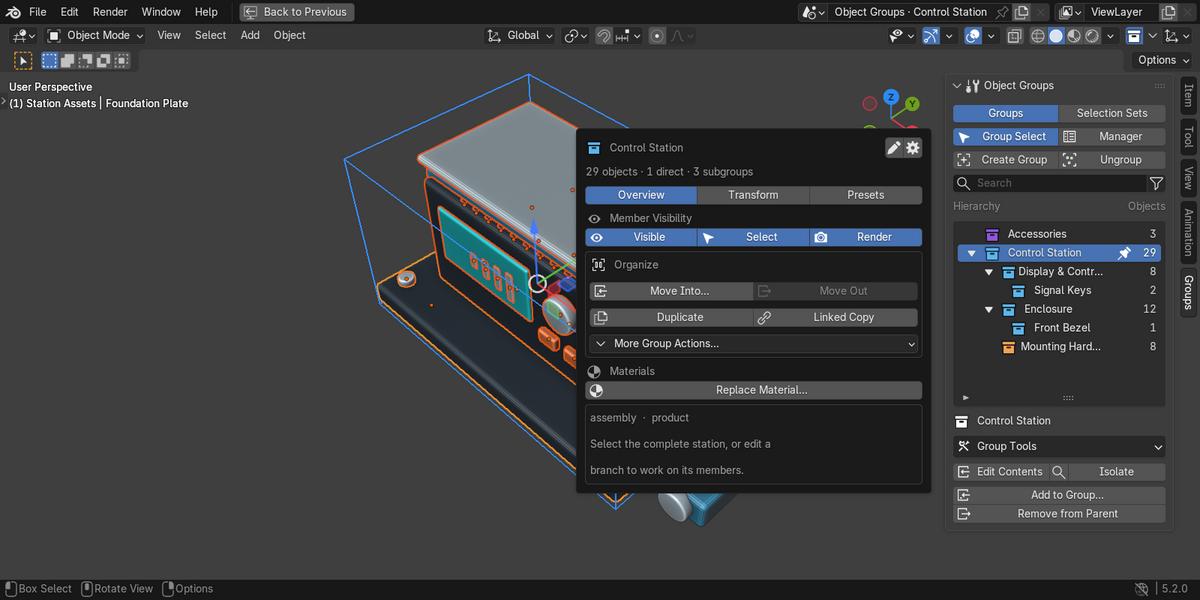
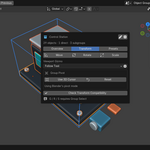
- Overview: member visibility, viewport/render/selectability switches, Move Into/Out, Duplicate, Linked Copy, More Group Actions, materials and metadata.
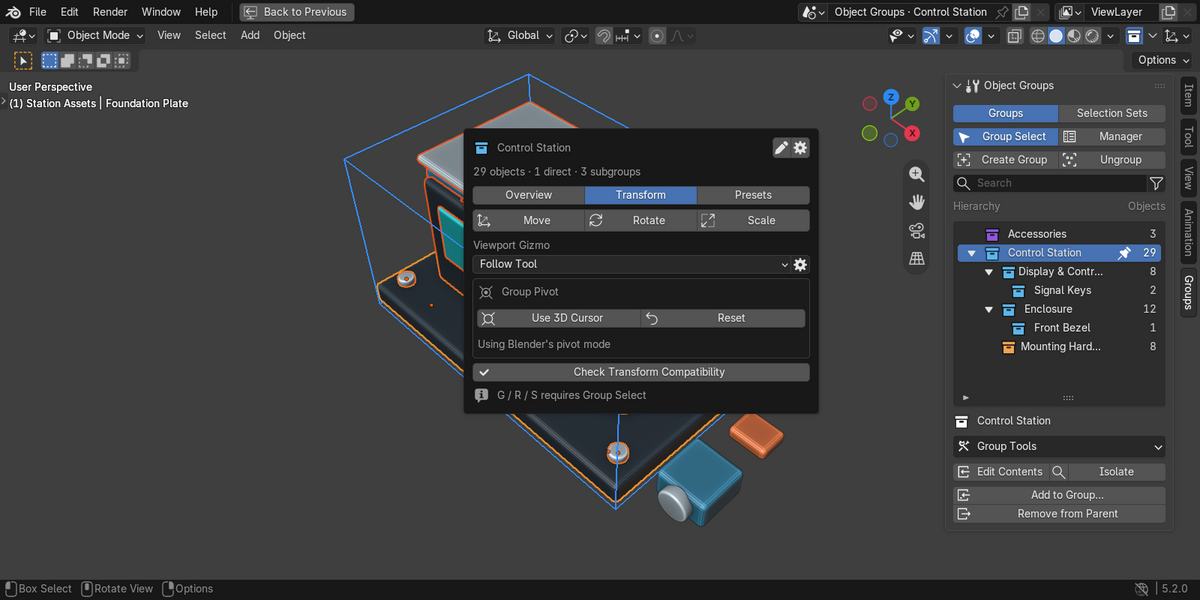
- Transform: group move/rotate/scale, gizmo settings, custom pivot and compatibility checks.
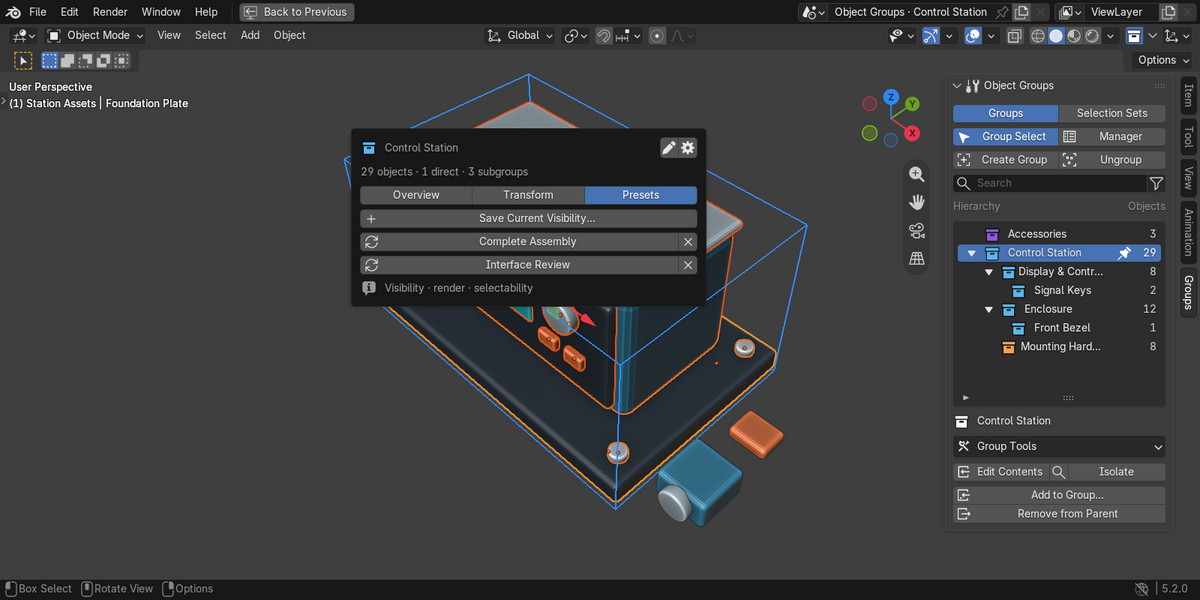
- Presets: capture, restore and delete saved visibility states.
Use the details/settings icon to edit favorites, color labels, up to 16 tags and notes. Labels color the group outline; they do not recolor materials. Independent and linked-data copies inherit metadata, but not favorites or member-specific visibility presets. Duplicates retain Blender's shallow references for targets and Actions; do not assume every constraint or animation dependency is independently copied.
Back to contents ↑CHAPTER 07
Selection Sets
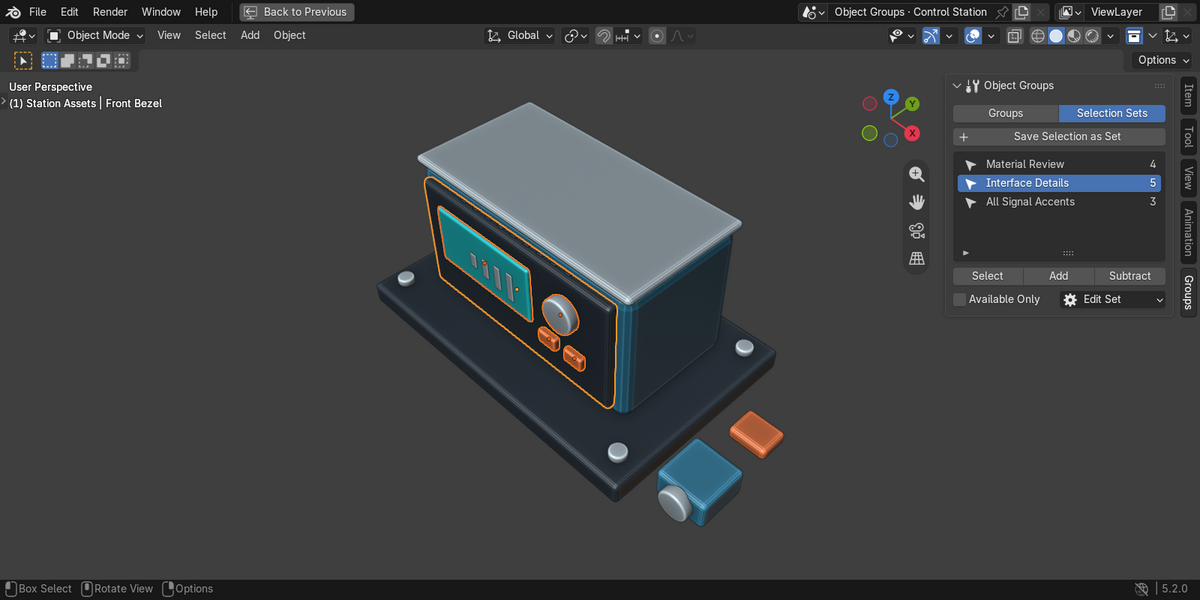
Switch from Groups to Selection Sets. Select objects and use Save Selection as Set. The same object may appear in multiple sets without changing group, object parent or Collection membership.
Select, Add and Subtract recall exact real objects, without expanding closed groups. Edit Set provides member inspection, Add Selected, Remove Selected, Replace with Selection, Rename and Remove Set. These actions edit only the saved set record. Removing a set keeps every object.
Recall checks all members first. Hidden, locked, excluded, deleted and out-of-scene members cancel exact recall. Available Only explicitly skips unavailable members without unhiding or unlocking them. Recalling a set clears semantic group-selection markers, so G/R/S targets the recalled objects rather than an unrelated group boundary.
Sets survive object renames and save/reopen. They belong to the Scene: append the Scene to transfer them. Appending individual objects or Collections does not transfer Scene-owned sets. Linked/override Scenes are recall-only. Maximum: 1,024 sets per Scene and 100,000 members per set. Sets are static, not rule-based or evaluated Geometry Nodes instance selections. Stored pointers may keep detached datablocks alive until their records are removed.
Back to contents ↑CHAPTER 08
Group Manager and scoped materials
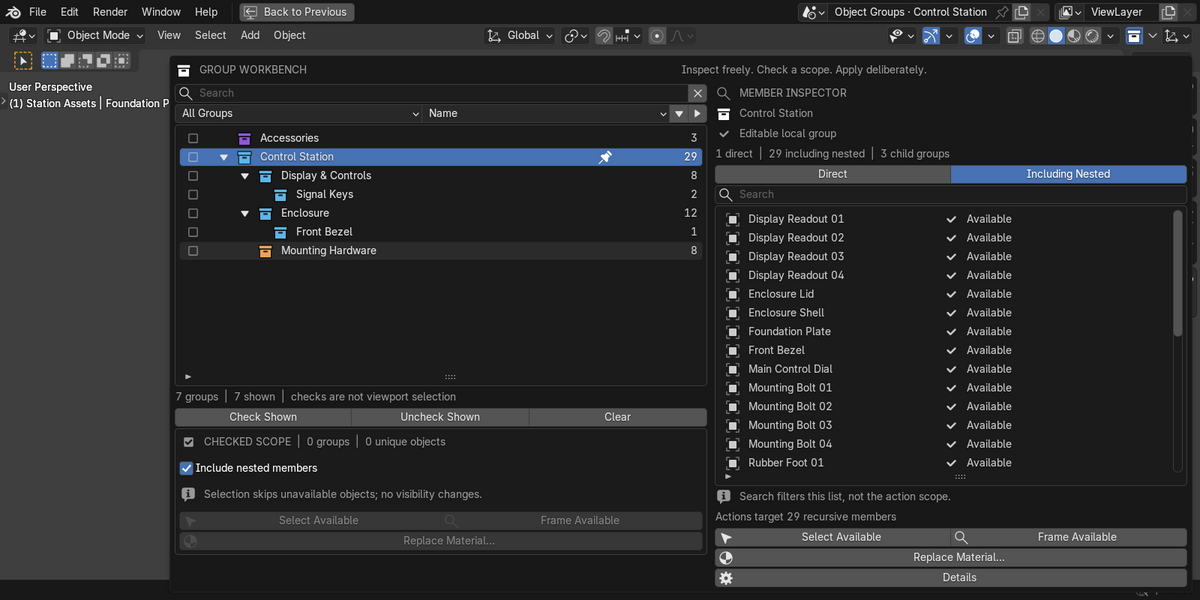
Open Manager for a wide hierarchy and member browser. Names inspect; checkboxes define a separate batch scope. Shift-click checkboxes for a visible range, or use Check Shown/Matches. Filtering and inspection do not silently retarget the checked scope.
Choose direct or recursive membership. Overlapping parent/child scopes are deduplicated. Member search filters display, not operation scope. Select Available skips unavailable members explicitly; Frame Available restores previous selection afterward.
Replace Material…, in Group Tools or the Manager, uses existing source and target materials. Inspect its matching-slot counts and blockers before confirming. It changes assignments, not the materials themselves. Mesh and legacy Curve/Surface/Font slots are supported; unsupported matching types or linked/override writes can block the transaction.
If shared object data has users outside the chosen scope, replacement is blocked instead of affecting outsiders. It does not automatically make data single-user or create overrides. Changes to membership, material slots or shared users invalidate the preview. Repeat/Adjust Last is intentionally unavailable for this scoped dialog.
Back to contents ↑CHAPTER 09
Auto Group, renaming and visibility presets
The panel-header Group Utilities → Auto Group can partition eligible selected objects by Object Type, Active Material, Scene Collection or Name Prefix. Preview counts and names first. Objects must be ungrouped or direct members of the currently open group. Multiple ordinary Collection memberships use the first alphabetically. These rules run once; they do not continuously reassign membership.
Group Tools → Overview → More Group Actions → Batch Rename Branch… previews names using prefix/suffix and tokens such as {name}, {n} or {n:03d}. Membership and identities stay unchanged.
In Group Tools → Presets, Save Current Visibility captures member viewport hide/disable state, selectability and render visibility. Restore affects those states, not transforms or keyframes. Presets do not include Collection visibility, View Layer exclusions or Local View.
Restoration checks membership, nested topology, editability, Scene name and View Layer name. Recapture after changing those. Limits: 32 presets per group, 100,000 members per preset. Read-only library members cannot be captured/restored. Preset pointers can retain detached member datablocks.
Back to contents ↑CHAPTER 10
Transforms, gizmos and animation
Group-aware G/R/S requires Group Select and a selection exactly representing group boundaries. Mixed selections use Blender's normal transform behavior. The broker preflights the group and transforms its object-parent frontier so that parented members are not intentionally transformed twice. Temporary member access is restored on normal confirmation or cancellation.
Gizmo modes: Auto/Follow Tool, Move, Rotate, Scale, Universal and Off. Frames: Global, Active Object or View. Active Object supplies one shared frame, not a different local transform for each member. Size and plane handles are adjustable. Turn off overlapping native Object/tool gizmos manually if both appear.
Use Group Tools → Transform → Use 3D Cursor for a custom group pivot, or Reset to return to Blender's pivot mode. Group transforms do not create controller objects or group animation channels. Auto-keying uses transformed frontier objects, not a separate group channel. Review keyframes and playback after transforming animated assemblies.
CHAPTER 11
Preferences and support
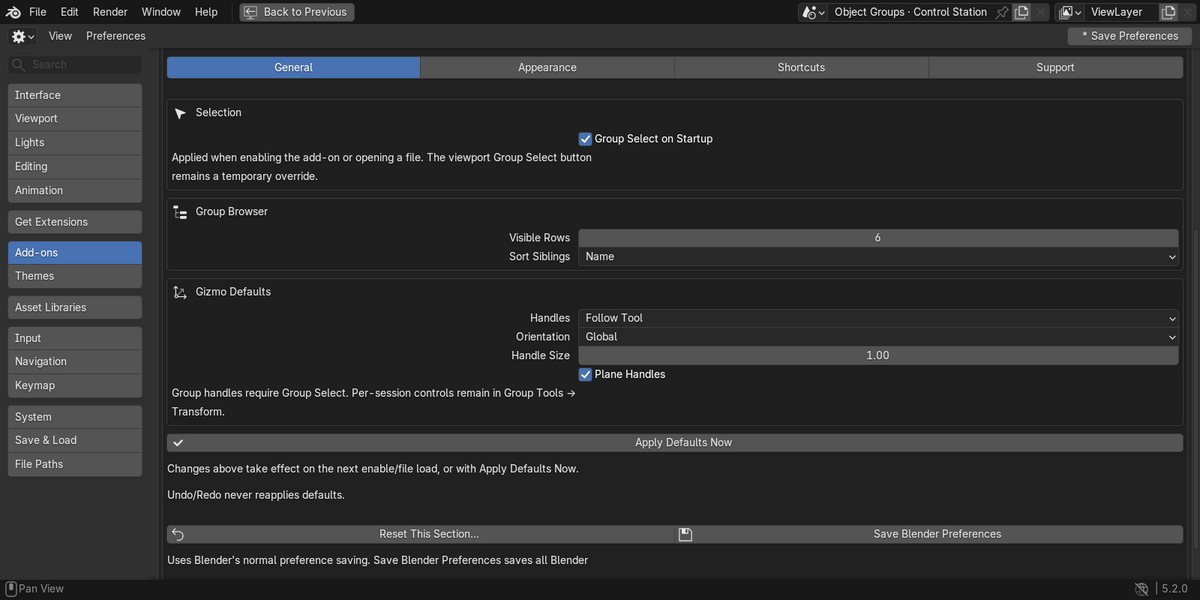
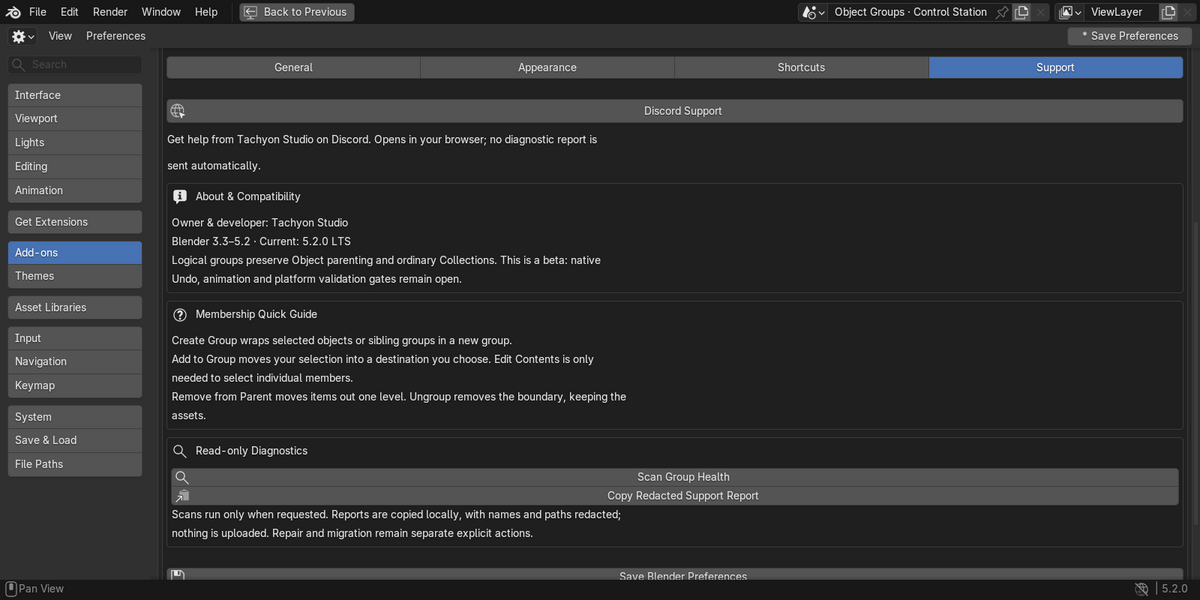
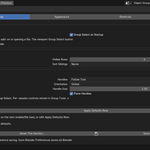
Open Edit → Preferences → Add-ons → Object Groups, or Group Utilities → Preferences….
- General: Group Select startup, browser height/sort, gizmo defaults. Apply Defaults Now changes the current session without changing assets; otherwise defaults apply on enable/file load.
- Appearance: white/custom/native icons, outlines, pivot markers and colors. Changes are immediate and respect Blender's Show Overlays.
- Shortcuts: interaction reference, native Keymap editor and explicit conflict scan. Opening the page or checking does not change bindings. After changing Blender's selection mouse button, toggle Group Select off/on or apply defaults.
- Support: Discord link, version information, read-only health scan and redacted support report.
Reset This Section is confirmed and limited to General or Appearance. Save Blender Preferences saves all Blender preferences, not only this add-on. Blender's normal preference autosave still applies.
For help, use Tachyon Studio Discord. Include add-on version, Blender version, OS, steps, expected/actual result and a minimal non-sensitive example when possible. Review any locally copied diagnostic report before sharing it. The add-on does not upload it automatically. The Discord button opens an invite only on click; it does not join or post for you.
Back to contents ↑CHAPTER 12
Libraries, diagnostics and compatibility
Library/override group definitions are structurally read-only. Create Local Wrapper provides local organization, not automatic library editing or guaranteed override resynchronization. Import review, health scans, migration and repair remain explicit operations; review their targets and keep backups. Do not manually replace UUIDs to bypass a collision warning.
Windows is the tested platform. macOS and Linux have not been tested. The Blender version range does not imply compatibility with every third-party keymap or operator.
Automatic Library Override creation and guaranteed resynchronization are not provided. Custom keymaps and third-party selection operators can affect interaction. There is no native Outliner drag/drop integration, controller/assembly mode, bone/component grouping or evaluated instance-part selection.
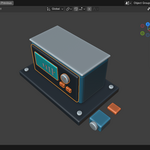
The supplied demo uses only generated local geometry/materials, with no external texture dependency. It includes its own camera/lights and a text quick guide. Keep the original 3.3 file if saving copies in newer Blender versions.
Source and license: GPL-3.0-or-later; see LICENSE. Marketplace support/update arrangements are separate from the code license and must be read on the approved product page.
MADE BY TACHYON STUDIO
A clearer way to work with assemblies.
Object Groups 0.6.10 · GPL-3.0-or-later
Tachyon Studio DiscordMore from Tachyon StudioIllustrated feature reference
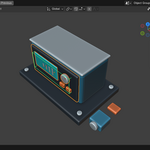
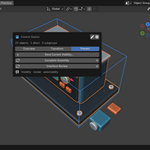
Existing interface and workflow demonstrations, collected here alongside the written instructions.
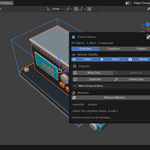
Control station selected as a complete group beside the nested hierarchy and membership controls.

-
$5.24 $6.99
For 1 person (1 seat). Commercial use included.
-
$20.97 $27.96
For a team of up to 6 people (6 seats). Commercial use included.
-
$52.43 $69.90
For a studio of up to 20 people (20 seats). Commercial use included. Need more than 20 seats? Contact us directly.
Have questions about this product?
Login to message
| Blender Extension Compatible | Yes |
| Published | 14 days ago |
| Blender Version | 3.3 - 5.2 |
| Extension Type | Add-on |
| Render Engine Used | Cycles |
| License | GPL |
Discover more products like this
Object Management grouping Workflow nested groups selection sets scene organization product-modeling