Object Replacer
 Zuhair Umer




Object Replacer — Documentation
Version 1.1.2 · Author: Zuhair · Blender 3.6+
Overview
Object Replacer is a Blender addon for replacing GLB-imported objects with high-quality assets from your library. It automatically handles alignment, rotation, and scaling so you don't have to manually reposition each object. Built for architecture, urban, and environment pipelines where GLB exports from GIS or BIM tools need to be swapped with production-ready assets.
Installation
- Go to Edit > Preferences > Add-ons
- Click Install... and select the
object_replacer.zipfile - Check the checkbox next to Object: Object Replacer
- The panel appears at View3D > Sidebar > Object Replacer (press N to open the sidebar)
Panel Layout
The panel is divided into six sections: Library Collection, Keyword Rules, Alignment, Output, Detection, and Finalize.
Step-by-Step Workflow
1. Set the Library Collection
Point the addon at the Blender collection that holds your library assets. All objects inside it become available for replacement.
2. Refresh Keyword Rules
Click Refresh Rules from Collection. This populates one rule entry per library object. For each entry, type a keyword — any GLB object whose name contains that keyword (case-insensitive) will be mapped to that asset.
Example: library object StreetLamp_01, keyword lamp → any GLB object named lamp_23, Streetlamp, LAMP_north will all match.
3. Detect Objects
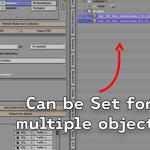
Either select your GLB objects in the viewport and click Auto-Detect from Selection, or click Detect from Scene to scan the entire scene automatically (excluding the library collection and any archived originals).
4. Review the Mapping List
Each row shows a GLB object → library asset pair. A green checkmark means matched; a red error icon means unmatched. You can manually assign or fix any row by clicking the object fields.
5. Replace
- Replace Active — replaces only the currently highlighted mapping row.
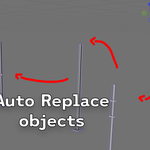
- Replace ALL Objects — replaces every matched pair in the list at once.
6. Fix Any Alignment Issues
Use the Post-Replace Fixes if objects came out wrong.
7. Finalize
Click Finalize Replacements when you're happy with the result. This re-parents replaced objects to their original parent empties and permanently deletes the archived originals.
Alignment Settings
| Setting | Description |
|---|---|
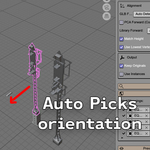
| GLB Forward | Which world axis the GLB objects face. AUTO derives it from face normals and bounding box. Override if auto-detect gets it wrong. |
| Up Axis | +Z for standard scenes, +Y for Y-up imports. |
| PCA Forward | Uses Principal Component Analysis on the bottom vertices to determine facing. More reliable than normals for complex or IFC geometry. Only active when GLB Forward is set to AUTO. |
| Library Forward | Which axis your library assets natively face. AUTO detects it per object from face normals. Override to +X, -X, +Y, or -Y if needed. |
| Match Height | Uniformly scales each replacement to match the GLB object's bounding box height. On by default. |
| Use Lowest Vertex as Anchor | Uses the average of the actual lowest mesh vertices as the ground anchor point instead of the bounding box bottom. More accurate for asymmetric or protruding geometry. |
Output Settings
Keep Originals — Instead of deleting GLB objects, moves them to a hidden collection called _GLB_Replaced_Originals. Lets you recover them if something goes wrong. Enabled by default.
Use Instances — Creates linked duplicates instead of full mesh copies. All replacements of the same asset share one mesh data block. Saves memory in scenes with many repeated objects like bollards or lamps.
Post-Replace Fixes
These operate on whatever objects are currently selected in the viewport.
Flip Upside Down — Rotates 180° around the object's local X axis through its bounding box center. Fixes objects that came out upside-down without affecting their facing direction.
Flip Facing — Rotates 180° around world Z through the bounding box center. Fixes objects that are facing the wrong direction (front-to-back reversed).
Clean .001 Suffixes — Strips Blender's automatic .001, .002 etc. duplicate suffixes from selected objects and their mesh data blocks. Useful for keeping the scene clean after batch replacement.
CSV Preset Export / Import
Keyword rules can be saved and reused across projects.
Export CSV — Saves all current rules to a .csv file with two columns: lib_object and keyword.
Import CSV — Loads rules from a CSV file, clearing the current list first. If a lib_object name in the CSV doesn't exist in the current library collection, a warning is shown but the rule is still imported.
The CSV format is plain text and can be edited in any spreadsheet application.
Finalize
Finalize does two things in one click:
- Re-parents every replaced object to its original GLB's parent empty, preserving world transform (the object doesn't move).
-
Deletes all objects in the
_GLB_Replaced_Originalsarchive collection and removes the collection itself.
Run this as the last step once you're satisfied with the replacements.
Custom Properties
Each replaced object gets the following custom properties automatically:
| Property | Value |
|---|---|
source_glb_name |
Name of the original GLB object |
replaced_by_dcc |
True — used internally to identify replaced objects |
source_glb_parent |
Name of the original object's parent empty (if any) |
Tips
- Keywords are matched as substrings, not exact names. Short, specific keywords like
bollard,sign, orlampwork best. - Run Detect from Scene after importing a fresh GLB file without having to re-select anything.
- Use Preview Alignment to test how a library asset will be rotated before committing to a full replace.
- If most objects in your scene come out upside-down, enable Auto Flip (the toggle next to Replace ALL) to apply the flip automatically during batch replacement.
- Use instances when replacing large numbers of identical objects to keep file size small.
- Finalize only when you're done — it permanently deletes the originals.
Requirements
- Blender 3.6 or higher
- No external Python packages required
Have questions about this product?
Login to message
| Published | 3 months ago |
| Blender Version | 3.6 - 5.2 |
| Extension Type | N/A |
| Render Engine Used | Cycles |
| License | GPL |
Discover more products like this
3dartistproductivity addon 3d find replace find-and-replace Replace object replace workforce Workflow productivity