Object Scatter
 Tachyon Studio

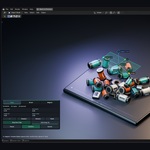
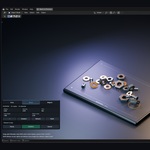
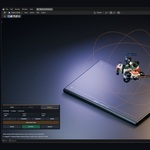
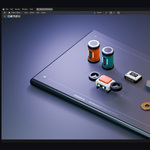
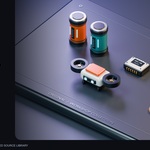
Object Scatter
By Tachyon Studio · Version 0.8.33
Object Scatter places mesh assets using a temporary physics simulation. Drop individual copies, paint falling copies with a brush, or attract selected objects with a magnet. Confirm produces a static arrangement for further scene work.
Requirements and download choice
One installer supports Blender 3.x, 4.x and 5.x, starting at Blender 3.0. Installation and core workflows have been tested on Windows in 16 builds from 3.0.1 through 5.2.0. Exact build coverage is listed at the end of this manual. macOS, Linux and future Blender releases have not been qualified.
Work in a local scene, in Object Mode, from the 3D Viewport. Use mesh geometry; mesh/Empty parent hierarchies are supported as described below. The addon uses Blender's included physics and Python components. It has no activation account, external asset service, downloaded Python dependency, or required internet connection.
| File | Purpose |
|---|---|
| object_scatter-0.8.33-universal.zip | The single addon installer for Blender 3.x, 4.x and 5.x |
| object-scatter-0.8.33-documentation.zip | Extract separately: written guides, license and three procedural example scenes with their local library |
| Object-Scatter-Workshop-Showcase.zip | Original props and presentation scenes. Full studio scene: Blender 5.2. Separate prop library: Blender 3.0.1 format |
Install the universal ZIP directly without extracting it. Do not install the documentation archive or an outer publishing folder.
Install, update and remove
Open Edit → Preferences → Add-ons. In Blender 3.0–4.1, choose Install. In Blender 4.2 and newer, open the upper-right menu and choose Install from Disk. Select the same universal ZIP and enable Object Scatter. Search Add-ons for Object Scatter if necessary. Blender 4.2+ installs it as an Extension and shows the Discord link in its Website field.
In the 3D Viewport, switch to Object Mode, press N, and choose the Object Scatter sidebar tab. The panel header contains a gear for preferences and ? for contextual help. Widen the sidebar if labels are clipped.
Before updating, finish or cancel placement and save a backup of the blend file. Install the new ZIP in the same format and repository, then restart Blender to load all changed modules. Check the displayed version. Do not enable legacy and Extension copies together. Switching formats is a separate migration: back up the blend and record preferences first, because preferences are identified by the installation's module namespace. Migration between arbitrary older versions and repositories has not been qualified for this customer package.
To remove the addon, finish or cancel placement, save your work, then disable and remove its installation in Preferences. Committed meshes remain ordinary scene objects. Removal does not automatically delete result collections, source meshes or your saved blend files.
First placement
- Put a cube at Z = 3 above a large plane at Z = 0. Select only the cube.
- Open Object Scatter, choose Drop, and enable Use Visible Scene under Collision Surfaces.
- Leave Physics Quality at its default Draft, then click Drop Selected.
- The selected cube falls. Choose Confirm while running to wait for it to settle and finish.
- Once placement has ended, use Blender Undo to restore the starting pose. Use Esc during placement to cancel instead.
No source collection is required for selected-object placement. For emitted copies, create a source collection, choose it under Copy Sources, and use Start Drop Copies instead.
Simple and Advanced views
Simple contains the active tool's main controls, shared copy scale, physics quality, gravity, collision surfaces and starting actions. Advanced adds collapsed sections for asset weights, variation, physics details, collision groups, diagnostics, saved object groups and results. Both views edit the same settings; switching views does not reset your setup.
Choose Drop, Brush or Magnet before starting. During placement, the viewport toolbar follows the tool and current state. Its numeric cards can be adjusted directly. Input that is unavailable during replay or settling is disabled.
Collision surfaces
Use Visible Scene captures eligible visible meshes in the active view layer as static receivers. For copy placement, source hierarchies and custom proxies are excluded. Keep a floor or container outside Copy Sources, or use manual surfaces. For selected placement, moving meshes are excluded, so a floor may share the source collection. The panel distinguishes copy and selected surface counts when they differ.
With Use Visible Scene off, choose a receiver Collection, add individual meshes through Individual Surfaces → Add Selected, or combine both. Entries are deduplicated. Click a list row to select it; Shift-click selects a range, Ctrl-click toggles individual entries. The minus button removes selected entries from the list, not the scene. Objects still included through the collection remain receivers.
Receivers use evaluated geometry captured when the operation starts. They do not animate or update during the operation. Choose Mesh receiver collision for a concave tray or bowl: a Box or Convex Hull fills cavities. Asset and receiver collision-group masks need at least one shared group.

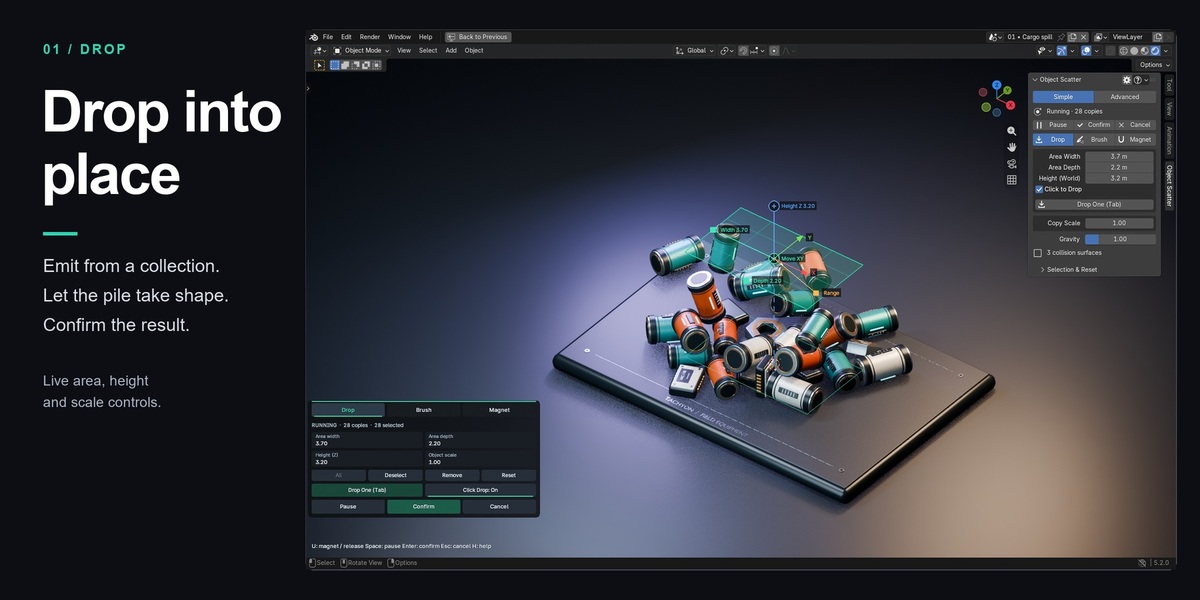
Drop: emit copies
- Choose a collection with reusable meshes under Copy Sources. Click its refresh icon after changing membership. Advanced offers Child Collections for nested collections.
- Set Area Width, Area Depth and Start Height. Start Height is above the 3D cursor along world Z. Position the cursor above the intended working area.
- Set collision surfaces, then click Start Drop Copies.
- Press Tab or click Drop One to emit a weighted source into the rectangle. Clicking a receiver positions the emitter and emits once when Click to Drop is enabled. Turn that option off to position only.
- Move the emitter with its handles, G for XY or Z for height. B adjusts area range and S adjusts future copy scale. Live height/coordinates are world values.
- Confirm to finish, or Esc to discard the operation's copies.
Clicking an already simulated object selects it. It does not turn on collision display. Show Collision Shapes is an explicit option in Advanced. New drops keep their normal visual geometry.
The rectangle is the actual emission footprint. Its lower guide is a horizontal reference at the sampled receiver height, not a guarantee that every location has a surface. Avoid Overlapping Spawns makes a limited number of conservative placement attempts; a crowded or obstructed emitter may skip a drop.

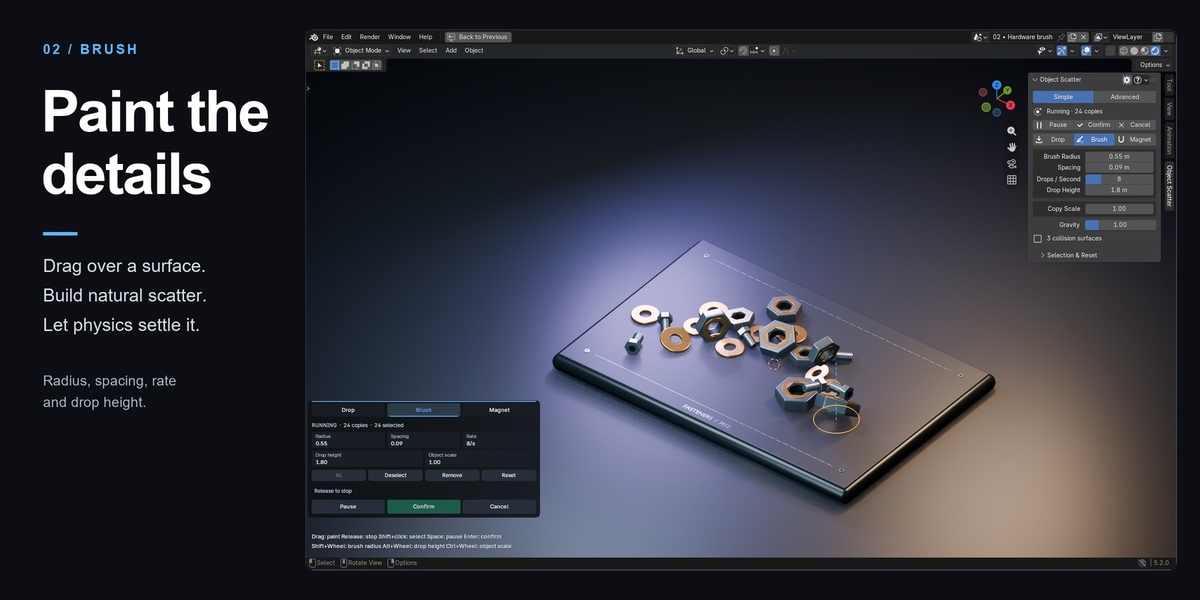
Brush: paint falling copies
Choose Copy Sources and collision surfaces, select Brush, and click Start Brush. Hold the left mouse button and drag over a receiver. Release to stop painting.
| Control | Meaning |
|---|---|
| Brush Radius | Horizontal footprint around the sampled surface position |
| Spacing | Minimum cursor travel between drops; zero permits stationary spraying |
| Drops / Second | Emission-attempt rate, from 1 to 30; it is not a guaranteed object count |
| Drop Height | Vertical height above the sampled surface |
Rate and spacing both apply, and failed overlap checks or gaps can skip drops. A slow viewport does not produce a delayed emission burst. Brush placement projects vertically: use ordinary Drop positioning for vertical walls and deep overhangs.
Shift-wheel changes radius; Alt-wheel changes height; Ctrl-wheel changes future copy scale. Shift-click selects a simulated object. Painting needs running physics. Pause, navigation, leaving the viewport or activating Magnet ends a stroke. After resuming, start a new stroke with a new mouse press.
Brush uses the same weights, random scale, rotation, geometry preparation and body limits as Drop. Running Confirm ends the stroke and waits for settling. Paused Confirm keeps the current pose immediately.

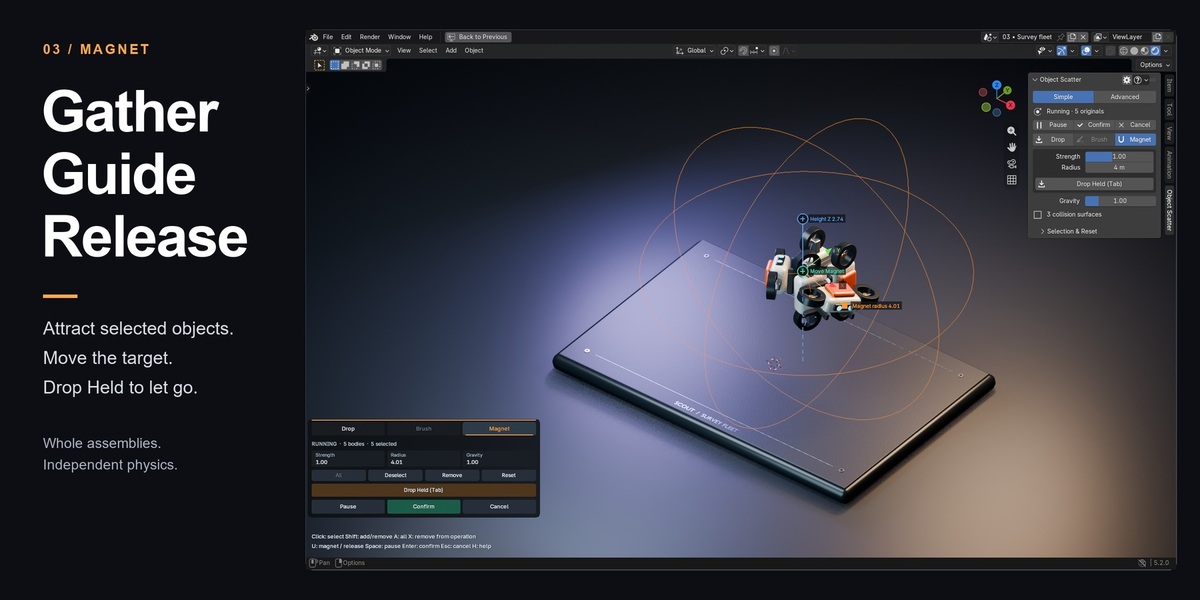
Magnet: move and release placement objects
Select meshes or an Empty parent, configure collision surfaces, choose Magnet and click Magnet Selected. The initial magnet is centered on the selected bodies and its radius is fitted to include them. You can also switch an existing copy session from Drop or Brush to Magnet.
Drag the magnet center or its axis handles, or use G/Z. Strength is a multiplier: 1.00 is the normal pull, 0.50 half and 2.00 double, with a range from 0 to 2.50. Radius limits the attraction region. Advanced exposes Damping, Smoothing (s) and exact world position. Smoothing zero follows immediately; larger values soften direction changes. Gravity 1 uses the scene's gravity, while 0 removes gravitational acceleration.
Attraction is soft, so objects can lag or be blocked by collisions. Only dynamic objects in this placement respond. After explicitly selecting bodies, the magnet affects only selected bodies inside its radius; other bodies continue falling and colliding.
Drop Held / Tab releases attraction with the current momentum and resumes paused physics so objects can fall. U toggles attraction while preserving the pause state. To attract again, activate Magnet. Running Confirm releases attraction and waits for settling; paused Confirm preserves the visible pose. The obsolete Attraction Off toolbar button is not part of this version.
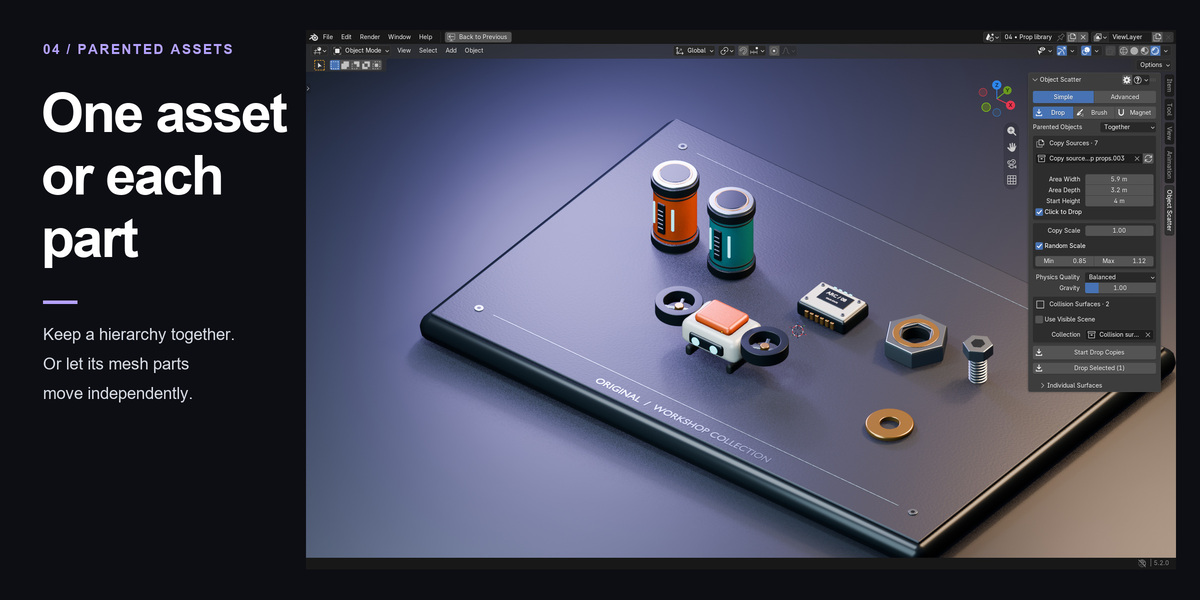
Selected objects and parented assets
Drop Selected and Magnet Selected move existing objects. They do not need Copy Sources. Select the intended meshes or Empty parents before starting. Drop Selected intentionally has no emitter gizmo; switching to Magnet supplies magnet controls.
Set Parented Objects before the operation:
| Mode | Drop/Brush copies | Selected placement |
|---|---|---|
| Together (default) | Each complete mesh/Empty hierarchy becomes one combined evaluated mesh copy and one body | Each hierarchy moves as one body; original separate objects and parent links are retained |
| Separately | Each mesh part is an independent weighted source, sampled one part per emission | Each mesh is a separate body and can move independently; Confirm preserves the visible world poses and parent links |
Selecting a child expands to its topmost supported hierarchy, including unselected siblings and nested parents. Multiple selected members are deduplicated. A source hierarchy can include descendants in other collections; keep all those members in the active view layer. Group and part weights survive mode switching. Reset retains the mode chosen at session start.
Selected placement requires local editable mesh/Empty object hierarchies. Object animation, constraints, existing rigid bodies, library overrides, bone/vertex parenting, instances, and non-mesh children such as cameras/lights are rejected. Prepare an editable mesh/Empty copy for those cases. Geometry Nodes must output realized mesh geometry. These selected-original restrictions do not mean all linked library sources are unsupported for emitted copies.
Originals are temporarily hidden during selected placement. Confirm applies poses while retaining original meshes, modifiers, materials and collection membership. Cancel restores the original local transforms, parent inverses and visibility. Removing a simulated hierarchy restores that hierarchy; removing an independent mesh restores that mesh. Other scene objects cannot be added to an already running selected operation.
Copy scale, weights and geometry
Copy Scale and Random Scale are shared by Drop and Brush. Random Scale applies one uniform multiplier across XYZ; Min 0.75 and Max 1.25 produces 75–125% of Copy Scale. Changes affect future copies, not existing bodies. These controls are hidden for selected originals and Magnet because they do not resize those objects.
In Advanced Assets & Weights, enable assets and set relative weights. Weight 3 is three times as likely as weight 1 over many drops, not a promise of an exact small-sample ratio. Zero weight excludes an asset. Individual assets can override collision shape, use a custom proxy, and have a built-in icon or local PNG. PNGs are limited to 4 MB and 2048 × 2048; external asset icons are not automatically packed into blend files.
Advanced Copy Variation · Drop & Brush controls seed, orientation, snapshots and random rotation. Ordinary static sources may share mesh data with copies, so later mesh edits can change those copies. Modifiers, shape keys, reflections and shear use evaluated snapshots automatically. Snapshot All Sources also freezes ordinary meshes. Geometry is sampled once per source at session start; changes to sources/modifiers during placement require a new operation.
Geometry Nodes must produce a mesh component. Add Realize Instances for instance output, or convert curves/points to meshes in the graph. Receivers always use evaluated snapshots. Supported linked mesh sources can produce local output objects referencing linked mesh data; keep their library files available.
| Collision shape | Best use and limit |
|---|---|
| Convex Hull | General solid props; fills holes and bridges concavities |
| Box | Simple block-like objects; uses bounds |
| Sphere | Roughly round objects; uses a bounding sphere |
| Mesh | Concave surfaces; active triangle collision costs more and may be unstable with thin or complex geometry |
A per-mesh custom proxy is authored in the source's local mesh coordinates. Its object transform and modifiers are ignored. Change proxy vertices in Edit Mode to align it. For Together assets, child proxies are combined; an Empty-root proxy represents the whole group. Use Geometry Diagnostics → Check Geometry to inspect prepared visuals, proxies and warnings before placement.
Collision Preview → Show Collision Shapes draws orange assets and optional blue receivers. Very complex meshes use a bounds-only display. The preview omits margin inflation, so it is a diagnostic aid rather than an exact visible contact surface.
Confirm, pause, selection and Reset
Running Confirm stops emission, releases attraction and enters Settling. Bodies must remain below movement thresholds for consecutive frames before applying automatically. Pressing Confirm repeatedly does not skip that wait. Pause → Confirm applies the visible pose immediately, including airborne or intersecting objects.
Click a simulated mesh to select it; Shift-click adds/removes members. A selects all, Alt+A clears selection. X/Delete removes selected bodies from this operation. Copy removal discards temporary copies; selected-original removal restores those originals instead of deleting them. After an explicit selection action, newly emitted copies stay unselected until selected explicitly.
Reset clears emitted copies or restores the selected operation's starting membership, including removed bodies. It keeps the live control position/settings, restarts the private simulation and pauses. Cancel still returns originals to their starting arrangement.
Esc cancels placement when no field or gizmo adjustment is active. While adjusting a gizmo, Esc/right-click cancels that adjustment first. Finish or cancel placement before using global Undo. After Confirm, native Undo restores the starting arrangement and Redo restores committed poses without resimulating.
Physics quality and practical limits
| Quality | Substeps / solver iterations |
|---|---|
| Draft (default) | 4 / 10 |
| Balanced | 8 / 20 |
| Detailed | 16 / 40 |
Quality is chosen before placement. More detailed settings can improve difficult contacts at additional cost. Advanced exposes mass, friction, bounciness, damping, asset/receiver margins, split impulse and collision groups. This is a visual placement tool, not an engineering simulator.
Defaults limit an operation to 500 bodies, 60 simulated seconds and 100 Blender units of travel. These are safety limits, not performance guarantees. Start with tens of objects, then increase for your assets and workstation. Dense piles and triangle collision can slow simulation substantially. The timer preserves sequential physics frames and slows simulated time under load.
Running Confirm uses a 12-simulated-second settle timeout by default. If it cannot settle, the session pauses rather than silently applying. Inspect the pose, then Confirm it immediately or Resume. A recorded very small (0.1-scale) Draft fixture can reach the timeout; broad small-scale settling reliability is not claimed. Use scale-appropriate margins, simpler shapes, and a higher quality setting when needed, then inspect the result.
Travel and simulation-limit pauses require a deliberate Resume, which grants a new allowance from the current state. Repeated large travel can pause again. Input caps are one million visual vertices per prepared input and 250,000 vertices for active Hull/Mesh collision input. Use simple proxies for dense assets. These caps do not guarantee interactive speed.
Saved groups, results, replay and recovery
Saved Object Groups → New Group from Selected remembers object references for later Drop Group or Magnet Group operations. Add/Remove Selected changes membership; Select Members selects referenced objects. Deleting a group does not delete its meshes. Missing references are skipped. Parented Objects controls how current hierarchies simulate.
Committed results are ordinary static objects grouped in collections such as ObjectScatter_001. In Results & Recovery, select or rename a result, or choose Use as Receivers for later placement. With manual surfaces, retain your floor/container in the receiver list too.
For copied results, Restore Saved Settings, Check Saved Inputs, and Replay into New Set use the saved journal. Keep the original source/proxy/receiver geometry. Changed or missing geometry blocks replay. Reproduction is intended for the same Blender build and input data; cross-version/platform or bit-for-bit determinism is not promised. Brush emissions are recorded as events, not reconstructed from pointer speed. Brush gesture controls are not restored by Restore Saved Settings. Selected-original results are adjusted through Drop Selected or Magnet Selected instead of copy replay.
If a blend is saved during a copy operation, reopening offers Keep Saved Preview or Delete Result. Recovery retains saved poses, not lost velocities. Reopening an interrupted selected-object operation restores the original arrangement. Unsaved interaction is not recoverable after a crash.
Delete Result removes addon-owned copies. Objects also linked elsewhere and unrelated objects added to the result collection are preserved. Remove Result Group preserves selected originals. Make Passive Colliders is a separate explicit action that changes the host scene's rigid-body world; it can invalidate an unbaked simulation and refuses to clear a baked cache. Ordinary placement uses a private physics scene and leaves the host timeline at its original frame.
If cleanup fails after Confirm, the operation pauses: retry Confirm to finish cleanup or Cancel to discard. If cancellation itself fails, retry Cancel. Changing the owning scene, view layer, editor or window cancels active placement.
Preferences and shortcuts
Open the panel gear. Interface controls viewport UI scale, opacity, gizmo labels, hover hints, expanded help at startup, custom tool icons and their accent color. Restore Interface Defaults resets those global appearance values. Shortcuts records placement keys and modifiers, checks conflicts, and offers resets. Unassigned tool-switch/Reset keys can be assigned. The contextual help and toolbar use the current bindings. Help & About contains version, User Guide and Discord support. Save Blender preferences if your setup does not save them automatically.
Default keys apply while the owning viewport handles placement:
| Key / gesture | Action |
|---|---|
| Tab | Emit one copy, or release magnet-held objects |
| Space | Pause / Resume |
| Enter | Confirm: wait while running; apply immediately while paused |
| Esc | Cancel adjustment first, otherwise cancel placement; remains an emergency fallback |
| U | Toggle attraction while retaining pause state |
| G / Z / B / S | Move XY / move vertically / area or radius / future copy scale, where applicable |
| A / Alt+A | Select all / deselect all simulated bodies |
| X or Delete | Remove selected bodies from the operation |
| H | Show/hide expanded viewport help |
| Middle mouse / ordinary wheel | Viewport navigation |
During gizmo adjustment, Shift reduces sensitivity and Ctrl snaps. Tool-specific modified-wheel actions are listed in the Drop, Brush and Magnet sections. Keys do not override typing inside fields. Close the help popover to return keyboard control to placement.
Troubleshooting
| Symptom | Check and action |
|---|---|
| Archive has no blender_manifest.toml | Select the universal ZIP directly, not the documentation ZIP or a folder containing installers |
| Panel missing | Enable the addon; use Object Mode and the 3D Viewport's Object Scatter tab; check duplicate installations |
| Start button unavailable | Provide an enabled source for copies, eligible selected meshes for originals, and at least one collision surface |
| Nothing emits / skipped drops | Check weights and body limits; move the emitter above surfaces or enlarge its footprint; check proxy size |
| Ground disappears from copy receivers | Move it outside Copy Sources or use manual receivers; source hierarchies are excluded in automatic copy mode |
| Parented source emits separate parts | Choose Parented Objects → Together before starting and refresh sources |
| Bevel or Geometry Nodes appears stale | Finish/cancel and start again to rebuild evaluated geometry; realize instances and provide mesh output |
| Objects float / pass through surfaces | Review proxy fit, margins and receiver thickness; use Mesh for cavities and increase quality as needed |
| Magnet seems inactive | Resume physics, select intended current-session bodies, increase radius, check nonzero strength and receiver obstruction |
| Mesh shows a collision outline | Turn off Advanced → Collision Preview → Show Collision Shapes |
| Confirm remains busy or pauses | Settling can time out; inspect, Pause if needed, and Confirm the visible pose or Resume |
| Replay says inputs changed | Restore matching sources/proxies/receivers or start a new placement |
| Slow interaction | Reduce body count, use simpler collision proxies, and commit several smaller sets |
If the issue remains, export a local support report from the Advanced support section after finishing/cancelling, and contact Tachyon Studio. Names are omitted by default; inspect any report and screenshots before sharing. Use a sanitized minimal scene when needed, not a confidential production file.
Example scenes, license and support
The documentation download includes an environment tray, an archviz tabletop and a linked dense-prop example, saved with Blender 3.0.1 so older supported releases can open them. Keep their local library file alongside them. They contain small procedural demonstration assets, not a commercial asset library. Each includes a START HERE text with current instructions, and collision preview is off when opening the examples. Saving them with a newer Blender version can make that saved copy incompatible with older Blender versions.
The addon source and distributed procedural examples use GPL-3.0-or-later. The full license and component notices are included. The three tool icons are original procedural masks; Blender's built-in UI icons are supplied by Blender. The addon does not bundle another product's code, imagery or asset pack. This statement describes the inspected package; it is not a trademark-clearance opinion.
Contact Tachyon Studio on Discord or through Superhive. Discord is optional. No guaranteed response time, paid support period, lifetime updates or future-version compatibility is promised by this build's documentation.
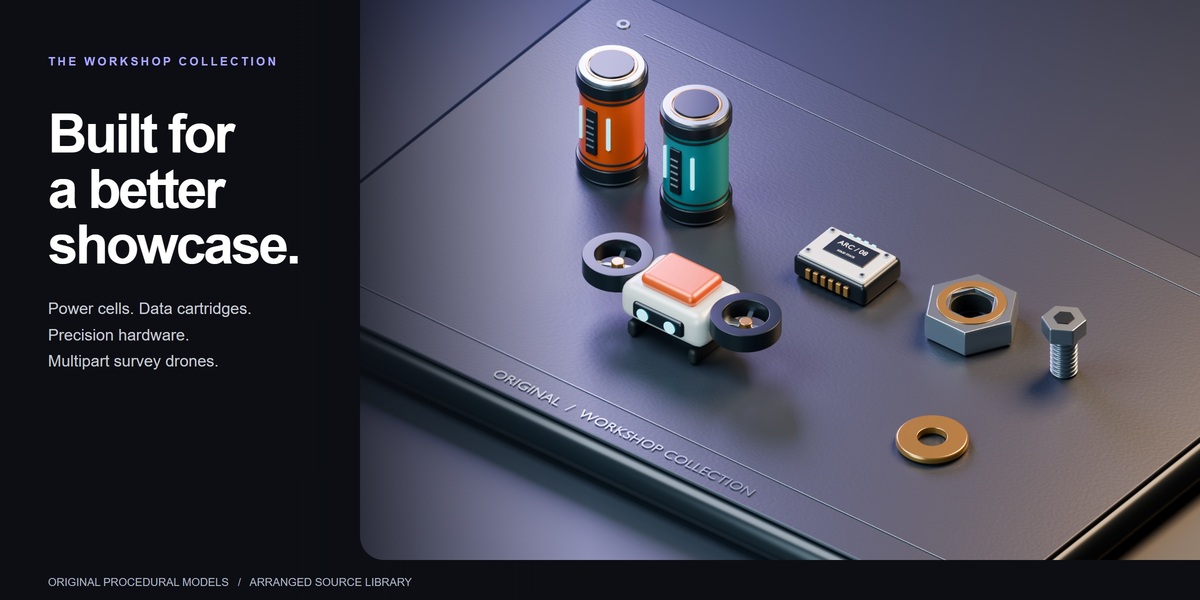
Workshop showcase
The optional Object-Scatter-Workshop-Showcase.zip contains the four-scene studio presentation for Blender 5.2 and a separate Workshop-Props-Blender3.blend library saved in Blender 3.0.1. To reuse the props, use File → Append → Workshop-Props-Blender3.blend → Collection → Workshop Props. The library includes nine root asset variants, including the multipart drone. These downloads are opened or appended, not installed as addons.
Object Scatter 0.8.33 — Compatibility
Use object_scatter-0.8.33-universal.zip for Blender 3.x, 4.x and 5.x, starting at Blender 3.0. The same archive contains one copy of the addon and both installation metadata formats. No installer selection or manual extraction is needed.
| Blender | Installation |
|---|---|
| 3.0–4.1 | Edit → Preferences → Add-ons → Install |
| 4.2–5.x | Edit → Preferences → Add-ons → menu → Install from Disk |
Enable Object Scatter, then open the 3D Viewport sidebar with N and choose Object Scatter. Keep only one enabled installation. When updating a previous Extension, use the same repository. Switching from an older legacy installation to an Extension changes the preference namespace; record customized shortcuts before removing the old installation.
Verified builds
The exact installer is checked on Windows in isolated Blender profiles:
| Series | Tested builds |
|---|---|
| 3.x | 3.0.1, 3.1.2, 3.2.2, 3.3.21, 3.4.1, 3.5.1, 3.6.23 |
| 4.x | 4.0.2, 4.1.1, 4.2.23, 4.3.2, 4.4.3, 4.5.13 |
| 5.x | 5.0.1, 5.1.2, 5.2.0 |
Every listed build covers actual ZIP installation, installed-file comparison, registration, Draft defaults, evaluated Bevel geometry, parented Together/Separately sources, selected Magnet and release/cancellation, Brush emission, paused Confirm, running Confirm with a cube settling onto a floor, copies inserted into an advancing simulation, and preferences/parenting/confirmed pose persistence after restarting Blender.
Native viewport checks cover Simple/Advanced panels, custom icons, help popover, GPU toolbar/gizmo drawing, Drop/Brush/Magnet switching, keyboard pause/emission/magnet movement/release/Confirm and selected cancellation on Blender 3.0.1, 3.6.23, 4.3.2 and 5.2.0. This is focused compatibility coverage, not an exhaustive test of every scene, input gesture, GPU or feature combination.
Limits
- macOS and Linux have not been tested for this release. Later Blender builds are not automatically qualified by the absence of a maximum version in metadata.
- Physics results and replay are not guaranteed identical between Blender releases. Use the same Blender build and unchanged inputs when comparing seeded runs.
- Features of a source scene must exist in the Blender version opening it. Installing this addon cannot backport newer Geometry Nodes or make newer blend files readable in older Blender releases.
- The bundled examples are saved in Blender 3.0.1 format, with a relative local library. Keep all four blend files together. Save newer edits as a separate file if you need to retain older-version compatibility.
- Selected placement still requires editable local objects and rejects existing rigid bodies, object animation, constraints and unsupported parent types. Very small bodies at Draft quality can reach the settle timeout.
The Extension manifest starts at Blender 4.2 because that is when Extensions became available. Legacy bl_info starts at 3.0. Both describe the same runtime. No third-party Python packages or network access are required.
Support: Tachyon Studio Discord.
-
$9.99
For 1 person (1 seat). Commercial use included. Complete addon, documentation and workshop downloads.
-
$39.96
For a team of up to 6 people (6 seats). Commercial use included. Complete addon, documentation and workshop downloads.
-
$99.90
For a studio of up to 20 people (20 seats). Commercial use included. Complete addon, documentation and workshop downloads. Need more than 20 seats? Contact us directly.
Have questions about this product?
Login to message
| Blender Extension Compatible | Yes |
| Published | 1 day ago |
| Blender Version | 3.0 - 5.2 |
| Extension Type | Add-on |
| License | GPL |
Discover more products like this
rigid body placement physics drop scatter parented assets magnet Brush scene assembly