 CreateVisions


Latest version tested and fully compatible with Octane Render 2026.4 (build 31.10.0) and Blender 5.2.
Octane Light Studio 2.6.2
Professional Lighting Management for Blender & Octane Render
A complete lighting workflow built specifically for Octane Render. Create a light and start adjusting instantly — no intermediate steps. Organize your lights into layers, position them with a single click on any surface, fine-tune everything through real-time sliders with absolute values, and save your setups for instant reuse across projects. Light names and intensity values are displayed directly on every light beam in the viewport, giving you a complete overview of your scene at a glance. Compatible with the free version of Octane Render.
What You Get
Octane Light Studio lives in the 3D Viewport sidebar and gives you full control over your entire lighting setup from one place. Every tool is directly accessible on each light — no tab switching, no mode hunting, no digging through menus.
Streamlined Create-to-Adjust Workflow
Click "Create" and your light is immediately added to the selected layer. The Adjust panel opens automatically so you can fine-tune the position right away — no Quick Position step, no confirmation dialog, no extra clicks. You go from nothing to adjusting in one click.

Layer-Based Light Organization
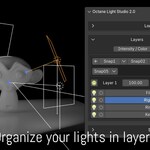
Group your lights into layers and control them as a unit. Each layer has a master intensity slider that scales all lights proportionally, a power toggle to enable or disable the entire group, and a collapsible structure that keeps your panel clean even with dozens of lights. Collapse and expand arrows on each layer header make it immediately clear that layers can be collapsed, and consistent light bulb icons match the individual light toggle icons. Create separate layers for key lights, fill lights, rim lights, or any grouping that fits your scene.
Six Interactive Placement Tools
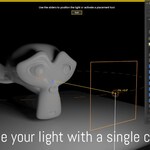
Position your lights by clicking directly on surfaces in the viewport. No coordinates, no manual gizmo dragging — click where you want the light, and it goes there.
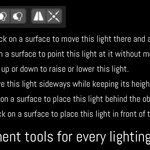
• Move & Aim — Click to reposition the light and aim it at that point
• Aim Only — Redirect the light without moving it
• Lift & Aim — Move the light up or down with true vertical tracking
• Slide — Move the light horizontally while keeping its height fixed
• Rim Light — One click to place a backlight behind the subject
• Front Light — One click to place a key light on the camera side
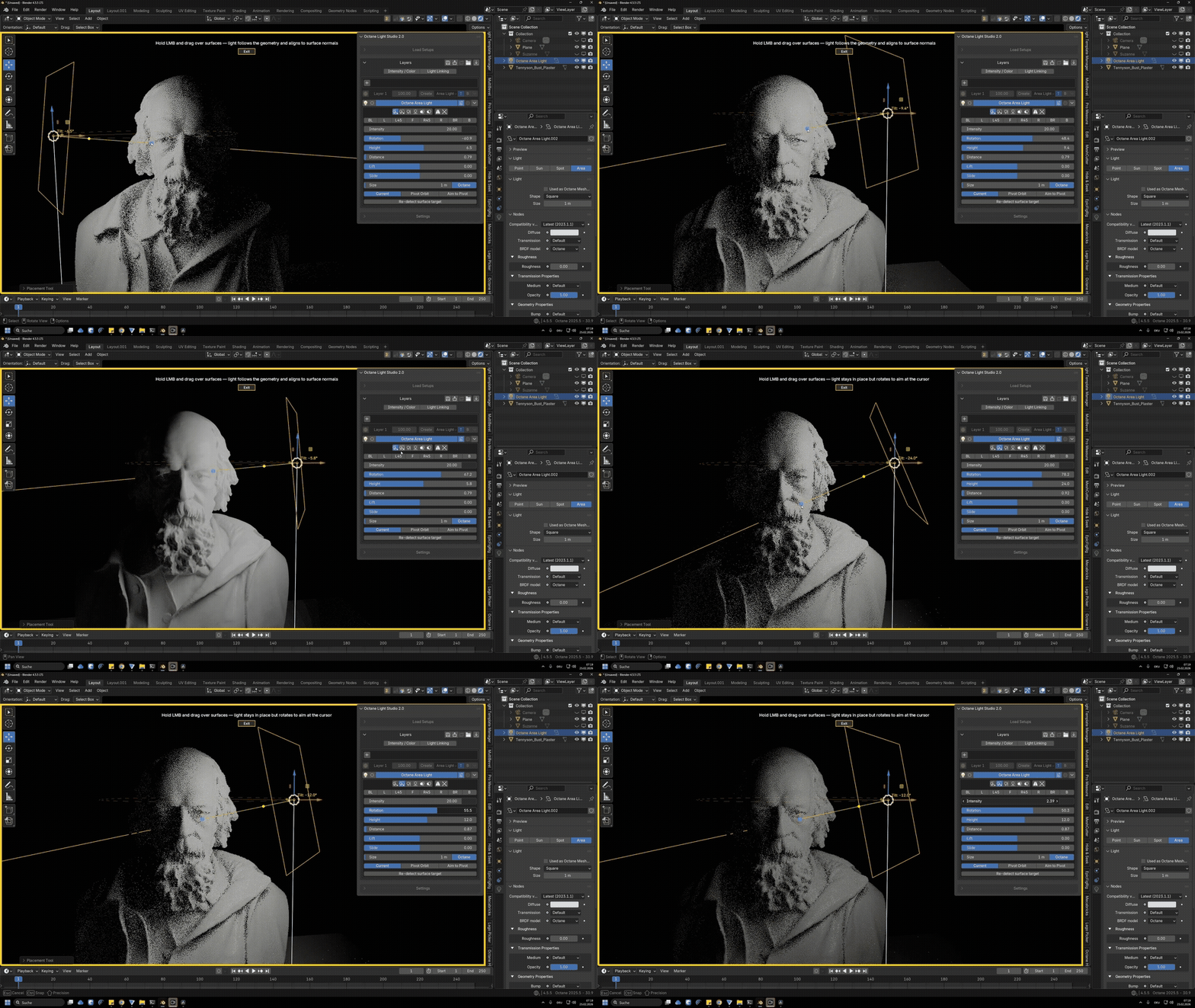
All tools include adjustable smoothing for fluid, jitter-free interaction. A Distance and Size slider appear automatically while any tool is active. Pick Target now correctly aims the light at the target object without moving it, and the addon automatically switches to Aim to Pivot mode so the sliders orbit around the targeted object's pivot point.
Adjust Panel with Position Presets & Three Orbit Modes
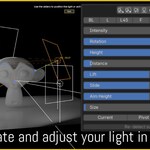
Toggle the Adjust button on any light to reveal real-time gimbal sliders for Rotation, Height, Distance, Lift, Slide, and Size. All sliders show absolute real-world values: Rotation displays degrees from FRONT (0° = Front, +90° = Right, -90° = Left, ±180° = Back), Height shows the elevation angle in degrees (-90° to +90°), and Distance shows the real 3D distance in meters.
Eight position preset buttons (BL, L, L45, F, R45, R, BR, B) let you jump to common lighting angles with one click. The active preset is highlighted blue and automatically syncs with the Rotation slider — rotate manually to a preset angle and the button lights up. Presets preserve your current elevation and distance, so switching angles never disrupts the height you have dialed in.
Three orbit modes control how the light moves:
• Current Point — Orbit around the surface hit point
• Pivot Orbit — Orbit around the object's origin while keeping the current aim
• Aim to Pivot — Orbit around the object's origin and always aim at it, with an Aim Height offset for vertical aim control
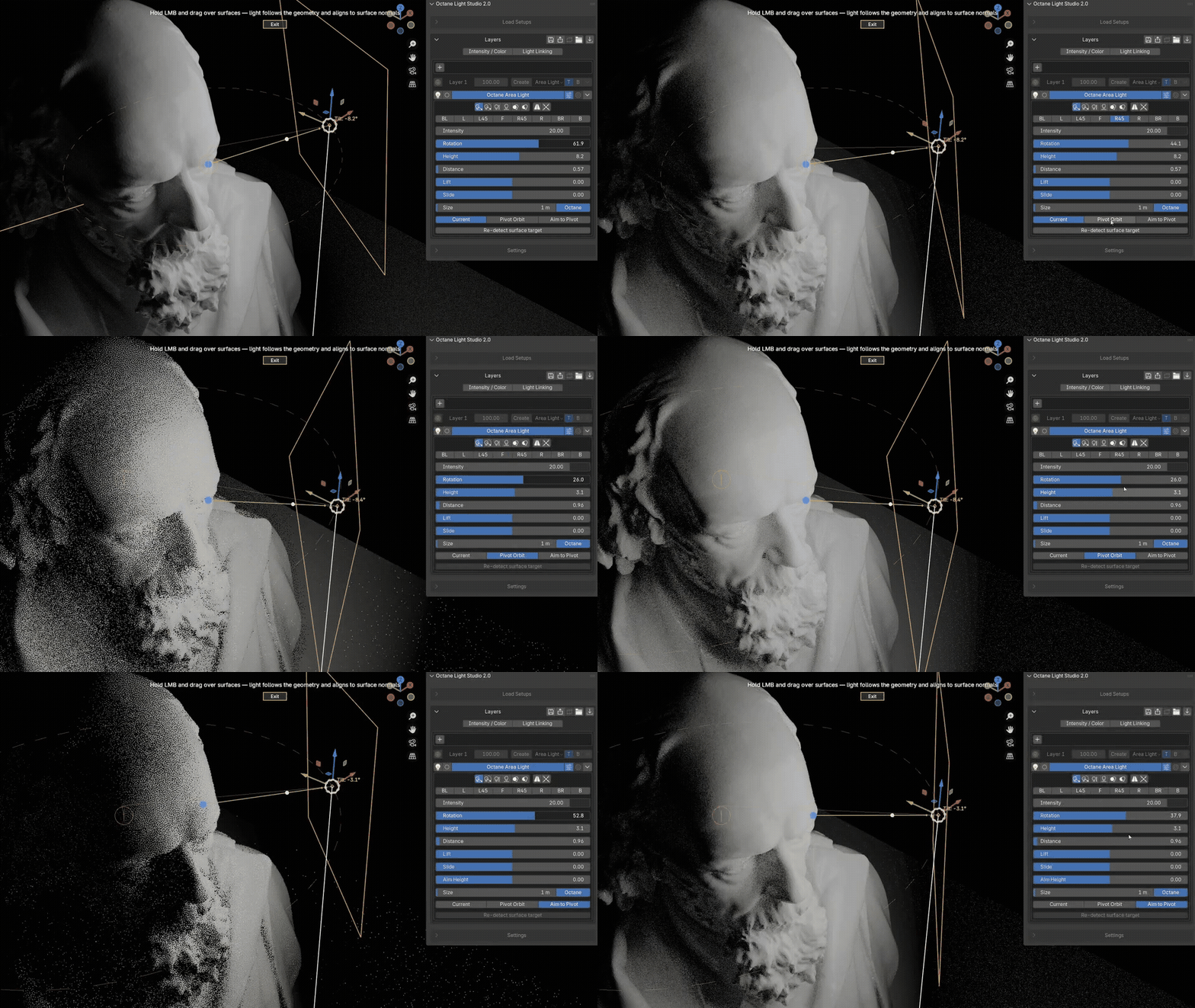
A green beam line shows exactly where the light hits geometry in real time. A dashed circle visualizes the orbit path. A tilt angle label next to the light displays the actual pitch in degrees (e.g., "Tilt: -32.5°") so you always know how far the light is tilted. A yellow viewport border keeps you aware when a positioning tool is active.
Beam-Aligned Light Labels
Light names are displayed directly on the light beam for every light in the scene, not just the active one. Each label is positioned along the beam direction, matching the orientation of the beam itself. Non-active lights also display their intensity value above the beam (e.g., "Intensity: 20"), giving you an instant overview of your entire lighting setup. Clicking on empty space in the viewport deselects all lights and shows all labels at once for a complete scene overview.
Edge Gradients for Area Lights
Control light falloff directly on the emitting surface — no external textures needed. Square and Rectangle lights support individual per-edge gradients with adjustable hardness. The gradients use color-baked 1024×1024 32-bit float bitmaps for consistent brightness. The result: CG lights that look like real studio softboxes.

BlackBody Emission
Choose between Texture Emission for direct color control or BlackBody Emission for physically accurate color based on temperature. Set a Kelvin value — 2700K for warm candlelight, 4000K for neutral daylight, 7000K for cool blue tones — and the light color matches real-world behavior. The addon handles all the node setup automatically.
Snapshots
Save the complete state of a layer as a snapshot and switch between lighting variations instantly. Every property is captured — position, color, intensity, gradients, visibility, and all light-type-specific settings. With Realtime Snapshots off (the default), your saved states are protected from accidental changes. Experiment freely and commit only when you are ready.
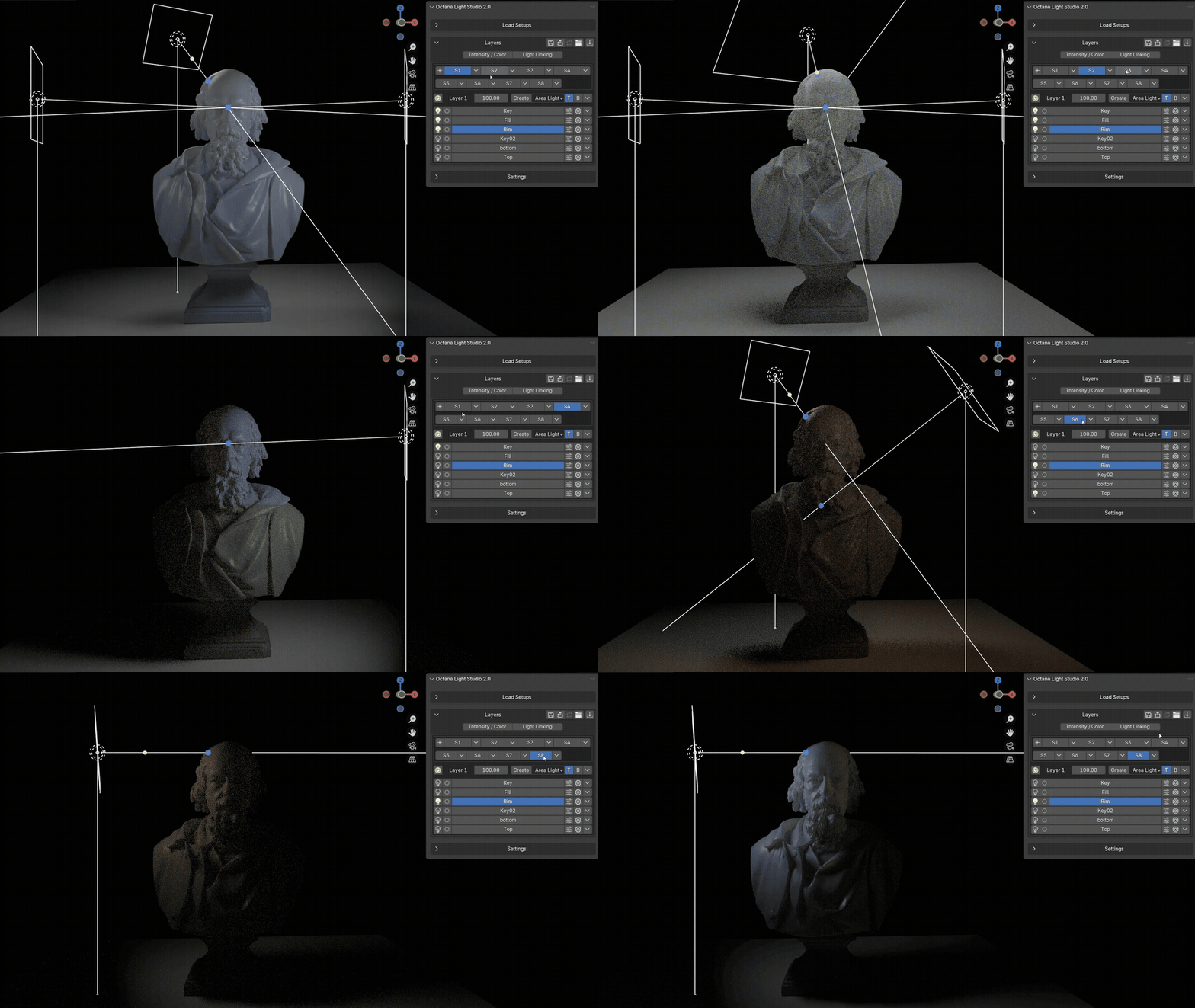
Light Setups — Your Personal Lighting Library
Save entire lighting configurations as reusable setups with one click. The Setups section contains all setup-related buttons — Save, Export, Quick Export, and Load — in one place for a clean, logical workflow. Thumbnails are captured automatically from Octane renders. Browse your collection with visual previews, load any setup instantly, and build a library of proven lighting solutions that works across all your projects. Rename, delete, mark favorites, and choose between three thumbnail sizes.
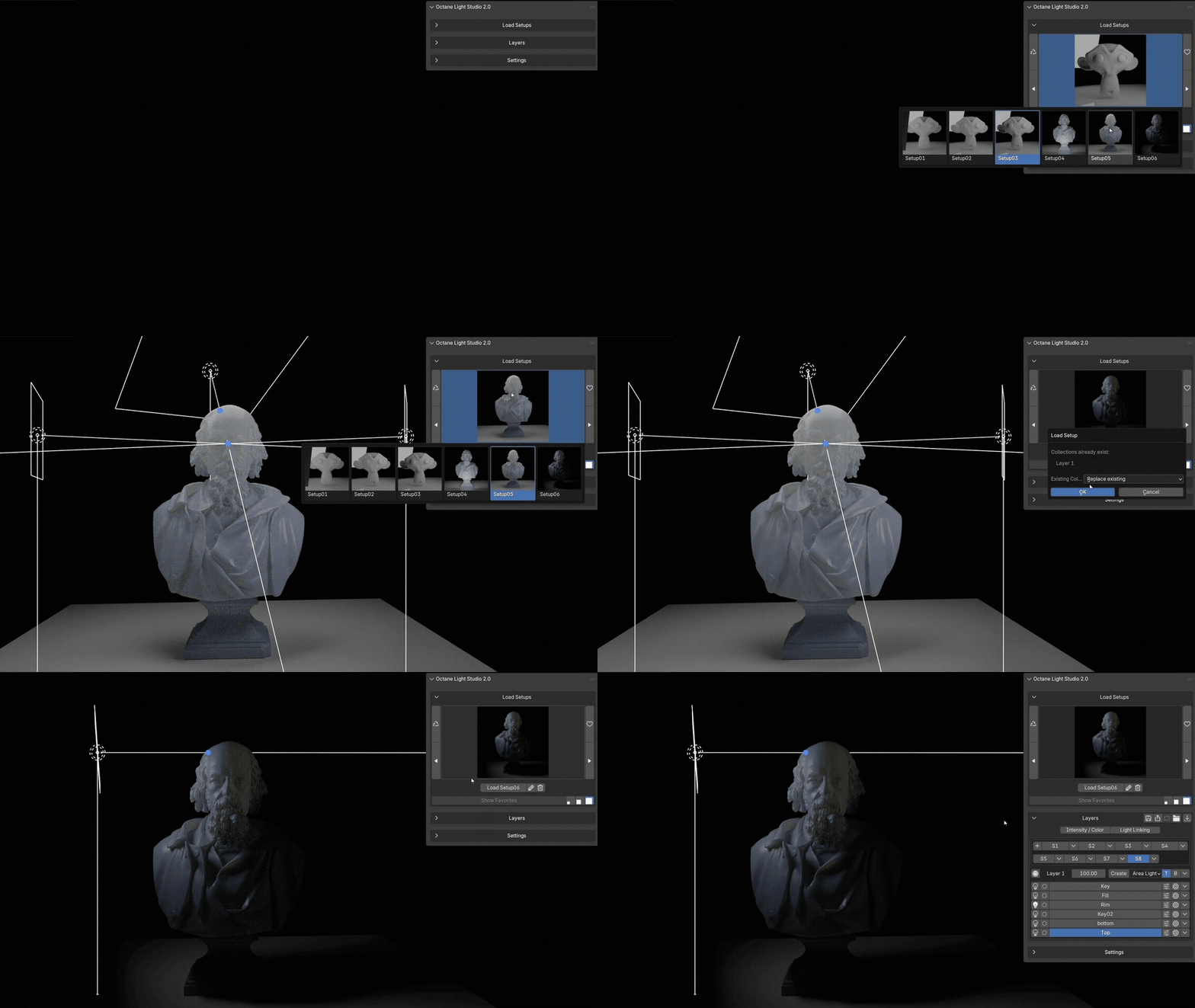
Visual Light Linking
Control exactly which objects each light affects through a color-coded visual system. Enter Visual Light Linking mode and your scene turns green (included) and red (excluded). Click any object to toggle its relationship. No manual ID management — the addon handles it automatically.

Mirror Light
Mirror any light to the opposite side of its target with one click. The addon uses the detected pivot point as the mirror axis, preserves distance, and re-aims based on the active orbit mode. Perfect for quickly creating symmetrical lighting setups.
Seamless HDRI Studio Integration
Octane Light Studio and Octane HDRI Studio now communicate directly with each other. From inside Octane Light Studio, turn off the HDRI environment with one click or jump straight to Octane HDRI Studio to adjust your environment lighting. From inside Octane HDRI Studio, toggle the entire Octane Light Studio setup on or off and switch back with a single click. Both addons stay in sync automatically, so you always have full control over your complete lighting — artificial and environment — from wherever you are. No tab switching, no extra steps — a massive time saver when working with both lighting systems together.
You don't need to configure anything. The addon detects automatically whether Octane HDRI Studio is installed. If it is, the cross-controls appear at the top of the panel. If it isn't, nothing is shown. Fully automatic.
Viewport Overlay Toggles
Five checkboxes in the Settings section let you individually control which visual information is displayed in the viewport: Light Names, Geometry Name, Intensity, Tilt, and Geometry Highlight. Show exactly the overlays you need for your current task — full labels during setup, minimal distractions during final review.
Full Save & Export System
Save to disk, Quick Export with one click, and Import from files. All light types, gradients, emission settings, spotlight cone angles, and snapshot data are fully preserved.
Supported Light Types
• Area Light (Square, Rectangle, Disk, Ellipse — with gradient support)
• Spotlight (cone width, throw distance, hardness)
• Directional Light (spread angle control)
• Sphere Light (radius and sampling)
• Mesh Light (any geometry as light source)
• Analytic Light (Disc, Quad, Sphere, Tube — with full falloff and cutoff controls)
Octane Toon Point Light and Octane Toon Directional Light are planned for future updates.
Requirements
• Blender 4.4.1 or newer (developed and tested with 5.1.2)
• Octane Render for Blender (free version compatible — developed with Octane 2026.2 Beta, also tested with Octane 2025.1 and Octane 2026.3 (31.9.0))
• Windows
Octane Light Studio 2.6.2 — What's New:
- Consistent Cross-Add-on Controls — The HDRI and Light toggle buttons now appear identically across all three add-ons — Octane Light Studio, Octane HDRI Studio, and Octane Material Studio — so you can switch the HDRI environment and your light layers on or off from whichever panel you happen to be in. Turning the HDRI off no longer resets its brightness: HDRI Studio now remembers your Strength value and restores it when you toggle the environment back on. Octane Light Studio's own tools are unchanged — it simply benefits automatically from the shared, improved controls.
Octane Light Studio 2.6 — What's New:
- Animation-Aware Sliders — When a light has location or rotation keyframes, scrubbing the timeline now updates the addon's slider base values to match the animated position. Drag any slider on a frame between keyframes and the light rotates smoothly from the current animated pose, without snapping back. Works in all three orbit modes: Surface (orbit center follows the current frame's surface hit), Pivot Orbit, and Aim to Pivot.
Version 2.5 — Previous Changes:
- Seamless Octane HDRI Studio Integration — Octane Light Studio and Octane HDRI Studio now work as one connected system. Switch the HDRI environment on or off directly from Octane Light Studio, or jump to Octane HDRI Studio with one click to make changes. From the other side, Octane HDRI Studio can now toggle the entire Octane Light Studio setup and jump back instantly — no tab switching, no extra steps. The integration is fully automatic: if Octane HDRI Studio is installed, the controls appear at the top of the panel. If not, nothing changes. Zero configuration required.
Version 2.4 — Previous Changes:
- Blender 5.0 Support — Several users asked for Blender 5.0 compatibility, with Jon Edwards being one of the first to request it. Although no final release of Octane for Blender 5 exists yet, version 2.4 was fully developed and tested in Blender 5.0 with Octane 2026.2 Beta — and everything works. If you are already using Blender 5.0 with the Octane beta, Octane Light Studio is ready for you.
- Respects Show Overlays — All addon visuals in the viewport (beam lines, light labels, intensity, tilt, distance, geometry names) now disappear when you turn off Show Overlays in the viewport header. Focus purely on your lighting without any distractions. Thanks to Chris from The Bricksburg Theatre for suggesting this.
- Show Tool Hints — New toggle in Settings to show or hide the instructional text that appears in the viewport during Adjust and placement tools. Enabled by default.
- Customizable Border Color — Pick your own color and transparency for the viewport border that appears during Adjust and placement modes. Live preview while choosing.
- Import Octane Lights — Back by popular demand. Bring existing Octane lights from your scene into the addon with one click. Several users requested this feature to be re-enabled. Now located in the Create section alongside a new "New Empty Layer" button.
- Safer Adjust Mode — The light dropdown menu, Snapshots, and Intensity/Color and Light Linking toggles are now locked while a positioning tool is active, preventing accidental changes.
- Solo + Layer Fix — Octane Light Studio is used extensively in The Bricksburg Theatre project, which involves managing a large number of lights across multiple layers. This revealed an issue where turning off Solo would make lights reappear even when their entire layer was disabled. Now fixed — disabled layers stay fully disabled regardless of Solo state.
Version 2.3 — Previous Changes:
- Auto-Adjust on Create — Creating a light now automatically opens Adjust mode so you can start positioning immediately.
- A/B Compare Fix — Fixed crash when using A/B Compare with non-Area lights (Spotlight, Directional, Sphere, Analytic).
- Improved Addon Reliability — Fixed an issue where the Create button could appear grayed out after addon update or reinstallation until Blender was restarted.
Version 2.2 — Previous Changes:
- A/B Compare — Before/after comparison toggle in Adjust mode.
- Info Box with Leader Line — Redesigned light labels (Name, Intensity, Tilt, Distance) as readable text box with connecting line.
- Distance Overlay — Distance display toggle in Viewport Overlays settings.
- Overlay Text Color — Customizable color for viewport info text labels.
- Gizmo Color — Customizable gizmo color when Bright Gizmos is enabled.
- Simplified Light Creation — Adjust no longer opens automatically after creating a light.
- Intensity & Color Always Active — Automatically enabled when creating new lights.
- Cleaner Panel — Blue separator between lights removed when Intensity & Color is active.
- Renamed Settings — "Bright Gizmos", "See-Through Lights", "Auto-Update Snapshot".
- Bugfix — Create button no longer stays grayed out after addon re-enable.