Octane Light Studio 2.6
 CreateVisions


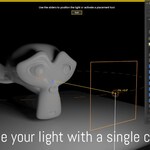
Latest version tested and fully compatible with Octane Render 2026.4 (build 31.10.0) and Blender 5.2.
Octane Light Studio 2.6.2
Overview
Octane Light Studio is a professional lighting management addon for Blender, built specifically for Octane Render. It organizes your lights into layers, lets you position them interactively by clicking on surfaces, and provides real-time sliders with absolute real-world values for precise control — all from a single panel in the 3D Viewport sidebar. Create a light and start adjusting instantly in one click. Light names and intensity values are displayed directly on every light beam in the viewport, giving you a complete overview of your scene at a glance. Compatible with the free version of Octane Render.
Installation
- Download and install the Octane Server from render.otoy.com — launch and activate it before starting Blender
- Download and install Octane Prime for Blender (a special Blender build with integrated Octane)
- In Blender, go to Edit > Preferences > Add-ons, click Install and select the Octane Light Studio ZIP file (do not extract it)
- Enable the addon and find the OLS tab in the 3D Viewport sidebar (press N)
Key Features
- Animation-Aware Sliders — Sliders stay in sync with animated lights. Scrub the timeline and drag any slider on a frame between keyframes — the light keeps moving smoothly from where the animation puts it, no snapping back. Works in all three orbit modes
- Blender 5.0 & 5.1 Ready — Fully developed and tested in Blender 5.0 with Octane 2026.2 Beta, and verified in Blender 5.1.2 with Octane 2026.3 (31.9.0)
- Streamlined Create-to-Adjust — Click Create and the light is added to the layer, Adjust opens automatically — no intermediate steps
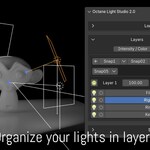
- Layer-Based Organization — Group lights into layers with master intensity control, power toggles, and clear collapse/expand on each layer header
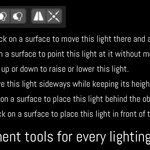
- Six Placement Tools — Move & Aim, Aim Only, Lift & Aim, Slide, Rim Light, and Front Light for click-on-surface positioning. Pick Target aims the light and automatically switches to Aim to Pivot mode
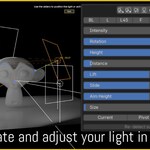
- Adjust Panel with Position Presets & Three Orbit Modes — Real-time gimbal sliders showing absolute values (Rotation in degrees from FRONT, Height as elevation angle, Distance in meters), eight position preset buttons (BL, L, L45, F, R45, R, BR, B) with active preset highlighted blue, and Current Point, Pivot Orbit, and Aim to Pivot orbit modes
- Beam-Aligned Light Labels — Light names displayed directly on the beam for every light in the scene, with intensity values on non-active lights for a complete scene overview
- Viewport Overlay Toggles — Five checkboxes to individually toggle Light Names, Geometry Name, Intensity, Tilt, and Geometry Highlight in the viewport. All overlays respect Blender's Show Overlays toggle
- Show Tool Hints — Toggle to show or hide instructional text during Adjust and placement tools
- Customizable Border Color — Pick your own color and transparency for the viewport border during positioning tools, with live preview
- Viewport Tilt Angle — Yellow label next to the light during Adjust shows the actual tilt angle in degrees
- Edge Gradients — Per-edge falloff for rectangular area lights, no external textures needed.
- BlackBody Emission — Physically accurate color temperature control (500–12000K) alongside traditional texture emission
- Snapshots — Save and switch between complete lighting states per layer with manual or realtime save modes
- Light Setups — Persistent lighting library with thumbnail previews, favorites, and one-click loading across projects. The Setups section contains all file operations — Save, Export, Quick Export, and Load — in one place
- Seamless HDRI Studio Integration — Toggle the HDRI environment on and off directly from Octane Light Studio, or jump to Octane HDRI Studio with one click. Fully automatic — appears only when Octane HDRI Studio is installed
- Import Octane Lights — Bring existing Octane lights from your scene into the addon with one click
- Visual Light Linking — Color-coded system to control which objects each light affects
- Mirror Light — One-click mirroring using the detected pivot point as axis
- Real-Time Beam Visualization — Green beam shows where the light hits, red beam when it misses
- Smart Selection Feedback — Clicking empty space deselects all lights and shows all beam labels for a full scene overview
- Customizable Interface — Nine independent toggles to show or hide tools per light
- Six Light Types — Area, Spot, Directional, Sphere, Mesh, and Analytic with full Octane property access
- Complete File I/O — Save, Quick Export, and Import with full property preservation.
Quick Start
- Click "Start Octane Light Studio" in the OLS2.6 panel
- Select a 3D object in your viewport, then click Create (Area Light recommended)
- The light is added to the layer and Adjust opens automatically — use the position preset buttons (F for Front, L for Left, R for Right, etc.) or the Rotation, Height, and Distance sliders to position the light
- Add more lights, save snapshots, and explore the placement tools
Support
- Email: [email protected]
Discover more products like this
blender addon Octane Light Studio Octane studio Lighting light lighting workflow Area Light light studio octane blender octane render Studio Lighting