 KewlSheet


DOCUMENTATION • VERSION 1.0
OmniFill
Everything you need to know: install, the F key, the wheel, and the settings behind each fill.
01 Install
| DRAG Drop omni_fill.zip onto the Blender window, or Edit › Preferences › Get Extensions › Install from Disk. | ONE ZIP Windows, Linux (x64, ARM) and macOS (Intel, Apple Silicon). The native core is inside, nothing else to install. | UPDATE Install the new zip over the old one, then restart Blender so the new version is loaded. |
02 The F key
In Edit Mode, select something and press F. Press F again on the result to swap in the next fill. Every press restarts from the original outline, so the border never drifts.
| You select | F cycles through |
| One edge or two vertices | Make edge / face, the classic F |
| A closed loop with corners | Takayama → Grid Fill → Apex Quad → face |
| A round closed loop | Grid Fill → Takayama → Apex Quad → face |
| Two loops or two chains | Bridge → EdgeMaster weave → Grid Fill → face |
| Faces | Refills the island from its border |
03 Tune with the wheel
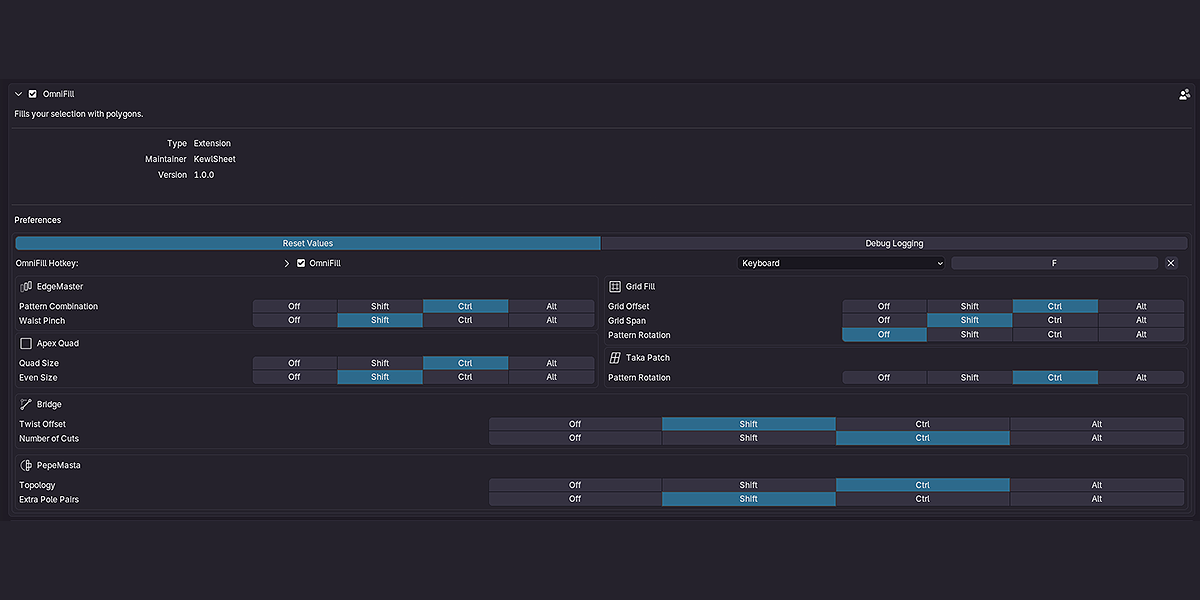
Right after a fill, hold Shift, Ctrl or Alt and scroll. The fill rebuilds live. Prefer sliders? Open the F9 panel.
| Fill | Shift | Ctrl | Alt |
| Takayama | — | Pattern rotation | — |
| Grid Fill | Span | Offset | — |
| Apex Quad | Even size | Quad size | Boundary rings |
| Bridge | Twist | Cuts | — |
| EdgeMaster | Waist pinch | Pattern | — |
These are the defaults. Every binding can be moved to another modifier, or switched off, in the preferences.
04 The fills, and when to use them
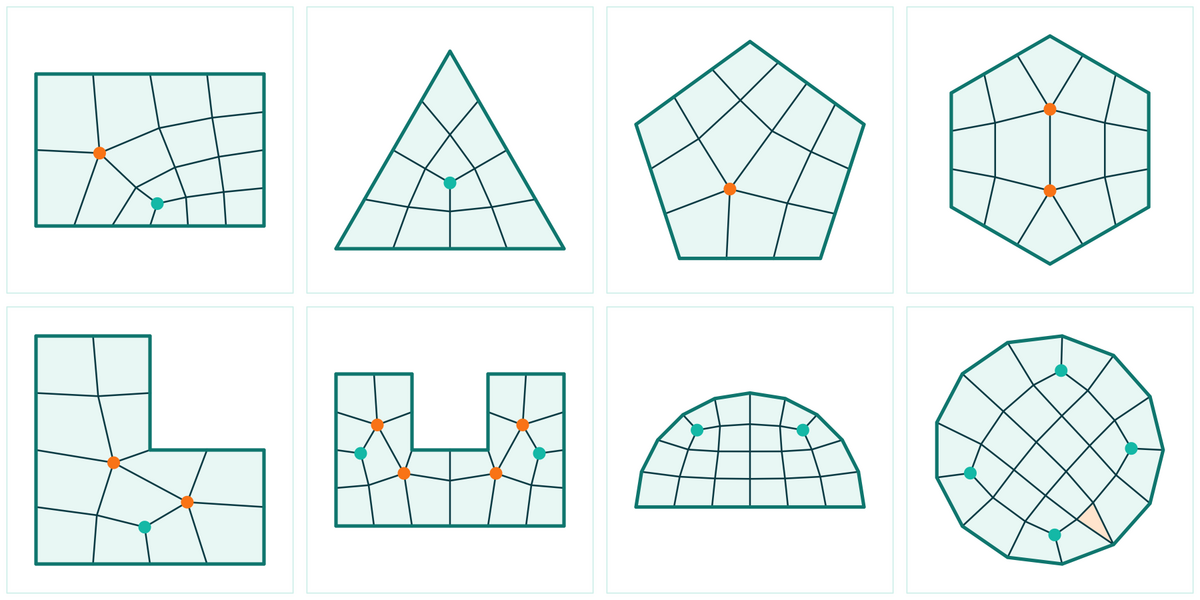
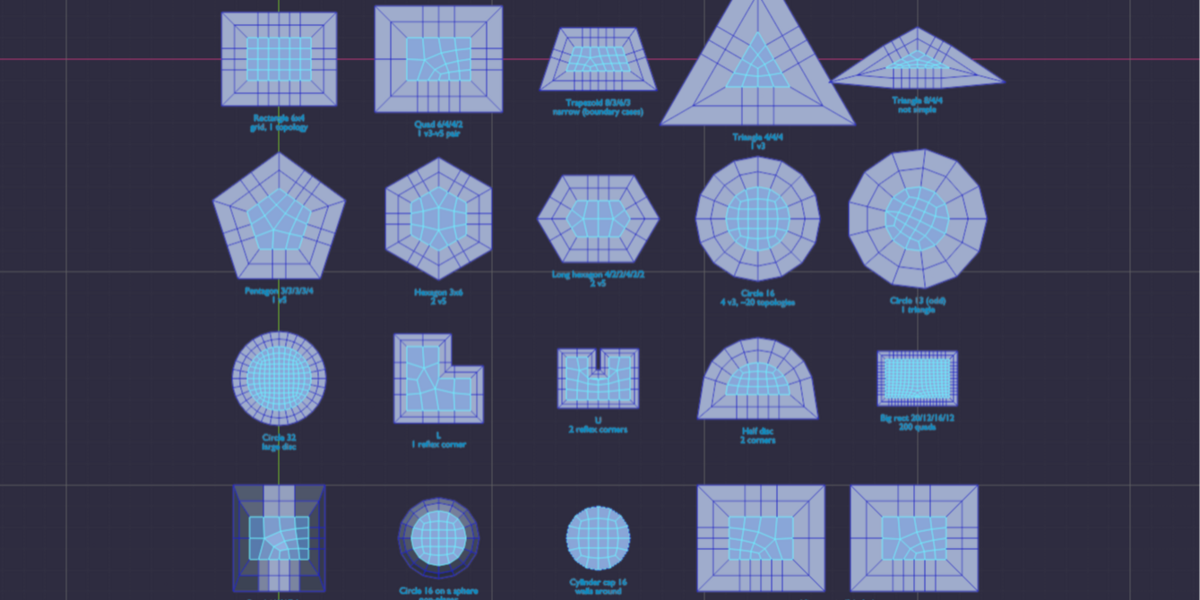
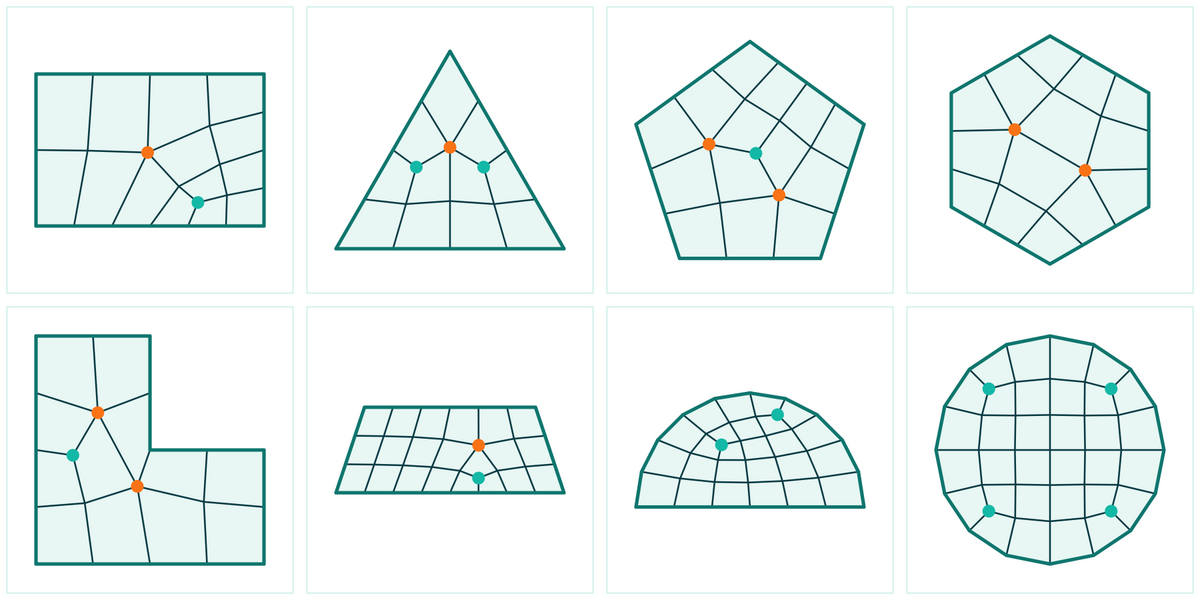
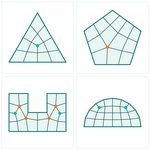
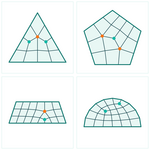
TakayamaAll-quad patch for loops with 3 to 6 corners. It picks the most even layout on its own; scroll to move the poles. Best for: caps, panels, hard-surface holes | Grid FillBlender's own grid. If it refuses the shape or spills outside it, OmniFill builds a Takayama patch instead. Best for: round loops, cylinder ends |
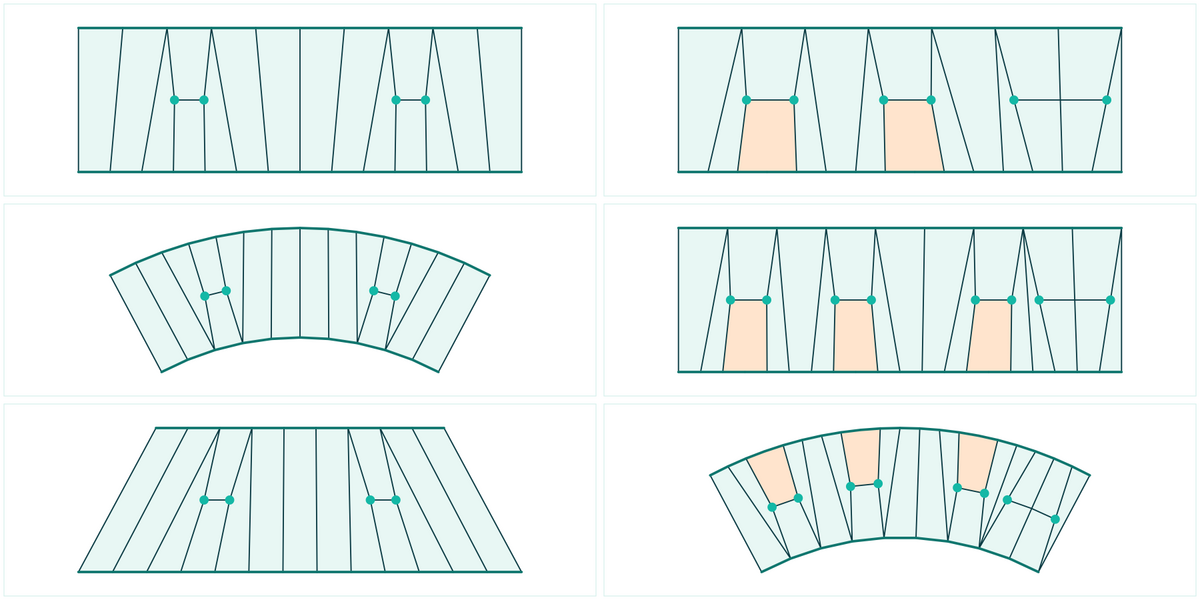
Apex QuadQuad remesher for any outline. Quad size 0 means automatic, taken from the border edges. Add 1 to 8 boundary rings to push the poles away from the edge. Best for: odd shapes, big organic holes | EdgeMaster weaveJoins two chains with different edge counts using quad reductions (5→3, 4→2, 3→1…). Scroll through every valid combination; the F9 panel shows which one is active. Best for: density changes, limbs, straps |
BridgeBridge Edge Loops with twist and cuts, cleaned back into quads. Falls back to a grid when the loops won't bridge. Best for: two matching loops | Plain faceThe last stop of every cycle: a single n-gon, exactly what vanilla F gives you. Best for: when you just want a face |
05 Preferences
Edit › Preferences › Add-ons › OmniFill
| Show Properties Dialog | Opens the settings of the fill right in the viewport after each run. |
| Mouse Wheel | Turns the modifier + scroll tuning on or off, and shows the per-fill binding table. |
| Reset Values | Starts the next fill from default settings instead of the last ones you used. |
| Hotkeys | Rebind the OmniFill key, Add Edge / Face and Mesh F2 without leaving the panel. |
| Debug Logging | Prints what OmniFill tried to the system console. Turn it on before reporting a bug. |
06 Pro tips
Redo a patch you don't like
Select its faces and press F. The outline is remembered, so you can cycle and scroll forever without adding vertices to the border.
Poles too close to the edge?
Switch to Apex Quad and Alt + scroll to add boundary rings. The border gets clean parallel loops, the poles move inside.
Even edge counts fill cleaner
An all-quad fill needs an even number of border edges. With an odd loop, one triangle is unavoidable, whatever the fill.
Curved surfaces stay curved
Patches follow the curvature of the surrounding mesh; flat loops stay perfectly flat. No manual smoothing needed.
Stuck on a hole?
Turn on Debug Logging, press F once, and send the console output with a screenshot of your selection.
Join the Discord
Have questions about this product?
Login to message
| Blender Extension Compatible | Yes |
| Published | about 4 hours ago |
| Blender Version | 4.2 - 5.2 |
| Extension Type | Add-on |
| License | GPL |
