 ZEG
Installation
In Blender open Edit, Preferences, Get Extensions, then use Install from Disk and pick the destruction_vfx zip. Save your .blend file before placing explosions, so the simulation cache is kept in a folder next to it.
Usage
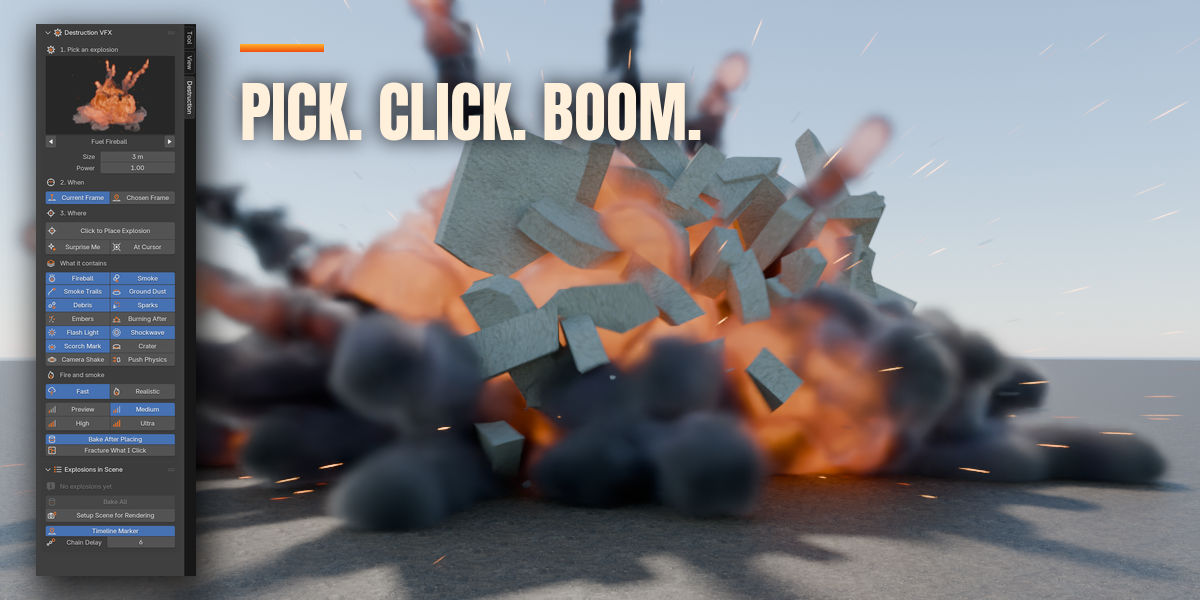
- Open the Destruction VFX tab in the 3D viewport sidebar (N). With no explosion selected you see the add-new screen.
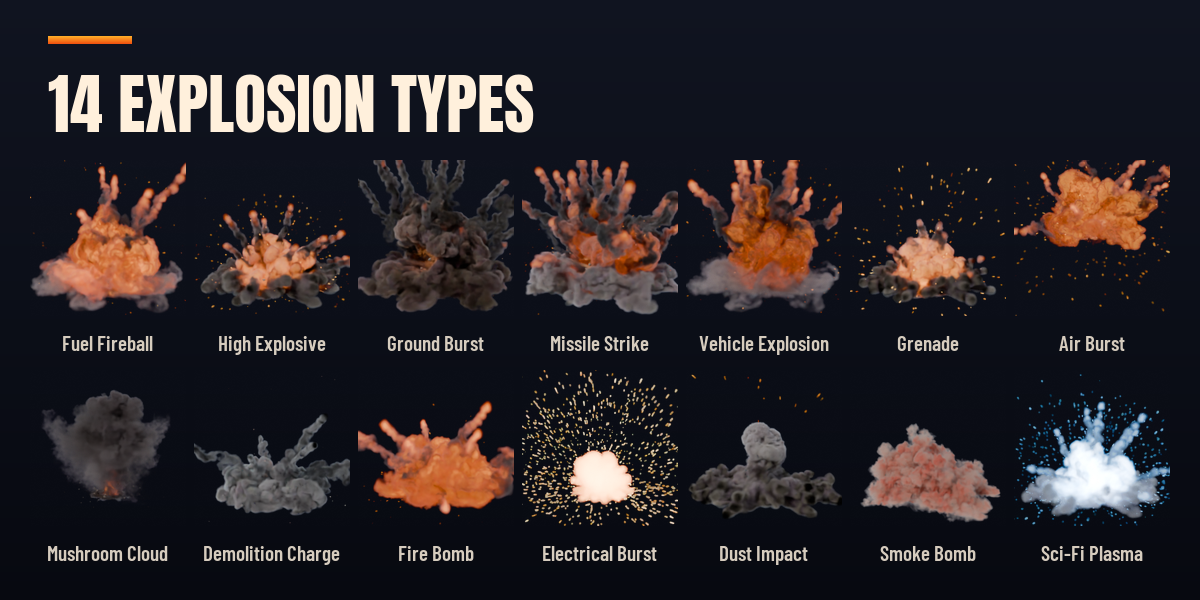
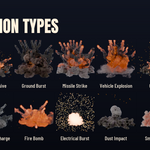
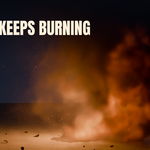
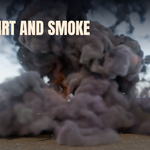
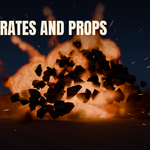
- Pick an explosion: click the picture to open the gallery of the 14 types, or step through them with the arrows.
- Choose when: the current frame, or a frame you type in.
- Choose where: press Click to Place Explosion and click a point in the viewport. Ctrl+Click keeps placing a chain of explosions a few frames apart, Shift+Click also shatters the object you click, Esc or right click stops. Explosion at 3D Cursor and Shift+A, Explosion do the same without clicking.
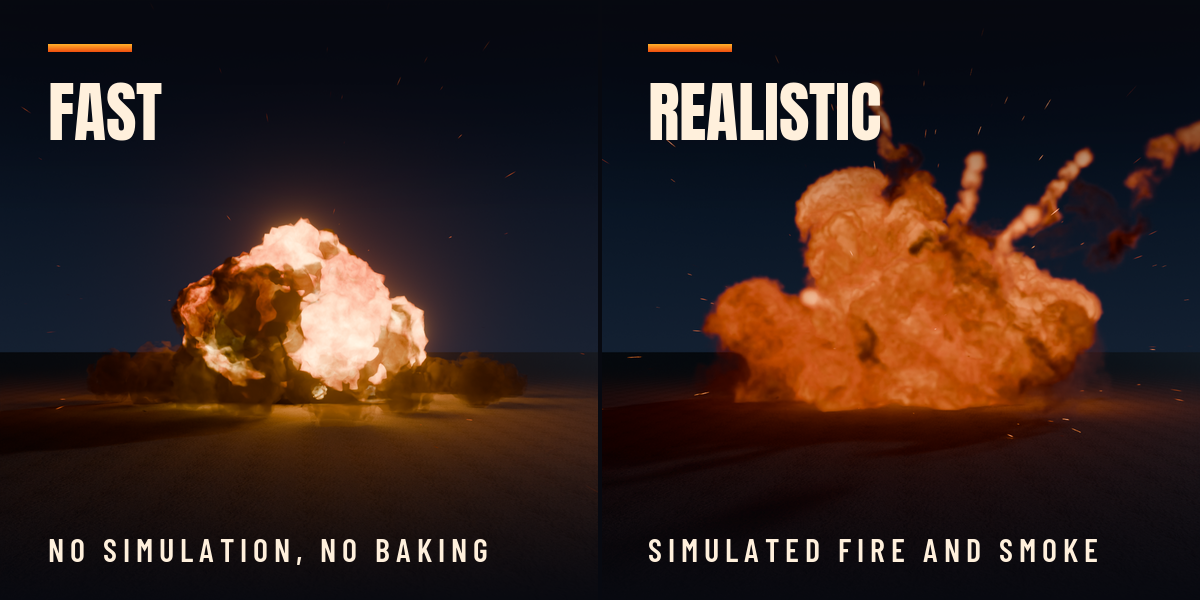
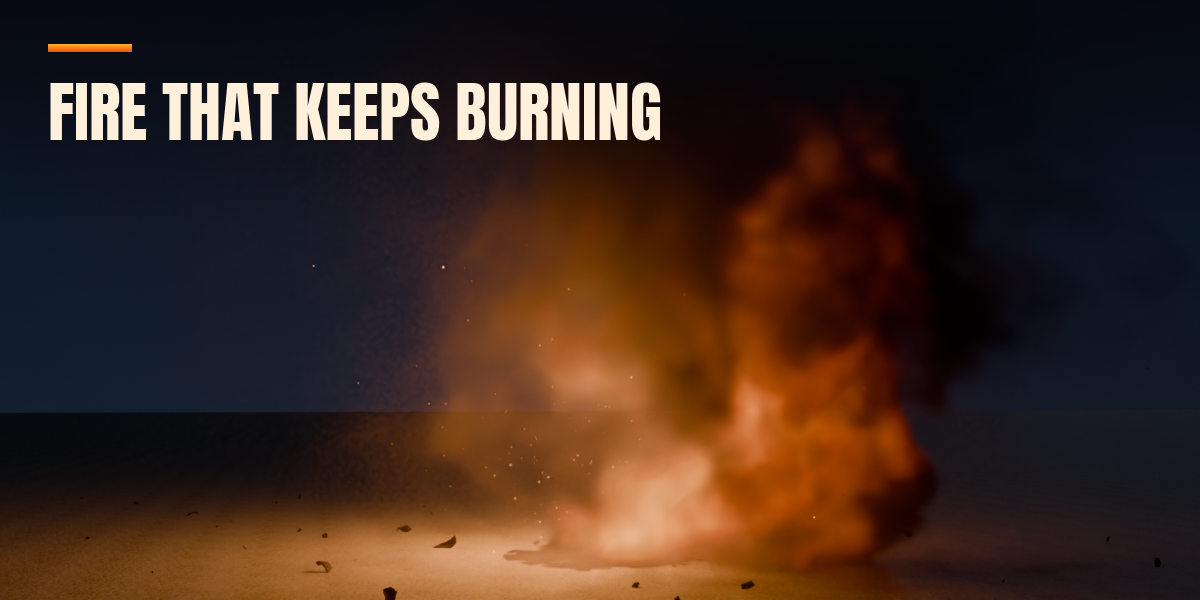
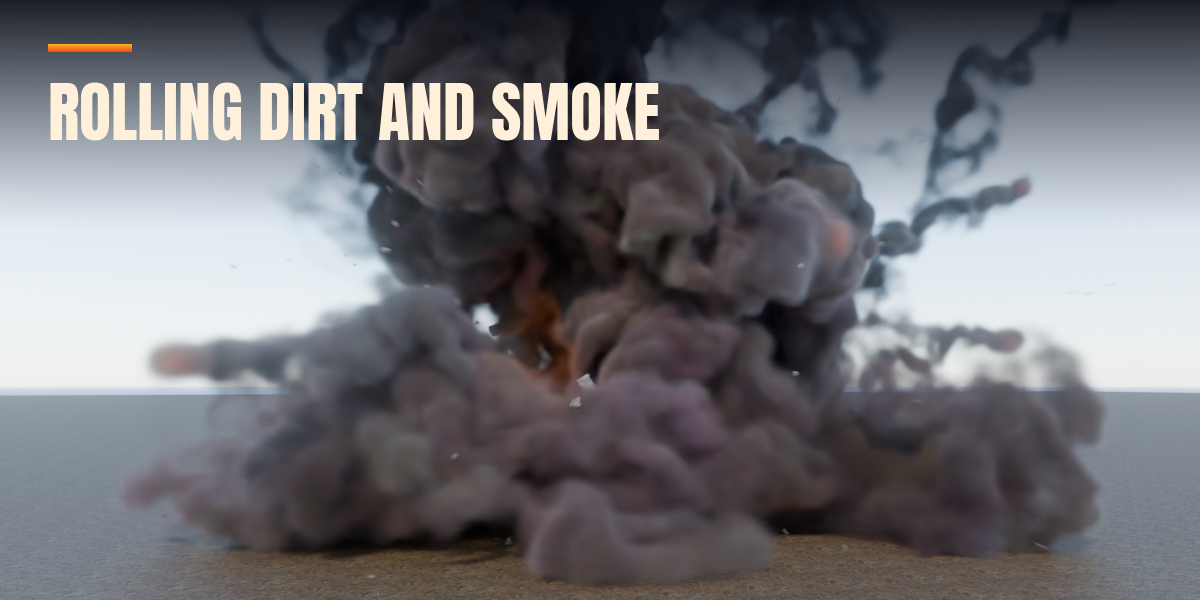
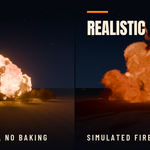
- Choose Fast or Realistic under Fire and smoke. Fast needs no baking: the explosion plays at once (press Cache Debris before rendering single frames, so debris and sparks are right on any frame). In Realistic mode the smoke and fire bake by themselves when Bake After Placing is on. The sidebar shows the progress; Esc over the progress bar cancels. Press Bake or Bake All to simulate later.
- Debris, sparks and embers land on objects that have a Collision modifier. If the scene has none, the panel shows a warning: select your ground or set pieces and press Add Collision to Selected.
- Select an explosion to edit it. Type, size, power, frame, speed and the parts it contains are on the first page; the sub-panels Fire, Smoke & Dust, Burning Afterwards, Debris, Sparks & Embers, Light & Shockwave, Marks, Scene Reactions, Fracture and Length & Quality hold the details.
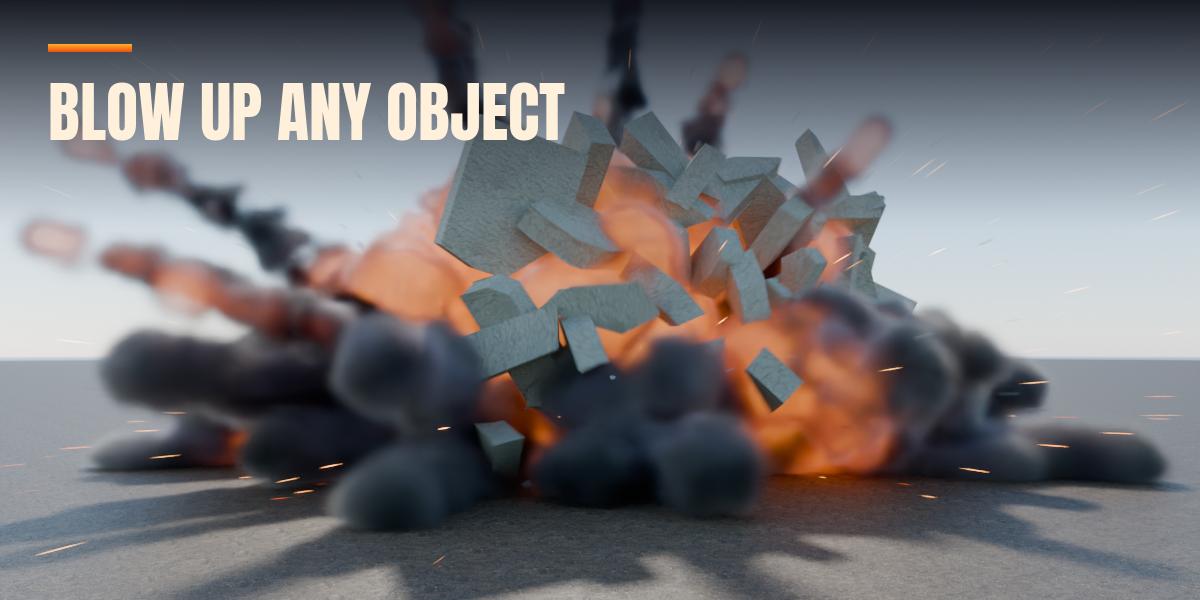
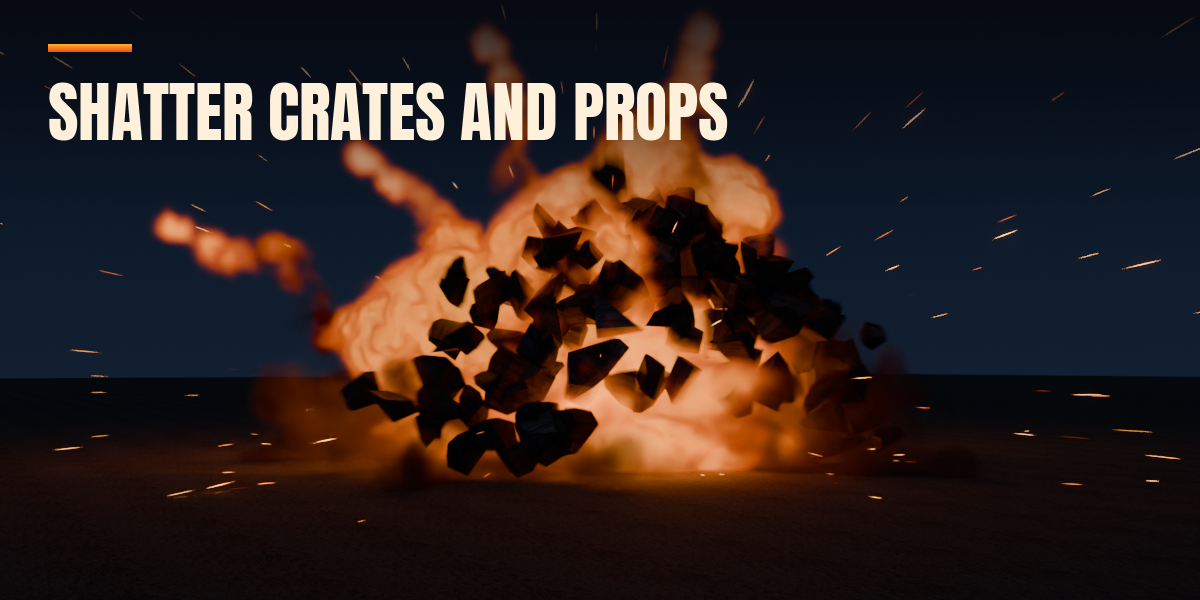
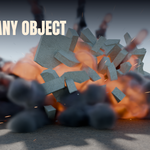
- To blow up your own objects, select them, select the explosion last and press Blow Up Selected Objects in the Fracture panel. Choose Instant (keyframes) or Rigid Body motion.
- Surprise Me randomizes the selected explosion in place. Move, Duplicate and Delete are in their own panel, and Explosions in Scene lists every explosion.
- Before rendering, press Setup Scene for Rendering to tune Cycles or EEVEE for volumes, sparks and the shockwave.
Tip: time the shot in Fast mode, then switch the hero explosions to Realistic at High or Ultra and bake once for the final render. To move an explosion use the addon's Move button (it also moves the marks and physics), and remove it with the addon's Delete button.
Have questions about this product?
Login to message
| Blender Extension Compatible | Yes |
| Published | 1 day ago |
| Blender Version | 4.2 - 5.2 |
| Extension Type | Add-on |
| Render Engine Used | Cycles, Eevee |
| License | GPL |
