 Mamba CG
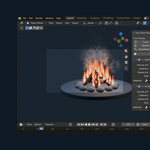
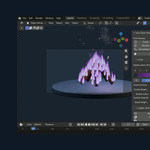
One Click FireScatter documentation
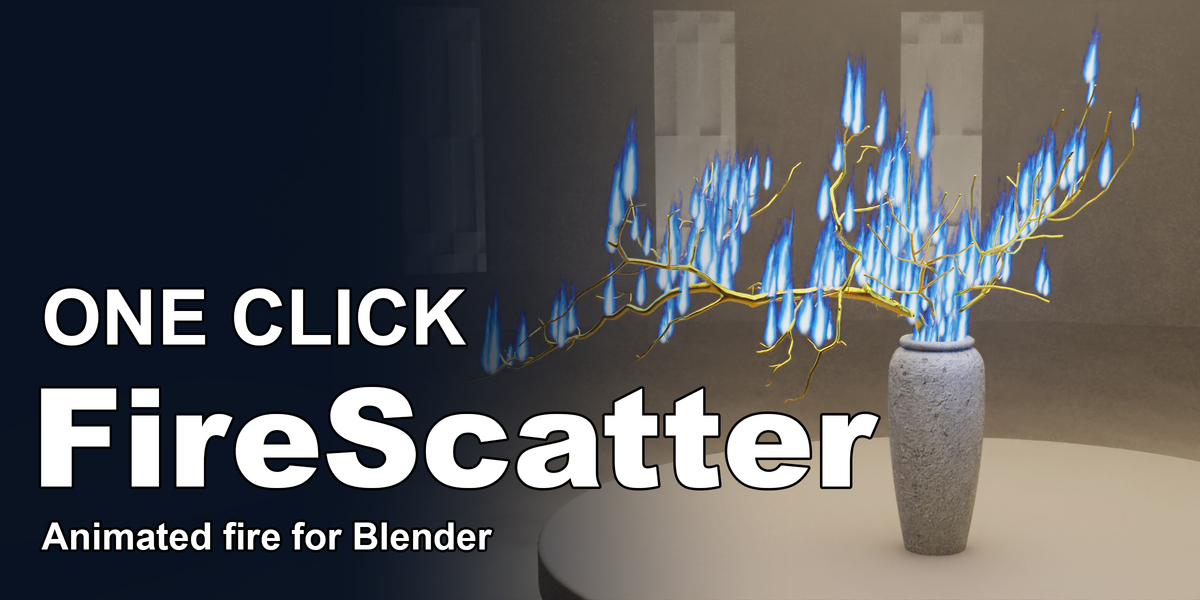
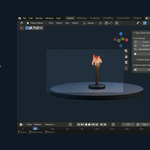
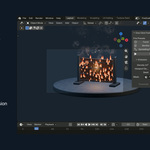
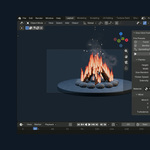
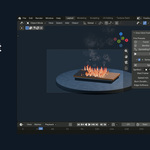
One Click FireScatter adds animated flames, sparks and smoke to mesh objects using a Geometry Nodes modifier. Version 2.1.1 includes six presets, eight editable demo scenes and keyframe controls.
Install the add-on
- Download OneClickFireScatter-2.1.1.zip and keep it zipped.
- In Blender 4.2 or later, open Edit > Preferences. From the menu in the upper-right corner, choose Install from Disk and select the ZIP.
- Enable One Click FireScatter if prompted. In the 3D Viewport, press N to open the sidebar and select the One Click FireScatter tab.
Apply your first fire
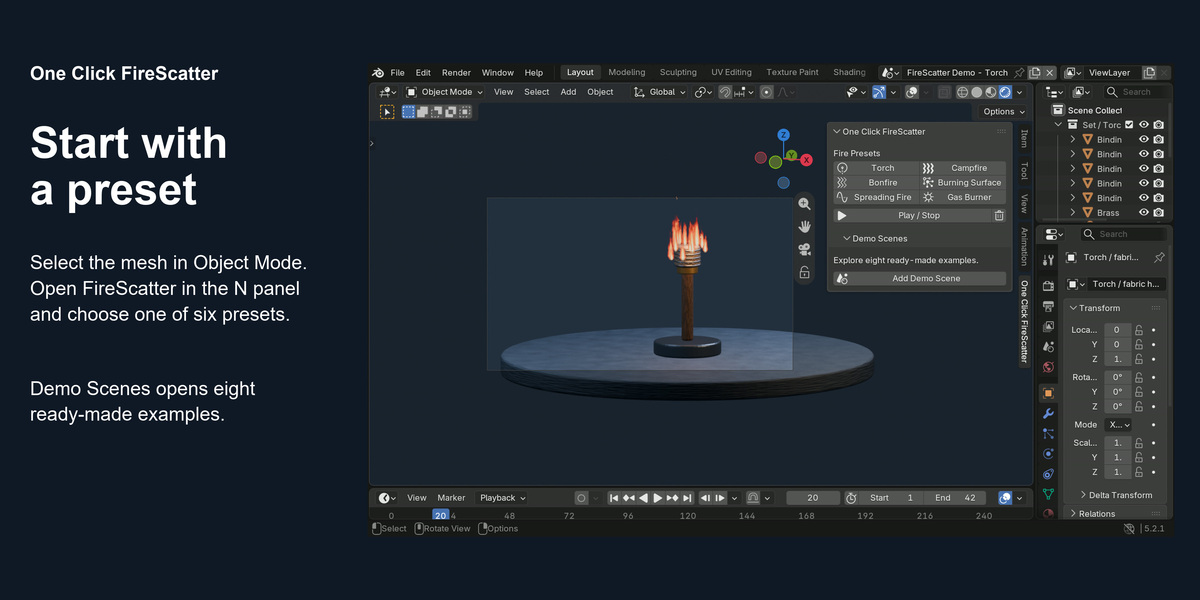
- In Object Mode, select the mesh that should burn. For a torch, select the head or mask the area you want to burn.
- Choose a fire preset in the sidebar. The add-on adds a modifier to the active mesh and displays its controls.
- Switch to Material Preview or Rendered shading to see the materials. Click Play / Stop or scrub the Timeline to preview the animation.
Choose a preset
- Torch: compact flames for torch heads, candles and lanterns.
- Campfire: medium flames with light smoke and sparks. Starts on upward-facing surfaces.
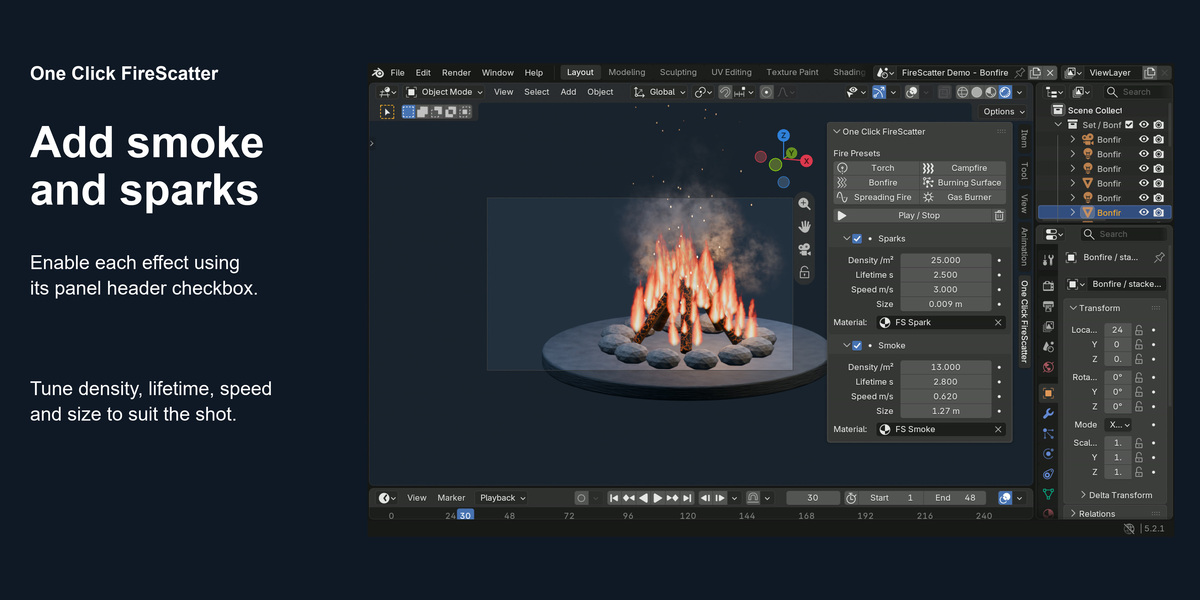
- Bonfire: taller flames with more prominent smoke and sparks.
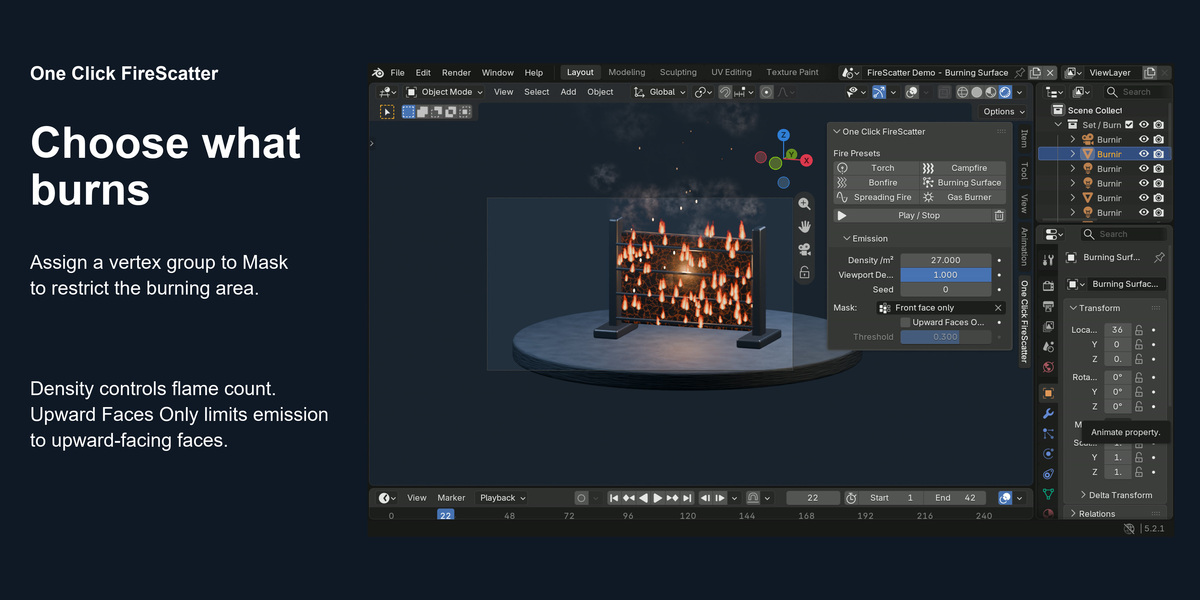
- Burning Surface: distributes flames across a mesh, including vertical surfaces.
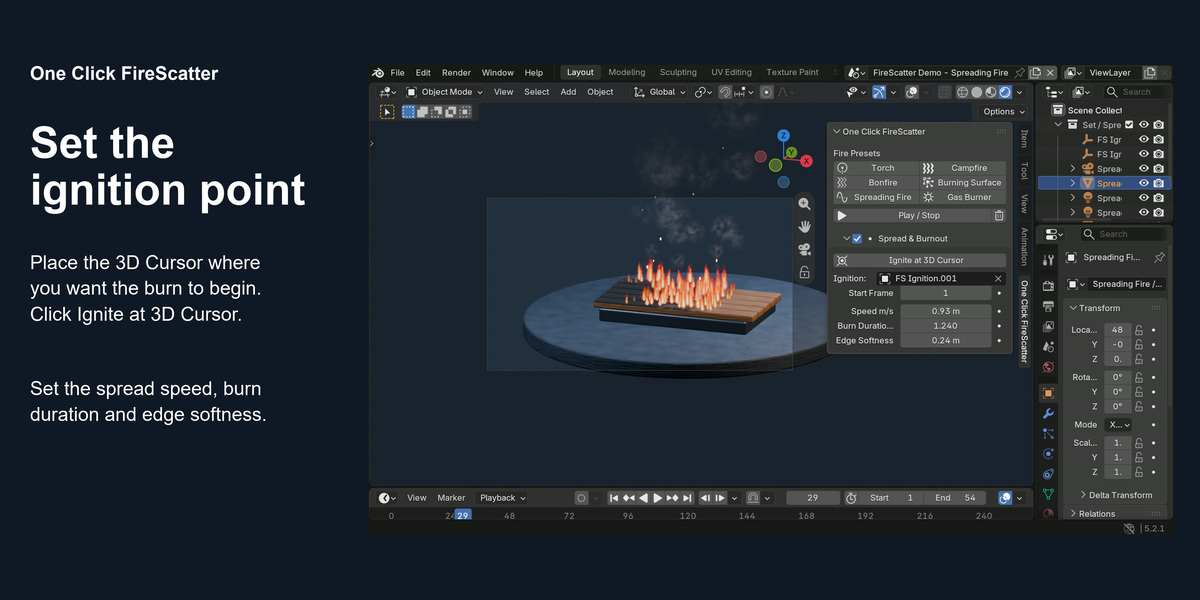
- Spreading Fire: starts at an ignition point and moves across the surface over time.
- Gas Burner: short blue flames, with smoke and sparks disabled by default.
Control where the fire appears
In Emission, adjust Density to change the number of flames, Viewport Density to reduce the preview load, and Seed to change the scatter pattern. Use Upward Faces Only and its threshold to restrict emission by face direction.
- Create a vertex group on the mesh and assign weights to the area you want to burn. Use weight zero for areas that should stay clear and higher weights for denser fire.
- In Object Mode, select the group in Emission > Mask. Clear the field to use the whole eligible surface again.
Shape the flames, smoke and sparks
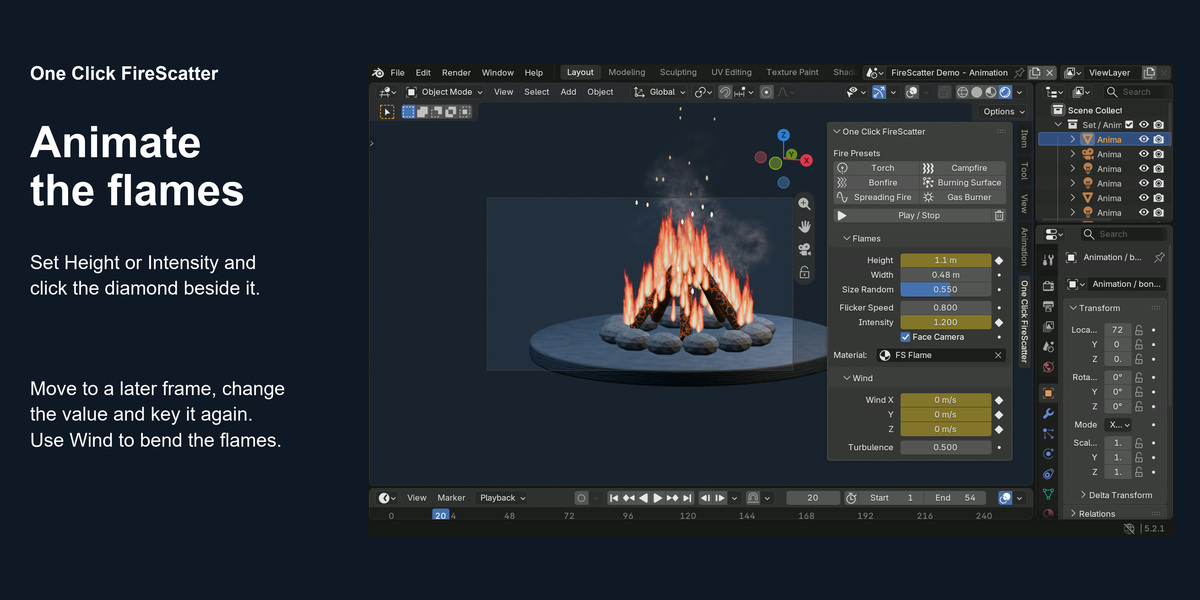
In Flames, set the height, width, size variation, flicker speed and intensity. Use Face Camera to orient the flame cards toward the active camera. If the panel warns about non-uniform scale, use Apply Scale after checking how it will affect the object.
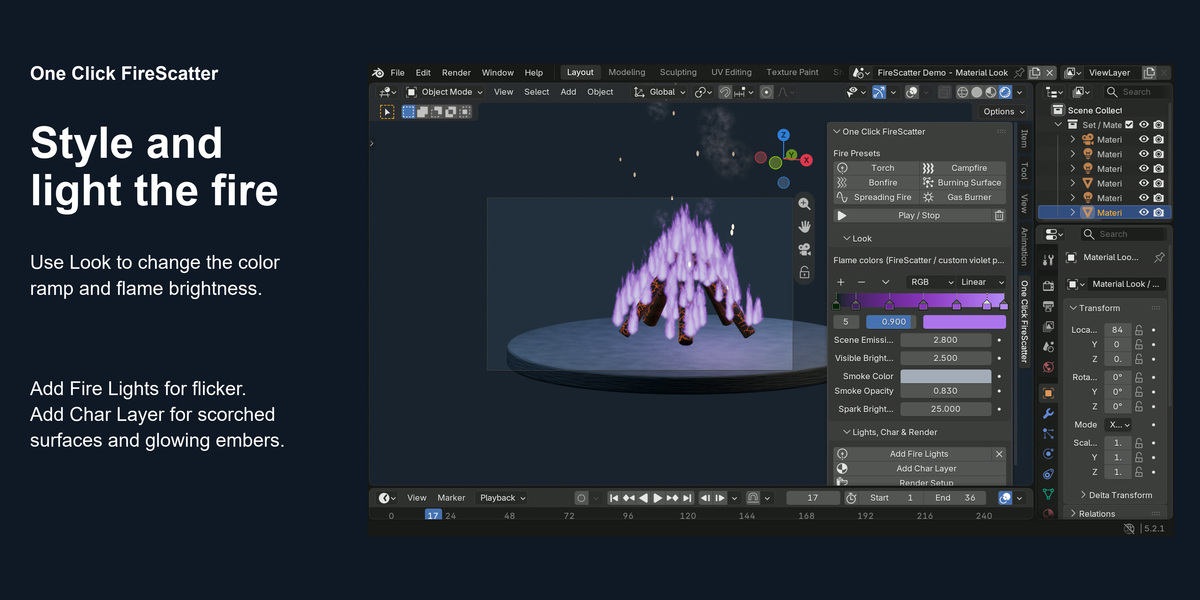
Use Wind to set direction and Turbulence to vary motion. Enable Sparks and Smoke in their panel headers, then adjust each effect's density, lifetime, speed and size. In Look, edit the flame color ramp, visible brightness, scene emission, smoke color and opacity, or spark brightness. Changes to a shared material affect all objects using it.
Spread fire and animate settings
- Place the 3D Cursor where the burn should start and choose Spreading Fire. To set a new ignition point and start frame, place the cursor, move to the desired frame, and click Ignite at 3D Cursor.
- In Spread & Burnout, adjust the ignition object, start frame, speed, burn duration and edge softness. Set the burn duration to zero to keep ignited areas burning.
- To animate a parameter, set its value and click the diamond beside it. Move to a later frame, change the value and insert another key. For example, key Height and Intensity at the start and end of a flare-up.
Light, char and render
In Lights, Char & Render, use Add Fire Lights to create flickering lights. Use its adjacent remove button to remove those lights. Add Char Layer adds scorching and ember glow to compatible Principled BSDF materials. Render Setup raises transparent bounces for Cycles and prepares blended transparency for Eevee. The trash button next to Play / Stop removes the FireScatter modifier from the selected mesh.
Explore the demo scenes
Expand Demo Scenes at the bottom of the sidebar and click Add Demo Scene. FireScatter adds eight scenes to the current file and switches to Torch. Use Blender's scene selector to try the other presets, the keyframe example, and the alternative material, or to return to your original scene.
Troubleshooting
- No presets: select a mesh object in the viewport.
- No flames: check the shading mode, density, vertex group weights and upward-face filter. For spreading fire, advance past the start frame far enough for the fire to reach the mesh.
- Slow preview: lower Viewport Density. In Cycles, many overlapping transparent flame cards can increase render time.
License
Copyright © 2024–2026 MambaCG. The ZIP includes the source code, editable demos and the full GPL-3.0-or-later license text.
Have questions about this product?
Login to message
| Blender Extension Compatible | Yes |
| Published | about 5 hours ago |
| Blender Version | 4.2 - 5.3 |
| Extension Type | Add-on |
| Render Engine Used | Cycles, Eevee |
| License | GPL |