 Salman Animator
The problem
Making a custom sculpt brush from an image in Blender takes a lot of clicks. You duplicate a brush, add a new texture, load the image, change the mapping, then fix strength, spacing and falloff. If the image is in color, has a transparent background or has hard edges, you go back to a 2D editor and fix it there. Then you do it all again for the next logo, emblem or pattern.
The solution
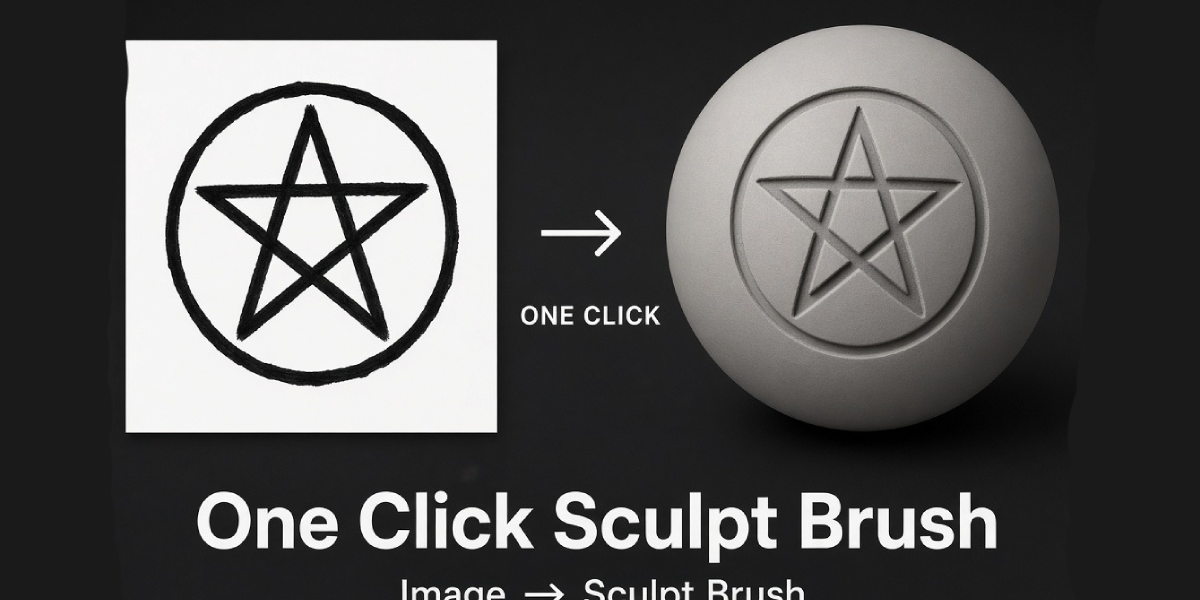
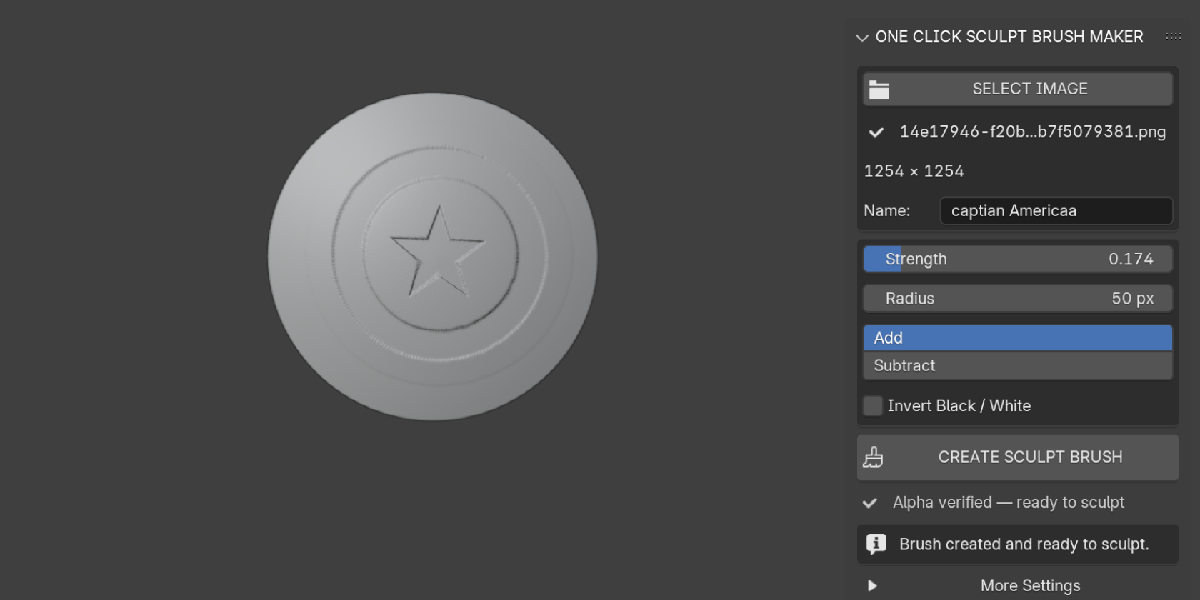
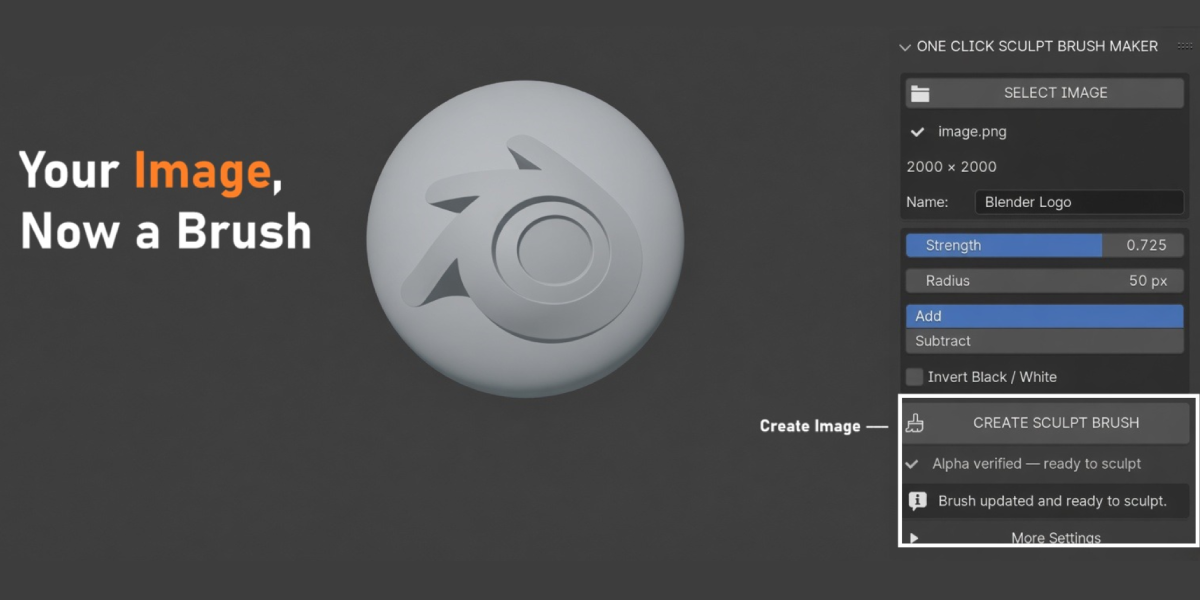
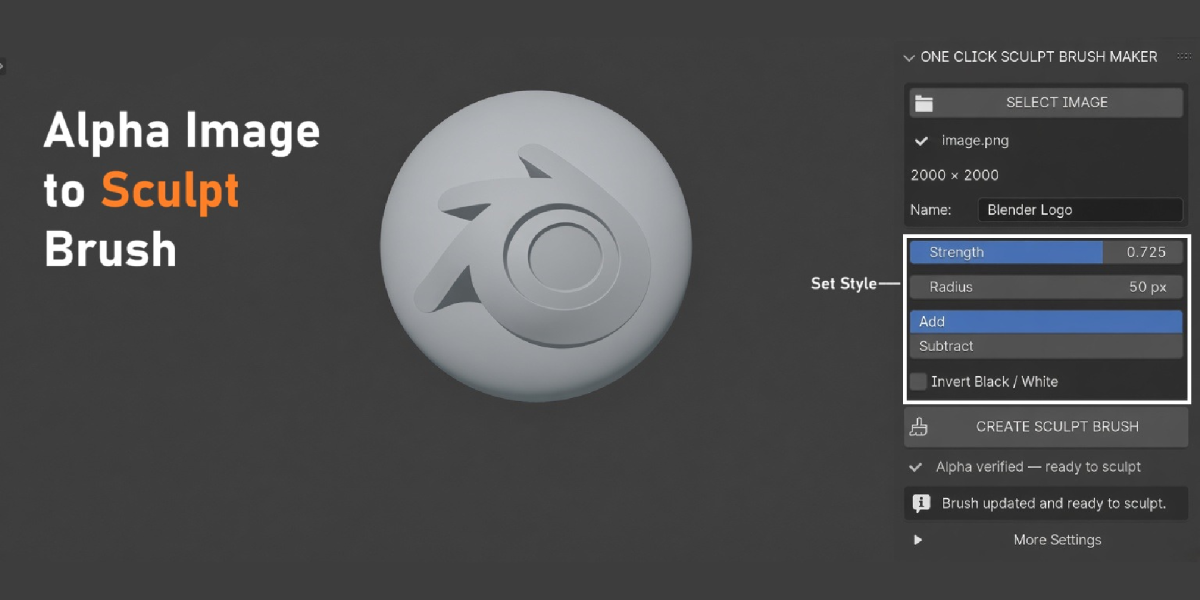
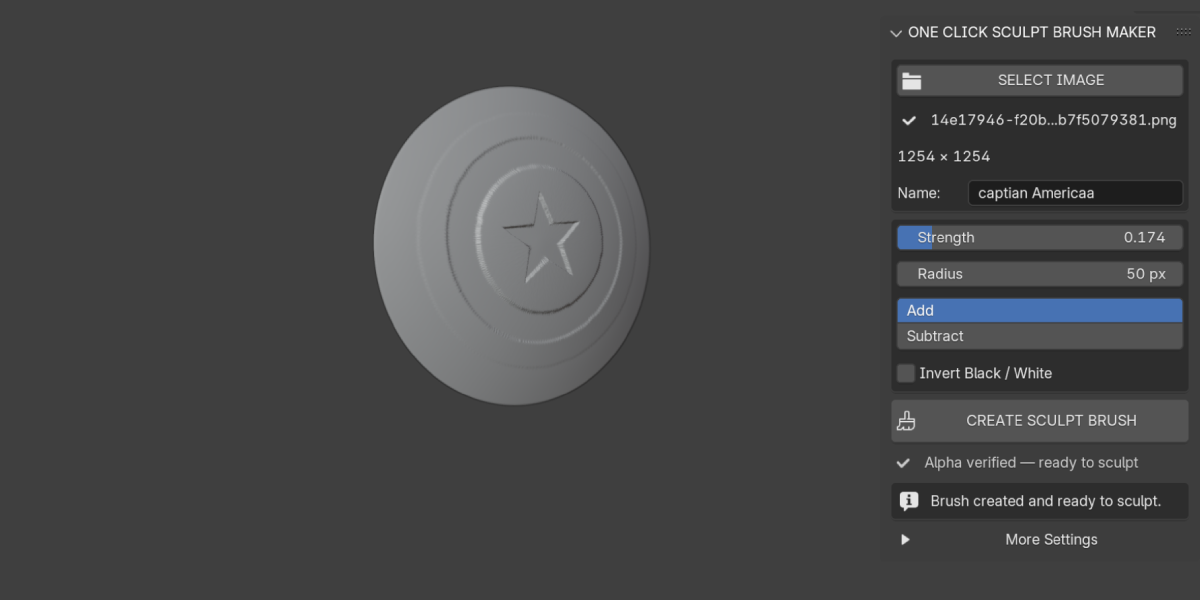
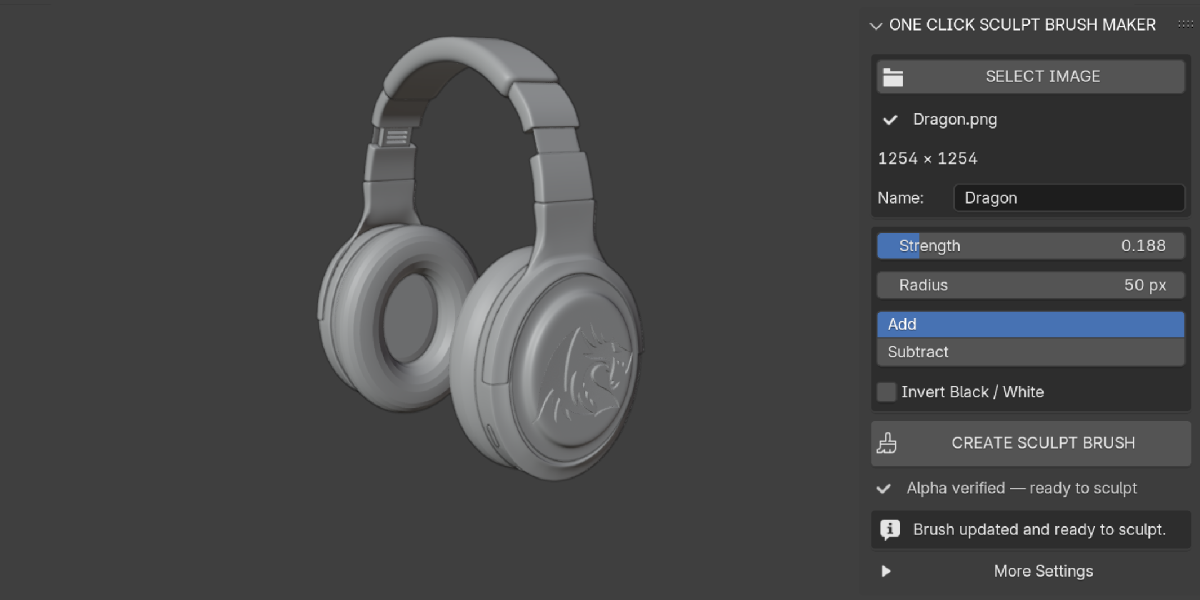
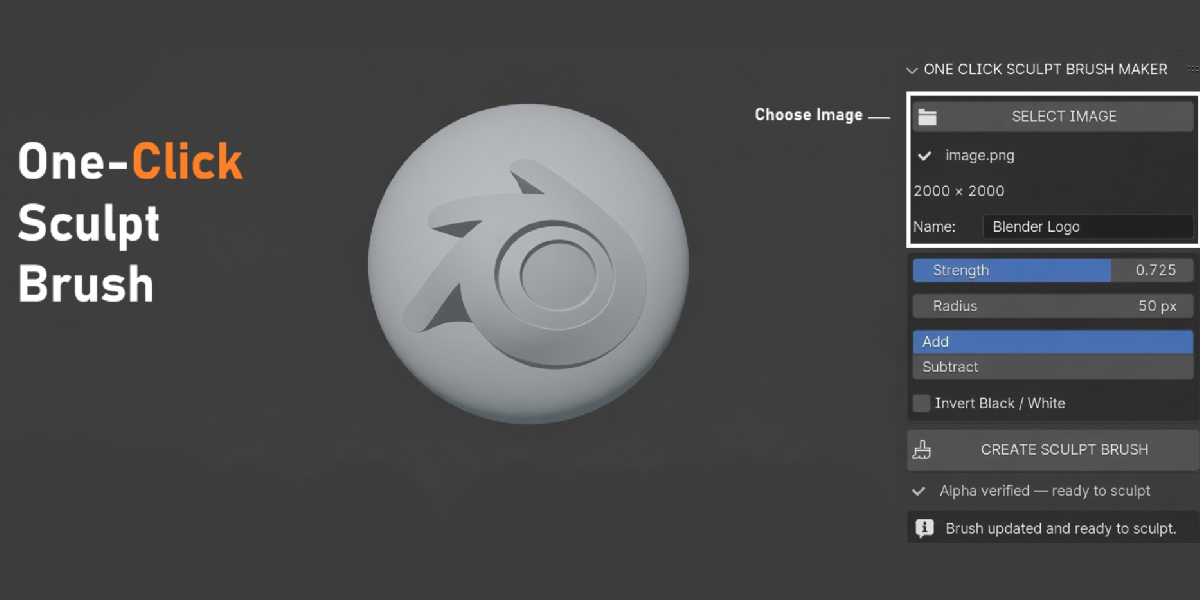
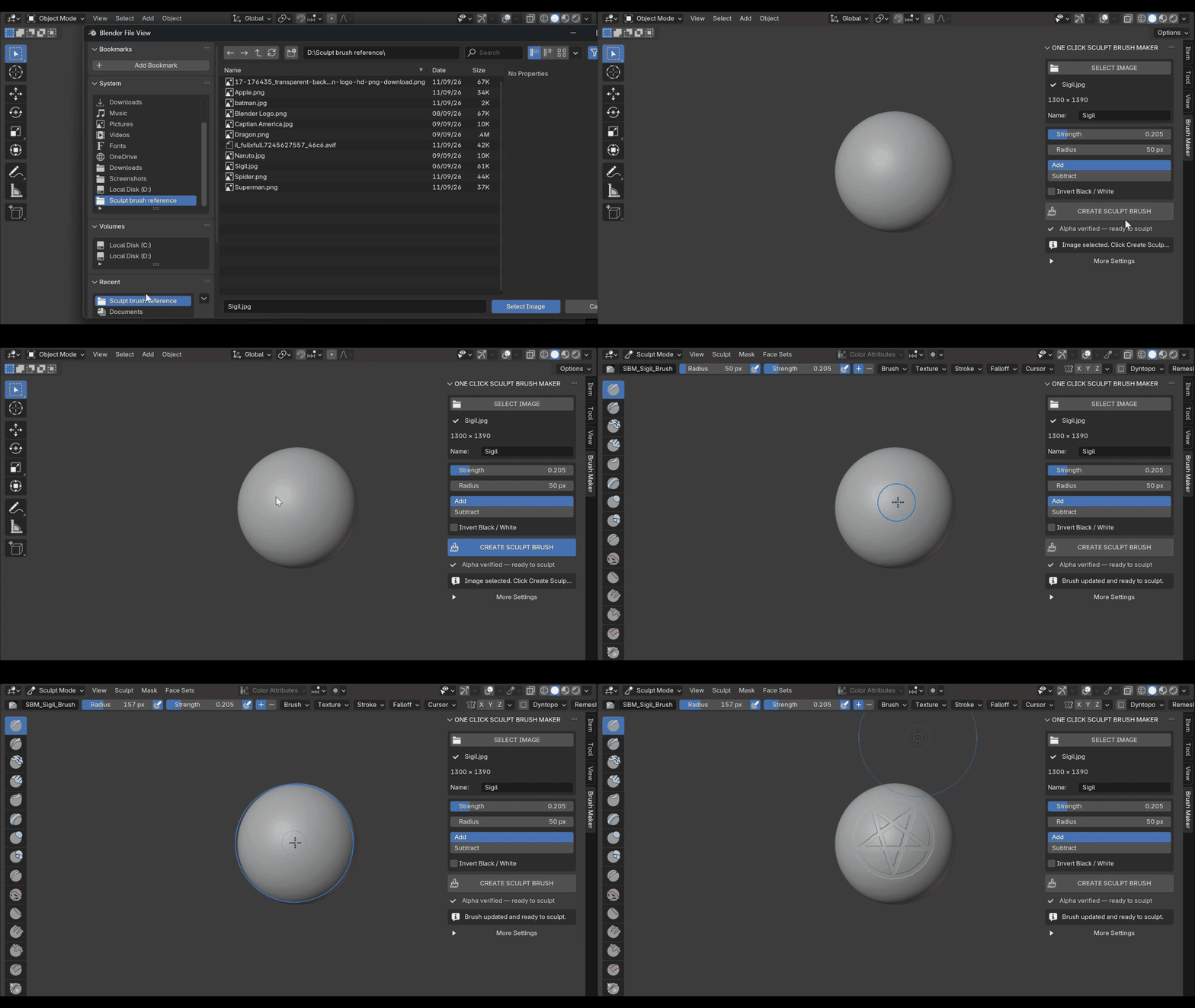
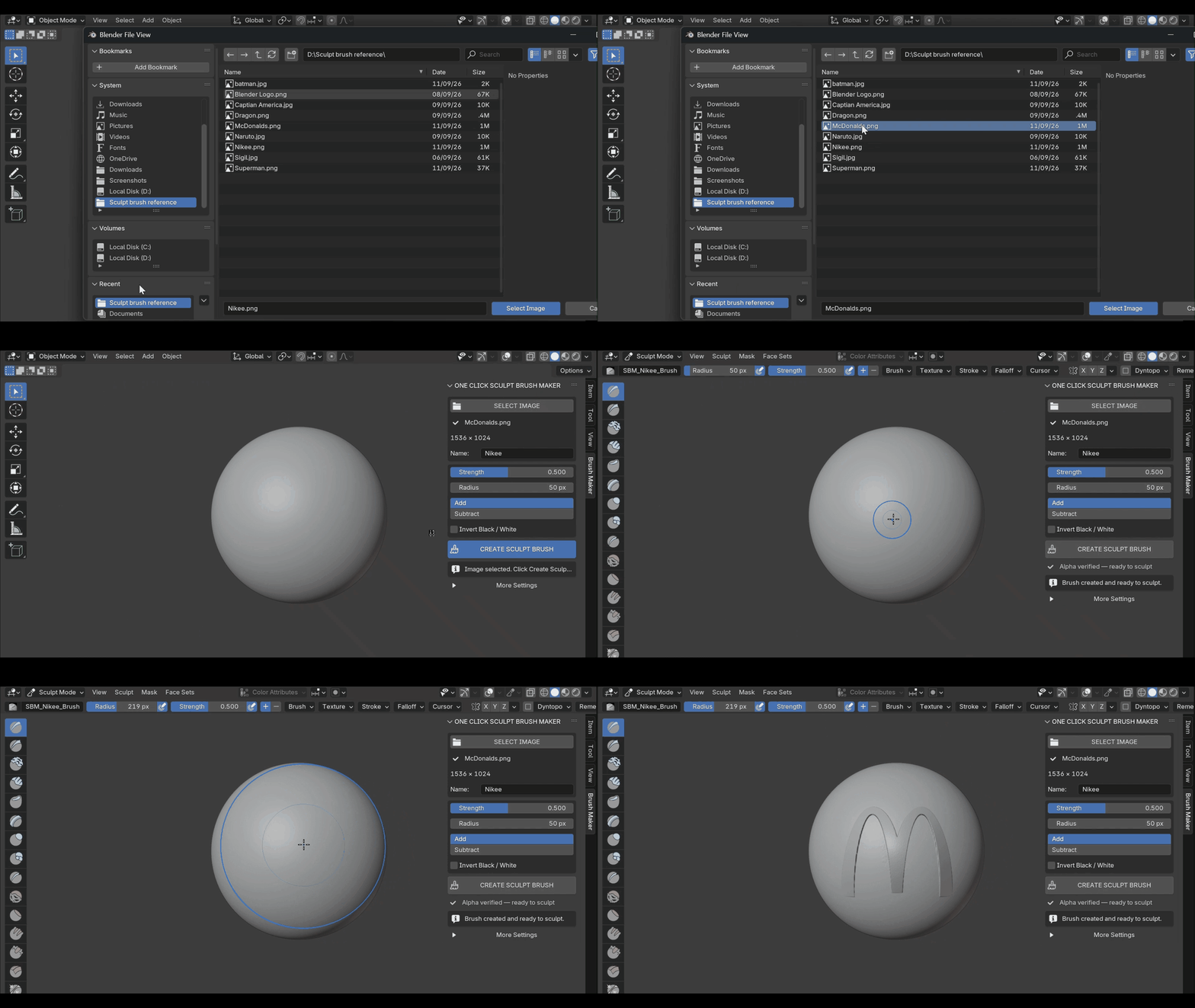
One Click Sculpt Brush Maker does that setup for you. Pick an image in the Brush Maker sidebar, give it a name, set Strength and Radius, choose Add or Subtract and click CREATE / UPDATE SCULPT BRUSH. The add-on cleans up the image, builds the brush, switches to Sculpt Mode and makes the brush active. You can sculpt right away.
White parts of the image raise the surface, black parts do nothing. Your source image is never changed.
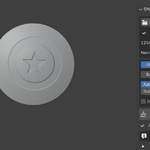
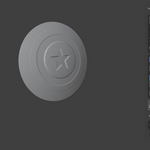
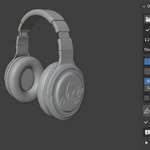
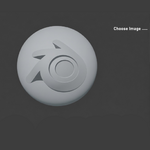
Turn a PNG logo or emblem into a stamp brush
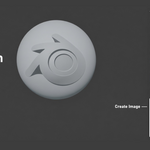
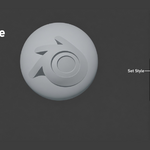
Transparent PNGs work as shaped stamps: the alpha is baked into the height, so only the logo itself sculpts. Rectangular images are centered on a square canvas without stretching. Use Anchored or Dots stroke methods to place a single clean impression, or Space for a repeating pattern.
Fix the alpha inside Blender
No need to open another app. Auto Grayscale, Auto Contrast, Brightness, Contrast, Gamma, Blur and Soft Edge let you tune the alpha right in the sidebar. Soft Edge fades the border so you do not get a square edge around the stamp.
Update without starting over
Change a setting and click Create again: the same name and image update the existing brush instead of making a new copy. The new brush is checked before it replaces the old one, so a failed update never breaks your brush.
Keep your brushes
Generated brushes and their images are packed into your .blend. Save Brush as Asset writes the brush to your asset library so you can use it in other projects.
Key Features
- One click brush creation: picks the image, builds the texture and brush, enters Sculpt Mode and activates the brush. Benefit: no texture slots or mapping menus to set up by hand.
- Image cleanup controls: Auto Grayscale, Auto Contrast, Brightness, Contrast, Gamma. Benefit: weak or color images still give a clear, readable stamp without a 2D editor.
- Transparent PNG support: transparency becomes part of the alpha. Benefit: logo cutouts stamp only the shape, not a square block.
- Blur and Soft Edge: smooth the alpha and fade the border. Benefit: no hard square edges or jagged steps on your mesh.
- Add, Subtract and Invert: raise or press in the design, or swap black and white. Benefit: embossed and engraved looks from the same image.
- Mapping and stroke options: Area Plane, View Plane, Tiled, 3D, Random, Stencil mapping; Space, Dots, Airbrush, Anchored, Line strokes; texture scale, rotation and spacing. Benefit: single stamps, repeating patterns or stencil work from one panel.
- Pressure and front faces: Pressure Strength, Pressure Size and Front Faces Only toggles. Benefit: tablet friendly and no sculpting through to the back side.
- Safe updates: same name and image update the brush; new data is checked before the old brush is replaced. Benefit: tweak and retry freely without piling up copies.
- Maximum resolution setting: 512 to 4096 or original (capped at 4096). Benefit: keep the viewport and file size light while still getting enough detail.
- Save Brush as Asset: exports the brush, texture and packed image to your asset library. Benefit: build a reusable library of your own stamps.
- Safe delete: Delete Generated Brush removes only that brush and its own data, after confirmation. Benefit: clean up without touching your other brushes.
- Helpful warnings: low vertex count notice, wrong mode instructions, transparent image check. Benefit: you know why a brush shows no detail instead of guessing.
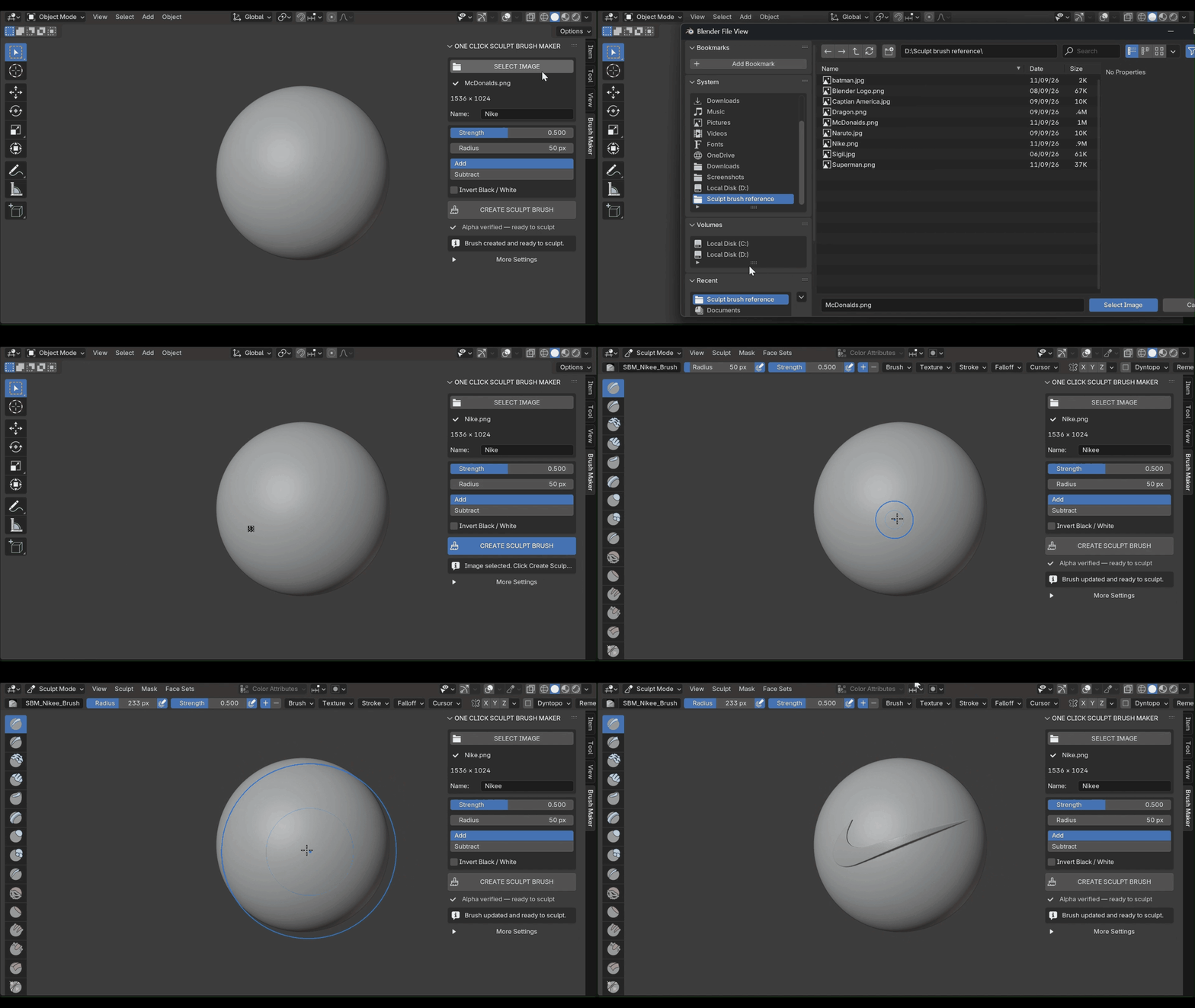
Workflow
Before: duplicate a brush, open the Texture panel, add a new texture, load the image, set mapping, adjust strength, radius and spacing, test, then go back to a 2D app to fix contrast or edges, reload, test again.
With One Click Sculpt Brush Maker:
- Select your mesh and open N Sidebar > Brush Maker.
- Click SELECT IMAGE and choose your PNG or JPG.
- Set Name, Strength, Radius and Add or Subtract.
- Click CREATE / UPDATE SCULPT BRUSH and sculpt.
- Not happy? Change Contrast, Blur or Soft Edge and click again. The same brush updates.
Everything stays non-destructive to your source images, and every brush is saved inside your .blend.
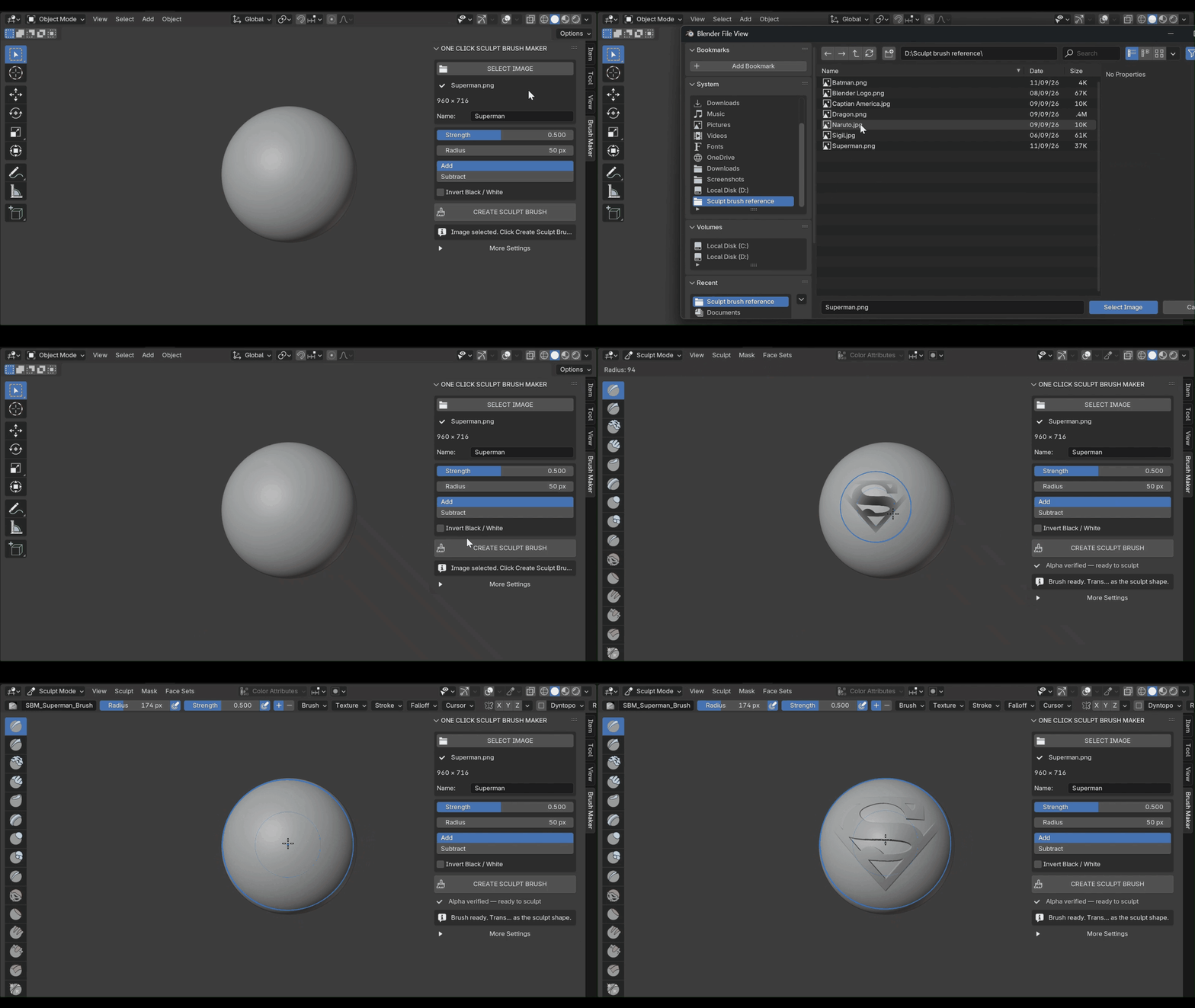
Who it is for
- Hard surface and prop artists: stamp logos, serial plates, rivet patterns and emblems on shields, armor, weapons and gadgets.
- Character and creature artists: scales, tattoos, scars and skin patterns from your own alpha images.
- Product and print artists: embossed or engraved text and logos on bottles, coins, badges and 3D printed parts.
- Environment artists: carvings, ornaments and tiles on stone and wood.
- Beginners: get a working image brush without learning the texture panel first.
