 Arun C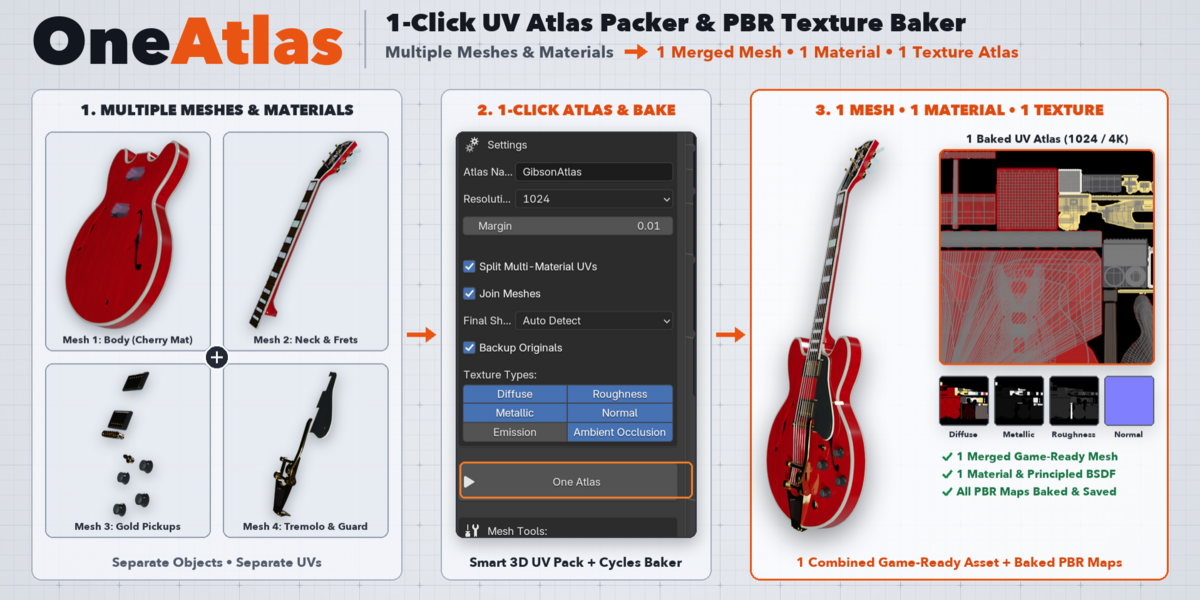
1. Installation
- Download oneatlas-2.3.1.zip from your Superhive downloads page (do not unzip the file).
- Open Blender and go to Edit → Preferences → Add-ons (or Get Extensions / Add-ons in Blender 4.2+ / 5.x).
- Click the top-right dropdown menu and select Install from Disk... (or click Install... in Blender 3.x / 4.0).
- Select oneatlas-2.3.1.zip and enable the checkbox next to UV: OneAtlas.
Location in Blender: Press N in the 3D Viewport or UV Editor to open the Sidebar, and click the OneAtlas tab.
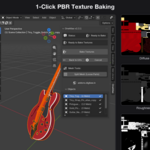
2. Quick-Start: 1-Click Workflow
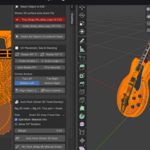
- Select Objects: In Object Mode, select all the mesh objects you want to combine into a single UV Atlas.
-
Configure Settings:
- Atlas Name: Enter a custom name for your output mesh, material, and baked textures.
-
Resolution: Choose
512,1024,2048, or4096. -
Margin: Set the padding between UV regions (default:
0.01). - Split Multi-Material UVs: Keep enabled if any object uses multiple materials so each material gets its own UV region.
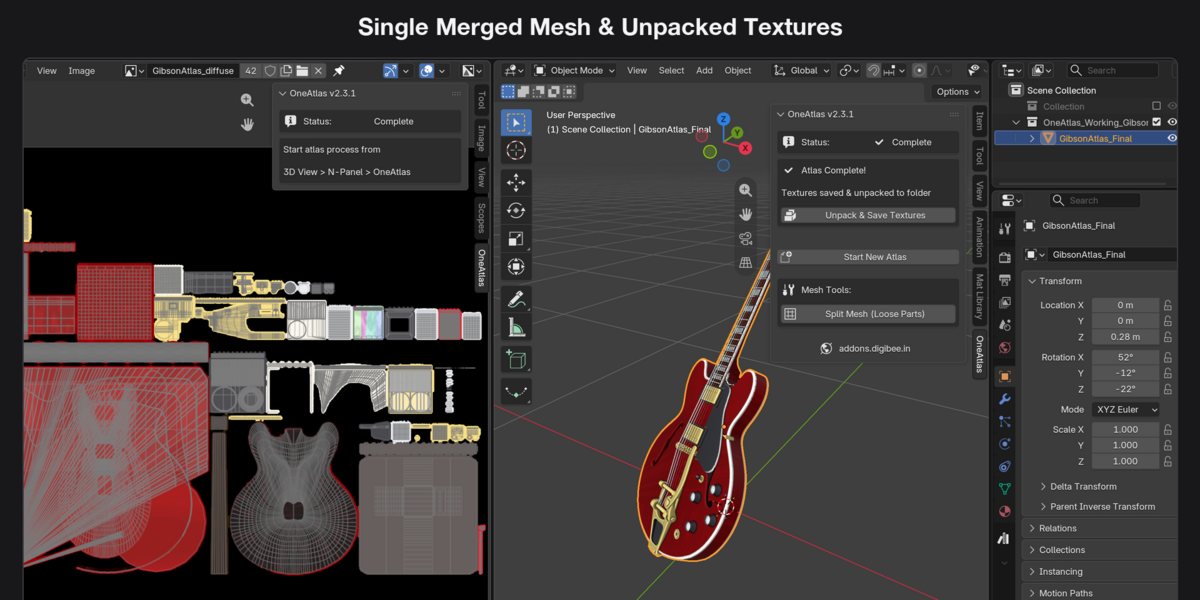
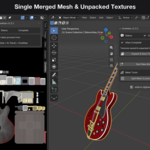
- Join Meshes: Keep enabled to merge all selected objects into 1 single mesh after baking.
-
Backup Originals: Keep enabled to safely preserve your original meshes inside a hidden
Atlas_Backupcollection.
-
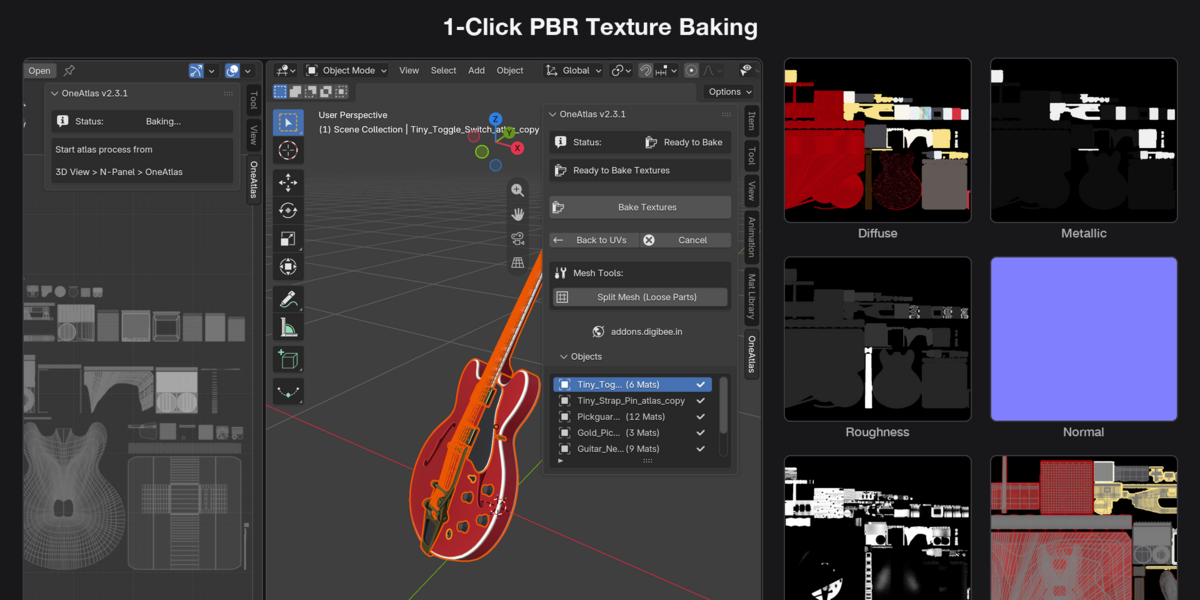
Choose Texture Types: Toggle the PBR channels you want to bake (
Diffuse,Roughness,Metallic,Normal,Emission,Ambient Occlusion). - Click "One Atlas": Wait for the progress bar to complete, then click Finalize to view your merged mesh and baked PBR textures.
3. Advanced: 2-Stage Interactive UV Editing Workflow
If you want to inspect or manually adjust the packed UV layout before baking textures:
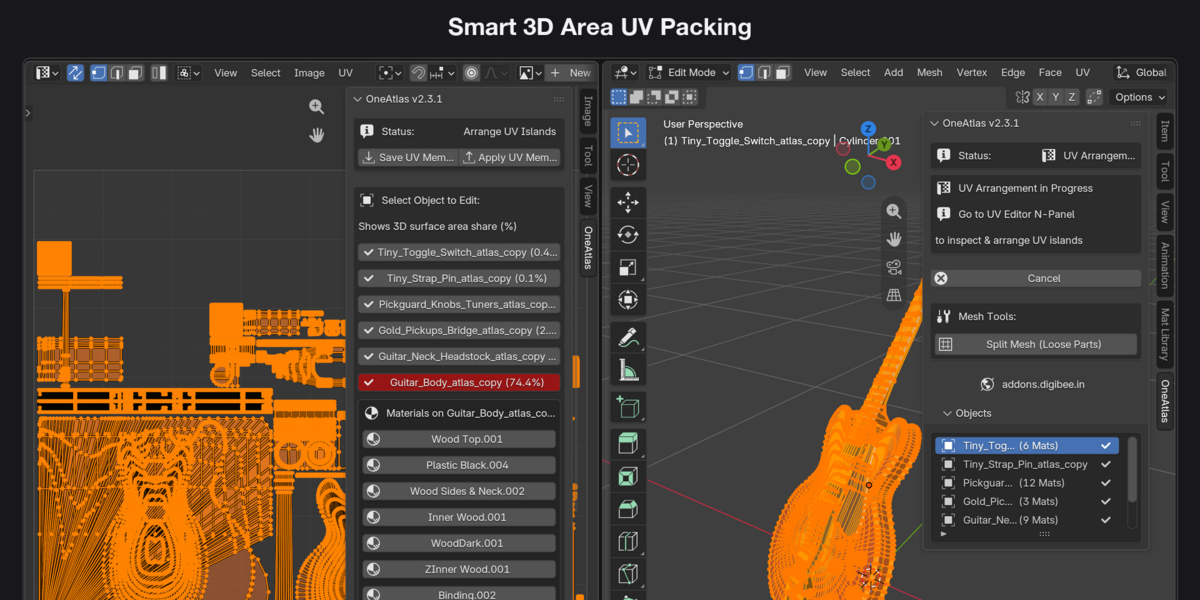
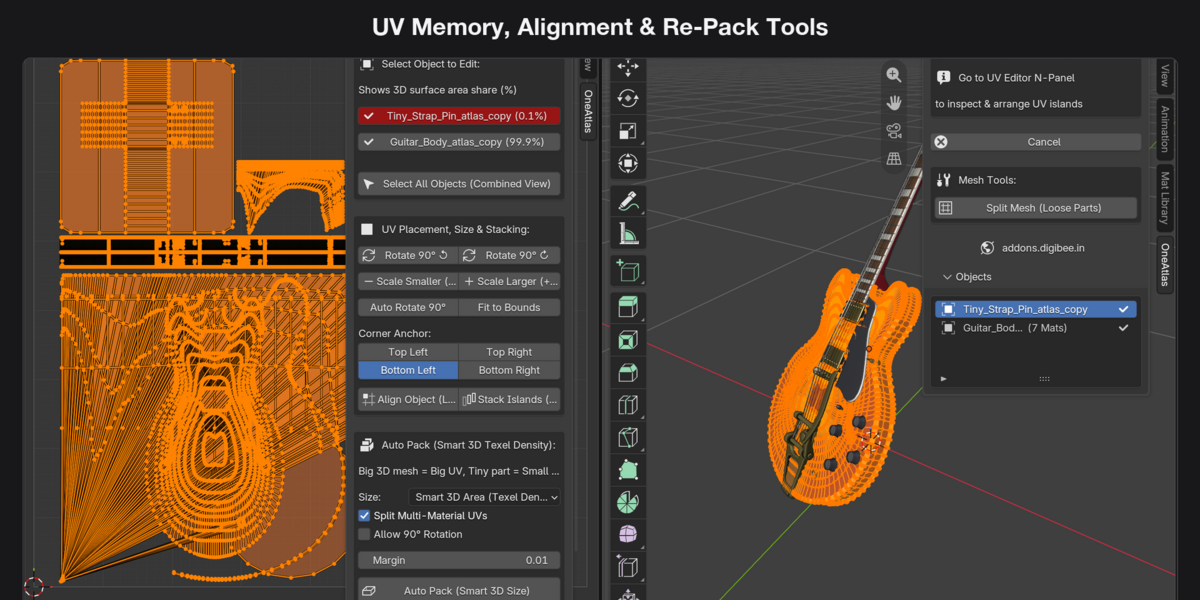
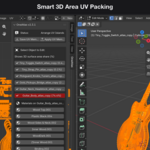
- Open the UV Packing panel in the UV Editor sidebar (or 3D Viewport sidebar) and click Create Atlas UVs.
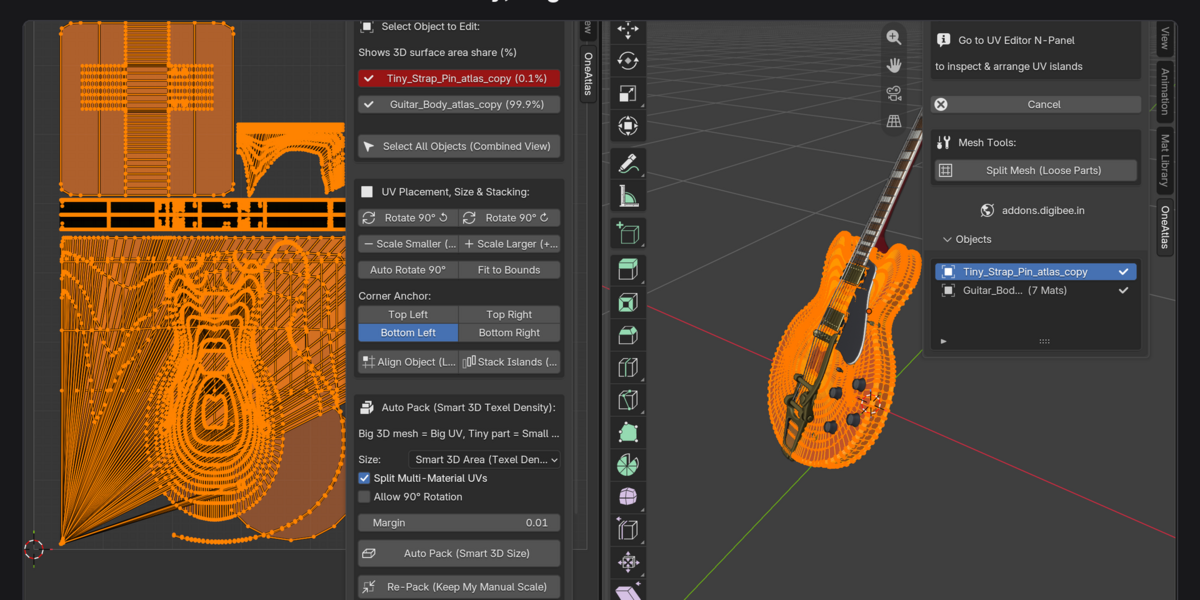
- OneAtlas packs all objects by their real 3D surface area (
%share) into a newAtlasUVmap and enters Edit Mode so you can view all UV islands. - Use the built-in UV Tools:
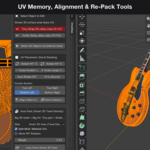
- Material UV Selector: Click any material slot button to select only the faces belonging to that material.
- Save UVs / Restore UVs: Save a snapshot of your UV layout before experimenting and restore it anytime.
-
Transform & Align: Use
Align 90°,Rotate 90°,Flip H,Flip V,Box Fit, andWeld. -
Re-Pack Area / Full Re-Pack: Re-pack selected islands inside their local box or re-pack the entire
0–1UV space.
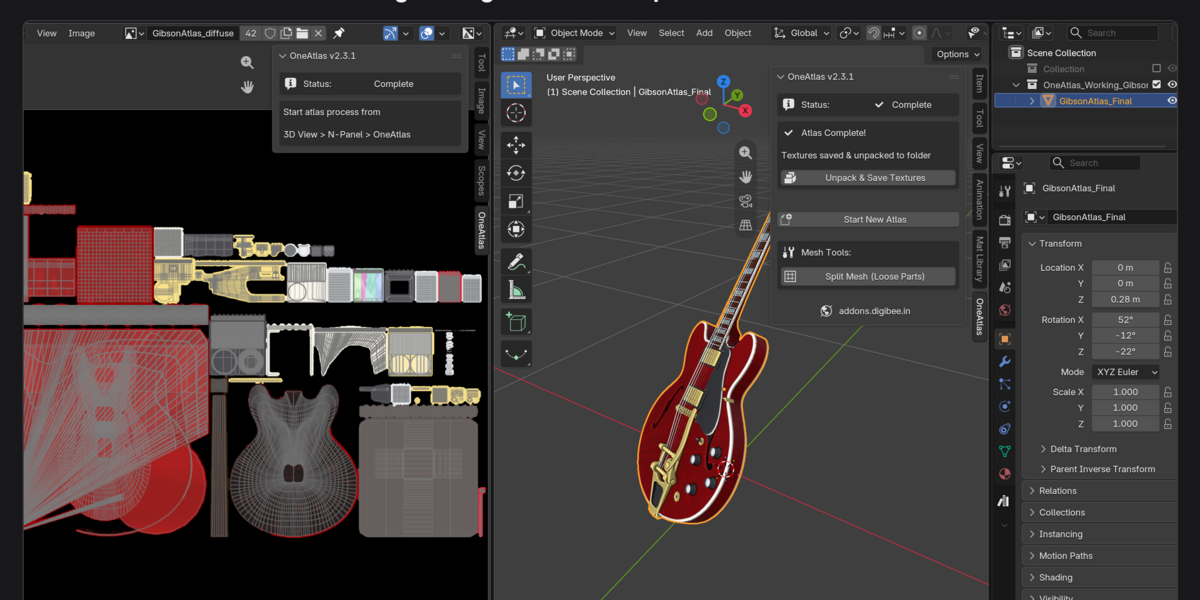
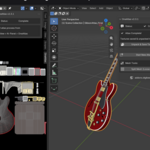
- Once satisfied with the UV layout, click Bake Textures (or One Atlas) to bake all selected PBR maps onto your customized UVs.
4. Output & Saved Textures
- If your
.blendfile is saved on disk, OneAtlas automatically exports all baked.pngmaps into anUnpacked_Textures/folder in the same directory as your.blendfile. - Your original source objects remain untouched inside the hidden
Atlas_Backupcollection in the Outliner.
 Included
Includes 12 months of
- Support from Arun C
- Product updates
Extend this product’s Support Period +12 months: 25% of product price
Have questions before purchasing?
Login to message
| Blender Extension Compatible | Yes |
| Published | about 3 hours ago |
| Blender Version | 3.0 - 5.2 |
| Extension Type | Add-on |
| Render Engine Used | Cycles, Eevee |
| License | GPL |

Discover more products like this
pbr baker game ready UV atlas texel density Game asset combine meshes material combiner optimization texture-baking uv pack uv bake textures