 Arun C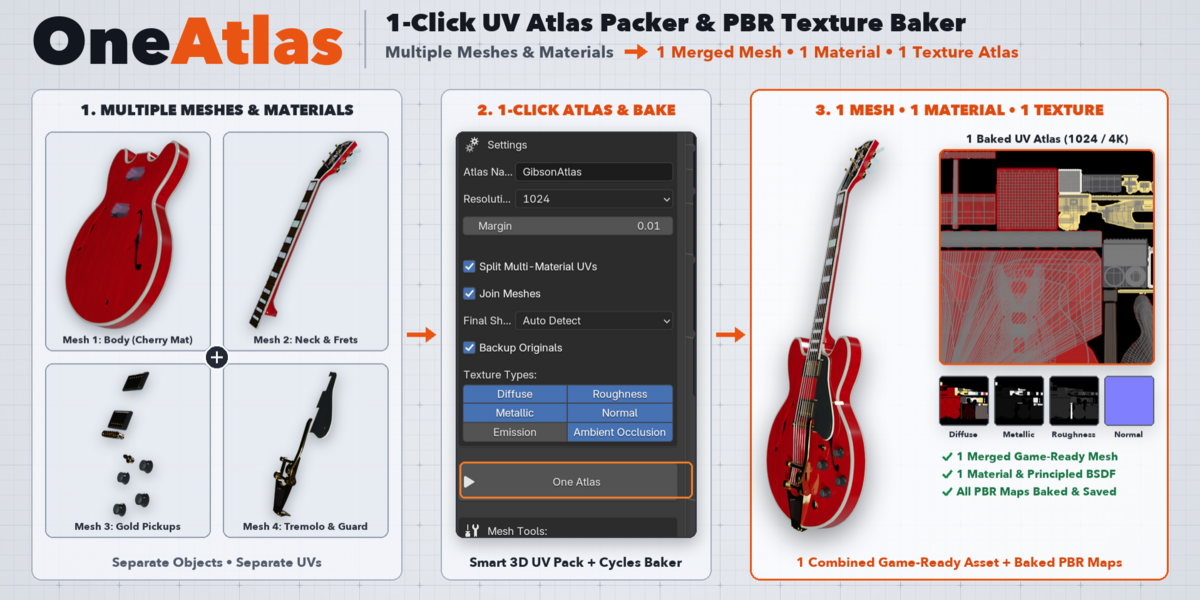
Does OneAtlas delete or overwrite my original meshes and materials?
No. When "Backup Originals" is enabled (on by default), OneAtlas duplicates your objects for baking and safely moves your original untouched meshes and materials into a hidden "Atlas_Backup" collection in the Outliner, so you can revert or re-bake at any time.
Can I use OneAtlas if my scene is set to EEVEE?
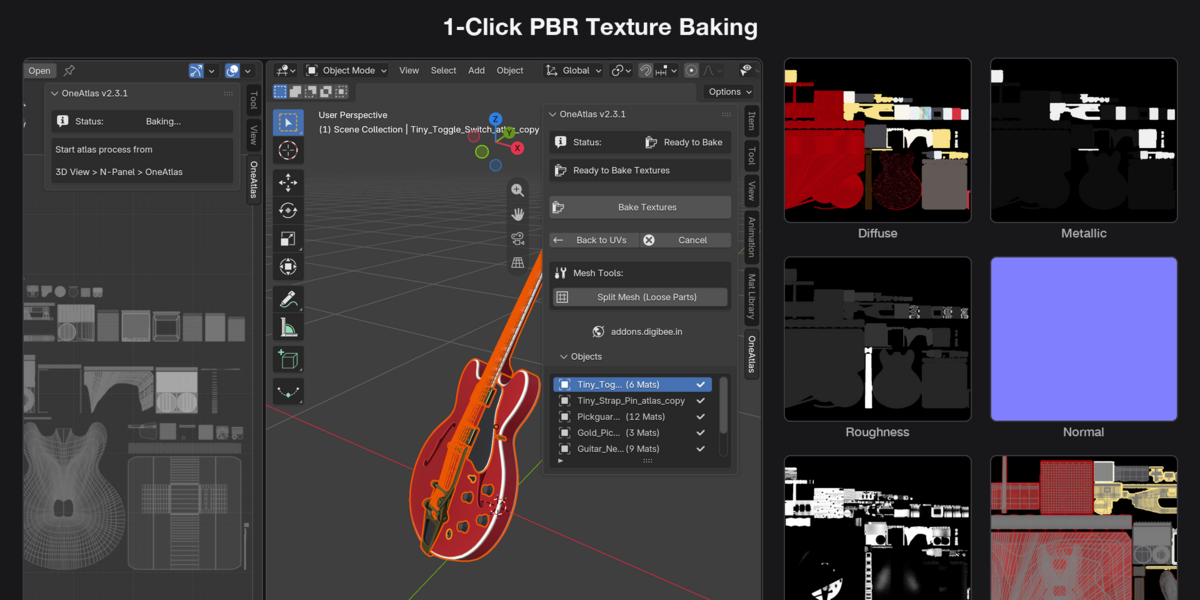
Yes! You can work in EEVEE or Material Preview mode. When you click Bake, OneAtlas automatically switches to Cycles in the background to perform the PBR texture bake and restores your original render engine and viewport shading once baking is finished.
How does OneAtlas handle a single object that has multiple materials assigned to different faces?
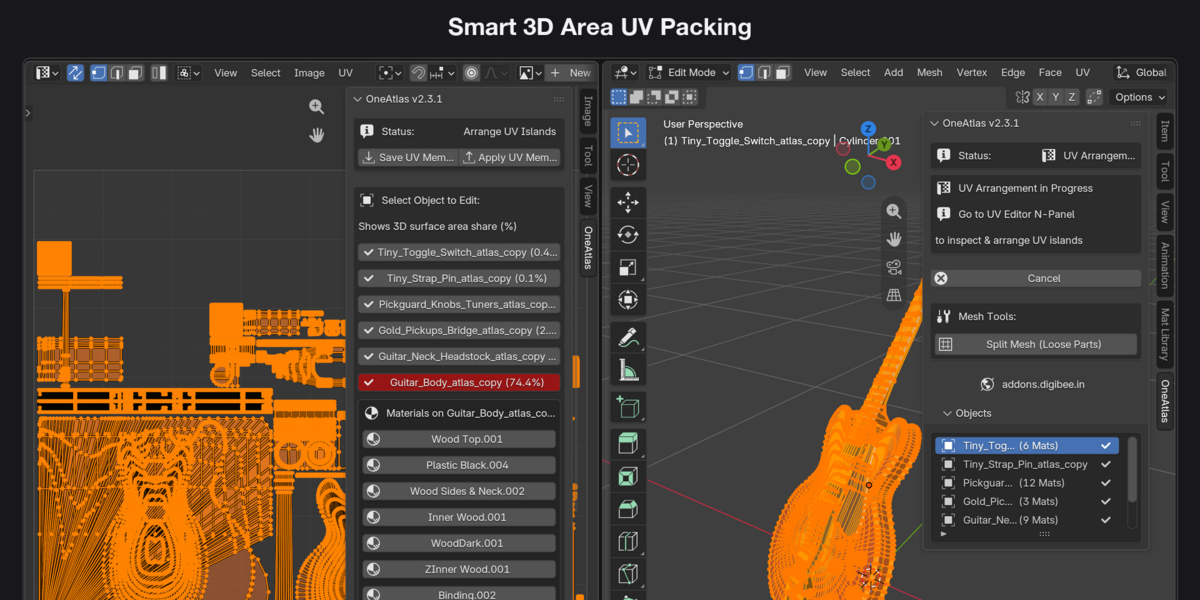
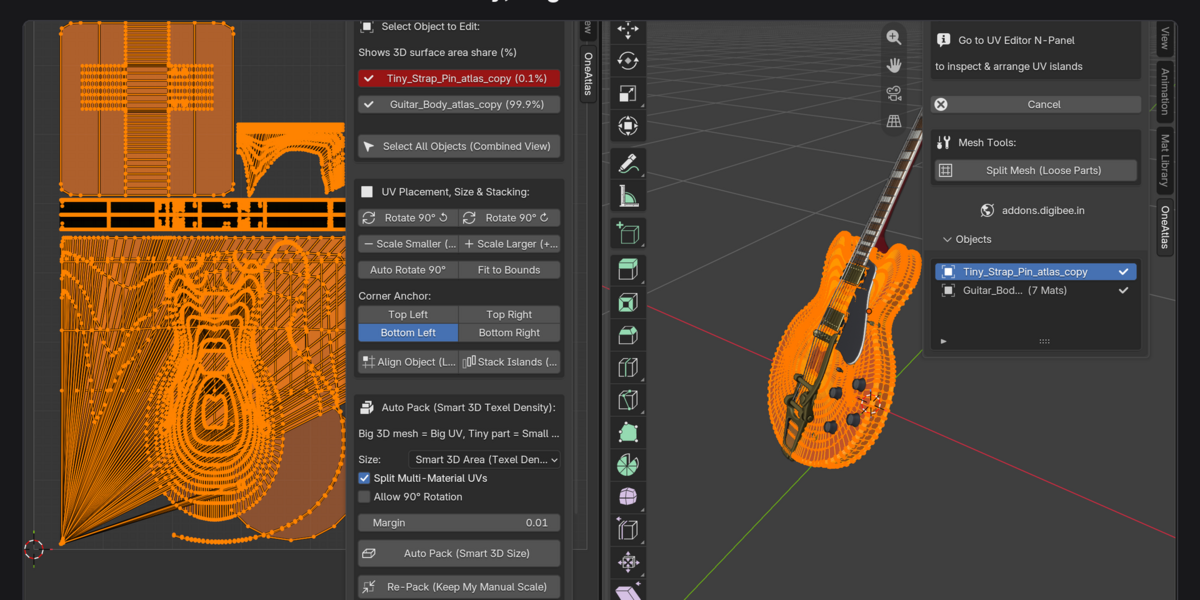
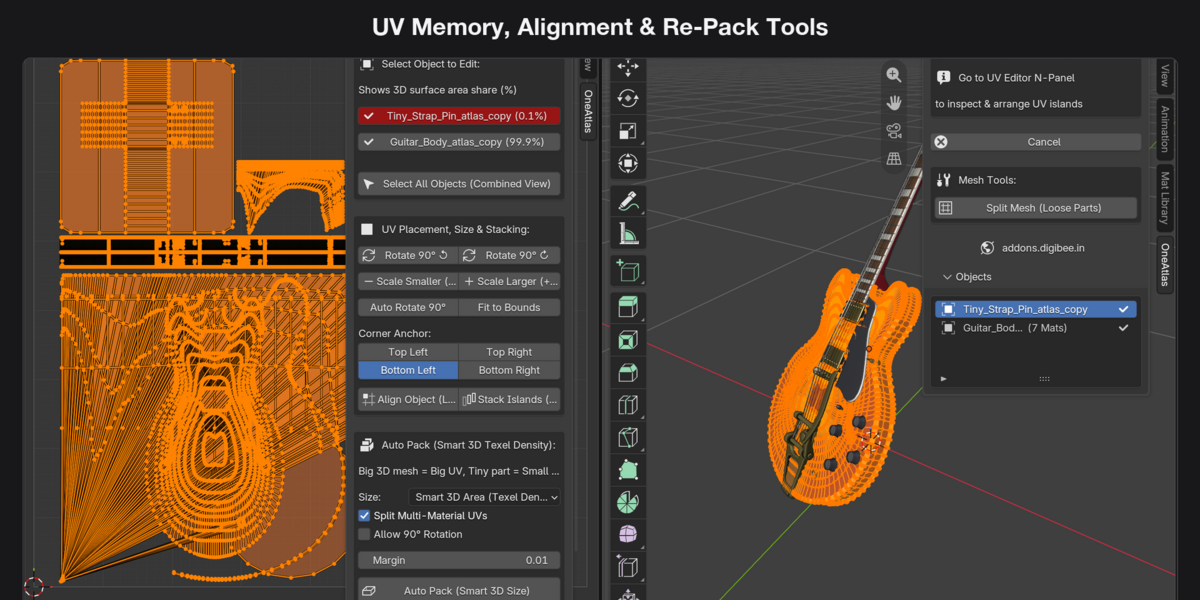
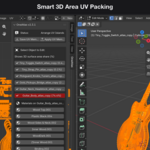
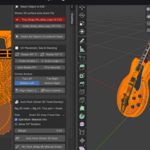
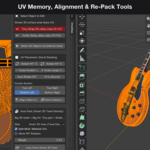
When "Split Multi-Material UVs" is enabled, OneAtlas automatically detects all active material slots on each mesh, calculates the 3D surface area of the faces assigned to each material, and packs each material zone into its own separate, non-overlapping UV region inside the final Atlas.
Where are the baked PBR texture images saved?
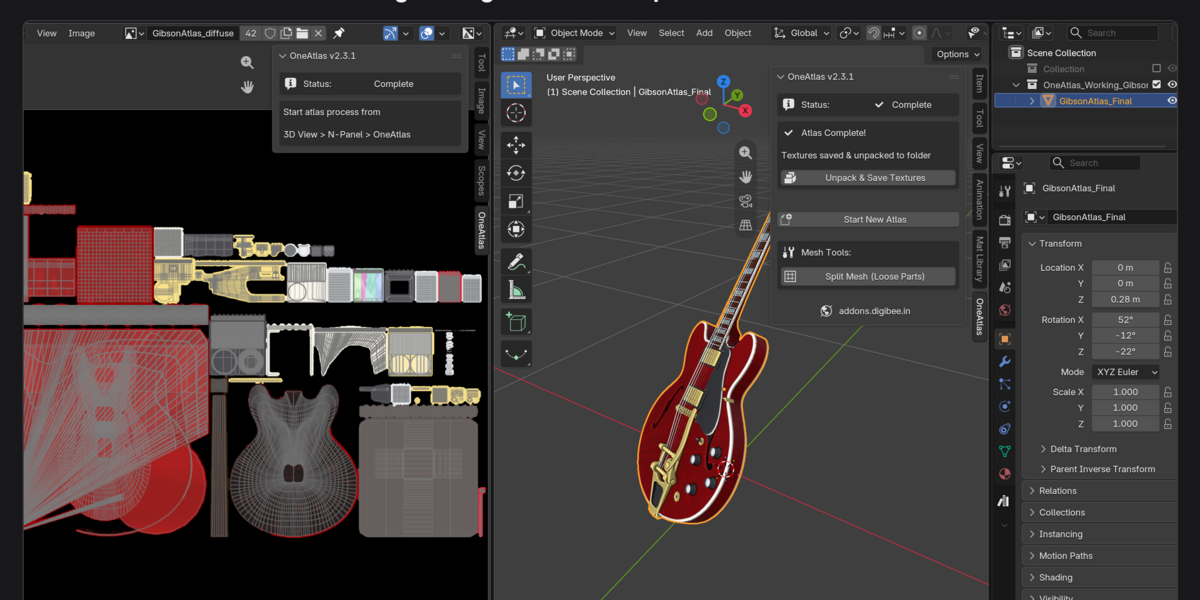
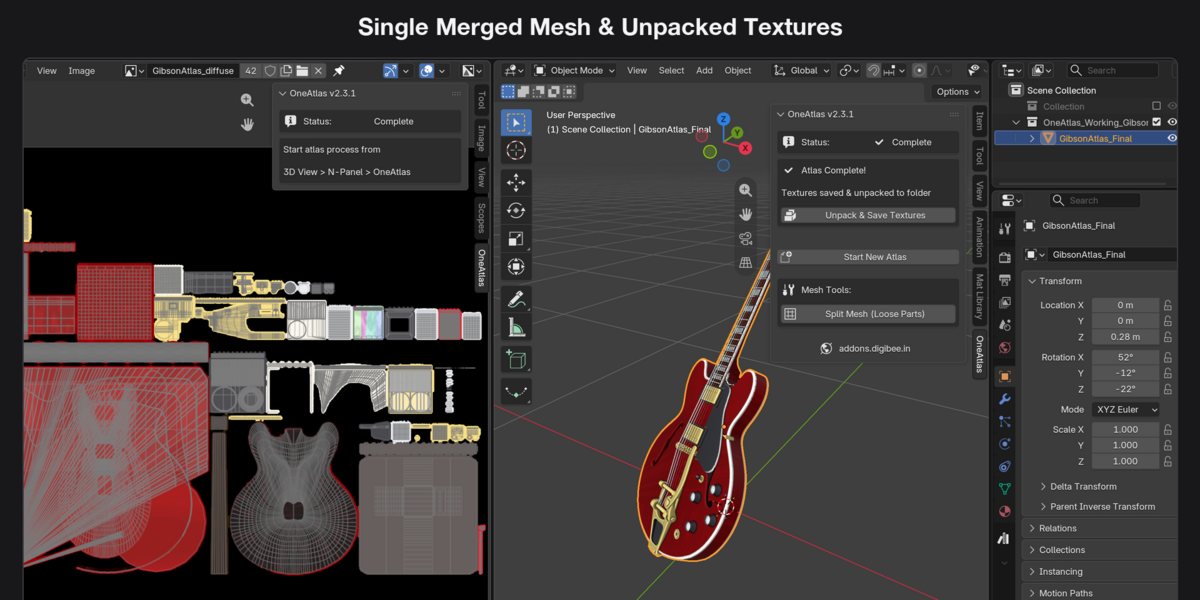
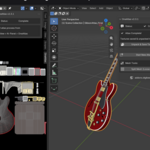
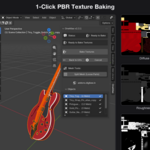
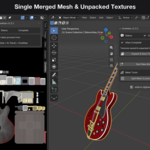
All baked textures (Diffuse, Roughness, Metallic, Normal, Emission, AO) are available inside Blender's Image Editor and are also automatically saved as external PNG files in an "Unpacked_Textures" folder right next to your saved .blend file.
Which Blender versions are supported?
OneAtlas supports Blender 3.0 through Blender 4.x and Blender 5.x+. It automatically adapts to Blender 4.0+ Principled BSDF socket names (such as Emission Color and Specular IOR Level) as well as Blender 5.0+ UV selection APIs.
 Included
Includes 12 months of
- Support from Arun C
- Product updates
Extend this product’s Support Period +12 months: 25% of product price
Have questions before purchasing?
Login to message
| Blender Extension Compatible | Yes |
| Published | about 4 hours ago |
| Blender Version | 3.0 - 5.2 |
| Extension Type | Add-on |
| Render Engine Used | Cycles, Eevee |
| License | GPL |

Discover more products like this
combine meshes Game asset UV atlas material combiner uv bake textures texture-baking pbr baker texel density game ready optimization uv pack