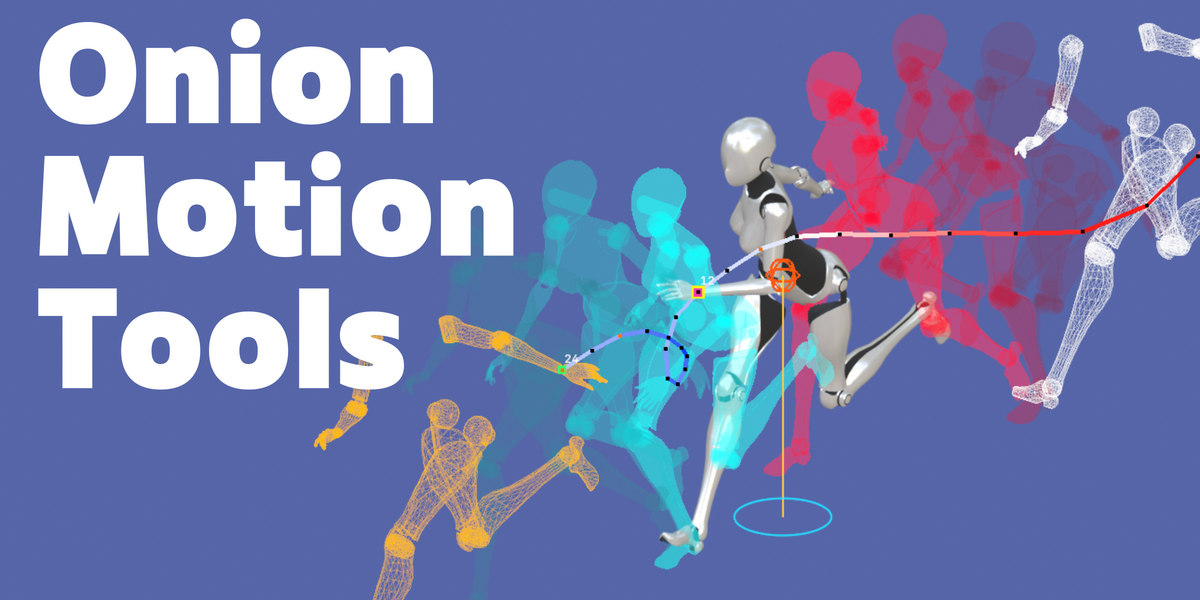
Animation Tools Shaped by Production Experience
Onion Motion Tools grew out of my own animation production experience. While creating a locomotion animation asset, I kept running into small workflow problems and wishing certain visual tools were built into the process.
OMT brings those ideas together into 8 focused tools for reviewing motion, comparing poses, checking balance, and speeding up everyday animation editing in Blender.
8 Focused Tools. One Animation Workflow.
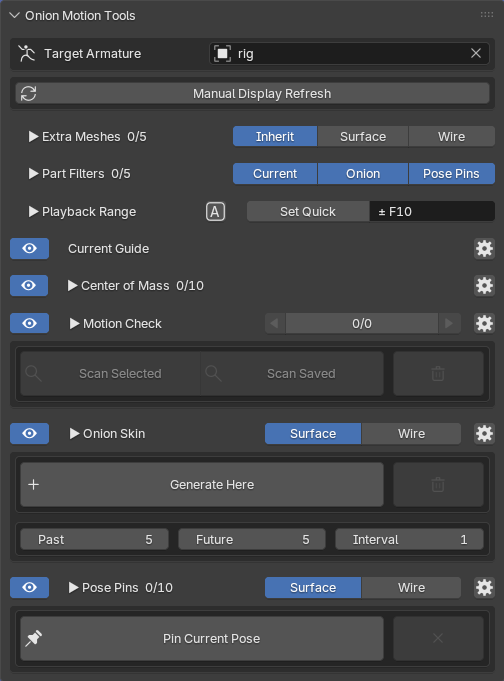
Eight focused tools designed to make motion easier to review, compare, and refine while you animate.
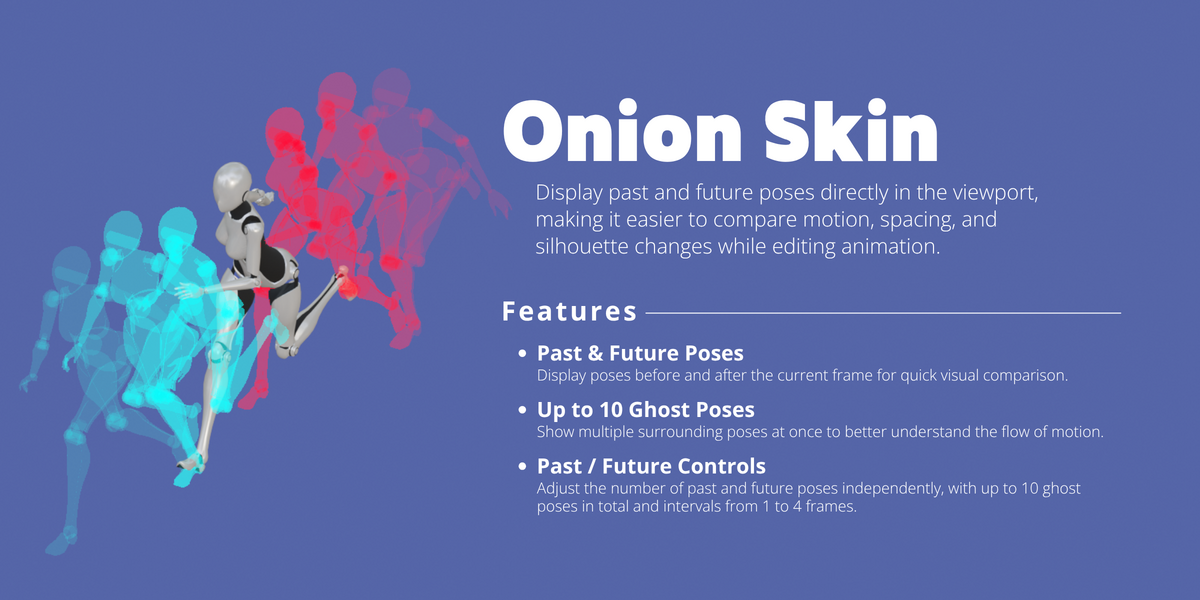
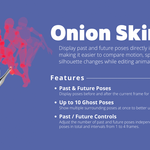
1. Onion Skin
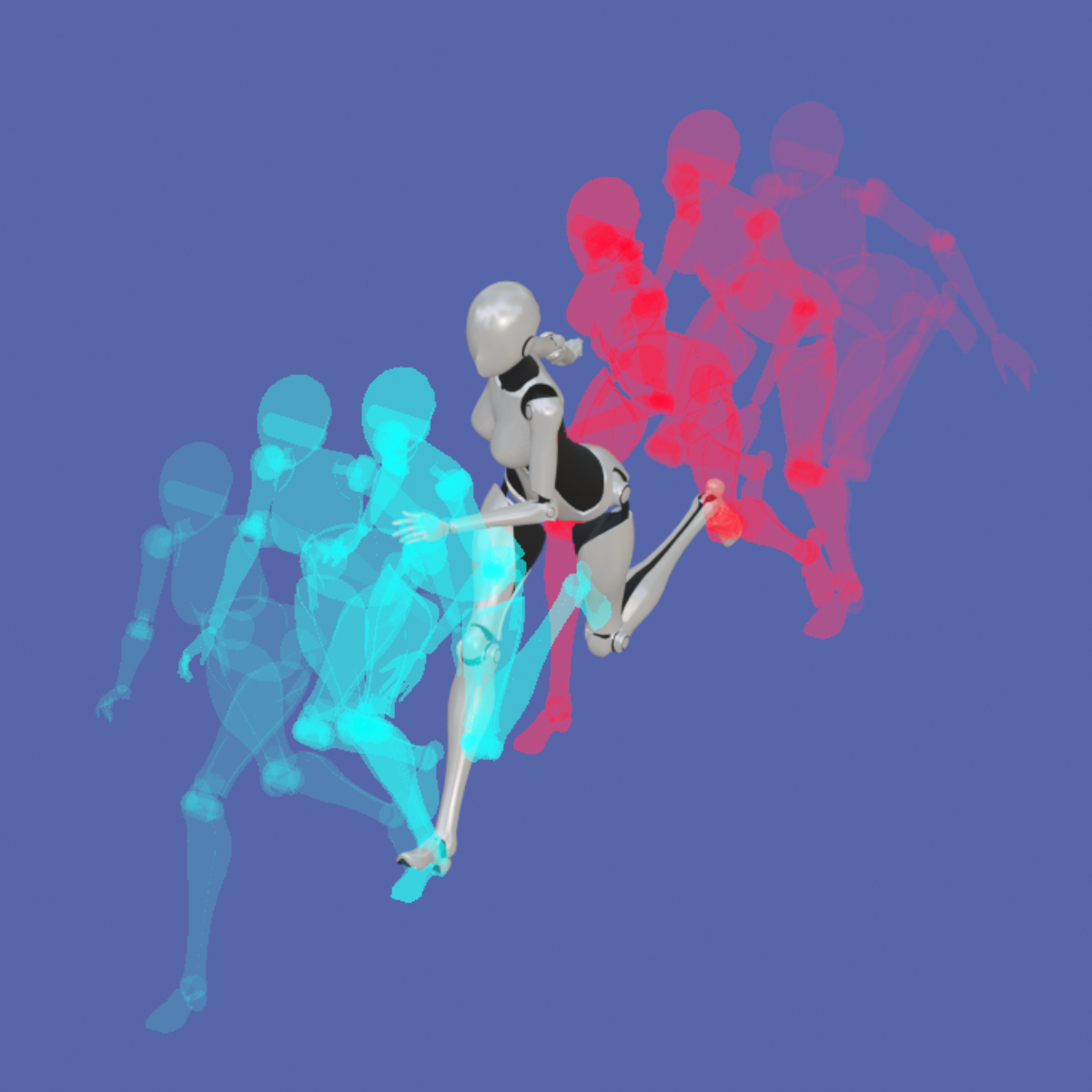
Compare surrounding poses directly in the viewport without leaving the frame you are currently editing.
Onion Skin makes it easier to judge spacing, silhouettes, timing, and the overall flow of a motion.
• Past & Future Poses
Display poses before and after the current frame for quick visual comparison.
• Up to 10 Ghost Poses
Show multiple surrounding poses at once to better understand the flow of motion.
• Past / Future Controls
Adjust past and future counts independently, with up to 10 ghost poses in total and frame intervals from 1 to 4.
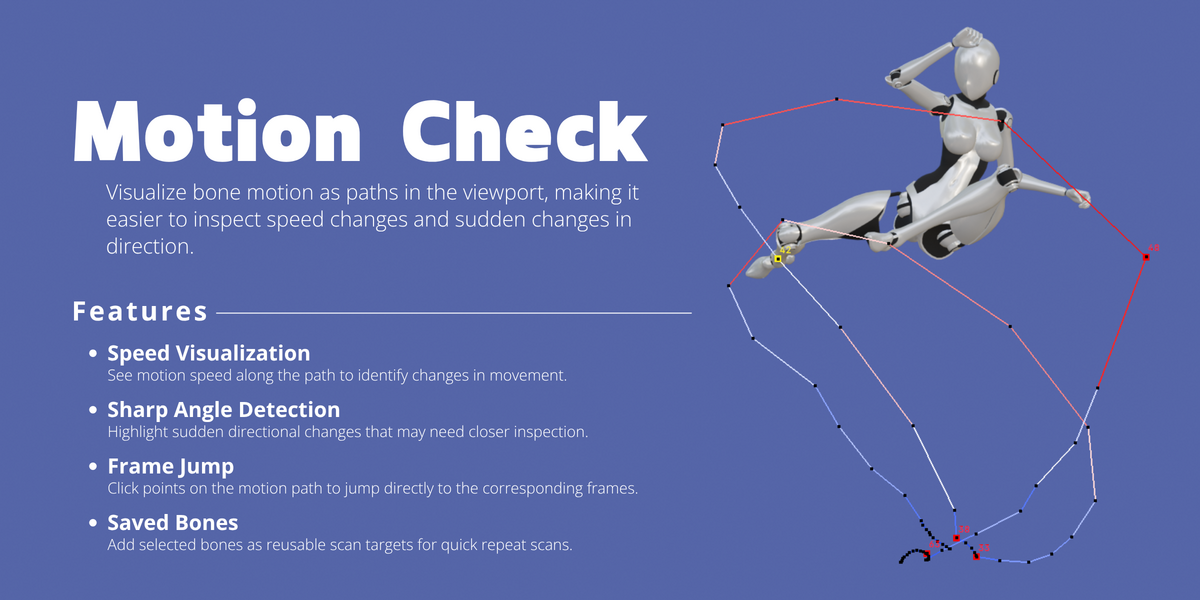
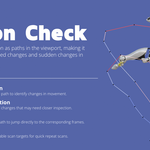
2. Motion Check
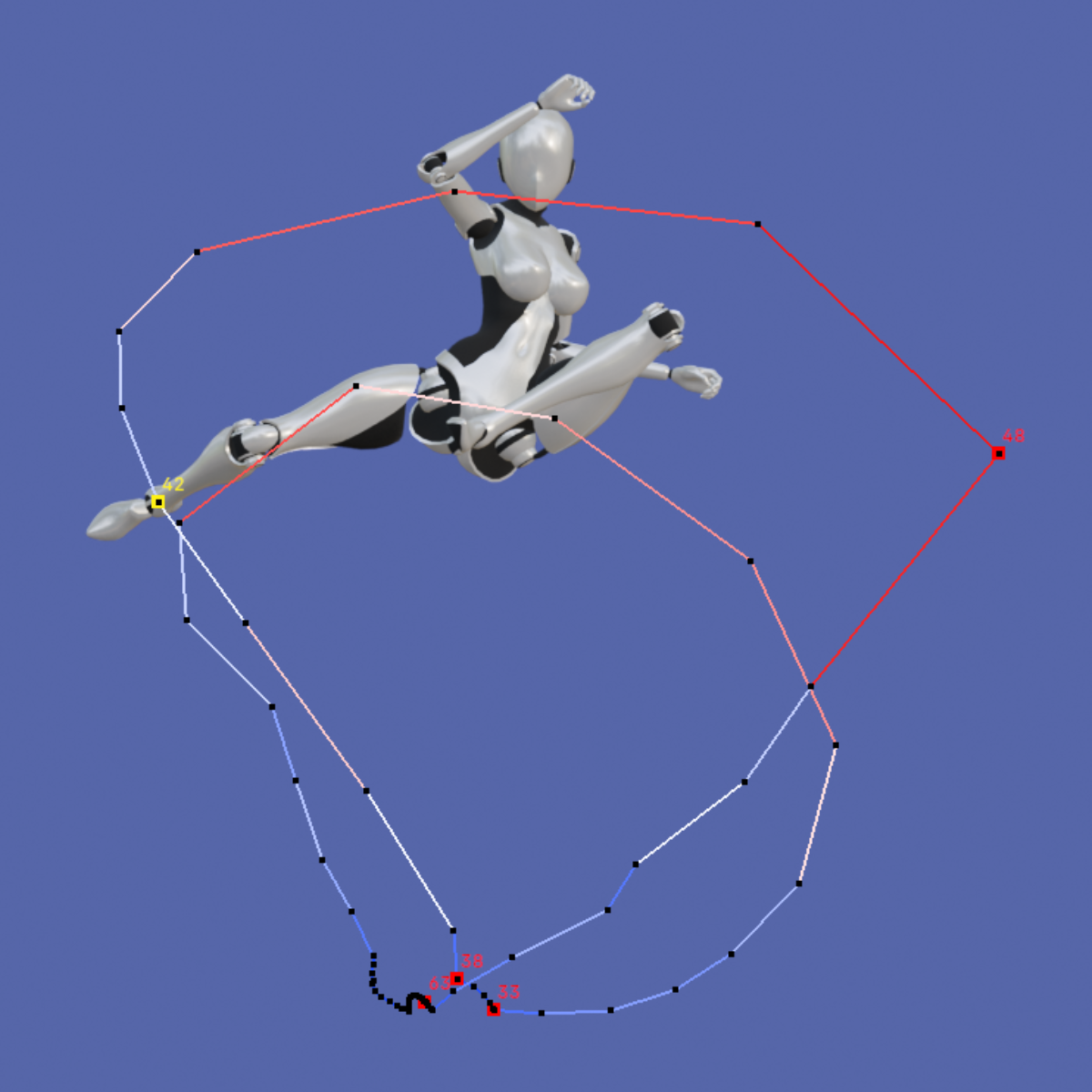
Inspect how a selected bone moves across an animation using an interactive motion path.
Motion Check helps reveal changes in speed and sudden changes in direction that may deserve a closer look.
• Speed Visualization
See motion speed along the path to identify changes in movement.
• Sharp Angle Detection
Highlight sudden directional changes that may need closer inspection.
• Frame Jump
Click points on the motion path to jump directly to the corresponding frames.
• Saved Bones
Add selected bones as reusable scan targets.
Experimental: Relative Analysis can analyze motion against a Reference Bone to reduce the influence of shared body movement.
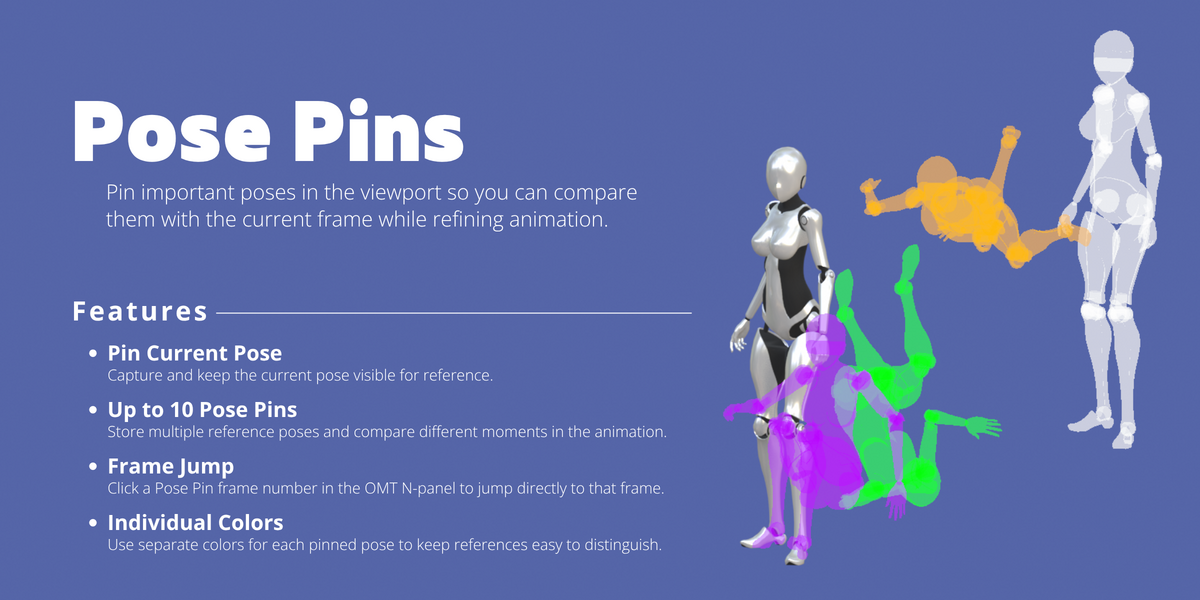
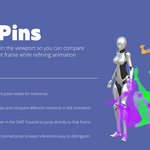
3. Pose Pins
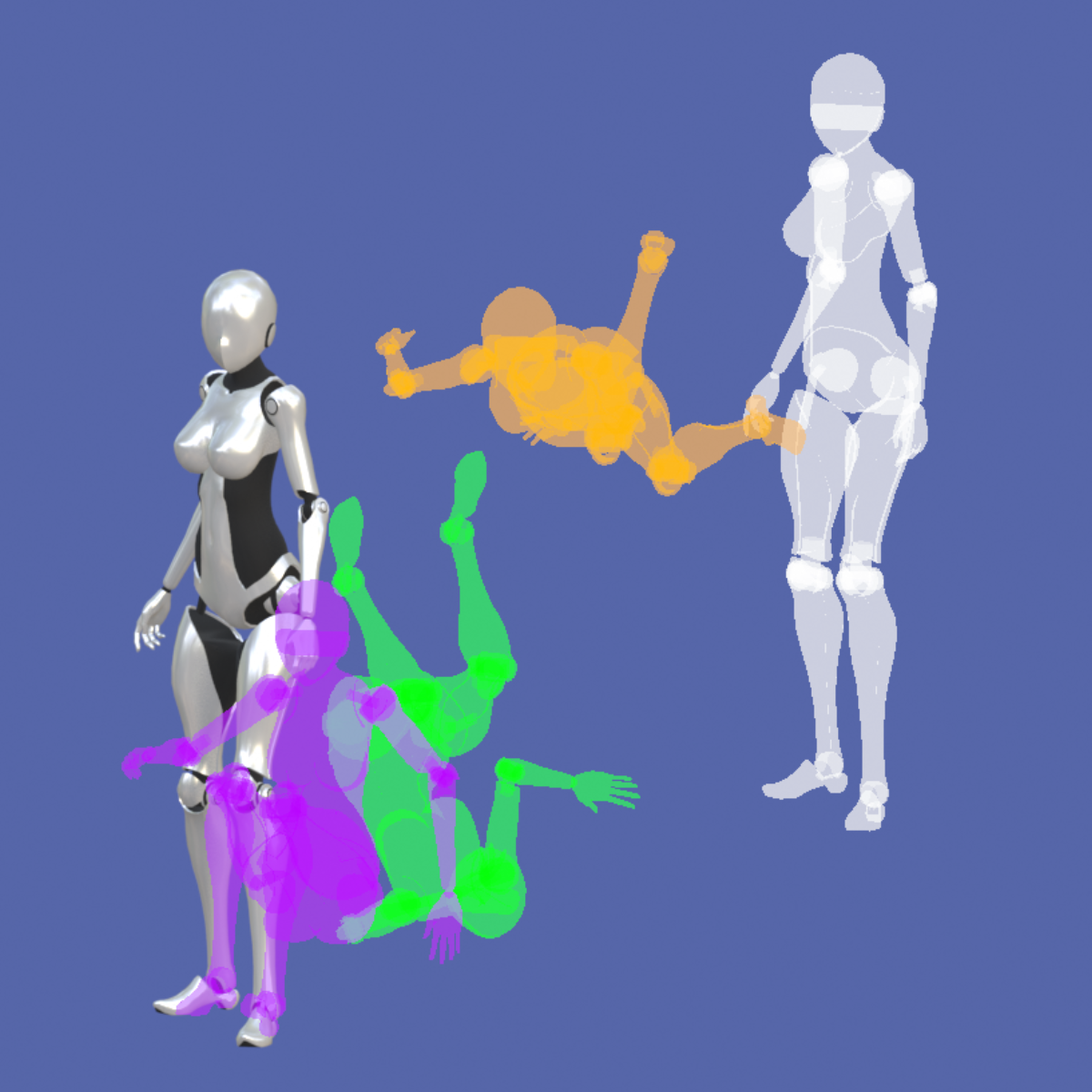
Keep important poses visible while continuing to edit the current frame.
Pose Pins are useful for comparing key moments, checking pose consistency, and refining transitions without repeatedly jumping back and forth through the timeline.
• Pin Current Pose
Capture and keep the current pose visible for reference.
• Up to 10 Pose Pins
Store multiple reference poses and compare different moments in the animation.
• Frame Jump
Click a Pose Pin frame number in the OMT N-panel to jump directly to that frame.
• Individual Colors
Use separate colors for pinned poses to keep references easy to distinguish.
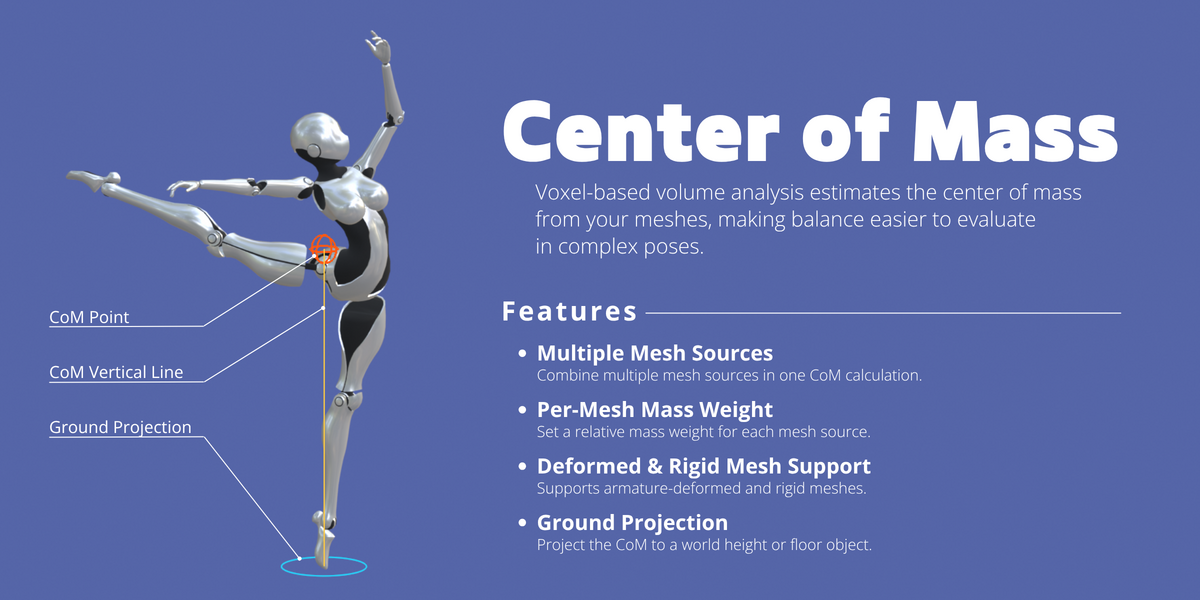
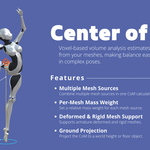
4. Center of Mass
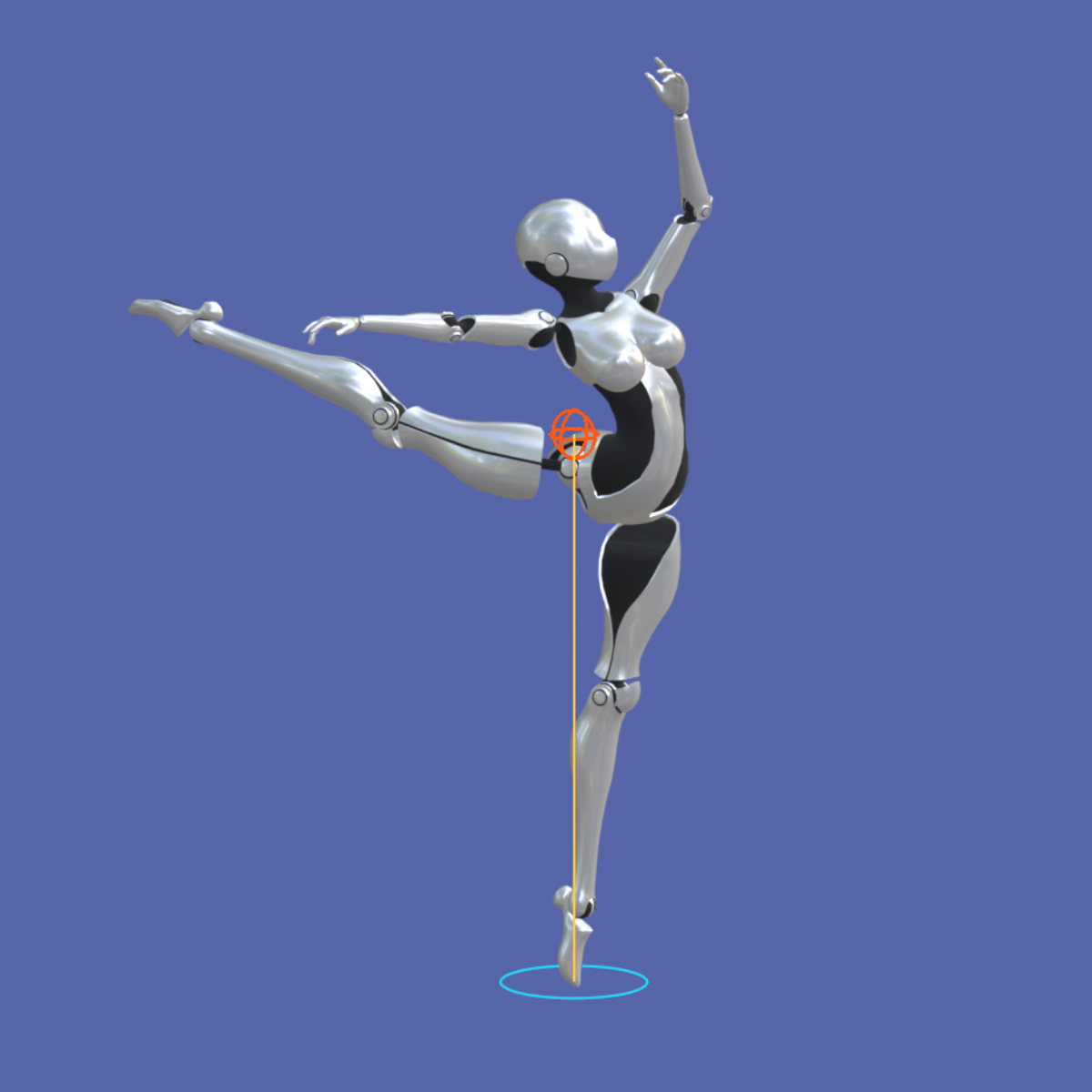
Estimate the character's center of mass using voxel-based volume analysis.
This provides an additional visual reference when checking balance, weight distribution, and grounded poses.
• Multiple Mesh Sources
Combine multiple mesh sources in one Center of Mass calculation.
• Per-Mesh Mass Weight
Set a relative mass weight for each mesh source.
• Deformed & Rigid Mesh Support
Supports armature-deformed and rigid meshes.
• Ground Projection
Project the Center of Mass to a world height or floor object.
• Mass Volume Preview
Check the analyzed voxel shape used for the Center of Mass estimate.
Center of Mass is an estimate based on the supplied mesh sources and settings rather than a physical simulation.
For reliable results, closed meshes are recommended. Open meshes may produce incomplete or inaccurate voxel volumes, so check the Mass Volume preview before using the result as a balance reference.
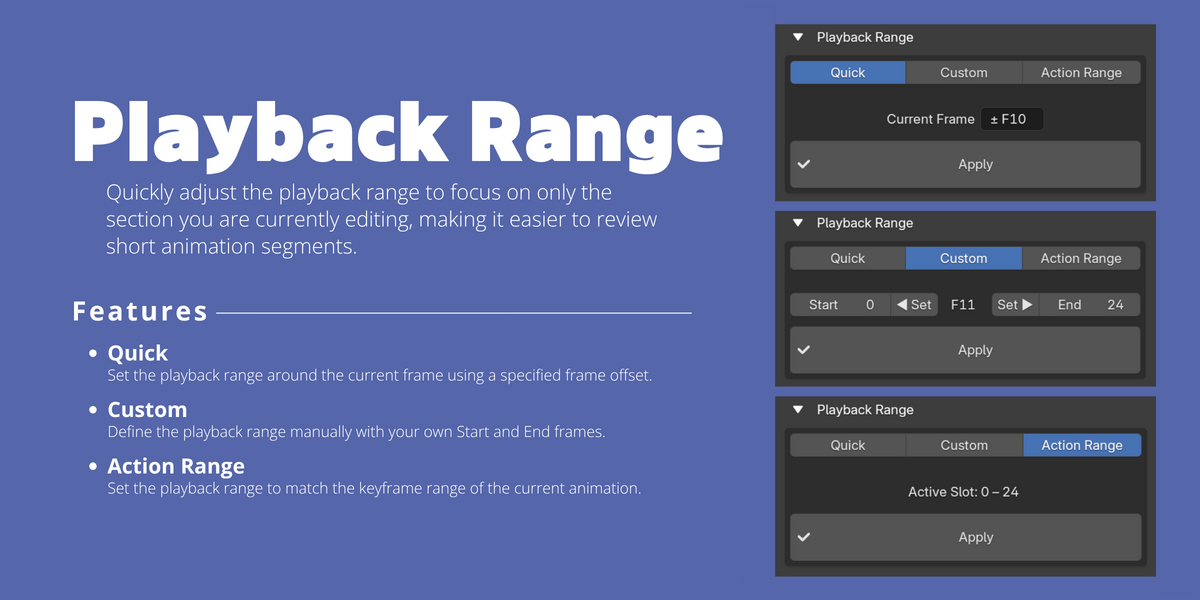
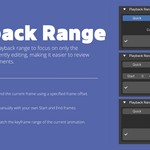
5. Playback Range
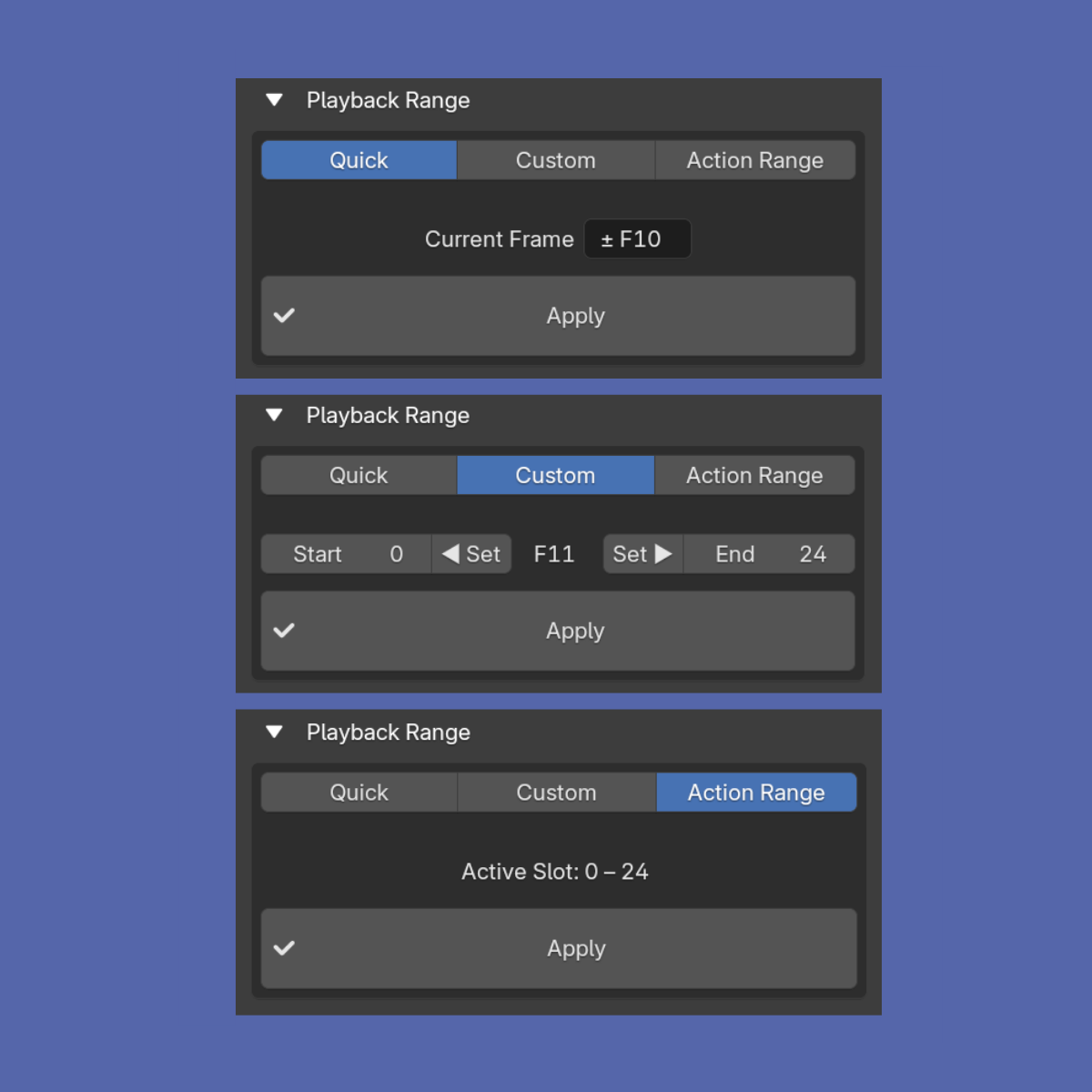
Focus playback on only the section you are currently editing.
Quickly narrowing the playback range makes it easier to repeatedly review short transitions, poses, and timing changes.
• Quick
Set the playback range around the current frame using a specified frame offset.
• Custom
Define the playback range manually with your own Start and End frames.
• Action Range
Set the playback range to match the keyframe range of the current animation.
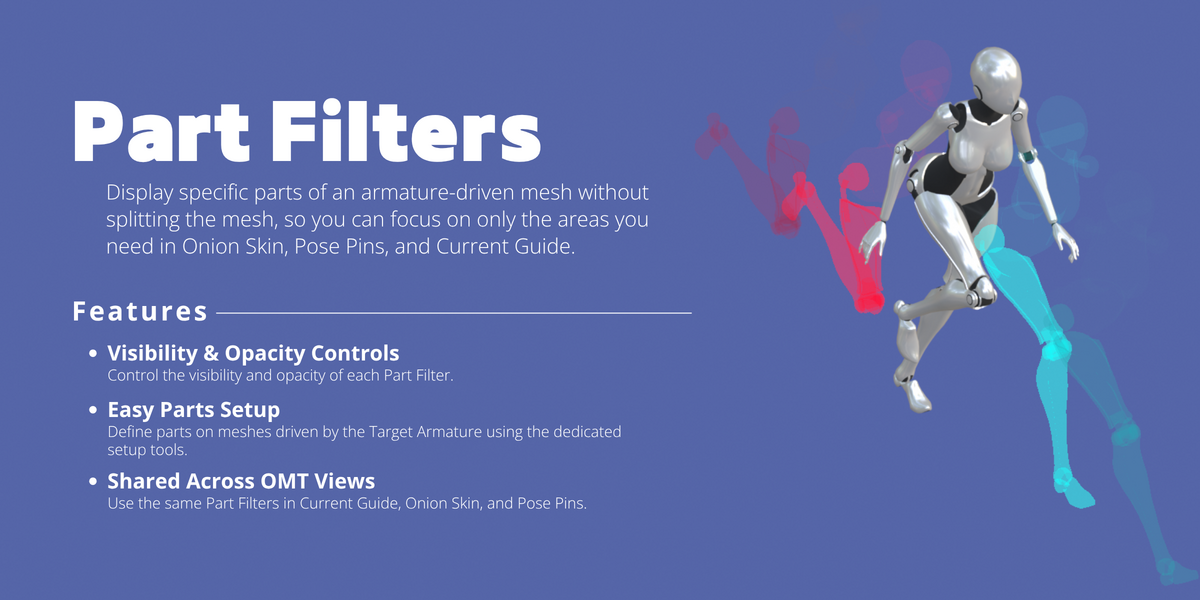
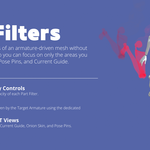
6. Part Filters
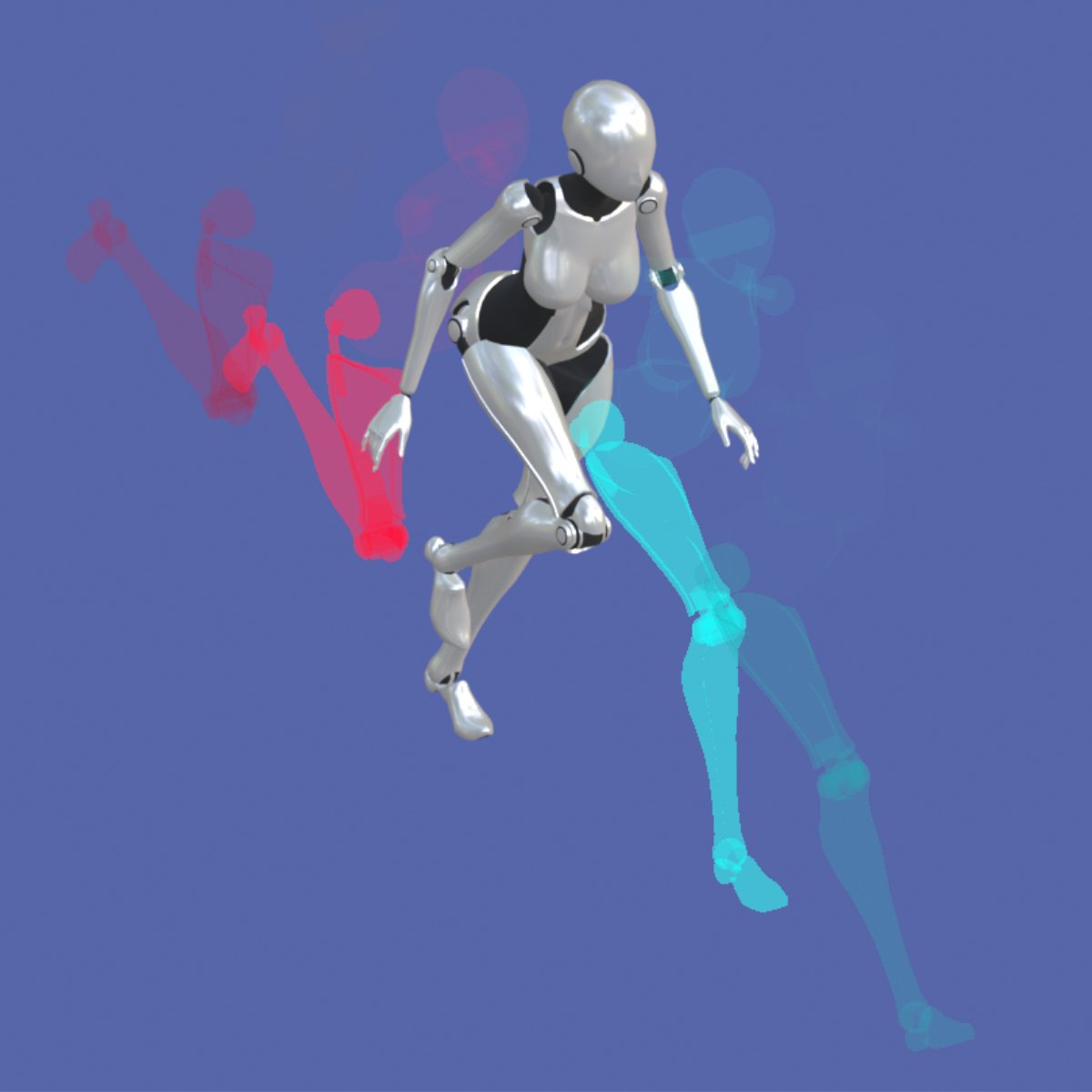
Display specific parts of an armature-driven mesh without splitting the mesh, so you can focus on only the areas you need in Onion Skin, Pose Pins, and Current Guide.
• Visibility & Opacity Controls
Control the visibility and opacity of each Part Filter.
• Easy Parts Setup
Define parts on meshes driven by the Target Armature using the dedicated setup tools.
• Shared Across OMT Views
Use the same Part Filters in Current Guide, Onion Skin, and Pose Pins.
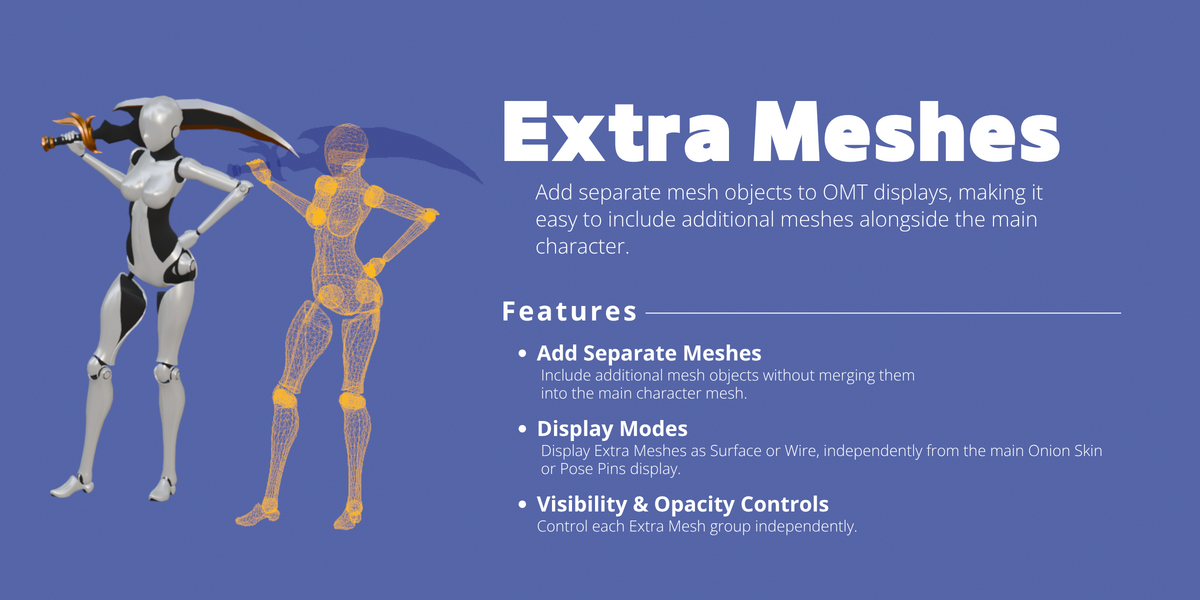
7. Extra Meshes
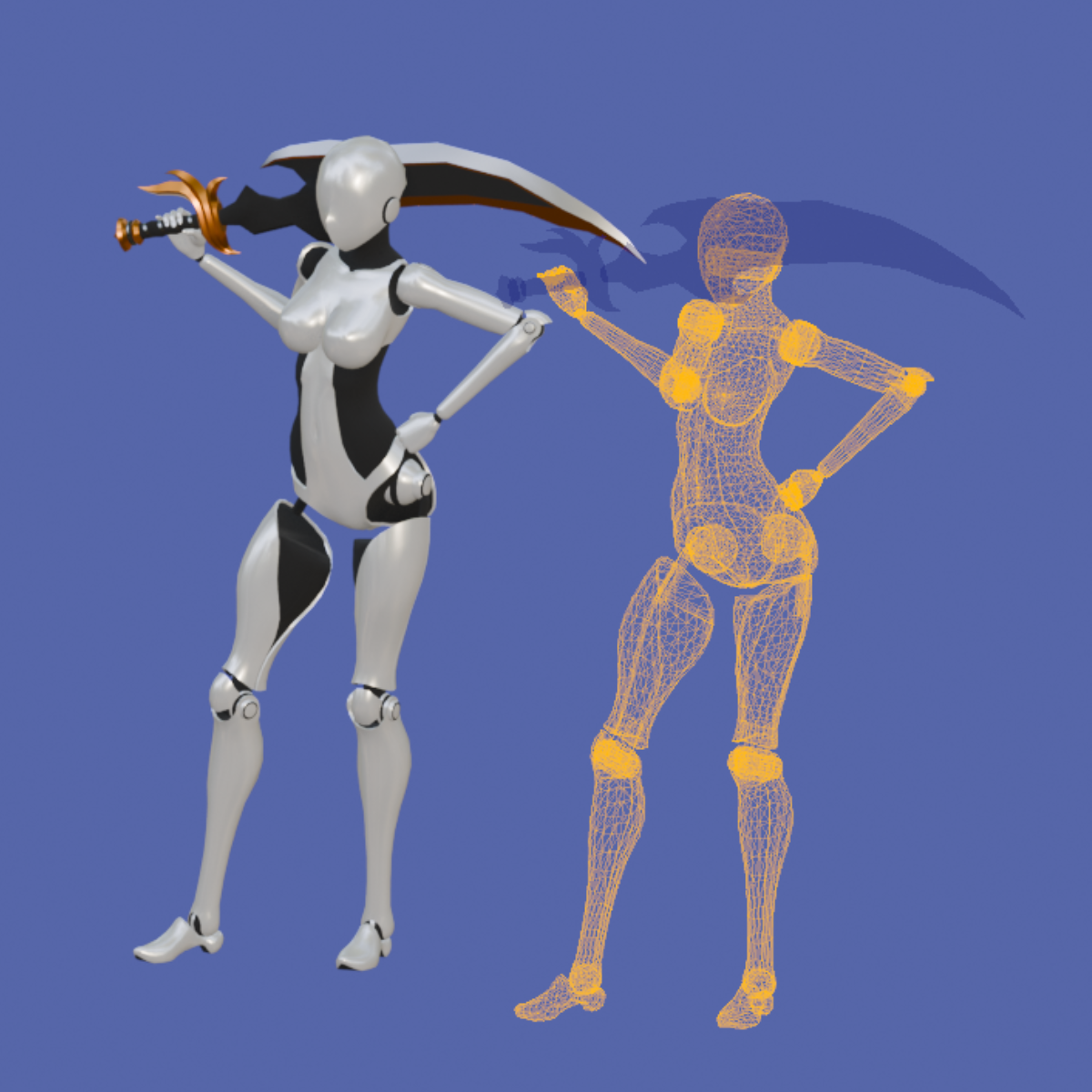
Add separate mesh objects to OMT displays, making it easy to include additional meshes alongside your main setup.
• Add Separate Meshes
Include additional mesh objects without merging them into the main character mesh.
• Display Modes
Display Extra Meshes as Surface or Wire, independently from the main Onion Skin or Pose Pins display.
• Visibility & Opacity Controls
Control each Extra Mesh group independently.
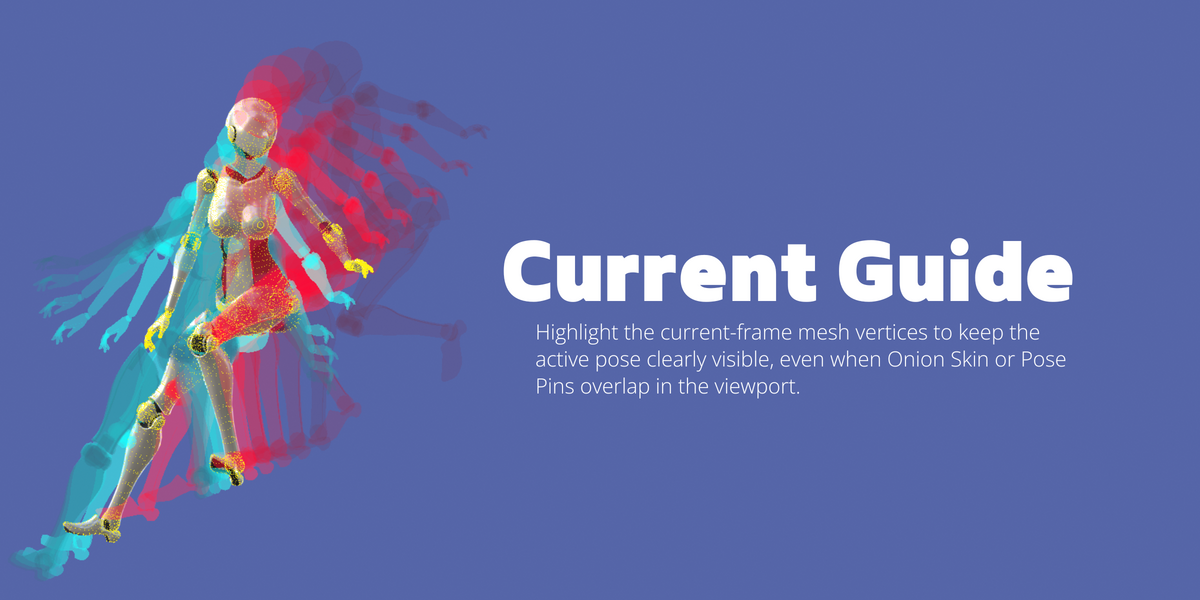
8. Current Guide
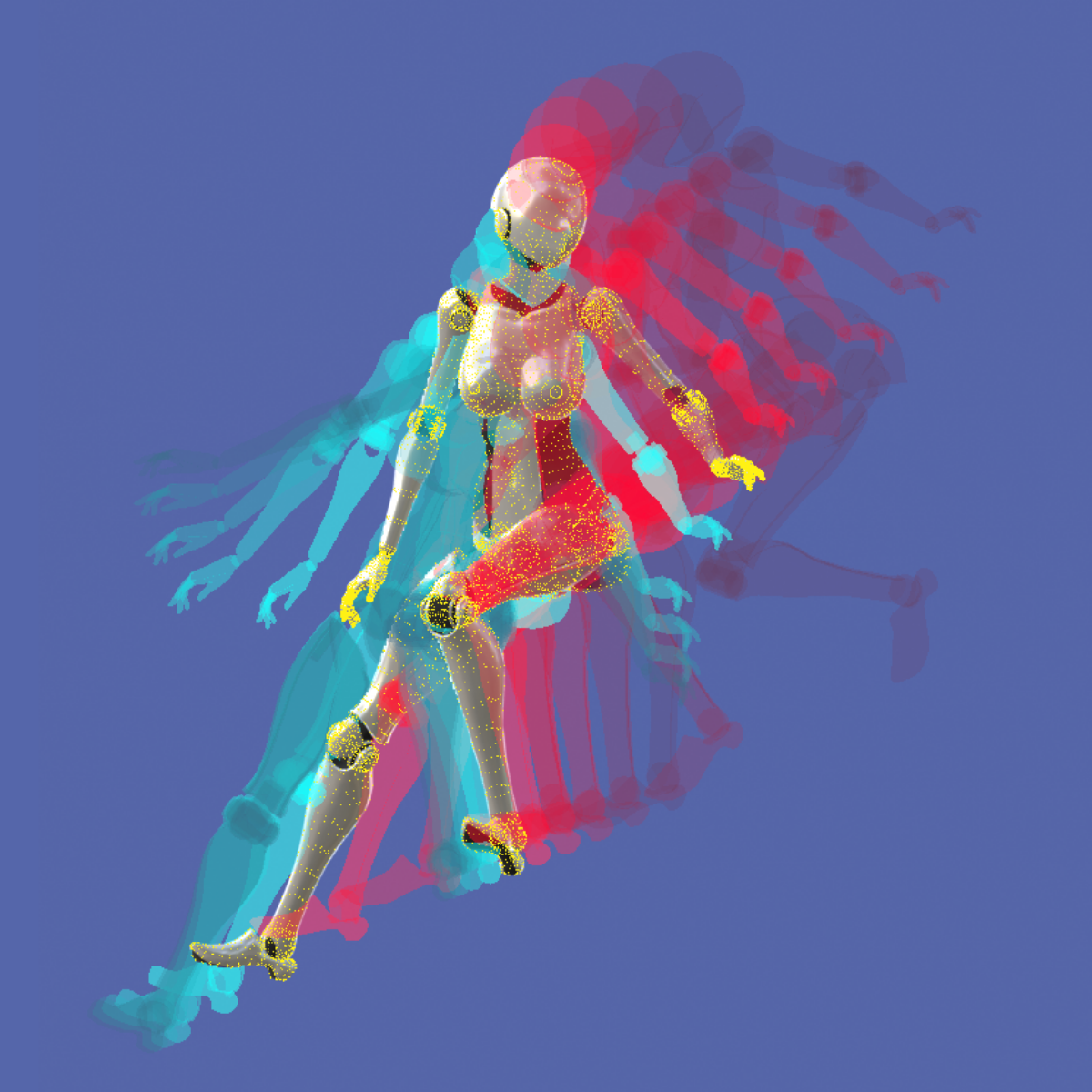
Keep the current-frame mesh clearly visible when Onion Skin or Pose Pins overlap the viewport.
Current Guide highlights the evaluated mesh vertices of the active pose, helping the frame you are currently editing remain easy to identify.
Simple to Get Started
OMT is designed to stay close to the normal Blender animation workflow.
1. Set your Target Armature
2. Select the Target Armature and enter Pose Mode
3. Open the OMT tab in the 3D Viewport Sidebar
4. Enable and use the tools you need
The tools can be used independently, so you do not need to use every feature in every animation.
Compatibility
• Tested with Blender 4.5.13 LTS and Blender 5.2.2 LTS
• Tested on Windows and macOS
• UI language: English only
• Blender Extension compatible
• License: GPL
Installation
1. Download onion_motion_tools-1.0.0.zip
2. Open Blender Preferences
3. Choose Install from Disk
4. Select the downloaded ZIP file
5. Enable Onion Motion Tools
After installation, open the OMT tab in the 3D Viewport Sidebar.
 JVL Animation