Onion Motion Tools
 JVL Animation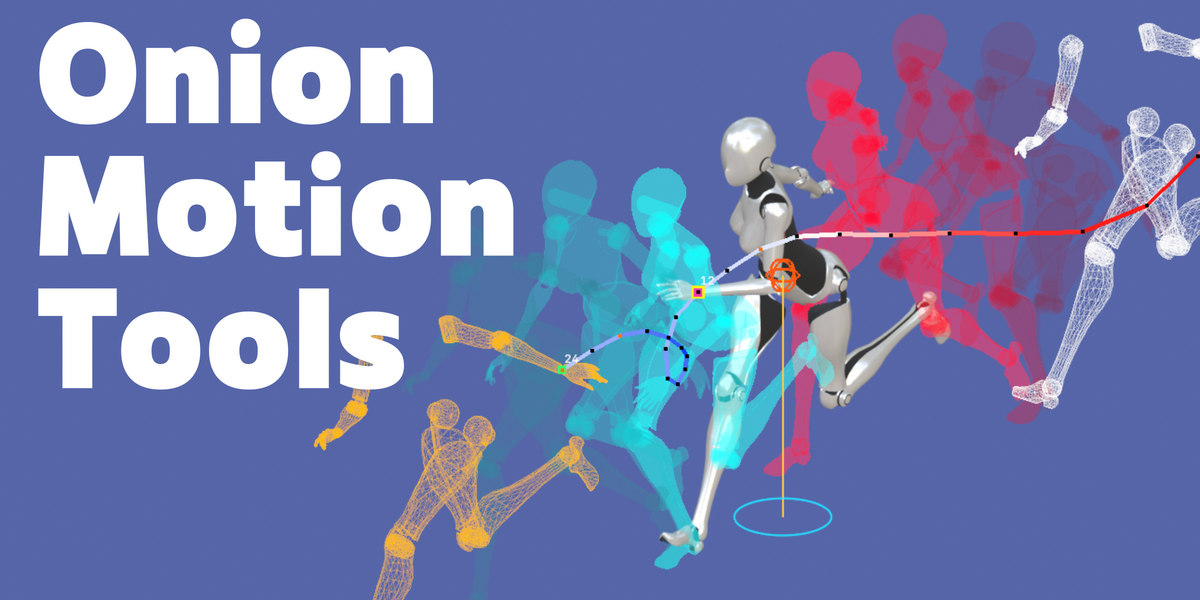
1. Introduction
What Onion Motion Tools Does
Onion Motion Tools is a Blender add-on designed to help animators inspect, compare, and refine character motion directly in the 3D Viewport.
It provides visual tools for reviewing poses, motion paths, character parts, and center of mass while working with animation.
Main Features
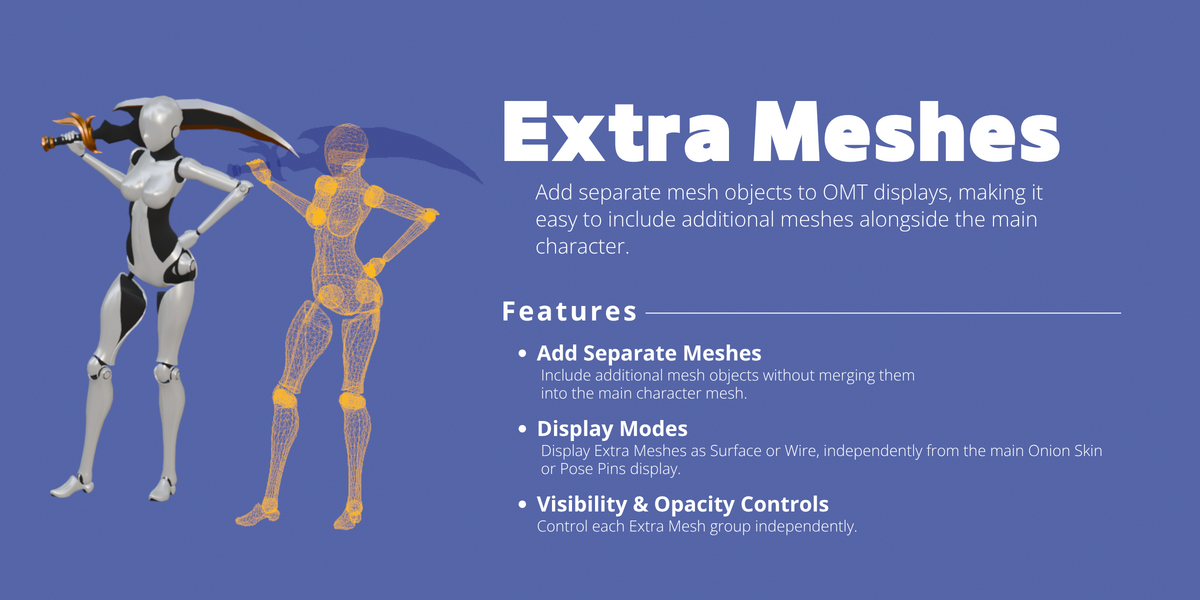
• Extra Meshes — Add additional Mesh Objects to OMT displays.
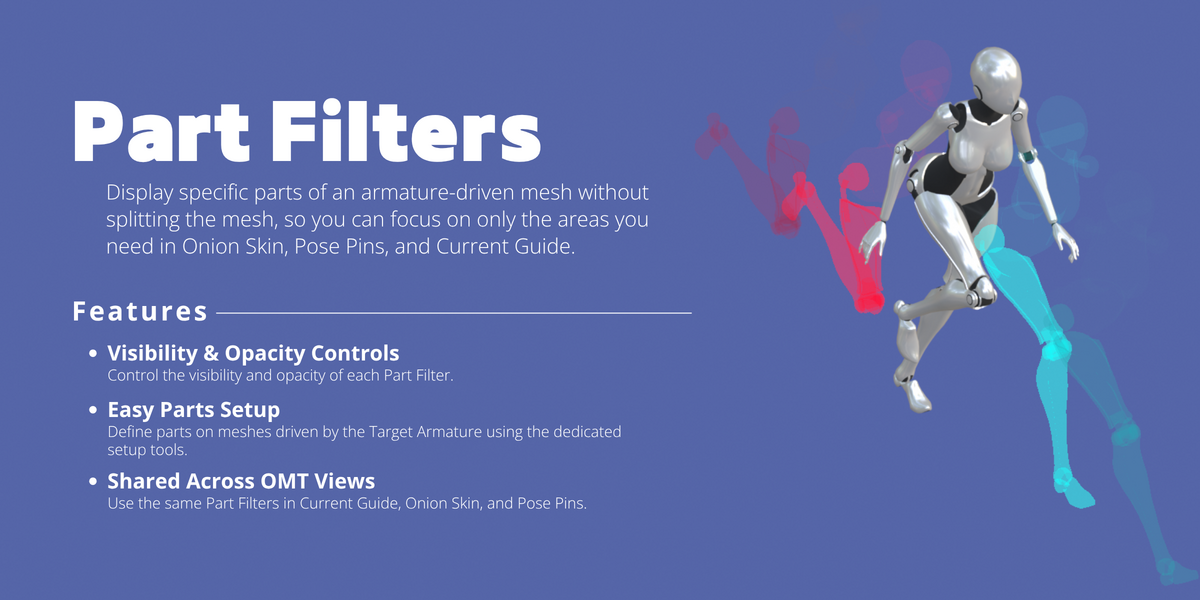
• Part Filters — Control the visibility of selected character parts.
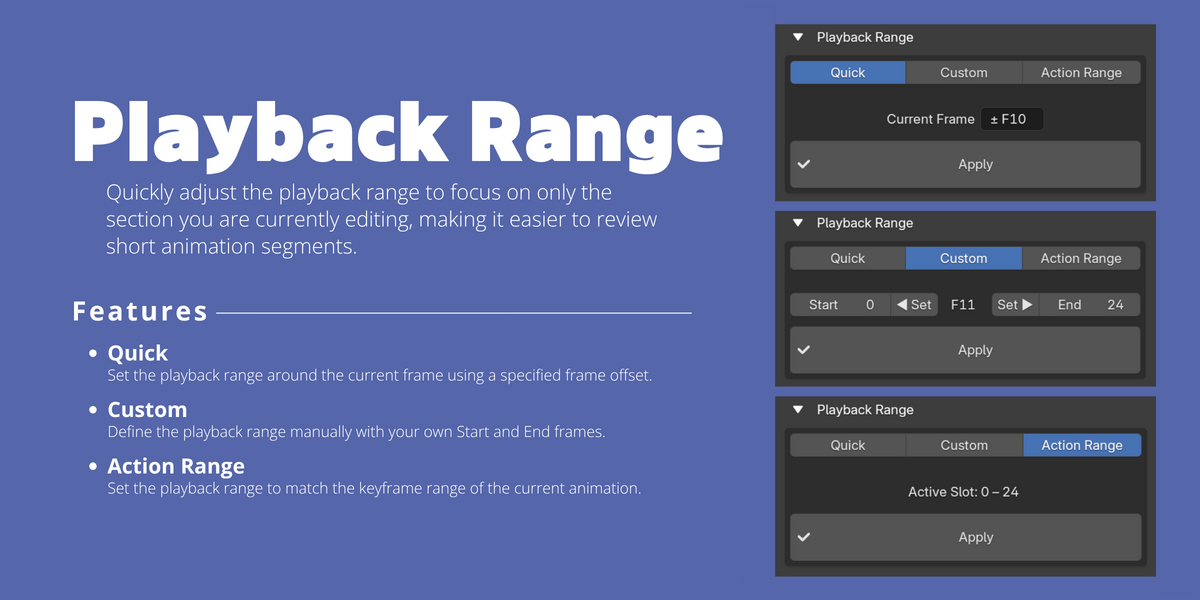
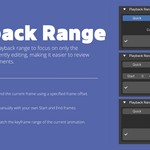
• Playback Range — Quickly set the playback range for animation review.
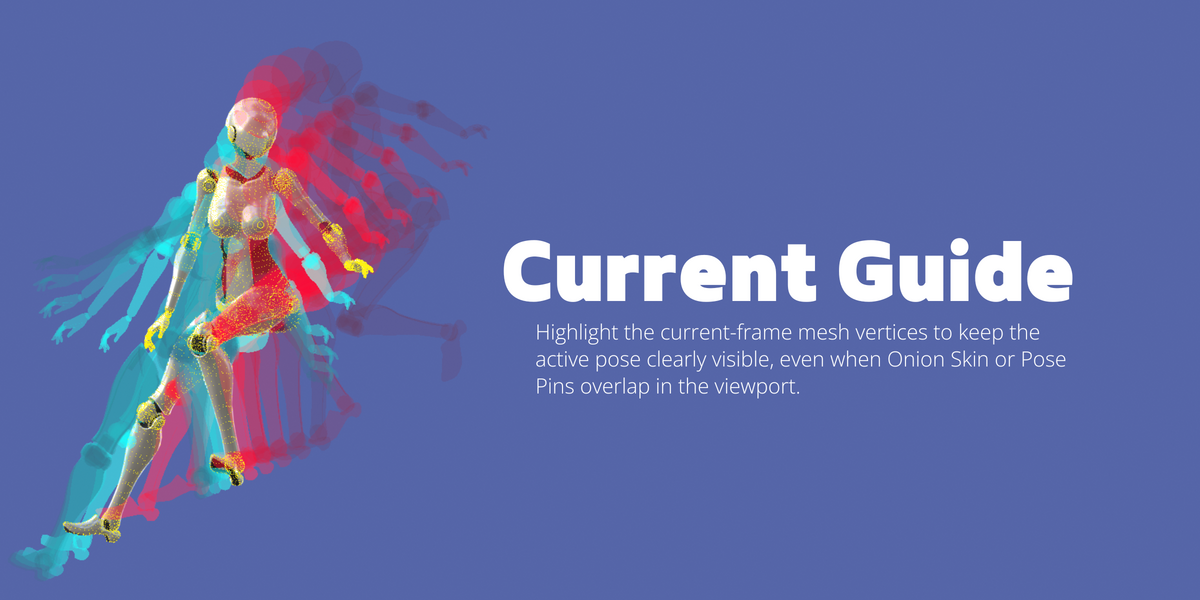
• Current Guide — Display the current character shape as guide points.
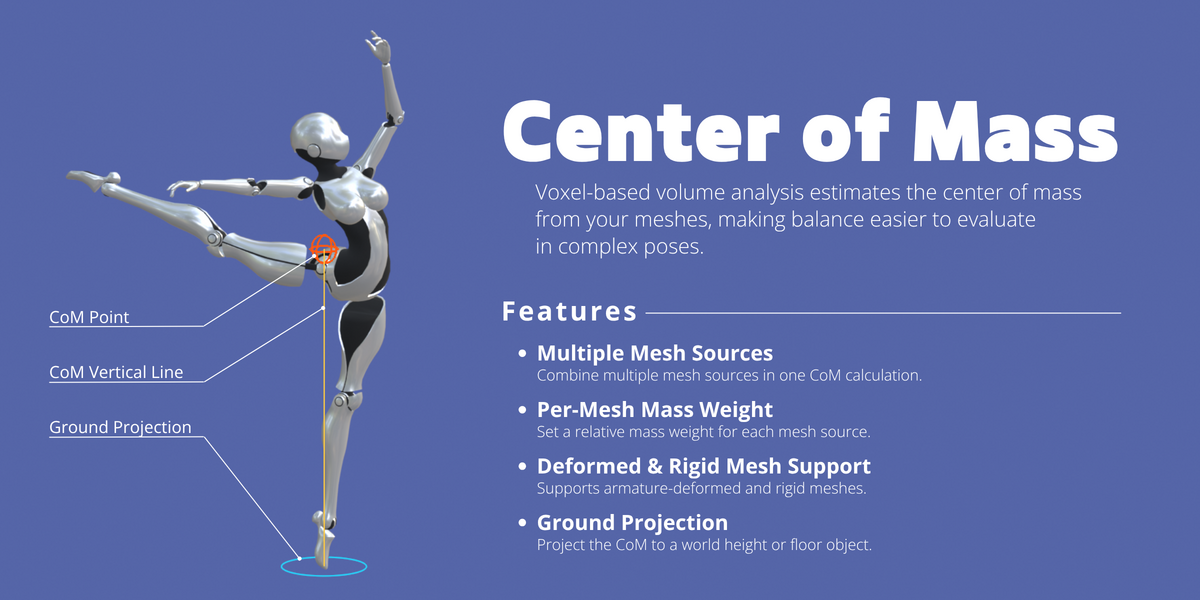
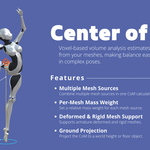
• Center of Mass — Estimate and visualize the character's center of mass.
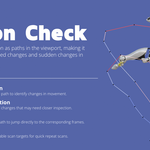
• Motion Check — Analyze bone motion paths, speed changes, and direction changes.
• Onion Skin — Compare past and future poses.
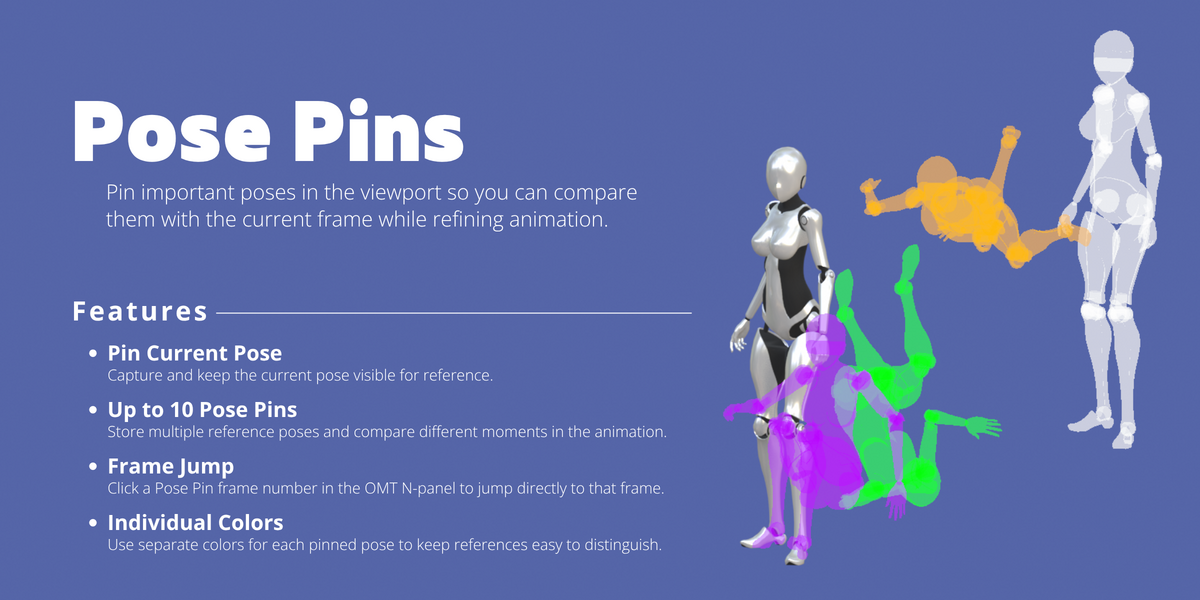
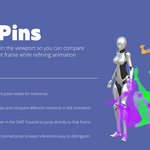
• Pose Pins — Keep selected poses visible for comparison.
Requirements
Tested with Blender 4.5.13 LTS and Blender 5.2.2 LTS on Windows and macOS.
2. Installation
Installing the Add-on
1. Download onion_motion_tools-1.0.0.zip from Superhive. Do not extract the ZIP file.
2. Open Blender Preferences.
3. Open [Get Extensions].
4. Open the drop-down menu in the upper-right corner and choose [Install from Disk].
5. Select onion_motion_tools-1.0.0.zip and install it.
Enabling Onion Motion Tools
After installation, make sure Onion Motion Tools is enabled in Blender Preferences. If it is disabled, enable it before continuing.
Opening the OMT Sidebar
1. Open the 3D Viewport.
2. Press [N] if the Sidebar is hidden.
3. Select the [OMT] tab.
After opening the OMT Sidebar, continue to Section 3 to set the Target Armature and enter Pose Mode.
3. Getting Started
Before using Onion Motion Tools, set the Target Armature and enter Pose Mode.
1. Set the Target Armature
In the OMT panel, assign the Armature you want to work with to Target Armature.
2. Enter Pose Mode
Select the Target Armature and switch from Object Mode to Pose Mode.
OMT features become available when the Target Armature is active in Pose Mode.
If you leave Pose Mode, OMT displays are temporarily hidden and reappear when you return to Pose Mode.
4. Manual Display Refresh
Manual Display Refresh is normally not required. Use it only if the Current Guide, Onion Skin, or Pose Pins display does not appear to reflect the latest changes.
Manual Display Refresh is available when at least one of the following conditions is met:
• Current Guide is enabled.
• Onion Skin has been generated and its Eye is enabled.
• One or more Pose Pins exist and the Pose Pins Eye is enabled.
To run the refresh:

1. Click [Manual Display Refresh].
2. Click [Refresh] in the confirmation dialog.
3. Wait until the button shows Completed.
Warning: Unkeyed pose changes may be reset. Key any pose adjustments you want to keep before running Manual Display Refresh.
It refreshes the currently visible:
• Current Guide
• Onion Skin
• Pose Pins
It does not refresh Motion Check, Center of Mass, Playback Range, Extra Meshes, or Part Filters.
5. Extra Meshes
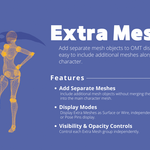
Extra Meshes lets you add additional Mesh Objects to OMT displays and control their visibility, opacity, display mode, and color. This is useful for separate objects that are not part of the main character mesh, such as swords, props, or other accessories. You can create up to five groups, each containing multiple Mesh Objects.
Add Extra Meshes
1. Expand Extra Meshes and click [Add Group].
2. Click [Objects:0].
3. Select the Mesh Objects you want to add.
4. Click [Apply].
Extra Meshes Panel Controls
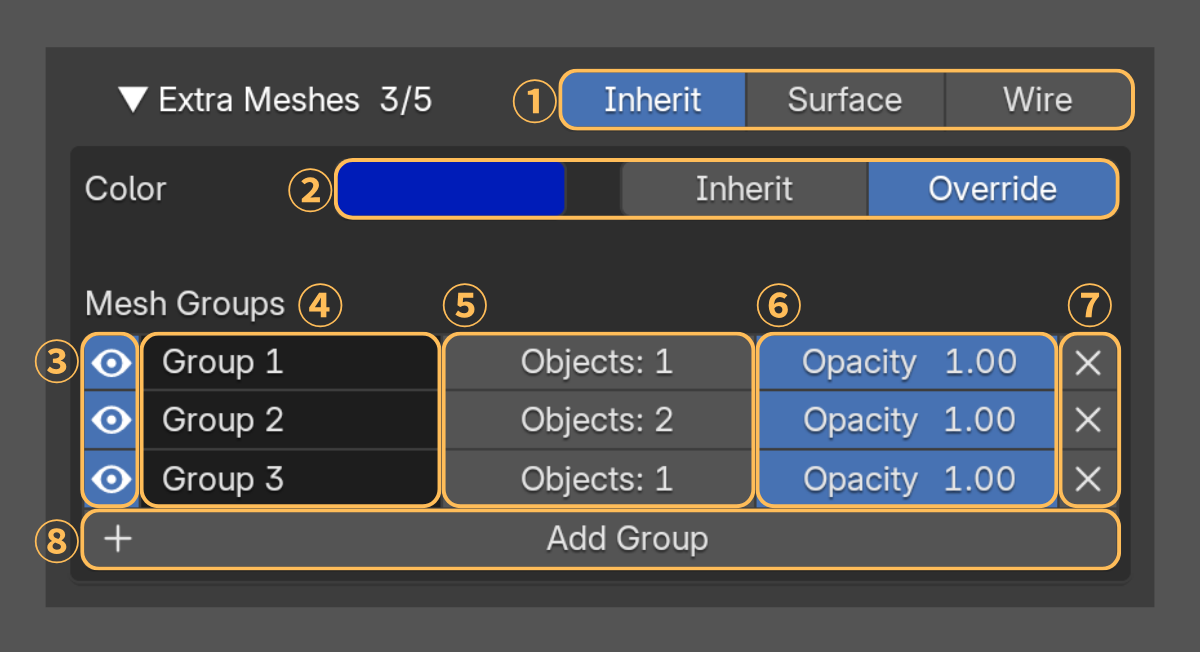
1. [Inherit] / [Surface] / [Wire] — Choose how Extra Meshes appear in Onion Skin and Pose Pins. Inherit uses each feature's display mode; Surface and Wire use the selected mode for Extra Meshes in both features.
Extra Meshes shown as Wire use the Wire Width setting of the feature displaying them (Onion Skin or Pose Pins). The feature's Opacity settings also apply, together with the Extra Mesh Group's opacity.
2. Color — [Inherit] uses each feature's color. [Override] uses one shared color for Extra Meshes in Onion Skin and Pose Pins; the color field lets you change it.
3. [Eye] — Show or hide the group.
4. Group name — The group name can be edited.
5. [Objects: n] — Open the selection again to add or remove Mesh Objects.
6. [Opacity] — Adjust the group's opacity.
7. [X] — Remove the group.
8. [Add Group] — Create another group, up to five total.
Additional Use: Separate Character Meshes
Extra Meshes can also be used with Mesh Objects deformed by the Target Armature. For example, if the body and clothing are separate Mesh Objects, you can add the clothing to an Extra Mesh Group. Using a different display style, such as Surface or Wire, for the Extra Meshes can make the body and clothing easier to distinguish during Onion Skin or Pose Pins review.
Note:
6. Part Filters
Part Filters lets you control which parts of a character mesh are displayed without splitting the mesh into separate objects, using up to five groups with independent visibility and opacity settings.
Select the Deform Bones for the parts you want to display. OMT then shows the mesh areas assigned to the corresponding Vertex Groups.
Create a Part Filter
1. Expand Part Filters and click [Add Filter].
2. Click [Parts: 0] to open the Parts Editor.
3. Select the Deform Bones for the parts you want to display.
4. Click [Apply].
Parts Editor Controls
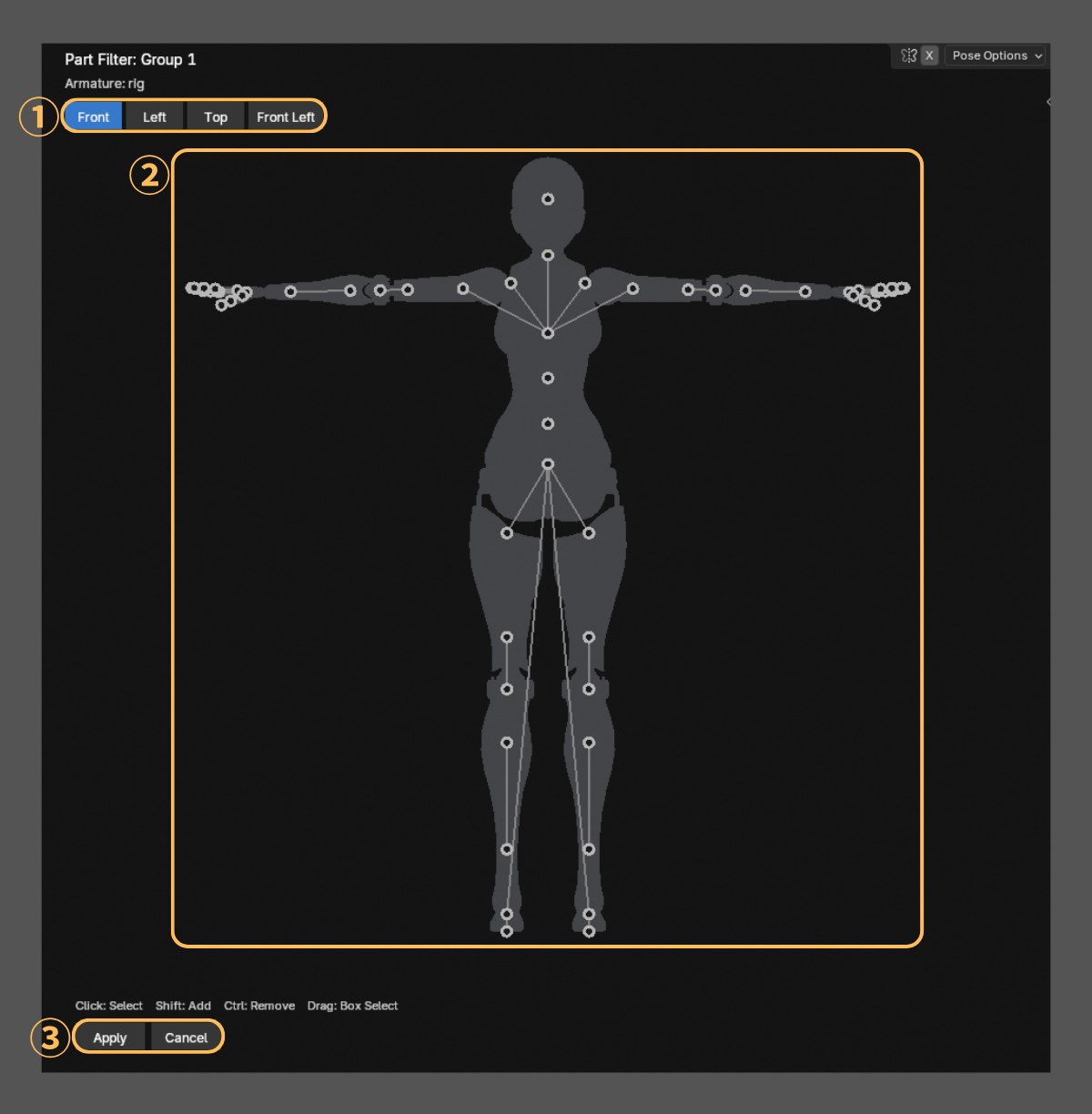
1. [Front] / [Left] / [Top] / [Front Left] — Switch the Bone Map view.
2. Bone Map — Click to select a Deform Bone. Shift-click adds, Ctrl-click removes, and dragging selects bones in a box.
3. [Apply] / [Cancel] — Apply the selected Parts or close the editor without applying changes.
Part Filters Panel Controls
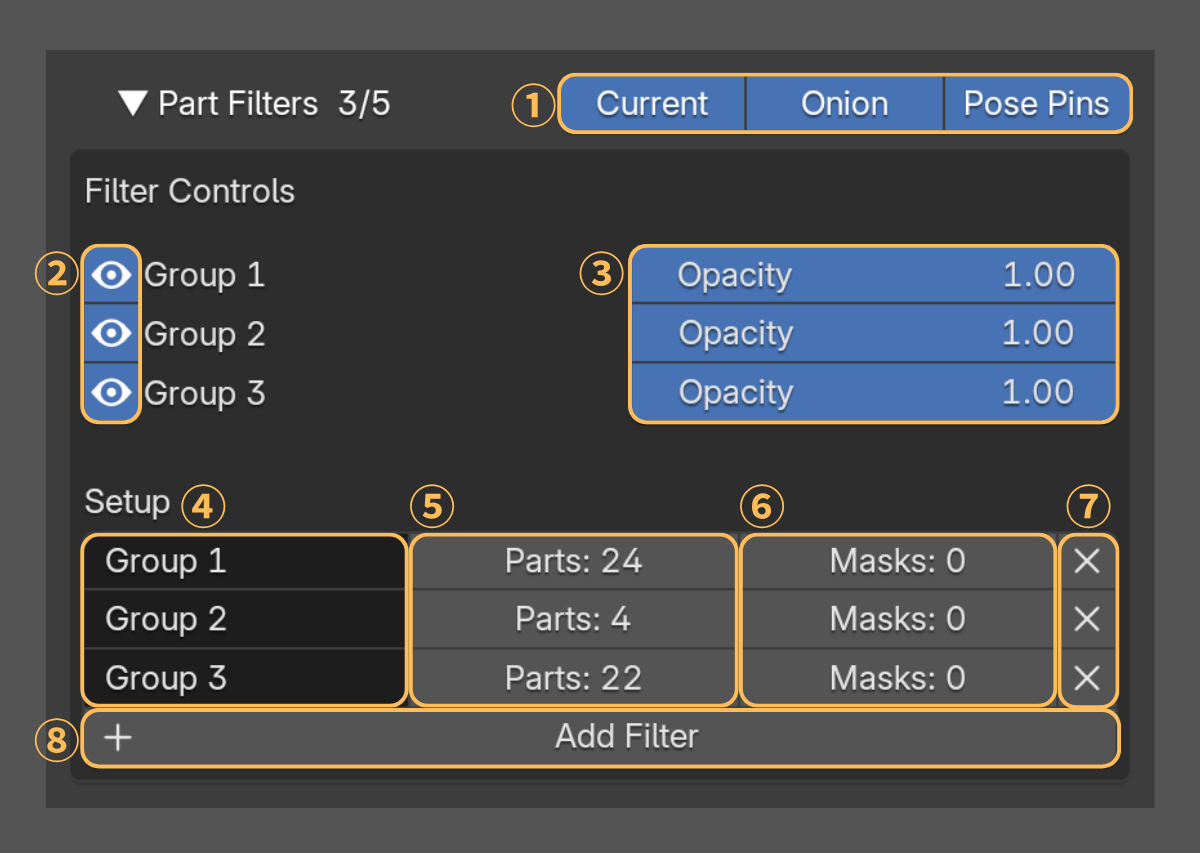
1. [Current] / [Onion] / [Pose Pins] — Apply Part Filters to Current Guide, Onion Skin, and Pose Pins, respectively.
2. [Eye] — Show or hide an assigned filter.
3. [Opacity] — Adjust the filter's opacity.
4. Group name — The name can be edited.
5. [Parts: n] — Open the Parts Editor to change the assigned Deform Bones.
6. [Masks: n] — Open the mask selection to exclude Mesh Objects from this filter.
7. [X] — Remove the filter.
8. [Add Filter] — Create another filter.
Note:
7. Playback Range
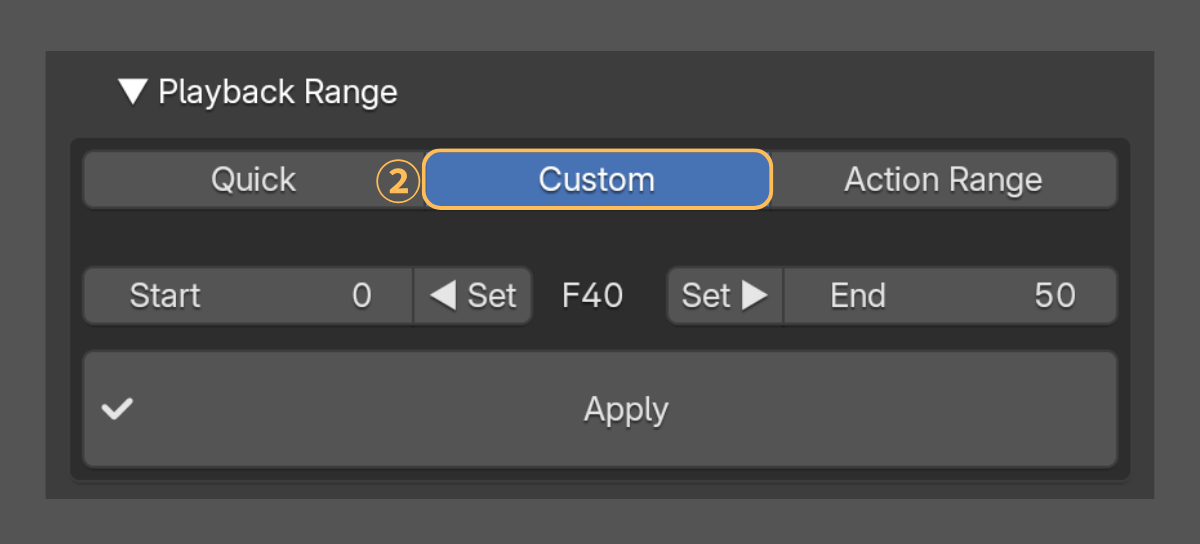
Playback Range sets the Scene's playback start and end frames. Choose a mode and click [Apply].
Playback Range Controls
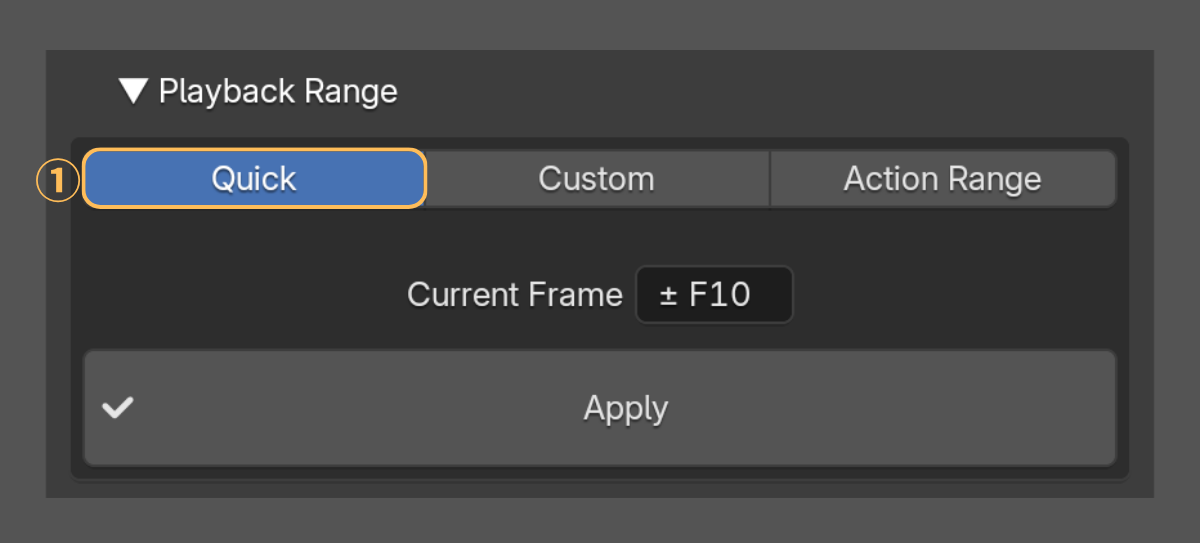
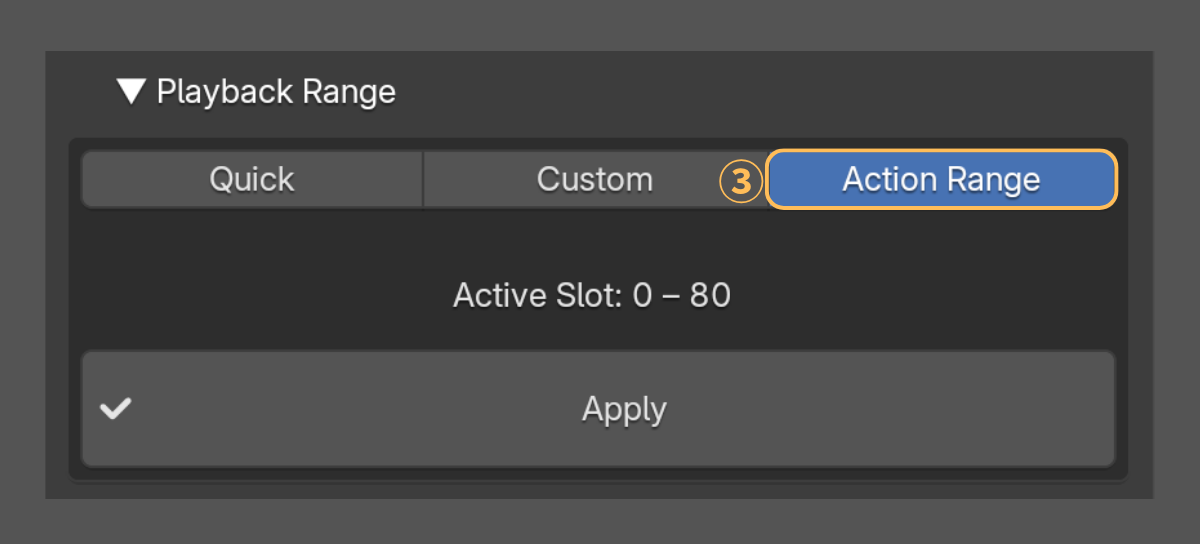
1. [Quick] — Enter an offset to set the same number of frames before and after the current frame.
2. [Custom] — Enter Start and End. [◀ Set] copies the current frame to Start; [Set ▶] copies it to End.
3. [Action Range] — Use the keyframe range of the current animation.
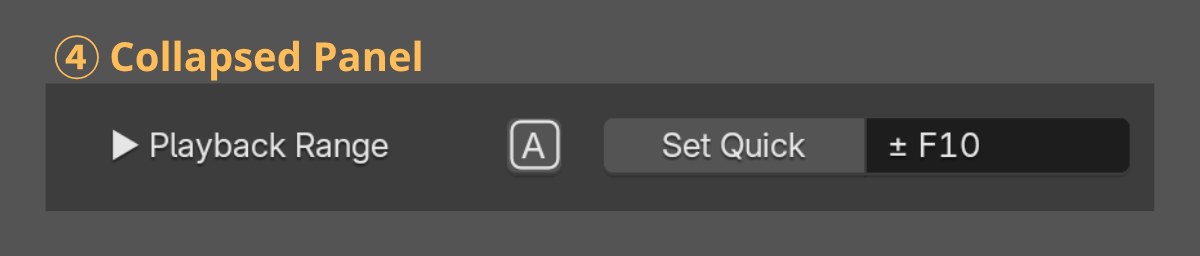
4. Collapsed panel — [Set Quick] applies the Quick range directly; the [A] button applies Action Range directly.
Note:
8. Current Guide
Current Guide shows the evaluated mesh vertices at the current frame as points in the 3D Viewport. Click the eye icon to show or hide it; click the gear icon to open its settings.
Current Guide Controls
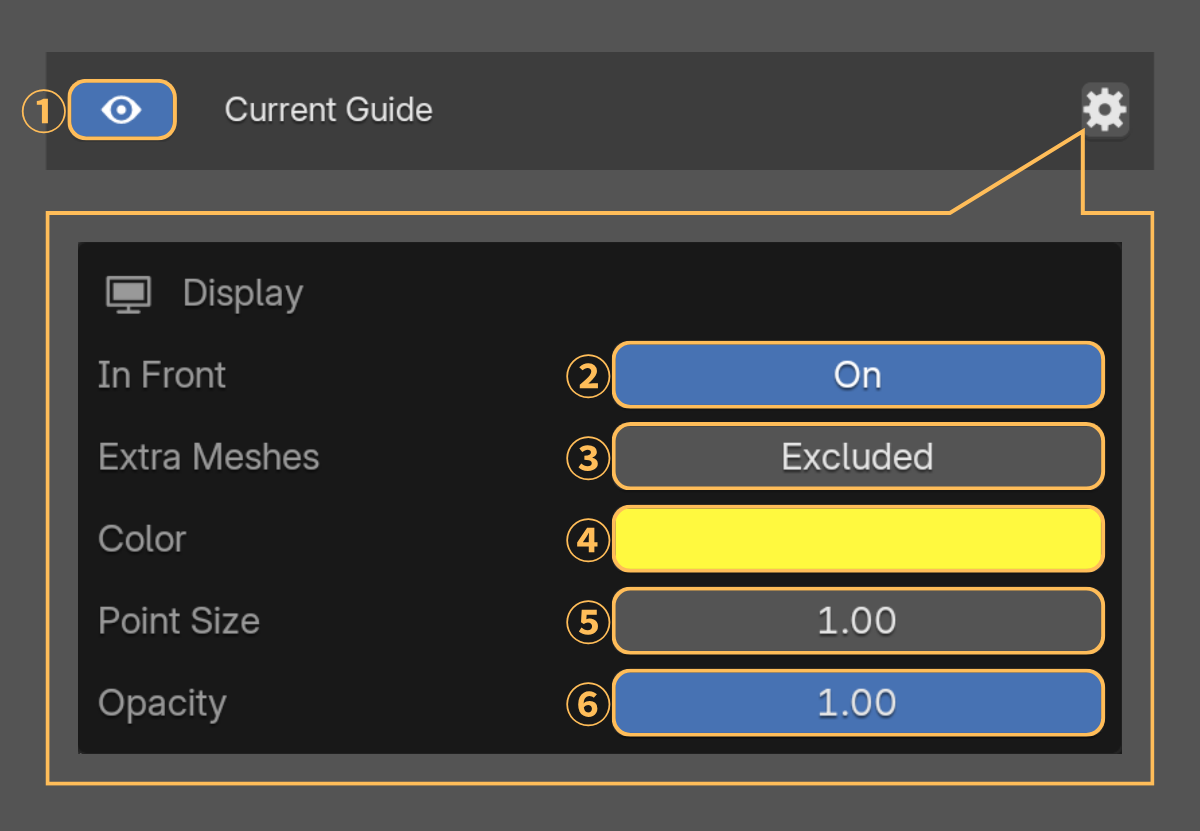
1. [Eye] — Show or hide the points.
2. [In Front] — Keep the points visible through other geometry.
3. [Extra Meshes] — Include or exclude Mesh Objects registered in Extra Meshes.
4. Color — Set the point color.
5. Point Size — Set the point size from 1 to 3.
6. Opacity — Adjust the opacity of the points.
Note:
9. Center of Mass
Center of Mass (CoM) estimates the combined center of mass from Mesh Objects' analyzed volume and Mass Weight to help assess balance. Register up to 10 Sources, one Mesh Object each.
Setup
1. Click [Add Source] and choose a Mesh Object.
2. Choose Resolution, click [Setup], and wait for [Ready: L/M/H]. Repeat for other Sources.
3. Inspect the Mass Volume and confirm that the analyzed shape represents the intended volume. If it is hidden, enable it in the gear settings.
4. Select contributing Sources with their checkboxes, adjust Mass Weight and Ground, then step through frames or play the animation. [Eye] toggles Center of Mass.
For Reliable Results
For a more reliable CoM estimate:
• Use the Body as the main Source, preferably a closed mesh. Usually exclude hair, ordinary clothing, and thin meshes unless their mass matters. Open meshes may give less reliable volume estimates.
• Avoid significant overlap between Sources: their volumes are counted separately. A closed sweater enclosing the Body may count that region twice. More Sources do not necessarily improve accuracy.
• Check that Mass Volume represents each Source's intended volume before relying on the result.
Panel Controls
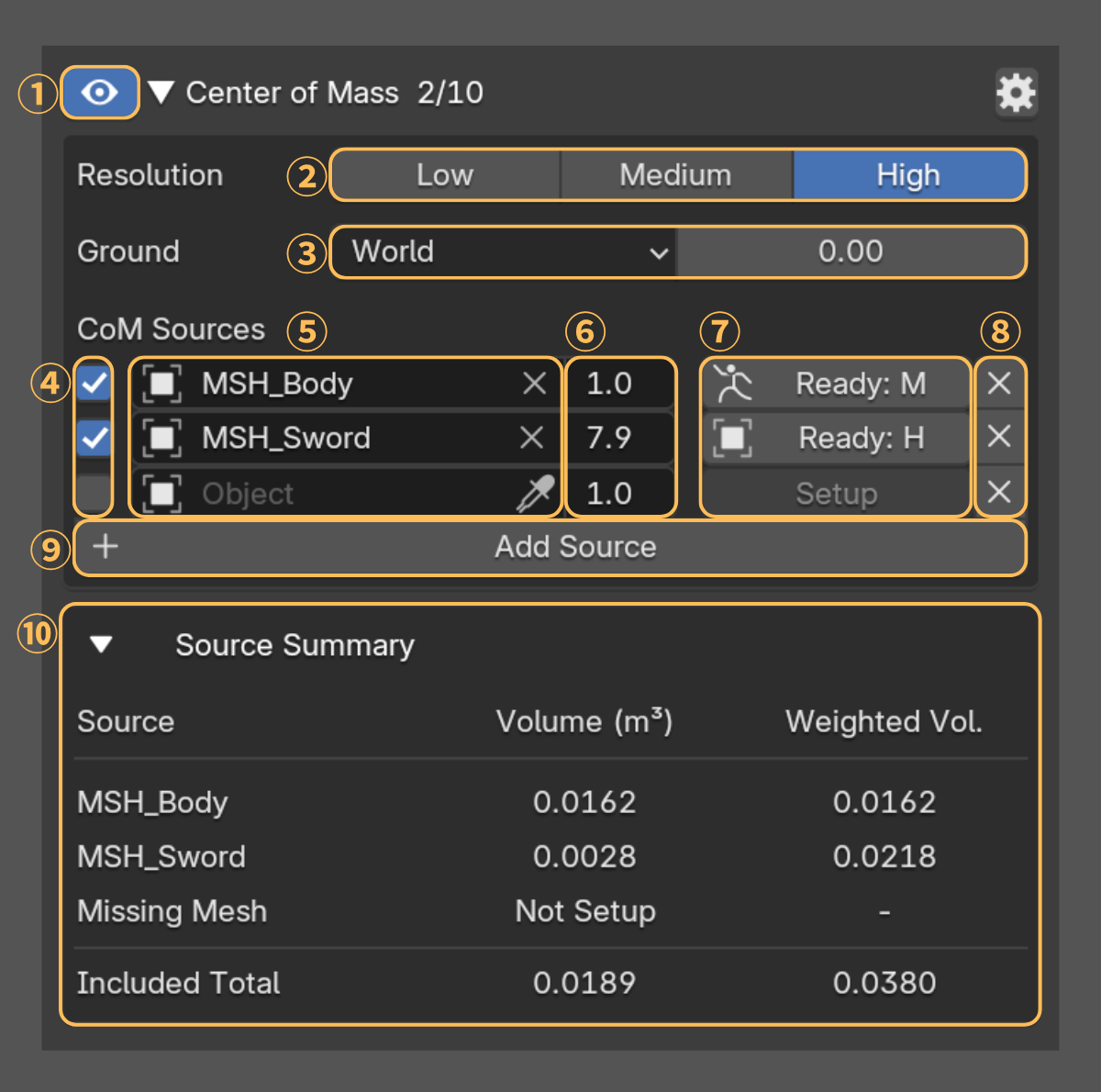
1. [Eye] — Show or hide Center of Mass.
2. Resolution — [Low] (32), [Medium] (64), [High] (128). The Source’s longest bounding-box dimension is divided by the selected value to determine the voxel size. Higher settings create smaller voxels and take longer to analyze.
3. Ground — [World]: horizontal plane at World Height. [Object]: selected mesh surface along World -Z; no surface below means no line or projection.
4. Source checkbox — Select the Sources that contribute to the CoM result.
5. Mesh field — Register a Mesh Object. Each mesh can be registered once; changing it clears Setup and unchecks the row.
6. Mass Weight — Set the relative mass multiplier for each Source. A value of 1.0 uses the Source volume as-is, 2.0 doubles its contribution, and 0.0 excludes it from the CoM calculation. Changing Mass Weight does not require a new Setup.
7. [Setup] / [Ready: L/M/H] / [Re-Setup] — Analyze or reanalyze. L/M/H identifies resolution; Re-Setup indicates stale data. Click Ready again to rerun Setup. [Cancel Setup] stops analysis.
8. [X] — Remove the Source and its Setup data.
9. [Add Source] — Add a Source row.
10. Source Summary — Volume (m³), Weighted Vol. (volume × Mass Weight), and Included Total.
Display Settings
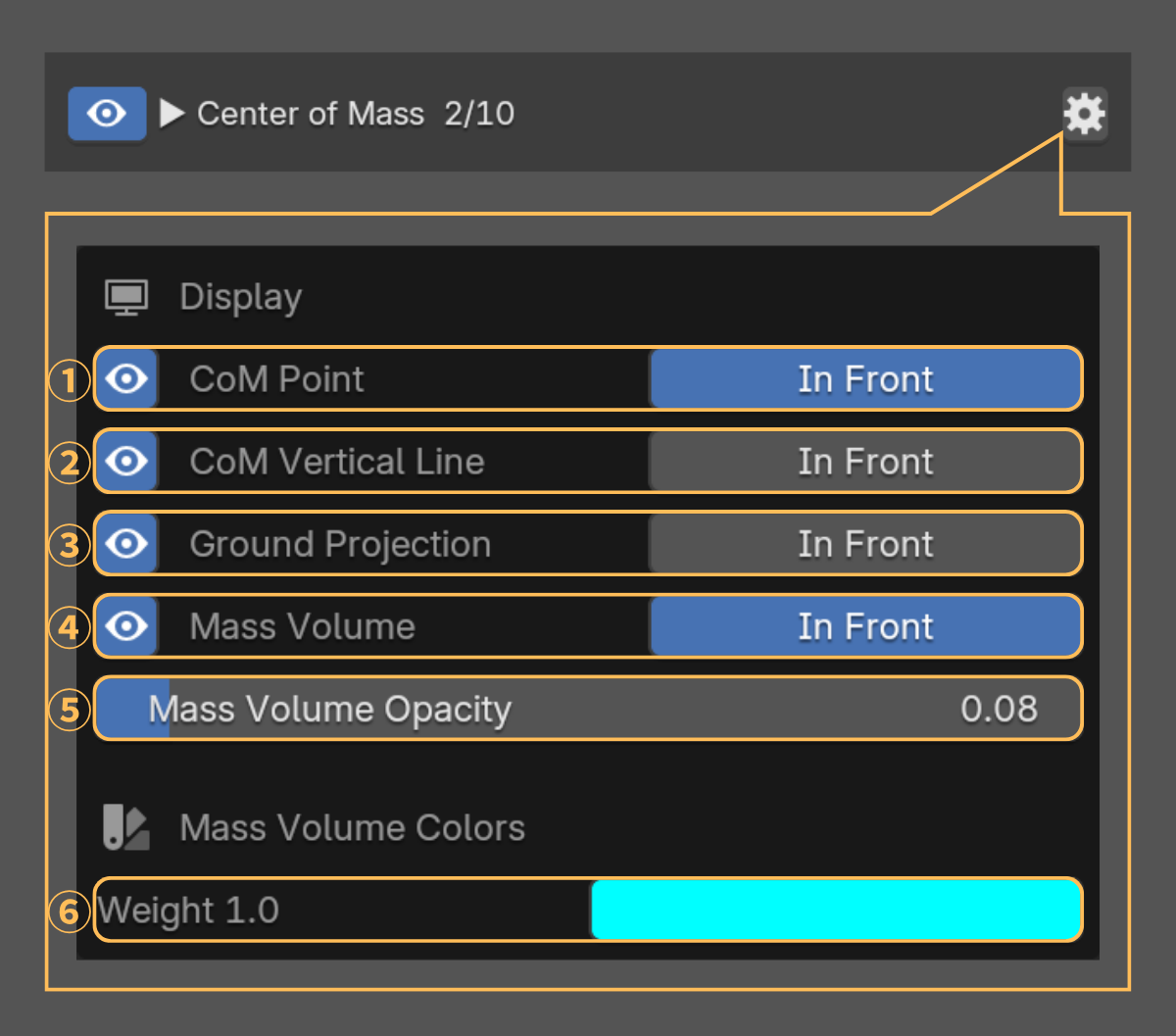
Open the gear icon. Each display has visibility controls and [In Front] to show it through geometry.
1. CoM Point — Show the marker at the estimated center of mass.
2. CoM Vertical Line — Show the line from the CoM to the selected Ground.
3. Ground Projection — Show the projected marker on the Ground.
4. Mass Volume — Show the analyzed voxel shape.
5. Mass Volume Opacity — Adjust the voxel display's transparency.
6. Mass Volume Colors — Set colors by Mass Weight; equal values share a color.
When to Run Setup Again
Setup stores a snapshot. Reanalyze after geometry, bone weight, Shape Key, modifier, or setup-dependent bone changes—even if Ready remains. Rebuild or exclude stale Sources to restore the combined result.
For unassigned-mass warnings, check bone weights and reanalyze if needed. OMT prevents or stops Setup if its estimated memory use exceeds the safety limit. The closer a Source's bounding box is to a cube, the more likely Setup is to reach this limit. Lower the Resolution and run Setup again.
Mass Volume Behavior
Deformed Sources: Mass Volume shows the analyzed Rest Pose shape and does not deform with bone poses. The CoM itself updates with current bone poses. The display follows the Target Armature's movement, rotation, and scale.
Rigid Sources: Mass Volume follows object movement and rotation, including bone parenting.
Source Requirements
Meshes deformed by the Target Armature are Deformed Sources; others are Rigid Sources. Both can be combined. Separate heads or heavy equipment can contribute when their mass matters.
For unsuitable geometry, consider a simple closed proxy matching the intended volume and position, configured to follow the intended poses or object motion.
Deformed Sources are analyzed before Armature deformation. For Viewport-enabled modifiers:
• Use exactly one Armature modifier targeting the Target Armature.
• Only Mirror modifiers may precede it; none may follow.
• Enable Use Vertex Groups; disable Bone Envelopes, Multi Modifier, and modifier-level Vertex Group masks.
Rigid Sources cannot use a Viewport-enabled Armature modifier targeting another Armature.
Saved Settings
Source selection, Ground, visibility, In Front, and Mass Volume Opacity are per Action Slot; Mass Weight and colors are shared across Actions.
10. Motion Check
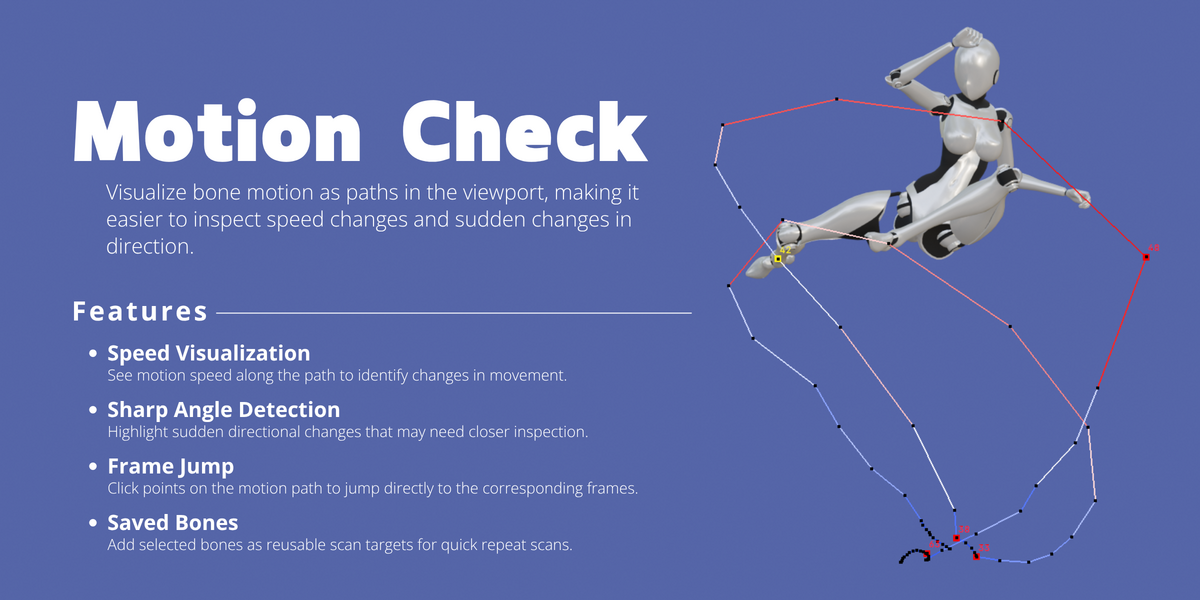
Motion Check visualizes the movement of one Pose Bone over a frame range. The Motion Path shows its trajectory, Speed Colors show changes in speed, and Sharp Angles identify abrupt direction changes to review.
Main Panel Controls
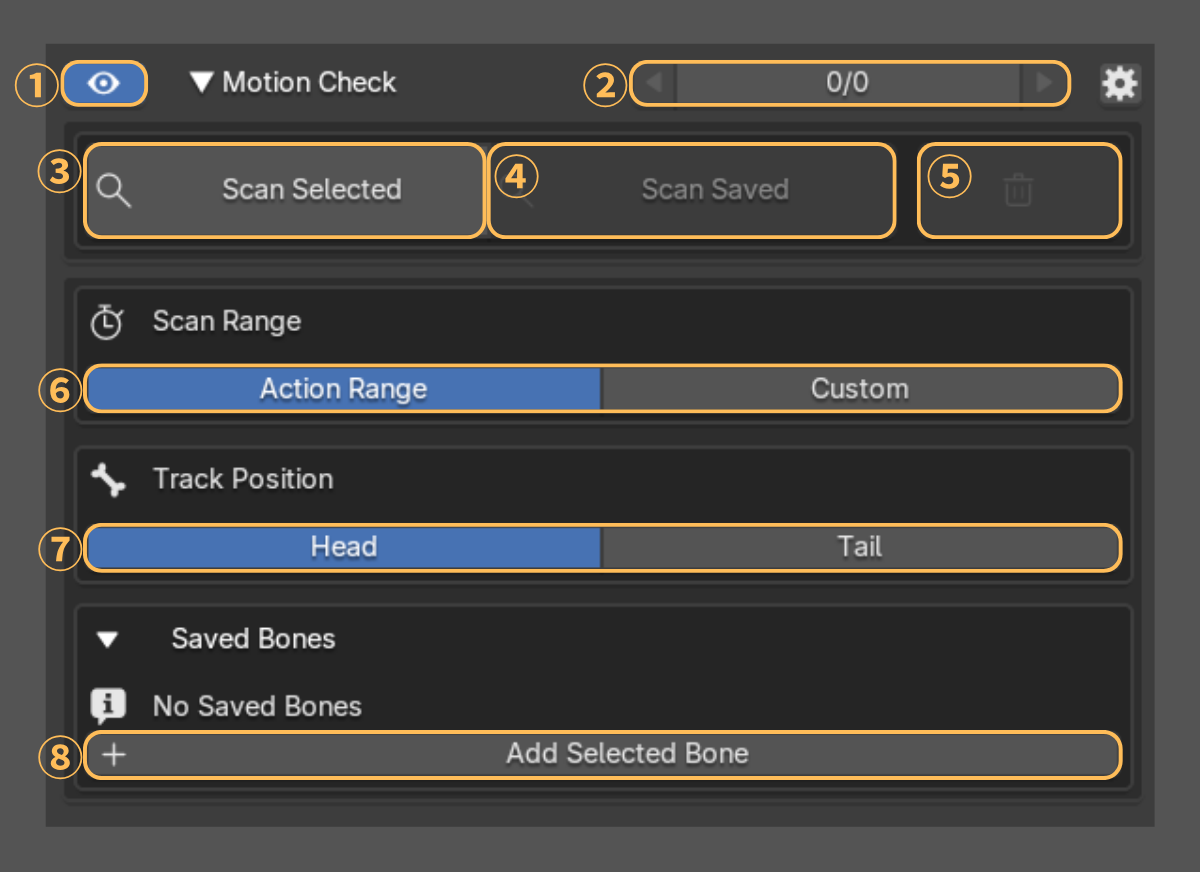
1. [Eye] — Show or hide the current Motion Check overlay.
2. Candidate Navigation — Use the left and right arrows to jump between Sharp Angle candidates. The counter shows the current candidate and total count.
3. [Scan Selected] — Scan exactly one selected Pose Bone on the Target Armature. Scan Selected always analyzes the bone in World space.
4. [Scan Saved] — Open the saved-bone scan dialog, choose one Saved Bone, select [World] or [Relative] (Experimental), and run the scan.
5. Trash icon — Clear the current Motion Check result.
6. Scan Range — [Action Range] uses the keyframe range of the Active Action Slot. [Custom] uses Start and End; [◀ Set] and [Set ▶] copy the current frame to either value. This range is independent of the Scene playback range.
7. Track Position — [Head] or [Tail] selects the bone point to analyze for either scan operation.
8. [Add Selected Bone] — Add the selected Pose Bones to Saved Bones for reusable scans. Up to ten entries can be registered.
The gear icon opens the Display Settings described below. When a refresh icon appears after changes that affect the existing result, click it to update the current scan.
Saved Bones and Relative Analysis
Saved Bones stores reusable scan targets. Each entry contains a Source Bone and an optional Reference Bone; either field can be changed, and [X] removes the entry.
For Relative Analysis, choose a valid Reference Bone different from the Source Bone, then use [Scan Saved] and select [Relative] (Experimental). Relative Analysis removes the Reference Bone's translation and rotation from the analysis, helping you inspect movement relative to that bone.
Each scan displays one bone and replaces the previous Motion Check result.
Display Settings
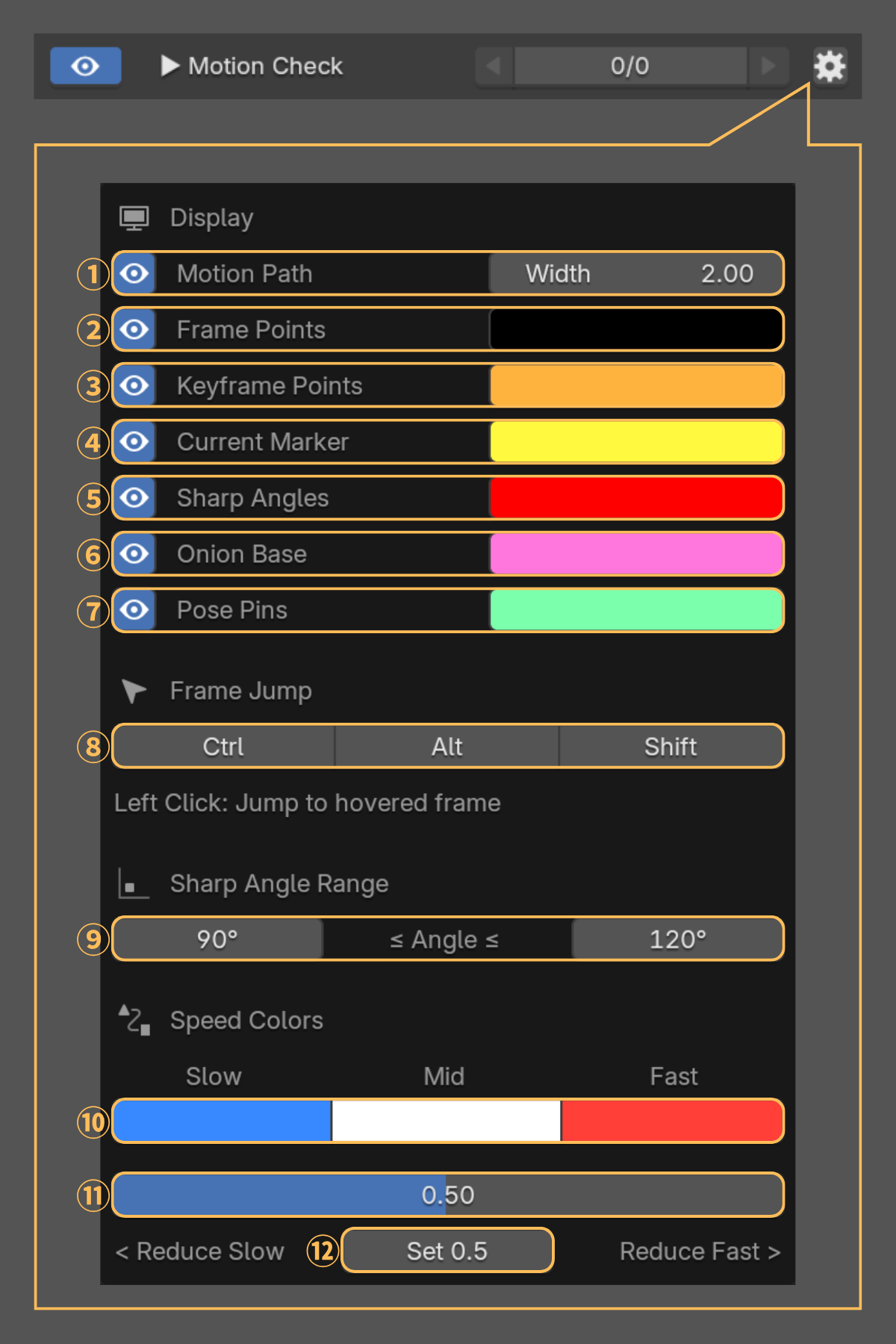
Open the gear icon to adjust the Motion Check overlay and review controls.
1. Motion Path — Show or hide the scanned trajectory. The path is colored by speed; Width changes the line thickness.
2. Frame Points — Show or hide markers for scanned frames and set their color.
3. Keyframe Points — Show or hide markers for keyframes on the Source Bone and set their color.
4. Current Marker — Show or hide the marker for the current frame and set its color.
5. Sharp Angles — Show or hide direction-change candidates and set their color. Sharp Angles are review aids, not confirmed animation errors.
6. Onion Base — Show or hide the Onion Skin Base Frame marker on the Motion Path and set its color.
7. Pose Pins — Show or hide Pose Pin frame markers on the Motion Path and set their color.
8. Frame Jump — Hover over a displayed point or frame label and left-click to jump to that frame. Enable [Ctrl], [Alt], or [Shift] to require those modifier keys with the click.
9. Sharp Angle Range — Set the lower and upper path angles included as candidates. 0° means a complete reversal; 180° means a straight path. Changing these limits updates the candidates without another scan.
10. Speed Colors — Set the Slow, Mid, and Fast colors used along the Motion Path. Colors compare speeds within the current scan.
11. Speed Balance — Move the slider toward Reduce Slow or Reduce Fast to adjust how the Slow, Mid, and Fast colors are distributed across the current scan.
12. [Set 0.5] — Restore the Speed Balance slider to the midpoint.
Notes:
11. Onion Skin
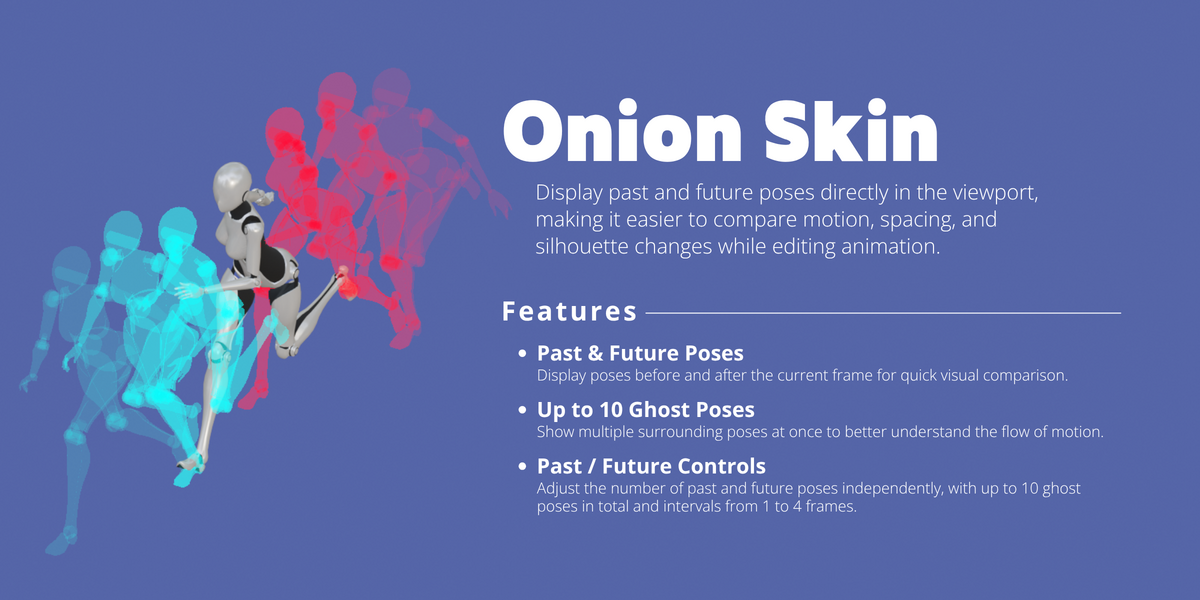
Onion Skin displays fixed poses before and after a Base Frame, helping you compare poses and assess motion.
Generate Onion Skin
1. In Pose Mode, use the Target Armature with the intended Action and Slot, then move to the frame you want as the reference.
2. Set Past, Future, and Interval, then click [Generate Here].
3. Enable [Eye] if needed, then step through frames or play the animation to compare poses. Click [Jump] to return to the Base Frame.
Panel Controls
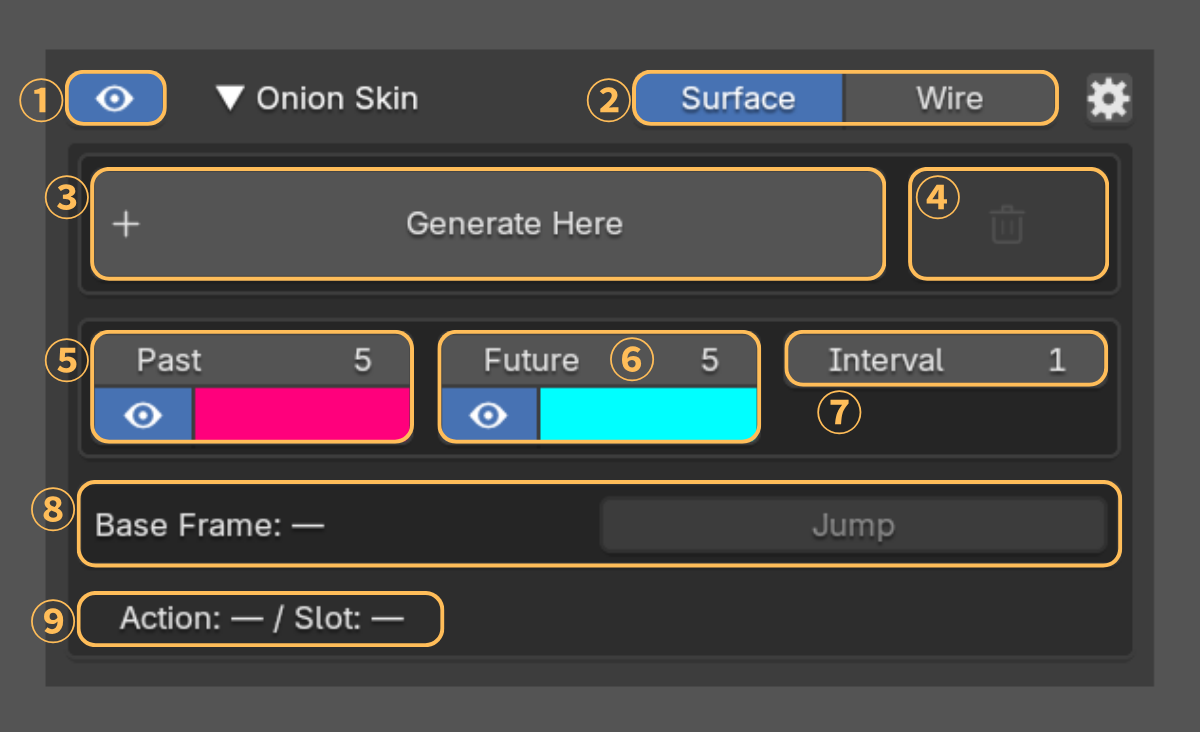
Expand Onion Skin to show all controls. Numbers refer to the N-panel image above.
1. [Eye] — Show or hide Onion Skin.
2. [Surface] / [Wire] — Display filled surfaces or wireframes.
3. [Generate Here] — Generate a new set using the current frame as the Base Frame.
4. Trash icon — Clear the generated poses and saved Base Frame after confirmation.
5. Past — Set the number of samples before the Base Frame (0–10). Use the Eye to toggle past samples and the color field to set their color.
6. Future — Set the number of samples after the Base Frame (0–10). Use the Eye to toggle future samples and the color field to set their color. Past and Future total up to 10; increasing one reduces the other if needed.
7. Interval — Set frame spacing between samples (1–4 frames).
8. Base Frame / [Jump] — Show the saved reference frame and jump back to it.
9. Action / Slot — Show the source used by the saved result.
Display Settings
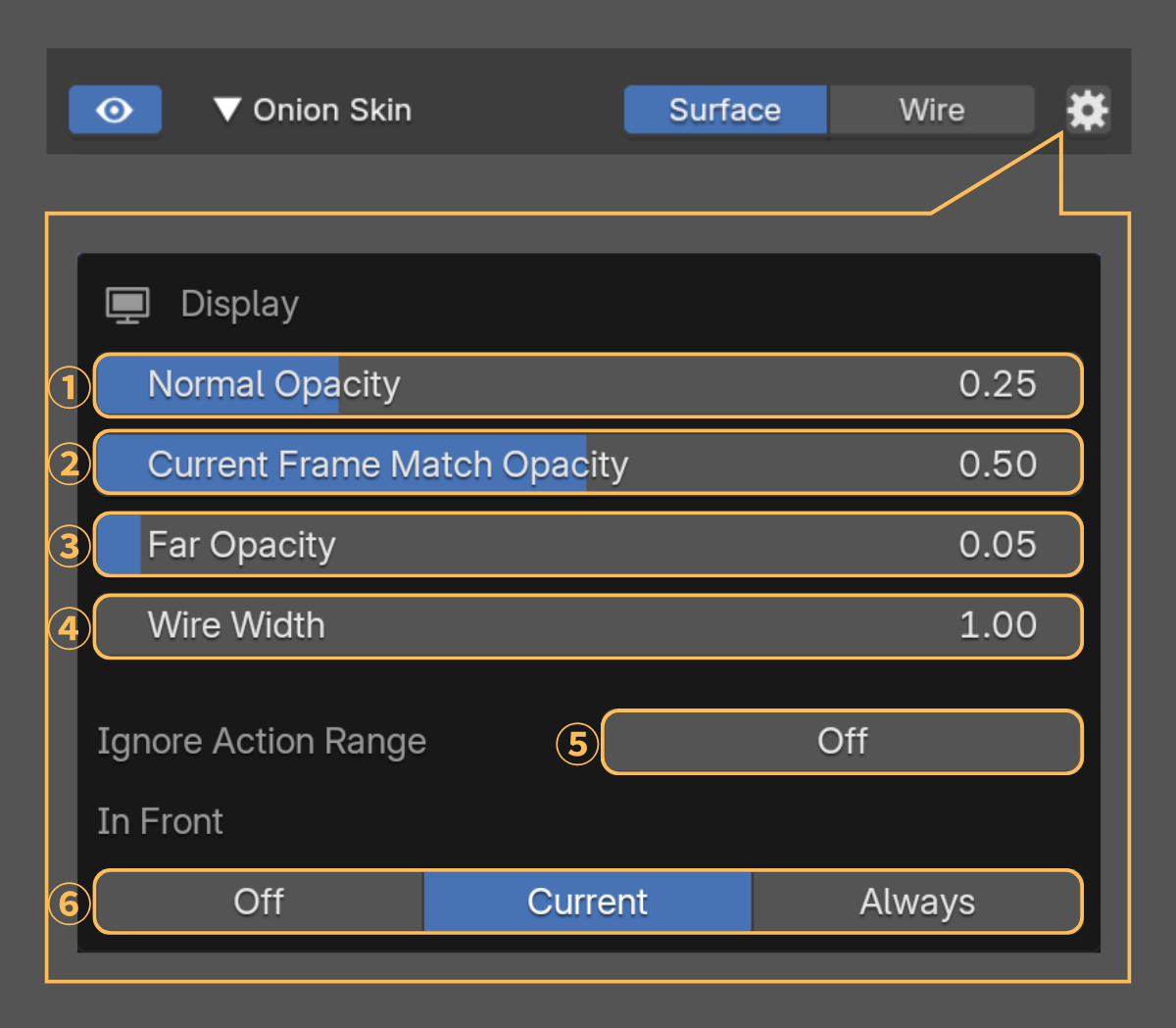
Open the gear icon to access these display settings. Opacity settings apply to both Surface and Wire displays.
1. Normal Opacity — Opacity of the nearest samples.
2. Current Frame Match Opacity — Opacity of a sample matching the current frame.
3. Far Opacity — Opacity at the distance defined by the larger Past or Future count set for generation. Both sides share this fade distance, even when range limits reduce samples. A maximum count of 1 uses Normal Opacity.
4. Wire Width — Adjust the thickness of wireframe lines (1.00–4.00). This also applies to Extra Meshes displayed as Wire in Onion Skin. Surface display is unaffected.
5. Ignore Action Range — Allow samples outside the source Action Slot's keyframe range. Frame 0 remains the minimum.
6. In Front — [Off]: respect scene depth. [Current]: show only samples matching the current frame through geometry. [Always]: show all samples through geometry.
Refresh

The Refresh icon appears when Past, Future, Interval, or Ignore Action Range differs from the saved result. Click it to regenerate the Onion Skin at the saved Base Frame without choosing a new source.
Refresh uses the saved Target Armature, Action, and Slot, and restores the current frame afterward. Switching the active Action or Slot does not retarget the result. If the saved source is missing, restore it or use [Generate Here] with the intended source.
Notes
12. Pose Pins
Pose Pins keeps selected frames visible for pose comparison. Up to 10 Pins can be stored across Armatures, Actions, and Slots.
Pin and Compare
1. Select the Target Armature in Pose Mode and choose the intended Action and Slot.
2. Move to a frame and click [Pin Current Pose]. Repeat at other frames.
3. Step through frames or play the animation to compare poses. Click a Pin's frame number to switch to its saved Action and Slot and jump to that frame.
Panel Controls
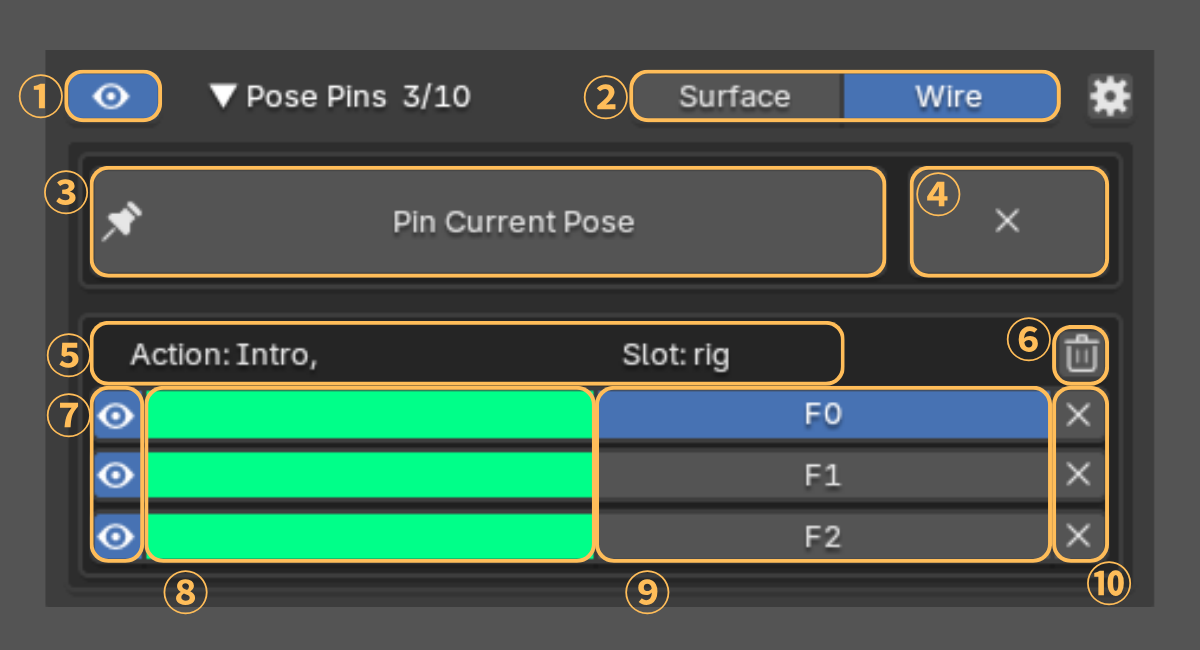
Expand Pose Pins to show the list. The numbers correspond to the Panel Controls image.
1. [Eye] — Show or hide all Pose Pins.
2. [Surface] / [Wire] — Display filled surfaces or wireframes.
3. [Pin Current Pose] — Add the current frame. Pinning the same Armature, Action, Slot, and frame again updates the existing Pin.
4. [X] beside Pin Current Pose — Remove the Pin for the current Armature, Action, Slot, and frame after confirmation.
5. Action / Slot — Identify the saved Action and Slot for this group. Pins within the group are listed by frame.
6. Group trash icon — Remove all Pins in that Action / Slot group after confirmation.
7. Pin Eye — Show or hide an individual Pin.
8. Pin Color — Edit an individual Pin’s displayed color. Shared colors also affect other Pins using that color.
9. Frame number — Switch to the saved Action and Slot and jump to the Pin’s frame.
10. Pin [X] — Remove that Pin after confirmation.
Retry icon (when shown)  — Appears after a failed automatic update when the source can be rebuilt. Click to retry that Pin.
Display Settings
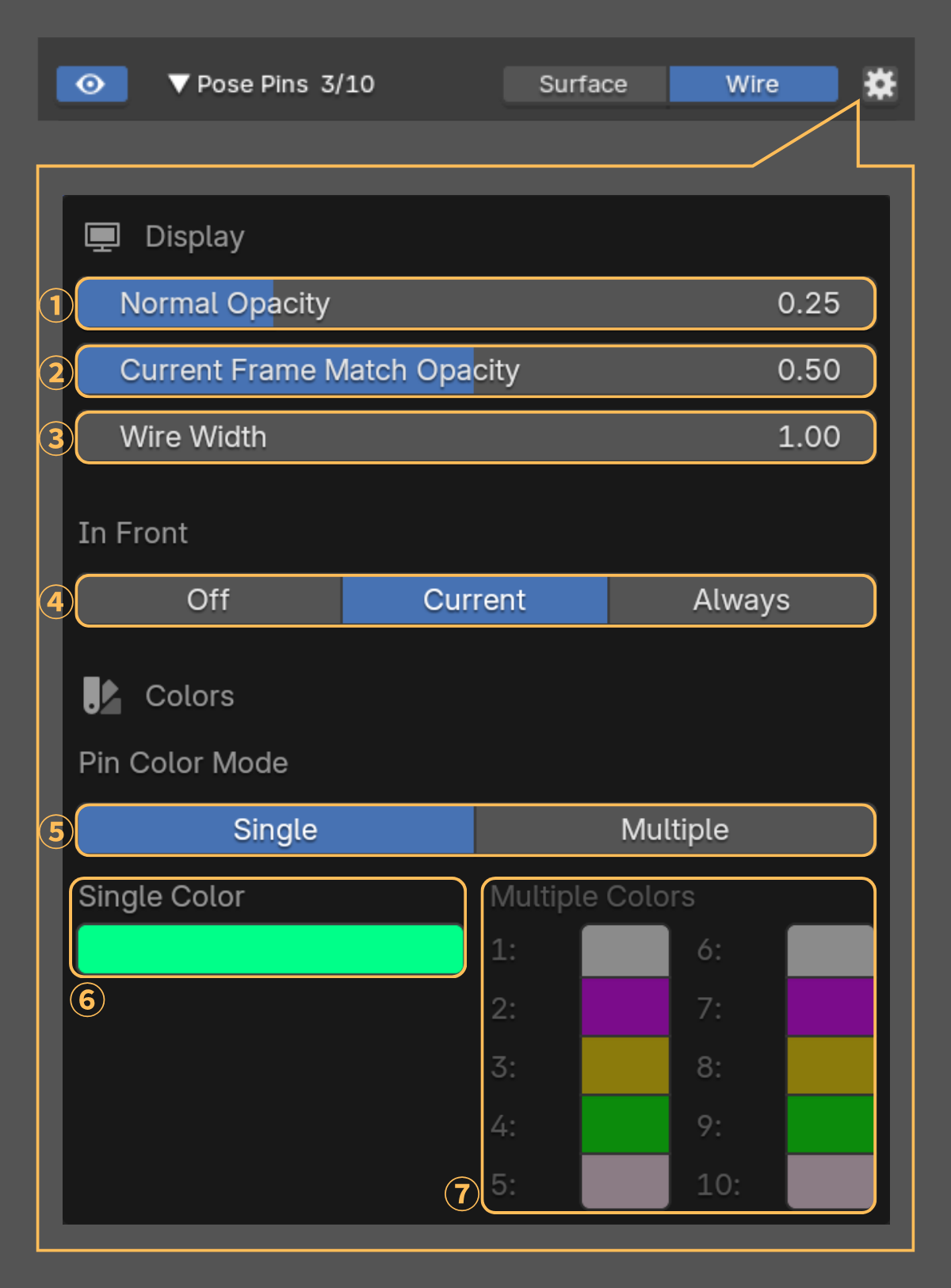
Open the gear icon. Opacity settings apply to both Surface and Wire displays.
1. Normal Opacity — Set opacity for Pins that do not match the current frame.
2. Current Frame Match Opacity — Set opacity for Pins matching the current frame.
3. Wire Width — Adjust the thickness of wireframe lines (1.00–4.00). This also applies to Extra Meshes displayed as Wire in Pose Pins. Surface display is unaffected.
4. In Front — [Off]: respect scene depth. [Current]: show matching Pins through geometry. [Always]: show all Pins through geometry.
5. Pin Color Mode — [Single] uses one shared color; [Multiple] uses assigned palette colors.
6. Single Color — Set the color shared by all Pins in Single mode.
7. Multiple Colors — Edit the ten palette colors used in Multiple mode.
Notes
13. Troubleshooting and Refresh
Refresh is normally automatic. Use the control associated with the displayed warning or affected feature.
Auto Update
Motion Check, Onion Skin, and Pose Pins automatically update when relevant animation key changes are detected.
When editing keys in the Graph Editor or Dope Sheet, OMT waits until the edit is confirmed before updating the generated results.
Unkeyed pose changes are not used to update these generated results. When an automatic update runs, Blender reevaluates the keyed animation, so any unkeyed pose changes on the Target Armature may return to their keyed values.
To avoid losing pose adjustments, key all pose changes you want to keep before an update occurs. Using Auto Keying, or keying each pose adjustment as you work, is recommended.
OMT Refresh Required
Click [Refresh] beside this message to repair registrations affected by Blender data changes. If source meshes were deleted, this may clean up unavailable source references.
Part Filters Refresh
Click the refresh icon in the Part Filters header when it appears. It applies pending filter settings and repairs registrations.
Onion Skin / Motion Check Refresh
Use the feature's refresh icon when it appears. Onion Skin updates at its saved Base Frame; Motion Check reruns its existing scan. Use [Generate Here] or a new scan to choose a different source.
Pose Pin Update Retry
Click the affected Pin's Retry icon. If its source is missing, restore the source or remove the unavailable Pin.
Manual Display Refresh
If Current Guide, Onion Skin, or Pose Pins still looks out of date, use [Manual Display Refresh] near the top of the OMT panel and confirm [Refresh]. It refreshes those visible displays only; see Section 4.
Missing Action / Action Slot / Sources
Restore the saved Action, Slot, Armature, or Mesh Object where possible. Selecting another active Action or Slot does not replace a saved source. If restoration is not possible, regenerate Onion Skin or remove and recreate the affected Pins.
Stale Center of Mass Sources
Run [Re-Setup] for the affected Source, or uncheck it to exclude it. Also rerun Setup after setup-dependent changes even if Ready remains; see Section 9.
Controls Unavailable
Set the Target Armature, select it, and enter Pose Mode. Generation and scans require an active Action and a valid Action Slot where applicable.
14. Known Limitations
OMT provides visual references and estimates. Keep these limits in mind.
Center of Mass
Setup stores analyzed geometry and Shape Keys as a snapshot. Geometry, weighting, modifier, and setup-dependent bone changes require another Setup; see Section 9 for supported modifiers.
The estimate uses linear skinning for Preserve Volume, so it may differ from the deformed mesh.
Nested inner contours are not subtracted as hollow space. Check Mass Volume carefully for hollow or nested geometry, and use a suitable closed proxy if necessary.
Source volume is a Setup snapshot; later scale or shear changes do not continuously reanalyze it. Rigid Sources follow runtime movement and rotation only.
If Setup reaches its memory safety limit, lower Resolution and try again.
Motion Check
Sharp Angles are review candidates, not confirmed animation errors. Relative Analysis is experimental. Sharp Angle detection may produce false positives in Relative mode, especially when relative movement is very small. World Analysis is recommended for normal motion review. Relative analysis removes reference translation and rotation but does not compensate Reference Bone or Armature Object scale.
Saved Display Sources
Onion Skin and Pose Pins retain their saved Armature, Action, Slot, and Mesh sources. Deleted sources can prevent updates; use the recovery steps in Section 13.
15. Support and Version Information
For support, use Contact the Creator on the Onion Motion Tools product page on Superhive.
Version Information
Add-on: Onion Motion Tools 1.0.0.
Tested with Blender 4.5.13 LTS and Blender 5.2.2 LTS on Windows and macOS.
Reporting Problems
Include the OMT and Blender versions, steps to reproduce the issue, expected and actual behavior, and any warning or error text. Add screenshots or a short recording where helpful. If needed, provide a minimal .blend file that reproduces the issue and can be shared.
Have questions about this product?
Login to message
| Blender Extension Compatible | Yes |
| Published | about 8 hours ago |
| Blender Version | 4.5 - 5.2 |
| Extension Type | Add-on |
| Render Engine Used | Cycles |
| License | GPL |
Discover more products like this
Animation Workflow motion path Onion Skin animation tool animation animation addon playback range character animation center of mass pose motion analysis