OpacityFlow
 Lewis Martin






OpacityFlow
Object opacity in one slider. Fade, dissolve and reveal anything in your scene without opening the shader editor.
Contents
- Requirements
- Installation
- Quick start
- The panel
- Features
- Preferences
- How it works
- Recipes
- Troubleshooting
- Known limitations
- Support
Requirements
| Blender | 4.0 and later |
|---|---|
| Operating system | Windows, macOS, Linux |
| Render engines | EEVEE and Cycles |
| Dependencies | None — pure Python, nothing to compile or download |
OpacityFlow works on any object type that can hold a material: meshes, curves, surfaces, text, metaballs, volumes, point clouds and Grease Pencil.
Installation
Blender 4.2 and later
- Download the add-on file.
- In Blender, go to Edit ▸ Preferences ▸ Add-ons.
- Click the dropdown arrow in the top-right corner of the panel.
- Choose Install from Disk… and select the file.
- Tick the checkbox next to OpacityFlow to enable it.
Blender 4.0 and 4.1
- Go to Edit ▸ Preferences ▸ Add-ons.
- Click Install… and select the file.
- Tick the checkbox next to OpacityFlow.
Confirming it worked
Open the 3D viewport sidebar with N. You should see an OpacityFlow tab down the right-hand edge.
Updating
Install the new version over the top and restart Blender. Scenes made with older versions keep working — OpacityFlow upgrades its internal node group in place, so your existing materials, opacity values and keyframes are preserved.
Quick start
- Select an object.
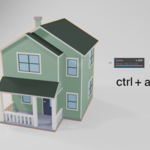
- Press Ctrl + Alt + O in the viewport.
- Drag left and right.
That's the whole tool. Everything else is a refinement of that.
If you'd rather work from a panel, press N, open the OpacityFlow tab, and click Enable Opacity.
The panel
3D Viewport ▸ Sidebar (N) ▸ OpacityFlow
| Control | What it does |
|---|---|
| Opacity | 0 is invisible, 1 is fully opaque |
| Keyframe (diamond) | Inserts a keyframe on the current frame. Click again to remove it. The icon fills in when a key exists on the current frame |
| See Through | Off by default. Turn on to reveal the object's own interior as it fades |
| Texture | Dissolve pattern (see below) |
| More Add-ons | Opens the rest of the add-on range in your browser |
| Copy to Selected | Pushes the active object's opacity, See Through state, texture and dissolve settings onto every other selected object |
| Apply to Selected | Sets up OpacityFlow on everything currently selected |
| X | Removes OpacityFlow and restores the original materials |
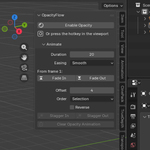
The Animate sub-panel holds fades and staggered reveals.
Features
Opacity slider
Works in EEVEE and Cycles, in both the viewport and final renders. Objects with several material slots are handled — every material on the object fades together.
Hotkey
Ctrl + Alt + O in the 3D viewport starts an interactive drag.
| Key | Action |
|---|---|
| Move mouse | Adjust opacity, with a live readout in the header |
| Shift | Fine control |
| K | Insert a keyframe without leaving the drag |
| Left click / Enter | Confirm |
| Esc / Right click | Cancel and restore the original values |
The hotkey works on every selected object at once, and sets up any object that isn't set up yet — you never need to press Enable Opacity first.
You can change the shortcut in Preferences ▸ Add-ons ▸ OpacityFlow.
See Through
By default, objects fade as a single clean silhouette. Without that, fading a closed object lets you see straight through its front face into its own back faces and interior, which rarely looks like what you wanted.
Leave See Through off for solid objects — the vast majority of cases. Turn it on for genuinely transparent materials like glass, where you want to see through to the far side.
The checkbox affects the active object. Use Copy to Selected to apply it across a selection.
The solid silhouette behaviour requires the Blended transparency setting in EEVEE. It has no effect on Dithered. Cycles is unaffected by that setting.
Texture dissolve
Instead of the whole object fading evenly, the fade can break up through a pattern. The opacity slider still drives everything — it just controls which parts vanish first rather than fading all of it at once.
| Texture | Look |
|---|---|
| None | Uniform fade across the whole object |
| Noise | Cloudy, organic dissolve |
| Voronoi | Cellular, shattered |
| Gradient | Directional wipe along the object's local Z — materialises from the ground up |
| Wave | Banded stripe wipe |
| Magic | Swirling, psychedelic |
| Checker | Hard checkerboard blocks |
| Brick | Brick-by-brick reveal |
Two settings appear when a texture is active:
- Scale — size of the pattern. Larger values mean a finer, busier dissolve.
- Softness — hardness of the dissolve edge. Low values give a crisp, eaten-away edge; high values give a soft, cloudy fade.
At opacity 1 the object is completely opaque and at 0 it is completely gone, at every softness setting. No ghosting, no leftover specks.
Textures are applied in object space, so patterns stay locked to the object as it moves.
Fade In and Fade Out
Animate ▸ Fade In / Fade Out
Sets Duration and Easing, then keys a complete fade starting at the current frame. Two keyframes, correctly eased, on every selected object.
Easing options are Smooth (eases in and out — the natural-looking default), Linear, Ease In and Ease Out.
Staggered reveals
Animate ▸ Stagger In / Stagger Out
The same fade, applied across a selection with each object offset from the last, so they cascade instead of moving together.
- Offset — frames between one object's fade starting and the next.
- Order — Selection, Name, X / Y / Z position, Distance from the active object, or Random.
- Reverse — flips the order.
- Seed — rerolls the Random order.
The panel shows the total length of the animation before you commit, e.g. "12 objects, 64 frames total".
Sorting by Z position with a Gradient texture gives you objects materialising from the ground up, one after another.
Clear Opacity Animation
Removes every opacity keyframe from the selected objects. Their current opacity value stays as it is.
Preferences
Edit ▸ Preferences ▸ Add-ons ▸ OpacityFlow
EEVEE Transparency
- Blended (default) — smooth, clean fades. Required for solid silhouette fading. Can sort incorrectly when several transparent surfaces overlap.
- Dithered — sorts correctly but looks noisy, cleaning up as render samples increase. Solid silhouette fading has no effect in this mode.
Auto-create material — when on, objects with no material get a plain one so they can be faded. Turn it off if you'd rather OpacityFlow skipped those objects.
See Through by default — whether newly set up objects start with See Through enabled. Off unless you work mostly with transparent materials.
Hotkey — click the shortcut field and press your preferred combination.
How it works
Useful to know if you're customising things, and reassuring if you're sending files elsewhere.
Each object gets a custom property called of_opacity (visible under Object Properties ▸ Custom Properties). A small node group is inserted into each of the object's materials, between the surface shader and the Material Output. Inside, an Attribute node reads that custom property.
Three consequences worth knowing:
Shared materials still work per-object. Ten objects can share one material and each fade independently. Nothing is duplicated.
Your files work on machines without OpacityFlow. Custom properties and node groups are saved into the .blend. Send a scene to a render farm, a client, or a colleague who doesn't own the add-on, and it still renders correctly. Nothing breaks and nothing is missing.
Keyframes live on the object, not the material. They appear in the Dope Sheet and Graph Editor where you'd expect, alongside the object's other animation.
The group node is visible in the shader editor if you want to tweak it by hand, plug your own texture in, or wire the Scale and Softness inputs to something else.
Recipes
Product reveal. Select your parts, set Order to Z Position, Texture to Gradient, Offset around 4, then Stagger In. The parts materialise upward in sequence.
See inside a model. Select the outer shell, press the hotkey, drag down to about 0.2. The solid silhouette keeps it readable. Drag back up when you're done.
Disintegration. Texture to Voronoi, Softness low, Scale high, then Fade Out. The object crumbles away cellularly.
Ghosting a reference. Fade a reference object to 0.3 and leave it there while you model against it.
Camera-blocking geometry. Fade walls or foreground objects out of shot instead of hiding them, so lighting and reflections keep working.
Troubleshooting
The object doesn't change at all.
Make sure you're in Material Preview or Rendered viewport shading. OpacityFlow drives material transparency, which Solid shading doesn't display.
Nothing happens, and I get a warning about skipped objects.
The object's material has nothing connected to the Surface input of its Material Output node, so there's no shader to fade. Connect a shader, or delete the material and let OpacityFlow create one.
I can see inside the object when it fades.
Switch See Through off. If you're in EEVEE, also check that EEVEE Transparency is set to Blended in preferences — the solid silhouette behaviour does nothing on Dithered.
Solid silhouettes work in Cycles but not EEVEE.
Set EEVEE Transparency to Blended. Dithered can't do it.
Transparent objects render oddly where they overlap.
This is EEVEE's transparency sorting, not OpacityFlow. Switch EEVEE Transparency to Dithered and raise your sample count. Cycles doesn't have this problem.
The object fades but its shadow doesn't.
OpacityFlow enables transparent shadows on the materials it touches. If a shadow persists, check the object's Object Properties ▸ Visibility ▸ Ray Visibility ▸ Shadow setting, and in Cycles confirm the light is set to cast transparent shadows.
Two objects share a material and I only wanted to change one.
Opacity is per-object and always will be. See Through and Texture, however, are properties of the material — change them on one object and every object using that material follows. Give the object its own material copy (the number button next to the material name in the Material Properties tab) if you need them to differ.
The Gradient wipe goes the wrong way, or finishes too fast.
Gradient runs along the object's local Z, so it follows object rotation. Adjust Scale to match the object's height. If the object has a non-uniform scale, Object ▸ Apply ▸ Scale first.
The Voronoi dissolve looks a different size to the others.
Voronoi reads its distance field rather than a normalised value, so it responds differently to Scale. Just dial Scale to taste.
The keyframe icon never fills in.
It reflects the active object only. If you have several objects selected with keys on different frames, the icon follows whichever is active.
Fade In / Fade Out didn't ease the way I expected.
Easing is read at the moment you press the button, not applied retroactively. Set Easing first, then click Fade In.
My renders are slow in EEVEE.
Blended transparency is more expensive than opaque. If you have many faded objects, consider Dithered, or fade only what needs it.
I want my materials back exactly as they were.
Select the objects and press the X button in the panel. OpacityFlow removes its node group, reconnects the original shader, restores every material setting it changed, and deletes its custom properties.
Removing the add-on entirely.
Remove OpacityFlow from your objects first (the X button), then disable the add-on. If you disable it without removing it, existing scenes still render correctly — the node groups are self-contained — you just lose the interface for editing them.
Known limitations
- Solid viewport shading doesn't show the fade. OpacityFlow drives material transparency, which needs Material Preview or Rendered shading.
- Texture and See Through are per-material, not per-object. Objects sharing a material share those two settings. Opacity itself is always per-object.
- Collections can't be faded as a unit. Select the objects inside instead. Blender doesn't support animating collection visibility directly.
- Solid silhouette fading requires Blended transparency in EEVEE.
- Genuinely transparent materials (glass, water) should have See Through turned on, or their internal surfaces will be suppressed.
Support
Questions, bug reports and feature requests are welcome through the message button on the product page. When reporting a problem, please include your Blender version, operating system, render engine, and if possible a small .blend that shows the issue — it makes fixes dramatically faster.
If OpacityFlow saves you time, a rating on the product page genuinely helps.
