 Ivan Matukhnov


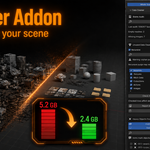
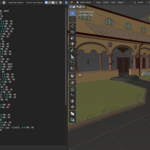
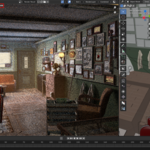
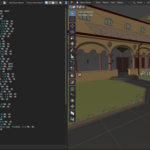
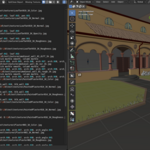
Analyze your scene, find what eats your memory, and clean things up safely.
Sooner or later, almost every Blender artist runs into the same problems:
the render no longer fits into VRAM, the .blend file suddenly grows to hundreds of megabytes, every append creates more material duplicates, and the scene slowly fills up with empty objects, unused UV maps, broken texture paths, and forgotten data.
OptiClean helps turn that chaos into something clear and manageable.
It does not just “clean the scene.”
First, it shows you what is actually going on: which objects are the heaviest, which textures use the most memory, where you have missing textures, duplicate materials, empty meshes, unused slots, and unnecessary data.
The main idea is simple:
Diagnose first. Clean after.
Nothing is deleted blindly.
Nothing happens behind your back.
Why OptiClean? ✨
Preview before every action
Every tool first shows you a list of found issues.
You can see exactly what will be changed, select only the items you want, uncheck anything you want to keep, and apply the cleanup only when you are ready.
No dangerous “clean everything” buttons.
Honest memory estimation
OptiClean does not pretend that rough guesses are exact numbers.
Memory estimation is split into clear parts:
base texture and geometry memory;
estimated render overhead;
optional shadow, buffer, and render-related costs;
separate handling for EEVEE and Cycles.
This makes it much easier to understand where the real problem is:
geometry, textures, materials, render settings, or leftover scene data.
Safer workflow
Most object-level operations can be undone with Ctrl+Z.
For the few operations that cannot be fully undone, such as purging certain Blender datablocks, OptiClean shows a warning before you apply anything.
Built for real production scenes
OptiClean is designed for actual working files, not just tiny demo scenes.
It is useful when your project contains hundreds of objects, heavy materials, large textures, millions of polygons, and assets collected from different sources.
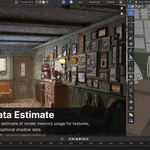
Render Data — Estimate VRAM Before You Hit the Limit 🚀
Render Data helps you understand how much memory your scene may require before rendering.
This is especially useful when the file still opens fine, but the render starts crashing, freezing, slowing down, or no longer fits into GPU memory.
The tool can show:
texture memory based on real bit depth;
geometry memory;
evaluated mesh data with render-level modifiers and subdivision;
estimated render overhead;
EEVEE / Cycles mode;
possible savings from limiting texture size.
OptiClean also avoids double-counting the same image when it is used in multiple nodes or materials.
Geometry is estimated from the evaluated mesh, not only from the base mesh, so the result is much closer to what actually goes into the render.
Materials — Clean Up Duplicate Materials 🎨
One of the most common Blender problems is material duplication after append, merge, import, or asset library work.
You often end up with materials like:
Brick.001, Brick.002, Brick_copy, Brick_final
They may look identical, but checking every single one manually is slow and frustrating.
OptiClean helps find and merge duplicates carefully.
It compares not just the material name, but the actual material data:
node graph structure;
socket values;
used textures;
material settings;
shader setup.
Cosmetic differences, such as node position, do not break the comparison.
If two materials have similar names but are actually different inside, OptiClean will not merge them by mistake. They are shown separately instead.
You can use:
Auto mode — merge everything that is confirmed identical;
Manual mode — review groups one by one and decide what to merge.
There is also a missing texture finder, so you can quickly see all broken paths and jump to the material that needs fixing.
Meshes — Find Problem Objects 🧩
Large scenes often contain objects that are no longer useful but still make the file heavier or harder to manage.
OptiClean helps find:
meshes without materials;
objects with empty material slots;
meshes with zero geometry;
objects with no vertices, edges, or faces.
Each found object can be selected directly in the viewport, so you can inspect it before removing anything.
Material Slots — Remove Slot Clutter 🧼
Material slots can quickly become messy after imports, object merges, material tests, or asset cleanup.
OptiClean can:
remove empty slots;
merge identical slots;
remove unused slots;
correctly reindex material assignments on faces.
This keeps objects cleaner, lighter, and easier to work with.
Data Cleaner — Find What Makes the File Heavy 🗂️
Data Cleaner gives you a general scene audit.
It collects a clear report and shows what is happening inside the file:
polygon and vertex count;
materials;
textures;
empty meshes;
objects without UVs;
duplicate materials;
missing textures;
unused data;
heavy objects;
large textures.
After cleanup, you can compare the scene before and after to see what actually changed.
It also shows datablocks with fake user, which is one of those hidden reasons why a Blender file can keep growing even when you think unused data has already been removed.
Texture Report — Control Heavy Textures 🖼️
Large textures can quietly eat a huge amount of memory.
OptiClean shows textures by resolution and estimated memory usage, marking:
8K textures;
4K textures;
non-power-of-two images;
oversized images;
possible candidates for resizing.
This helps you decide where high resolution is actually needed and where a texture was simply left too large by accident.
UV — Audit and Clean UV Maps 🧭
Working scenes often collect extra UV channels over time:
old lightmaps, test unwraps, imported UVs, or channels with non-standard names.
OptiClean helps find:
objects without UVs;
objects with multiple UV maps;
non-standard UV names;
empty UV maps;
extra UV channels that may be safe to remove.
Cleanup always goes through a preview step, so you do not accidentally delete a UV map that is still needed by a material or pipeline.
Common Workflow Across Tools ✅
Most tools follow the same simple logic:
analyze the whole scene or only selected objects;
review every found item before applying changes;
use checkboxes for each row;
quickly Check All / Uncheck All;
select found objects in the viewport;
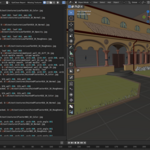
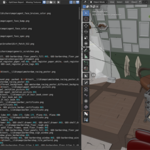
write detailed reports into a Blender text block;
see short statistics directly in the interface.
This makes OptiClean feel less like a random set of buttons and more like a regular production tool for checking and cleaning scenes.
Compatibility ⚙️
OptiClean works with:
Blender 4.2 LTS and newer
EEVEE
Cycles
No separate builds for different Blender versions are required.
Who Is This Add-on For?
OptiClean is useful if you work with:
heavy Blender scenes;
environment art;
asset libraries;
append / link workflows;
large textures;
render-heavy projects;
game-ready scenes;
files that slowly become heavier, messier, and harder to manage.
This is not a magic one-click optimizer.
It is a practical set of tools that helps you quickly see the weak spots of your scene and clean them up carefully.
Final Thought
OptiClean helps keep Blender scenes lighter, cleaner, and easier to control.
It shows what uses memory, what makes the file heavier, which data is no longer needed, which materials can be merged, which textures should be checked, and which objects may need cleanup.
Most importantly, it does not silently delete anything.
You always see what was found, what will change, and what happens after applying the cleanup.
OptiClean is calm, clear scene cleanup — without the feeling that you pressed a dangerous button and now just hope nothing broke.
