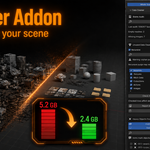
OptiClean — Documentation
Version 2.0.0 · Blender 4.2 LTS and newer · EEVEE & Cycles
This page explains every section and button in the OptiClean panel and what each one does.
Contents
Installation
- Go to Edit → Preferences → Add-ons, click the drop-down (top-right) → Install from Disk…
- Select the OptiClean
.zip file — do not unzip it first.
- Enable OptiClean in the list.
- In the 3D Viewport press N to open the sidebar, then select the OptiClean tab.
General concepts
Most tools follow the same four-step flow:
| Step |
What it does |
| Scan |
Reads the scene and lists what it found. Changes nothing. |
| Preview |
Results appear in a list with a checkbox per row. Tick the rows you want; use Check All / Uncheck All to toggle quickly. |
| Apply |
Acts only on checked rows, then reports Done: N of M. |
| Report |
A detailed report is written to a Blender Text block; a short count also appears in the status bar. |
Object Tool Scope Default (top of the panel) — Whole Scene or Selected Only. Object-based tools obey this. Tools that work on file-wide data (e.g. orphan purge) ignore it by design.
Undo — Object-level actions (deleting meshes, merging slots, connecting nodes) are undoable with Ctrl+Z. Actions that remove file datablocks (orphan purge, material datablock removal) may not be cleanly undoable and show a warning before they run.
Render Data
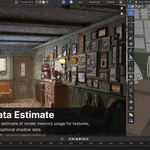
Estimates how much GPU memory the scene's data would use. This is an estimate, not a measurement.
-
Engine toggle (EEVEE / Cycles) — switches the assumptions used for the estimate.
- The report is split into a Hard base (textures + geometry, computed near-exactly) and Estimated overhead (lights/shadows, buffers — shown as a range).
Options
- Texture size mode: full resolution vs clamped to a limit.
- Optional lights/shadows estimate (off by default; labeled as a rough estimate).
Data Cleaner
Scene Audit
| Button |
Action |
| Run Scene Audit |
Produces one consolidated report (polygons, vertices, materials, textures, empty meshes, missing textures, and more). Run it again after cleaning to see a before/after comparison. |
Unused Data Cleaner
| Control |
Action |
|
Recursive (checkbox) |
When on, purging cascades to data freed by the first pass. |
| Scan Unused Data |
Lists unused/orphan and fake-user datablocks per type (materials, textures, mesh data, collections, actions, images), with counts. |
| Check All / Uncheck All |
Toggle which rows are included in the detail report. |
| Report Unused Data Details |
Writes a detailed list of the checked categories to a Text block. |
| Purge Unused Data |
Removes the unused data. Datablock removal may not be undoable — a warning is shown above the button.
|
Heavy Objects Finder
| Control |
Action |
|
Eye / Viewport / Render (filters) |
Choose which hidden/excluded objects appear. All on by default. |
| Scan Heavy Objects |
Lists the heaviest objects by vertex count (descending). Rows are icon-marked when an object is hidden in the viewport, hidden by its collection (Coll), or excluded from render. |
| Select Heavy Object Rows |
Selects the checked objects. Objects hidden in the viewport can't be selected — the report says how many to find in the Outliner. Visibility is never changed for you.
|
Texture Size Report
| Button |
Action |
| Scan Texture Sizes |
Lists textures by resolution and decoded memory size, flagged 8K / 4K / non-power-of-two / oversized. |
| Select Texture Owner Objects |
Selects the objects that use the checked textures. |
| Resize Checked Textures |
Resizes the checked textures in place. |
Meshes
Meshes Without Materials
| Button |
Action |
| Scan Meshes Without Materials |
Finds objects with no material slots, or with empty material slots. |
| Select Found Object(s) |
Selects the checked result objects in the viewport. |
Delete Zero-Geometry Meshes
| Button |
Action |
| Scan Zero-Geometry Meshes |
Finds mesh objects with no vertices, edges, or faces. |
| Delete Checked Meshes |
Deletes the checked empty objects. Asks for confirmation first. Undoable with Ctrl+Z. |
Materials
Merge Materials by Name
Merges duplicate material datablocks across the whole file (e.g. Wood.001 into Wood), but only when they are truly identical.
| Button |
Action |
| Scan Material Merge Groups |
Groups same-base-name materials and checks which are identical. Identical groups are checked by default; same-name-but-different ones are listed separately and not merged. |
| Merge Checked Materials |
Merges the checked groups. Removes duplicate datablocks (removal warning applies). |
Missing Textures Finder
| Button |
Action |
| Scan Missing Textures |
Lists images whose file is missing on disk, with the owning material(s) and object(s). |
| Select Owners |
Selects the objects that use the checked missing textures. |
Auto-Connect Textures
Batch-links texture files from a folder into a material by matching file names. Pick a mode at the top: Repair Missing or Manual Setup.
Preset controls (shared)
| Control |
Action |
| Preset drop-down |
Selects the active pattern preset. |
| Add Preset |
Creates a new empty preset. |
| Delete Preset |
Deletes the active preset. |
|
Restore Built-ins (preset icon) |
Re-adds the built-in presets (PBR, Unreal, Unity Standard, Unity URP) without touching your own. |
|
Edit preset (expandable) |
Shows the pattern rows for the active preset. |
Pattern rows (inside the preset editor)
Add Row / Delete Row — add or remove a map row.
Each row has:
-
Name Pattern — a wildcard string.
* is required for prefix/suffix matching. Examples: *_BC (suffix), BC_* (prefix), *_BC_* (contains). A pattern with no * matches the file name exactly.
-
Destination — which material input to connect to, chosen from the material's actual inputs, plus Connect: None (add texture, no link) and Material Output: Displacement.
-
Multichannel — splits the image via a Separate Color node. Split mode RGB+A (RGB as color + alpha) or R+G+B+A (all channels as data). Color space follows the split automatically.
-
Use alpha — when off, the alpha channel is not connected.
Mode: Manual Setup
| Control |
Action |
| Material selector |
The material to build into. |
| Folder + Search subfolders |
Where to look for texture files. |
| Scan Auto-Connect Textures |
Matches files to the preset rows and lists what would be connected, with statuses (ready / occupied / ambiguous / unlinked / not found). |
| Connect Checked Textures |
Creates the image nodes and links for the checked rows. Undoable. |
Mode: Repair Missing
| Control |
Action |
| Folder + Search subfolders |
Where to look for the missing files. |
| Scan Repair Missing |
Matches missing textures to files. Matches by file name first; falls back to preset patterns. Pattern-only matches are flagged with a verify before applying warning. |
| Uncheck Pattern Matches |
Quickly unchecks all lower-confidence pattern-based matches. |
| Set Repair Selection |
Check All / Uncheck All for the list. |
| Repair Checked Missing |
Re-points the existing images to the found files (sets the file path and reloads). Existing node wiring is preserved. Undoable. |
Material Slot Cleanup
Works on the material slots of objects (not on file material datablocks).
| Button |
Action |
| Scan Material Slots |
Finds objects with empty, duplicate, or unused material slots. |
| Select Found Object(s) |
Selects the checked result objects. |
| Remove Empty Slots |
Removes slots with no material assigned (on checked objects). |
| Merge Duplicate Slots |
Collapses slots that reference identical materials into one. Does not reduce the file's material count. |
| Remove Unused Slots |
Removes slots whose material isn't used by any face, with correct index re-mapping. |
UV
UV Audit
| Button |
Action |
| Run UV Audit |
Reports objects with no UVs, multiple UV channels, non-standard names, or empty UV maps. |
UV Cleanup
| Button |
Action |
| Scan UV Cleanup |
Lists UV maps that appear unused. Keeps the active map, the active-render map, and any maps referenced by the shader (UV Map / Attribute nodes, including inside node groups). Internal . maps are ignored. |
| Remove Checked UV Maps |
Removes the checked UV maps. Always review the list first. |
UV Rename
| Button |
Action |
| Rename Active UV Map |
Renames the active UV channel via a popup dialog. |
Troubleshooting
-
Auto-Connect finds no files — make sure your pattern contains
* (e.g. *_BC, not _BC) and that the source folder (and subfolders, if needed) is correct.
-
A material won't merge — it isn't bit-for-bit identical to the others in its name group. Check node values, textures, and material settings.
-
A Heavy Object won't select — it's hidden in the viewport. OptiClean does not unhide objects for you; find it in the Outliner (the row is icon-marked).
-
Custom presets didn't update after an addon update — use Restore Built-ins to re-add the built-in presets; your own presets are left untouched.
Need help? Contact: [your email or support link]
 Ivan Matukhnov