 hisanimations



Super-short Overview:
✨ OptiPloy: Universal Rig Spawner
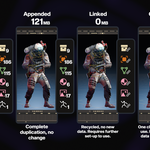
TL;DR: You WILL save GIGABYTES in storage. Less duplication!
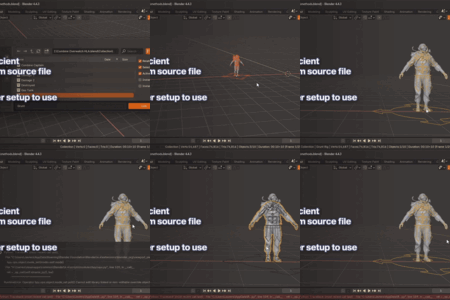
OptiPloy introduces a dynamic balance between appending and linking, something that has not yet existed as a one-click solution. This is limited to objects and collections.
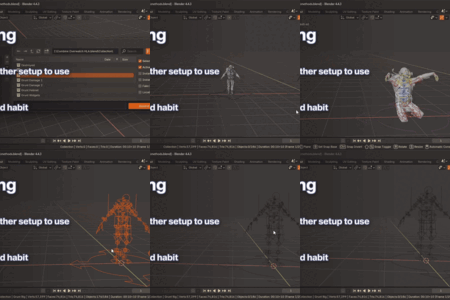
It's just perfect as a "Universal Rig Spawner!" It never duplicates bone shapes, offers zero breakage, and automatically runs any script!
➕ Pro Features
-
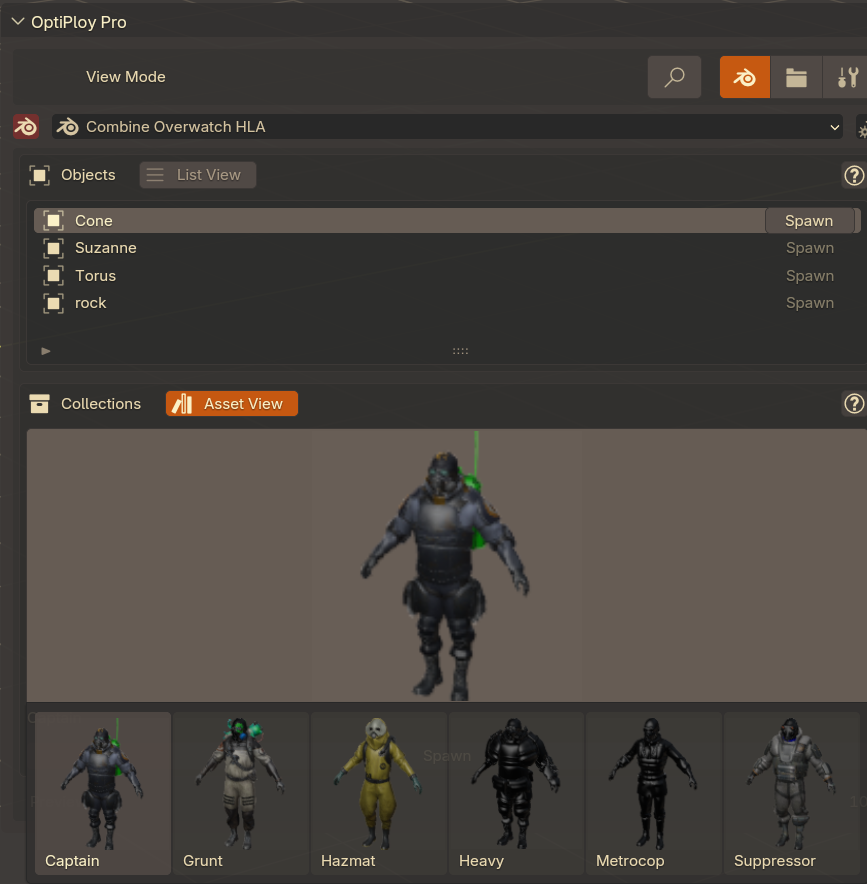
Thumbnail Previews
Be able to see a preview of the active collection or object in the OptiPloy side-panel! -
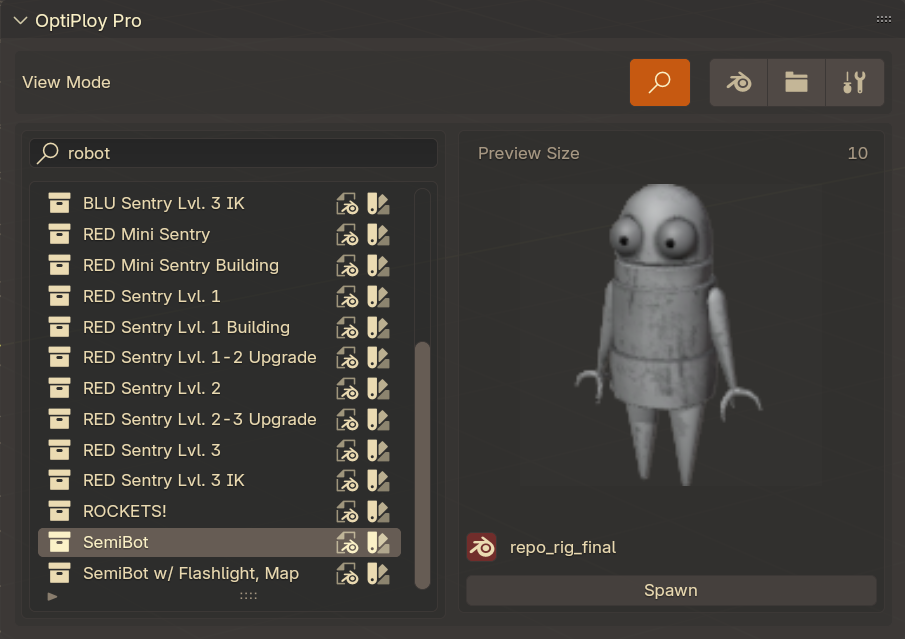
Search Menu
Index through your assets by searching for assets, .blend files, folders, or tags! The search menu is accessible through the Add Menu, or through the Operator Search Menu. -
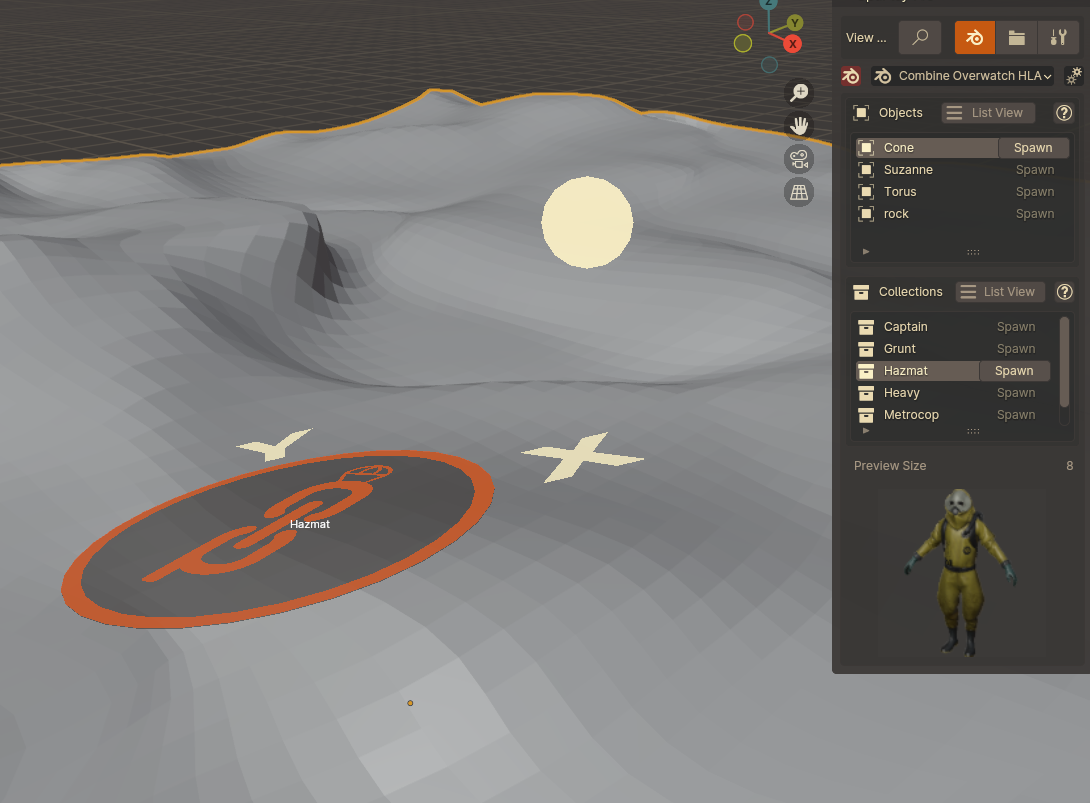
Drag 'n' Drop
Drag your assets and orientate them onto geometry for super easy placement, exactly like the Asset Browser. Plus, two extra orientation modes! -
Easy Message Board
Get instant updates about when a new version becomes available!
🚀 Key Features
-
Hybrid Importing
Choose from 15 data types to localize or to leave linked to the source file. Object and Collection types are enabled by default. -
Fine‑Grained Control
Save importing preferences globally, per-folder, or per-blend. -
One‑Click Workflow
Spawn assets directly from the side‑panel without manual linking/appending. -
No Duplicating Boneshapes
Boneshapes do not duplicate/localize, not even if you choose to localize armatures. -
Auto-Execute Scripts & Scriptable Hook
OptiPloy will automatically execute data blocks associated with your import. This ensures, for example, that Rigify UI scripts work right off the bat.For your own scripts, access newly spawned objects via
bpy.context.scene['new_spawn'] -
And so much more! Really! Scroll down for the full list!
❔ Why not just append or link?
Refer to the handy table:
| Method | Pros | Cons |
|---|---|---|
| Appending | Instant copy, fully editable | Duplicates file size with each paste |
| Very easy | Easy to start bad habits for new users | |
| Linking | Minimal storage, just recycling | Requires overrides to even slightly edit |
| Able to update data from source file | Can be tedious to do right | |
| OptiPloy | ✔️ Best of both | — |
📥 Quick Start
-
Install
- Blender 4.1-: Edit → Preferences → Add-ons → Install → Select
optiploy.zip
— - Blender 4.2+: Edit → Preferences → Get Extensions → Search "OptiPloy"
or - Edit → Preferences → Add-ons → Top-right dropdown menu → Install from disk... → Select
optiploy.zip
- Blender 4.1-: Edit → Preferences → Add-ons → Install → Select
-
Prepare .blend, Mark Assets
- Prepare any
.blendfiles you plan to use by marking its Objects or Collections as assets
- Prepare any
-
Configure Add-on
- Edit → Preferences → Add-ons → OptiPloy.
- Add
.blendfiles individually or by the folder.
(Tip: Shift‑click when adding a folder to create a category.) - Files will be automatically scanned for assets to spawn.
-
Spawn Assets
- 3D Viewport → Side-panel → OptiPloy
- Search through
.blendfiles to spawn assets!
Why did I make OptiPloy?
I have a lot of rigs. I hate appending them and I hate linking them, for their own reasons. Yes, I may learned to have overcome my struggles, but I know you've felt the same at some point in your time with Blender.
Obviously, linking with library overrides was the way to go, but having to do the same thing + extra steps to get the rig ready was just getting old. I wanted a permanent fix that was universal to everything I had. And let me tell you, finding that fix was not easy. But I'm happy to say that after four months of trial and error (with very long breaks in there), I finally found it!
By introducing a dynamic balance between appending and linking, OptiPloy spawns any rig I have effortlessly. Zero breakage, no duplicate bone shapes, it runs any script associated with the import, it's awesome. It's the perfect solution to breaking a bad habit for new and old users. I can also pre-emptively set what data-blocks I want localized before the import!
⚙️ Detailed Usage
Preferences Panel
- Mounted .blend Files: Manage your search folders and .blend files, and see what assets are added.
- Update Catalogs: Update your .blend files by using the
Scanoperator. - Tags: Assign tags for .blend's, folders, objects and collections to make searching easier.
Side-Panel
- Switch between the
Search,.blend,Folder, andToolsview mode- You can set the import options globally in the
Toolsview, or you can set them per-folder or per-blend through the gear icons.
- You can set the import options globally in the
- Browse through the list of assets and spawn them.
- RED-highlighted
.blendMulti-tool : An operator with the icon exists to reload, open, or re-scan the active .blend file.
 - Hold
CTRLto reload the .blend file as a library - Hold
SHIFTto open the .blend file in a new instance of Blender - Hold
ALTto re-scan the .blend file in OptiPloy
- Hold
Localization Options
In the Tools view mode, you may choose to localize any of the following data types:
bpy.types.Collection
bpy.types.Object
bpy.types.Mesh
bpy.types.Material
bpy.types.SurfaceCurve
bpy.types.Light
bpy.types.Curve
bpy.types.GreasePencil
bpy.types.MetaBall
bpy.types.TextCurve
bpy.types.Volume
bpy.types.Armature
bpy.types.Camera
bpy.types.NodeTree
bpy.types.Image
Setting these options affects imports as a whole, but localization options can also be set per-blend or per-folder.
Asset Browser Integration
OptiPloy has an operator built-in to optimize Collections or Objects linked through the Asset Browser.
-
Viewport / Operator Search Menu
Search forOptimize with OptiPloyand execute the operator -
Outliner
Select the IDs you wish to localize (collections/objects), right click, and selectOptimize with OptiPloy
Again, for this to work, the assets need to be linked through the asset browser, not appended.
🖥️ For Developers
Scripting Hook
OptiPloy automatically executes any text block associated with an import. You can access the data of the imported object through bpy.context.scene['new_spawn'] to perform further adjustments or optimizations.
Using Key Modifiers
Incorporate key modifiers ( CTRL, SHIFT, ALT) into your scripts by accessing
bpy.context.scene['key_ctrl']
bpy.context.scene['key_shift']
bpy.context.scene['key_alt']
Full Features
- Hybrid Importing
Choose from 15 data types to localize or to leave linked to the source file. Object and Collection types are enabled by default. - Fine‑Grained Control
Save importing preferences globally, per-folder, or per-blend. - One‑Click Workflow
Spawn assets directly from the side‑panel without manual linking/appending. - No Duplicating Boneshapes
Boneshapes do not duplicate, not even if you choose to localize armatures. - Auto-Execute Scripts & Scriptable Hook
OptiPloy will automatically execute text data blocks associated with your import. This ensures, for example, that Rigify UI scripts work right off the bat. - .blend File Multi-tool
Use CTRL, SHIFT, or ALT on the red Blender icon to reload, open, or re-scan the selected .blend file - Full Driver Functionality
Despite all the localizing that takes place, drivers never lose their targets as they shift from linked to localized. - Hierarchal Localizing
OptiPloy recursively builds a hierarchy of levels that IDs are referenced at, and localizes going down this hierarchy. This ensures no breakage when localizing. - Automatic Library Overrides
Unlocalized IDs are given automatic library overrides to make some wiggle room for what can be edited.
To edit custom properties, make sureLibrary Overridableis enabled in its options. - Fun for Coders
During the script execution stage at the end of the importing process, you can access the new import throughbpy.context.scene['new_spawn'], letting you do further adjustments after it has been deployed.
Scripters can incorporateCTRL,SHIFT, andALTinto their scripts by using:
Attach text blocks to an import by assigning them as a custom property to any ID associated with the import.bpy.context.scene['key_ctrl']
bpy.context.scene['key_shift']
bpy.context.scene['key_alt'] - Asset Library Integration
An operator namedOptimize with OptiPloyexists to optimize assets linked through the asset browser.
Viewport: Object → Optimize with OptiPloy
Outliner: Right-click → Optimize with OptiPloy - Thumbnail Previews
Selected assets will have their previews shown in a little window - Search Menu
Dedicated menu to search through every mounted .blend file - Tags
Add tags to .blend files, folders, objects, and collections for organization! - Import Tool
A new .blend importer is added in theFile > ImportMenu! -
Easy Message Board
Get instant updates about when a new version becomes available! Easy Message Board is located in the "Tool" panel.
📝 Reviews
- ⭐⭐⭐⭐⭐
"Nearly a complete replacement for Blender's Native Asset Browser."
Coverop, Gumroad
⭐⭐⭐⭐⭐
"Very useful for keeping .blend file sizes low and reducing the hassle with appending from other files."
R_to_Reset, Blender Extensions
⭐⭐⭐⭐⭐
"Terrific way of importing separate rigs across multiple Blender projects without the worries of file size and performance risks. Very essential plugin, especially for larger projects."
letumgo, Blender Extensions
FAQ
-
How do you edit materials? My changes aren't staying when reloading!
Make sure your materials have been localized! Overridden/linked materials won't save your changes unless you have localized what you are trying to edit. Until then, the data doesn't truly belong to the active .blend file.You can localize materials by clicking the chain icon next to the materials name, or by right-clicking the material in the outliner and making it local.
-
How do you edit meshes? I can't enter edit mode!
Make sure the mesh you are trying to edit has been localized. The above applies! Localize the mesh by clicking the chain icon, or through the outliner.For future reference, consider enabling
"Localize meshes"in the settings. -
Why can't I edit custom properties?
Custom properties need theirLibrary Overridableoption set to True in the source file. This can be done with theEdit Propertytool. -
Localized vs. Library Overrides vs. Linking?
Localized = The data-block fully belongs to the current file.Library Overrides = The data-block is partially linked, partially localized. You can make some edits on certain data-blocks. As a benefit, library overridden data-blocks exist to be separate from linked data-blocks, while not using as much storage as fully localized data-blocks. They can also be updated with new changes from the source file.
Linked = The data-block exists in another file, and can only be edited in that file. Simply put, recycling.
Donate
If you find that this addon has saved you time and storage, you may consider supporting my work.