 Andreas Boehler Studio
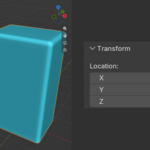
Put the origin where your workflow needs it.
Precise origin placement for Blender — without shifting your object.
A prop needs its pivot at the base. A rotated part needs a local anchor. A whole selection needs consistent origins. Origin Toolkit brings these everyday tasks into one compact panel.
27 anchor combinations · Local & World alignment · Batch processing
01 — Start at the bottom. Or the center. Or the top.
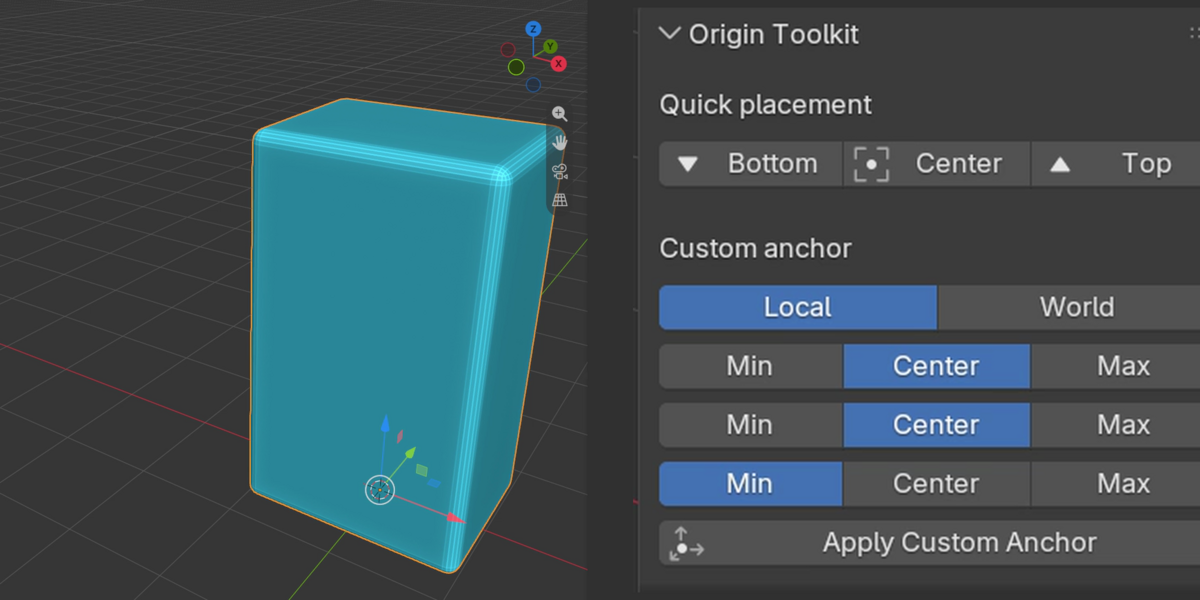
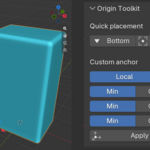
Set the origin to the local bottom-center, bounding-box center or top-center in one click. Use a base pivot for placement, a central pivot for rotation, or a top pivot for suspended objects.
Quick action: select your objects in Object Mode and press Ctrl + Alt + B for local bottom-center.
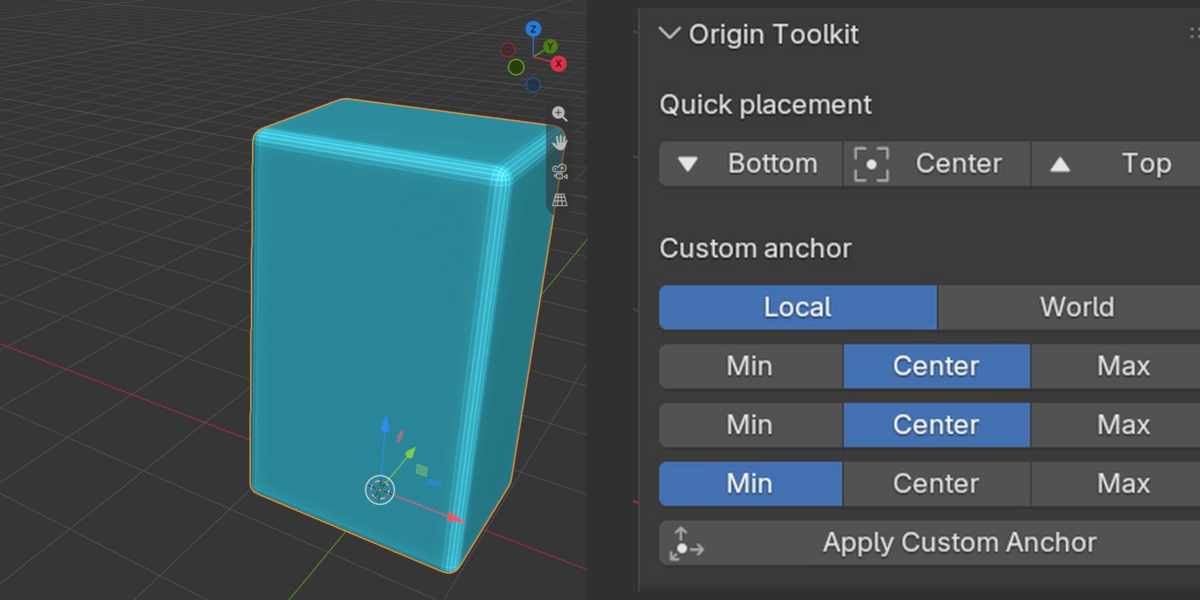
The real Origin Toolkit panel: quick placement and custom-anchor controls.
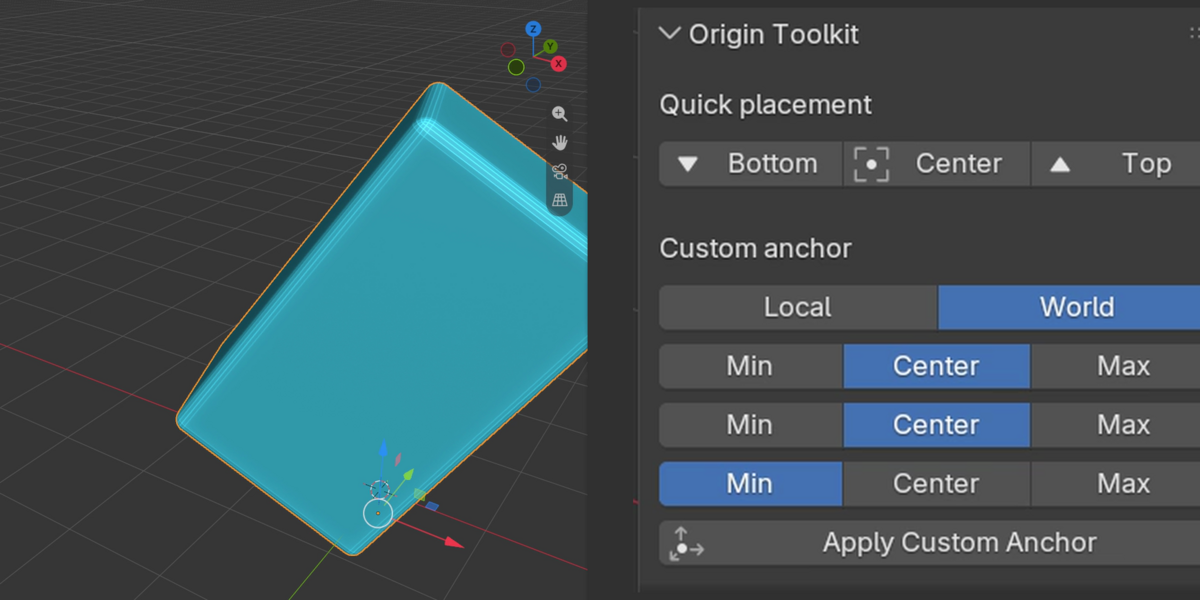
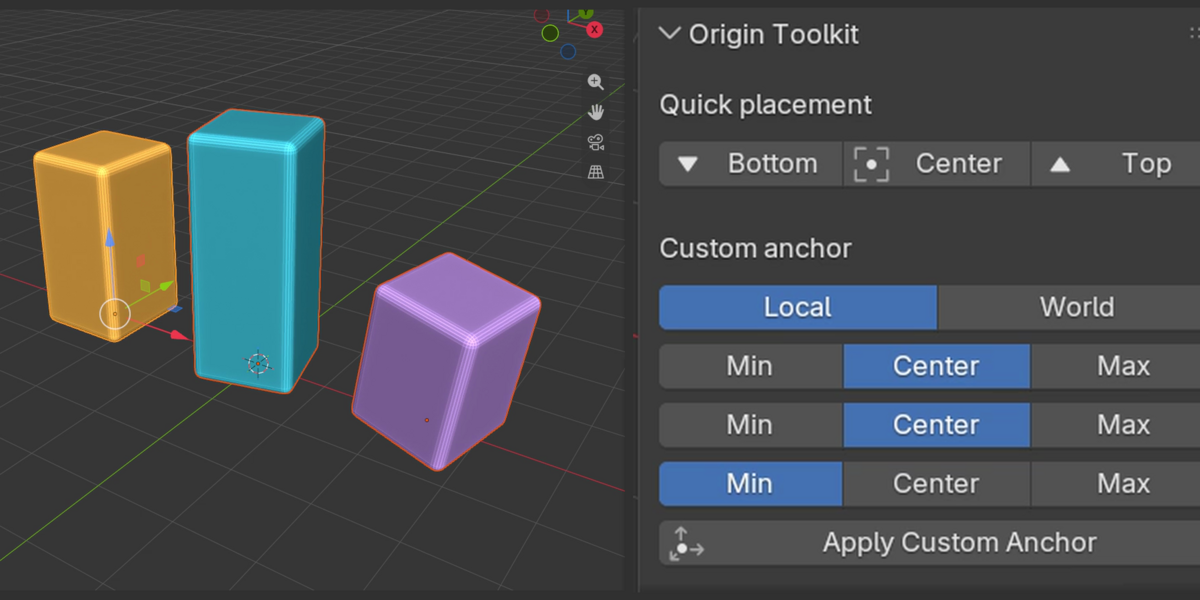
02 — Follow the object. Or follow the world.
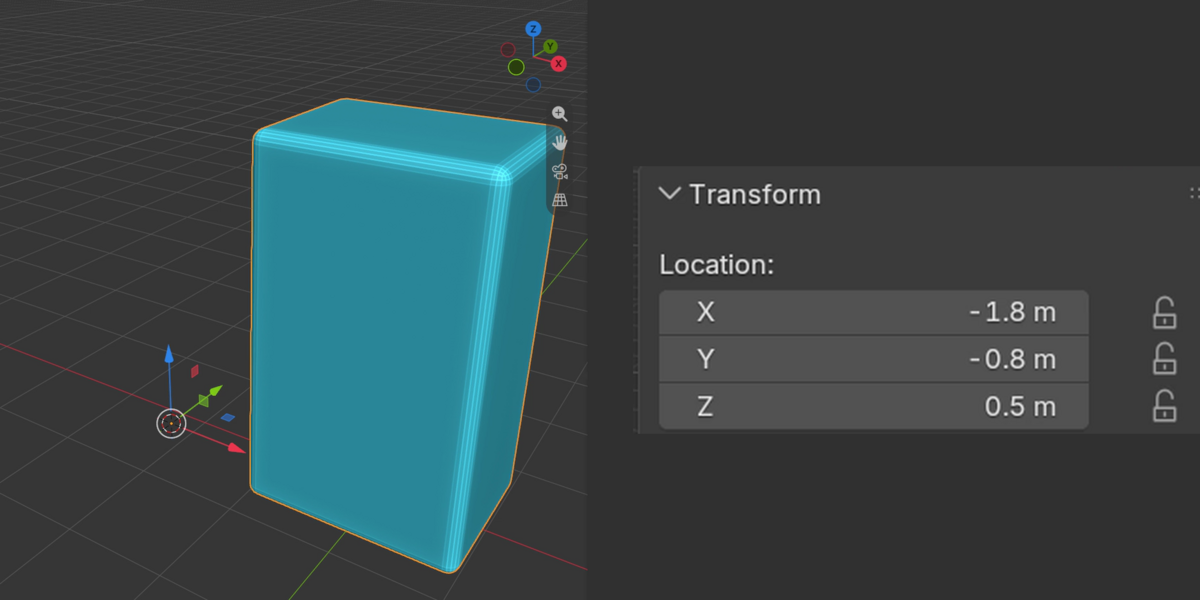
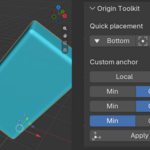
Local alignment follows each object's own rotation. World alignment uses a bounding box aligned to the global axes. Choose the coordinate space that matches the next step in your workflow.
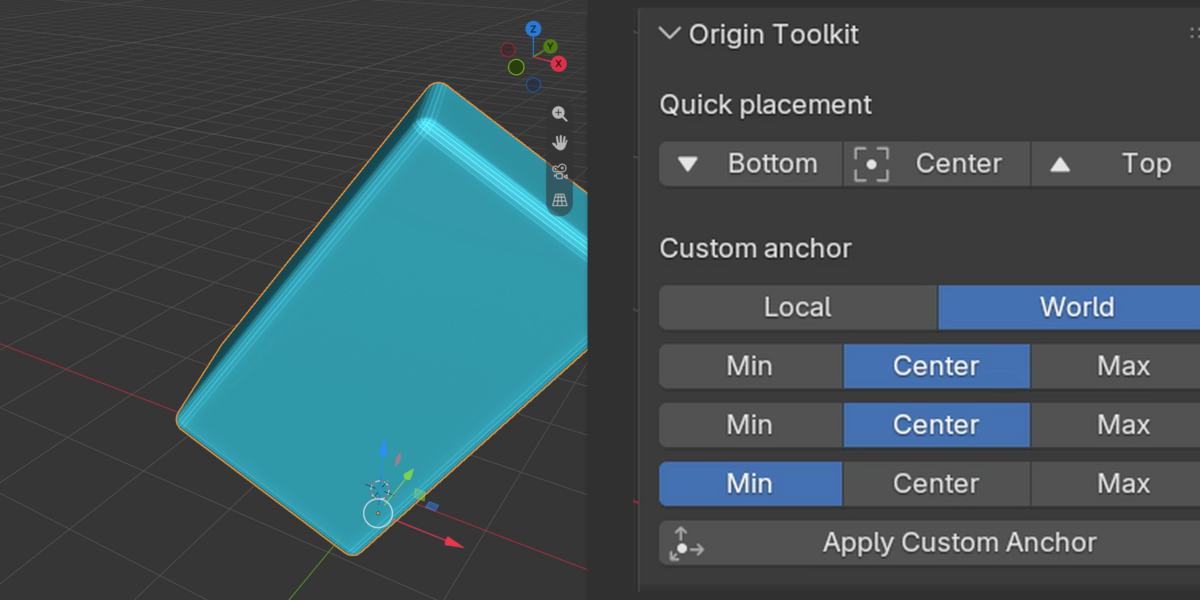
Choose whether your anchor follows the rotated object or the global axes.
03 — Build the anchor you actually need.
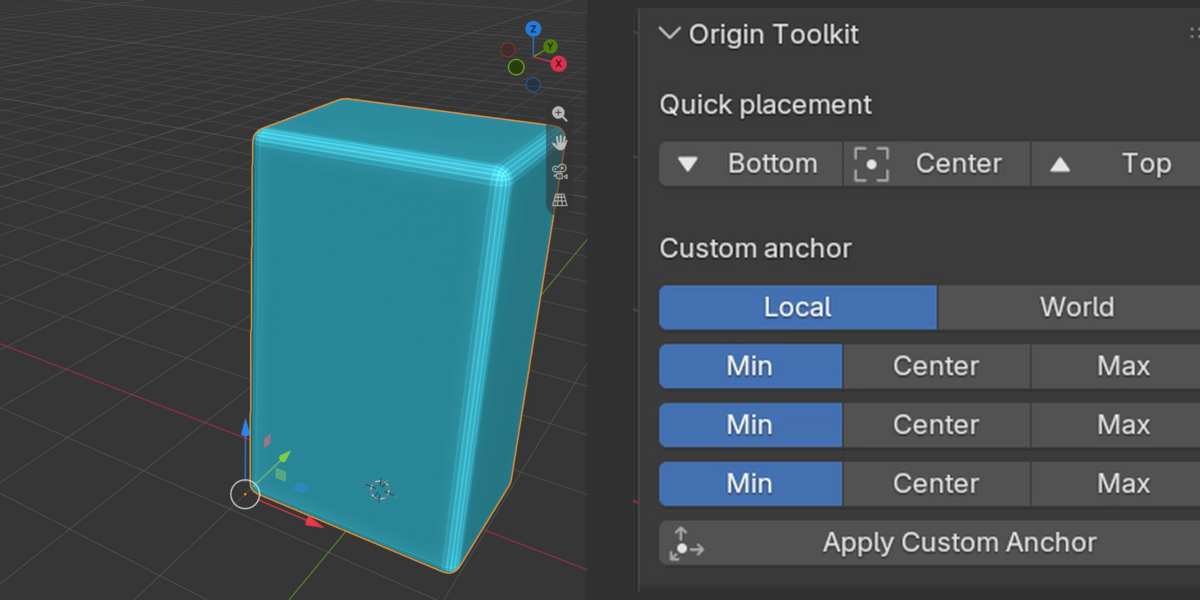
Choose Min, Center or Max independently for X, Y and Z, then apply your custom anchor. The 27 combinations cover corners, edge centers, face centers and the bounding-box center.
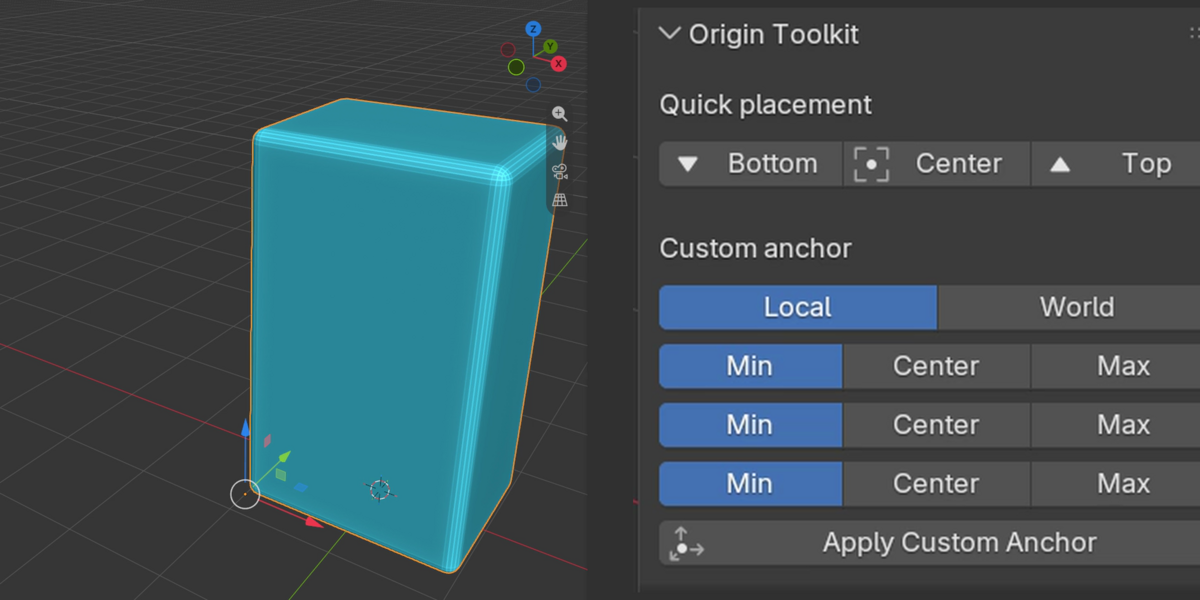
Three choices per axis. Twenty-seven anchor combinations.
04 — Fix a selection, not just one object.
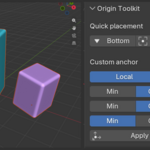
Select several supported objects and apply the same placement rule to each. Every object receives its own calculated origin. Your selection and the 3D Cursor position are restored after anchor placement.
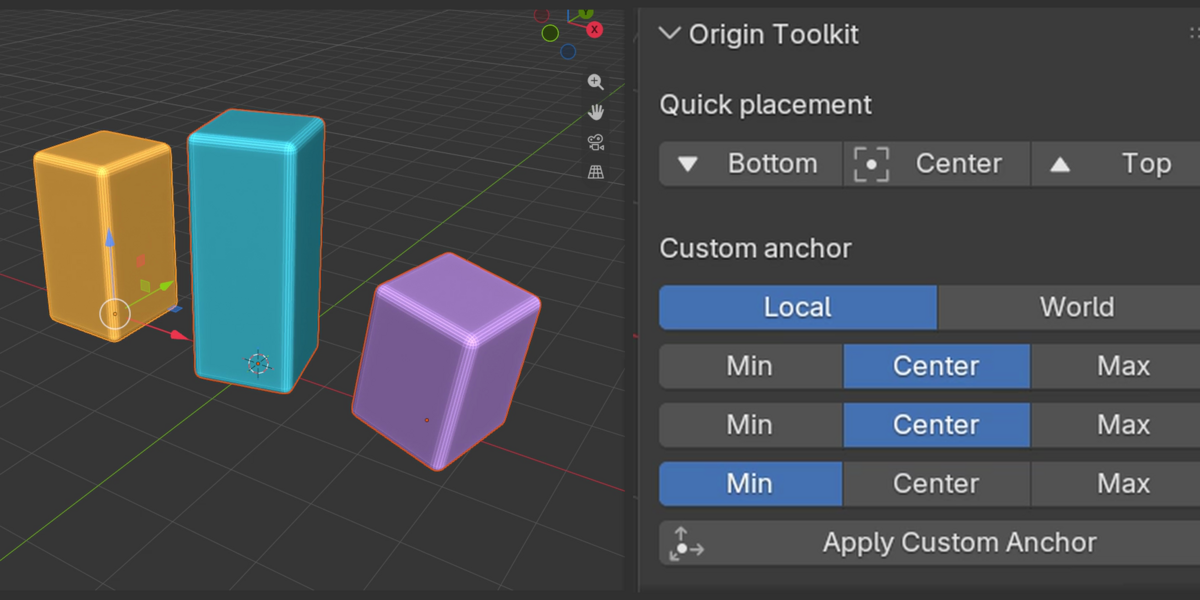
One placement rule, calculated separately for every supported selected object.
05 — Use a cursor or a precise mesh selection.
Move origins to the 3D Cursor. For a pivot based on mesh detail, enter Edit Mode, select vertices, edges or faces, and use Origin to Selected Geometry. The active mesh origin moves to the median of the selected vertices.
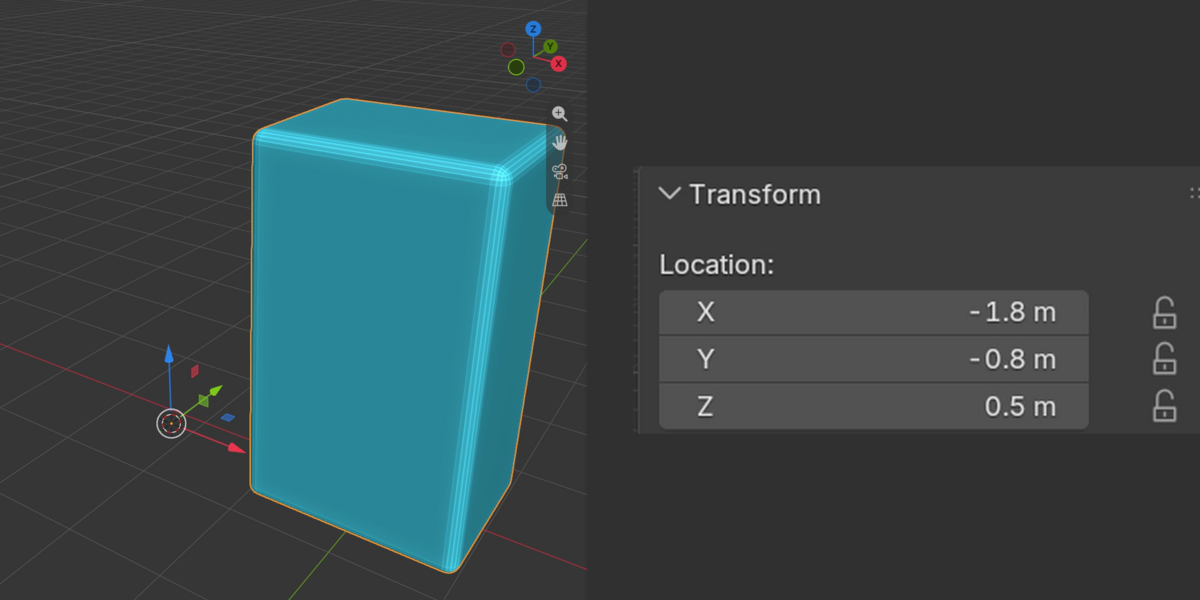
Cursor-based placement in Blender. Selected Geometry is available for an active mesh in Edit Mode.
A small tool for the steps you repeat.
- Modeling: choose useful pivot positions before scaling or rotating.
- Asset preparation: give a set of props a consistent origin convention.
- Scene assembly: prepare base, side or top anchors for your placement workflow.
- Export preparation: set the intended object origin before using your usual exporter. Origin Toolkit is not an exporter or an automatic grounding tool.
From download to first click
- In Blender, open Edit → Preferences → Get Extensions.
- Open the top-right menu, choose Install from Disk and select the downloaded ZIP. Enable Origin Toolkit if needed.
- Select an object in Object Mode. Press N in the 3D View and open Item → Origin Toolkit.
- Click Bottom, Center or Top, or configure your custom anchor.
What you get
- Origin Toolkit 1.1.0, as an installable Blender-extension ZIP.
- Python source code and the full GPL-3.0-or-later license.
- English and German installation/usage instructions and a changelog.
- Blender Undo support. No external dependencies, network permissions or license activation.
Requirement: Blender 4.2 or newer. Selected-geometry placement requires an active mesh in Edit Mode. Unsupported selected object types are left unchanged.
Questions before you install?
Will it move my model?
Origin placement keeps the object visually in the same world-space position. It changes the pivot; it does not reposition the model onto a floor or another object.
Does Center mean center of mass?
No. The anchor controls use the bounding box. Selected Geometry uses the median of selected vertices.
Can I change the shortcut?
Yes. Search for Origin Toolkit in Blender's Keymap preferences. The default local-bottom shortcut is Ctrl + Alt + B; reassign it if another add-on uses the same combination.
How do I get help?
Contact Andreas Boehler through this Superhive shop. Include your Blender version, operating system, object type, reproduction steps and any console error.
Created by Andreas Boehler
Art Director · Designer · 3D Artist · Motion Graphics Artist
Origin Toolkit's Python code is licensed under the GNU General Public License, version 3 or, at your option, any later version. The full license and source are included in the download. Your purchase supports the creator; the GPL rights remain unchanged.
