 guillaume martin




ABOUT OSNAP+
CAD-grade precision modeling, native to Blender.
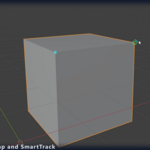
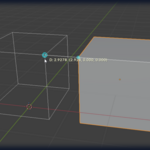
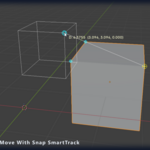
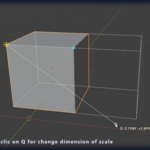
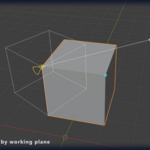
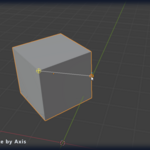
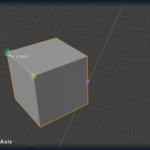
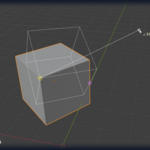
OSnap+ brings the precision-first workflow of CAD software directly into Blender's viewport. Every tool — from simple Move to complex NURBS Patch — operates through a unified snap system that locks onto vertices, edge midpoints, face centers, perpendiculars, intersections, and projected alignment guides. No more eyeballing positions or hunting for the right modifier.
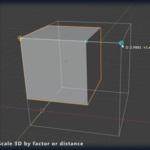
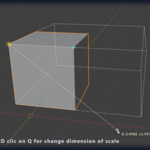
Built for architects, product designers, and technical artists, OSnap+ replaces dozens of fragmented Blender shortcuts with a coherent toolkit: snap-aware primitives (Box / Sphere / Cylinder / Torus in multiple construction modes), CAD curve drawing and editing (arcs, circles, helix, node editing, fillet, join, offset, convert), surface generation (Loft, Patch, Sweep, Revolve, Boundary), solid modeling (Push/Pull, Shell, Inset, Boolean-clean operations), and precision transforms (Move / Scale / Rotate / Mirror / Array with origin-destination workflow and numeric input).
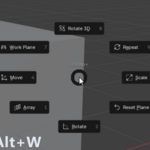
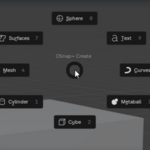
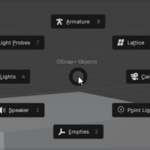
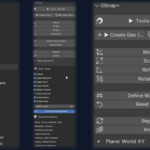
Everything is accessible from a collapsible sidebar (press N) organized into thematic sections, through a CAD-style command line (Alt+Q), or through 5 pie menus bound to Alt+W/A/E/C/X. Every operator has a full F9 redo panel for non-destructive adjustment.
WHAT'S NEW IN v1.9
Draw, edit and cut like in a CAD package.
v1.9 turns OSnap+ into a real curve workshop: 7 curve creation tools, 14 Rhino-style curve editing tools and a curve converter. It adds a command line and a guided selection, rewrites the Knife so that the cut follows the surface whatever the view, brings a new Loop Cut with preview, and rebuilds Sweep and Pipe. Every tool was run through an automated test bench — 327 interface scenarios — which uncovered and fixed dozens of issues.
✎ A complete curve toolkit
Polylines, Bezier and NURBS curves are now first-class citizens. Every tool picks precisely on the curve, uses OSnap+ snapping, shows the control points while you work and never asks you to enter Edit Mode.
| ▸ Curve Create | Circle 3pt, Arc 3pt, Arc Center, Ellipse, Polygon, Rectangle, Helix — with preview, snapping and typed values. |
| ▸ Curve Edit | Insert Point / Kink, Move, Delete, Split, Extend, Continue, Fillet & Chamfer Corners with live preview, Join (closes contours), Explode, Reverse, Close / Open. |
| ▸ Node editor | Adjust Point works like Inkscape or Illustrator: click a polyline corner to make it a smooth node, drag its handles, break or align them. |
| ▸ Convert Curve | Polyline ↔ Bezier ↔ NURBS, with segment and point counts. NURBS to Bezier is exact for cubic curves. |
✦ New in v1.9+ Command line — press Alt+Q, type a tool name, Enter. Aliases, completion, history, repeat + Guided selection — tools started with nothing selected ask for what they need, step by step + Curve Create — Circle 3pt, Arc 3pt, Arc Center, Ellipse, Polygon, Rectangle, Helix + Curve Edit — 14 tools: Insert Point / Kink, Split, Move, Adjust, Delete, Extend, Continue, Fillet Corners, Join, Explode, Reverse, Close / Open, Convert + Node editor (Adjust Pt) — smooth nodes and handles on any polyline, Bezier or NURBS + Convert Curve — polyline ↔ Bezier ↔ NURBS + Knife rewritten — the cut follows the mesh surface, whatever the view, with an exact preview + Loop Cut — preview before the click, number of cuts, snapped slide + Sweep 1 & Pipe — true miter corners, optional fillets (radius, segments), profile kept as placed + Sweep 2 — exact profile, Maintain Height, sharp rail corners, Rhino-style "Add Slash" with mesh preview + Automatic perpendicular lock — Box, Cylinder, Cone, Pyramid, Tube, Extrude and Push/Pull heights need no axis key + Draw NURBS — preview identical to the final curve, I through points / control points, D degree + Menus reorganized — Create Surfaces (Alt+C) and Edit (Alt+X), with a Curve Edit sub-pie | ⚙ Fixed in v1.9→ Raycast snap engine was not actually used in the extension build (preferences not found) — now active, with all performance settings → Vertex not snapped when the cursor was just outside the silhouette of an object → Two vertices overlapping on screen: the hidden one could win — the nearest now wins → Freshly drawn or moved curves could not be snapped until the cache was rebuilt → Knife cut was projected from the camera and skipped hidden faces → Loop Cut refused to start outside Edit Mode and could pick a hidden edge → Sweep / Pipe: flipped, mirrored or pinched sections at rail corners; rails with a bevel or a modifier → F9 on Sweep and Pipe created a second object instead of updating the result → Offset Curve: spikes, zigzags and loops on polylines with fillets; side now predictable → Join did not close a contour; Boundary and Patch AutoTrim did not follow concave or filleted contours → Blend Curves arrival tangent reversed; Hole on open surfaces; Distribute "Equal Gaps" → Light Probes error on Blender 4.2+ / 5.x ("enum PLANAR not found") → Shell in Object Mode creating unwanted openings; Work Plane by 2 points turning vertical |
v1.9 SPOTLIGHT
The features you'll feel every day.
⌨ Command LinePress Alt+Q and a CAD-style bar appears at the bottom of the viewport. Type sweep1, offset, knife… suggestions filter as you type, Tab completes, Enter launches, Enter on an empty bar repeats the last command. Blender shortcuts keep working, and the bar never overlaps the F9 panel or the sidebar. | ☰ Guided SelectionStart any tool with nothing selected: OSnap+ asks "Select the PROFILE curve(s) → Enter", then "Select the RAIL curve → Enter", checks the types, and launches the tool with the right roles. Works for Edit Mode tools too ("Select the face(s) to extrude"). |
✂ Knife on the surfaceClick snapped points on the mesh and orbit freely between clicks: the cut follows the surface from point to point and is applied to the faces you drew on, visible or not. An orange preview shows the exact cut before you press Enter. Close the path to cut all the way round a volume, or draw a window inside a face. | ▥ Loop CutThe future loop is drawn in yellow under the mouse before you click. Type the number of cuts, click, then slide the loop — it snaps to OSnap+ points, even on another object, or takes a typed factor or distance. Esc restores the mesh exactly. |
⟿ Sweep & Pipe rebuiltTubes and sweeps follow the rail exactly, with true miter corners or fillets of a given radius. Sweep 2 reproduces your profile exactly, keeps its height, pairs the corners of both rails, and accepts Rhino-style slashes to force alignment sections. Adjusting in F9 updates the object in place. | ⊥ Perpendicular lockThe height of a Box 3pts, a Cylinder, a Cone, a Pyramid, a Tube, an Extrude or a Push/Pull is locked on the normal of the base automatically. A floor or an object under the cursor no longer steals the value; real snap points still project their height onto the axis. |
◠ Offset, Join, Boundary, PatchThe contour workflow is now exact: fillet the corners of a polyline, join the pieces into a closed contour, offset it inwards or outwards without spikes or loops, then fill it with Boundary or trim a Patch — the surface border lies exactly on the curve, holes included. | ✔ Tested tool by toolv1.9 ships with its own test bench: 327 scenarios drive the real Blender interface with simulated clicks and keys, on Blender 5.2 LTS, plus thousands of geometric checks for the Knife, sweeps, contours and curve conversions. |
ALSO IN OSNAP+ — INTRODUCED IN v1.8
A snap engine built for heavy scenes.
The snap core is built around a raycast engine that stays instant on dense imported meshes and large scenes — the same technique Blender's native snapping and CAD applications rely on. It ships alongside a saved Work Plane manager, a Gumball, coordinate input and a redesigned Loft.
⚡ Raycast Snap Engine
The old engine scanned every visible object vertex by vertex in Python, with a hard vertex limit that silently dropped dense objects — the cause of "some objects won't snap" on imported CAD geometry. The new engine casts a ray under the cursor (C-level BVH, O(log n)) and analyzes only the face it hits.
| ▸ Dense meshes just work | Imported CAD models, sculpts and sync-tool meshes snap instantly — no vertex limit needed for surface snapping. |
| ▸ Objects beat the plane | A new "On Surface" snap means an object under the cursor always wins over the Work Plane behind it. |
| ▸ Sees everything natively | Modifiers and collection instances (e.g. imported blocks) are snappable out of the box via the evaluated depsgraph. |
| ▸ Cached & budgeted | Vectorized (numpy) extraction and spread-out KDTree construction keep large scenes fluid. A Legacy engine toggle remains as a fallback. |
✦ Introduced in v1.8+ Raycast snap engine — O(log n), instant on dense meshes + "On Surface" snap — objects always take priority over the Work Plane + Saved Work Planes — name, store and restore planes from the sidebar (saved in the .blend) + Always-visible Work Plane — your custom WP stays on screen permanently + Persistent Auto-WP — the Edit-Mode auto plane can stay active after the tool + Gumball — native combined gizmo, pivoted at selection center, aligned to the WP + Coordinate input — press = to type exact X / Y / Z in the WP frame + Loft v2 — auto seam/direction alignment (no spiral), smooth interpolation + Loft: Closed Loft + Cap Ends for sealed looping volumes + Knife — snap-precise surface cutting that follows your drawn path exactly + Split by Plane — 3-point cut plane: incise (Edit) or split-separate-cap (Object) + Redo panels added to every creation tool (cylinder, cone, sphere, pyramid, tube, polygon…) | ⚙ Fixed in v1.8→ Dense imported meshes (CAD/sync) failing to snap — root cause removed → Snap reaching through objects to the ground plane behind them → Latency on large scenes — vectorized extraction + cached lite KDTree → Inset Face deformed after a 1D/2D scale — now computed in world space → Mirror axis followed the camera instead of the Work Plane → Array freezing the viewport on large counts (preview now budgeted) → Icosphere creation moving an existing object instead of creating one → Eight F9 redo panels that displayed but did nothing → Custom Work Plane only visible while a tool was running → Edge Point snap drifting on receding edges (now perspective-correct, exact under the cursor) → NxM array parsing unified; dead code removed; version strings corrected |
v1.8 HIGHLIGHTS
Work Planes, Gumball, Loft and more.
▦ Saved Work PlanesSet a plane on a façade, a roof slope or a section cut, name it, and recall it instantly from the sidebar list. Update or delete entries as your project evolves. Stored in the .blend, so they survive across sessions — one ordered set of construction planes per scene. | ◎ GumballA single sidebar checkbox brings up Blender's combined Move / Rotate / Scale gizmo, pivoted at the center of the selected geometry and aligned to the active Work Plane. Define a plane on an inclined surface and every manipulation happens in that frame. |
⊂ Loft v2Closed-section lofts no longer spiral: section direction and seam are optimized together, so circles and profiles stack cleanly. Adds smooth Catmull-Rom interpolation through sections, a Closed Loft option that loops back to the first section, and Cap Ends for watertight volumes. | ⌨ Coordinate InputDuring any tool that asks for a point, press = and type exact X / Y / Z values expressed in the active Work Plane frame (or world if none). Tab between axes, then click to place — CAD-style numeric entry, right in the viewport. |
✂ KnifeDraw a cut path across a mesh by clicking snapped points; the mesh stays joined. Rewritten in v1.9: the cut follows the surface between your points, on every face you drew on, whatever the view — see the v1.9 spotlight above. | ▱ Split by PlaneDefine a cut plane with three snapped points (origin, X, Y) with a live plane preview. In Edit Mode it incises every surface the plane crosses; in Object Mode it splits the whole object, separates the two halves into distinct objects, and caps each section into a closed volume. |
SIDEBAR & PIE MENUS
Three ways to access every tool.
Press N in the 3D View to open the OSnap+ sidebar, with collapsible sections organized in a 3-column grid. All tools are also bound to pie menus for keyboard-driven workflows, and can be launched by name from the command line (Alt+Q).
| Alt+W Quick ToolsMove, Scale, Rotate, Rot 3D, Mirror, Measure, Repeat, Array, Work Plane (+ saved planes, Gumball) | Alt+A Create GeometryBox, Sphere, Cylinder/Cone, Circle, Plane, Torus, Draw — all variants. Sidebar: Curve Create (arcs, circles, ellipse, polygon, rectangle, helix) | Alt+E Create ObjectsLights, Camera, Empties, Armature, Light Probes, Lattice |
| Alt+C Create SurfacesExtrude (5 modes), Loft, Patch, Boundary, Sweep 1 / 2, Pipe, Revolve, Tween Surfaces | Alt+X EditCurve Edit (14 tools), Offset, Blend, Rebuild, Tween, Shell, Inset, Push/Pull. Sidebar: Cut (Knife, Loop Cut) | Editable Custom ShortcutsInline keymap editor inside the sidebar. Search, modify, reset per-key. |
UNDER THE HOOD
One file. No dependencies.
| 146 Classes | 119 Operators | 85 F9 Redo Panels | 356 Properties |
Single-file Blender extension · Blender 4.2+ / 5.x · Python 3.11–3.13 · No external dependencies · 327 automated interface tests
Snap, draw and cut with precision.
Get OSnap+ v1.9Free update for existing customers · Blender 4.2+ / 5.x