 DanilGOE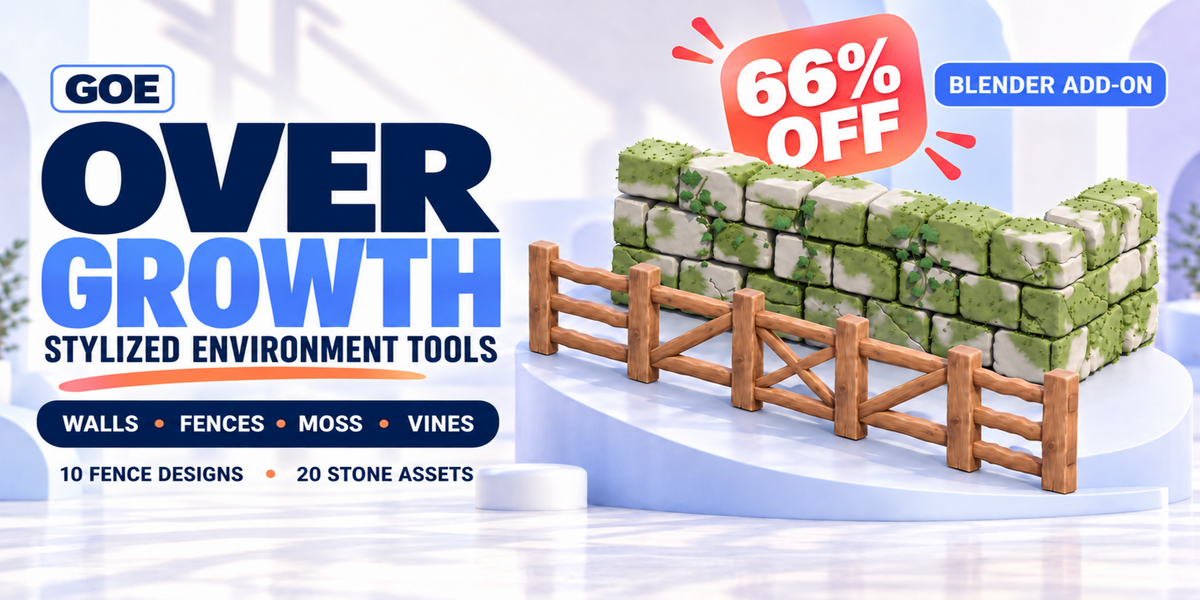

|
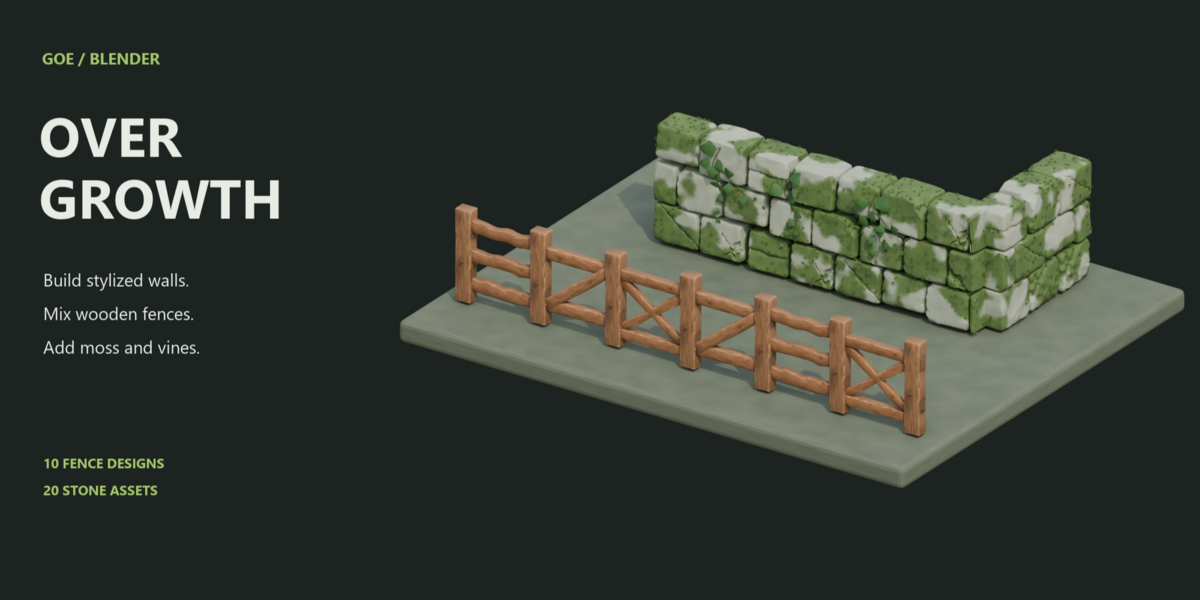
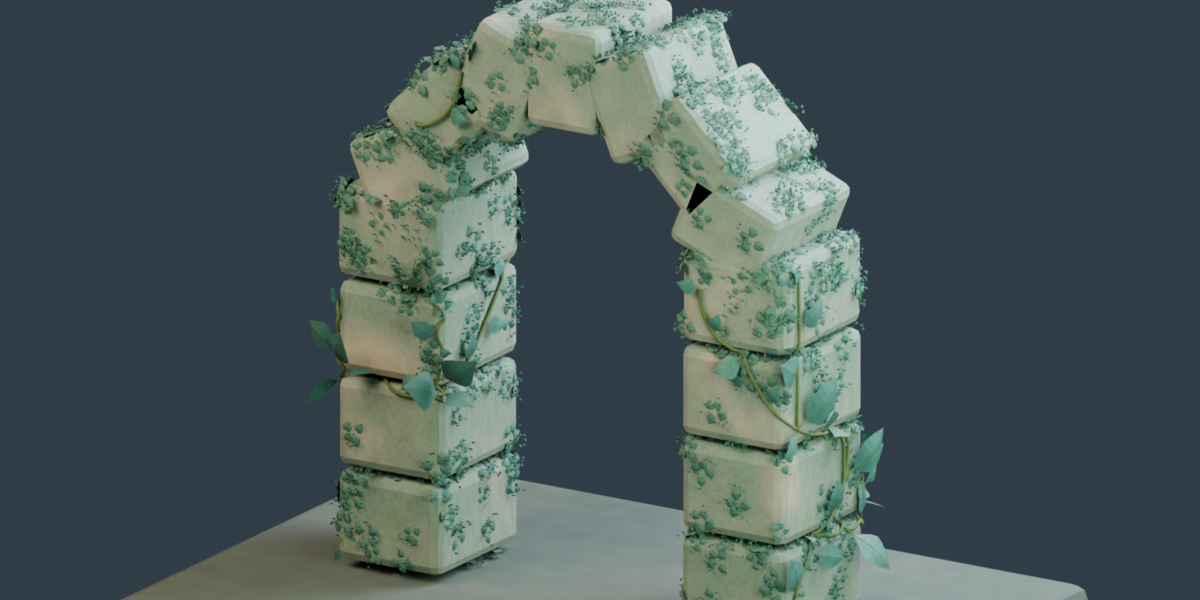
GOE OVERGROWTH · BLENDER ADD-ON Build walls and fences.
|
| Launch: Only $9.99 |
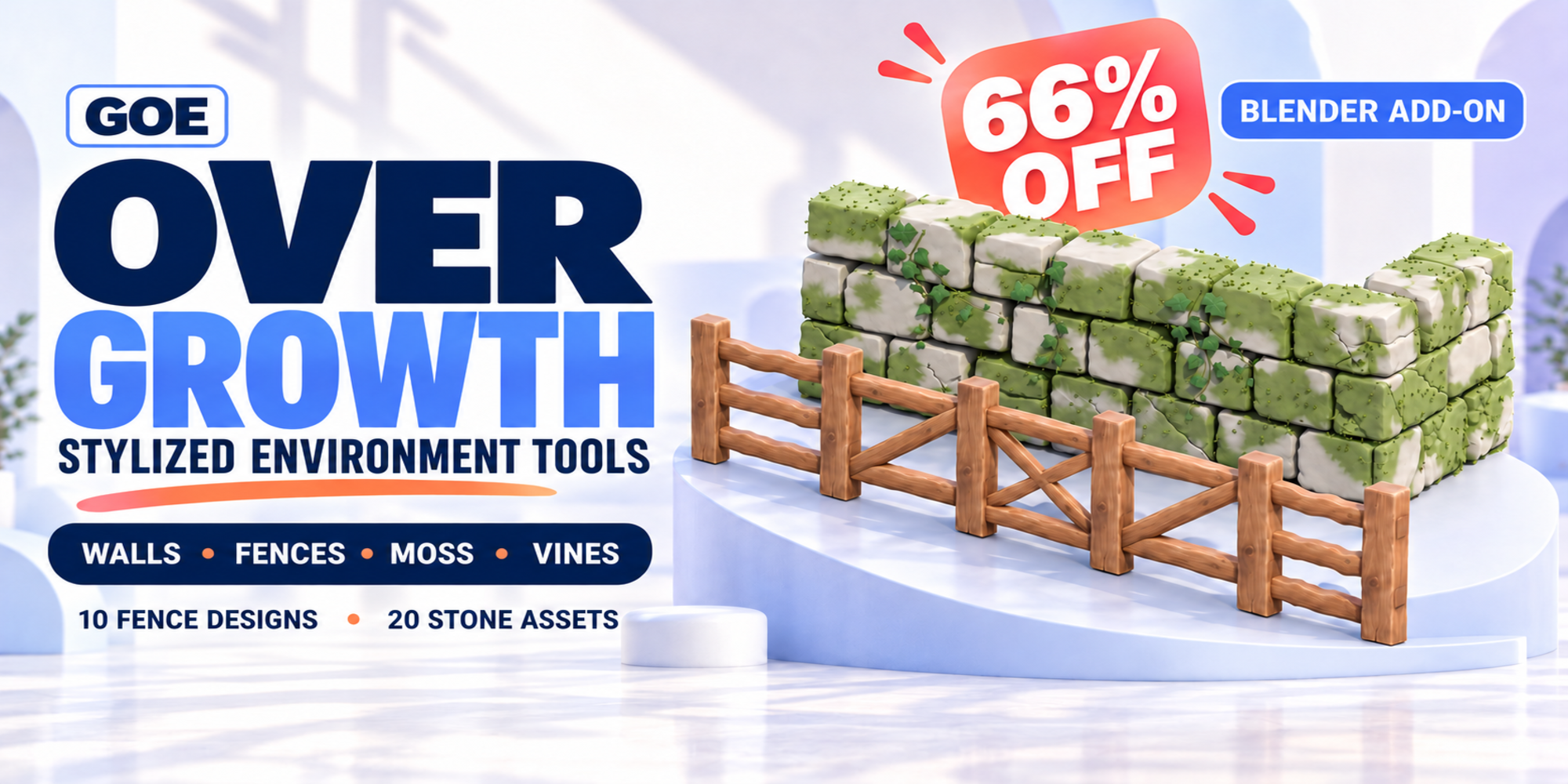
Create stylized boundaries along editable curves, then add overgrowth and worn details to your environment.
WALLS & FENCESMOSS & IVYLOCAL DAMAGEYOUR EXISTING SCENE
TWO WAYS TO START
Build something new.
Grow over what is already there.
Use both workflows together for a garden wall, a fenced courtyard or a weathered ruin. You can also use the plant tools on their own when your environment is already built.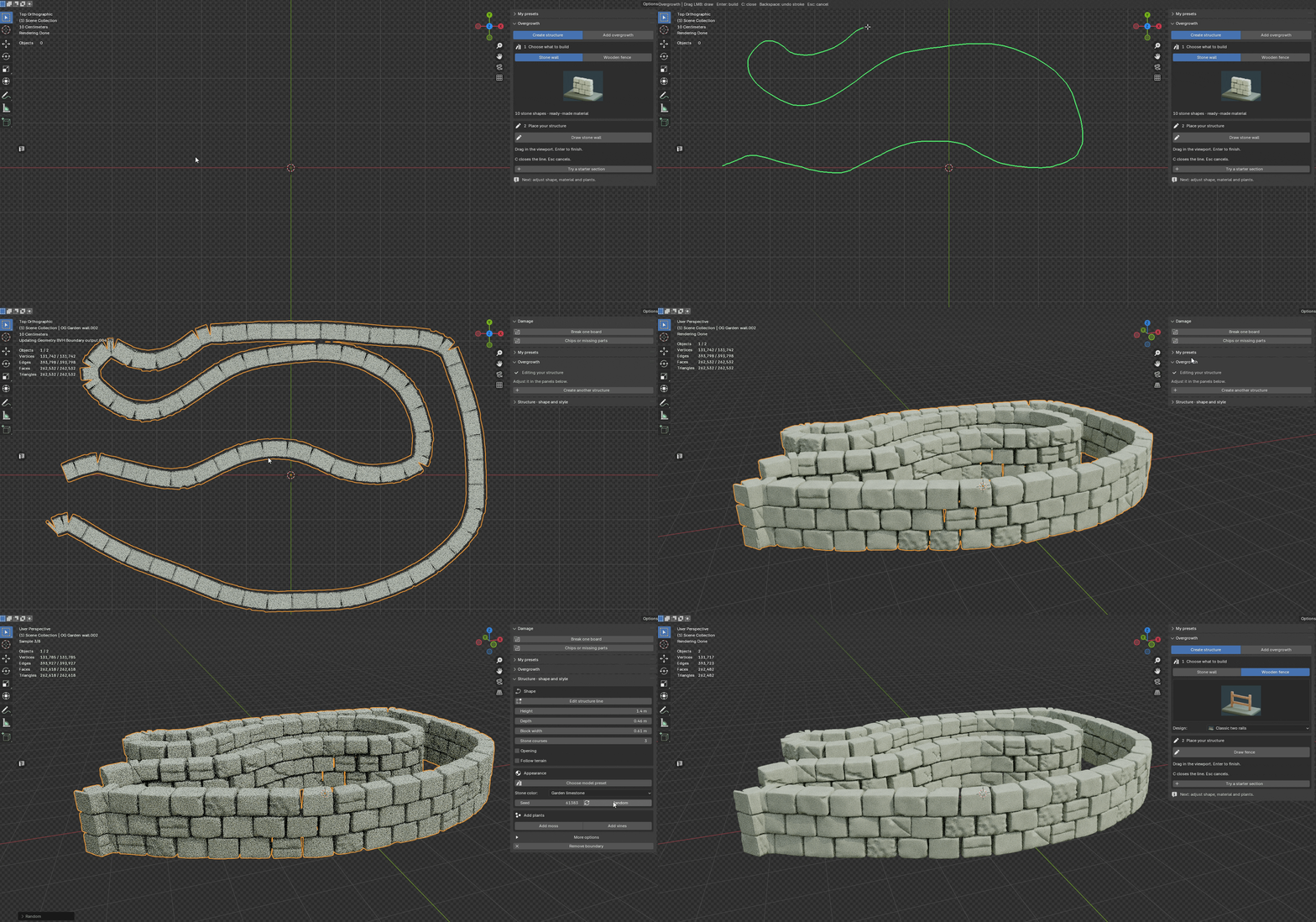
MIX & RANDOM
Explore variations on the same layout.
Choose which fence designs can appear together, then apply the mix. Shared posts connect the selected infill designs. Random changes their arrangement while preserving your path and dimensions.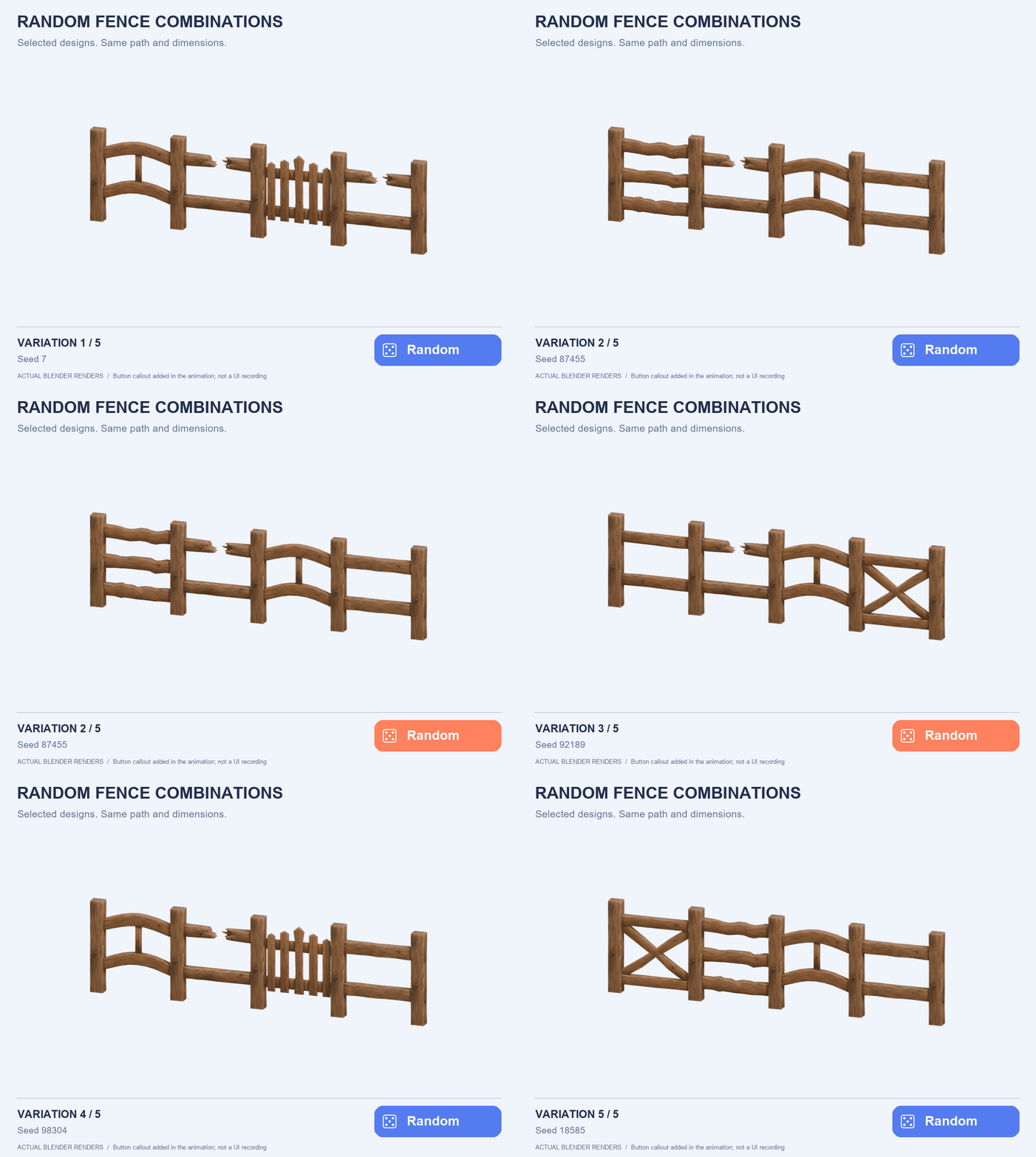
Real results from the Random operator. The button is a graphic callout, not a recording of the Blender interface.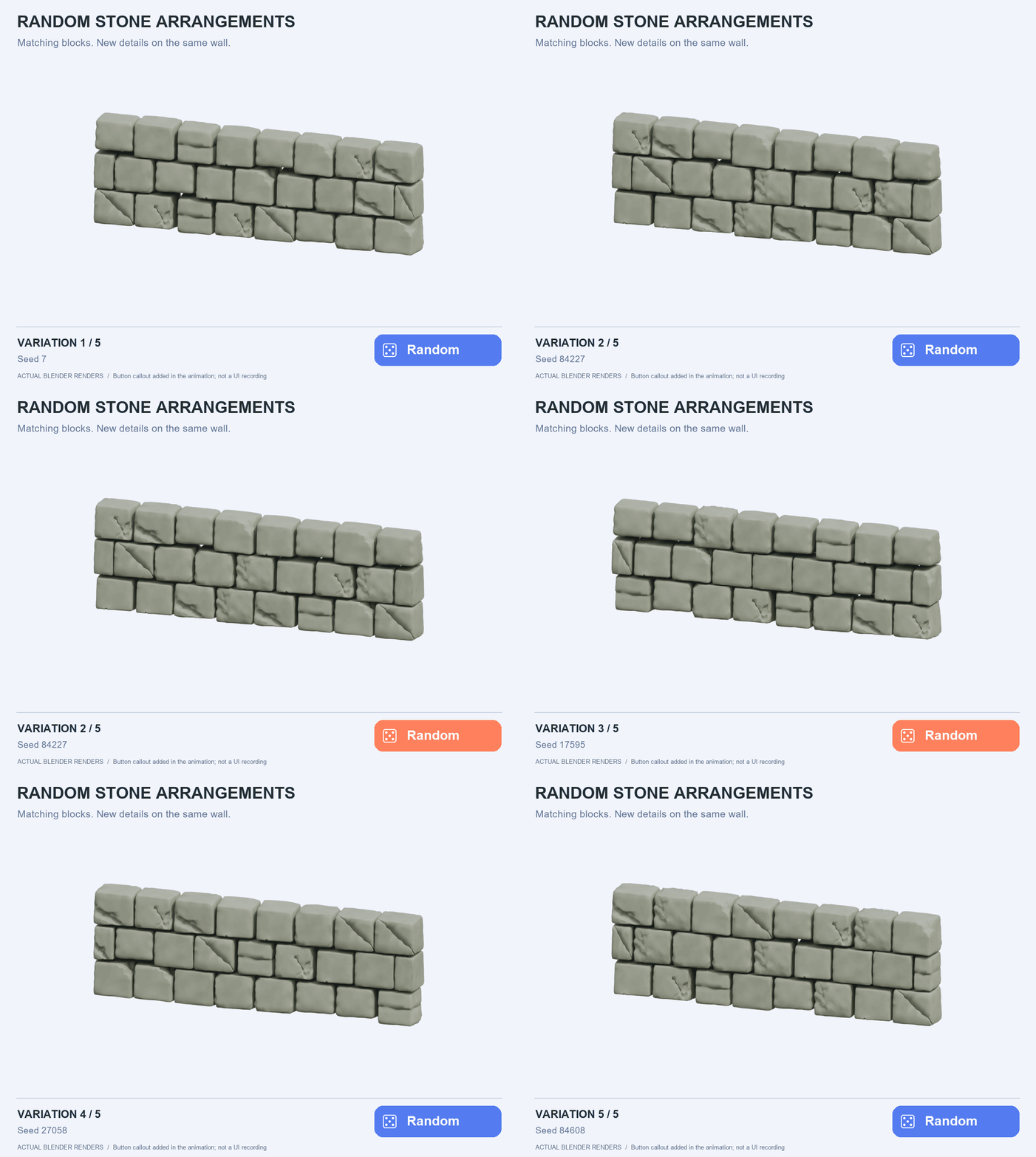
Five stone arrangements with the same path and dimensions. Each new result uses the add-on’s Random operator.
Keep a favourite Seed to return to an arrangement with the same settings. Save a preset when you want to reuse your setup.
MOSS ON YOUR SURFACES
Control where the moss grows.
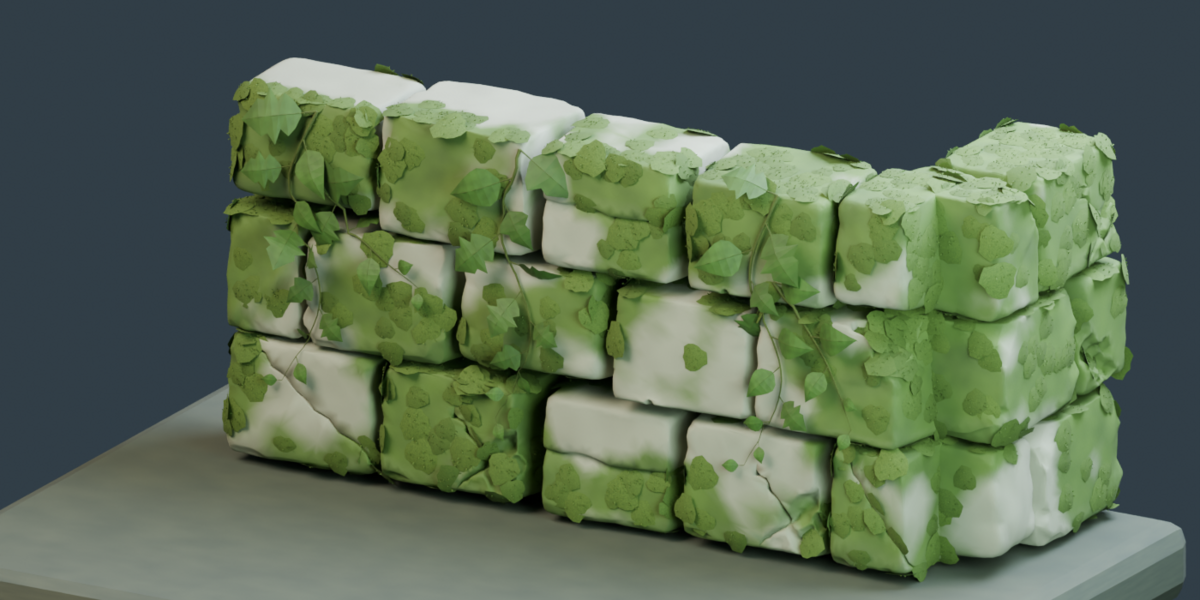
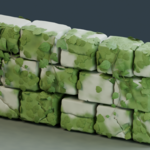
Add a close-fitting surface layer with small moss growth above it. Adjust coverage separately from thickness, paint the areas that should grow and protect the parts that should stay clean.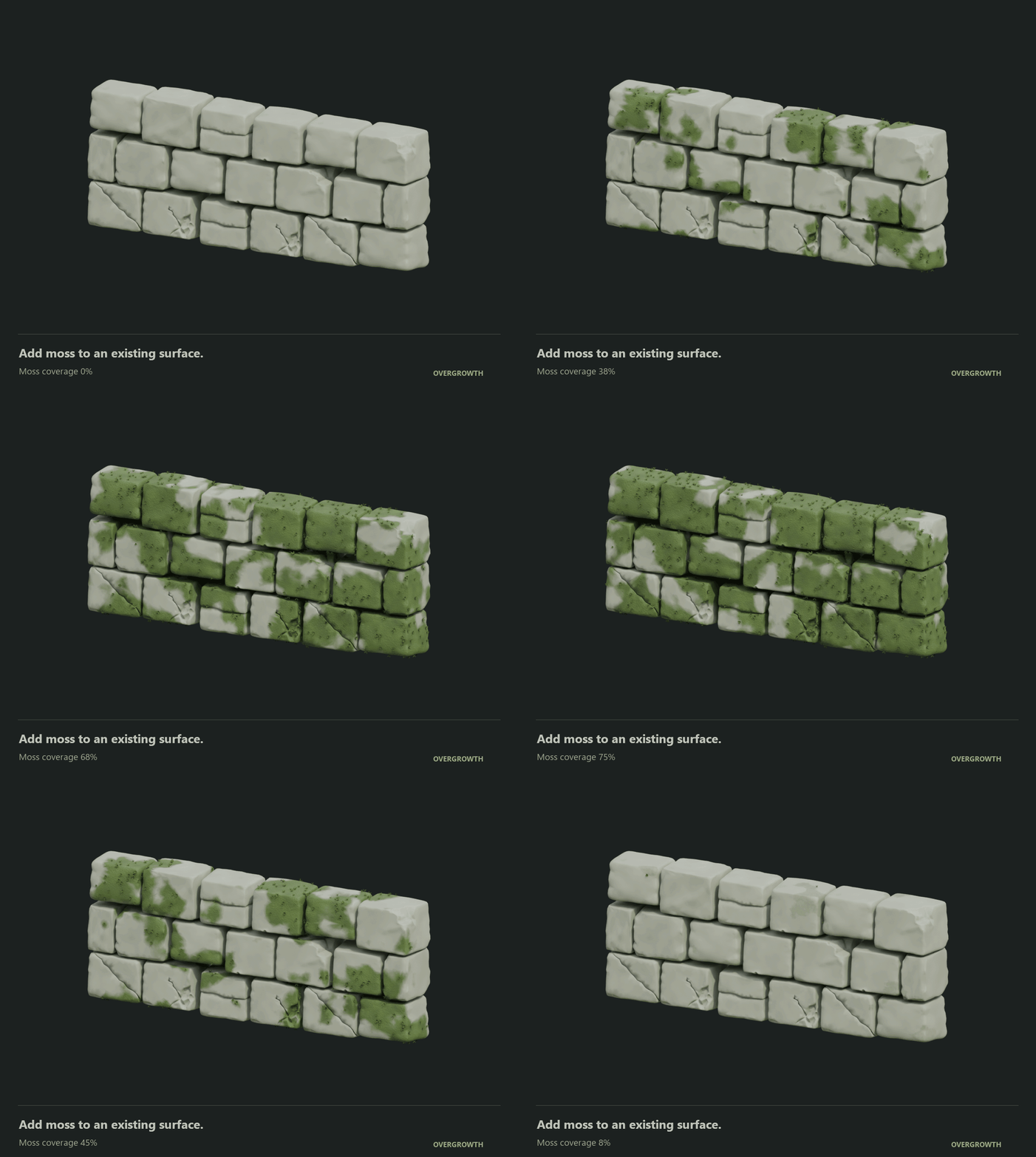
The same wall with changing moss coverage. The underlying stone stays visible.
Preview the growth mask as you work. Height, surface direction, painted weights and an image mask through UVs provide different ways to place the effect.
Use plant geometry above the source mesh while keeping its materials. For supported Principled BSDF materials, an optional removable coating blends the surface into the moss.
IVY & VINES
Give the leaves a path to follow.
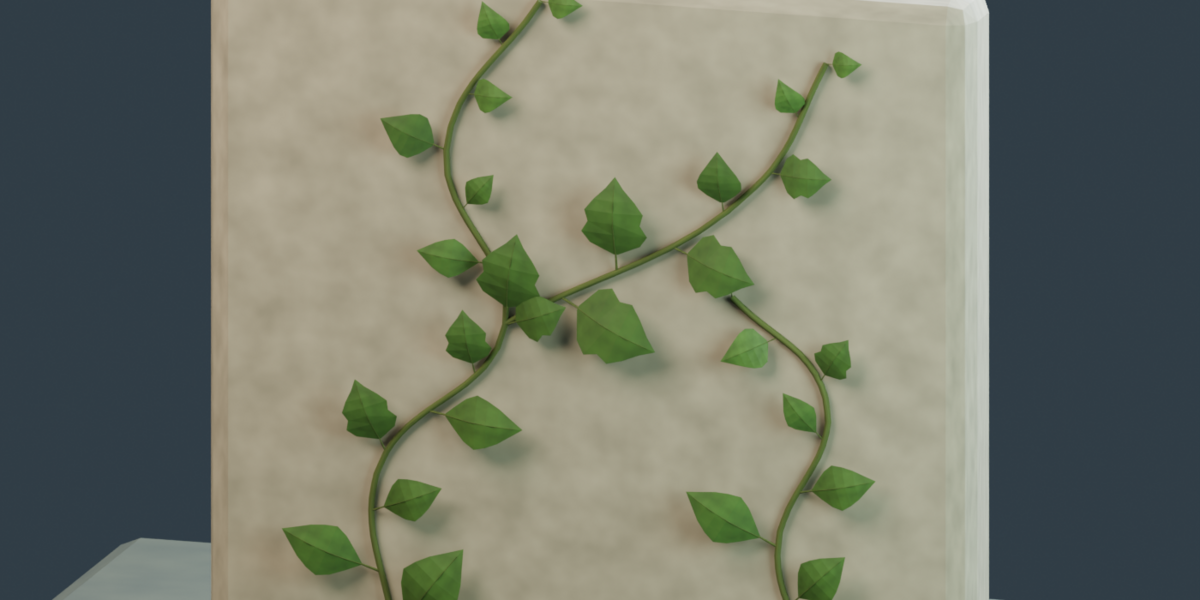
Guide a vine around an entrance, along a wall or across a prop. Generate a starting path or draw your own, then edit the curves and adjust stem thickness, leaf size and spacing.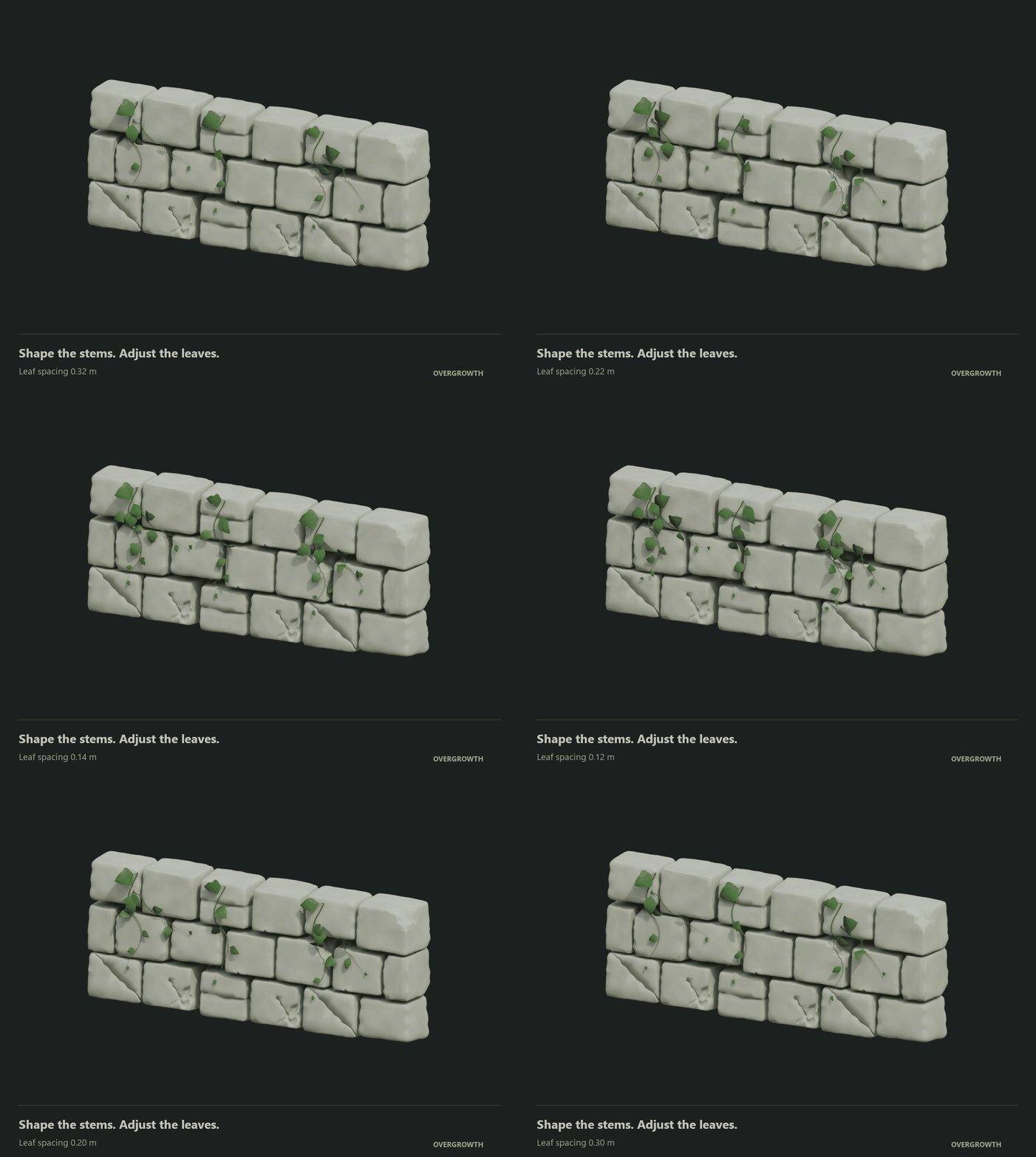
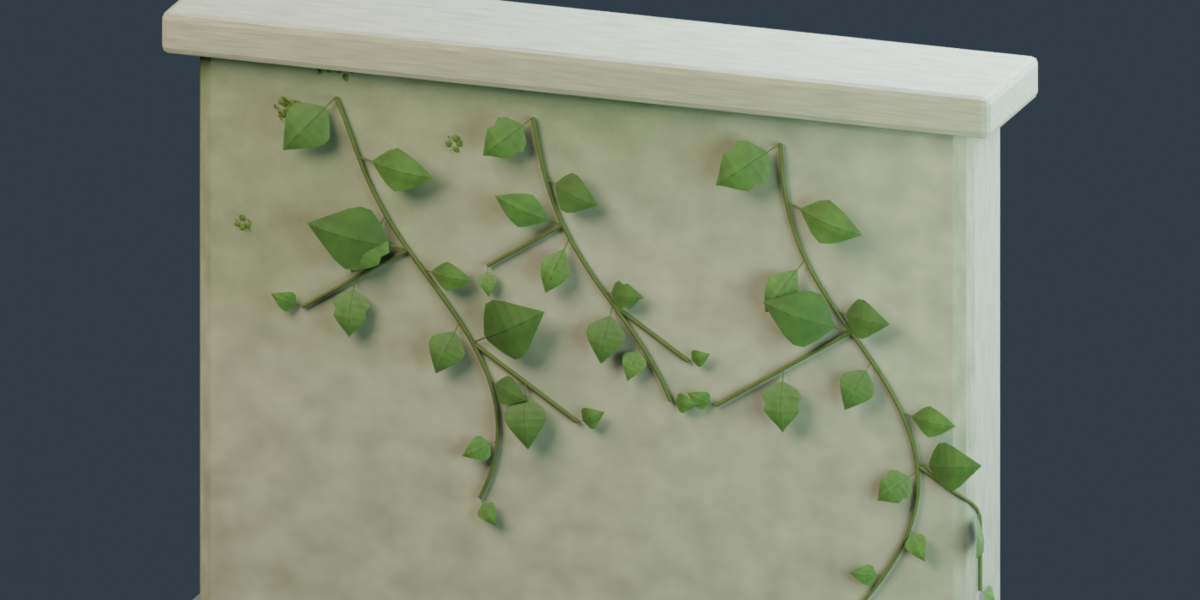
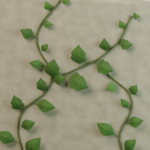
Hand-arranged vine curves with changing leaf spacing. The stem paths remain in place.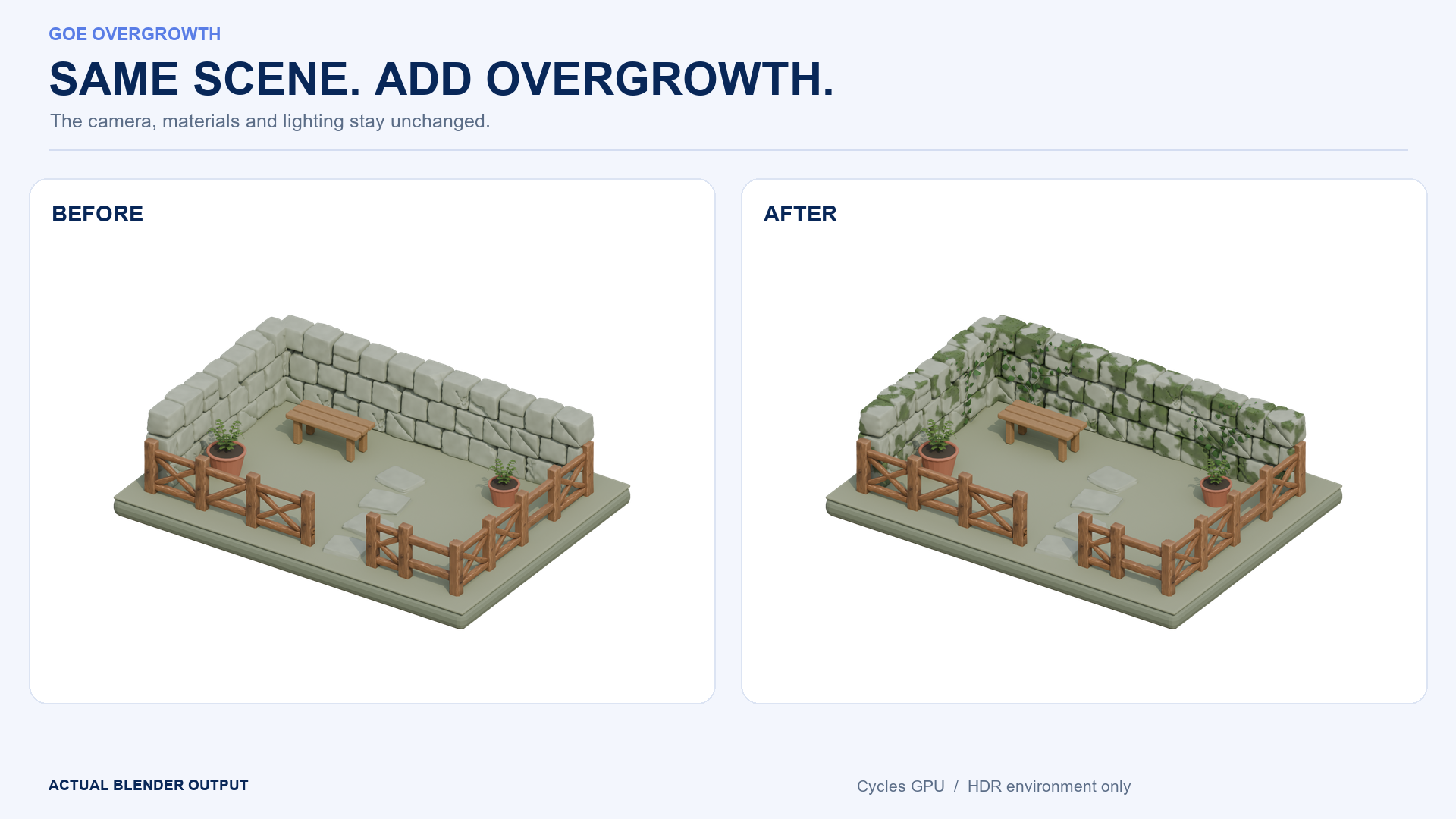
Unretouched Blender output. The vine guides were arranged by hand with the add-on; this image shows the current plant detail.
Use Edit path to refine the stems. Changes to the foliage keep your edited paths; Replace paths with new growth creates a new arrangement when you choose it.
MODULAR WOODEN FENCES
Choose a design. Follow your line.
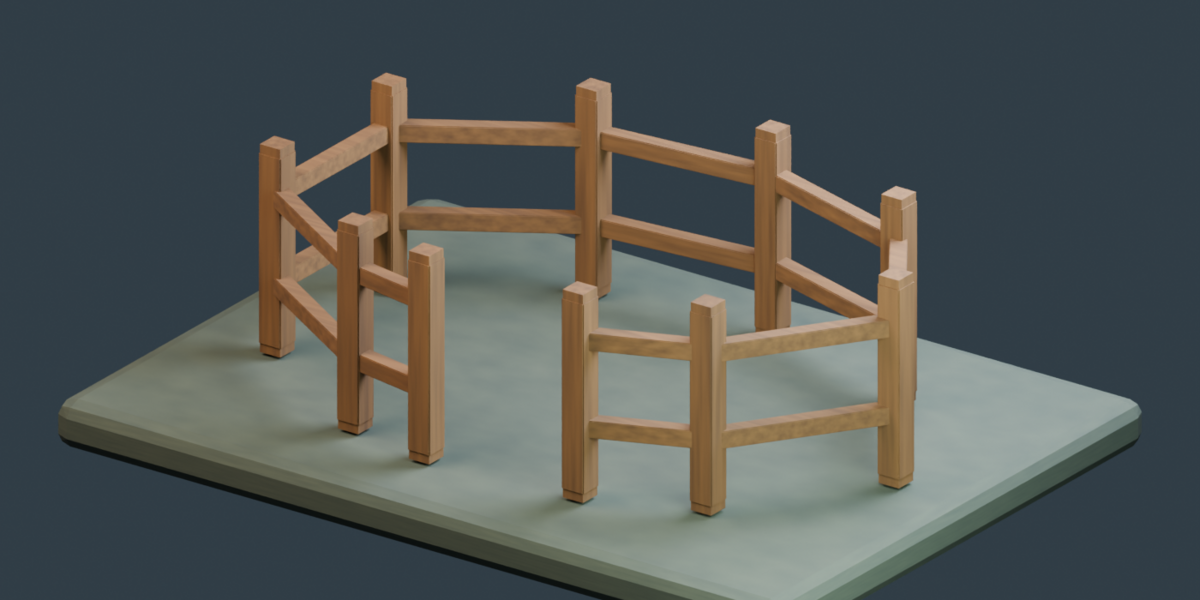
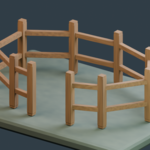
Start with one of 10 fence designs. Draw a line, use an existing curve or try a starter section. Adjust height, depth and section width while keeping the boundary editable.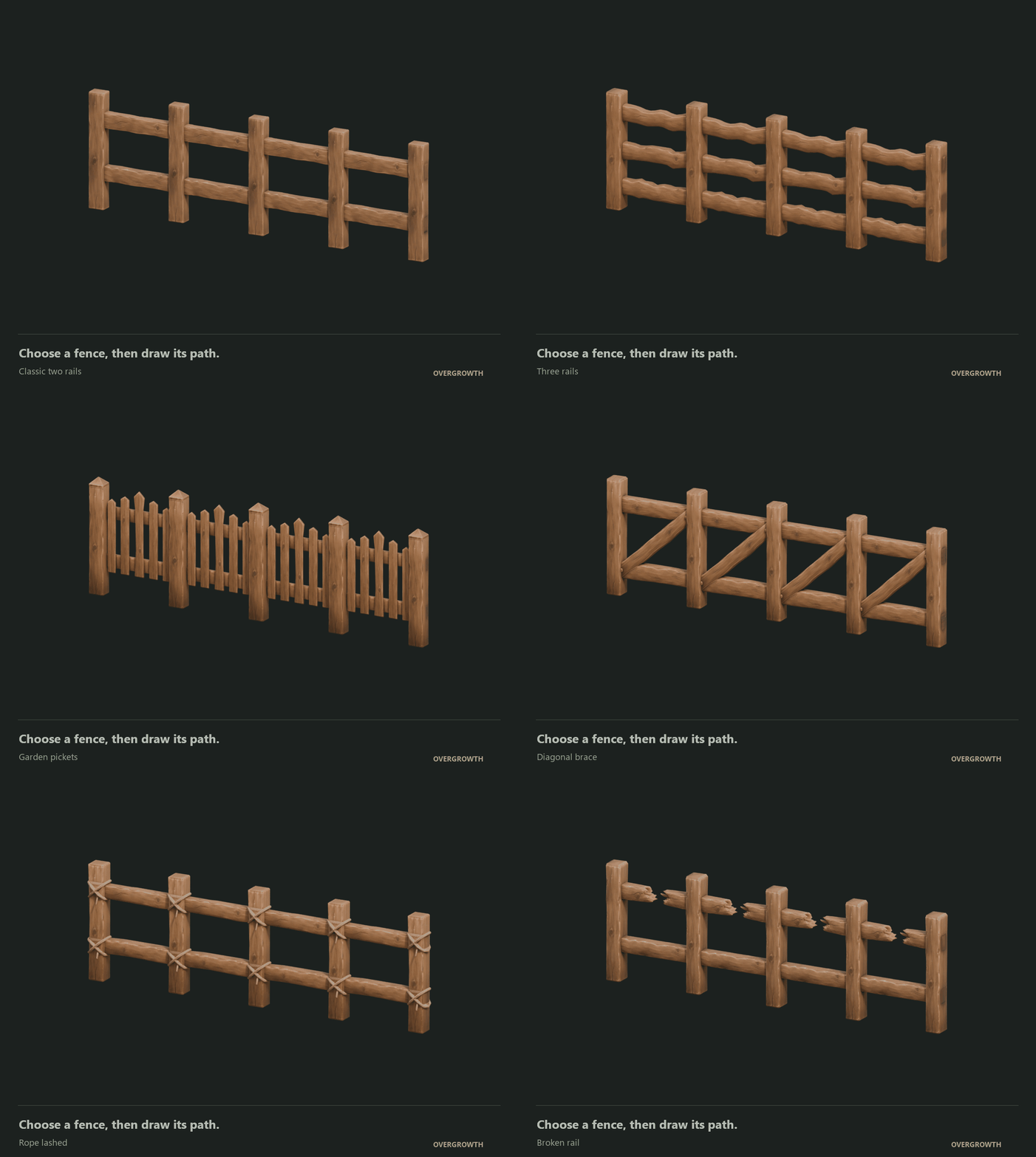
Ten included designs for different fence silhouettes.
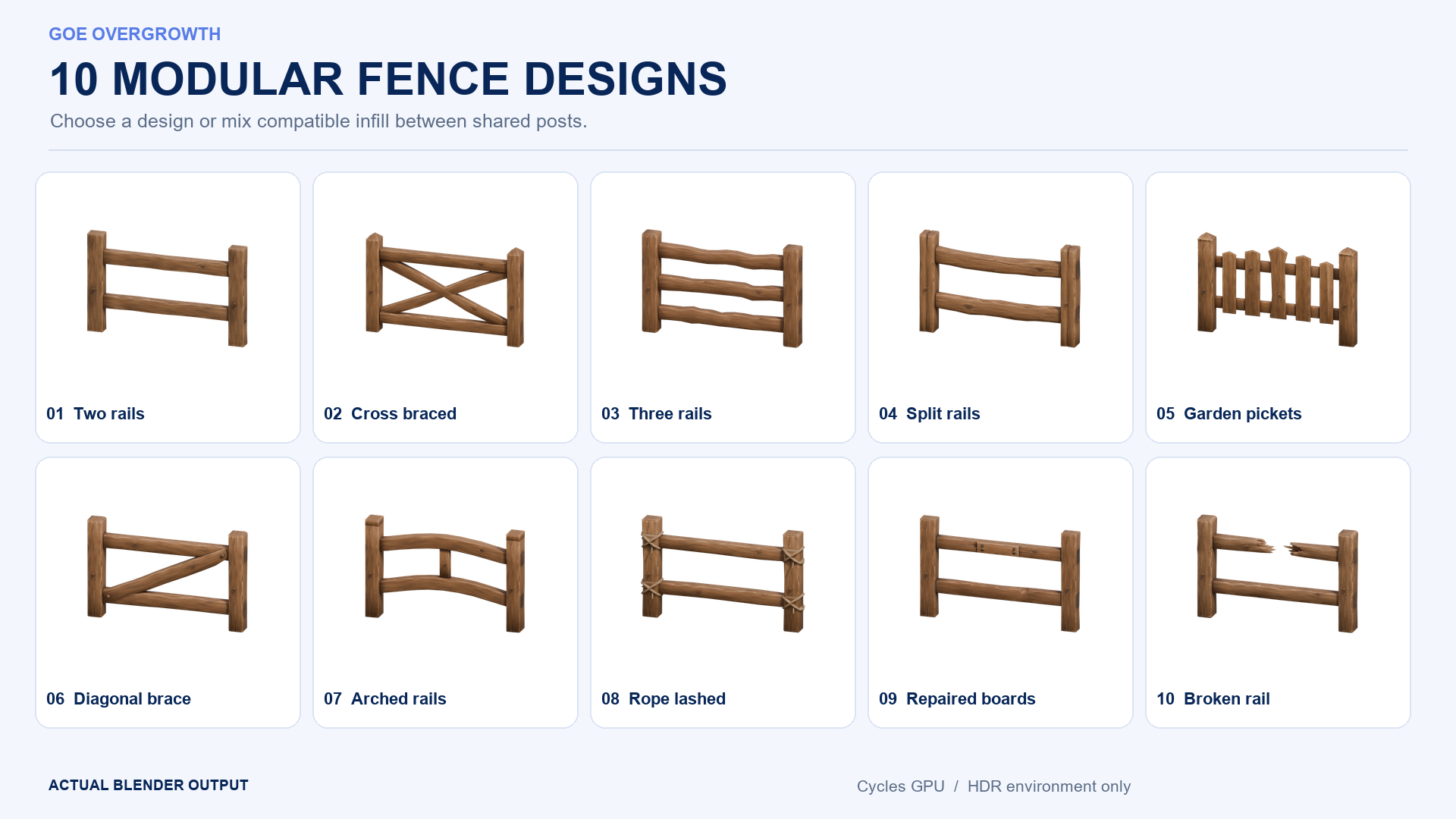
Ten actual bundled fence designs. The standard generator connects compatible sections with shared posts.
The prepared library retains 76 separate components, including posts, rails and infill parts. Existing wood textures and fence UVs are preserved.
STYLIZED STONE WALLS
Build with a matching set of stones.
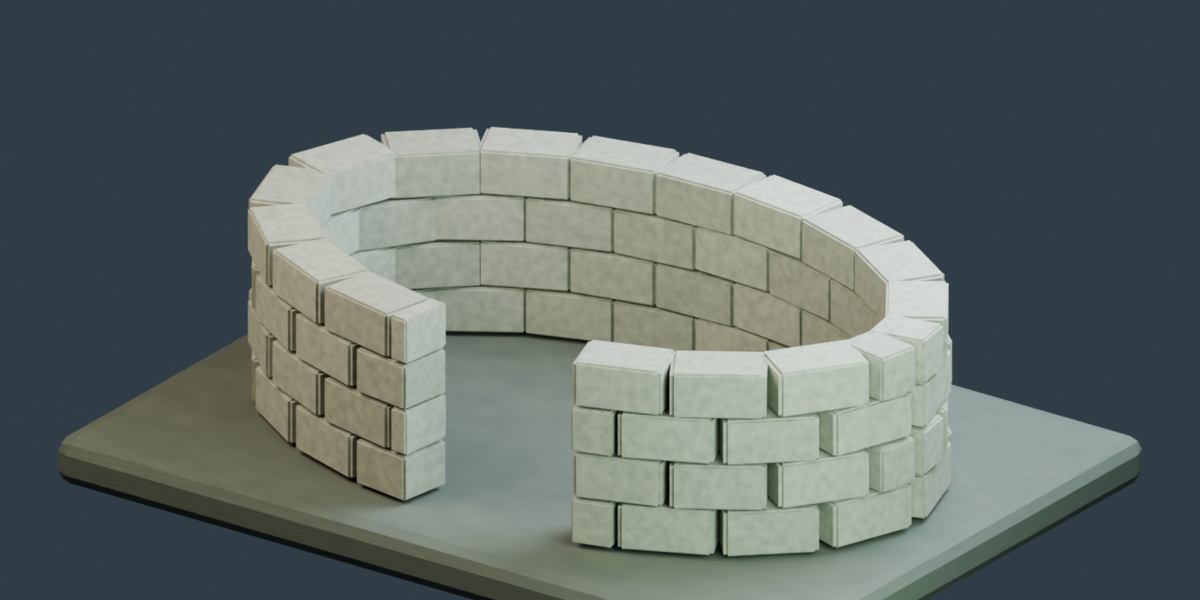
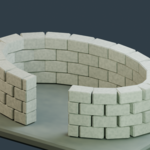
Use 10 compatible masonry blocks for garden walls and crenellated castle walls. Choose limestone, warm sandstone or cool grey materials to suit the scene.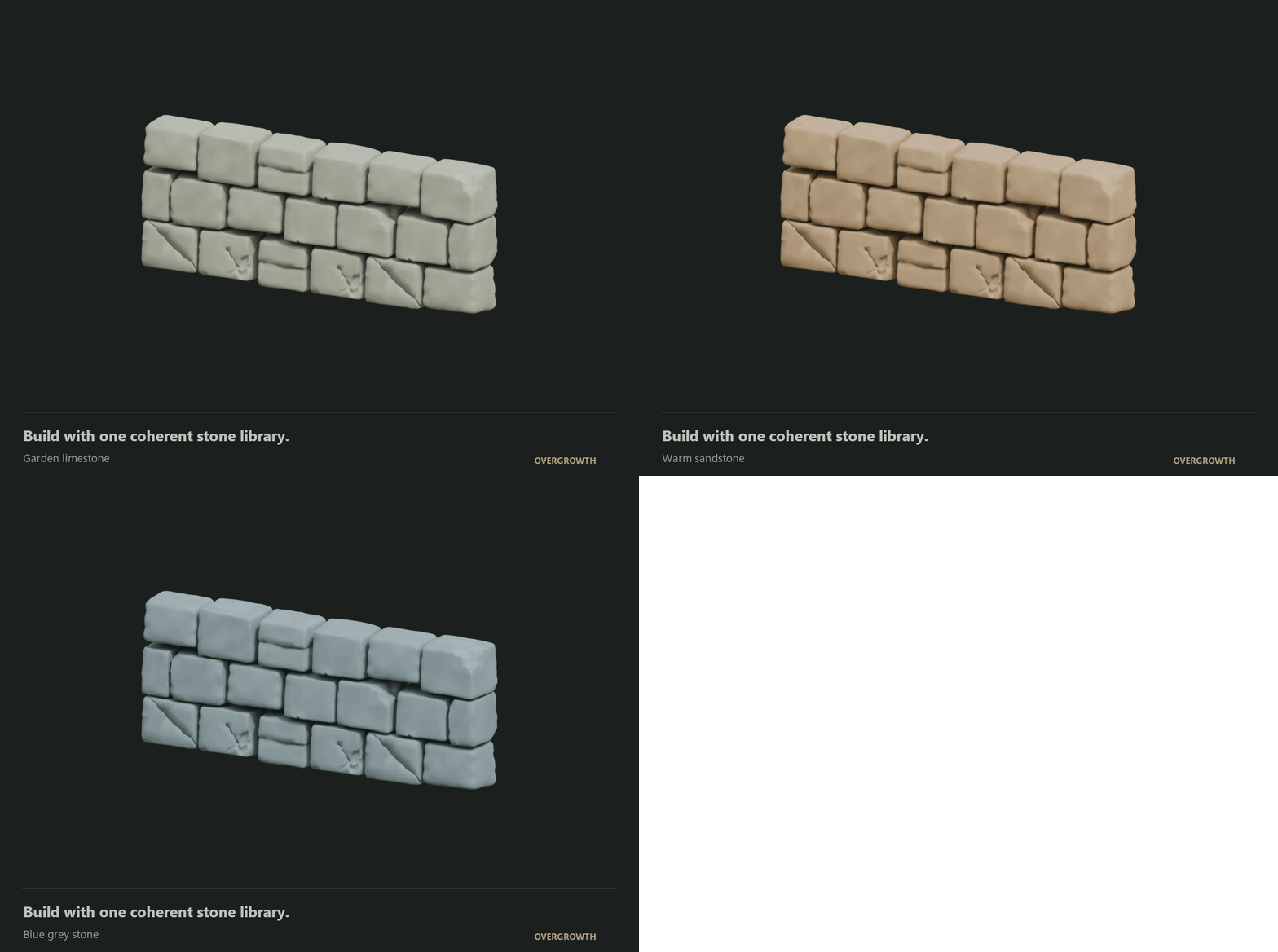
Limestone, sandstone and cool grey on the same wall.
The stone materials are procedural, so they do not need separate stone texture images. Prepared stones also have UV maps for further texturing.
10 MASONRY BLOCKS10 SPECIALTY STONESPROCEDURAL MATERIALS
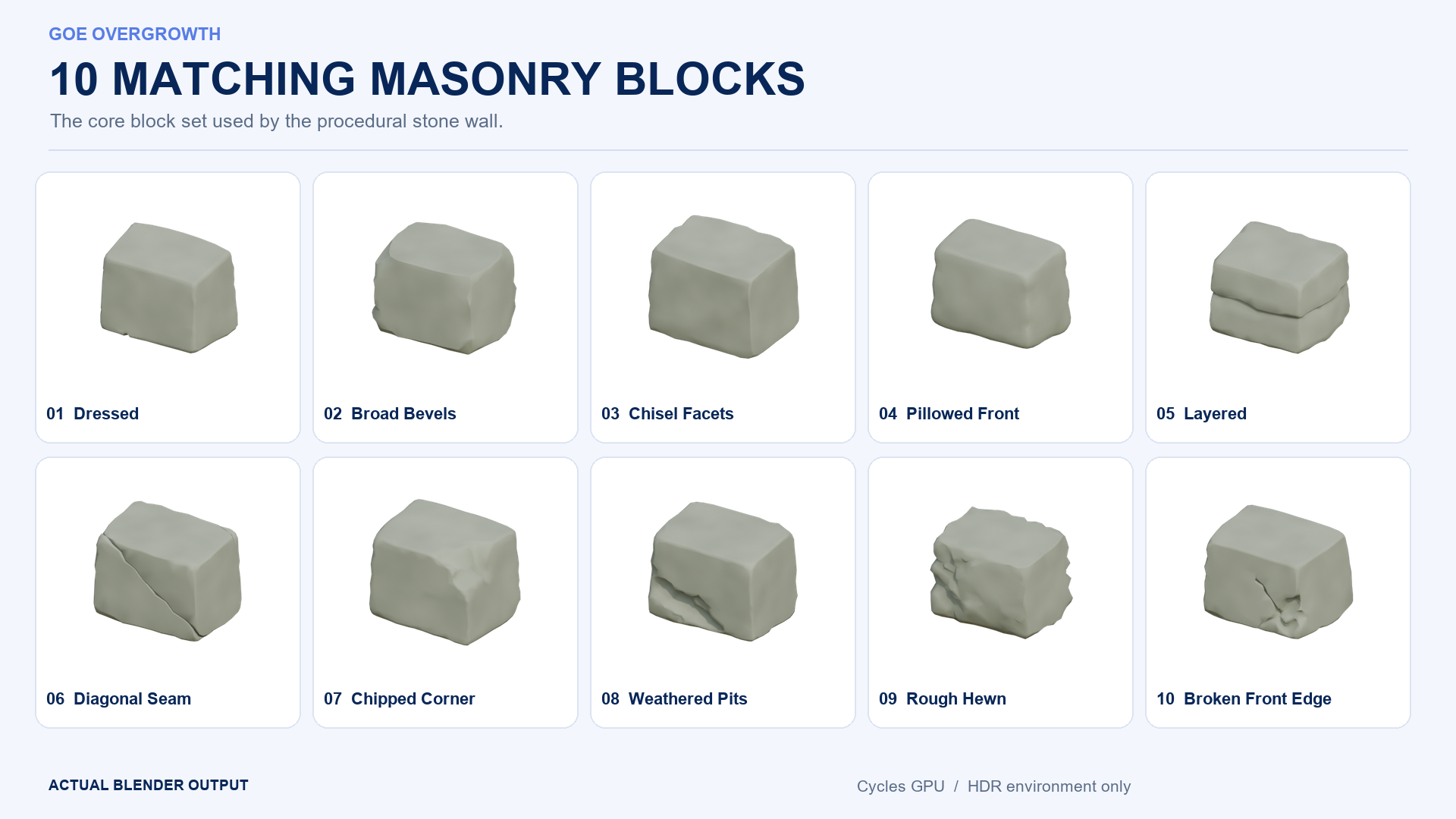
The ten compatible masonry assets rendered individually with the procedural limestone material.
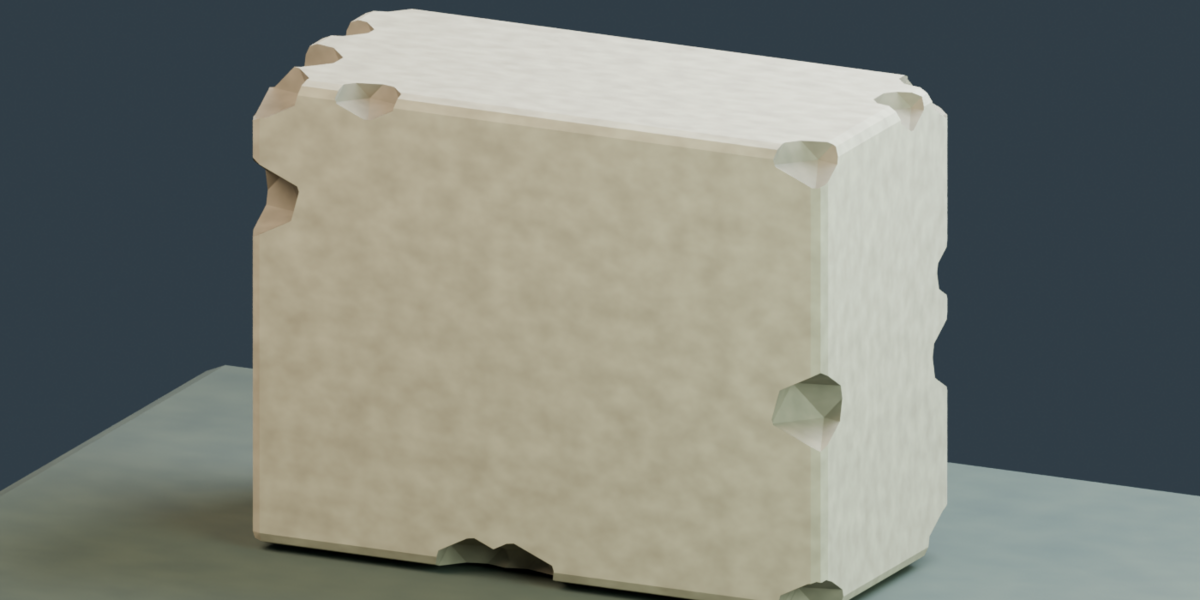
The additional 10 specialty stones are included as a separate group in the library. They are available for manual use and are kept out of the standard random masonry mix.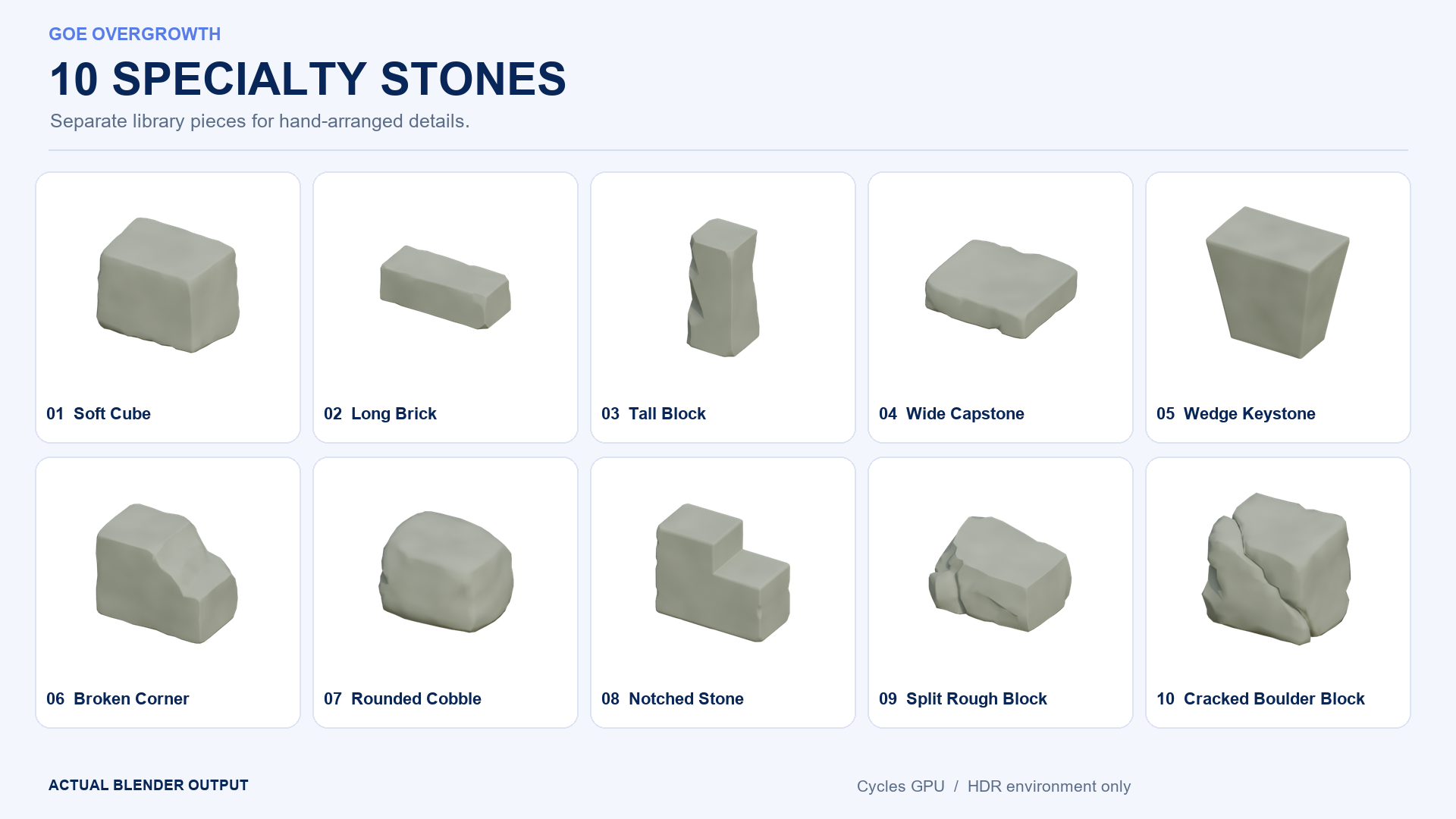
Specialty stone assets for manual placement. These are kept out of the default random wall mixture.
ENTRANCES & SHORT SECTIONS
Leave space for an entrance.
Set the position and width of an opening. Short fence sections are trimmed to fit so the boards keep their proportions. New cut ends receive material and UV coordinates automatically.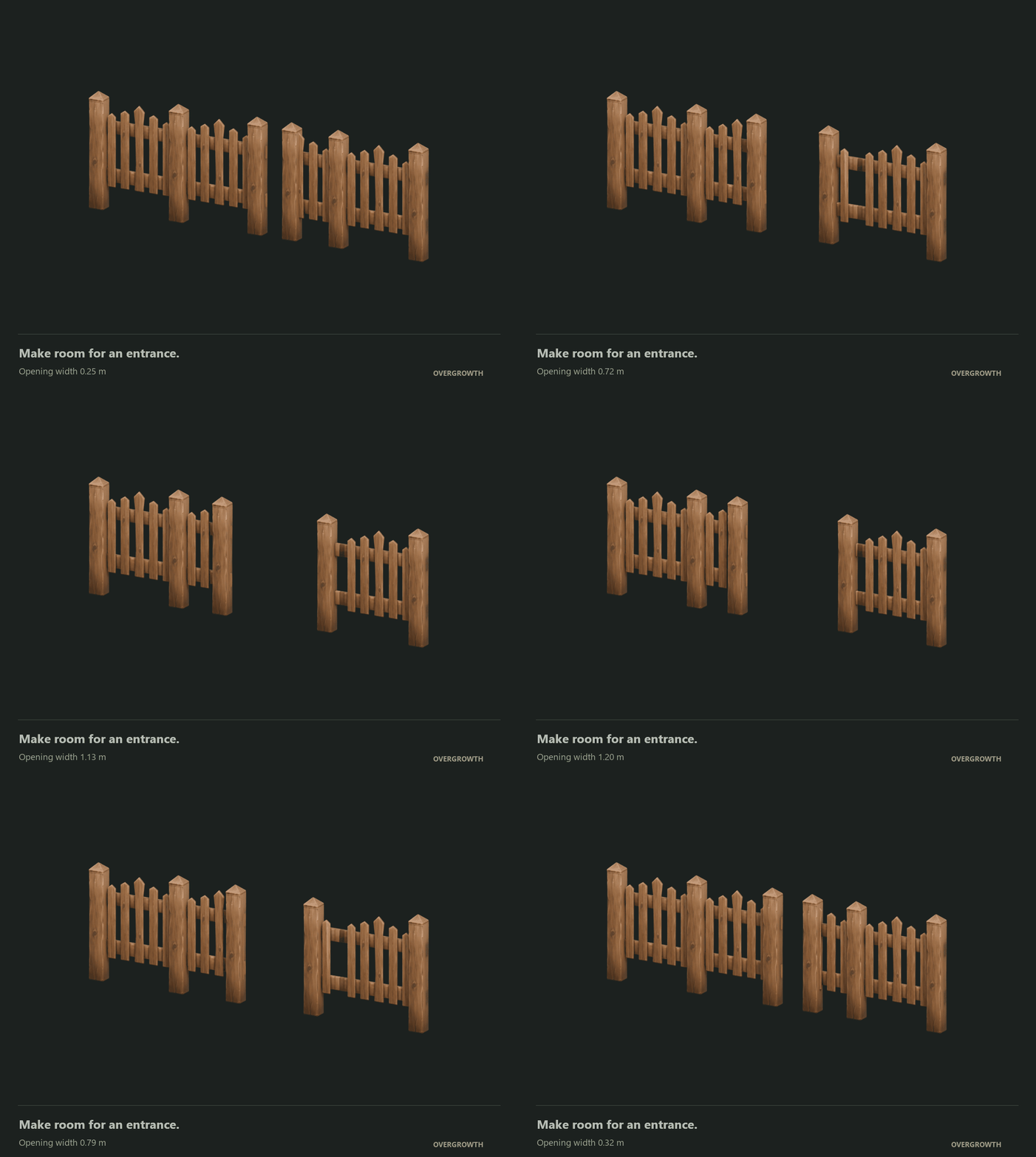
Changing the opening width with trimmed sections at the ends.
TERRAIN FITTING
Follow the ground.
Select a terrain mesh to fit the construction to it. Fence rails connect the heights at the section ends while posts and vertical pickets stay upright. Shorter sections help with sharper changes in the ground.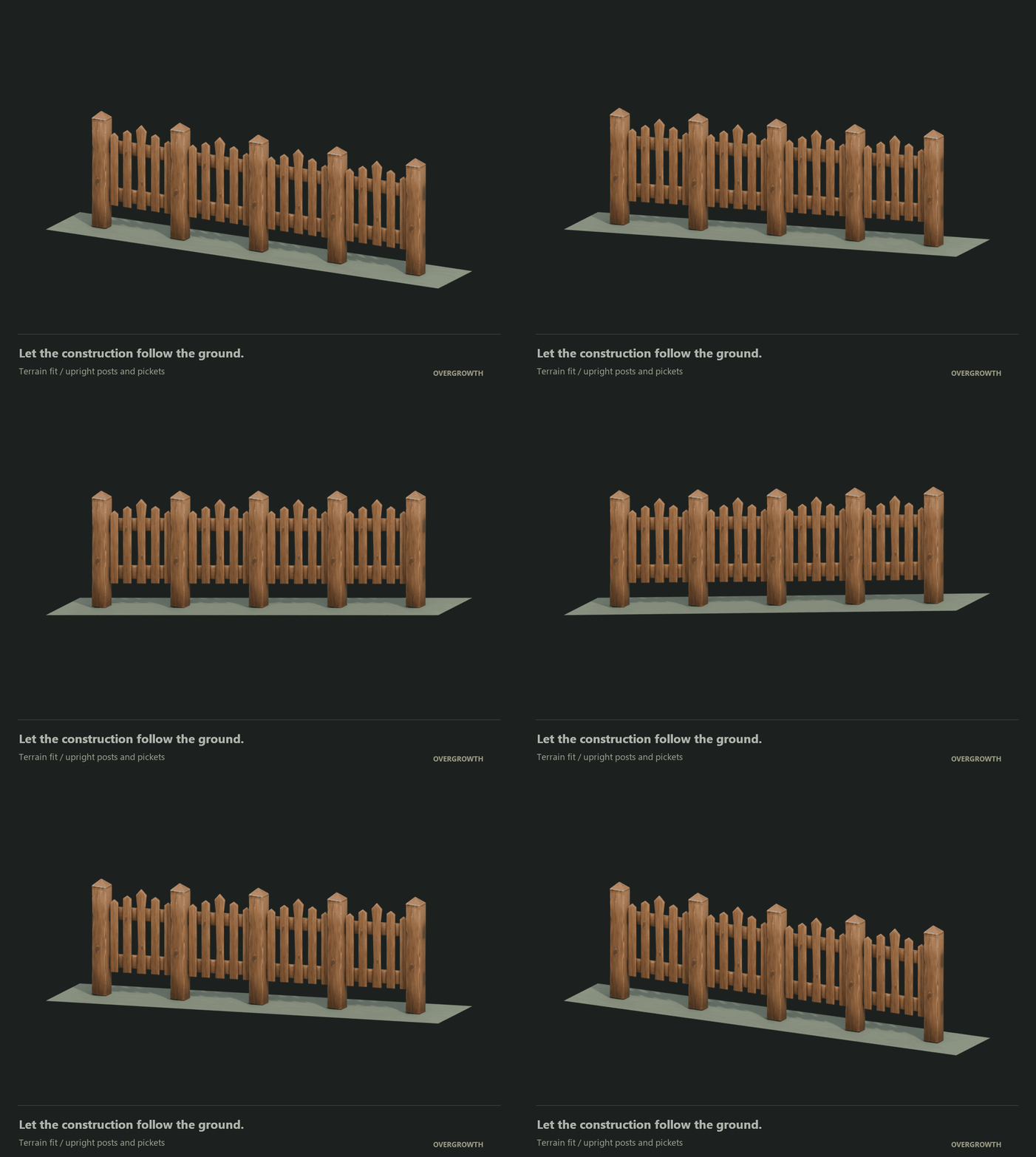
Changing slope while posts and pickets remain upright.
WORN DETAILS
Choose where the damage goes.
Add a broken board, chip a stone or remove loose parts where you want a worn detail. For a fence, place the 3D cursor near a board end and use Break one board.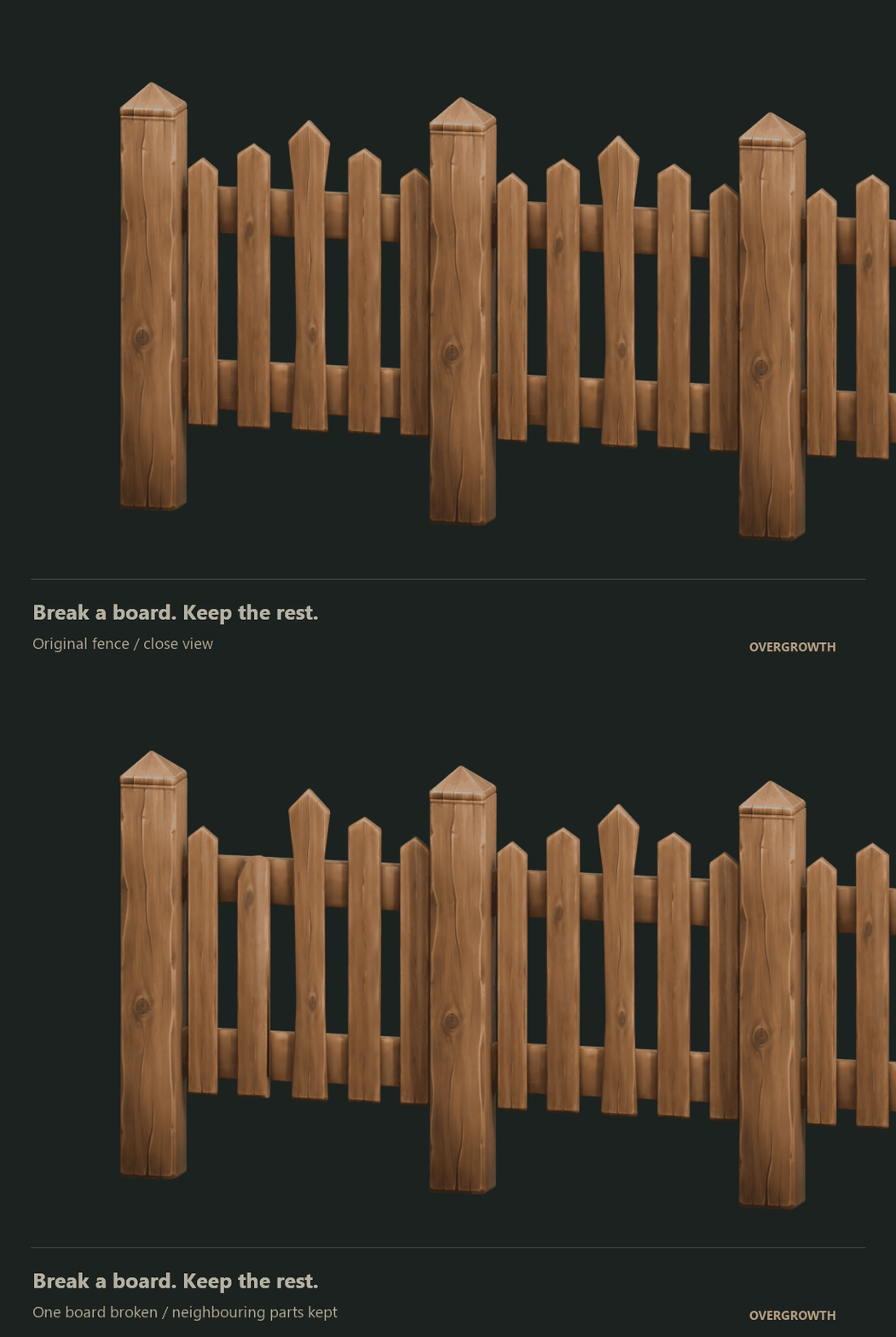
One connected component is damaged; neighbouring pieces stay in place.
Damage creates a separate copy of the current geometry. Finish the main construction first, then add damage. Restore original brings back the source object.
YOUR NEXT ACTION
Start with a structure or a surface.
The panel begins with Create structure and Add overgrowth. Choose a model preset when building, or select an existing mesh when adding plants. Controls for the selected result appear together; detailed settings are expandable.
BUILDING A COURTYARD
Line → design → variation
Draw the fence, choose the sections, leave an entrance and try another mix. Add moss and ivy when the layout is ready.
FINISHING AN EXISTING SCENE
Surface → growth → refinement
Select the object, add a plant layer, paint its coverage or edit its stems. Adjust the density and save the scene.
INCLUDED IN THE FULL PACKAGE
The tools, assets and examples to get started.
|
BLENDER ADD-ON
Installable extension with editable Geometry Nodes and Python source. |
|
MODULAR ASSET LIBRARY
20 stone assets and 10 fence designs, with prepared materials and separated fence components. |
|
DEMONSTRATION SCENES
One master environment, eight focused feature scenes, an editable courtyard, a plant close-up and two Random examples. |
|
QUICK START GUIDE
Installation, your first structure, plant placement and the main controls. |
ASSET LICENSES
Choose the rights you need.
Standard / Non-commercial: one user, personal learning and non-commercial projects only. No paid client work, business use, advertising or monetized content using the bundled Product Assets.
Commercial: one user, unlimited personal and commercial projects using the Product Assets. Studio: the same commercial permissions for up to ten users in one organization.
All tiers include the same features. Standalone resale or sharing of the bundled meshes and textures is not permitted. The add-on code remains GPL-3.0-or-later; asset restrictions do not limit GPL rights, your independent assets or CC0 content. See the included Product License for the full terms.
QUESTIONS & COMPATIBILITY
Before you start.
Can I use my own models and materials?
Yes. An existing mesh can be the source for moss or vines. Plant geometry can sit above the surface while retaining its materials. The optional material coating supports direct Principled BSDF outputs; complex custom shader graphs are not automatically converted.
Can I decide exactly where the plants appear?
Use painted growth and protection weights, height and orientation controls, or a UV image mask for moss. Edit the vine curves to control the stems. UV image masks use a regular image; UDIM masks are not supported.
Can I keep editing the result?
Structure curves and plant layers remain editable. Damage creates a separate geometry snapshot, so finish the construction before damaging it. Connected or welded pieces are treated as one part when selecting a board.
How do I manage scene complexity?
Use Draft or Balanced moss quality while editing, then adjust plant limits and the surface face budget for the scene. The geometry report helps you monitor the generated geometry.
Which Blender versions were checked?
Automated checks cover Blender 4.2.1, 5.1.2 and 5.2.0. The supplied scenes were saved in 4.2 and reopened in all three versions.
How do I get started?
Choose Install from Disk in Blender’s extension preferences and select the add-on ZIP. Open the Overgrowth tab in the 3D View sidebar with N, then try a starter section or select a mesh and add overgrowth. The Quick Start guide walks through both workflows.
MORE FROM DANILGOE
More tools for your Blender projects.
Explore character creators, stylized asset libraries and other Blender tools. Sold separately.
Visit the DanilGOE store