Overgrowth - Wall & Fence Generator + Moss & Ivy
 DanilGOE

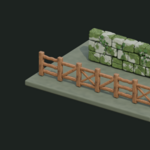

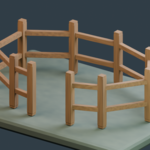
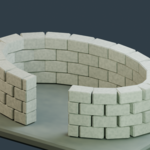

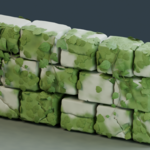
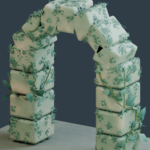
Quick Start
- Install GOE_Overgrowth_Addon_1.0.0_RC.zip in Blender using Edit → Preferences → Install from Disk. Select the ZIP without extracting it.
- Enable the add-on. Start in a new scene or open the optional GOE_Overgrowth_MASTER_1.0.blend demonstration. In the 3D Viewport, press N and open the Overgrowth tab.
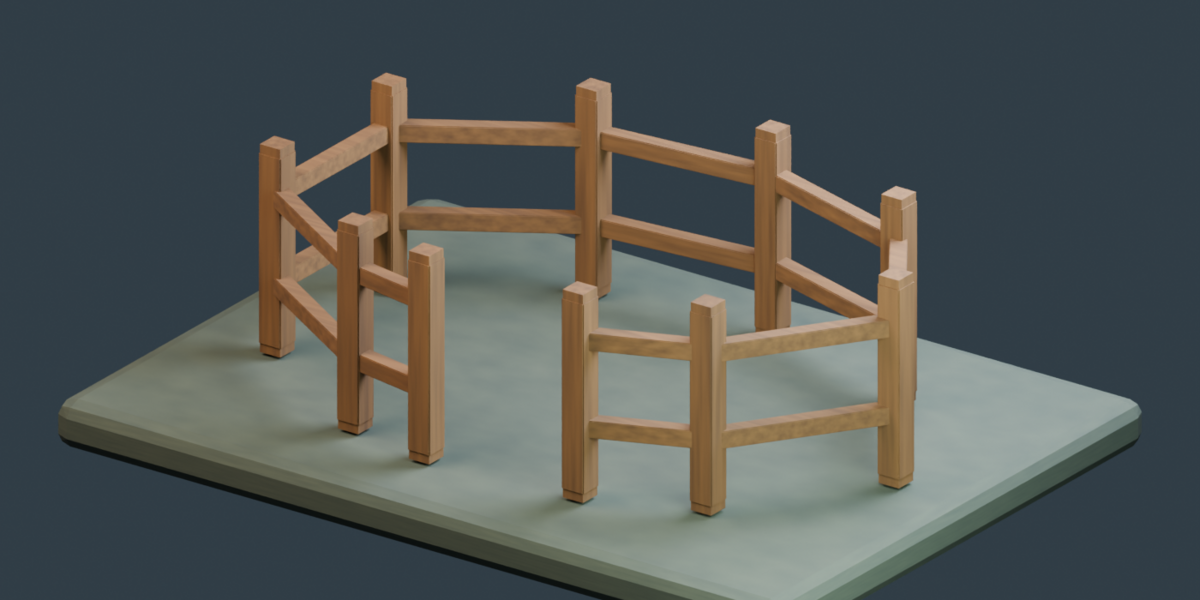
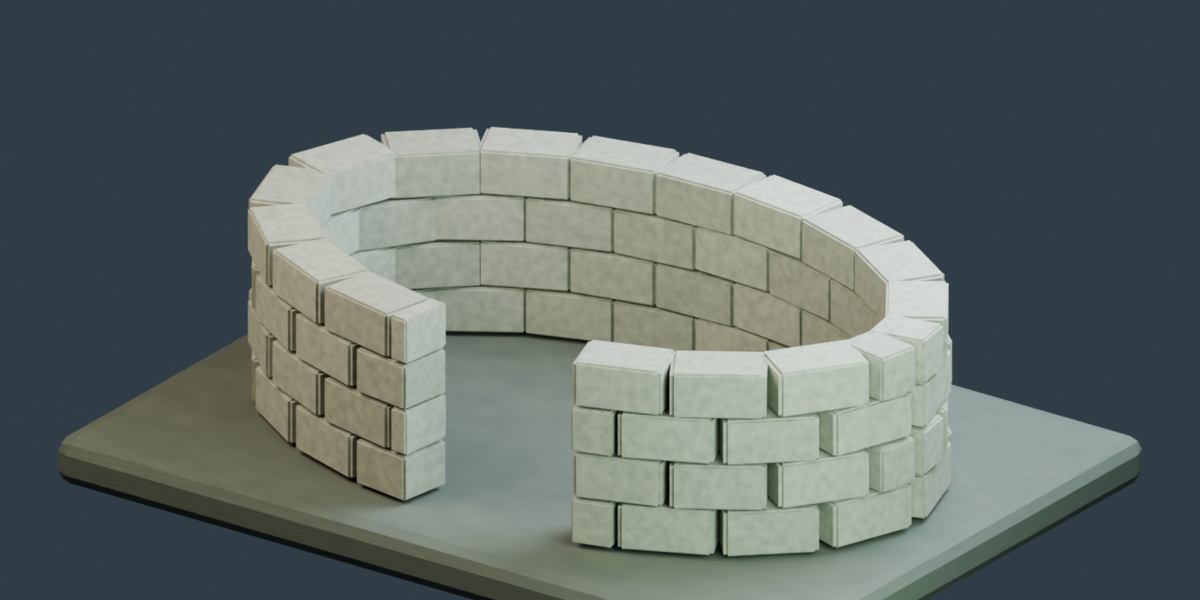
- In Object Mode, choose Create structure → Wooden fence or Stone wall, then click Try a starter section. To create your own layout, use Draw fence or Draw stone wall and press Enter to finish.
- Adjust the dimensions, choose your designs, and use Random to explore variations while keeping the same layout.
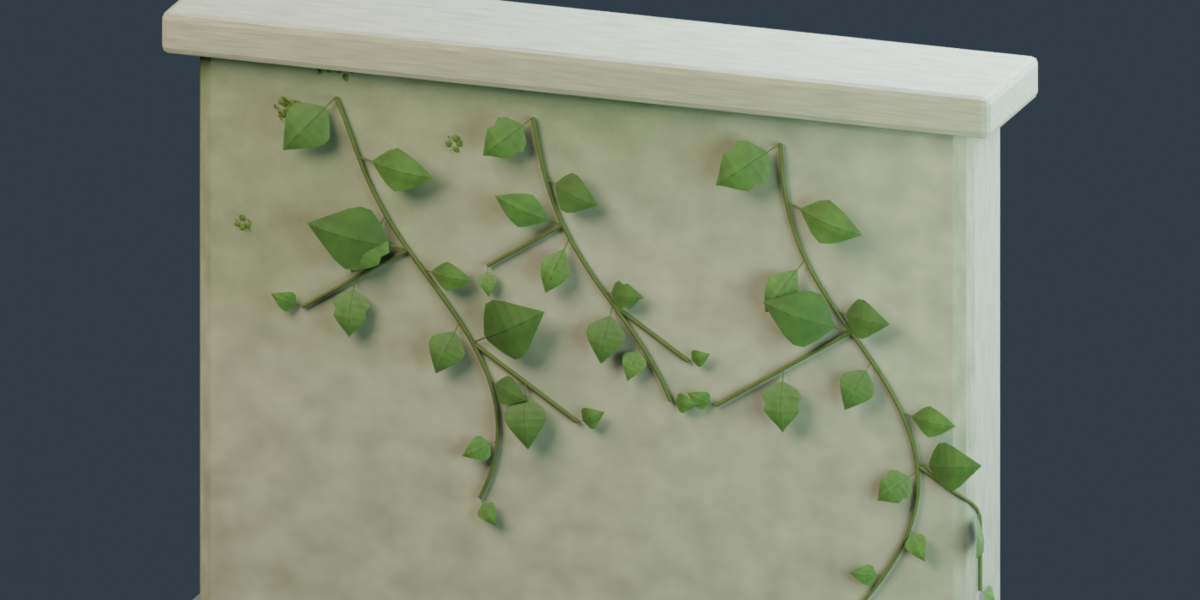
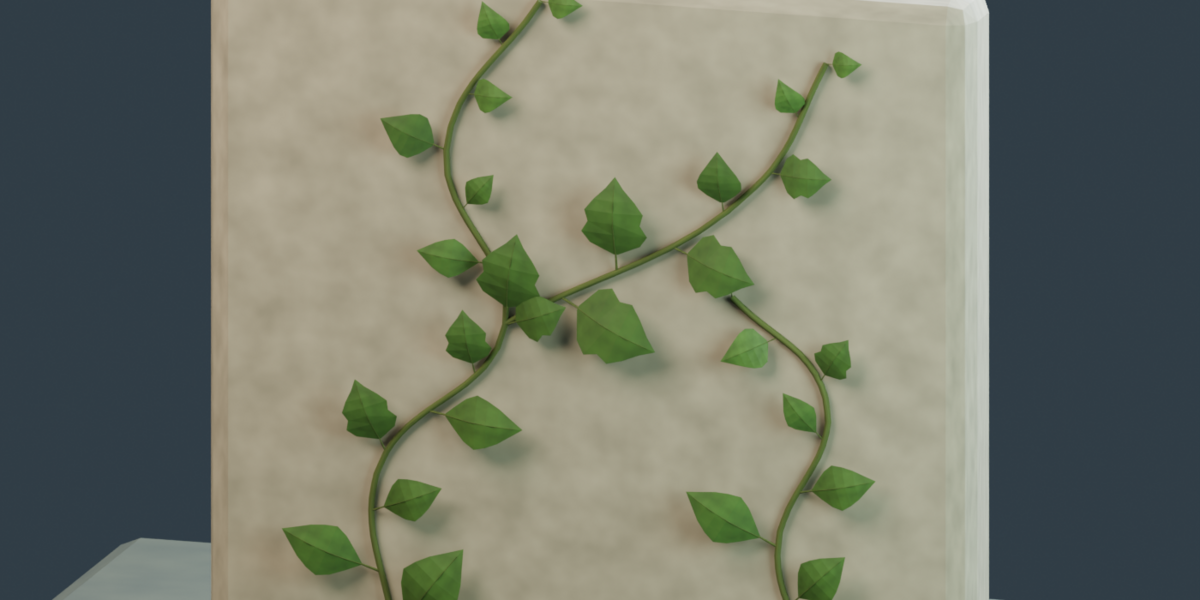
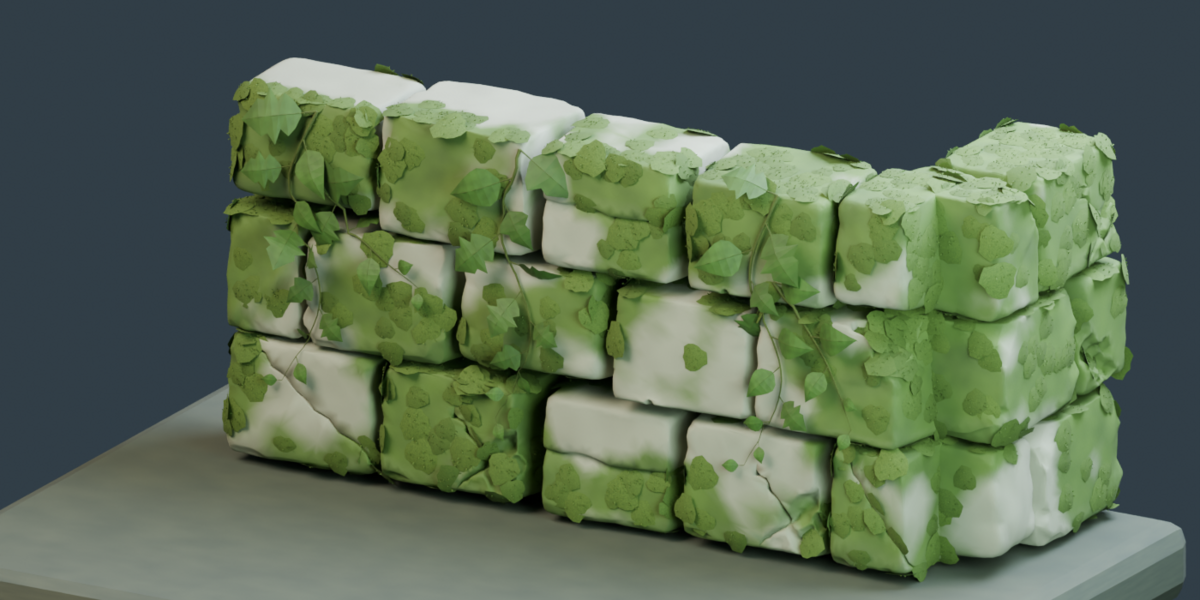
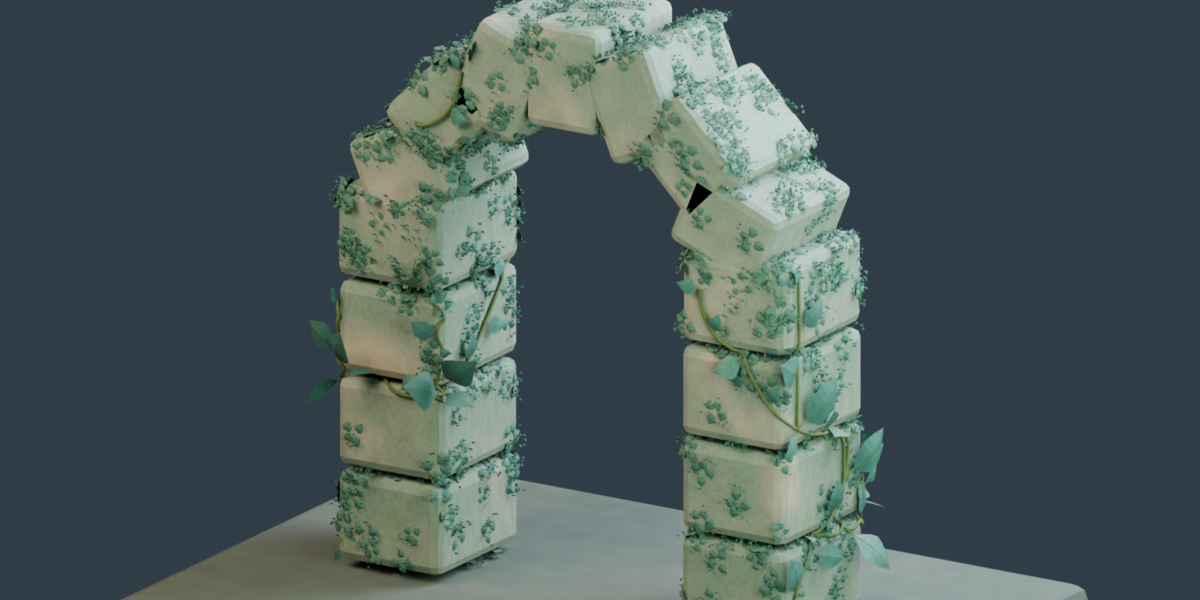
- Select your structure or an existing mesh and use Add overgrowth → Add moss or Add vines. Adjust the coverage, plant size and spacing, then refine the growth masks or vine paths.
- Save your project as a .blend file to keep the live setup editable. Use My presets → Save current settings to reuse your settings.
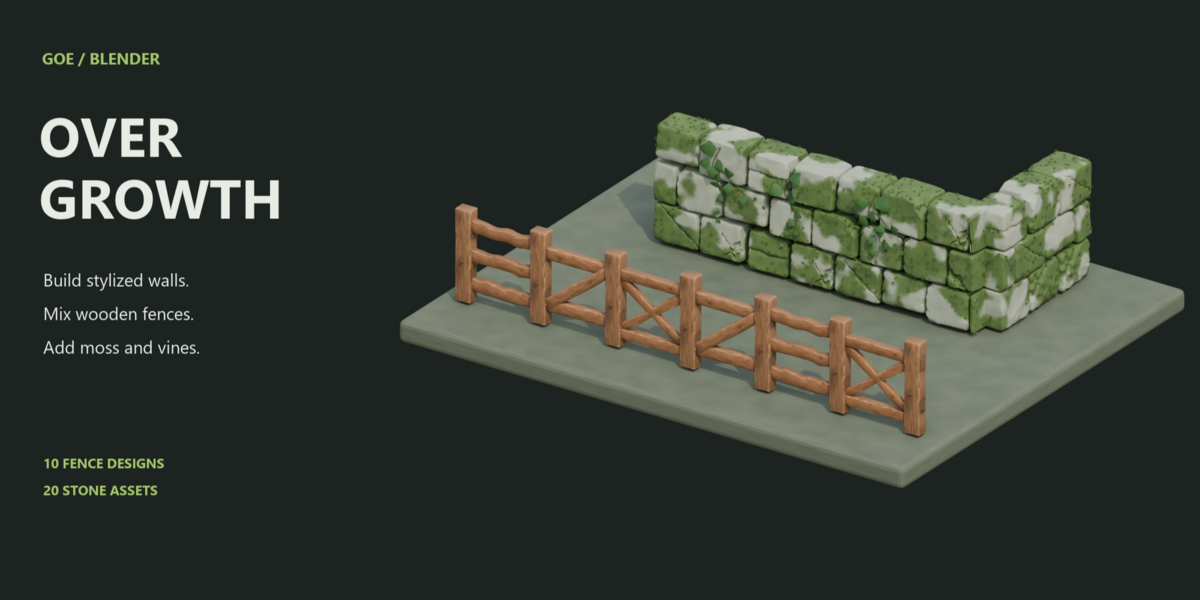
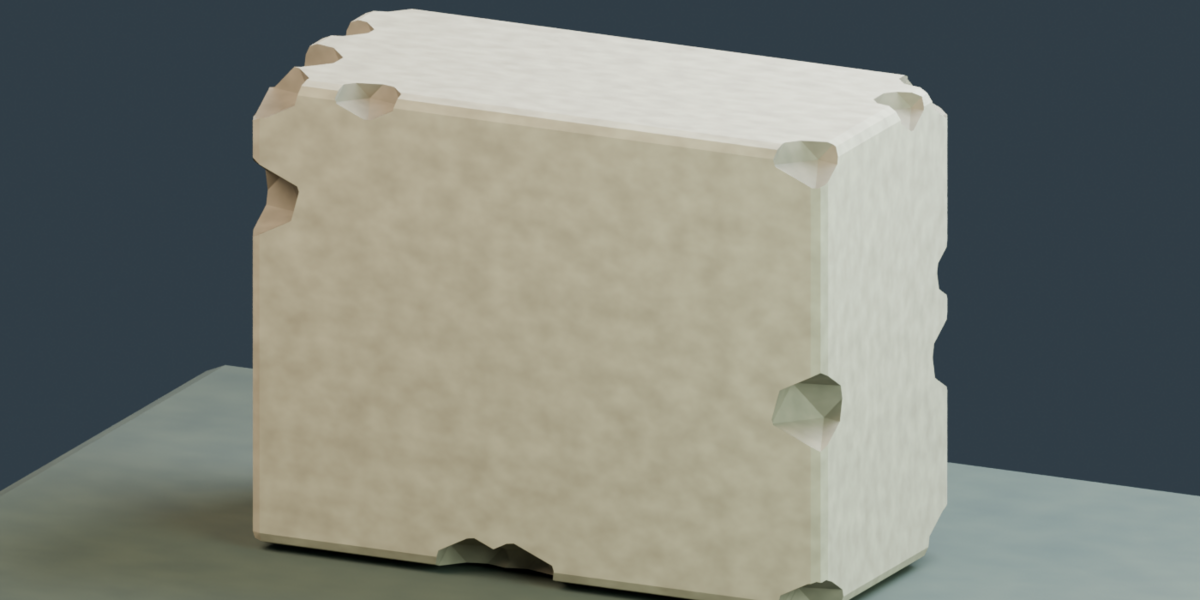
Includes 10 fence designs, 10 standard masonry blocks, 10 specialty stones for manual placement, moss and ivy tools, prepared materials, demonstration scenes, and a Quick Start guide.
-
$9.99
For 1 individual user. Includes all features and content.
-
$49.99
For 1 user working for a business or client. Includes all features and content.
-
$199.99
For up to 10 users in one studio or company. Includes all features and content.
 Included
Includes 12 months of
- Support from DanilGOE
- Product updates
Extend this product’s Support Period +12 months: 100% of product price
Have questions before purchasing?
Login to message
Discover more products like this
environment geometry nodes wall generator moss procedural stone wall wooden-fence vines ivy Fence Generator stylized overgrowth