Overpaint – Native PBR Painter
 Factory Tools
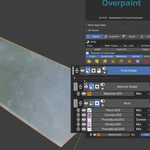
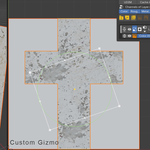
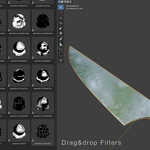
Overpaint Documentation
Requirements
Overpaint requires Blender 4.5 or newer on Windows 10/11 or 64-bit Linux. macOS is not supported in this build.
On Windows and Linux, use Blender’s Vulkan backend. If OP Painter shows a Switch to Vulkan button, click it and restart Blender.
For the complete guide, including screenshots, advanced workflows and troubleshooting, visit the Overpaint User Guide.
Installation
Overpaint is installed as a Blender extension:
1. Open Edit → Preferences → Get Extensions.
2. Open the drop-down menu in the top-right corner.
3. Choose Install from Disk….
4. Select the Overpaint extension ZIP file.
The ZIP includes the add-on and Overpaint's asset library. If Blender shows Overpaint Library missing, reinstall the complete extension ZIP.
The GPU baker (optional)
The GPU baker is a free helper program that makes bakes and Cache All much faster. It is a separate download for Windows and Linux and is not part of the Overpaint ZIP.
1. In the 3D Viewport, press N and open the OP Settings tab.
2. In the GPU baker box at the top, click Get the GPU baker. Your browser opens https://overpaint.factorytools.cz/baker/
3. Download the Baker version that matches your Overpaint. Do not unzip it.
4. Back in Blender, click Install from file... in the same box and pick the downloaded zip.
The status bar confirms the install and the box disappears. The baker is used from the next bake; no restart is needed. An update of Overpaint keeps the baker, an uninstall removes it.
Without the GPU baker, Overpaint still works: bakes run through Blender and are slower. Fast Bake, Bake Sublayer and Baked pictures need the baker. Overpaint itself never downloads anything; the button only opens the page in your browser.
Build your own material library
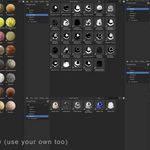
Overpaint Library Tools is a companion Blender extension provided as the second download of this product. In Blender, it appears as Material Library Builder in the Library Builder tab of the sidebar. It works with or without Overpaint and turns folders of downloaded textures into a browsable Blender Asset Library with materials, catalogs and previews.
Install the Overpaint Library Tools extension ZIP through Edit → Preferences → Get Extensions → Install from Disk….
Open a 3D Viewport, press N, and select the Library Builder tab.
Set Source Location to your texture folder and leave Sub-folders enabled.
Choose a separate output folder in .blend Lib Location. If .blend Lib in Source is enabled, disable it first.
Press Scan Source and review the detected materials and texture channels.
Correct any unassigned or incorrectly identified files if necessary.
Press Generate Library.
Press Register as Asset Library.
Open Blender’s Asset Browser, select the new library, and drag a material onto an object or directly into an Overpaint stack.
The original texture folder is not moved, renamed or changed. The generated library contains Blender materials ready to reuse in Overpaint or any other Blender workflow.
First steps
Open a 3D Viewport and press N to open the sidebar.
Select a mesh with a material.
Open OP Painter and create or select a material setup.
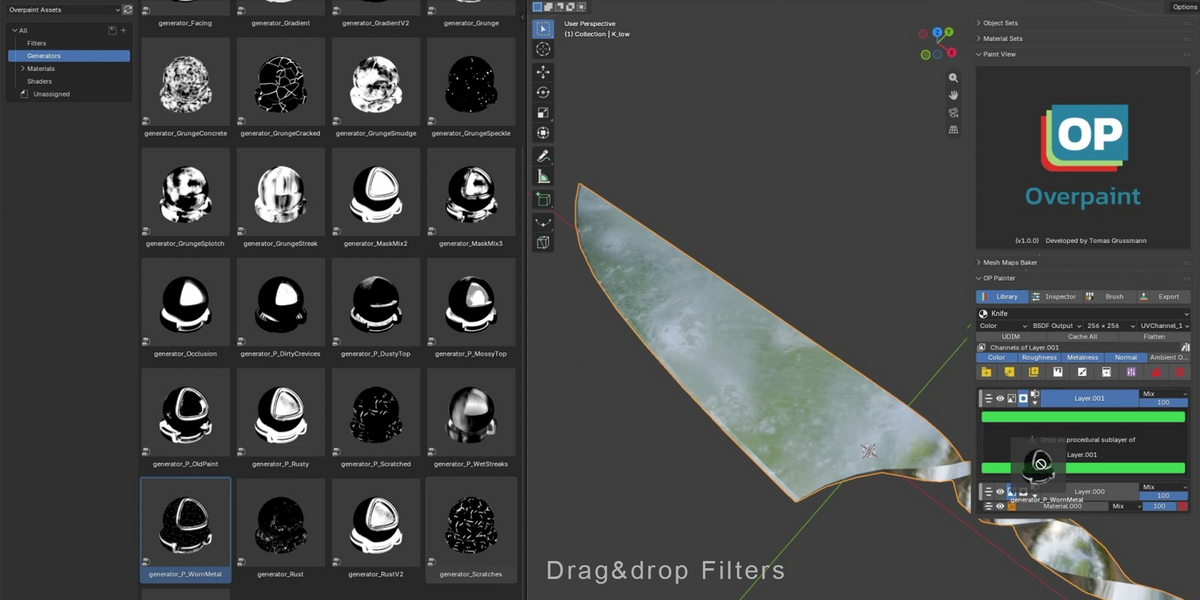
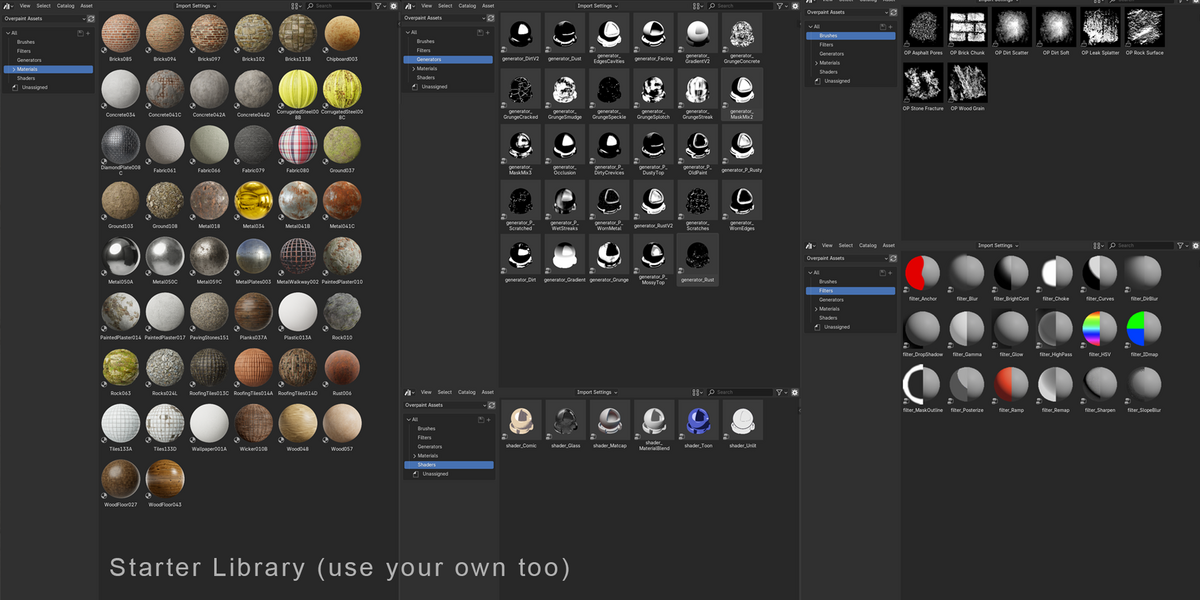
Use the Library button to browse Overpaint materials, generators, filters and shaders.
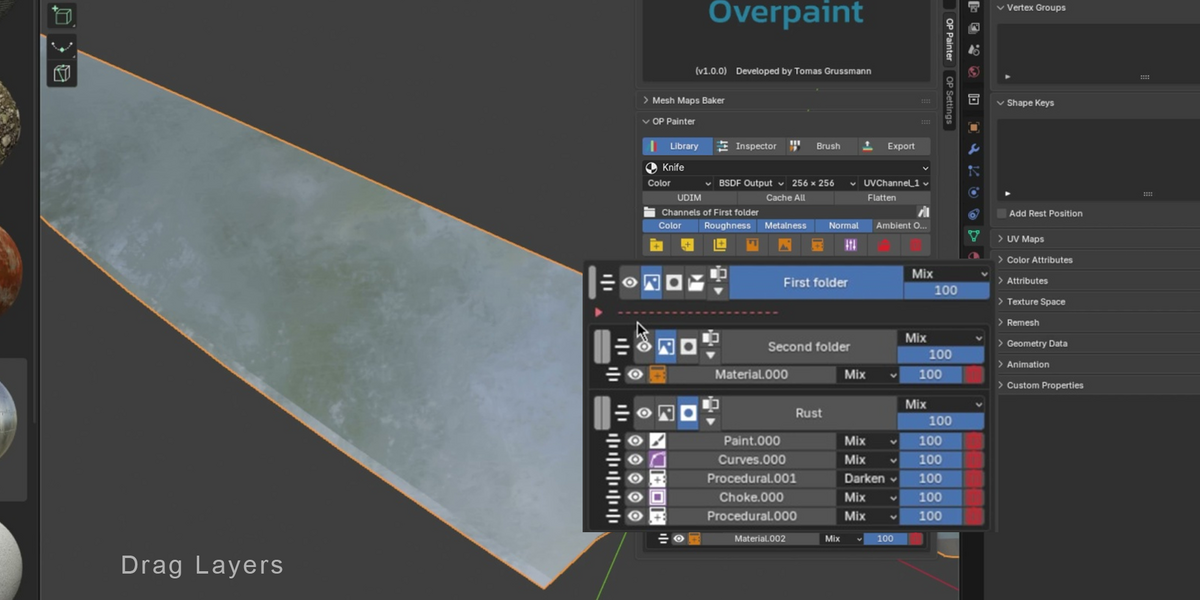
Drag assets into the material stack.
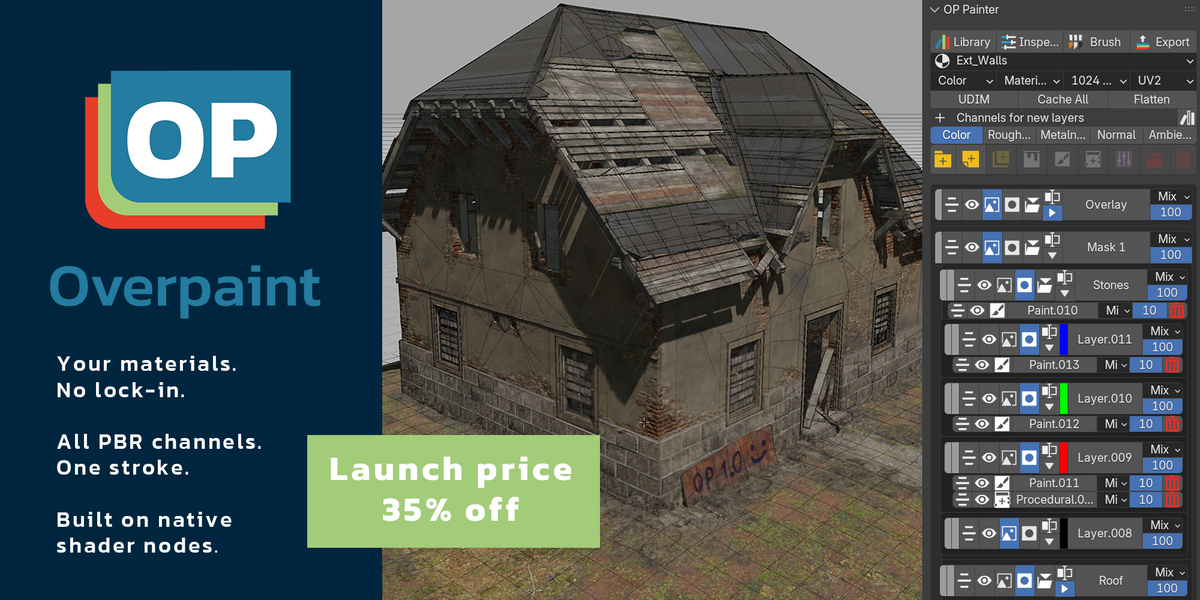
Add folders, layers and sublayers to build the material.
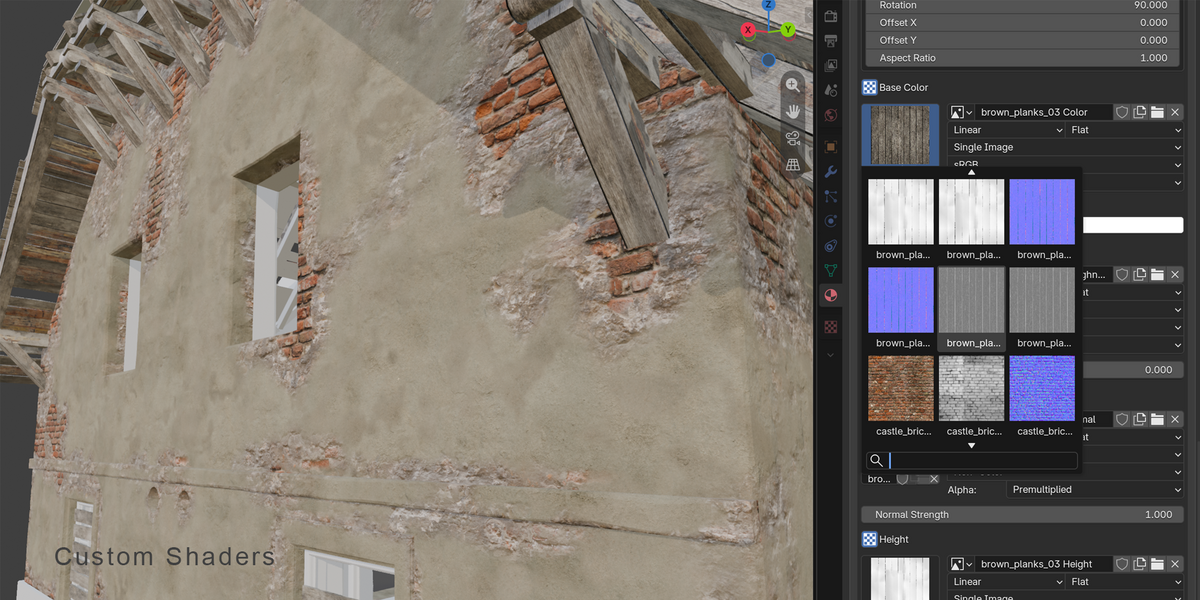
Overpaint works inside Blender’s native material and shader system. Layers remain editable, and you can add your own Blender shader nodes to the stack.
Painting
To paint multiple channels at once:
Select an Image or Color sublayer with at least two channel images.
Switch to Texture Paint mode.
Enable Material Paint from the viewport header or Brush panel.
Set the value for each channel.
Paint normally.
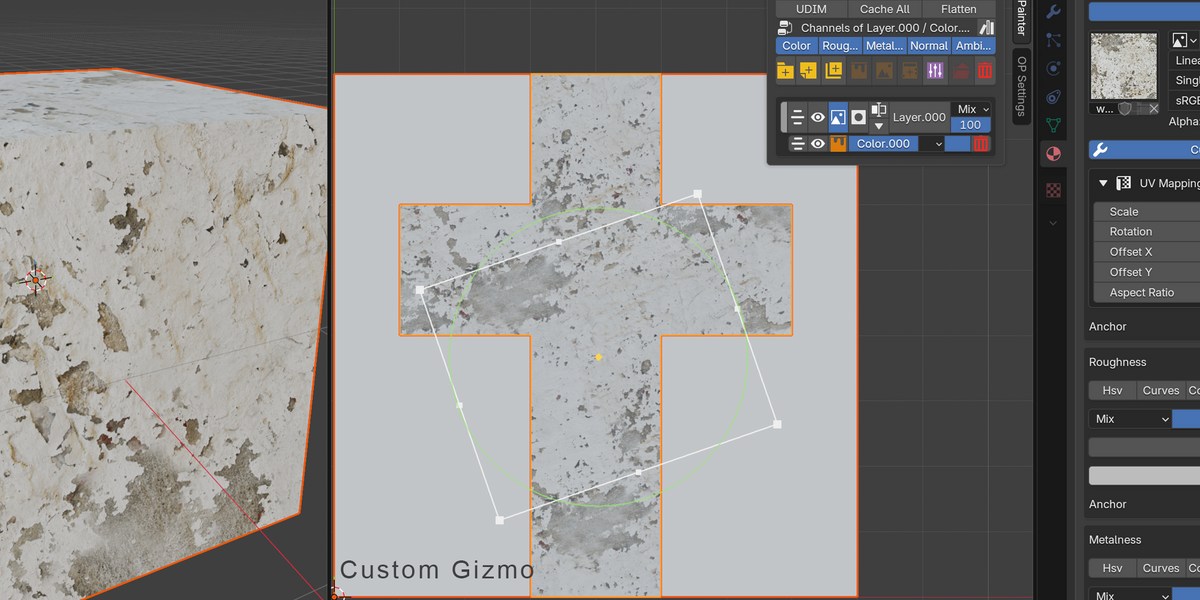
One stroke can paint Color, Roughness, Metalness and other carried channels using separate values. Overpaint supports Blender brushes, stencils, shortcuts and UDIM workflows.
Mesh maps and shaders
The Mesh Maps Baker can create AO, curvature, thickness, edge, position and normal maps for use in Overpaint generators or other materials.
You can use standard PBR output, one of Overpaint’s included shaders, or your own Blender shader group. Toon and Comic are intended for EEVEE; Unlit, Matcap and MaterialBlend work in EEVEE and Cycles.
Export
Open Export from the OP Painter panel or from Properties → Scene → OP Export.
Set the output path, UV map, texture size and format. You can use the included presets for:
Unreal Engine ORM
Unity Metallic Smoothness
glTF PBR Metal Roughness
You can also create your own texture list and channel packing. Press Export to write the texture files.
For the full 24-chapter guide, visit the Overpaint User Guide.
The ZIP includes the add-on and Overpaint's asset library. If Blender shows Overpaint Library missing, reinstall the complete extension ZIP.
The GPU baker
its a free helper program that makes bakes and Cache All much faster. It is a separate download for Windows and Linux and is not part of the Overpaint ZIP.1. In the 3D Viewport, press N and open the OP Settings tab.
2. In the GPU baker box at the top, click Get the GPU baker. Your browser opens https://overpaint.factorytools.cz/baker/
3. Download the Baker version that matches your Overpaint. Do not unzip it.
4. Back in Blender, click Install from file... in the same box and pick the downloaded zip.
The status bar confirms the install and the box disappears. The baker is used from the next bake; no restart is needed. An update of Overpaint keeps the baker, an uninstall removes it.
Without the GPU baker, Overpaint still works: bakes run through Blender and are slower. Fast Bake, Bake Sublayer and Baked pictures need the baker. Overpaint itself never downloads anything; the button only opens the page in your browser.
 Included
Includes 12 months of
- Support from Factory Tools
- Product updates
Extend this product’s Support Period +12 months: 50% of product price
Have questions before purchasing?
Login to message
Discover more products like this
layer 3d character texturing material blending 3D texturing tool Texturing Blender Substance Painter paint advanced PBR texturing addons for texturing PBR 3D-texture-painting painting