Paintlayer Pro
 Skava
Skava


PaintLayer Pro — Documentation
v1.1.0 · Blender 3.2 + · Windows / macOS / Linux
1. Install
- Download
the archive from your purchase page, install via Add-ons preferences. - Press
Nin the 3D Viewport → PaintLayer tab.
2. Quick start
- Select an object with a material.
- Pick a Channel (Albedo / Roughness / Metallic / Normal).
- Pick a Resolution.
- Click Add Layer to add a new paint layer.
- Paint with Blender's built-in paint tools — your strokes land on the active layer.
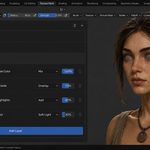
- Adjust opacity / blend mode / visibility per layer.
3. Layer stack
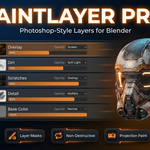
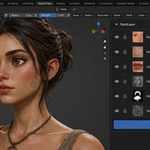
Layers stack bottom-to-top exactly like Photoshop / Krita. Move them with the up/down arrows. The composite is built by walking the stack from bottom to top, applying each layer's blend mode and opacity.
4. Blend modes
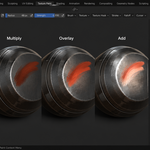
Full Photoshop set: Mix (Normal), Multiply, Screen, Overlay, Soft Light, Hard Light, Add, Subtract, Difference, Lighten, Darken, Hue, Saturation, Color, Luminosity.
5. Masks
Each layer can have a mask. Add Mask → paint in mask mode → the layer is constrained to the painted area. Invert Mask swaps black and white. Apply Mask bakes the mask into the layer image.
6. Groups
Group several layers together. The whole group can be toggled / opacitied / blended as a unit. Useful for separating skin / clothing / props layers on a character texture.
7. Live Preview
Toggle Live Preview in the main panel. When on, changing opacity / blend mode / visibility re-composites the layer stack instantly so the viewport texture updates as you drag sliders. Recommended for stacks under ~30 layers; on heavier stacks turn it off and click Composite manually to avoid lag.
8. Direct vs Stencil paint
- Direct — strokes land on the current layer using Blender's brush.
- Stencil — paint through an image stencil (useful for projecting decals / dirt maps).
9. Undo
The addon keeps a per-image snapshot history independent of Blender's global undo. Undo / Redo undoes only your paint strokes, leaving other Blender state alone.
10. Export / Import
Export a finished material as a flattened PNG / JPG / EXR. Import a single image as a new layer (auto-rescaled to the layer resolution if needed).
11. Troubleshooting
"Nothing shows on my object" — after painting, press Composite; the result is now wired into the material's Base Color automatically (v1.1.0+). Set the viewport shading to Material Preview or Rendered (top-right of the viewport) to see it, and make sure the object has a UV map.
"Live Preview makes Blender sluggish" — turn it off and click Composite manually after a batch of changes.
"My strokes don't show up on the layer" — verify the layer is selected (highlighted in the list) and not locked. Direct mode requires the canvas to be active in Texture Paint mode.
"Import resized my image" — imports larger than the layer resolution are auto-scaled. Bump Resolution in the main panel before importing 4K assets.
12. Limitations
- Layer history lives in memory; opening a heavy stack on a 4K canvas can spike RAM.
- Auto-save interval declared in preferences but not currently used by an auto-save event.
13. Support & License
Through marketplace messaging. GPL-3.0.
14. Changelog
v1.1.0 — Paint now shows on your object.
- Composited paint is now wired into the material. The addon filled the texture but never connected it to the shader, so nothing showed on the object. Compositing now links the image into the Principled BSDF (Base Color / the matching channel) automatically. Set the viewport to Material Preview or Rendered to see it.
- No more crashes on mixed resolutions — compositing, merging, and masks resample layers to a common resolution instead of raising an error when sizes differ.
- Correct blend math — a bottom-most Multiply/Darken layer rendered black instead of its own colour; the compositing formula is fixed.
- Export Flattened no longer fails on a filename without a directory.
v1.0.0 — Initial release.
Have questions about this product?
Login to message
Discover more products like this
non-destructive Substance Alternative Texture Painting symmetry-paint layer-mask stencil paint-layers blend modes texture-artist projection-painting pbr-painting undo system