 auphinity.tools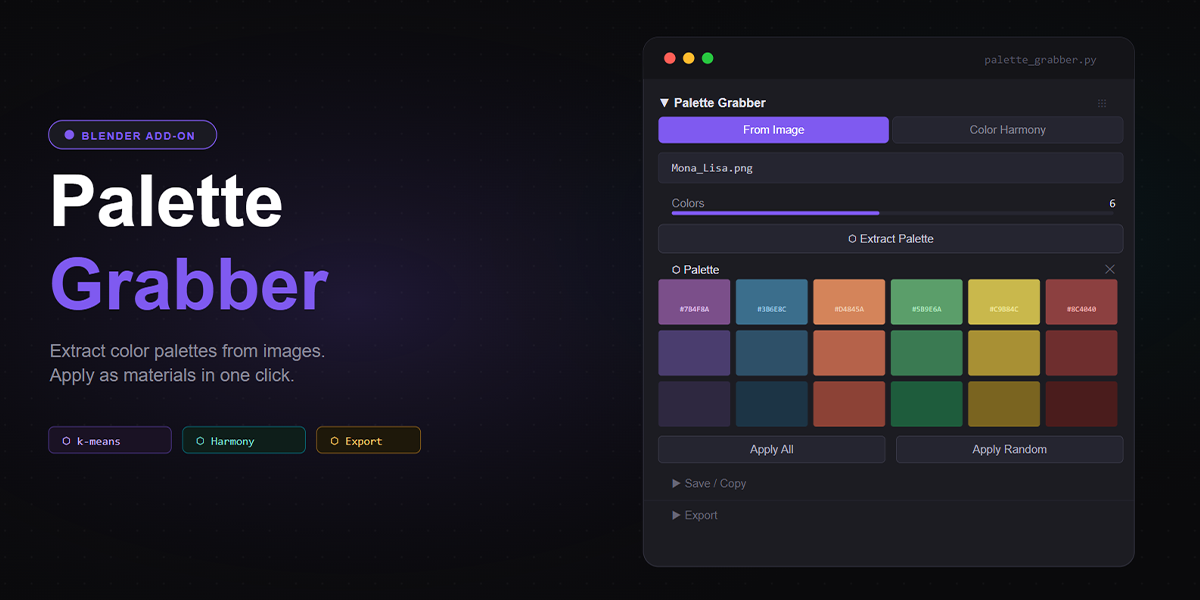
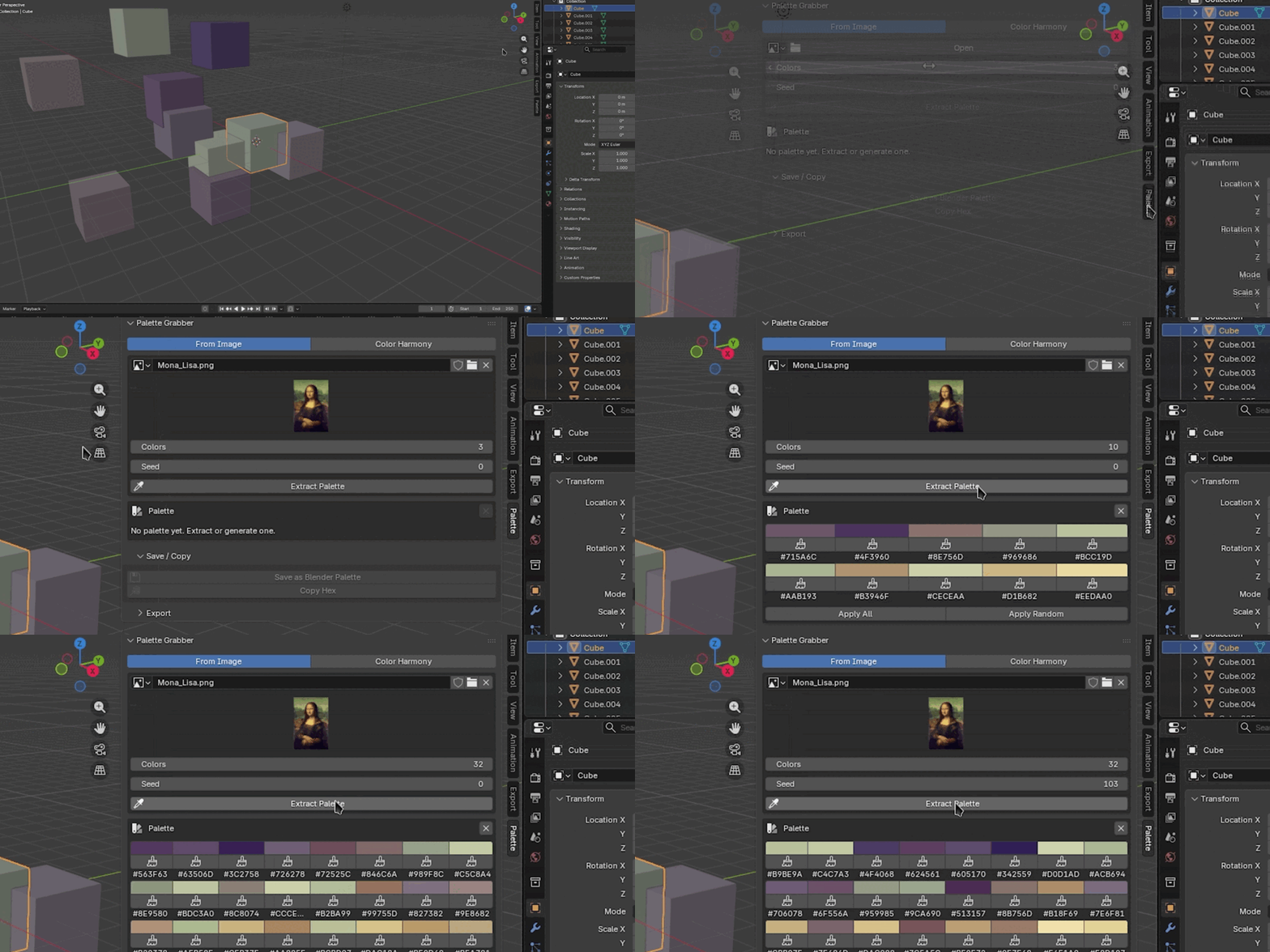
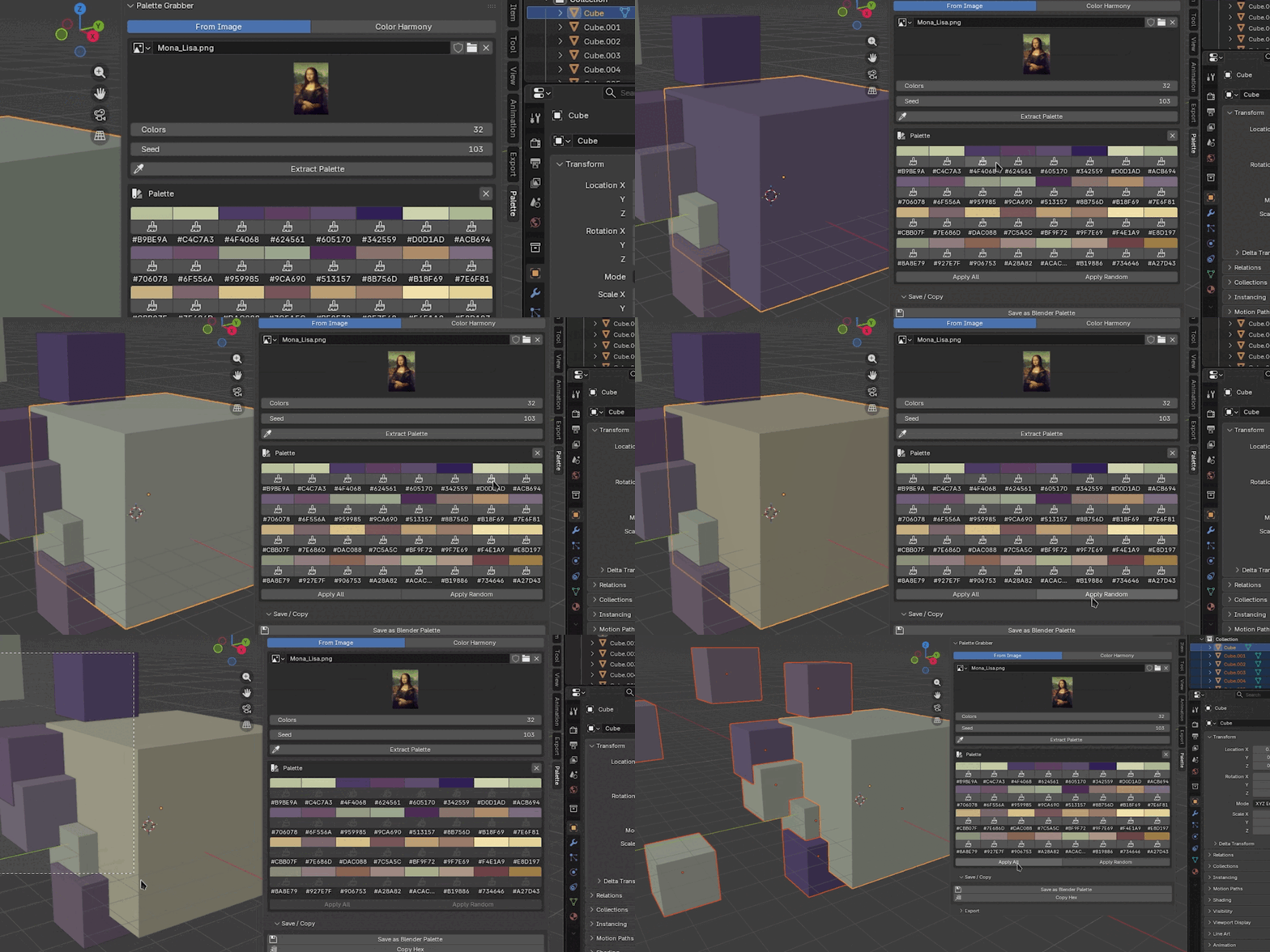

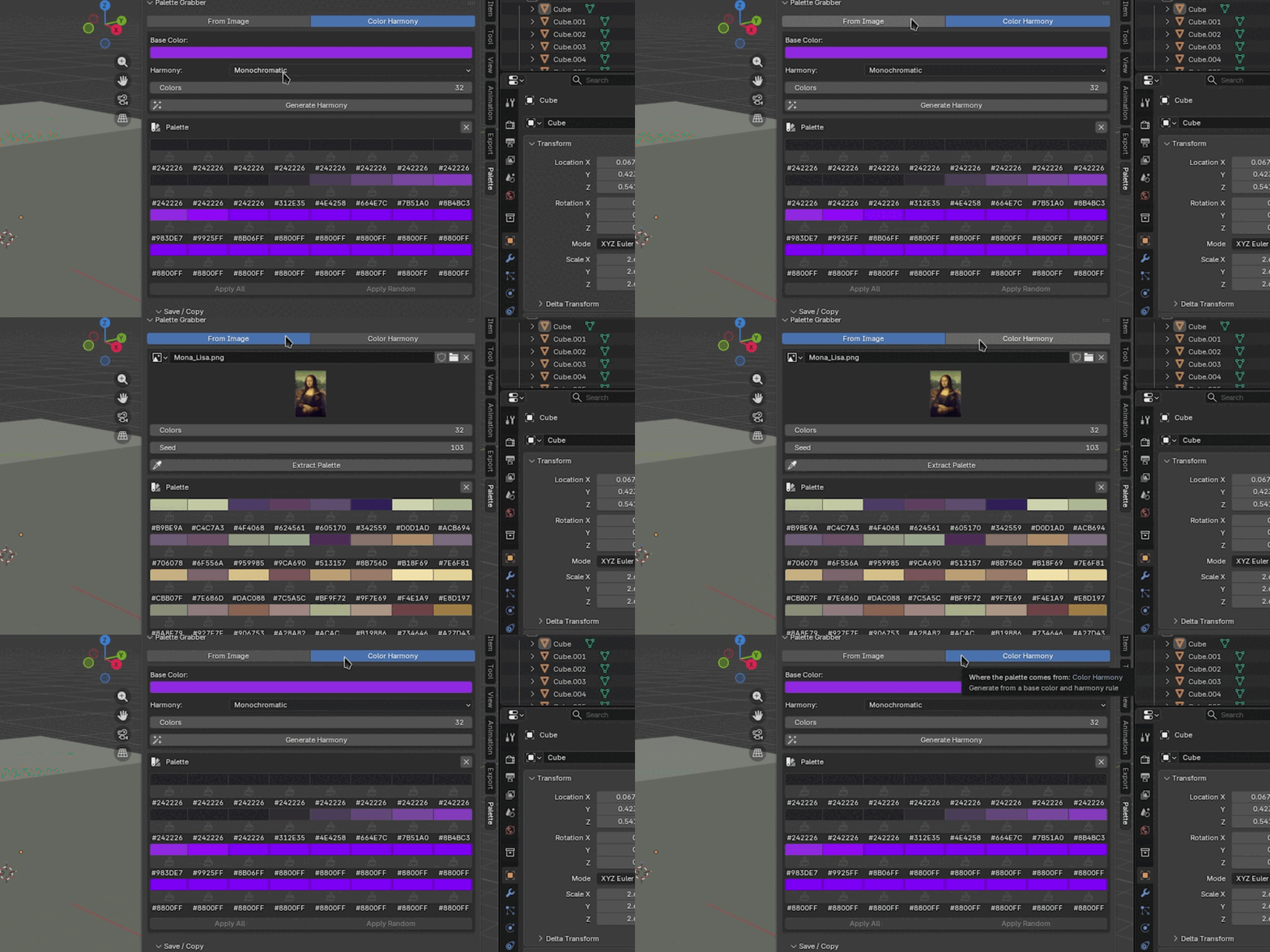
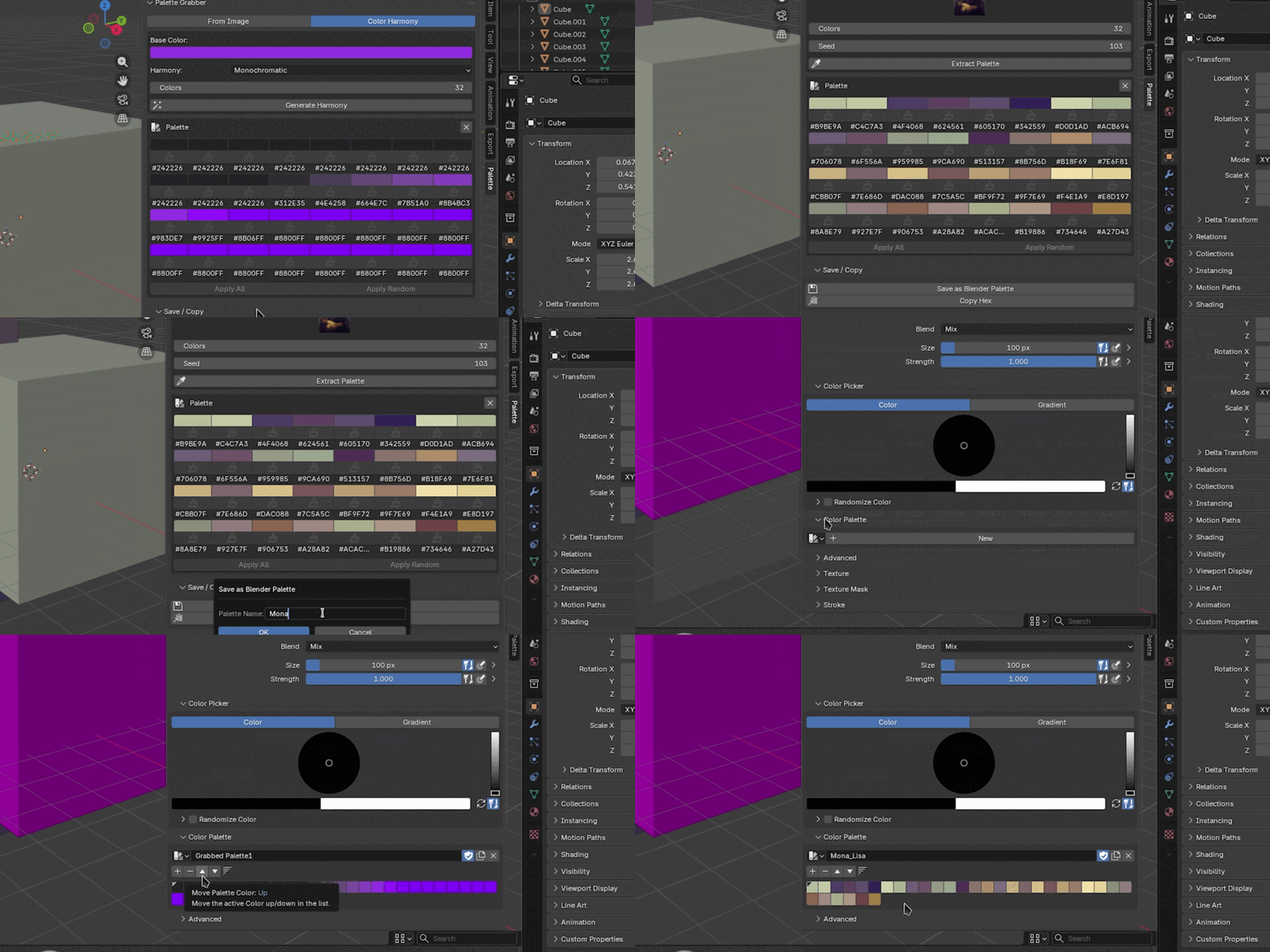

Palette Grabber
Extract color palettes from reference images. Apply as materials in one click.
Palette Grabber
Stop eyedropping colors one by one. Just point at an image and get a palette.
The problem
You have a reference image - concept art, a mood board, a screenshot from a game you're trying to match. You want those colors in your scene as materials. So you eyedrop color #1, create a material, assign it. Then color #2. Then color #3. Fifteen minutes later you have six materials and you're not sure the colors are even accurate.
Blender has no built-in way to extract a palette from an image. You either do it manually or switch to external tools and back.
Palette Grabber solves this in three clicks.
What it does
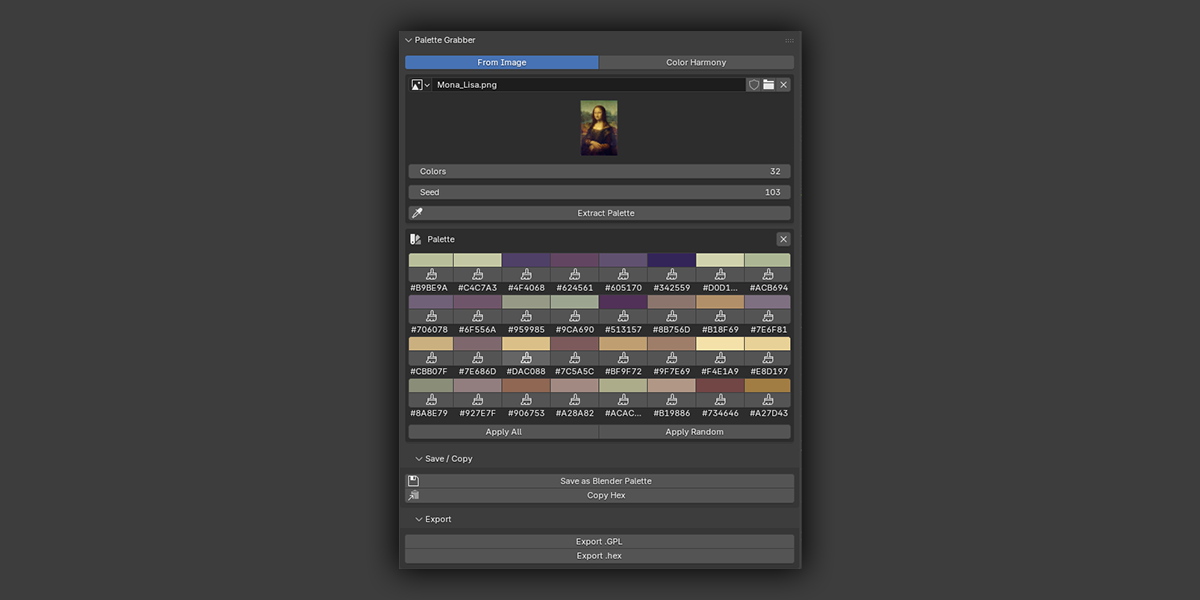
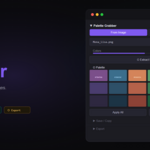
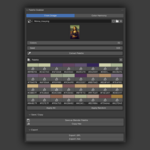
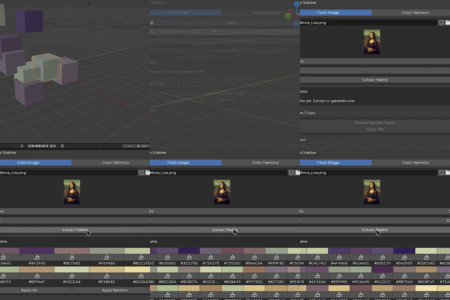
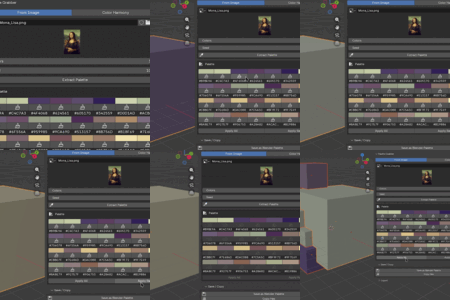
Load a reference image, set how many colors you want, click Extract Palette. The add-on analyzes pixel data using k-means clustering and returns the dominant colors as editable swatches in the N-panel. Select your objects, click Apply to Selected. Done.
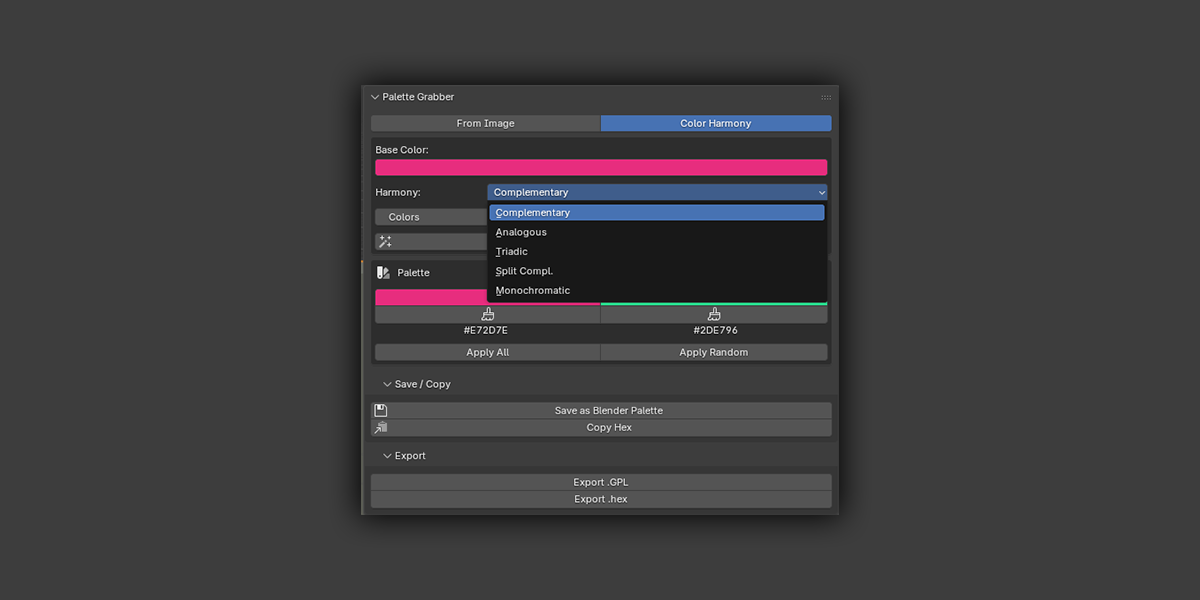
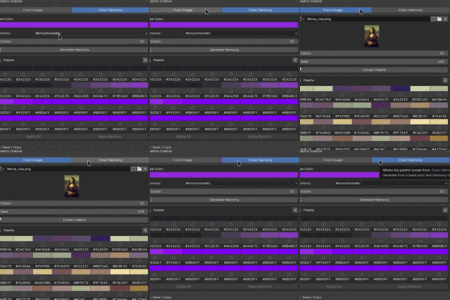
It also includes a Color Harmony generator for building palettes from color theory rules - no image needed.
| Mode | What it does |
|---|---|
| From Image | Extracts dominant colors from any image Blender can load (PNG, JPEG, EXR, TIFF, BMP, etc.) |
| Color Harmony | Generates a palette from a base color using Complementary, Analogous, Triadic, Split-Complementary, or Monochromatic rules |
Key features
| Feature | Description |
|---|---|
| K-means extraction | Statistically dominant colors from the image - not just random pixels. Adjustable color count (3–32) and seed for reproducible results. |
| Editable swatches | Every extracted color is a live swatch in the N-panel. Click any to adjust in Blender's native color picker. |
| Dedupe filtering | Near-identical colors are merged automatically so you don't get 6 slightly different grays when you asked for 6 colors. |
| Apply to selected | Assigns palette colors as solid Principled BSDF materials to selected mesh objects - sequential or randomized. |
| Apply single color | Click the brush icon on any swatch to apply just that color to all selected objects. |
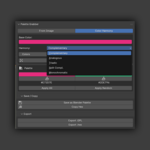
| Color Harmony generator | 5 harmony modes: Complementary, Analogous, Triadic, Split-Complementary, Monochromatic. |
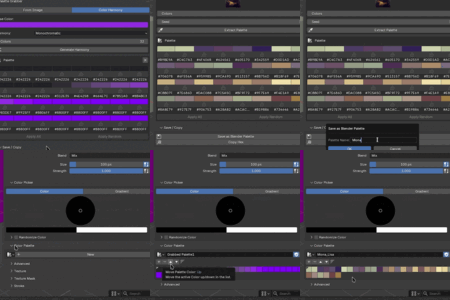
| Save as Blender Palette | Stores the palette in bpy.data.palettes - available in Texture Paint, Vertex Paint, and Grease Pencil. |
| Export | Save as .GPL (GIMP Palette) or plain .hex file. |
| Copy hex | Copy individual or all hex values to clipboard. |
Example workflow
| Step | Action |
|---|---|
| 1 | Import a piece of concept art as an image in Blender |
| 2 | Open Palette Grabber (N-panel → Palette tab), select the image |
| 3 | Set Colors to 8, click Extract Palette |
| 4 | Select your blockout meshes in the viewport |
| 5 | Click Apply Random - each object gets a color from the palette |
| 6 | Fine-tune any swatch directly in the panel |
Who is this for?
- Concept artists and illustrators matching colors from a reference to a 3D scene.
- Game artists doing quick color blockouts before texturing.
- Stylized/NPR artists who work with flat or simplified color palettes.
- Anyone who has ever spent 20 minutes manually picking colors from an image.
Non-destructive by default
Palette Grabber never modifies your images or scene structure. Apply to Selected replaces material slots on mesh objects - that's the only change it makes, and it's undoable with Ctrl+Z.
What you get
| Detail | Value |
|---|---|
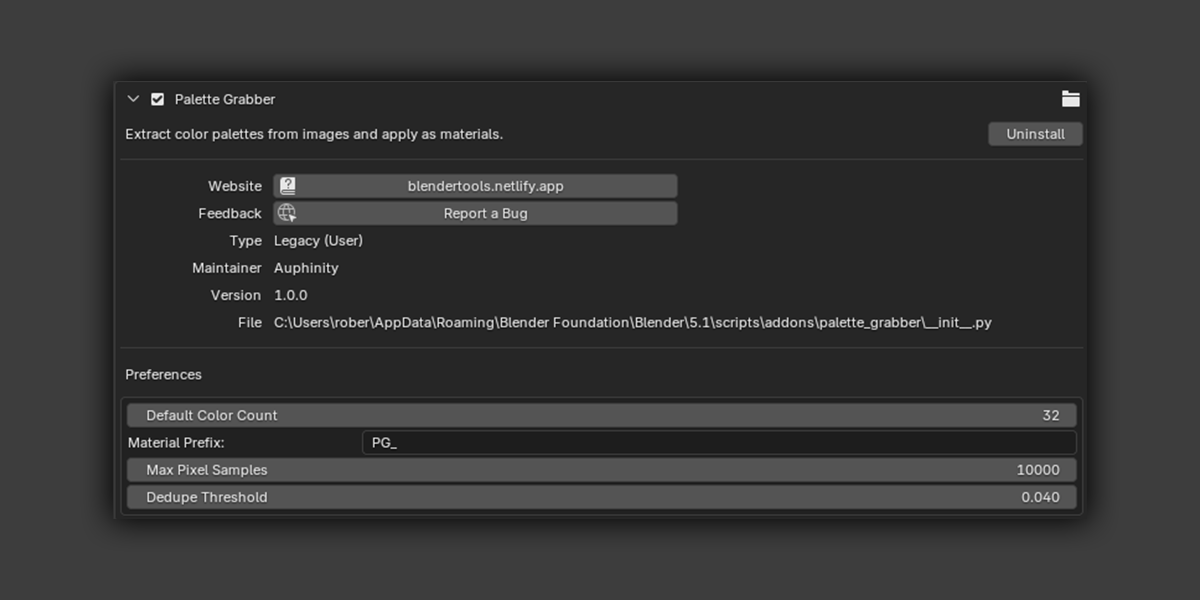
| Version | 1.0.0 |
| Compatibility | Blender 4.0 and newer (tested up to 5.1) |
| License | GPL-2.0-or-later |
| File |
palette_grabber.zip - install directly in Blender |
| Dependencies | numpy (included in Blender's Python - no extra installation) |
| Render engine | Works with any renderer - materials use Principled BSDF |
| Documentation | Full user guide (see Documentation tab) |
Tip: Press N in the 3D Viewport, click the Palette tab. Load an image, click Extract Palette, select your objects, click Apply to Selected. That's the whole workflow.