Salman Animator
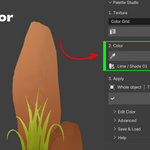
The problem: coloring low poly models is fiddly
The usual low poly workflow is one material per color, or a palette image you make elsewhere and then scale UVs into by hand. Many materials clutter game assets. Hand placing UVs is slow and easy to get wrong, and changing a color later means editing the image again.
The solution: pick a color, click UV Snap
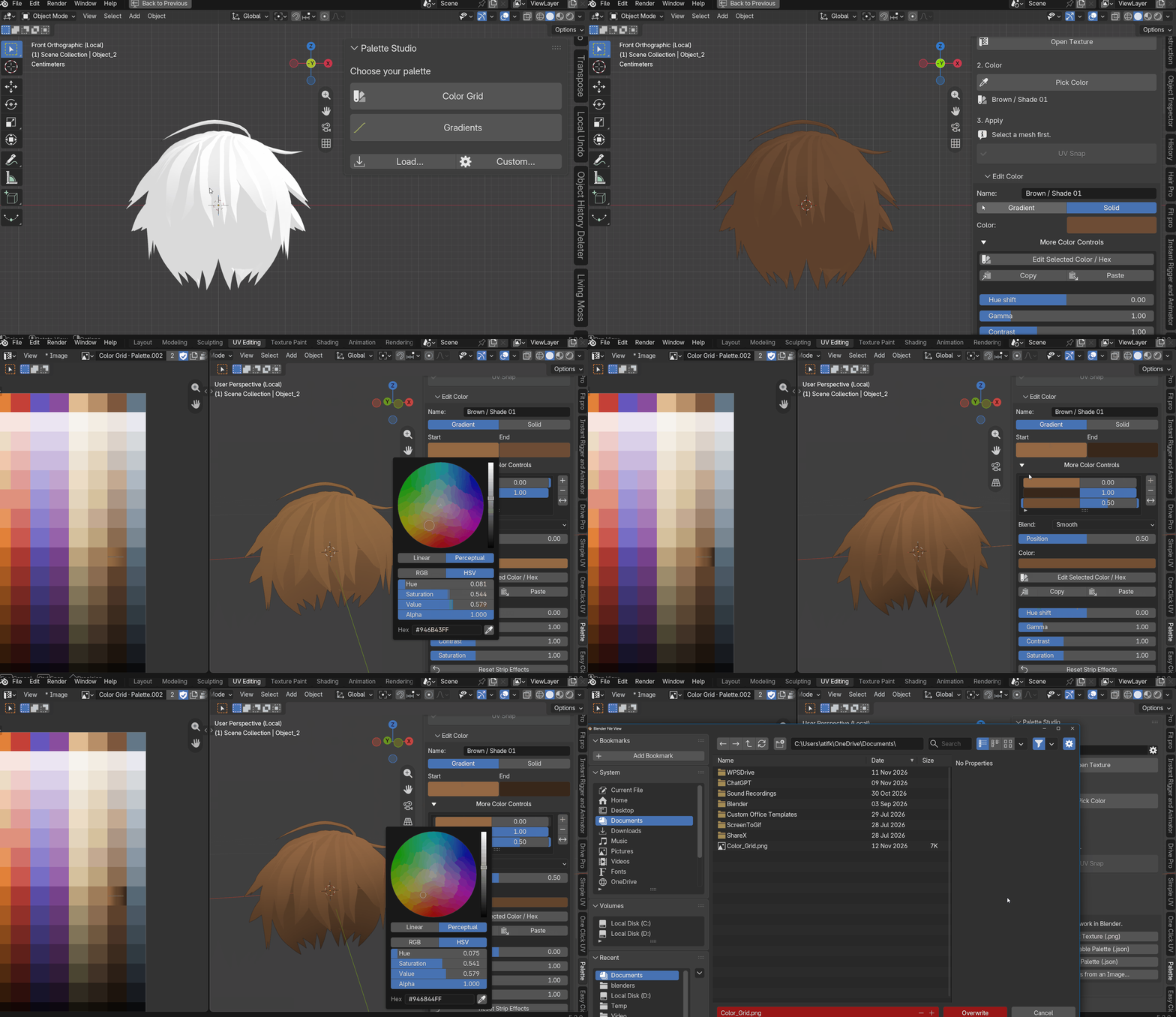
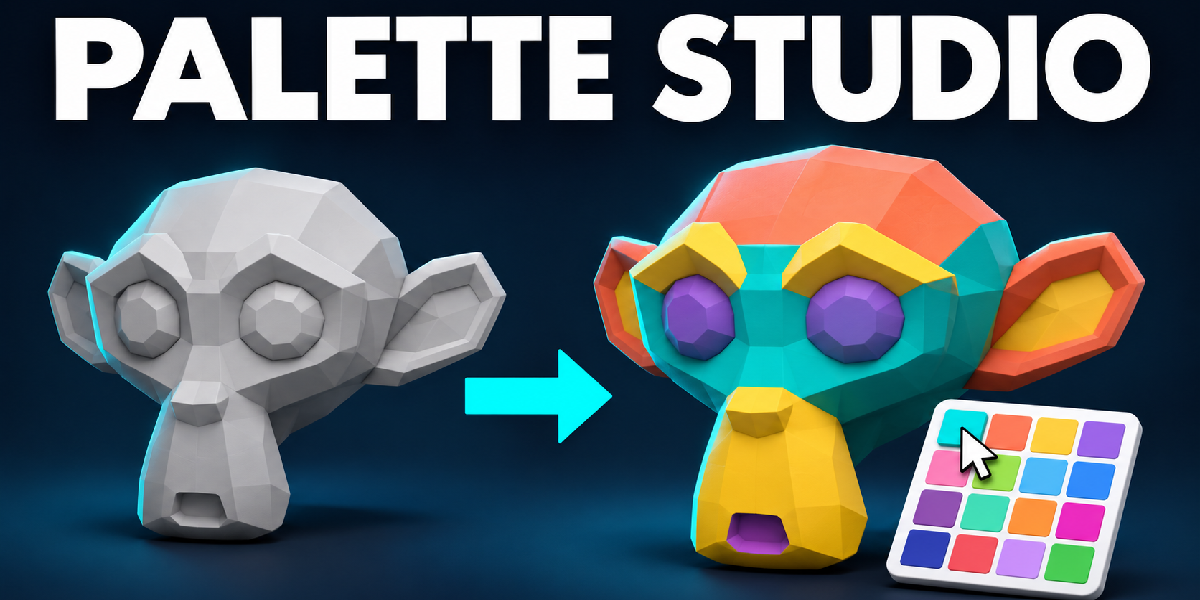
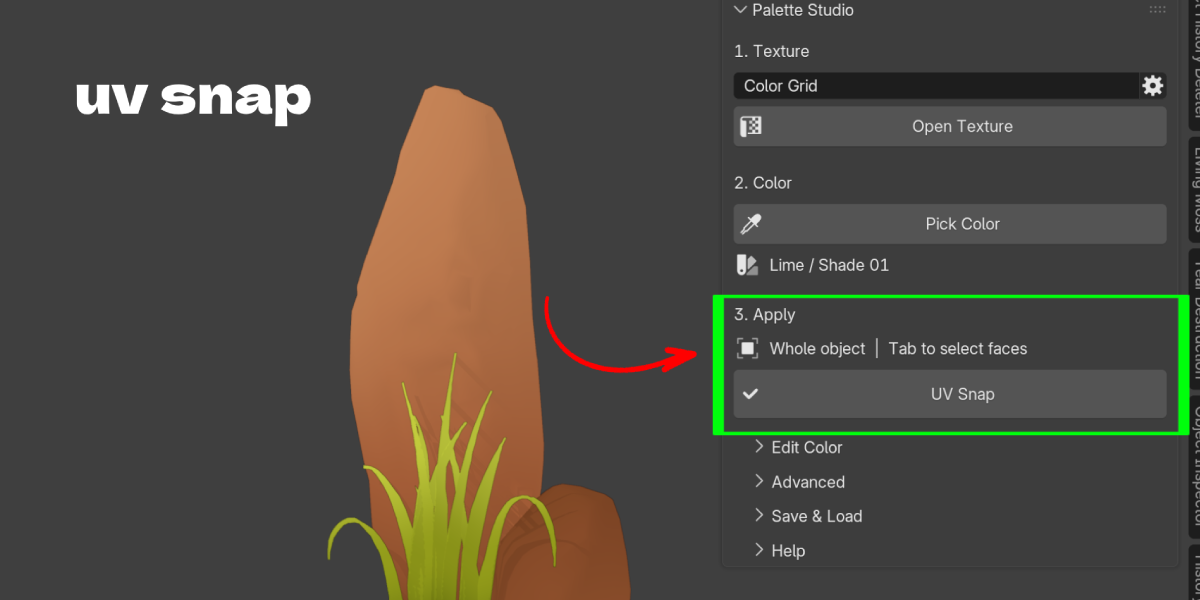
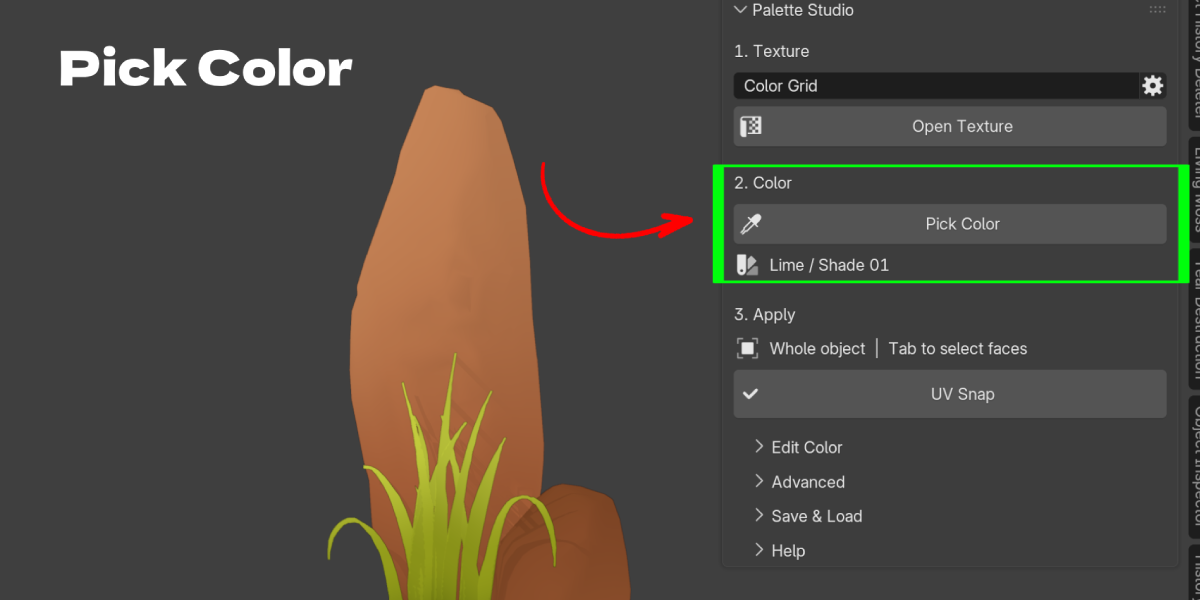
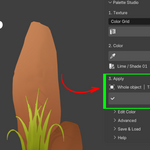
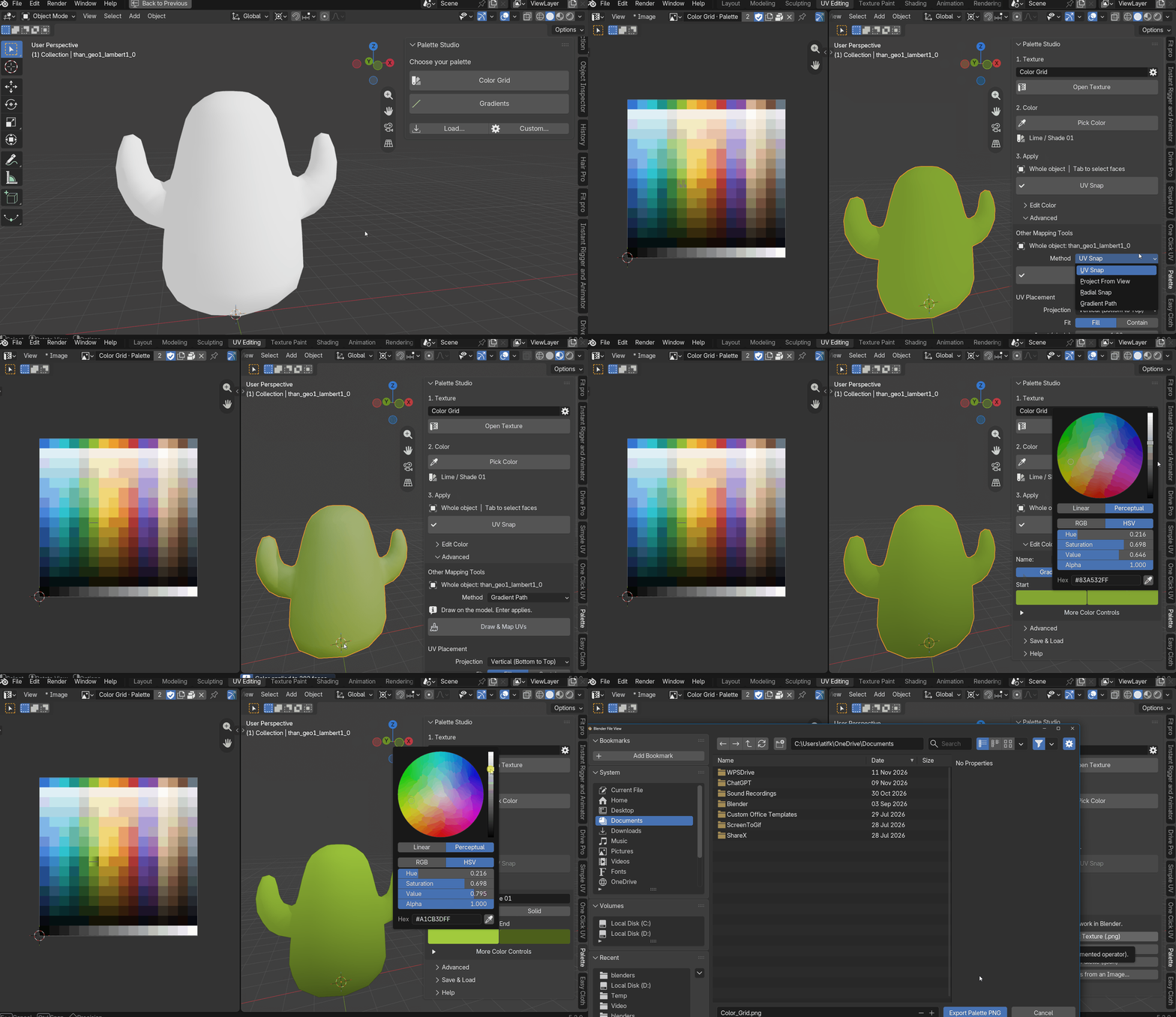
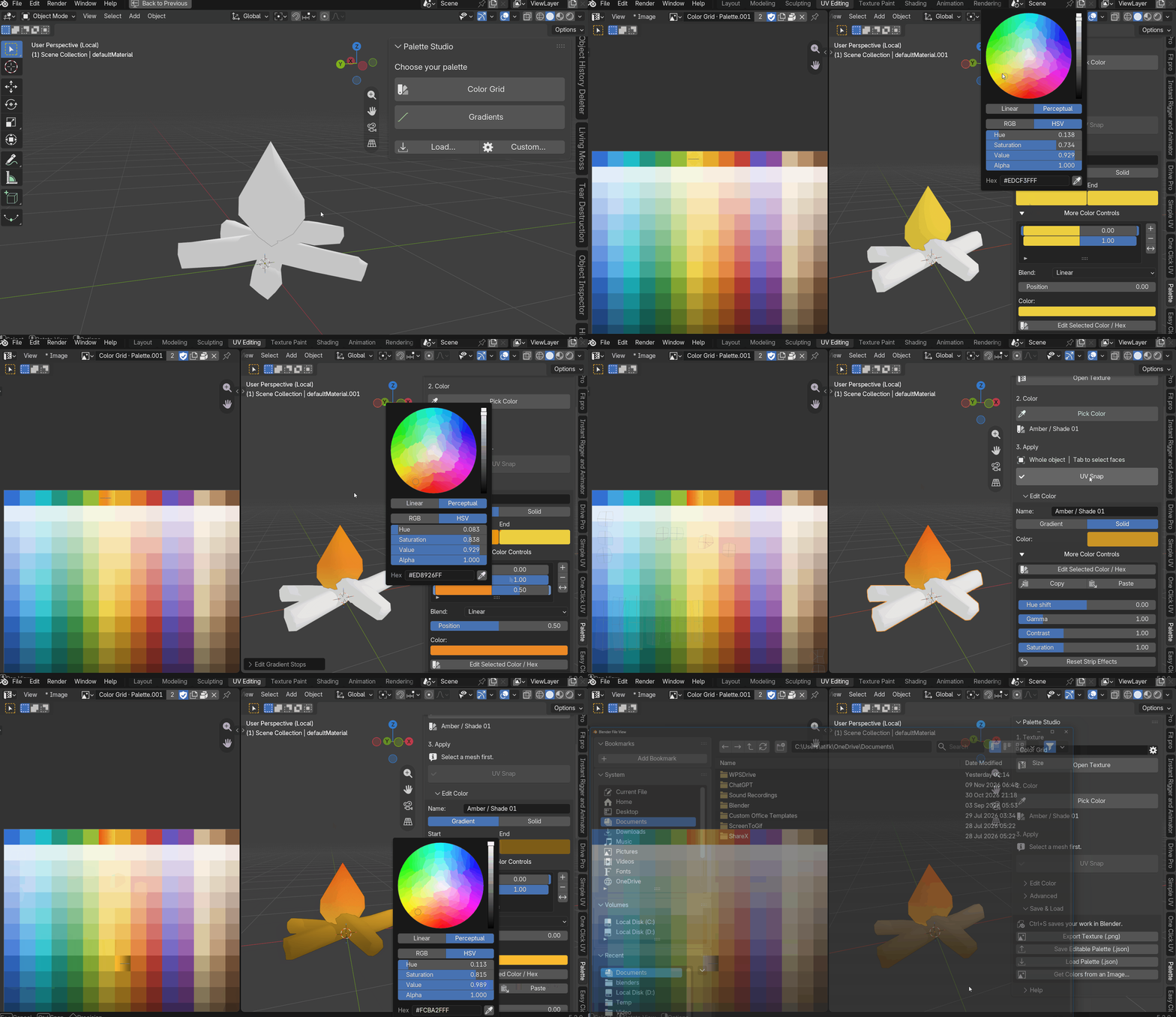
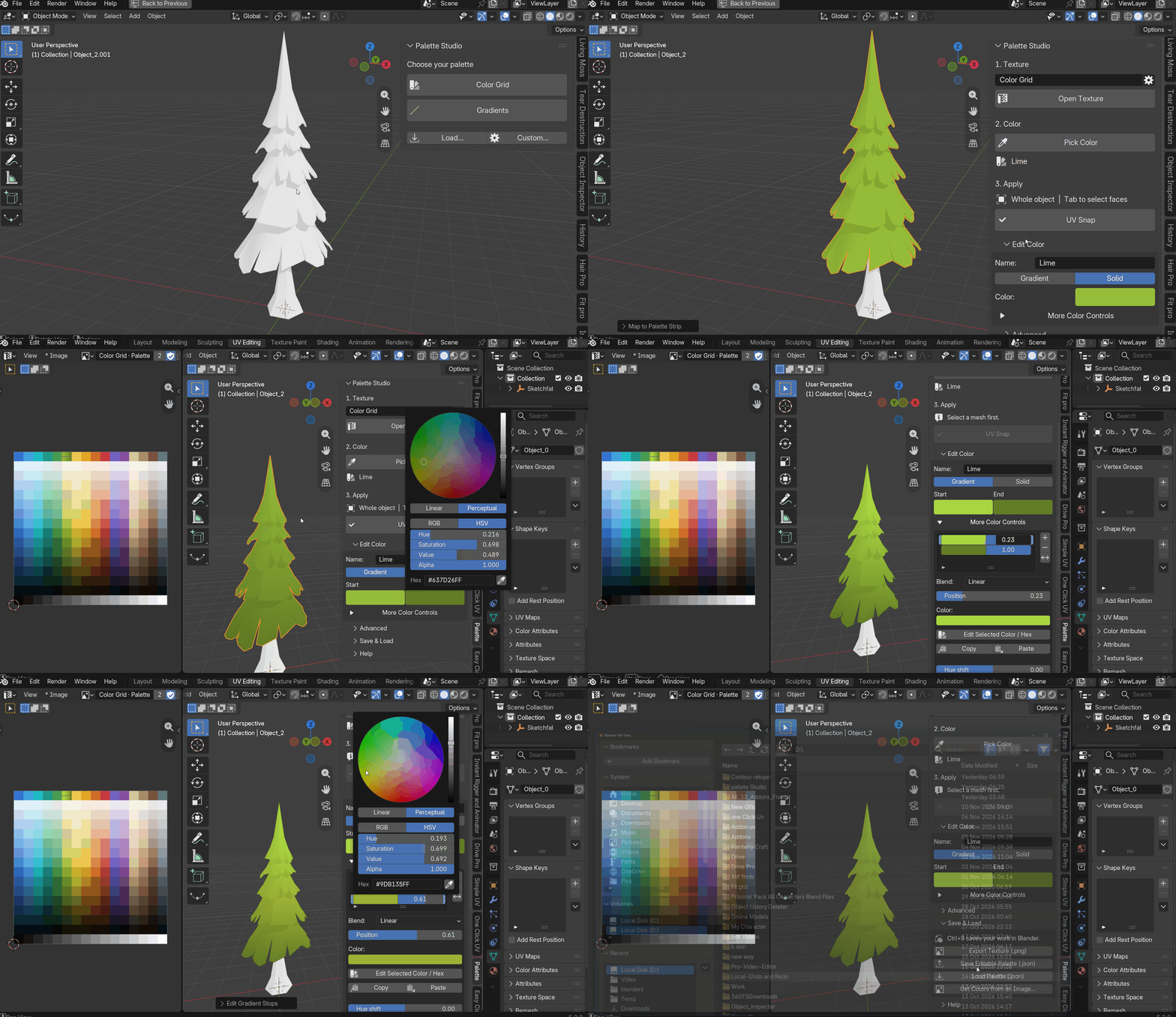
Palette Studio creates a palette texture and one shared material for you. Select faces, click Pick Color, click a cell or gradient strip, then click UV Snap. The faces' UVs move into that cell and the color appears. Use Color Grid for 256 solid colors in one 512 px image, or Gradients for editable gradient strips.
Gradient UV mapping
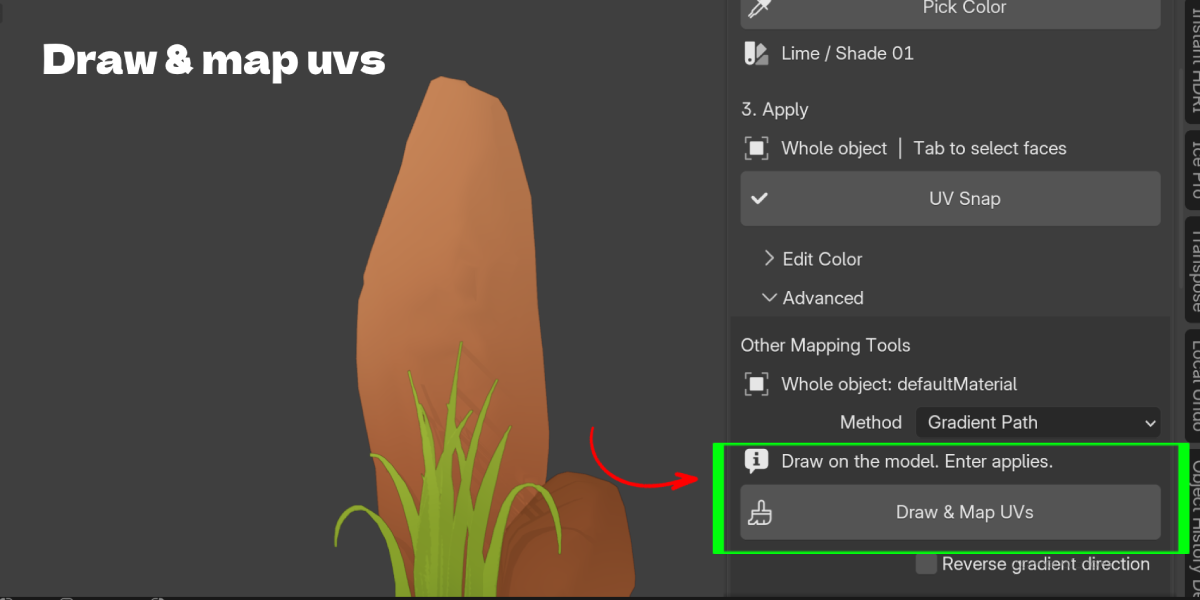
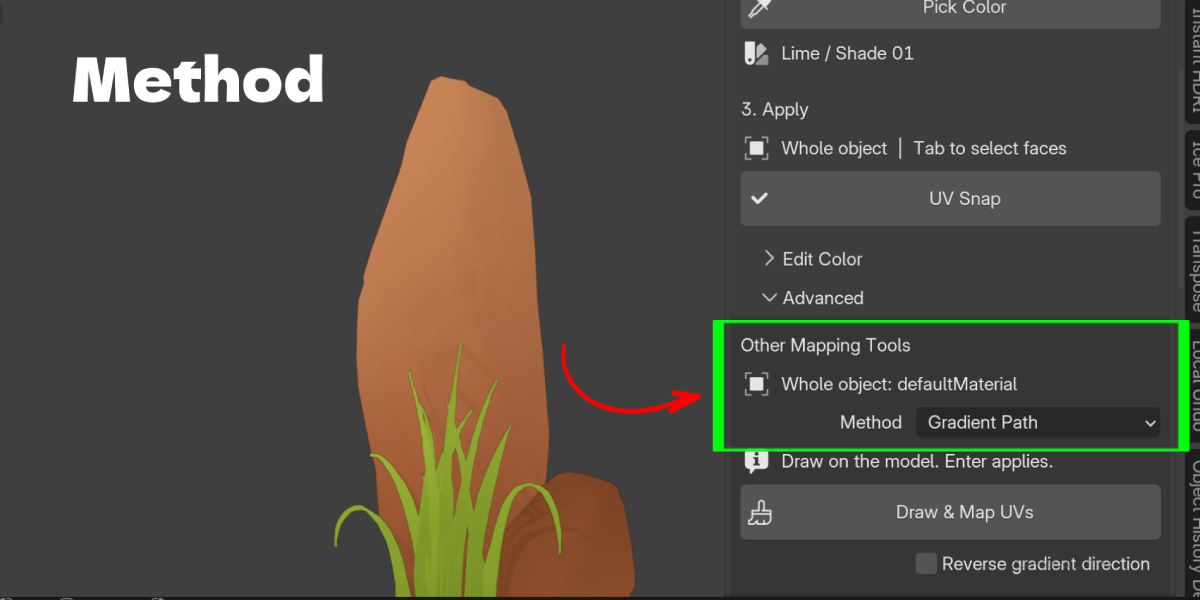
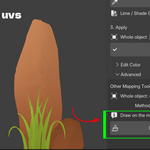
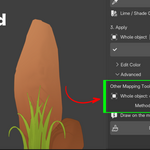
Gradients apply bottom to top by default, along world Z. Reverse the direction with one click. Advanced methods include Project From View, Radial Snap from the 3D cursor and Gradient Path, where you draw the direction on the model.
Edit colors live
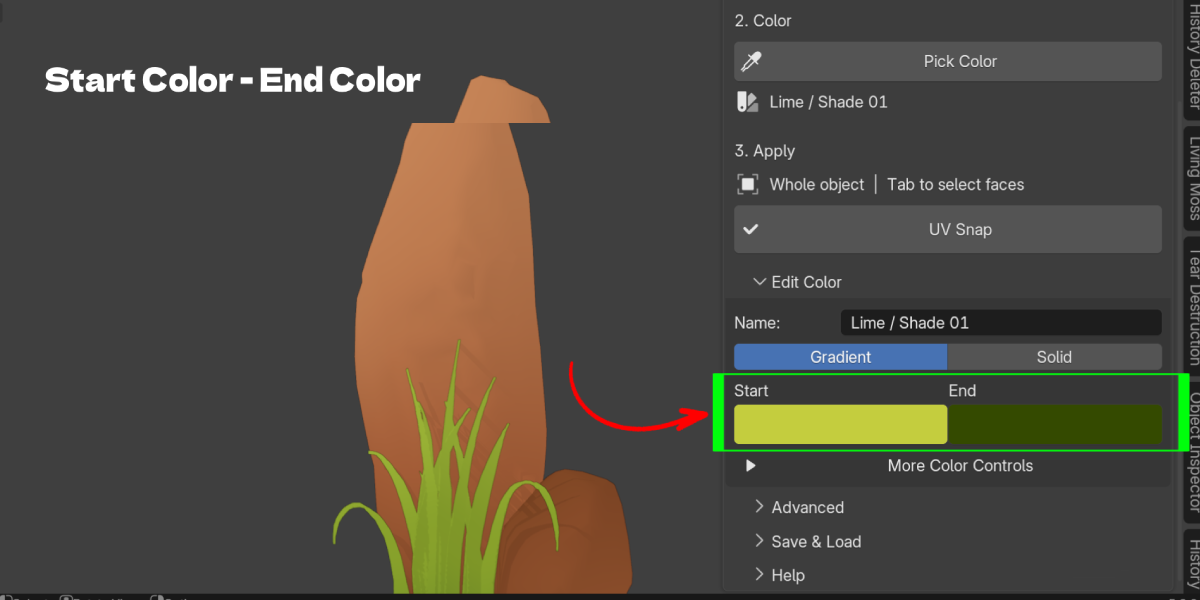
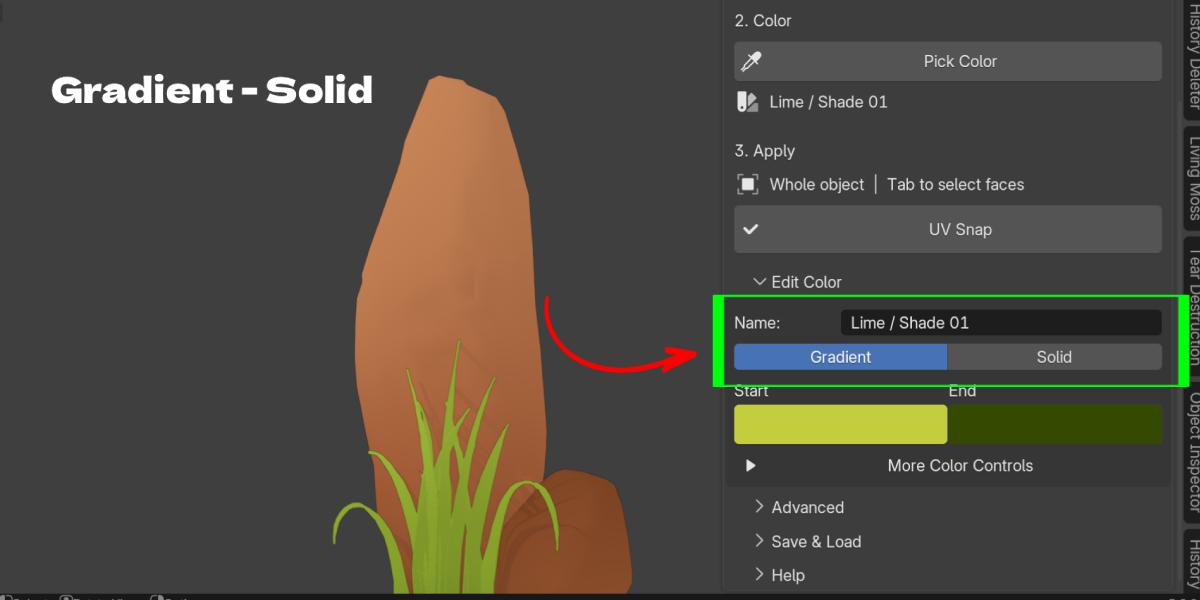
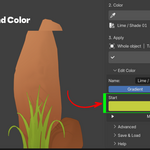
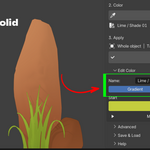
Change a solid color or the start and end of a gradient with Edit Color. Every face mapped to that cell updates without moving UVs. More Color Controls add extra stops, interpolation, hex input, hue, gamma, contrast and saturation.
Save, load and share palettes
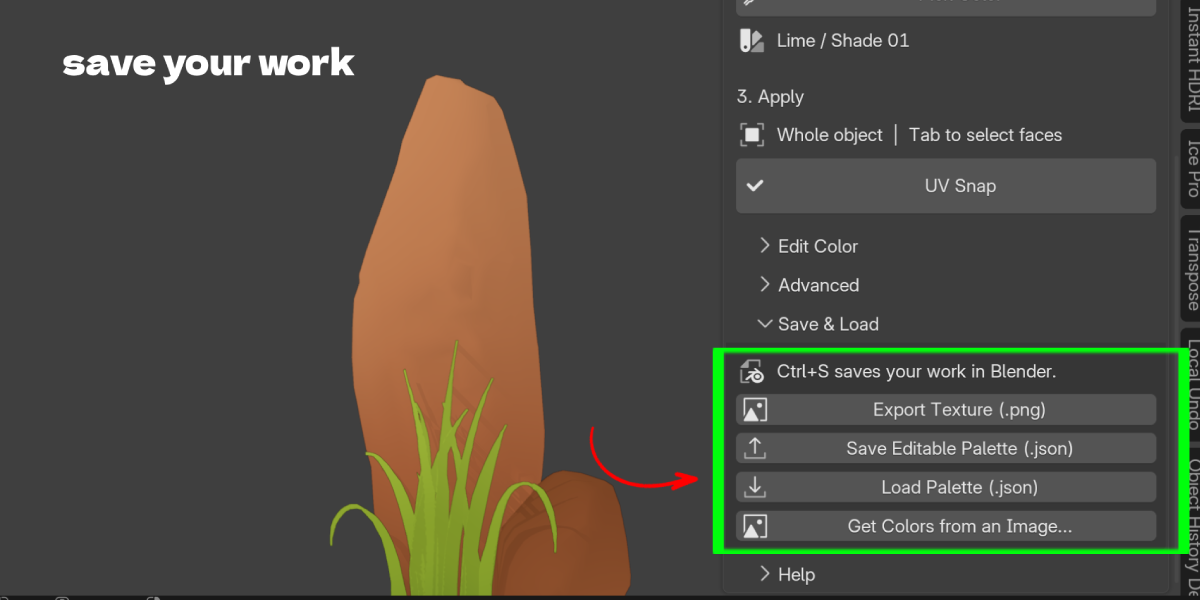
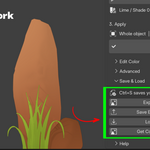
Export the texture as PNG, save and load editable palettes as JSON, or sample colors from any image to build a palette.
Key Features
- Color Grid: 256 solid colors in a single 512 px image. Benefit: a full palette with one texture and one material.
- Gradient strips: editable gradients for stylized shading. Benefit: smooth color transitions without painting.
- Pick Color and UV Snap: pick a cell or strip, snap the selected faces. Benefit: color a model in a few clicks.
- Visual pickers: pick on the texture in the UV Editor or from a palette overlay in the 3D Viewport. Benefit: work where you are most comfortable.
- Gradient mapping methods: vertical, Project From View, Radial Snap and Gradient Path. Benefit: gradients that follow the form you want.
- Live color editing: change a cell and every mapped face updates. Benefit: try color schemes instantly.
- More Color Controls: extra stops, interpolation, hex, hue, gamma, contrast and saturation. Benefit: precise color design.
- One shared material: no separate material per color. Benefit: clean, game ready assets.
- Save and Load: PNG export, editable JSON palettes and colors sampled from an image. Benefit: reuse palettes across projects.
- Pie menu and shortcuts: Ctrl+W palette menu, Ctrl+Shift+W visual picker. Benefit: faster repeat work.
- Undo friendly and saved in the file: Ctrl+Z undoes an application and palettes are packed in the .blend. Benefit: safe to experiment.
Workflow Benefits
- Old way: create a palette image in another app. New way: Color Grid or Gradients in one click.
- Old way: scale UVs to a point and drag them into a color. New way: Pick Color and UV Snap.
- Old way: one material per color. New way: one shared palette material.
- Old way: repaint the palette to try a new color. New way: Edit Color updates every mapped face.
- Old way: paint gradients by hand. New way: map gradient strips vertically, radially or along a drawn path.
Who it is for
- Low poly and stylized artists: trees, rocks, props, characters and environments
- Indie game developers: game ready assets with one texture and one material
- Mobile and web 3D creators: tiny textures that load fast
- Illustrators: quick color studies on 3D models
- Beginners: coloring models without UV or painting knowledge