Parent to Nearest Bone
 Blender.Fun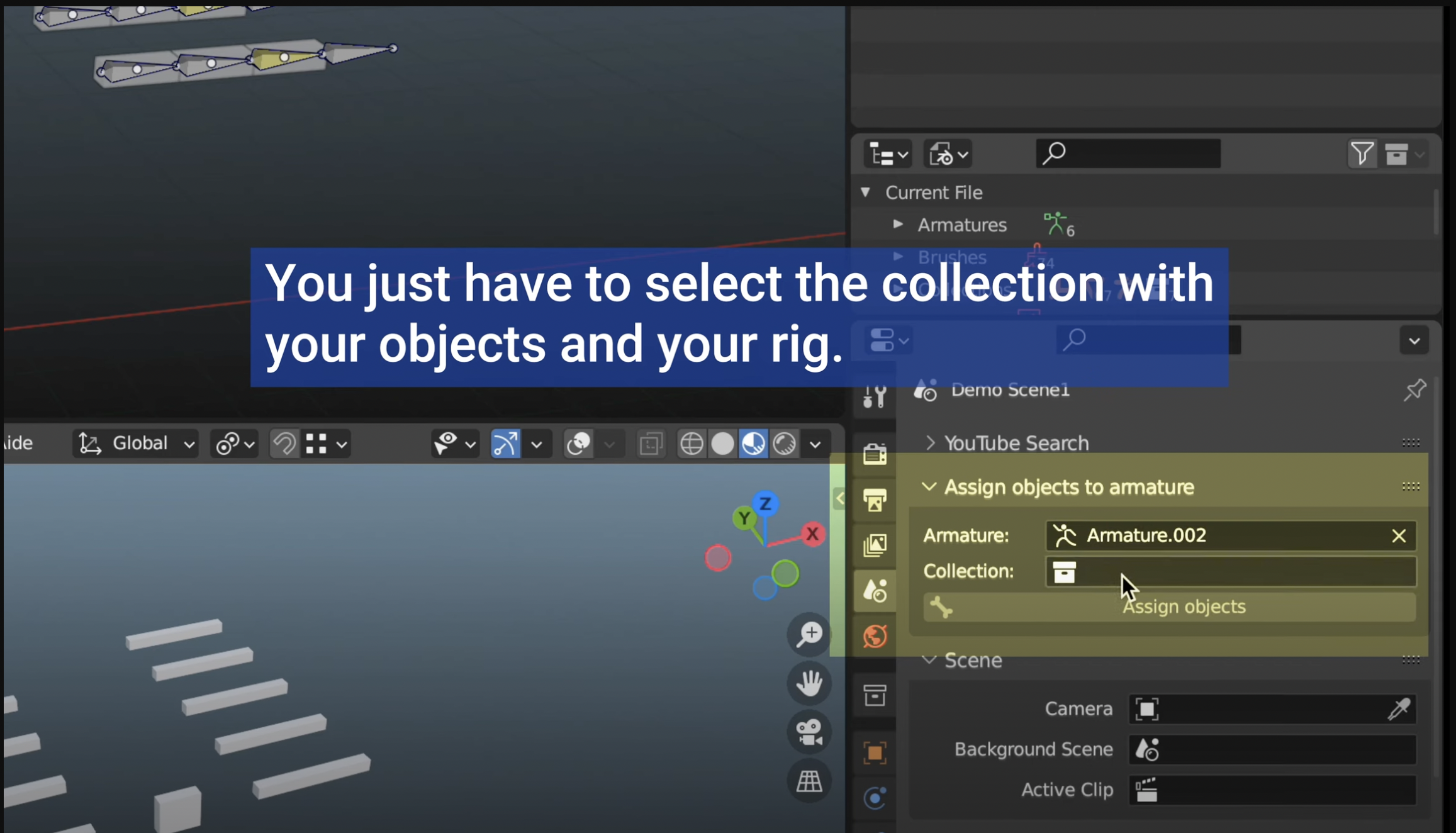
Overview
Parent to Nearest Bone is a powerful Blender add-on designed to streamline the process of parenting objects to the nearest bone in an armature. With a single click, you can automatically assign selected objects to the closest bone, saving time and reducing manual errors in complex rigging workflows.
Features
- One-Click Parenting: Instantly parent selected objects to the nearest bone in the active armature.
- Seamless Integration: Accessible directly from the Armature object data properties panel.
- Supports Complex Rigs: Ideal for character animation, game asset creation, and advanced rigging setups.
- User-Friendly: Minimal setup, intuitive interface, and clear feedback.
Installation
Download the Add-on:
Obtain the latest version of the add-on as a .zip file or as a folder.-
Install in Blender:
- Open Blender.
- Go to Edit > Preferences > Add-ons.
- Click Install... and select the downloaded .zip file or the add-on folder.
- Enable the add-on by checking the box next to Parent to Nearest Bone.
-
Verify Installation:
- In the Armature object data properties panel, you should see a new section labeled Parent to Nearest Bone.
Usage
Select Objects:
In Object Mode, select the objects you wish to parent.Select Armature:
Ensure the target armature is active.-
Access the Add-on Panel:
- Go to the Properties editor.
- Select the Armature tab (green stick figure icon).
- Locate the Parent to Nearest Bone panel.
-
Execute Parenting:
- Click the Parent to Nearest Bone button.
- The add-on will automatically parent each selected object to the closest bone in the active armature.
Version changes:
In the newest version 0.9 you can now choose, which method the add-on should use, to calculate the nearest bone:
1) the object's location
2) the average location of each vertex of the mesh
3) the center of the bounding box
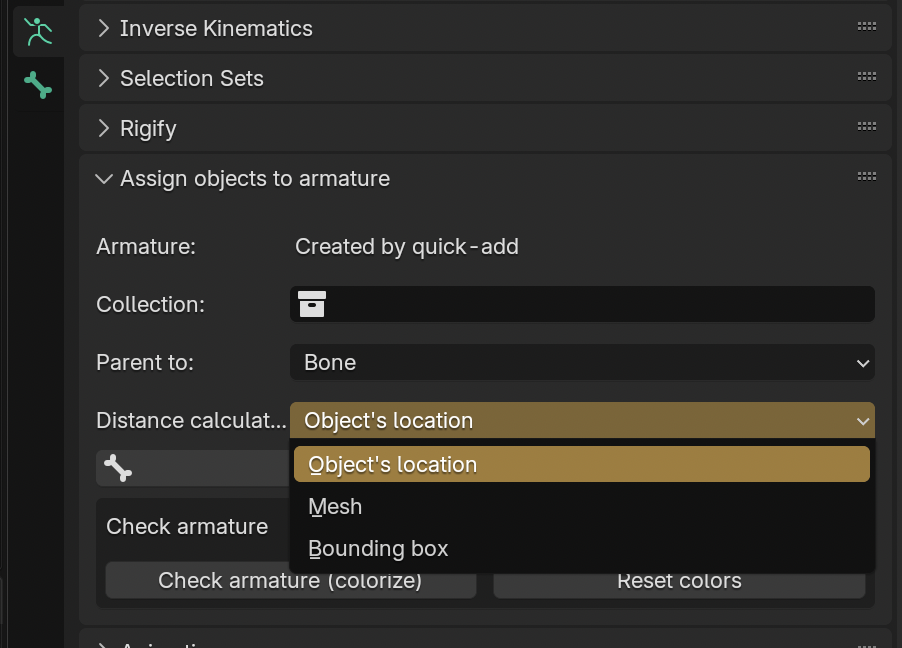
From version 0.4 on you can find the add-on in the armature properties:

So all you have to do is ...
1) select an armature (in the outliner or in the 3D View)
2) select all your objects in the 3D View which should be parented automatically by the add-on and press M -> New Collection
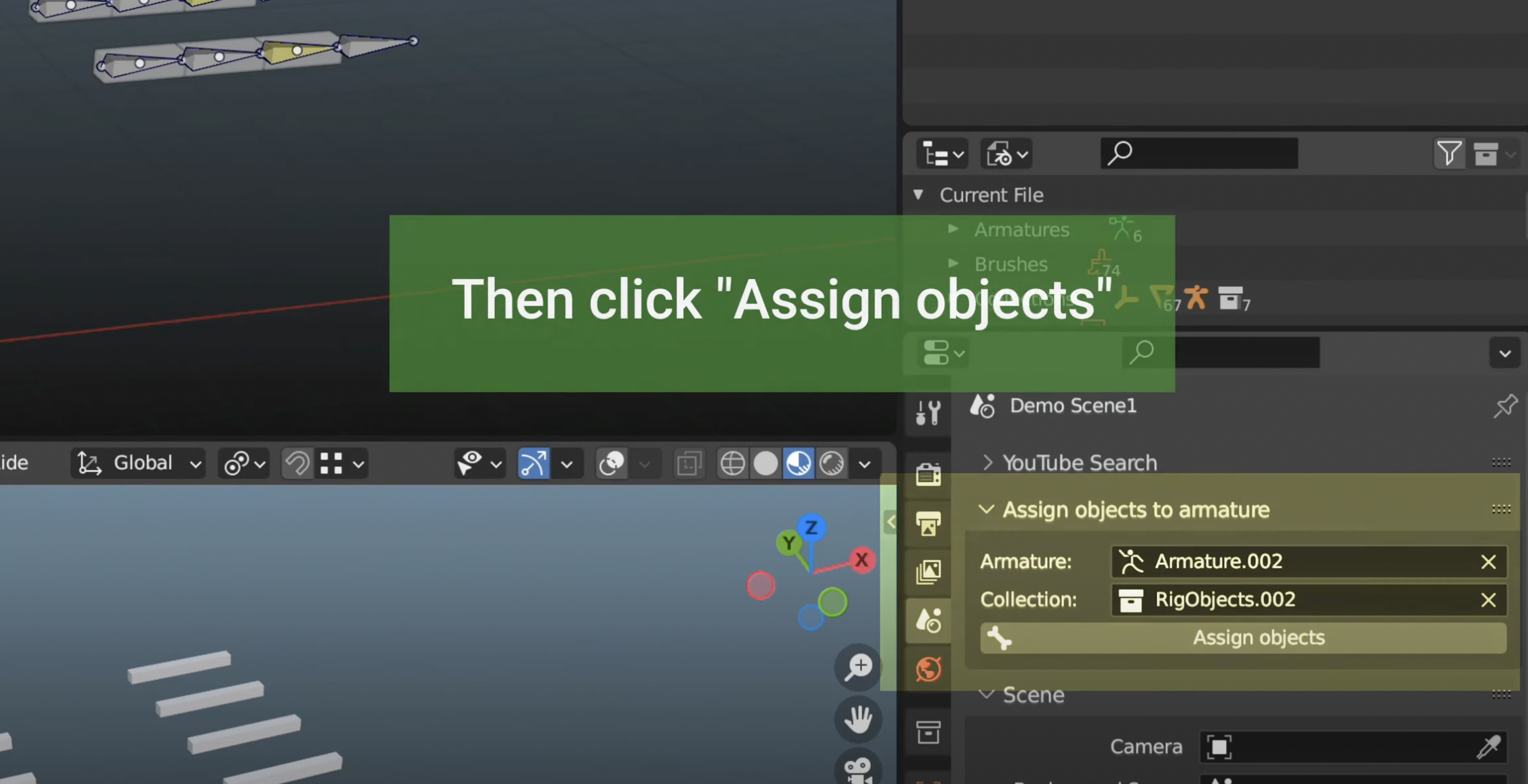
3) select your new collection from point 2) in the add-on under "Collection"
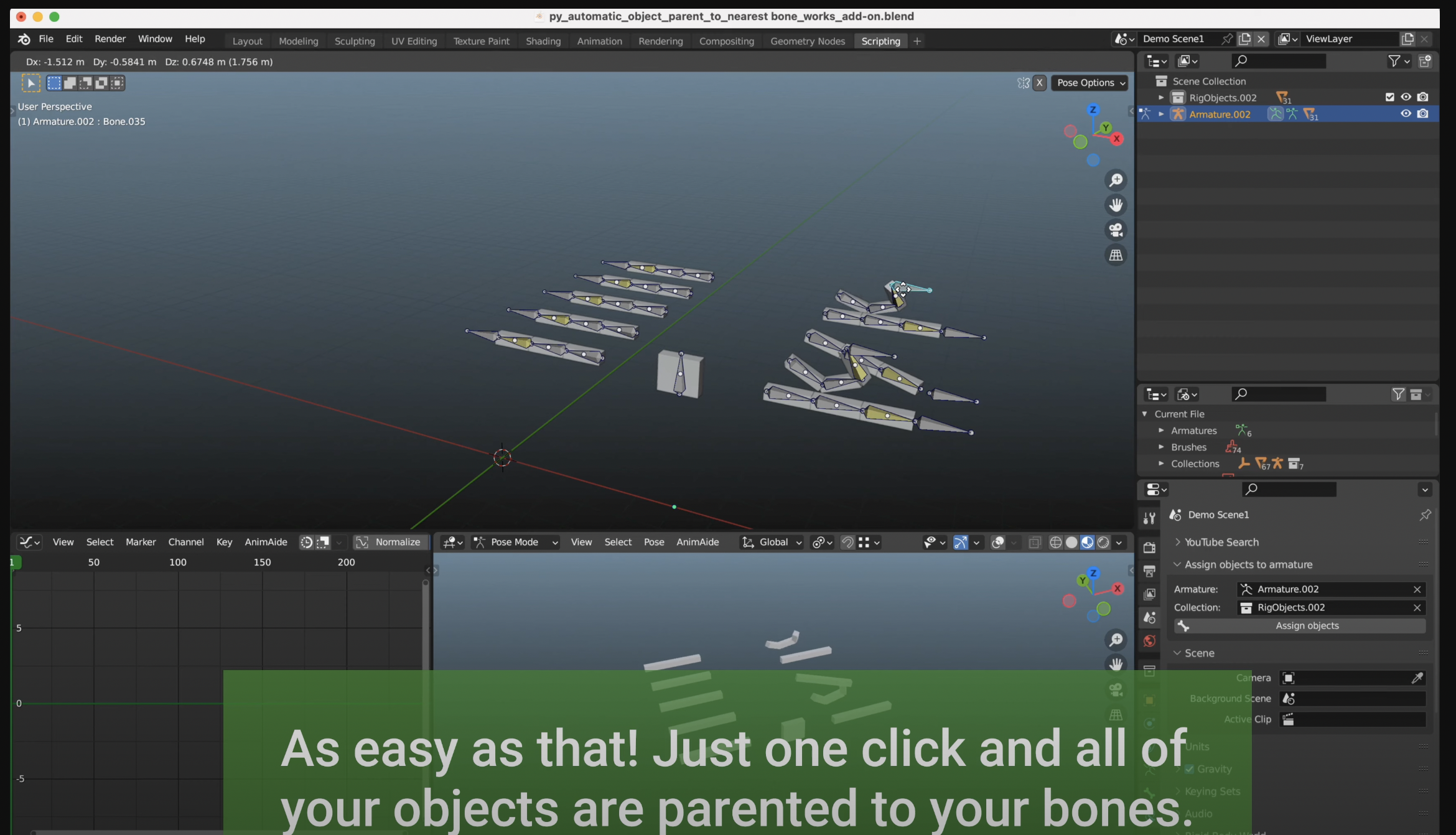
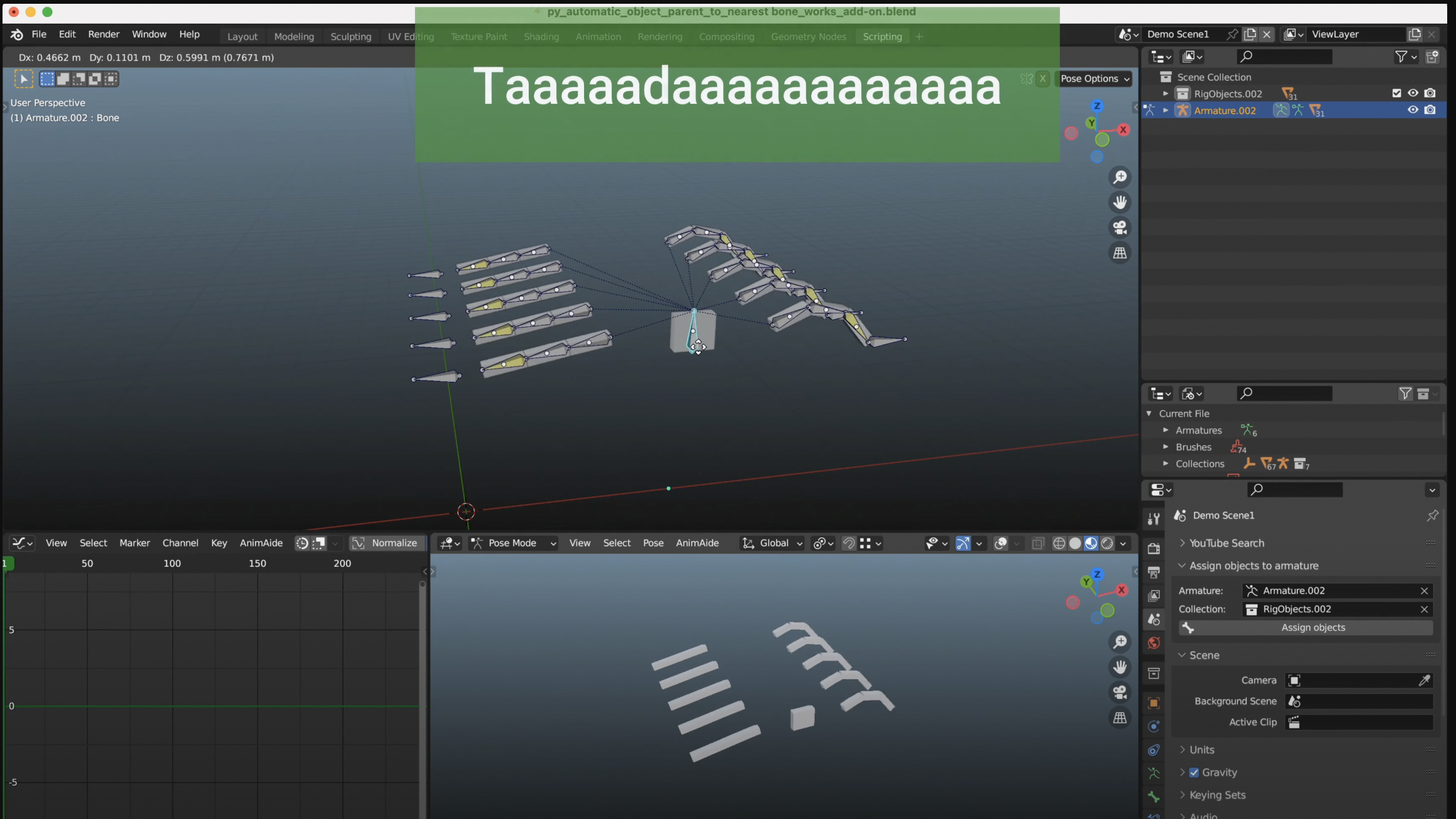
4) Press "Assign objects"
Now your armature is ready to work!
With "Check armature (colorize)" the objects and the parented bones will be colorized in the same color so that you can easily find errors in your rig.
You can reset these colors by pressing "reset colors".
Note: Colorizing in the mode "parent to armature deform with automatic weights" makes no sense so the colors will be automatic resetted in this case.
