 Skava
Skava

ParticleFX Pro — documentation
v1.2.1 · Blender 4.2 LTS and later (tested on 5.2) · Windows / macOS (Intel and Apple Silicon) / Linux
1. Installing
Edit, then Preferences, then Add-ons, press the arrow button in the top right corner, choose Install from Disk, and pick the downloaded zip. Tick the checkbox to enable it.
2. Your first system
- Select a mesh or a curve. It will become the emitter, and particles are born on it.
- Press N in the viewport and open the "ParticleFX" tab.
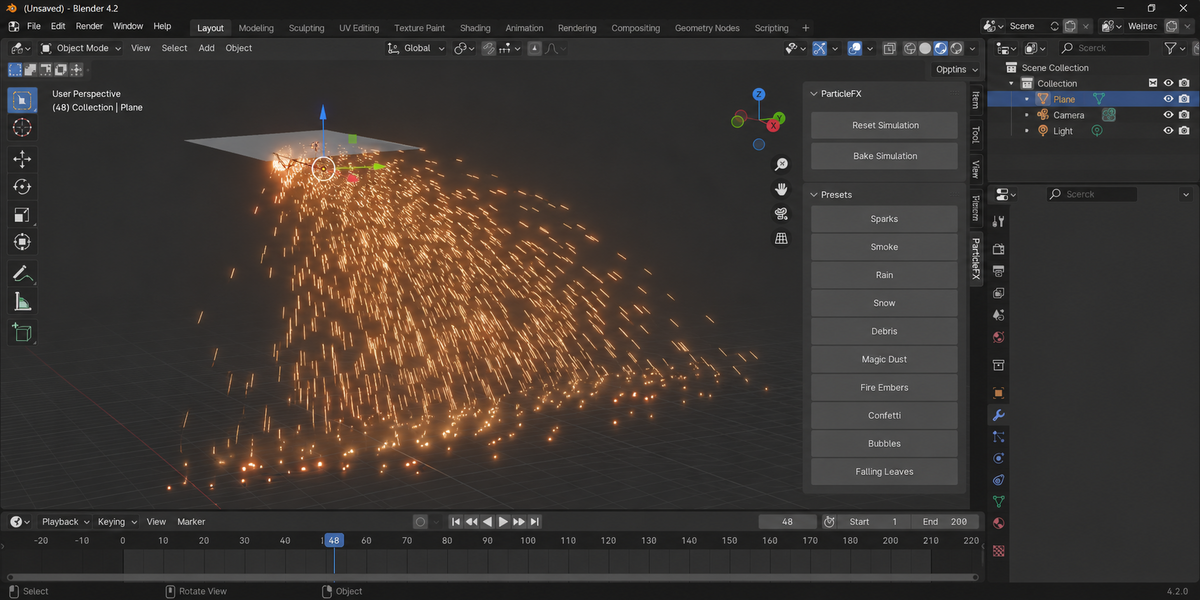
- Pick a preset and press Add Particle System.
- Play the timeline from the start frame.
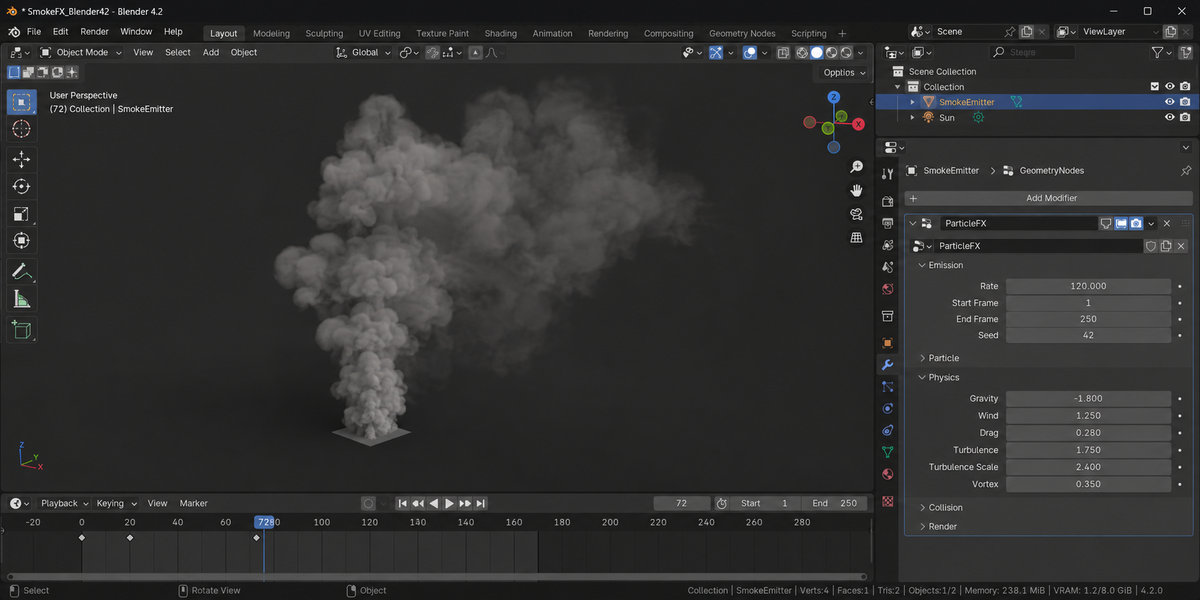
All the settings live in the Modifier Properties tab, grouped into Emission, Particle, Physics, Collision and Render.
3. Simulations always play forwards
A simulation is calculated one frame after another, so it only shows correctly when you play from the start frame. Jumping straight to frame 200 shows an unfinished result. If anything ever looks stale after changing a setting, press Reset Simulation.
4. Emission
- Rate is particles per second, not per frame, so the effect looks the same whatever the scene frame rate. It is also spread over the emitter's surface area, so scaling the emitter keeps the density you set.
- Start Frame and End Frame bracket the steady emission.
- Burst Count releases that many particles all at once on Burst Frame, on top of whatever the Rate is doing. Leave it at 0 for no burst. For a pure one-off — an explosion, an impact — set Rate to 0 and let the burst do all the work. A burst is a count rather than a rate, so unlike the Rate it also works on the very first frame of the shot.
- Emit From chooses where particles are born. 0 scatters them over the emitter's surface, which is the usual choice and the only one that uses the surface normal. 1 fires them from the emitter's vertices, or from a curve's own points — this is how a curve becomes an emitter, since a curve has no faces to scatter over. 2 puts every particle on a single point at the object origin, which is what an explosion or a jet wants.
- Seed changes the random arrangement. The same seed always gives the same result.
In modes 1 and 2 there is no surface normal to fire along, so Direction alone decides which way particles go.
5. Particle
- Lifetime is in seconds. Lifetime Random spreads it out so particles do not all die at once.
- Speed and Speed Random set how fast they leave.
- Direction is blended with the emitter's own surface normal, so a curved emitter throws particles the way its shape suggests.
- Spread at 0 fires them all the same way; at 1 they go everywhere.
6. Physics
- Gravity is a constant pull in units per second squared. A positive Z value makes things rise, which is what smoke and embers want.
- Wind is a constant push in a direction.
- Drag is air resistance. Higher settles particles sooner.
- Turbulence is a noise field that swirls the particles. Turbulence Scale sets the size of the eddies — note that finer is not stronger, because particles then average over several eddies and move less. Turbulence Speed is how fast the field itself churns.
- Vortex spins the cloud around the world Z axis. Negative reverses it.
7. Collision
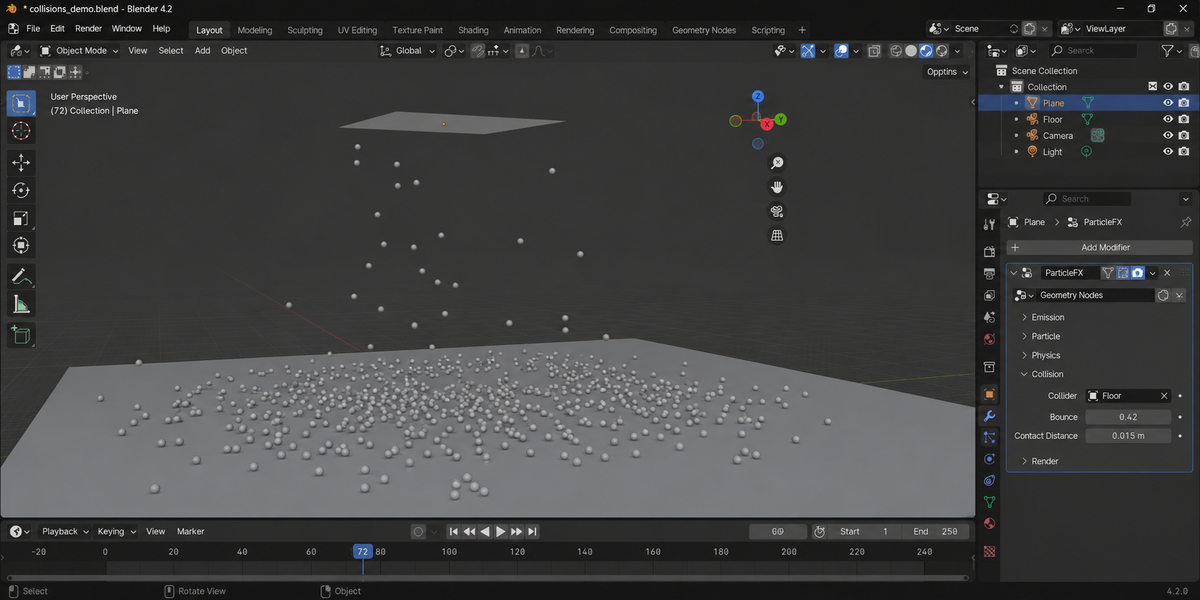
Put an object in the Collider field and particles bounce off it. Bounce is how much speed survives the impact — 0 makes them stick, 1 makes them lively.
Contact Distance is how close counts as touching. Raise it if particles sink into the collider; lower it if they appear to hover above it. The default suits scenes at roughly human scale.
8. Render
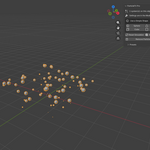
- Use Instance Object off shows bare points, which is fast for judging motion. On places a copy of an object on each particle.
- Size and Size Random control how big they are.
- Grow In and Fade Out are fractions of a particle's life spent scaling up from nothing and back down, so particles appear and vanish instead of popping.
- Random Rotation turns each copy differently, so identical instances do not read as a repeated stamp.
- Align to Velocity turns each copy to face the way it is travelling. The copy's own local Z axis is the one that leads, so an object modelled pointing up will point along its path. At 0 the copies keep their random spin; at 1 they follow the motion exactly, and anything between blends the two.
- Stretch draws each particle as a streak along its path. The amount is multiplied by the particle's own speed, so a fast spark is long and a slow one is not — which is how sparks and rain are actually drawn. Only the leading axis grows; the cross-section is left alone. Turn Align to Velocity up as well, otherwise the streak will not be pointing anywhere sensible.
9. Reading a particle's age in a material
Every particle carries a value named pfx_life. It is 0 on the frame the particle is born and 1 on the frame it dies, whatever that particular particle's lifetime happens to be, so a shader never has to know anything about lifetimes.
Read it in the shader editor with an Attribute node. Set the name to pfx_life and use the Fac output. When particles are rendered as instances, set the Attribute node's type to Instancer.
Feed it into a Color Ramp to drive a spark from white through orange to dark, or straight into an emission strength to fade a particle out over its life. The value is also available to any further Geometry Nodes modifier you stack underneath.
The other values a particle carries are named pfx_velocity, pfx_age, pfx_lifetime, pfx_size and pfx_seed, if you want to build something of your own on top.
10. Baking
Bake Simulation calculates and stores every frame. Playback and rendering are then immediate and the result cannot drift. Reset Simulation throws the cache away and starts over.
11. Presets
A preset only writes values into the same sliders you can reach yourself, so anything it does you can undo or adjust. Applying one overwrites the current settings of the active system.
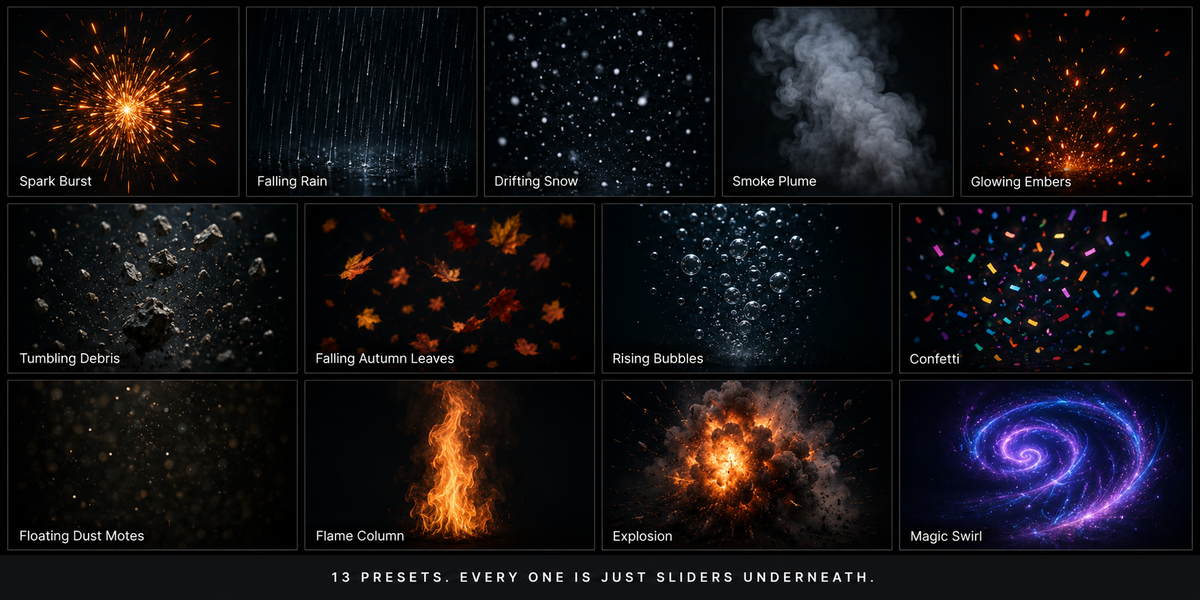
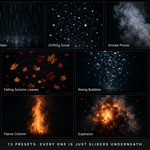
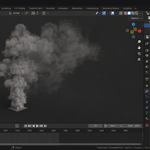
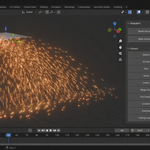
Thirteen are included: Sparks, Smoke, Rain, Snow, Debris, Magic Dust, Fire Embers, Confetti, Bubbles, Falling Leaves, Explosion, Impact Sparks and Waterfall. Explosion and Impact Sparks are bursts from a single point, so they go off on one frame and are best placed where you want the hit; move Burst Frame to line them up with your action.
12. Troubleshooting
No particles at all. Play from the start frame — a simulation cannot show a result it has not calculated yet. Check that the current frame is inside the Start and End Frame range. If Emit From is set to 1, check the emitter actually has vertices or curve points; if it is set to 0, check it has faces, since a curve has none.
The burst never goes off. Burst Count has to be above 0, and the playhead has to reach Burst Frame while playing forwards from the start.
Aligned particles point the wrong way. The copy's local Z axis is the one that leads. Rotate the object you are instancing so that its length runs up its own Z, then apply that rotation.
Stretch does nothing visible. It scales with speed, so slow particles are barely stretched at all. Raise Speed, or raise Stretch. Check Align to Velocity is up as well.
Particles appear but do not move. Check Speed, Gravity and Turbulence are not all at zero.
Everything dies immediately. Lifetime is in seconds, not frames. A value of 0.2 is a fifth of a second.
Particles sink into the collider. Raise Contact Distance. If they hover instead, lower it.
The result looks stale. Press Reset Simulation.
It is slow. Rate is per second, so a value in the thousands adds up quickly over a long shot. Lower the Rate or shorten the Lifetime — the particle count is roughly Rate multiplied by Lifetime.
13. Changelog
v1.2.1 — maintenance release. The package ships the full licence text and an updated README (install, first run, uninstall). No changes to the tools.
v1.2.0
- Particles are visible the moment a system is added — a fresh system with no Instance Object set now renders its points instead of nothing at all.
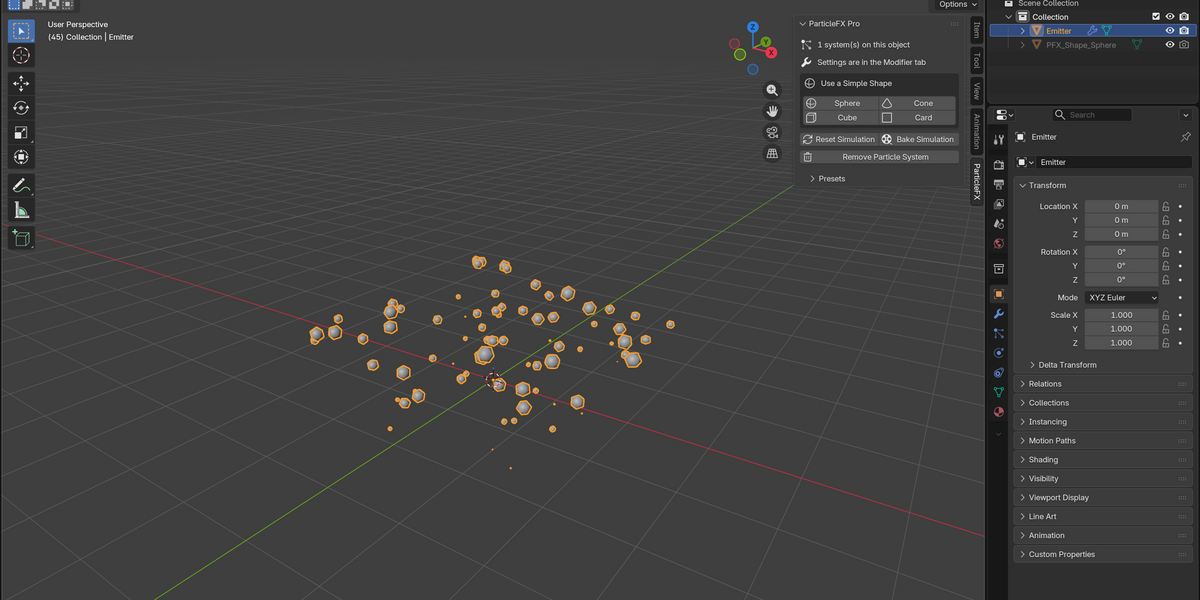
- New Use a Simple Shape buttons turn them into geometry in one click: sphere, cube, cone or card. Each shape is built once and shared, hidden in the viewport and never rendered on its own.
v1.1.0 — Burst Count and Burst Frame release a set number of particles on a single frame, working even on the first frame of a shot where a rate cannot. Emit From adds emission from vertices or curve points and from a single point at the object origin, so a curve can now be the emitter. Align to Velocity turns each copy to face the way it is travelling, and Stretch draws it as a streak that grows with speed. Every particle now carries a pfx_life value from 0 at birth to 1 at death for materials to read. Three new presets: Explosion, Impact Sparks and Waterfall. Fixed a bug where aiming Direction straight into the emitter's surface cancelled the aim out completely and left Spread to pick the heading, which had Rain, Snow and Falling Leaves firing in random directions instead of downwards.
v1.0.0 — first release. Rate-based emission independent of frame rate and emitter size, lifetime with variation, gravity, wind, drag, 4D turbulence and vortex, collision with resting contact, instanced rendering with grow and fade, and ten tested presets.
Have questions about this product?
Login to message
| Published | about 2 months ago |
| Blender Version | 4.2 - 5.2 |
| Extension Type | N/A |
| Render Engine Used | Cycles, Eevee |
| License | GPL |
Discover more products like this
VFX particles simulation geometry nodes game vfx motion graphics explosion sparks snow rain debris smoke