Paste Screenshot Into Image Editor
 Crane Design


Documentation
Requirements
| OS | Windows only |
| Blender | 4.2.0 or newer (tested through 5.0) |
| Dependencies | None — uses PowerShell, which ships with Windows |
Installation
Drag and drop (easiest)
Drag paste_screenshot-1.0.0.zip from Explorer onto the Blender window. Confirm the install prompt.
From the menu
- Edit → Preferences → Get Extensions
- Click the dropdown arrow in the top right → Install from Disk
- Select
paste_screenshot-1.0.0.zip
Either way it's enabled on install. No restart required.
The extension declares two permissions, shown before you install: files (writing a temporary PNG) and clipboard (reading images copied from other applications).
Usage
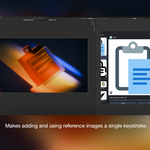
Put an image on your clipboard by any means — PrtScn, Win+Shift+S, Snipping Tool, right-click → Copy Image in a browser, or copying an image out of another application.
Then either:
- Hover the Image Editor and press Ctrl+V, or
- Click the paste icon in the Image Editor header
The image loads as a new datablock named Clipboard, is assigned to the editor you pasted into, and is framed with View All. Repeat pastes get Blender's usual .001, .002 suffixes rather than overwriting.
Options
Open the F9 redo panel (or the operator panel in the bottom-left corner) after pasting.
Pack into .blend — default: on
When on, the image is packed into the .blend file. It survives quitting Blender, and it travels with the file if you send the .blend to someone else.
When off, the image stays as a reference to a temporary PNG in Blender's session temp directory. That file is cleaned up when Blender exits, so the image will be missing next time you open the .blend. Useful for quick throwaway references when you don't want to grow the file.
Where the files go
The clipboard bitmap is written to a temporary PNG inside Blender's session temp directory (bpy.app.tempdir), then loaded from there. Blender clears that directory on exit, so nothing accumulates on disk. If Pack into .blend is enabled, the image data is embedded in the .blend and the temp file no longer matters.
How it works
The add-on shells out to PowerShell and uses .NET's System.Windows.Forms.Clipboard.GetImage() to read the clipboard, saving the result as a PNG.
This is deliberate. Reading the Windows clipboard directly means handling CF_DIB, CF_DIBV5, and CF_BITMAP, parsing bitmap headers by hand, and dealing with the fact that different applications write different formats — Chrome, the Snipping Tool, and Excel don't all put the same thing on the clipboard. .NET already solves this correctly. Handing it the problem means every source works without per-application special cases.
PowerShell is invoked with:
-
-STA— clipboard access requires a single-threaded apartment, and this is not optional -
-ExecutionPolicy Bypass— so it runs under locked-down corporate machine policies -
CREATE_NO_WINDOW— suppresses the console window that would otherwise flash on every paste -
-NoProfile -NonInteractive— skips profile loading for speed and prevents any prompt from hanging the call
The subprocess call is wrapped in a 20-second timeout and returns a specific error message to Blender's status bar for each failure mode.
Known limitations
- Windows only. The clipboard implementation is Windows-specific, and the extension is marked as such so it won't be offered on macOS or Linux.
-
Transparency is not preserved.
GetImage()flattens alpha. Copying a PNG with transparency gives you an opaque image. - Image Editor only. Pasting into the Shader Editor, Compositor, or 3D Viewport isn't supported in this version.
- Bitmaps only, not files. Copying an image file in File Explorer puts a file path on the clipboard, not a bitmap. Open the image and copy its contents instead.

Discover more products like this
ctrlv paste screenshot screenshot image viewer reference image