Peel Effect
 Animation Store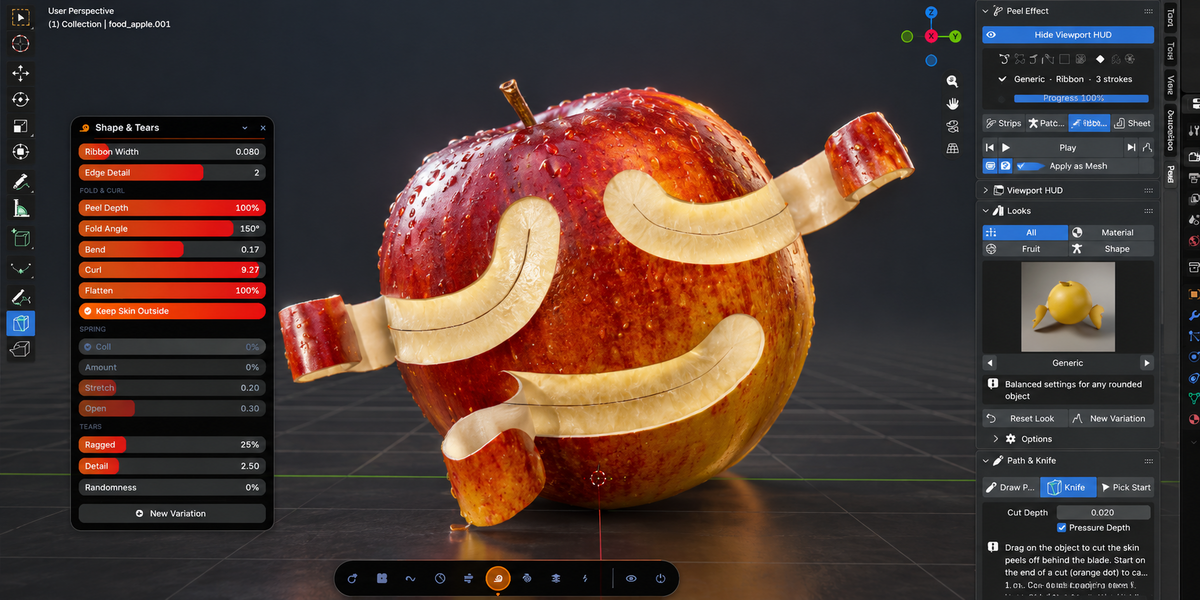



Peel Effect: Documentation
1. Installation
- Download the add-on zip (peel_effect_addon_2.10.0.zip) from your Superhive account. Don't unzip it.
- In Blender, open Edit > Preferences > Get Extensions. On Blender 4.2 the tab may be called Extensions.
- Open the ⌄ menu at the top right and choose Install from Disk…, then pick the zip. You can also drag the zip straight into the Blender window.
- Make sure Peel Effect is enabled in the list.
Where to find it:
- 3D Viewport > Sidebar (N) > Peel tab
- Peel HUD button in the 3D Viewport header (floating cards over the viewport)
- Add > Mesh > Peelable Objects (21 ready-made models)
- Toolbar on the left: Draw Peel Path, Peel Knife and Shed Skin tools
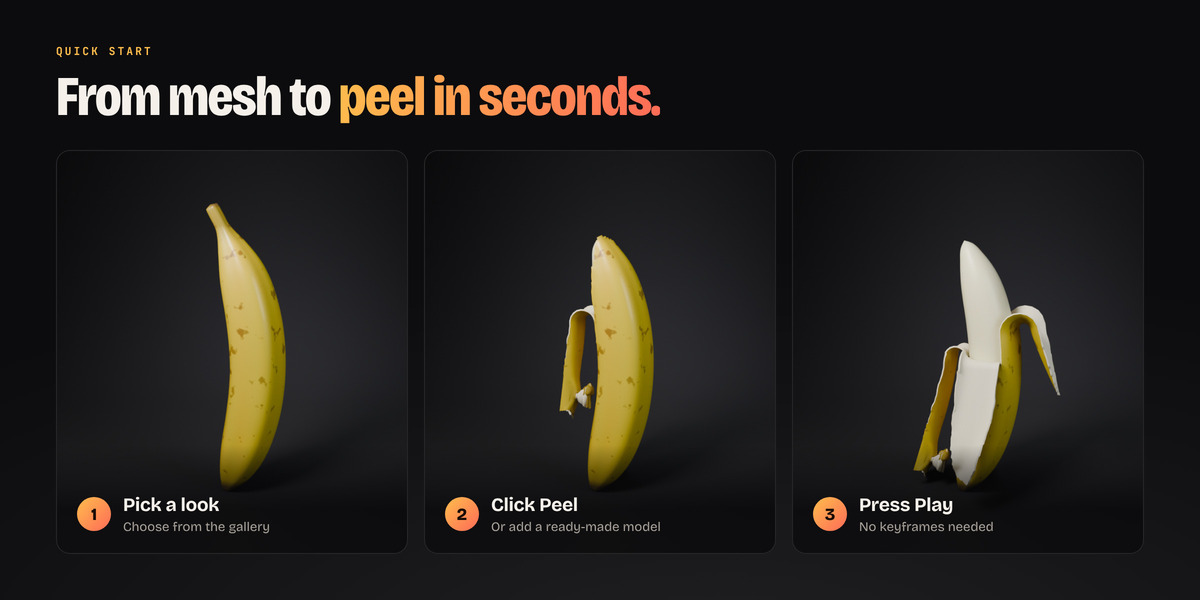
2. Quick start (30 seconds)
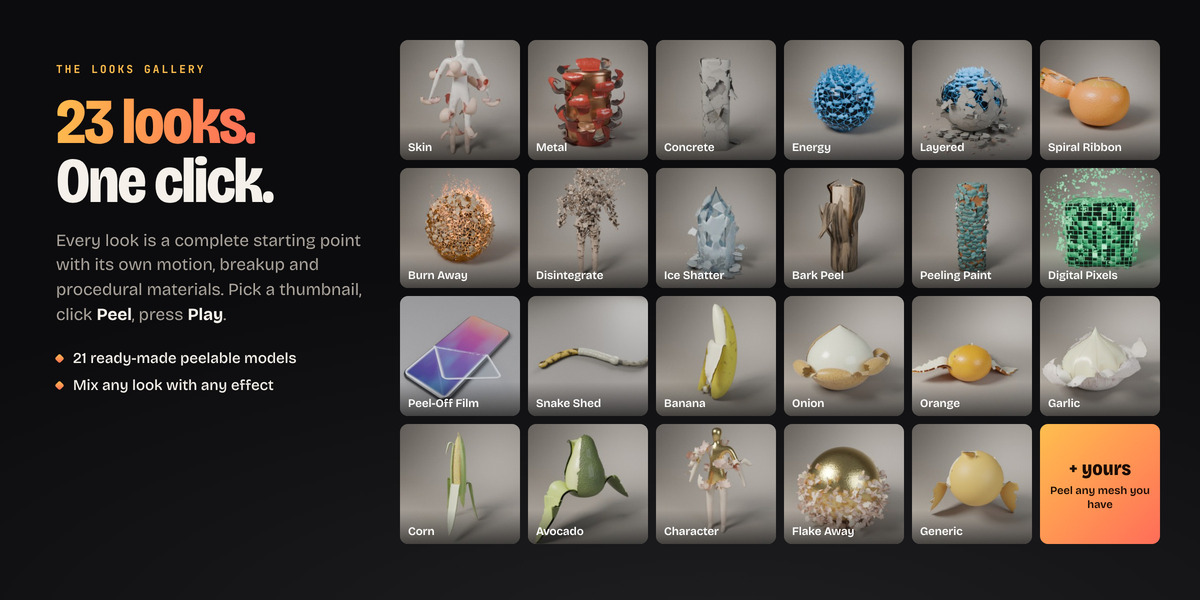
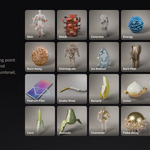
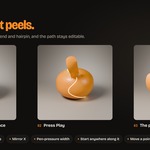
- Open the Peel tab and choose a look in Looks. The tabs (All, Materials, Fruit, Any Shape) narrow the gallery, the arrows under the thumbnail step through it, and the box underneath describes the look.
- Select your mesh and click the big Peel button at the top (it shows the object's name). With nothing selected, the same button adds a ready-made model for that look.
- Press Play.
The peel runs between Start and End (Timing panel). You don't need keyframes.
3. The Peel tab at a glance
Peel Effect (top panel). For an object without a peel, this shows the start screen: a big Peel (or Add) button, with Draw Path, Knife and Shed below it. For a peeled object it shows:
- a status box with icons that light up for what's in use (path, fly away, cracks and debris, dissolve, floor, layers, keyframed progress, cached setup, baked animation), plus the look, the tear mode and the timing
- the tear mode switch: Strips / Patches / Ribbon / Shed
- the transport row: jump to start, Play, jump to end, New Variation
- viewport and render toggles, Apply as Mesh (freezes the current frame, debris and particles included) and the trash can, which removes the peel, its path and its layers
Looks. The gallery. Click a thumbnail to switch the look of a peeled object (or the look the next peel starts from). Reset Look puts back the look's settings, and New Variation gives different tears and timing. Options holds the material mode and Each Look's Own Thickness.
| Panel | What's inside |
|---|---|
| Viewport HUD | Turn the floating cards on, and choose which cards show, their colour accent, size and opacity. |
| Path & Knife | Draw Path, Knife, Pick Start, Flat Surface: Start At (for flat objects), the path and how the peel follows it. Steer has Start Along, Width/Spread, Fan Out, Curl, Thickness and Duration. In Shed mode: Shed Tool, Pick Mark, where it opens, Opening, Loose, Wrinkles, Fold, Slide Off and How Much. |
| Timing | Frames or Progress, Start and End, and Fit (sets the scene range to the peel, layers included). Strips: Peel Order buttons, Overlap, Start Strip, Random, Peel Only. Patches: Starts At (Top, Object or Path), Spread, Each Patch, Random. For a Ribbon, or Patches along a path with several strokes: Stroke Order and Stroke Overlap. |
| Motion | Easing, Lift, Bounce, Flutter. Patches also get Fly Away (pieces detach, tumble and fall; negative Gravity makes them float up) with Land on Floor, Land Below and Shrink Away. |
| Shape | Peel From (with Auto Fit), Follow Shape (strips), strip count or patch size, Square Pixels (patches), Ribbon Width and Edge Detail (ribbon). Fold & Curl has Peel Depth, Fold Angle, Bend, Curl, Flatten and Keep Outside. Tears controls ragged edges. |
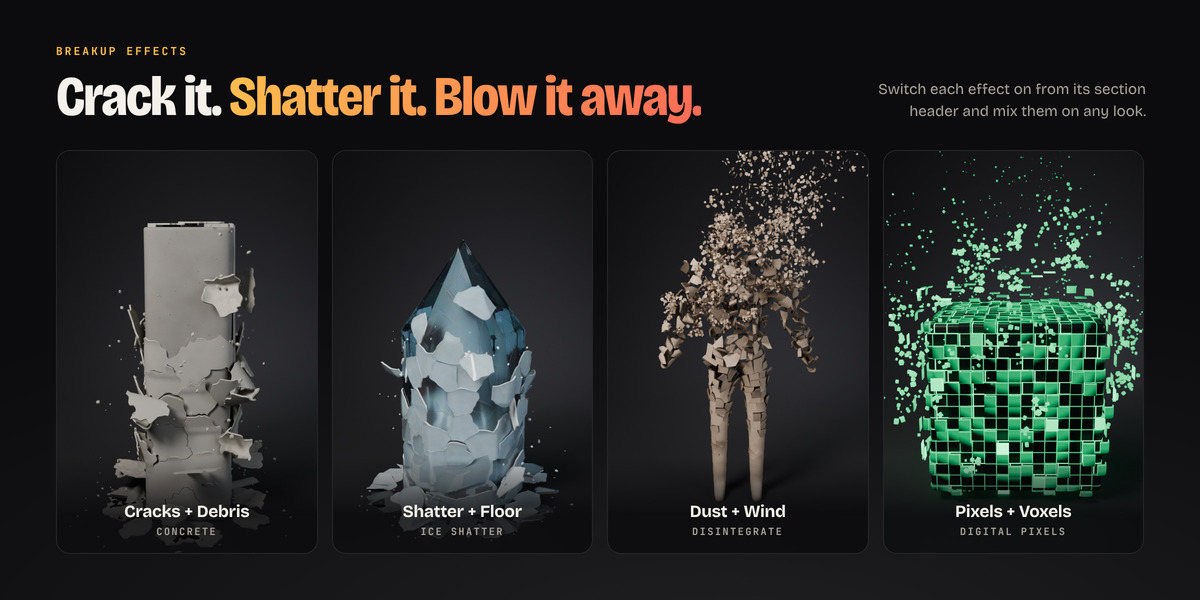
| Breakup | Cracks (Opening), Debris (size and material), Crumple, and Dissolve (Whole Pieces, particles, size, rise, life, particle shape: Sparks, Cubes or Flakes, Wind and material). |
| Skin & Look | Skin and Flesh buttons, Thickness, Flesh Under Skin, Inset, Reveal (shows another object underneath), Materials, Floor and Smoothness. |
| Layers | Split into Layers, the layer list (select, hide, remove), Add Inner Layer, Spacing, Delay and Update Layers. |
| Speed | Time per frame, Cache Setup, Fast Viewport and Bake Animation. |
Sections with a check box in their header (Bounce, Flutter, Fly Away, Tears, Cracks, Debris, Dissolve) switch that effect on and off, with the strength slider right next to it. Switching an effect off remembers its strength. Every panel is a top-level panel with its own icon, so you can fold, reorder and pin them.
4. Tear modes
- Strips: the skin tears around one axis into strips, like a banana. This suits fruit and rounded objects.
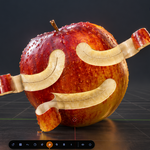
- Patches: the skin tears into irregular patches that lift off like stickers in a spreading wave. Use it for characters and any shape with arms, legs or branches.
- Ribbon: one continuous strip peels along a path you draw, or along an automatic spiral when there's no path.
- Shed: the whole skin comes off in one piece, inside out (see section 7).
5. Draw the peel path
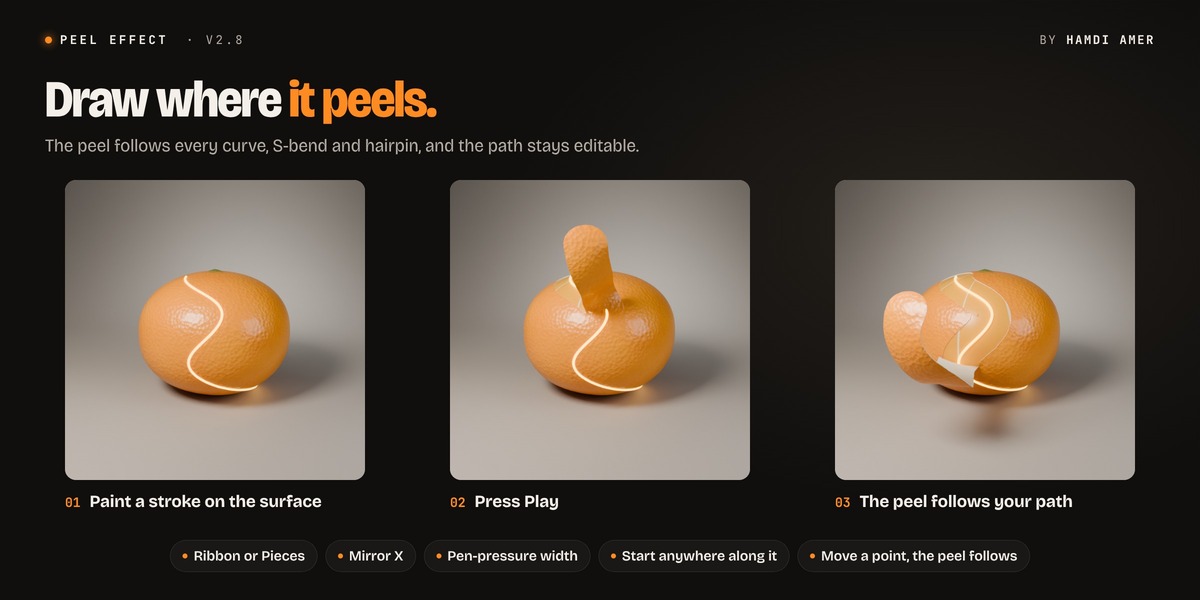
Open Path & Knife and click Draw Path. The 3D view switches to the Draw Peel Path tool, which is also in the left toolbar.
- Drag on the object to paint a stroke. The peel starts where you start drawing. Strokes are smoothed onto the surface as you finish them, and near the edge of a round object the stroke simply follows the surface.
- Between strokes the view is yours: orbit, pan and zoom as usual, then draw the next stroke. Strokes peel one after another, in the order you drew them. Start a drag on the end of a stroke to continue it. For example, you can keep drawing all the way round a sphere and it stays one ribbon.
- Ctrl+Z takes back the last stroke, Ctrl+click sets where the peel starts, and Esc or right-click while dragging drops the current stroke.
- Click Draw Path again, or pick another tool, when you're finished.
While the tool is active, small arrows along the path show which way the peel runs, and a green dot marks where it starts.
Tool header settings
- Depth: how deep the stroke cuts, as a fraction of the object's height. The strip peels off as a slab that thick and leaves a groove. 0 (the default) peels as deep as the skin's Thickness.
- Pressure Depth (on by default): with a pen, pressing harder cuts deeper.
- Smoothing: how much hand shake is taken out (0 = exactly as drawn).
- Pressure Width: with a pen, light pressure draws a narrow ribbon and harder pressure a wide one. It's stored as the curve's point radius, so you can change it later with Alt+S in Edit Mode.
- Mirror X: each stroke is also drawn on the other side, mirrored across the object's local X axis.
Along the path, the peel can be:
- Keep Look (the default): the look keeps tearing its own way. Patch looks spread along the path, and a Ribbon look peels as a ribbon.
- Ribbon: one continuous strip as wide as Width peels along each stroke, folding back and rolling up like tape. Curves, S-bends and hairpins come off as the curved piece you drew, without stretching.
- Pieces: the look's patches peel in a wave that follows the path and spreads out from it. Spread sets how far, and Fan Out goes from 0 (a straight front) to 1 (a V-shaped front).
Steer (in Path & Knife) has Start Along, Width/Spread, Curl, Thickness and Duration. All of them except Duration can be keyframed: hover over the setting and press I.
Editing the path later
- Edit Path selects the curve in Edit Mode. Move points (G), add points (E), and widen or narrow the peel locally (Alt+S). Tab back and press Play, and the peel follows.
- + adds strokes, Redraw Path replaces the path, the arrows reverse the strokes, and × deletes the path.
- You can also animate the curve, or point Path Object at any curve or at a mesh made of loose edges.
Pick Start sets where the peel starts with one click. With a path it sets the point along the stroke. For Patches without a path, it places a Peel Origin empty that you can move or animate. For Strips, or a Ribbon without a path, it picks the end nearest the click.
6. Cut it with the Peel Knife
Open Path & Knife and click Knife. It's also in the left toolbar and in the object's right-click menu.
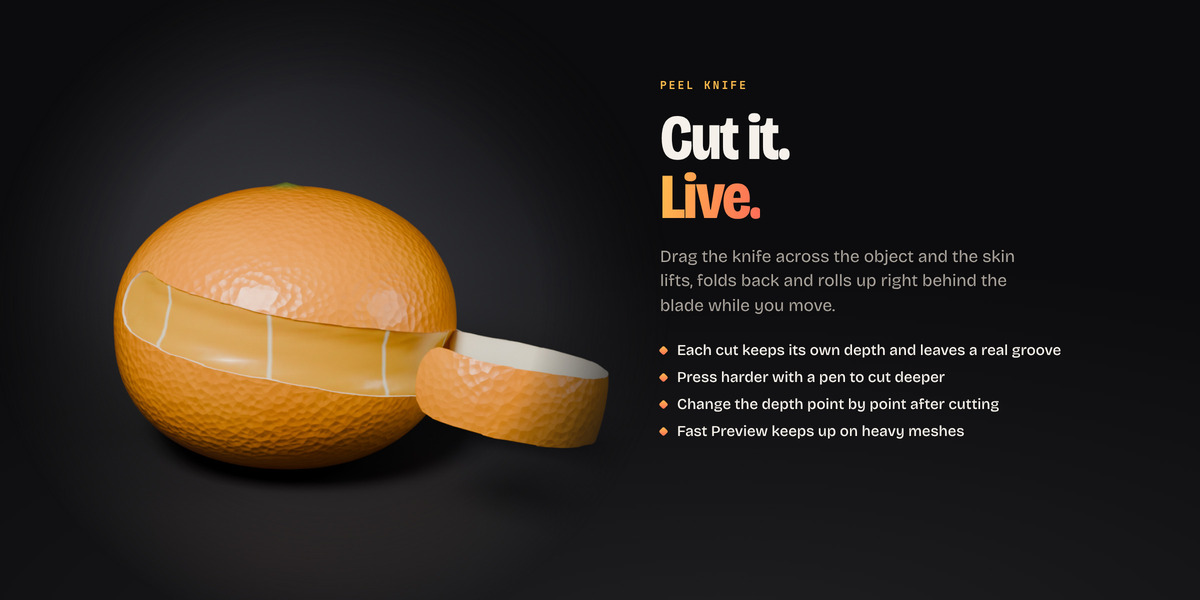
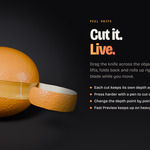
- Drag on the object to cut. A ribbon of skin lifts, folds back and rolls up right behind the blade while you move. An object without a peel gets one, using the look chosen in the gallery.
- Let go to keep the cut. Esc or right-click while dragging takes it back, and Ctrl+Z undoes the last cut.
- Orbit between cuts as usual. Start a drag on the end of a cut (the orange dot) to carry it on.
- Click Knife again, or pick another tool, when you're finished.
Tool header settings: Width, Curl, Depth (each cut keeps its own depth and leaves a groove with sloped walls), Pressure Depth, Smoothing, Pressure Width and Fast Preview. Fast Preview leaves out thickness and some detail while you drag on heavy meshes, and they come back when you let go.
Changing the depth after cutting: click Edit Path, select points, and set Cut Depth in the Peel tab. The depth blends from point to point, so a cut can deepen or shallow out along its length. As Deep as the Skin resets the selected points. Done Editing returns you to the peeled object.
Good to know
- A cut never goes deeper than 45% of the way through the object at that spot.
- So the skin peels right up to the blade, the first cut sets the peel to Ribbon, Timing to Progress at 1, Peel Depth to 1, Start Along to 0 and Randomness to 0. To turn your cuts into an animation, switch Timing back to Frames: the strips then peel along your cuts, one after another.
- Light and medium meshes keep up with the blade. On very heavy meshes (100,000+ vertices) the peel trails a little behind, but every part of the cut is kept.
- The knife can't cut a baked peel (use Speed > Free Bake first) or one whose Progress, Peel Depth or Start Along is keyframed.
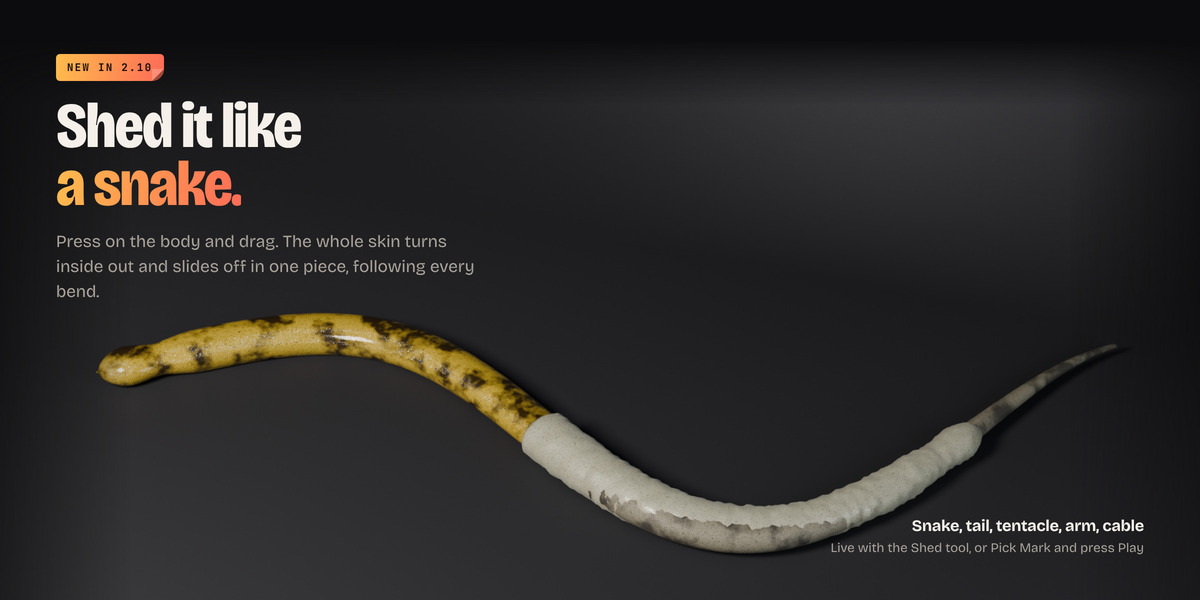
7. Shed the skin like a snake (new in 2.10)
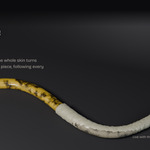
Shed peels the whole skin off as one tube. It turns inside out over a rolling fold, the way a sock is pulled off, and slides back along the body and off its far end while fresh skin shows underneath. It follows the body's centre line, so the skin follows every bend. Long, tube-like shapes work best: a snake, a tail, a tentacle, an arm, a sausage, a cable.
Live, with the mouse. Click Shed on the start screen, or pick the Shed Skin tool in the toolbar.
- Press on the body where the skin should open. A small ring is cut there.
- Drag toward the end it should slide off. The skin rolls back inside out as far as you drag.
- Let go to keep it. Esc or right-click while dragging takes it back.
- Press on the mark again (the small sphere) and drag to pull it further. Pressing anywhere else starts a new cut.
Animated, with Play. Click Pick Mark (or Ctrl+click with the Shed tool), click on the body where it should open, and press Play. The mark is an Empty parented to the object, so you can move or animate it. Without a mark, the skin opens at the Peel From end, which is the thicker end (on a snake, the head).
Shed settings
- Opening: how gradually the cut opens all round the body.
- Loose: 0 makes the old skin hug the body. 1 lets it keep its own size, like a real shed skin.
- Wrinkles: folds and creases in the sliding skin.
- Fold: how tight the rolling fold is.
- Slide Off: how far the skin slides once it's off the body. With Floor on, the empty skin collapses onto the floor.
- How Much: below 1, the skin stops part way.
Snake Shed is the look made for this. Add Snake (Shed) from Add > Mesh > Peelable Objects, or give your own model the look.
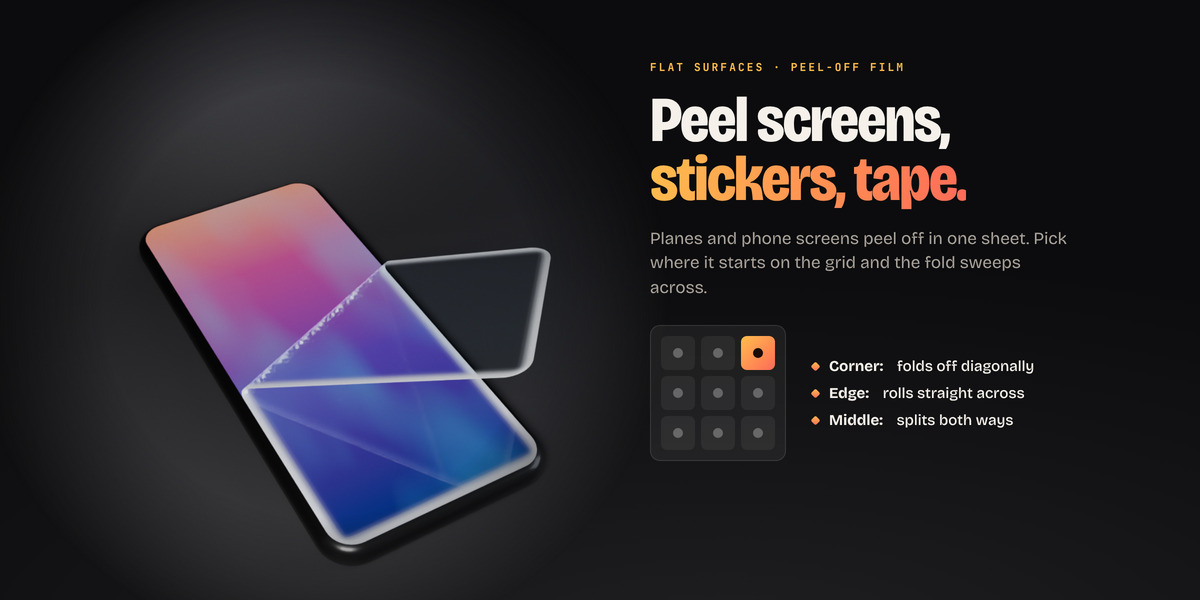
8. Flat surfaces & Peel-Off Film
A plane, a phone screen, a label or a sheet of paper (anything thinner than 15% of its width) peels too.
- Select it. The start screen shows Flat Surface: Start At, a 3 × 3 grid with the four corners, the middle of each edge and the centre.
- Click where the peel should start, then press Play.
- Ribbon (and Strips): the whole surface peels off as one sheet. From a corner it folds along the diagonal, from an edge it rolls straight across, and from the middle it splits both ways. Width narrows it to a strip, and Peel Depth below 1 stops it part way.
- Patches: the patches peel in a wave spreading from the start point.
Peel-Off Film is made for screen protectors, stickers and tape. Add Phone (Screen Film) from Peelable Objects, or peel your own plane with it. Your object's own material stays visible under the film. A coarse plane is subdivided automatically, and the original mesh is kept.
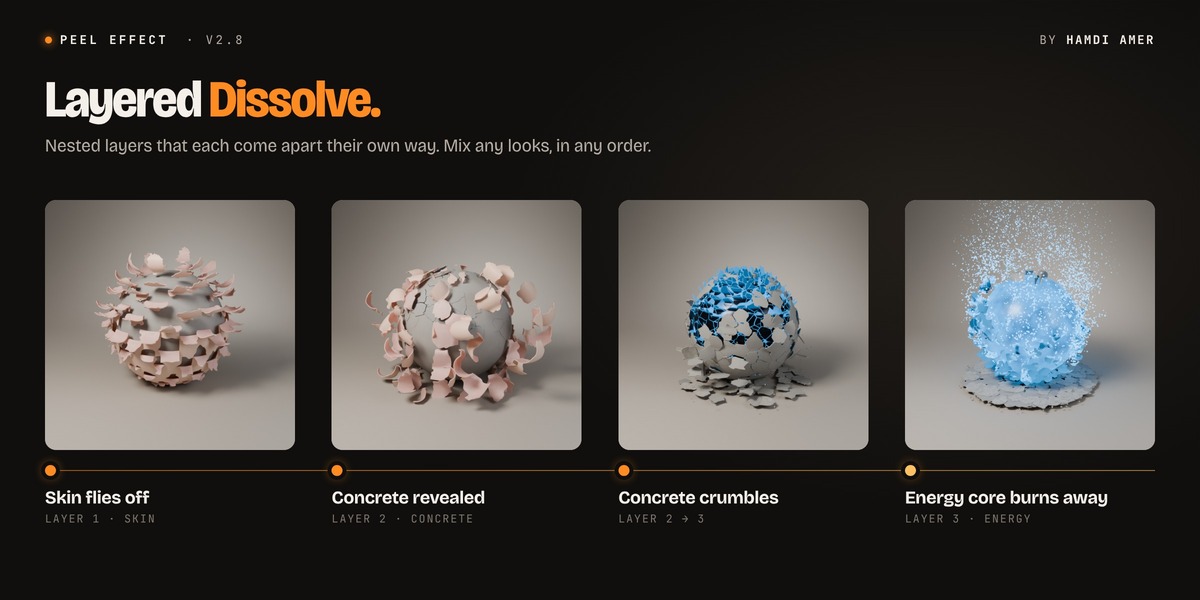
9. Layered Dissolve
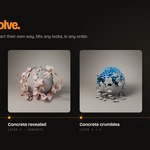
Pick Layered Dissolve, or click Split into Layers in the Layers panel of any peeled object, and choose a look for each inner layer.
- The object you peeled is the outer layer. Each inner layer is a copy moved inwards by Spacing, with its own Peel modifier, look, settings and timing. Only the innermost layer shows its flesh (the core).
- Each layer starts Delay later. When you split, the outer peel is shortened so the whole stack still ends at the same time.
- Click a layer in the list to select and edit it. Add Inner Layer adds another layer inside.
- After editing the outer mesh, or changing Spacing or Delay, click Update Layers.
- A path drawn on the outer layer is shared by the whole stack.
10. Breakup effects
Every look is made of settings you can mix.
- Curl rolls peeled pieces into a scroll that tightens towards the free end.
- Cracks: each patch cracks open before it breaks off. The crack lines follow the patch outlines, smoothed into natural edges.
- Debris: small chunks are thrown off where patches break away. They fly on a ballistic arc and land on the floor. Debris needs patches that break off (Fly Away or Dissolve above 0).
- Crumple: dents and creases grow in from the hinge.
- Dissolve: pieces burn away from glowing, noise-shaped edges and give off particles that drift, rise and swirl away.
- Particle Shape: Sparks (energy, embers), Cubes (pixels, voxels) or Flakes (ash, dust, snow).
- Wind blows particles along a world direction.
- Whole Pieces: each piece blinks out in one go (digital pixels, popping tiles).
- Square Pixels (Shape, patches): the surface breaks into a square grid. Set Ragged to 0 for clean squares.
11. Floors and landing pieces
With Concrete, Flake Away or any look with Fly Away, turn on Land on Floor in Motion > Fly Away. Pieces fall to the floor, turn to lie flat and stay there. Pick the floor in Skin & Look > Floor:
- Lowest Point: the object's lowest point
- Custom Height: a world Z height
- Object: the top of any object, such as your ground plane
Land Below moves the landing further down, in world units. Use it when your object stands on a table or floats in the air. Pieces always reach the floor by the End frame.
12. Your own models
Imported meshes (lying down, bent, scaled). When you peel with a Strips look, the add-on sets Peel From to the axis the mesh is long along, starting at the higher end, and turns on Follow Shape so strips follow the centre line. Meshes split along UV seams (common with glTF) are welded back together, so textures stay sharp. Click Auto next to Peel From to redo the fit.
Characters and complex shapes. Use Patches (most looks do), or draw a path and use Ribbon.
- Starts At: the top, an object (an Empty you can move or animate), or the path. Spread goes from all at once (0) to a full wave (1).
- Patch Size sets how big the patches are, and Stretch makes them long along the body.
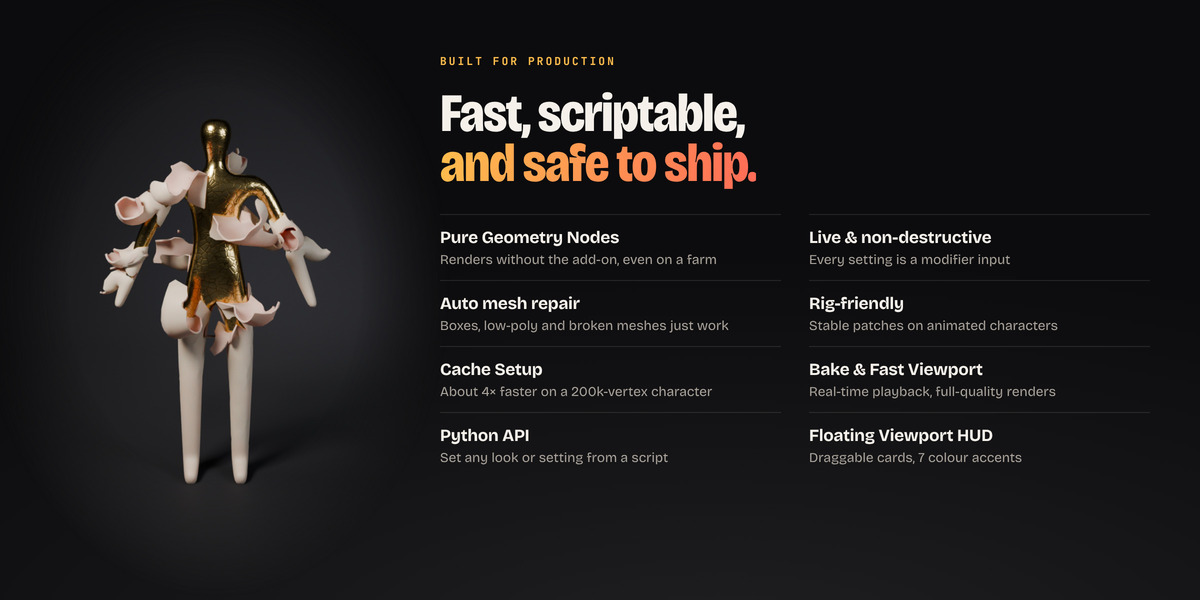
- Rigged characters: keep the Peel modifier after the Armature modifier. The patch layout comes from the rest pose, so it doesn't shift while the character moves. Draw paths in the rest pose.
- With Materials on Auto, the skin keeps your character's own materials.
Boxes, low-poly and broken meshes. When you click Peel, the mesh is checked and fixed. Flipped normals are recalculated, and small holes and duplicate vertices are closed (the original mesh is kept as "… (before repair)"). Boxes, low-poly objects and n-gons are rebuilt inside the modifier, keeping your UVs and material slots. The settings are in Properties > Modifiers > Peel > Mesh Repair.
13. Speed (heavy scenes)
- Cache Setup works out the patch layout once and stores it on the mesh. That's about 4× faster on a 200k-vertex character. It's applied automatically for meshes with 10,000+ vertices and refreshes by itself after changes.
- Fast Viewport leaves out skin thickness and thins out debris and particles in the viewport only. It's on automatically for meshes with 150,000+ vertices.
- Bake Animation calculates every frame once for real-time playback. It's stored next to your saved .blend, and you should save after baking. Renders never use the bake. Use Free Bake to see setting changes again.
14. Viewport HUD
Click Peel HUD in the 3D viewport header (or Open Viewport HUD in the Peel tab).
- Cards: Peel Effect, Looks, Path & Knife, Timing, Motion, Shape & Tears, Breakup, Skin & Floor, Speed.
- Drag a card by its title bar, and double-click the title to fold it. The layout is remembered.
- The dock at the bottom shows and hides cards. The eye icon hides all of them, and the power button turns the HUD off.
- Sliders: Shift-drag for fine control, the wheel nudges a value (Ctrl+wheel for finer steps), right-click resets, and Esc cancels. A gold diamond means the setting has keyframes.
- Accents: Citrus, Aurora, Crimson, Emerald, Gold, Sakura, Mono. Turn Colour Correction off if the cards look too dark.
16. Tips & troubleshooting
- Inner skin or flesh showing before the peel starts? This is almost always flipped normals. Remove the peel and peel again, and normals are recalculated.
- A peel on a box or broken mesh looks wrong? Raise Detail in the modifier's Mesh Repair settings.
- Ragged ribbon edges on a coarse mesh? Raise Edge Detail (Shape). For patches on low-poly objects, raise Smoothness (Skin & Look).
- Shapes that fold back on themselves (a mug handle, a torus) can't be peeled cleanly from one end, so draw a path instead.
- Energy and glowing looks read best in a darker scene. The glow is real emission (EEVEE bloom or Cycles).
- Each Look's Own Thickness: every look starts from the same thin skin. Turn this on to let each look use the thickness it was made for (thin skins, thick rinds, slabs of bark and concrete).
- Keep Outside (on by default) stops peeled skin from going into the object.
- Objects with an unapplied scale work as they are, so there's no need to apply it.
- Lengths are fractions of the object's height, so looks work at any scale.
 Included
Includes 12 months of
- Support from Animation Store
- Product updates
Extend this product’s Support Period +12 months: 50% of product price
Have questions before purchasing?
Login to message
| Blender Extension Compatible | Yes |
| Dev Fund Contributor | |
| Published | about 9 hours ago |
| Blender Version | 4.2 - 5.2 |
| Extension Type | Add-on |
| Render Engine Used | Cycles, Eevee |
| License | GPL |
Discover more products like this
motion graphics Procedural Animation peel particles layers animation snake shed peeling Skin transition VFX geometry nodes