 BlendR6

SKP Import & Export
for Blender
A direct SketchUp .skp workflow for Blender on all three major desktop platforms—with a dedicated package for each operating system.
One Add-on. Three Supported Platforms.
Choose the download built for your operating system. Each package provides the same core SKP import/export workflow while using the correct platform-specific runtime.
|
|
|
The Same SKP Workflow on Every Workstation
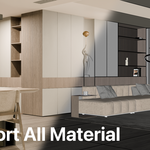
Move architectural, interior, and visualization projects between SketchUp and Blender while preserving geometry, materials, textures, UVs, groups/components, cameras, scenes, units, and project updates.
Free Version Available (Win)
Test the core workflow with the free edition. Texture support and Merge Coplanar Faces are not included in the free version.
Download the Free VersionKey Features
Built for practical production work, from a quick one-time conversion to an ongoing linked SKP project.
|
01
Direct SKP Import & ExportRead and write native .skp files directly from Blender, with no OBJ, FBX, or DAE detour. |
02
Materials, Textures & UVsTransfer material names, base colors, alpha, image textures, and UV coordinates. Imported textures can also be packed into the Blend file. |
03
Linked Project ModeOpen an SKP as a linked project, track changes, and write modified, new, or deleted objects back to the project file. |
|
04
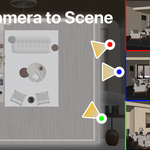
Scenes & CamerasConvert SketchUp scenes into Blender camera/scene data, and export Blender cameras or RenderScenes snapshots as SketchUp scenes. |
05
Geometry ControlApply modifiers, group mesh islands, merge coplanar faces, preserve smooth-edge data, and control generated SketchUp line visibility. |
06
Production-Friendly ToolsUse background import/export, automatic units, per-object export settings, progress display, cancellation, backups, and reusable defaults. |
Edit an SKP as a Linked Project
Project Mode turns the add-on into more than a converter. It tracks linked SketchUp groups/components so you can continue working in Blender and save targeted changes back to the SKP.
|
1. Open
Open an SKP as a linked project.
|
2. Edit
Modify linked objects or add new mesh objects.
|
3. Review
Check modified, new, and deleted project items.
|
4. Save
Save only the changes, with an optional timestamped backup.
|
Update Linked SKP can also refresh changed source geometry while preserving Blender-side materials and modifiers wherever possible.
Import and Export Controls
Import SKP✓ Automatic unit detection and scaling ✓ Quad-face import ✓ Top-level or bottom-level group mapping ✓ Materials, image textures, alpha, and UVs ✓ Optional texture packing into the Blend file ✓ SketchUp scenes, cameras, and RenderScenes data ✓ Background import for large files |
Export SKP✓ Selected-only and hidden-object controls ✓ Applied modifiers and connected-island grouping ✓ Materials, UVs, alpha, textures, and smooth data ✓ Base Color texture bake: 1K, 2K, 4K, or original ✓ Preserve quad faces on export ✓ Coplanar merge and line visibility controls ✓ SketchUp 8 and SketchUp 2013–2026 save targets |
Export Quality & Editability
Keep exported SKP files visually consistent while producing cleaner geometry, usable textures, and controllable SketchUp edges.
 Export MaterialsCarry material assignments, base colors, alpha, image textures, and UV information into the SKP workflow. |
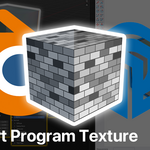
 Export Procedural TexturesUse Base Color Texture Bake to convert complex Blender shader results into portable image textures for SketchUp. |
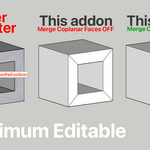
 Maximum EditabilityMerge coplanar faces to reduce unnecessary surface divisions and keep exported geometry easier to edit in SketchUp. |
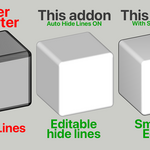
 Clean Lines & Smooth DataControl object-line visibility and preserve smooth-edge data for cleaner, more presentation-ready SKP output. |
Blender → SketchUp
Export a finished Blender scene to a native SKP while retaining the essential geometry, materials, UVs, and scene information.

Blender scene
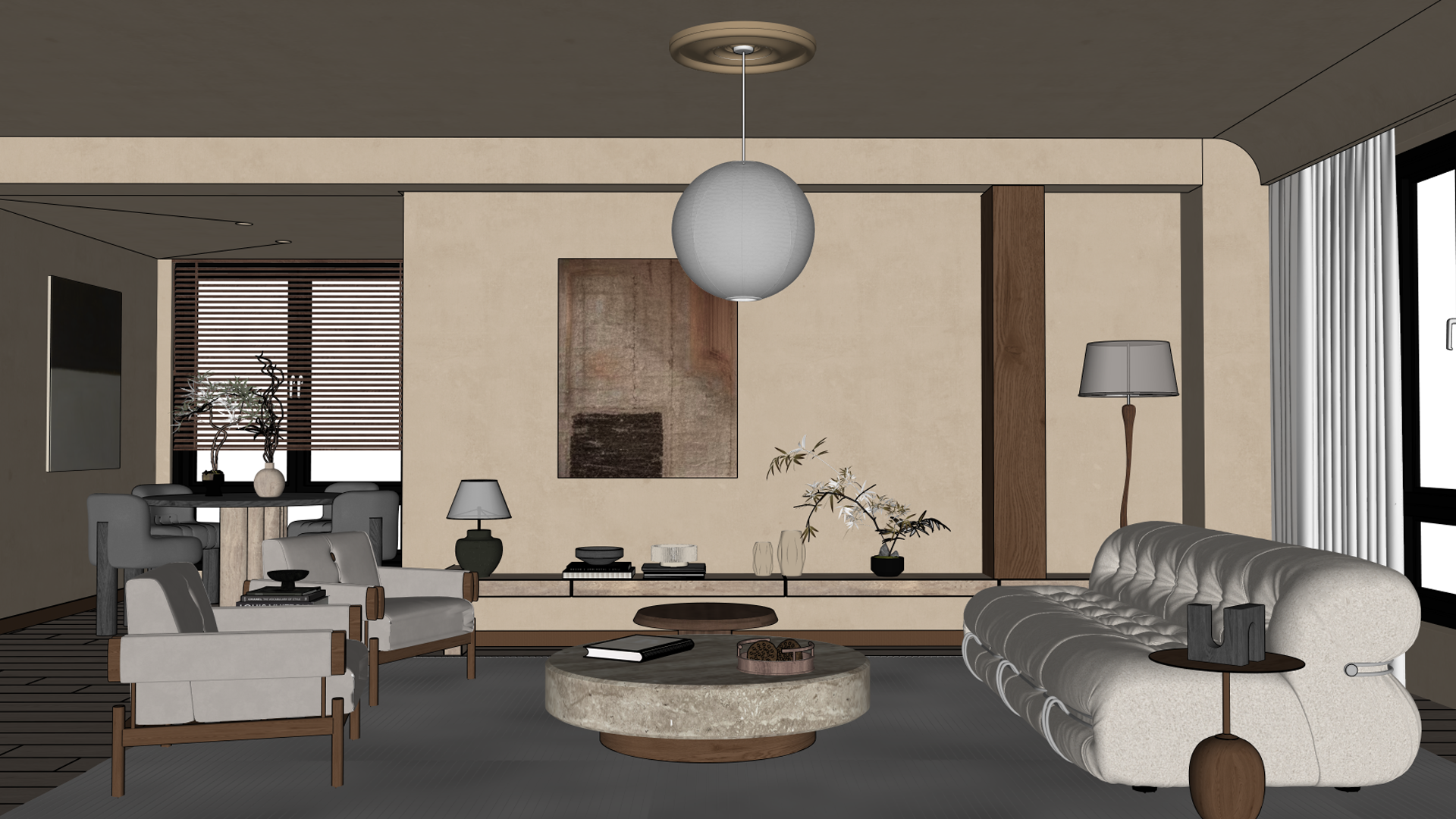
Exported native SKP
SketchUp → Blender
Import an SKP model into Blender, then continue with Blender materials, UV mapping, and geometry editing.
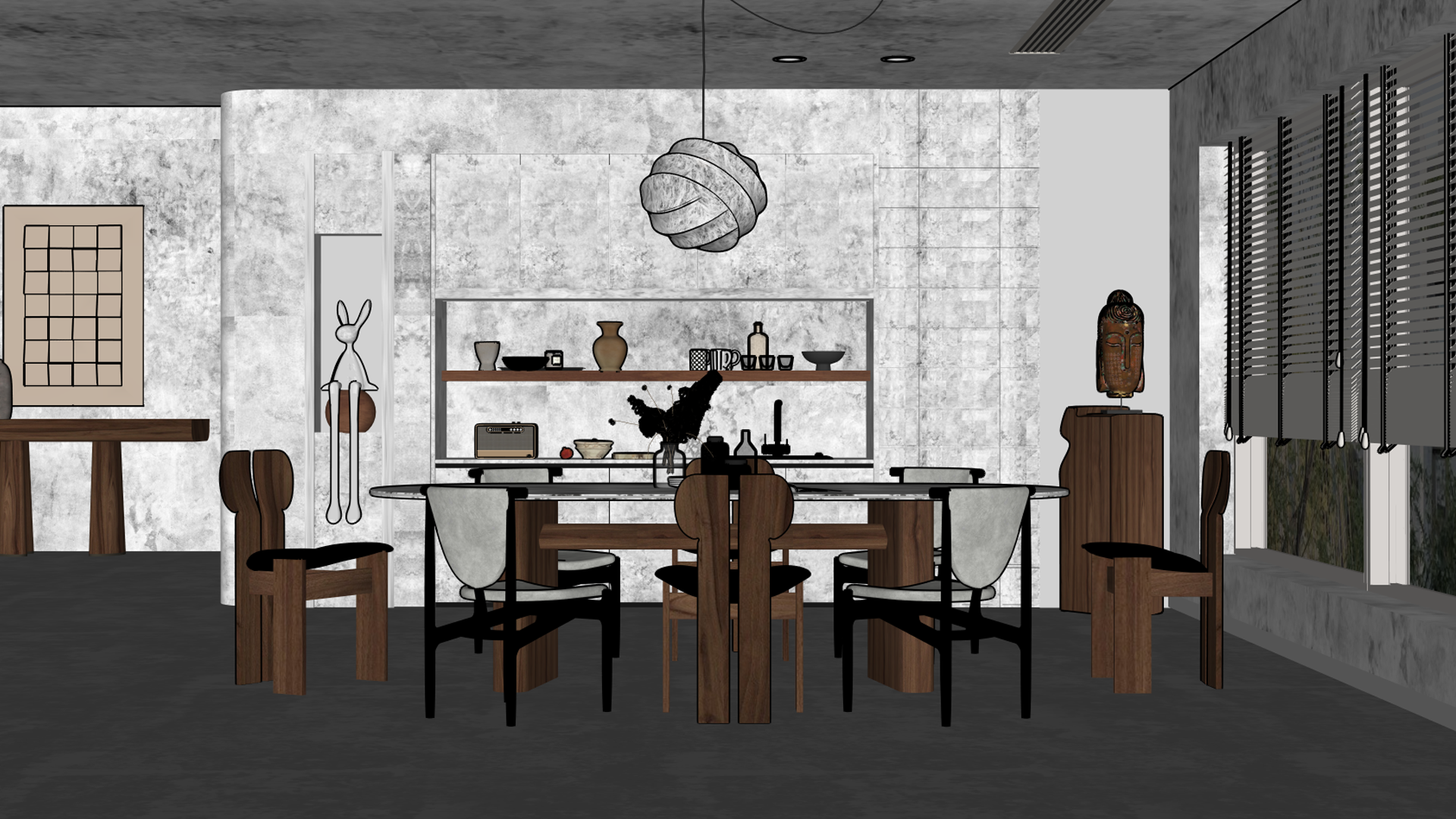
Original SKP model

Imported and rendered in Blender
Works with RenderScenes
When RenderScenes is installed, SketchUp scenes can be converted into Blender scene snapshots, and Blender RenderScenes can be synchronized back into SketchUp scenes.
View RenderScenes on Superhive
Built for Your Operating System
Dedicated platform packages keep installation clear and provide the correct SKP runtime for each environment.
|
Windows
Native 64-bit package
|
macOS
Intel + Apple Silicon
|
Linux
Native UI + 64-bit Wine worker
|
|
Blender
3.2 or newer
|
SKP Save Targets
8 and 2013–2026
|
Localized Controls
EN · 繁中 · 简中 · JA · ES · FR · PT
|
Install the Correct Platform Package
The Windows, macOS, and Linux ZIP files are not interchangeable. Choose the package for the operating system running Blender.
1. Download the dedicated Windows, macOS, or Linux package.
2. In Blender Preferences, open Add-ons/Extensions and choose Install from Disk.
3. Select the downloaded ZIP and enable SKP import and export.
4. Linux only: open Linux SKP Runtime, click Setup, and then run Test Converter.
5. Access the tools from File → Import / Export → SketchUp (.skp), or use the SKP Settings panel in the 3D View sidebar.
Good to Know
Complex Blender materials: the exporter preserves material names, base color, alpha, the main image texture, and active UV data. For complex procedural node setups, use the optional Base Color Texture Bake for a more portable result.
Component edits: editing a shared SketchUp component definition may update its other instances when the SKP is opened again.
Choose the correct download: the Windows, macOS, and Linux packages contain different platform-specific runtimes.
One Add-on. Three Platforms. Two Applications.
Bring SketchUp files into Blender for modeling and visualization, then return the result to SKP—on the operating system that fits your workflow.