A file-based bridge between Blender and Photoshop. Send images, renders, render passes, UV layouts and layered PSDs to Photoshop, and pull your edits back — without exporting or importing files by hand. Edit Image watches the file it sent and reloads it in Blender the instant you save in Photoshop, so painting a texture is a live round-trip. Nothing has to be installed on the Photoshop side to start; an optional companion script just adds a one-click "Send to Blender".
Requirements - please read before buying
-
Windows only. The add-on detects and launches Photoshop through Windows paths and processes. macOS and Linux are not supported.
-
Blender 3.3 - 5.2 - Extension on 4.2+, classic add-on on 3.3-4.1.
-
Adobe Photoshop is required and sold separately. You need your own licensed copy from Adobe. No Adobe Photoshop licence is included with this product - it is the Blender-side bridge only, and is not affiliated with, endorsed by, or a reseller of Adobe.
-
hand in the add-on preferences.
-
Network: none. Blender and Photoshop exchange files on your own machine - the add-on opens no network connection.
Installation
Blender 4.2+ (Extension): Edit ▸ Preferences ▸ Add-ons ▸ drop-down ▸ *Install from Disk…* → pick universal_bridge_photoshop-x.x.x-blender4.2-5.2.zip, then enable it. Blender 3.3–4.1: Edit ▸ Preferences ▸ Add-ons ▸ *Install…* → pick universal_bridge_photoshop-x.x.x-blender3.3-4.1.zip.
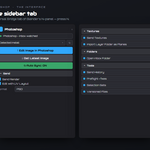
The panel is in the 3D Viewport sidebar (press N) under the Universal Bridge tab, in the Photoshop section. Open the add-on preferences to confirm the detected Photoshop install, or point it at Photoshop.exe manually.
Getting started
- Open an image in the Image Editor, or select an object with a textured material.
- Click Edit Image in Photoshop — Photoshop opens the file.
- Paint, then Save in Photoshop. Blender reloads the image automatically.
- Click Stop Watching Edits when you're finished, or leave it watching.
Edit Image (live reload)
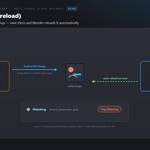
Sends the active image to Photoshop and watches the file. The active image is the Image Editor's image if one is open, otherwise the base-colour texture of the active object's material. Packed or unsaved images are written into the bridge folder first. Every time you save in Photoshop, Blender reloads the image in place. Stop Watching Edits stops the watcher for all files it's tracking.
Send Render & Send Viewport (Paintover)
-
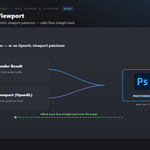
Send Render saves the current Render Result and opens it in Photoshop;
edited saves reload onto a stand-in image datablock (the Render Result itself can't reload).
-
Send Viewport (Paintover) OpenGL-renders the viewport and opens it in
Photoshop for a quick paintover, with the same live reload.
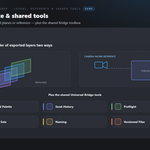
Send Render Passes (Layered)
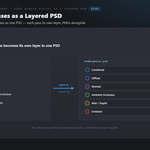
Renders the enabled passes of the active view layer (via a temporary compositor File Output), builds them into one layered PSD — each pass its own layer — and opens it in Photoshop. The individual pass PNGs are written alongside. Enable the passes you want in View Layer Properties first. The layered PSD is produced by a built-in writer, so no Photoshop plugin is involved.
Materials & Textures
-
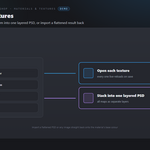
Send Textures opens every image texture on the active object's material for
editing; each one reloads live on save.
-
As PSD stacks those textures into a single layered PSD instead.
-
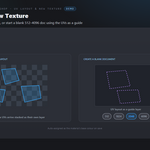
New Texture with UV Guide creates a blank document at the chosen resolution
(512 / 1024 / 2048 / 4096) with the mesh's UV layout as a guide layer; on save the paint layer is assigned as the material's base colour.
-
Import PSD / Image to Material loads a flattened PSD (or any image) and
wires it into the active object's material base colour.
Edit with UV Layout
Opens the active texture in Photoshop together with the selected mesh's UV layout. In Photoshop a generated script stacks the UV layout on top as its own "UV Layout" layer, so you can paint against your seams and islands.
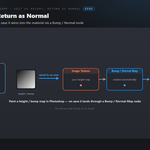
Edit as Height, Return as Normal
Opens the active image in Photoshop to paint a height/bump map. When you save, the watcher wires it into the active material through a Bump node feeding the Normal input, and sets the image to Non-Color automatically.
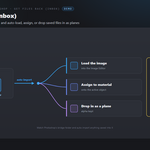
Get Files Back (Inbox)
-
Get Latest Image imports the newest image Photoshop saved into the bridge
folder.
-
Watch Inbox (auto-import) imports anything Photoshop saves into that folder
automatically as it appears (the first scan only baselines existing files).
-
On Get decides what happens to an incoming image: Load Image (into the
image list), Assign to Active Material (wire it into base colour), or Import as Plane (an alpha-blended plane at the 3D cursor).
-
Open Inbox Folder opens the bridge folder in Explorer.
-
Install "Send to Blender" Script adds an entry to Photoshop's
File ▸ Scripts menu that exports the active document into the bridge folder for auto-import. Restart Photoshop after installing. This is optional — you can also just Save/Export into the inbox folder yourself.
Layers & Reference
Import Layer Folder as Planes imports every image in a folder as its own plane (alpha kept, stacked in order) — pair it with an exported-layers folder from Photoshop. As Camera-Facing Reference places them in a "Reference" collection facing the active camera, shadeless, instead of stacked flat.
Send & Get settings
-
On External Save — Reload In Place updates the image datablock on every
save, or Keep Versions copies each save to name_v001, _v002, … and loads it as a new image.
-
On Get — Load Image / Assign to Active Material / Import as Plane.
-
New Texture Resolution — 512 / 1024 / 2048 / 4096.
-
Copy Image to Clipboard — put the active image on the system clipboard to
paste into any app.
Shared Universal Bridge tools
Registered once and shared with every other bridge you own, on the same tab: Command Palette, Send History (re-send), Selection Sets, a Naming convention helper (low / high / LOD / UCX / socket), Versioned Files, Preflight (flags unapplied scale/rotation, missing UVs, missing materials, n-gons and non-manifold edges, with safe fixes), and Send Each Collection for batch sends.
Troubleshooting
-
Photoshop not found → set
Photoshop.exe in the add-on preferences, or
press Detect App.
-
Edits don't come back → make sure the file is still being watched (the panel
shows "watching N file(s)"); save over the same file in Photoshop rather than Save As to a new name.
-
Nothing in the inbox → in Photoshop, Save/Export INTO the bridge folder
(use Open Inbox Folder to find it), or install the "Send to Blender" script.
-
Can't install the script → Photoshop's Presets/Scripts folder may need admin
rights; the add-on drops a copy in the bridge folder and highlights it so you can use File ▸ Scripts ▸ Browse instead.
-
No active image → open one in the Image Editor, or select an object whose
material has an image texture on its base colour.
Button icons
The buttons in the bridge panels use a drawn icon set rather than Blender glyphs borrowed from elsewhere. Preferences ▸ Button Icons controls it:
-
Brand Colours (default) — each bridge in its own colour.
-
Mono — every icon in one accent colour you pick.
-
Blender Built-ins — no custom icons at all, exactly as before.
Colour-code Status keeps the link and modifier icons green / amber / red, where the colour is the message; turn it off and they take your accent too. Blender's own glyphs are kept wherever they are already the familiar thing — the trash can, the folder, the warning triangle — so the panels still look like Blender.
Support
Join the Discord: https://discord.gg/SuSqbZMDk5 — include your Blender and Photoshop versions.
Part of the Universal Bridge line. Works on its own, and the free Universal Bridge Manager hub add-on is included with your purchase.
 Tachyon Studio