Documentation
Paint, pile, sweep, move, and erase assets while a live Jolt simulation handles collision and settling.
BLENDER 5.1+ · WINDOWS x64 · FIVE WORKSPACE TOOLS · GPU OR OBJECT PREVIEW
FIRST SESSION
Quick Start
| 1 |
Enable Physics Brush in Blender Preferences and enter Object Mode. |
| 2 |
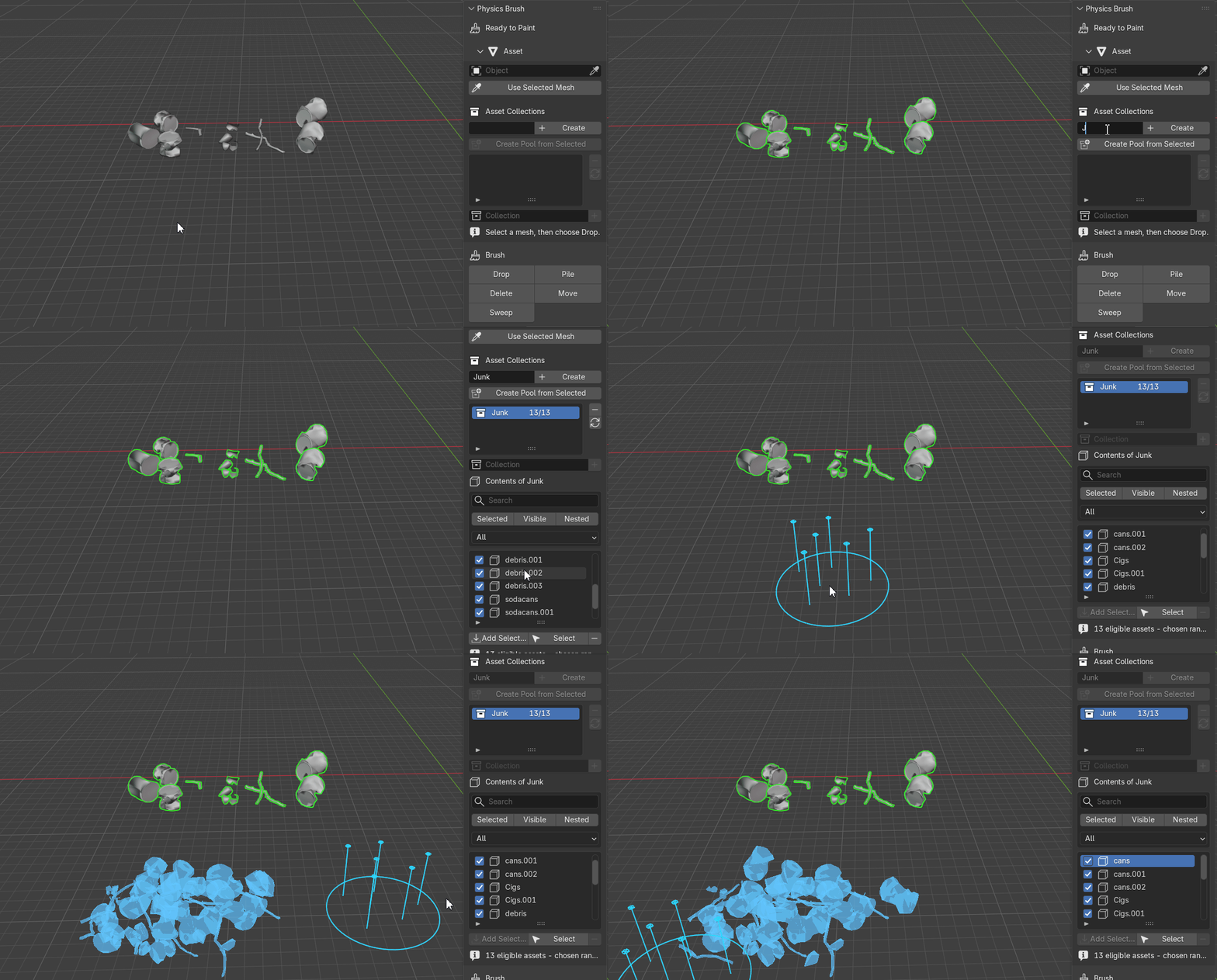
Select mesh assets, open the Physics Brush N-panel, and choose Create Pool from Selected. |
| 3 |
Choose Drop and aim at a mesh surface or the Ground Plane. |
| 4 |
Click once or drag to paint. Refine the result with Move, Sweep, and Delete. |
| 5 |
Click Apply to create Blender objects, or Cancel Preview to discard the session. |
SOURCE MANAGEMENT
Asset Collections
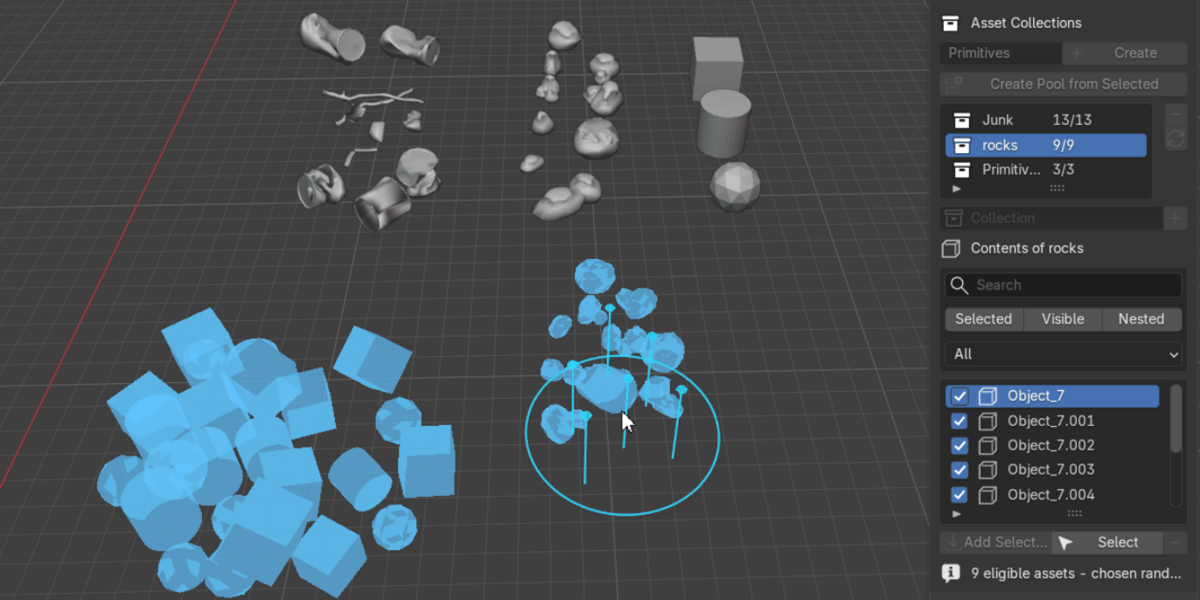
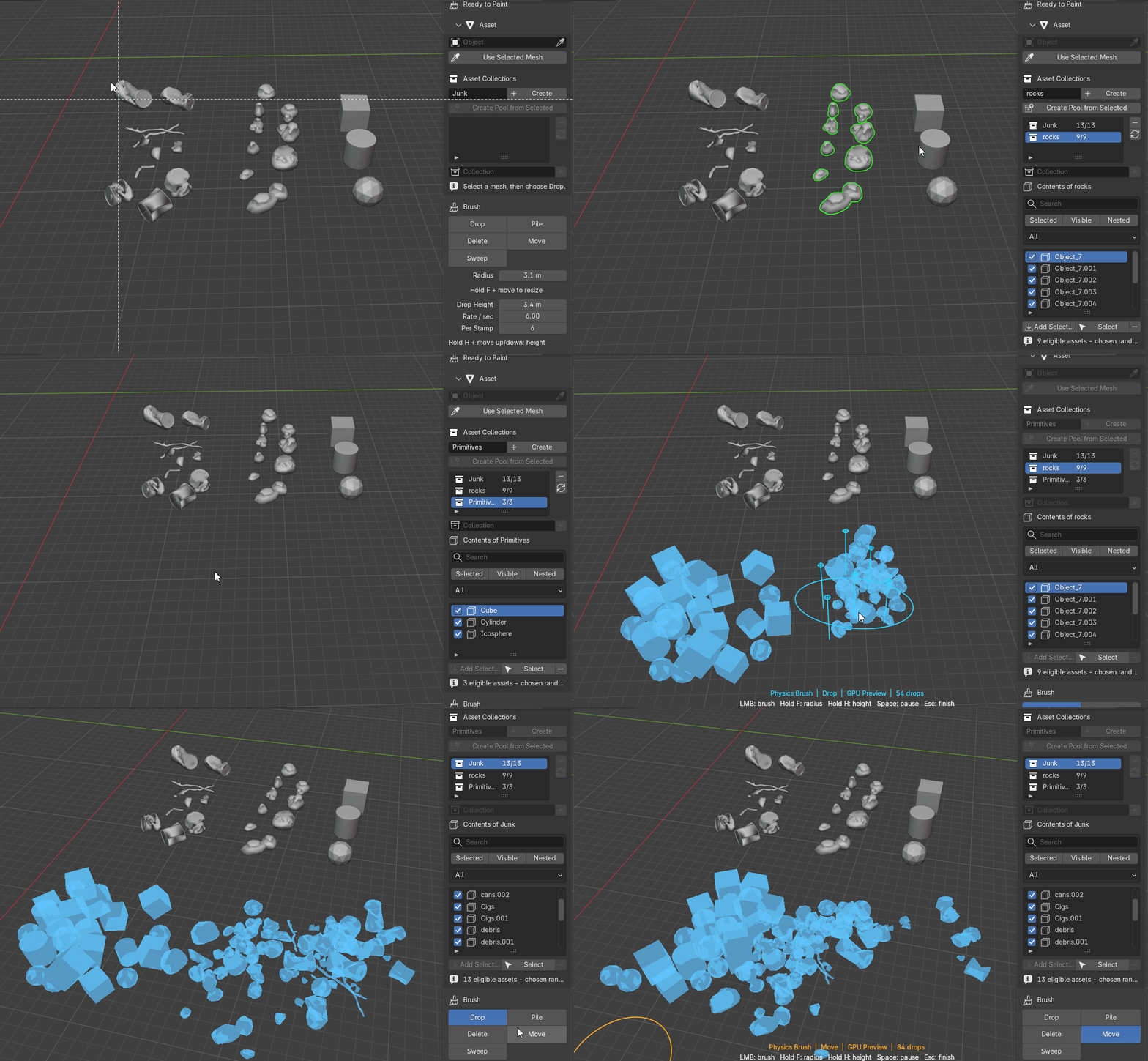
The first list contains asset collections. Selecting a row makes it the source for new Drop and Pile emissions. The second list shows that collection’s mesh objects.
Create a Pool
Enter a name and click Create, or select meshes and choose Create Pool from Selected.
|
Use Existing Collections
Register a Blender collection without moving or duplicating its objects.
|
Include or Exclude
Each object has a checkbox. Excluded assets stay in Blender but are never spawned.
|
Filter the List
Search by name or filter by Included, Excluded, Selected, Visible, and Nested.
|
Switch collections and change Include checkboxes while physics is running. Existing bodies continue simulating; new drops use the updated pool immediately.
WORKSPACE TOOLS
Five Physics Brushes
 DROP
|
 PILE
|
 SWEEP
|
 MOVE
|
 DELETE
|
DROP BRUSH
Paint Assets onto Surfaces
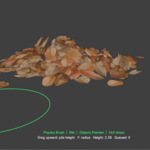
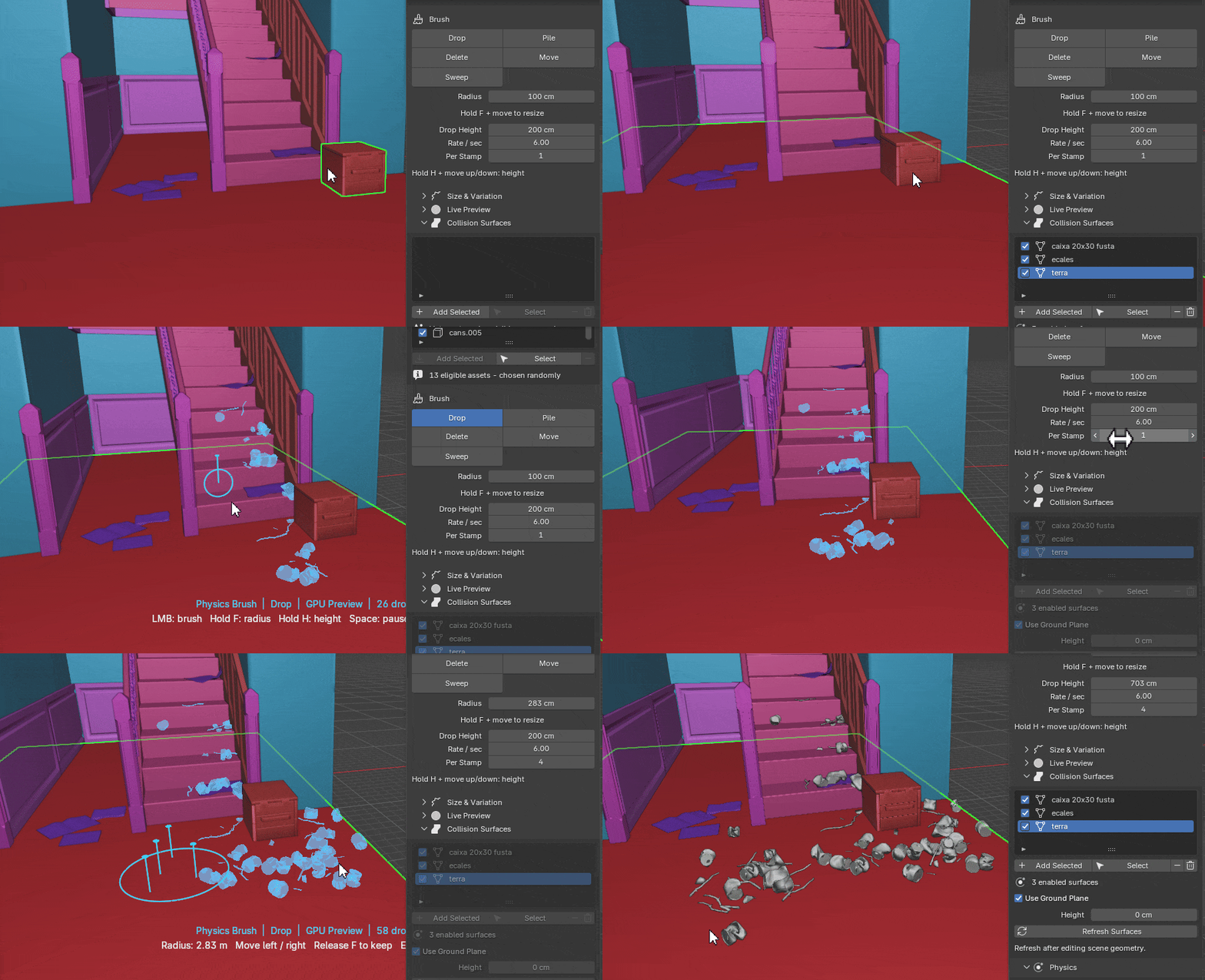
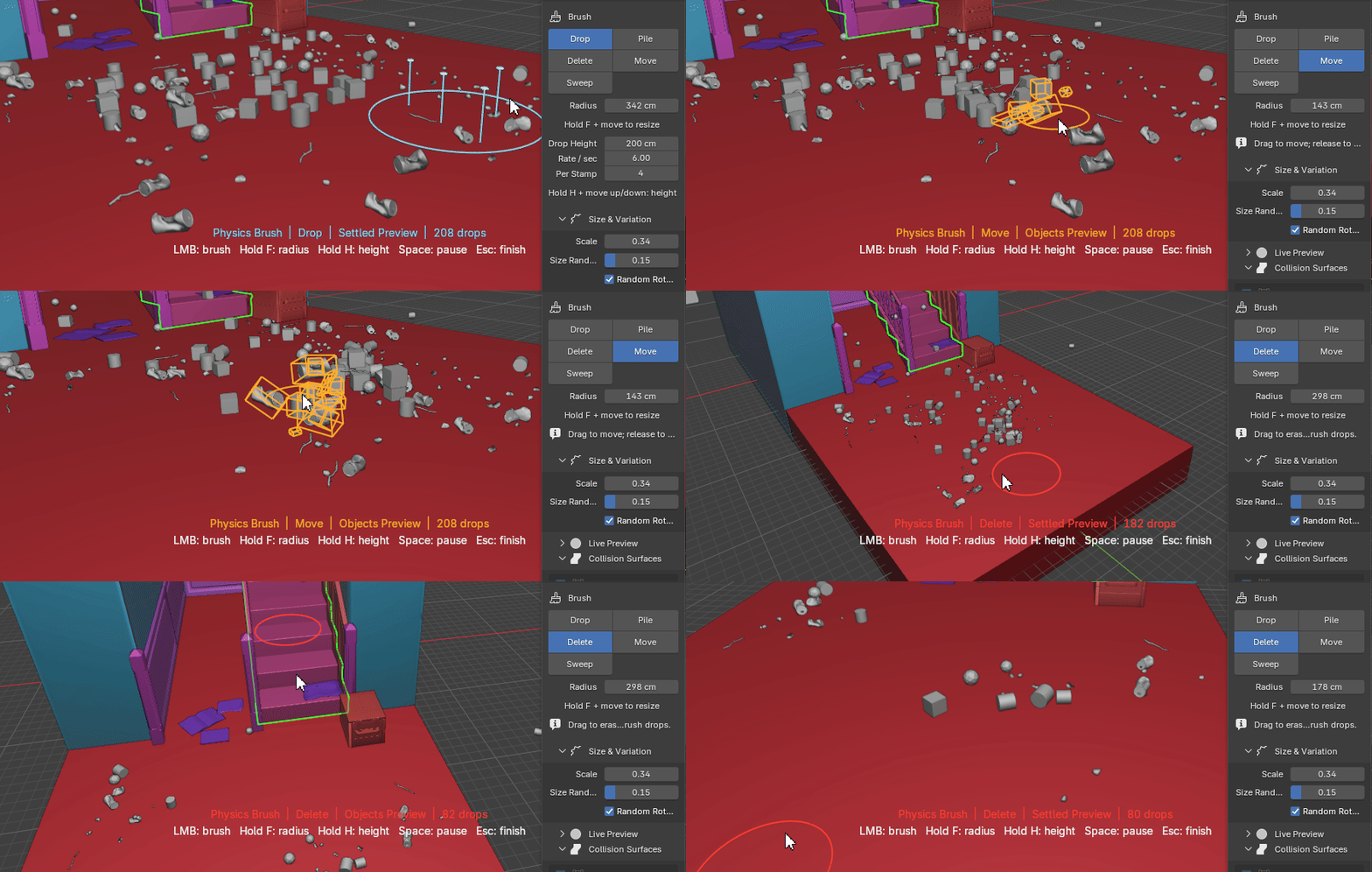
Click to emit once or drag for continuous painting. Radius spreads multiple spawn points across the brush disk. Drop Height, Rate, Per Emission, scale variation, and random rotation control each stroke.
PILE BRUSH
Drag Upward to Build Volume
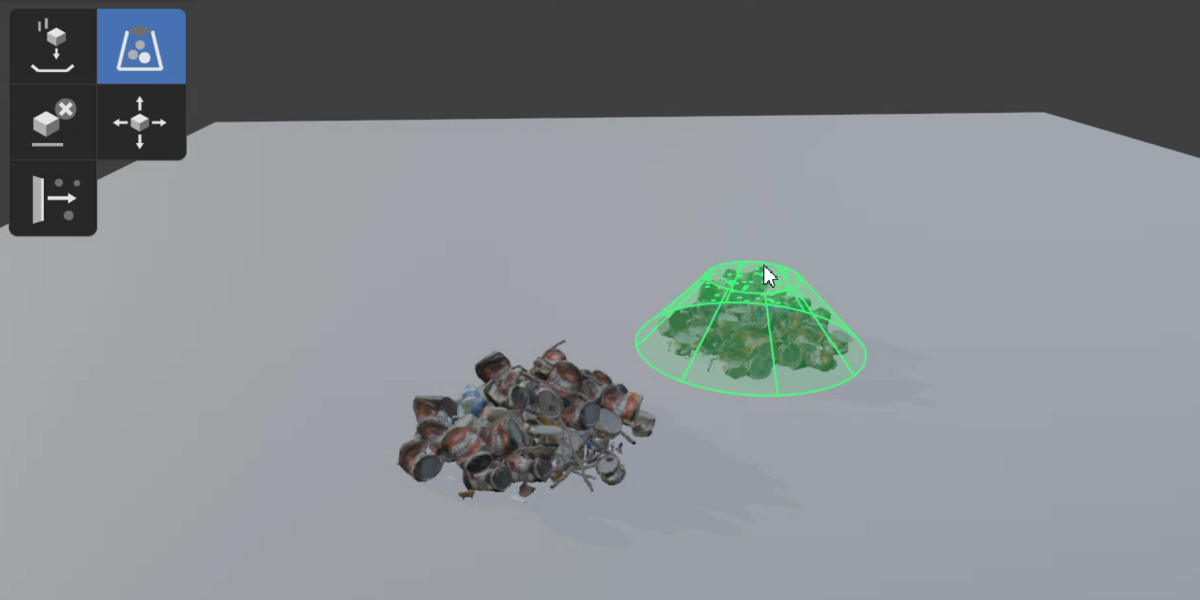
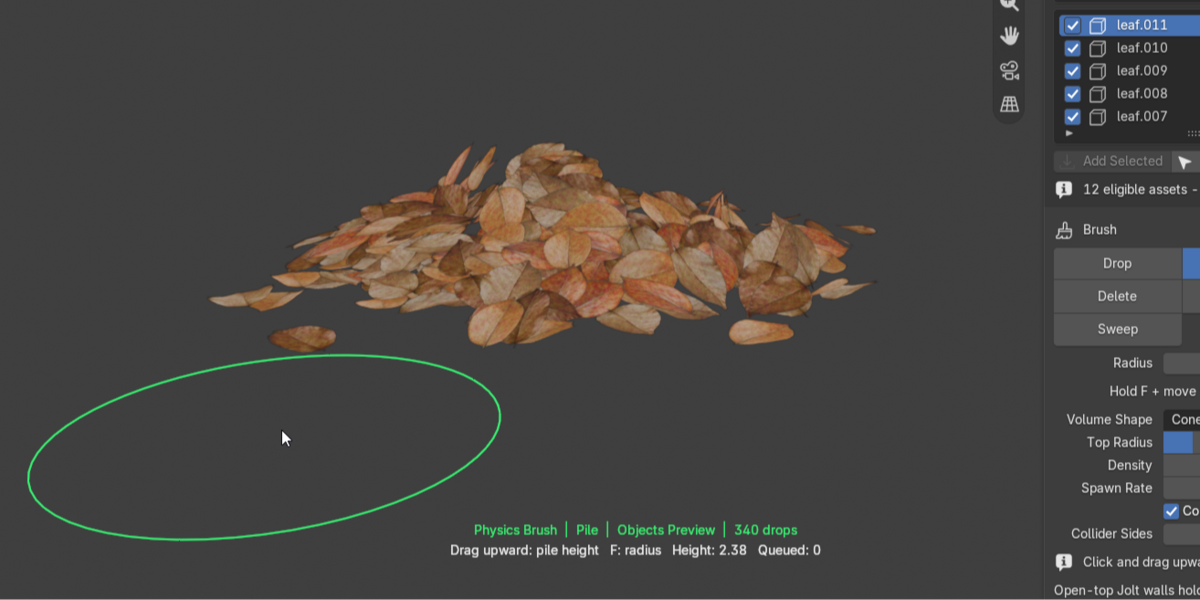
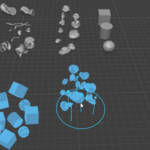
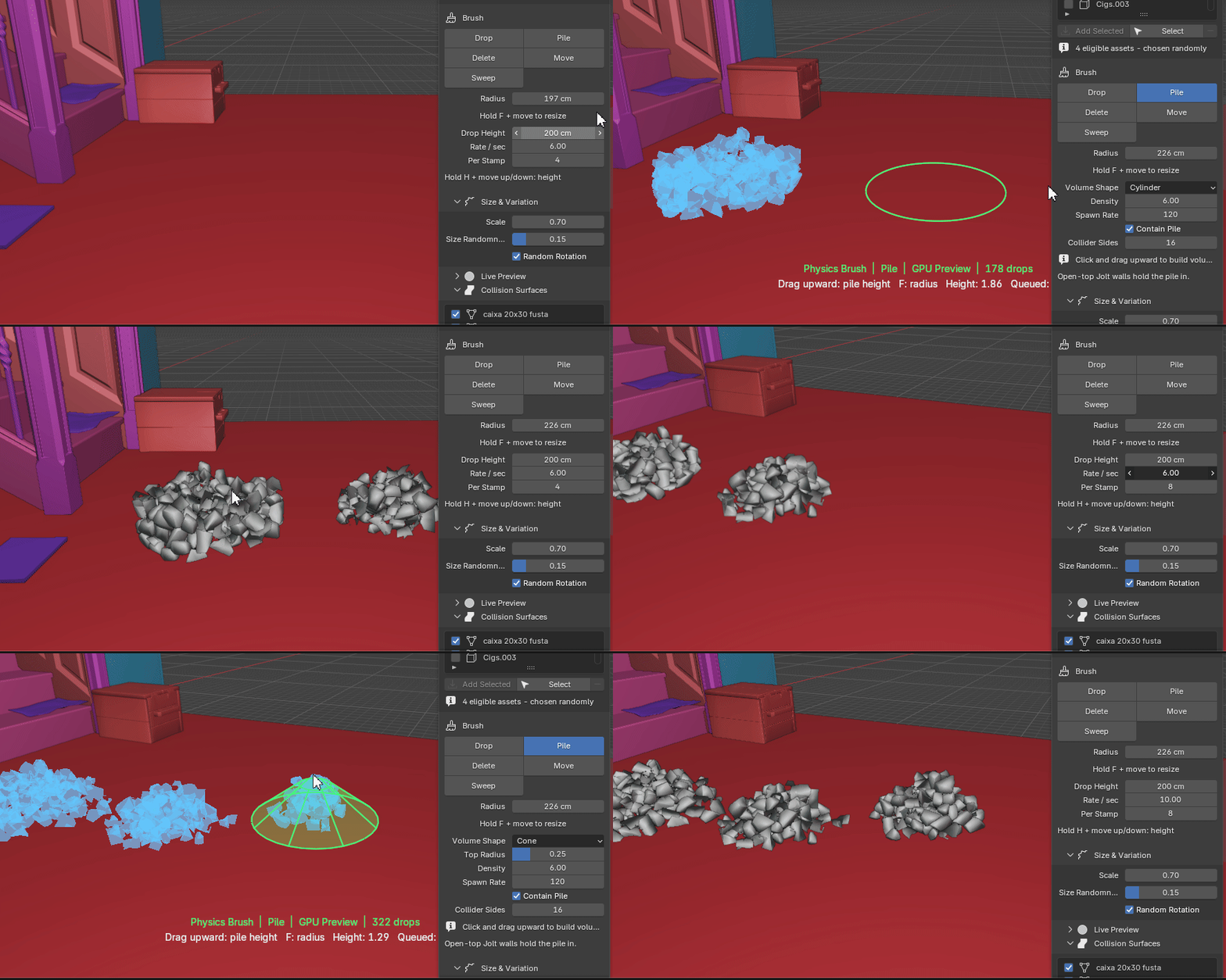
Create a cone or cylinder filled with falling assets. Density controls the amount, Spawn Rate limits load, and optional open-top Jolt walls keep the pile contained.
SWEEP BRUSH
Push and Shape Loose Bodies
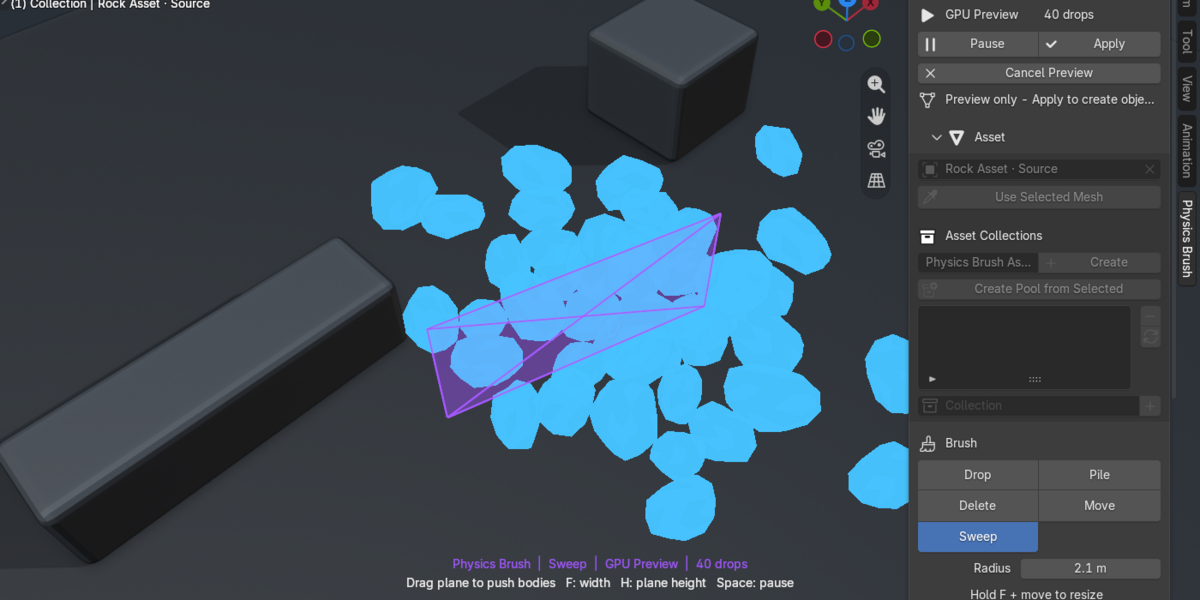
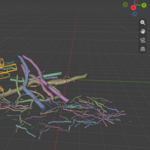
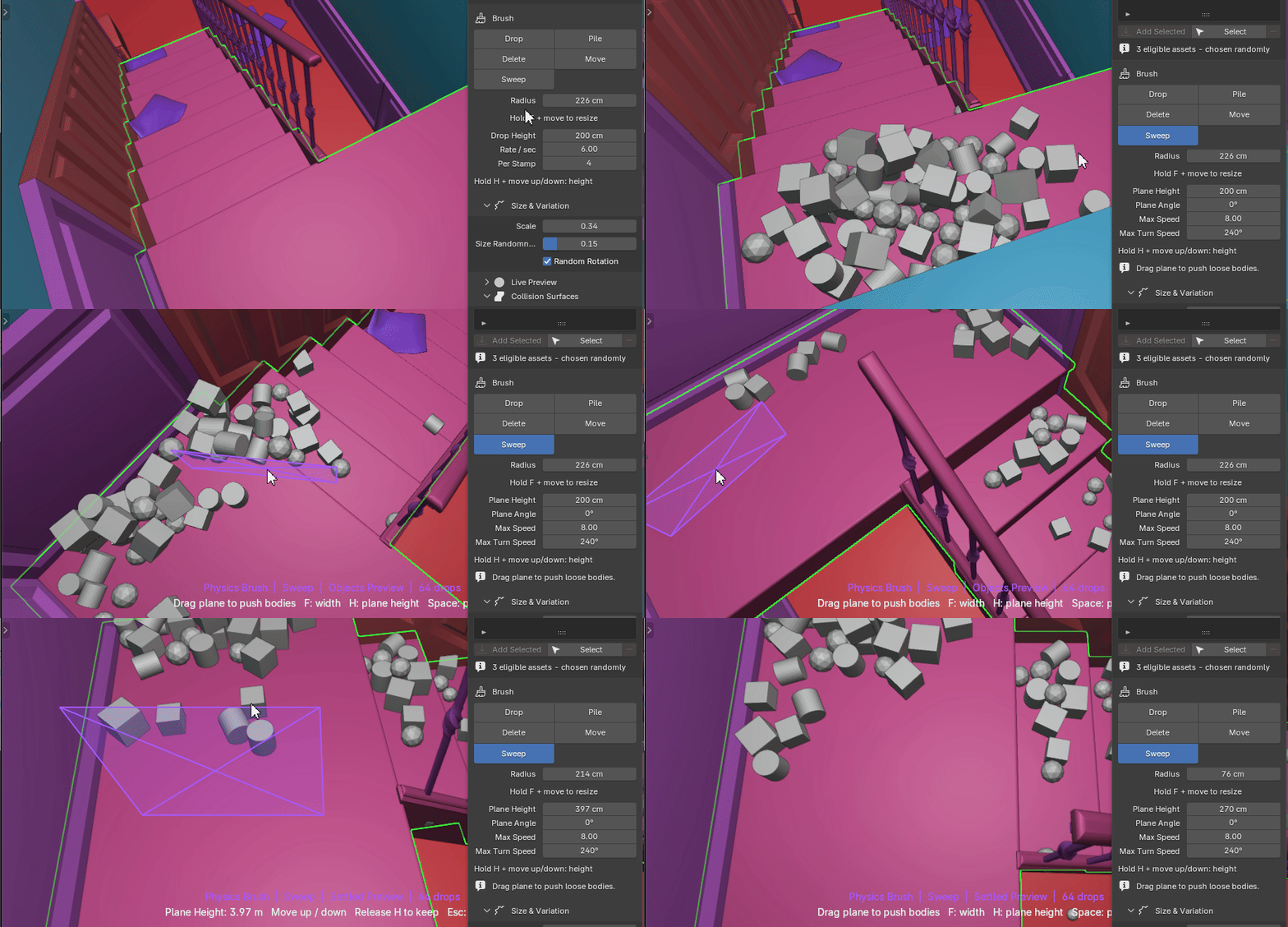
Drag a physical plane through the simulation. The blade turns toward the stroke direction. Max Speed and Max Turn Speed smooth motion and prevent sudden flicking.
EDITING BRUSHES
Move & Delete
Move
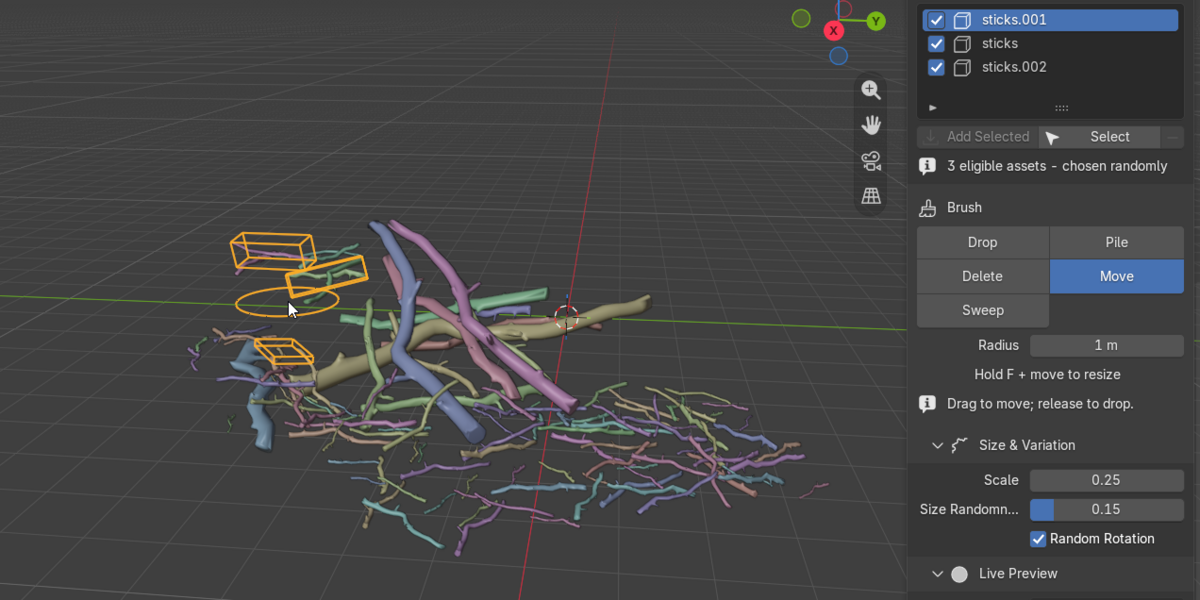
Drag highlighted bodies in the view plane and release them back into physics.
|
Delete
Erase Physics Brush bodies while protecting ordinary scene objects and source assets.
|
VIEWPORT CONTROLS
Shortcuts
| LMB |
Use the active brush. |
| F + Mouse |
Change brush radius. |
| H + Mouse |
Change Drop or Sweep height. |
| Space |
Pause or resume physics. |
| Esc |
Apply the preview. During adjustment, cancel that adjustment. |
LIVE PREVIEW
Fast While Moving, Full Detail on Apply
GPU Instances batches assets by source and supports Low Poly, Bounds, or Full Mesh previews.
Blender Objects creates ordinary temporary scene objects. Apply always uses the full evaluated source mesh.
PHYSICS SETTINGS
Tune the Simulation
| Collision Shape |
Convex Hull, Box, Sphere, Capsule, or Cylinder. |
| Substeps |
Raise for small, fast bodies or forceful sweeps. |
| Physical Response |
Mass, friction, bounce, and live gravity. |
| Collision Collection |
Optional explicit environment; otherwise visible meshes are used. |
| Ground Plane |
Infinite fallback floor and aiming surface at Ground Z. |
PERFORMANCE
Keep Large Sessions Responsive
- Use GPU Instances with Low Poly or Bounds preview.
- Choose Box or Sphere collision shapes when possible.
- Keep Substeps at 1–2 unless fast contacts fail.
- Control pile density, emission rate, and Max Drops.
- Let bodies sleep; Physics Brush suspends settled-world updates automatically.
FINISHING
Apply or Cancel
Apply
Creates full Blender mesh objects in Physics Brush Drops. The result is undoable.
|
Cancel Preview
Discards new drops and restores prior placements and preview deletions.
|
TROUBLESHOOTING
Common Questions
The brush does not emit
Confirm that an active-pool object is included, the cursor is over a collision surface, and Max Drops has not been reached.
Part of the panel is greyed out
Structural controls are locked during a preview. Collection switching, filters, and Include checkboxes stay available.
Objects pass through one another
Increase Substeps, reduce spawn overlap, raise Drop Height, or choose a better collision shape.
The environment collision is outdated
Click Refresh Surfaces after editing or moving environment geometry.
MacOS or Linux support?
The packaged build includes a Windows x64 Jolt library. Support for other platforms is coming soon!
PHYSICS BRUSH · INTERACTIVE JOLT ASSET PAINTING FOR BLENDER
 AFX LAB