Physics Painter – Physics-Based Object Scatter & Kitbash Library for Blender
 Blender Procedural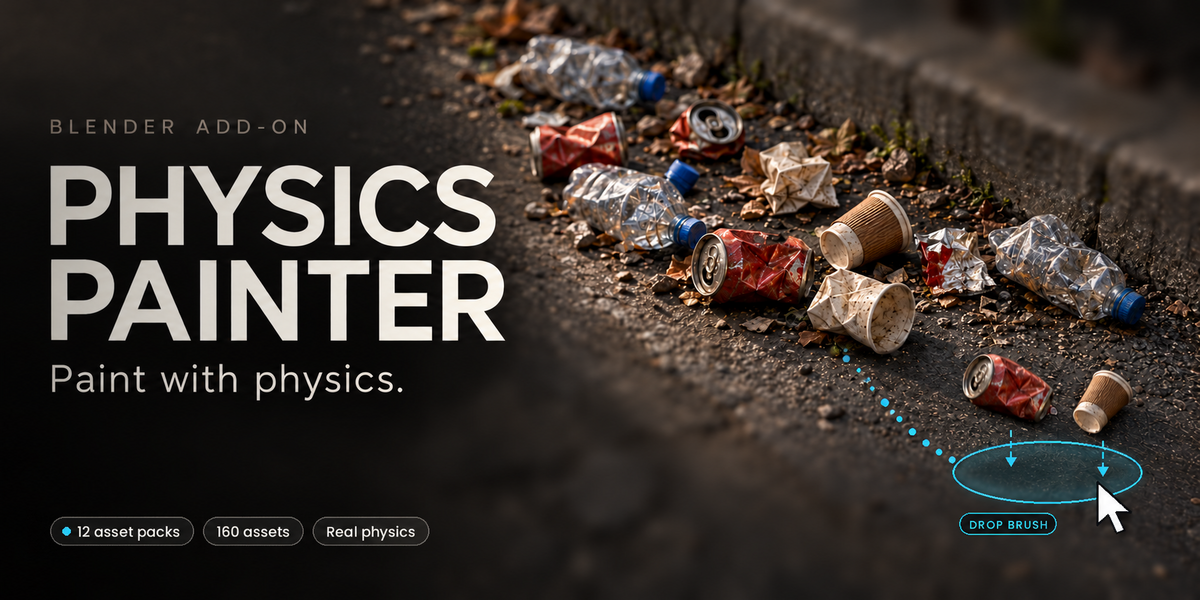
🎨 Paint assets with a brush. Let real physics settle them.
🧩 📦 12 packs · 160 assets · ⚙️ Built on Bullet rigid bodies
Rocks, debris, bricks, fruit, bones, crates, clutter: brush them onto any surface and watch Blender's rigid body physics settle every piece where it would really land. Natural, believable scatter in seconds instead of hours of hand placement.
Physics Painter works inside the 3D Viewport. You get two interactive brushes, a library of 12 ready-to-paint packs (160 textured assets), and a placement engine that makes sure assets never float and never overlap.
💡 Why Physics Painter?
Particle systems and geometry nodes scatter assets, but the objects don't touch each other or the ground. They float, intersect and ignore gravity. Plain rigid body simulation gets contact right, but setting it up is slow, it "explodes" when objects start inside each other, and things keep sliding long after they should have stopped.
Physics Painter combines both: brush-based art direction + real physics contact.
- Never in the air, never inside each other. Every asset is lowered until its real collision shape (the same convex hull Bullet uses) just touches the surface. New assets are checked against existing ones before they are created, so the simulation never starts with overlaps.
- Anti-Slide. Each asset freezes as soon as it has landed and almost stopped. Dropped piles stay where you put them instead of creeping away.
- Smart packing. Fill Area mode packs the brush by each asset's real size: big pieces first, small ones fill the gaps.
- Fast on heavy meshes. High-poly assets get an automatic, non-destructive decimated copy for simulation. The full-resolution mesh comes back afterwards.
- Fully interactive. Change size, density, gap and force strength with the mouse wheel while you paint, even during a live simulation.
✨ Key Features
▸ Brushes
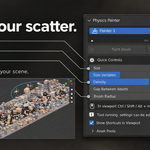
- Paint Brush: paint assets that rest on the surface, one at a time, or with live simulation.
- Drop Brush: preview a group of assets, then drop it from a height and let it pile up.
- Delete and re-simulate brushes, and undo/redo inside the tool.
- On-screen shortcut overlay (press H).
▸ Placement control
- Paint on a Colliders list or directly on any visible scene object.
- Slope Limit: keep assets off walls and steep faces.
- Fully Supported: no assets hanging over edges, holes or steps (with adjustable edge tolerance).
- Stack on Assets: paint on top of what you have already painted.
- Orient to surface normal or stroke direction, random rotation per axis, random scale (uniform or per axis).
- Adjustable gap, clearance, surface offset and spawn height.
▸ Physics
- Per-collider collision type: Mesh, Convex Hull, Box, Sphere, Cylinder.
- Asset collision shapes: Convex Hull, Mesh, Box, Sphere, Capsule, Cylinder, Cone.
- Mass, friction, bounciness, linear/angular damping, collision margin.
- Separate ground friction, bounciness and margin.
- Gravity modes: Scene, Directional (custom direction + acceleration), Spherical (pull towards an object or the 3D cursor).
- Forces: Gravity, Attract, Explode. Strength can be changed during the simulation.
- Auto-stop when settled, fallen-asset cleanup, post-simulation location/rotation axis locks.
- Optional state colors that show moving and settled assets in Solid view.
▸ Organisation
- Asset Pools: build from selection or keep in sync with a collection (nested collections supported), with search, filters and a percentage per asset.
- Painters: independent layers, each with its own settings, colliders and output collection, saved in the .blend.
- Asset management: Low/High display, convert to Instances/Copies, replace mesh, select, merge, release, delete.
- Presets: save, load and delete settings presets, or reset to defaults.
📦 What's Included
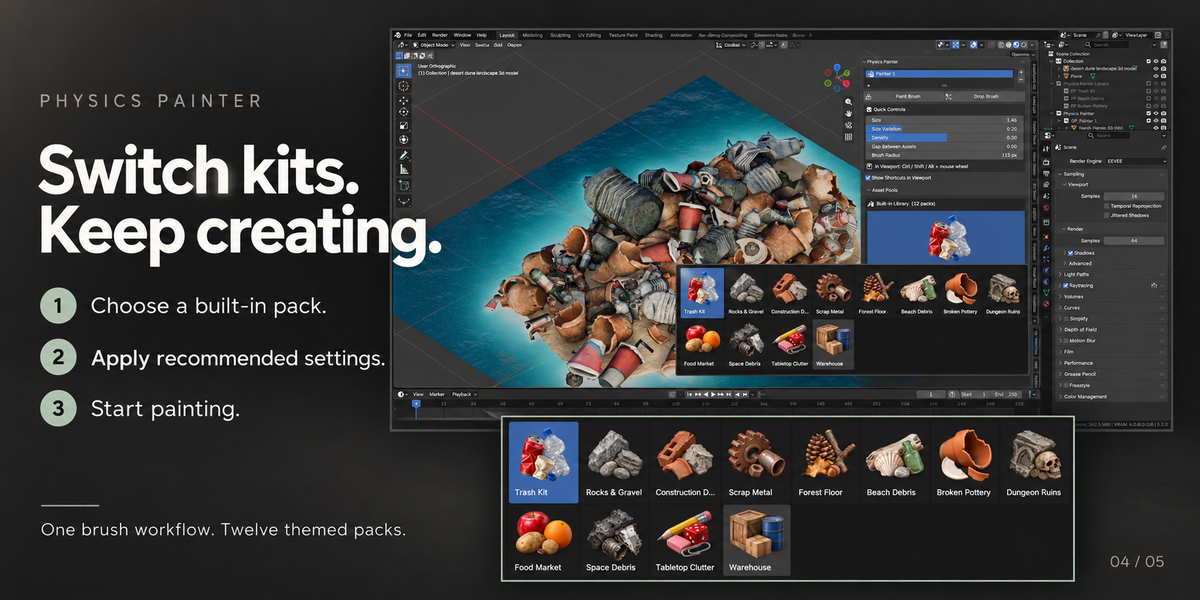
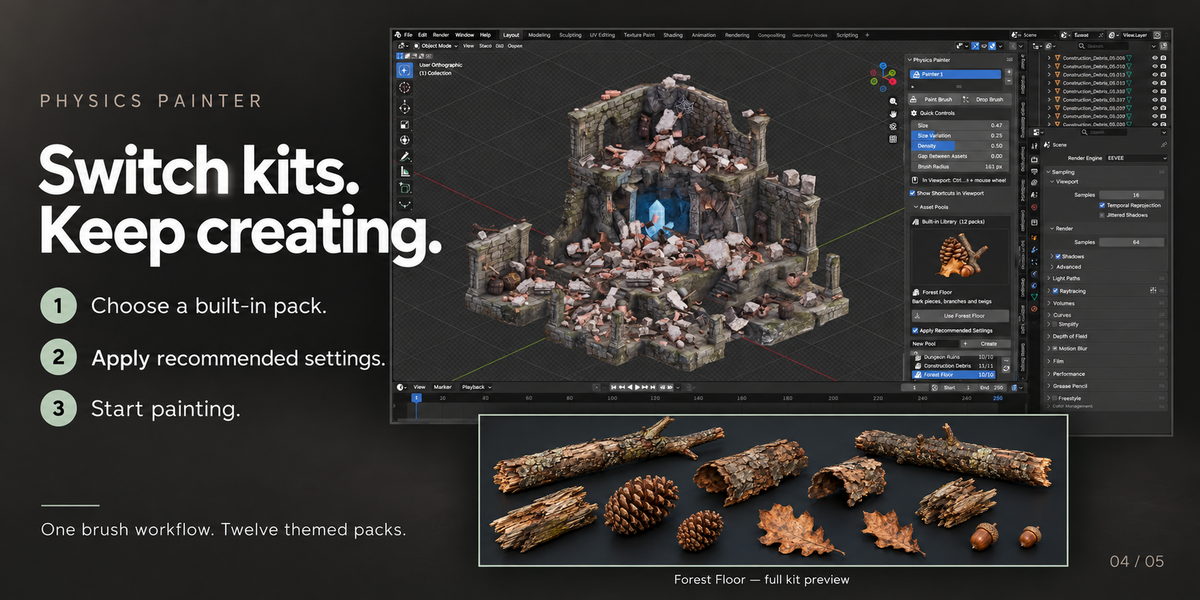
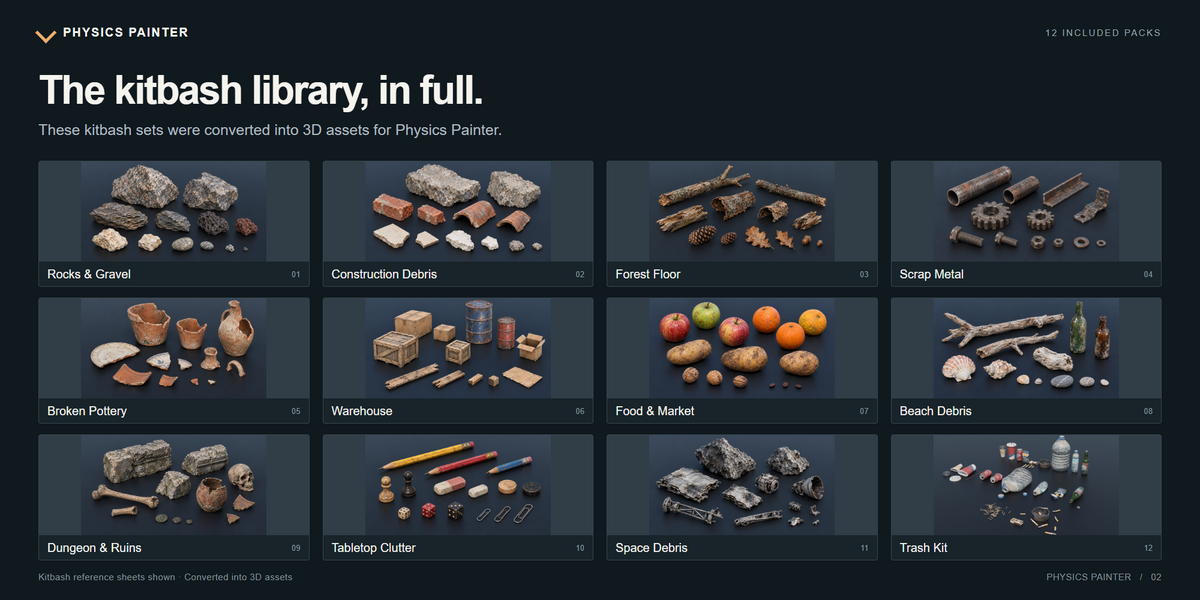
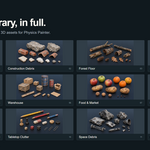
Built-in Library: 12 packs, 160 assets
Every pack has its own preview icon and recommended brush and physics settings (size variation, density, rotation, mass, friction, bounciness, damping). Load a pack and start painting straight away.
| Pack | Contents | Assets | Texture maps |
|---|---|---|---|
| Trash Kit | Crushed cans, bottles, cups and wrappers | 20 | Base, Normal, Roughness, Metallic |
| Rocks & Gravel | Granite rocks, shale stones and pebbles | 11 | Base |
| Construction Debris | Bricks, roof tiles and concrete chunks | 11 | Base, Normal |
| Scrap Metal | Rusty pipes, gears, bolts and plates | 12 | Base |
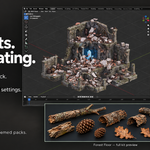
| Forest Floor | Bark pieces, branches and twigs | 10 | Base, Normal |
| Beach Debris | Driftwood, shells, stones and bottles | 10 | Base |
| Broken Pottery | Terracotta pots, jugs and shards | 10 | Base |
| Dungeon Ruins | Skulls, bones and carved stone blocks | 10 | Base |
| Food Market | Apples, oranges, potatoes and nuts | 12 | Base |
| Space Debris | Meteorite chunks and hull fragments | 18 | Base |
| Tabletop Clutter | Pencils, erasers, dice and paper clips | 25 | Base |
| Warehouse | Wooden crates, barrels, boxes and planks | 11 | Base |
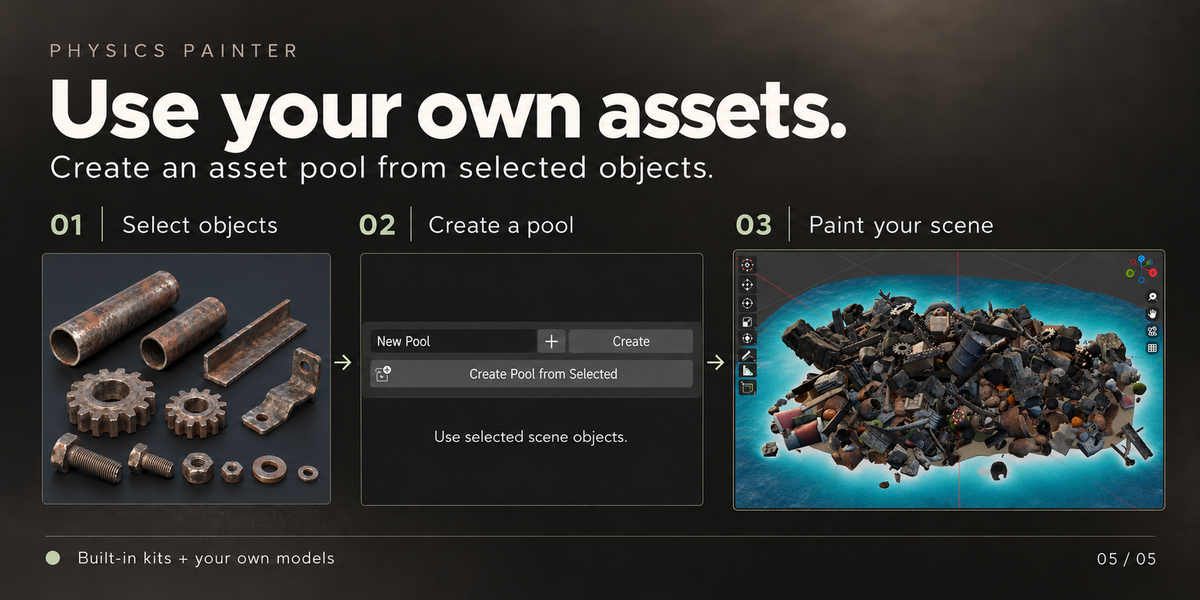
Library textures are packed into your .blend when you load a pack, so your scenes stay portable. You can also use your own assets: any mesh object works.
🧩 Requirements
- Blender 4.5 or newer (developed for Blender 5.x)
- Windows, macOS or Linux
- No external dependencies
⬇️ Installation
- Download
physics_painter_v1.5.0.zip. Do not unzip it. - In Blender, open Edit > Preferences > Get Extensions.
- Open the drop-down menu (⌄) in the top-right corner and choose Install from Disk…
- Select the zip file and confirm. Shortcut: you can also drag and drop the zip file into the Blender window.
- Make sure Physics Painter is enabled in the list.
The add-on appears in 3D Viewport > Sidebar (N) > Physics Painter.
Updating: install the new zip the same way. It replaces the old version. Your painters, pools and settings are stored in the .blend file and your presets in the extension's user folder, so they are kept.
🚀 Quick Start (60 seconds)
- Open the Sidebar (N) in the 3D Viewport and go to the Physics Painter tab.
- Click + to add a Painter.
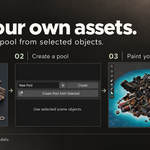
- In Asset Pools > Built-in Library, choose a pack from the icon gallery (for example Rocks & Gravel) and press Use Rocks & Gravel. Or select your own objects and press Create Pool from Selected.
- Select your ground object(s) and press Paint Brush. If the Colliders list is empty, it is filled automatically with the selected meshes, or with every visible mesh if nothing is selected.
- Left-click and drag to paint. Hold Ctrl while painting to watch physics settle the assets live.
- Press Esc, Right-click or Enter to exit.
Press H at any time inside the brush to show or hide the shortcut list.
🧠 Core Concepts
Painters
A Painter is a layer. Each one has its own brush and physics settings, colliders list and output collection. Use separate painters for different jobs, for example "Big rocks" and "Gravel". They are independent and saved with the .blend file.
Asset Pools
A Pool is the set of objects you paint with. Each pool can be:
- Created from the selection, or empty and filled with Add Selected.
- Linked to a collection and kept in sync with the Refresh button. Nested includes objects in child collections.
- Loaded from the built-in library.
Each asset in a pool has:
- A checkbox to turn it on or off.
- A Percentage: its relative chance of being picked. The panel also shows the asset's real share of the total.
- Optimize + Vertex Count: the vertex count of the decimated simulation mesh (default 250). The original mesh is never modified.
Use Apply to Checked to copy the active asset's percentage and optimization settings to every checked asset. Use Build Optimized Meshes to (re)build the simulation meshes.
Search, Selected / Visible filters and an All / Enabled / Disabled filter make large pools easy to manage.
Colliders
Colliders are the surfaces assets land on. Each collider has its own collision type:
- Mesh: exact surface. Works for any ground and is recommended.
- Convex Hull: faster, but fills concave areas (bowls, holes) as if they were solid.
- Box / Sphere / Cylinder: simple primitive shapes.
▸ Paint On (G):
- Colliders: only objects in the Colliders list.
- Scene Objects: every visible mesh, no list needed. The surfaces you paint on and meshes near the simulated assets become colliders automatically (Scene Ground Collision: Mesh or Convex Hull).
Tip: to edit several list items at once, highlight them with the dot icon or the select buttons. Changes to one highlighted item (checkbox, percentage, shape…) are applied to all of them.
🖌️ The Brushes
Paint Brush
Paints assets that rest exactly on the surface. With Ctrl held, they are simulated as you paint.
| Input | Action |
|---|---|
LMB |
Paint |
Shift + LMB |
Place one asset at a time |
Ctrl + LMB |
Paint with live simulation |
Alt + LMB (or hold D) |
Delete assets under the brush |
Ctrl + Alt + LMB |
Re-simulate assets under the brush |
Ctrl + Wheel |
Asset size |
Shift + Wheel |
Density (or count) |
Alt + Wheel |
Gap between assets |
Ctrl + Alt + Wheel |
Size variation |
F drag / [ ]
|
Brush radius |
S drag / − =
|
Asset size |
C drag / , .
|
Fill amount (or count) |
V |
Switch between Fill Area and fixed Count |
Ctrl + Shift drag |
Gap |
O / I |
Orient to normal / to stroke direction |
E |
Stack on painted assets on/off |
G |
Paint on Colliders / Scene objects |
H |
Show / hide the shortcut overlay |
Ctrl+Z / Ctrl+Shift+Z |
Undo / Redo inside the brush |
Esc / RMB / Enter |
Exit |
▸ Amount modes
- Fill Area (default): covers a set fraction of the brush area (Density). Big assets are placed first and small ones fill the gaps. Packing Attempts sets how hard it tries to find free spots (higher means tighter packing).
- Count: a fixed number of assets per brush dab.
- Stroke Spacing: distance between dabs, relative to the brush radius.
Drop Brush
Previews a group of assets above the surface, then drops it and simulates it. Good for piles, heaps and spilled containers.
| Input | Action |
|---|---|
LMB |
Drop the previewed group and simulate |
Ctrl drag / , .
|
Count |
Shift drag / ↑ ↓
|
Drop height |
Ctrl + Shift drag / [ ]
|
Drop radius |
S drag / − =
|
Asset size |
E / G / H |
Stack on assets / Paint-on mode / Shortcut overlay |
Ctrl+Z / Ctrl+Shift+Z |
Undo / Redo |
Esc / RMB / Enter |
Exit |
Settings: Count, Height (lower drops bounce and slide less), Radius, Jitter, and Tumble (fully random rotation).
🎛️ Panel Reference
Main panel: Quick Controls
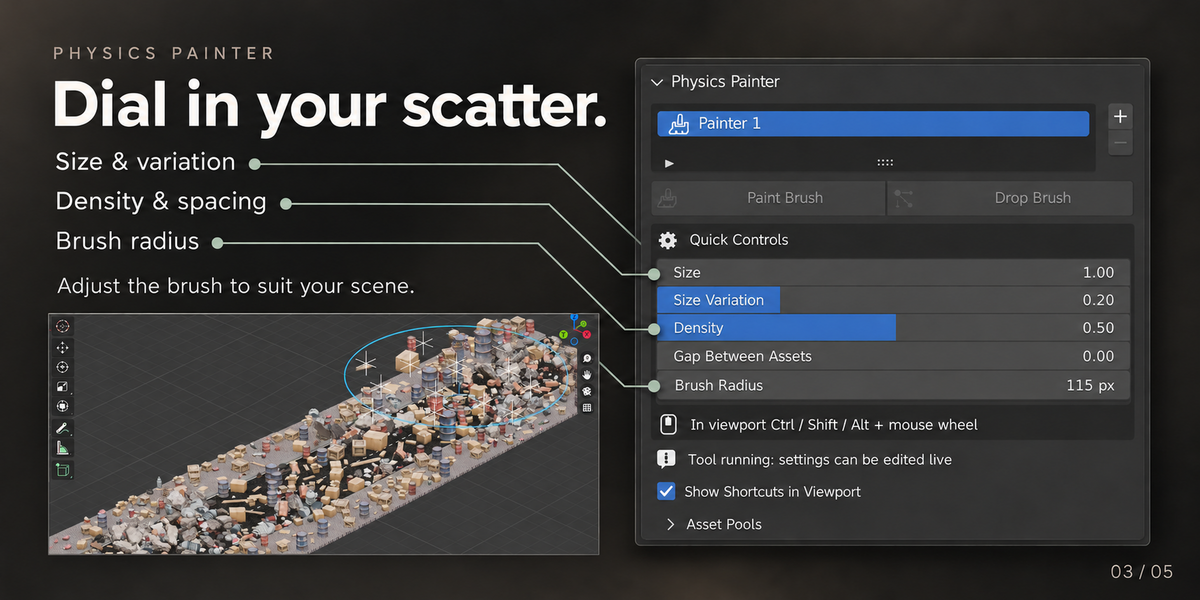
The settings you use most, all in one place: Size, Size Variation, Density (or Count), Gap Between Assets and Brush Radius. The panel also tells you what is missing (no assets, no colliders) and lets you turn the viewport shortcut overlay on or off.
Paint Brush panel
▸ Where Assets Can Go
| Setting | Description |
|---|---|
| Paint On | Colliders list or every visible scene mesh |
| Slope Limit / Max Angle | No assets on surfaces steeper than this angle (default 40°) |
| Fully Supported / Edge Tolerance | Assets must sit fully on the surface. The tolerance sets how much of an asset (relative to its height) may hang over an edge |
| Stack on Assets | Allow painting on top of painted assets (off by default) |
▸ Orientation
| Setting | Description |
|---|---|
| Orient to Normal | Align assets to the surface normal |
| Orient to Direction | Align assets to the stroke direction |
| Random Rotation | Random rotation range (±) per axis. Default: free spin around Z |
| Uniform Scale | Same random scale on all axes |
▸ Advanced
| Setting | Description |
|---|---|
| Create: Instance / Copy | New assets share the source mesh (lightweight) or get their own copy |
| Clearance | Safety gap between assets, relative to their size |
| Surface Offset | Extra offset from the surface |
| Spawn Height | Extra height above the surface for simulated painting |
Physics panel
Gravity: Scene (uses the scene's gravity), Directional (custom direction and acceleration) or Spherical (pulls everything towards a Center object or the 3D cursor). You can change the acceleration during a simulation.
Forces: Gravity only, Attract (pull towards the brush or target) or Explode (push away for a set number of frames). Strength, Max Distance (0 = unlimited) and Target (an object, or the 3D cursor if empty). The brushes use the brush position as the force center.
▸ Rigid Bodies
| Setting | Default | Notes |
|---|---|---|
| Shape | Convex Hull | Fast and stable for most assets. Mesh is exact but slower |
| Use Optimized Meshes | On | Simulates the decimated copies; full meshes are restored afterwards |
| Mass | 1.0 | |
| Friction | 0.9 | |
| Bounciness | 0.05 | |
| Linear / Angular Damping | 0.15 / 0.4 | |
| Collision Margin | Off (0.01) | Turn on for very small assets |
Ground Collisions: separate Ground Friction, Ground Bounciness and Ground Margin for the surfaces assets land on.
▸ Simulation
| Setting | Description |
|---|---|
| Speed | Simulation speed multiplier |
| Substeps / Solver Iterations | Accuracy vs. speed (default 10 / 10) |
| Frames per Update | Higher is faster but less interactive |
| Max Frames | Safety limit for a simulation run |
| Auto Stop When Settled | Stops when everything has been at rest for Settle Frames |
| Anti-Slide | Freezes each asset once it has landed and almost stopped (Freeze After, Freeze Speed) |
| Show State Colors | Colors moving and settled assets in Solid view |
| Delete Fallen Assets | Removes assets that fell below the colliders |
| Axis Locks | Keeps the pre-simulation location and/or rotation on chosen axes |
Re-Simulate: run the physics again on the Painter's assets, the Selected assets or All painted assets. During a re-simulation, Enter/Space stops and keeps the result, and Esc/RMB cancels.
Assets Management panel
Works on the Selected painted objects or on the whole active Painter.
| Action | Description |
|---|---|
| Display Low / High | Show the optimized or the original mesh, to keep heavy scenes responsive |
| To Instances / To Copies | Shared mesh or independent mesh data |
| Replace by Active Mesh | Swap the mesh of painted assets for the active object's mesh. Useful for blocking out with proxies and swapping in final models |
| Select | By Painter, By Assets (the source objects) or All |
| Merge per Asset / Merge All | Join painted assets into single meshes |
| Release | Turn painted assets into regular objects that Physics Painter will ignore |
| Delete | Delete the painted assets |
Presets panel
Save the active painter's brush and physics settings as a named preset, load it into any painter or project, delete presets, or Reset Defaults.
🎯 Workflow Tips
- Start with the library defaults. Keep Apply Recommended Settings on when loading a pack. Each pack's mass, friction and rotation values are tuned for that kind of object.
- Layer your scatter. Use one painter for large pieces and another for small fill. Paint the large ones first, then turn on Stack on Assets (E) for the small ones.
- Piles and heaps: use the Drop Brush with a low height and Anti-Slide on.
- Clean ground cover: use the Paint Brush without Ctrl. Assets rest on the surface without any simulation, which is the fastest option.
- Natural clustering: paint, then Ctrl + Alt + LMB over an area to re-simulate just that part.
- Craters and debris rings: set the force to Explode and re-simulate around a point. Use Attract to gather assets into a bowl or a corner.
- Planets and asteroids: use Spherical gravity with the planet as the Center.
- Heavy scenes: keep Create on Instance, use Display Low while working, and switch to High before rendering.
- Finalizing: use Release to hand the objects over as regular objects, or Merge to reduce the object count.
🛠️ Troubleshooting & FAQ
The Paint Brush button is greyed out or nothing happens.Add a Painter (+) and make sure the active pool has at least one checked asset with a percentage above 0%.
Assets don't appear where I click.Check Paint On. In Colliders mode, the surface must be in the Colliders list. Switch to Scene Objects (G) to paint on anything. Also check that Slope Limit or Fully Supported isn't rejecting the surface.
The simulation doesn't run or behaves strangely.If the scene has a baked rigid body cache, free the bake first (Scene Properties > Rigid Body World > Cache > Delete All Bakes).
Assets fall through the ground.Set the ground collider to Mesh collision, make sure its normals are correct, and increase Substeps. For very small assets, turn on a custom Collision Margin in Physics.
Assets fill holes or bowls instead of falling in.That collider is set to Convex Hull. Change it to Mesh.
Assets keep sliding after landing.Make sure Anti-Slide is on, raise Friction / Ground Friction, lower Bounciness, or drop from a lower height.
The simulation is slow.Keep Use Optimized Meshes on and lower the per-asset Vertex Count. Use Convex Hull instead of Mesh for asset shapes, or raise Frames per Update.
Does it change my existing rigid body setup?No. Physics Painter manages its own simulation, and your own rigid body objects are left untouched.
Will my scene work on another computer without the add-on?Yes. Painted assets are regular Blender objects and the library textures are packed into the .blend. Use Release if you want them to be fully independent of the add-on.
Can I use my own models?Yes. Any mesh object can be added to a pool. High-poly models are fine, because the simulation uses an automatic decimated copy.
📝 Changelog
▸ 1.5.0
- Current release. Built-in library of 12 packs / 160 assets, Paint and Drop brushes, never-overlap placement, Anti-Slide, gravity modes and forces, asset management and presets.
⚖️ License & Credits
- Code: GPL-3.0-or-later
- Bundled models: created by Pamir with Tripo AI.
💬 Support
Questions, bug reports or feature requests? Use the Superhive product page's support / messaging section. Please include your Blender version, operating system and, if possible, a short description or screenshot of the issue.
Thank you for using Physics Painter. Happy painting!
— 🎨 Physics Painter · v1.5.0 —
 Included
Includes 12 months of
- Support from Blender Procedural
- Product updates
Extend this product’s Support Period +12 months: 50% of product price
Have questions before purchasing?
Login to message
| Blender Extension Compatible | Yes |
| Dev Fund Contributor | |
| Published | about 9 hours ago |
| Blender Version | 4.5 - 5.2 |
| Extension Type | Add-on |
| Render Engine Used | Cycles, Eevee |
| License | GPL |
Discover more products like this
object scattering world building Physics Painter rigid body Level Design asset scatter environment art 3d assets scene dressing Procedural Workflow kitbash Blender Add-on