 Wolfram Kampffmeyer


WK Tools - Pick-Up and Drop Objects, Foot Pinning and Step-Based Camera Fixes
(Tested with Blender 5.1)
Too many clicks just to animate a simple PickUp? Tired of sliding feet in your walkcycles? WK Tools is here to streamline your animation workflow – fast, clean, and production-ready.
Built by a 3D animator with 20+ years of experience, this add-on automates tedious constraint handling and transform keying, letting you focus on animation – not setup.
New Module added:
Quick Foot Reset!
Tired of placing the feet back to the ground on every step? Wish to have this done with one click?
(Scroll down for more informations)
Features
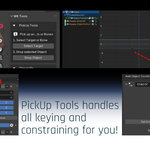
PickUp Tools

Animate PickUp and Drop for objects or bones with just a click
Automatically handles Child Of constraint creation, offsets, and keyframes
Works with animated targets – pick up a moving object and drop it anywhere
Supports multiple pick-up/drop sequences (no manual cleanup required)
Clean results for object-to-object, bone-to-object, or IK-to-IK parenting (do ahandshake!)
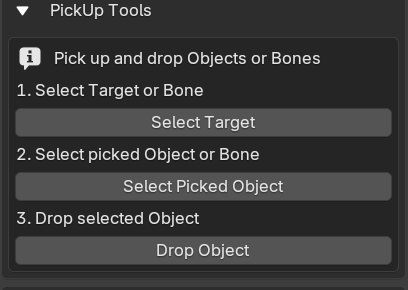
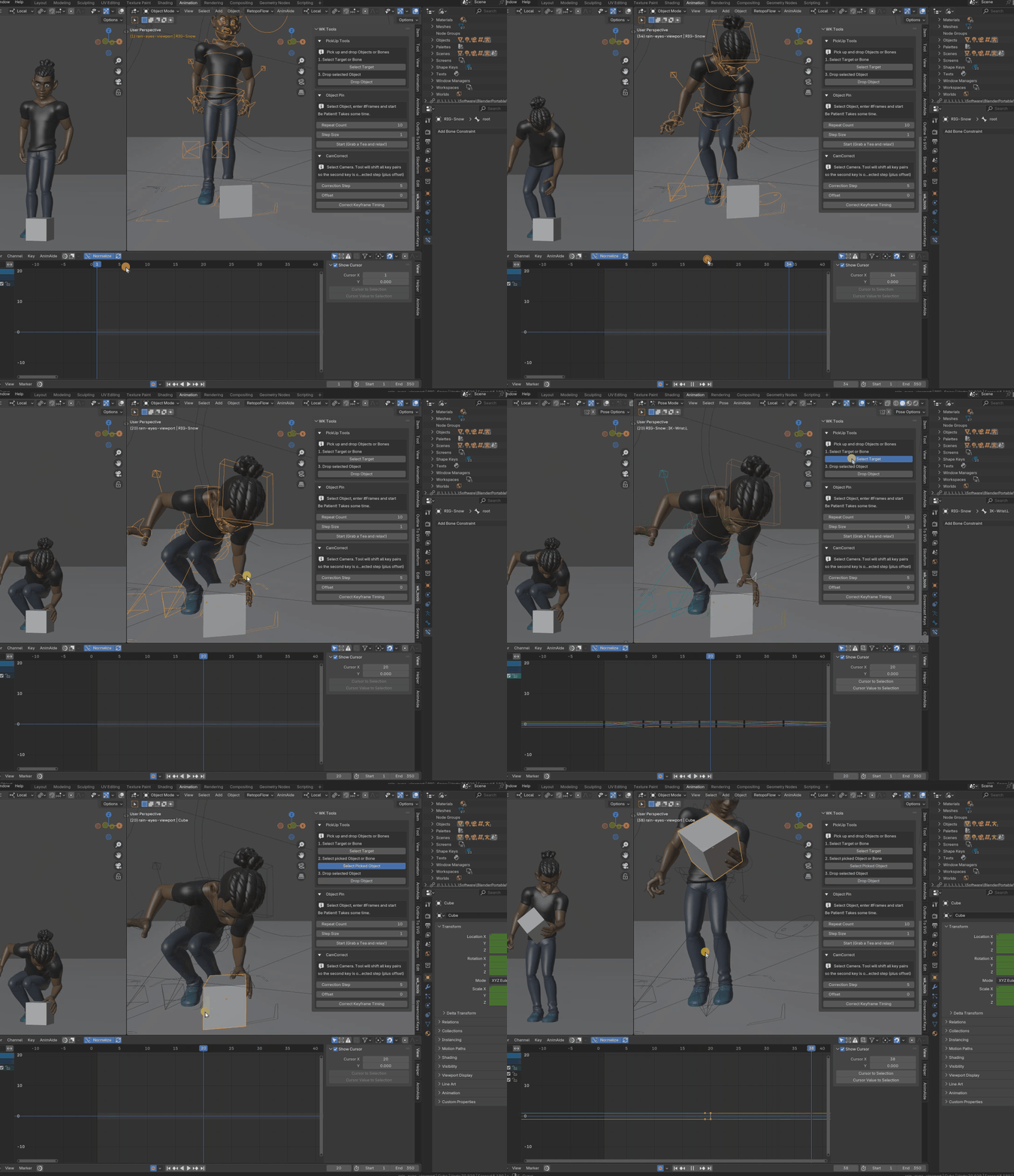
Use it:
-
Select your target (e.g. a hand bone or object that will hold something)
-
Select the object to be picked up
-
Click “Pick Up” – done!
The object now follows the target using a cleanly animated child-of constraint.
To release / drop it later:
-
Select the object again
-
Click “Drop” – the object will stay exactly where it is and the constraint is muted with clean keyframes.
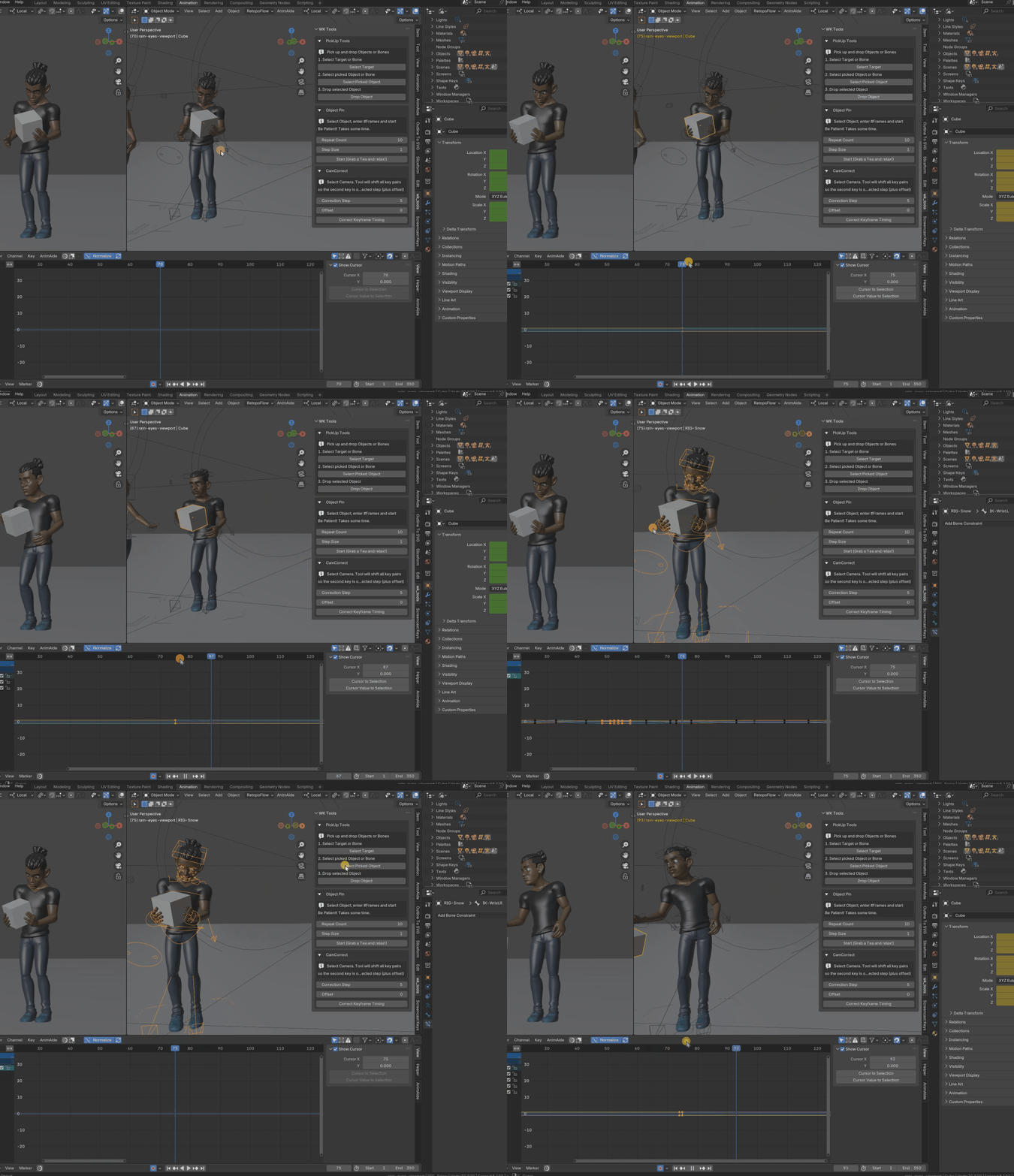
Use this for grabbing, handing over, throwing, carrying – anything that needs fast, animator-friendly parenting.
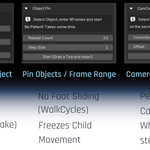
ObjectPin
Lock any object’s global position across a chosen frame range
Stop foot sliding in walkcycles – pin a foot when it touches the ground
Works with bones, IK chains, and child objects like lids or tools
Great for cases where parenting would break motion consistency
Set it once, and it bakes in the motion—no constraints needed
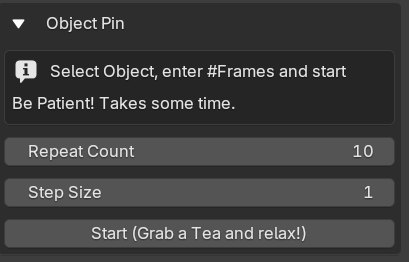
Use it:
-
Select any object (or bone in Pose Mode)
-
Enter how many frames to pin it in place
-
Click “Pin Object” – the tool copies its world transform across the range
Result: the object will hold still in space, even if it's parented or animated indirectly.
Use this for grounded feet, stationary hands, or or child-objects like lids.
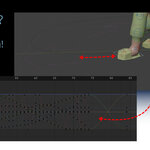
Example 1, Sliding
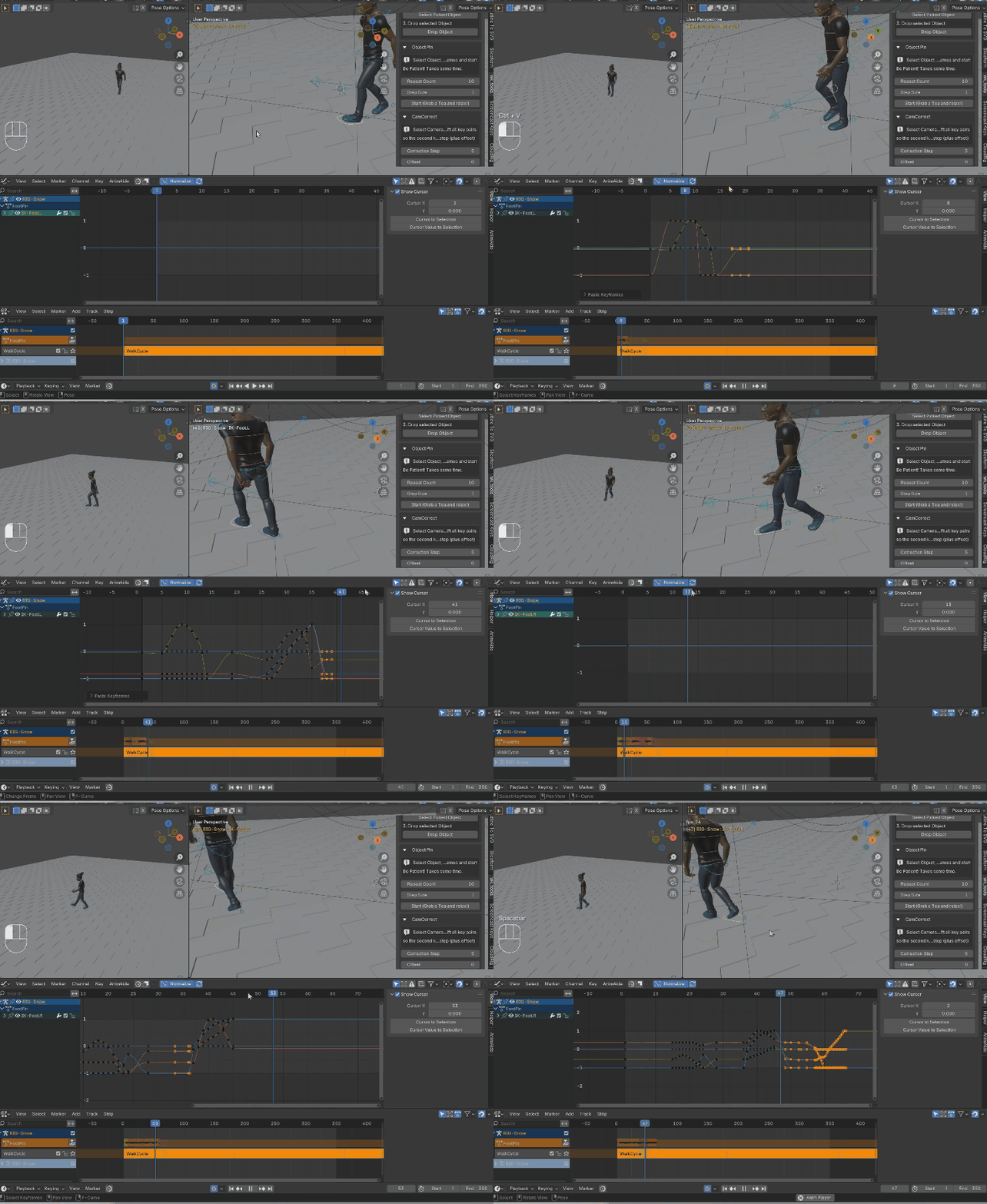
Go to the first contact frame, chose number of pin frames, click start. Done!
Example 2, Parent-Child compensation
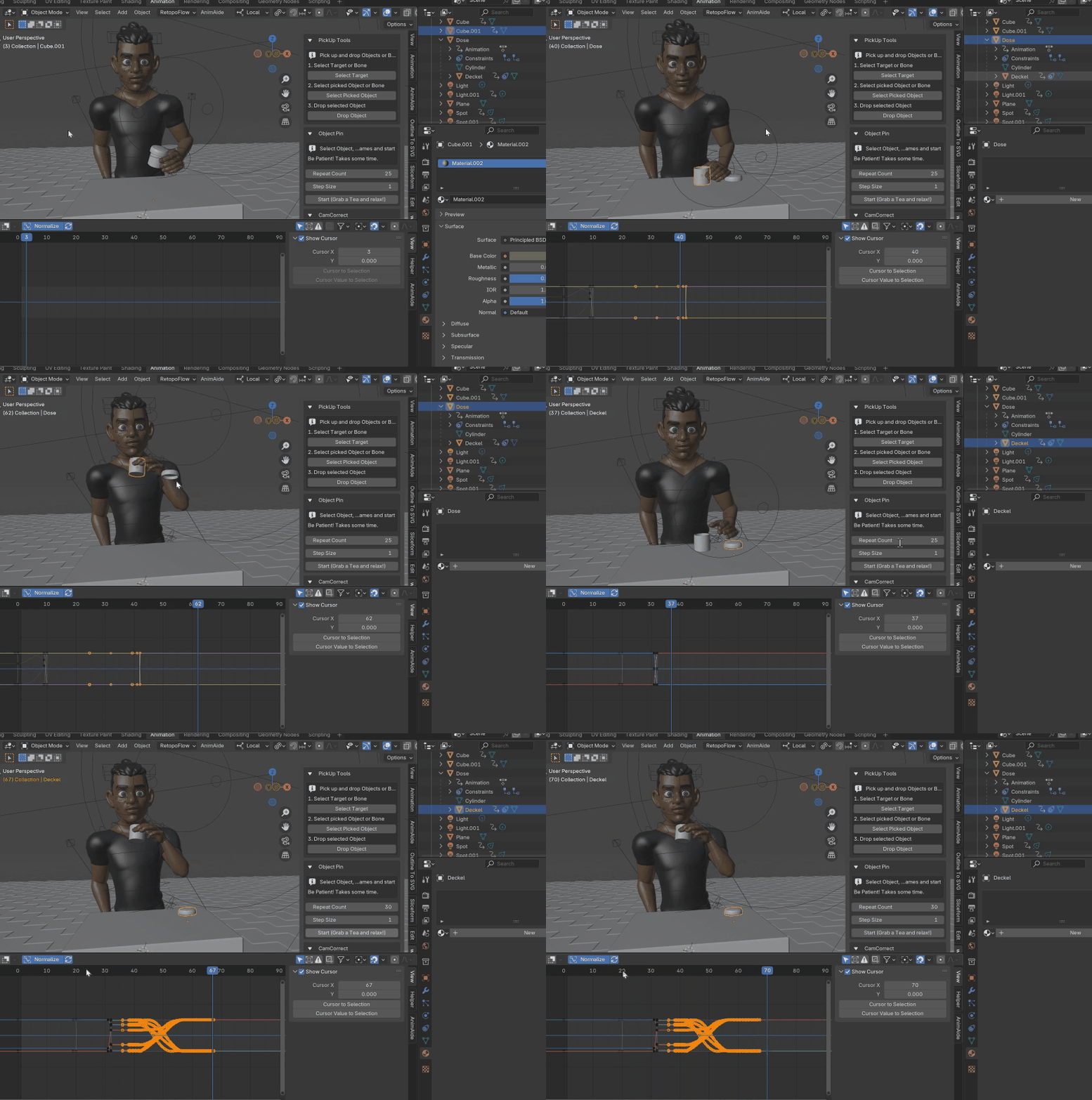
Here, the lid is child of the can. It would move along with the can. With PinObject you can fix it on the table!
CamCorrect (Stepped Animation Tools)
In stepped animation styles like “on 2’s” or “on 5’s,” characters only update their pose every 2, 3 or 5 frames. This can cause visual jumps when camera cuts fall between those steps.
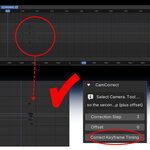
CamCorrect solves this by scanning your scene for keyframe pairs that mark a camera cut (e.g. Frame 102: old position, Frame 103: new position). It then shifts those keyframes forward or backward so the cut lands exactly on a stepped frame – like 100, 105, 110, etc.
Adjusts camera keyframe pairs to match stepped timing (on 2’s, on 5’s, etc.)
Ideal for stylized or cartoon animation workflows
Keeps camera cuts aligned with character pose transitions
Use it:
-
After layout, before switching to stepped interpolation
-
To avoid characters snapping into place after the cut
-
For smoother pose-to-pose readability in stylized workflows
You can set the step size (e.g. 2 or 5), and CamCorrect will align all cuts in just one click – no manual keyframe hunting.
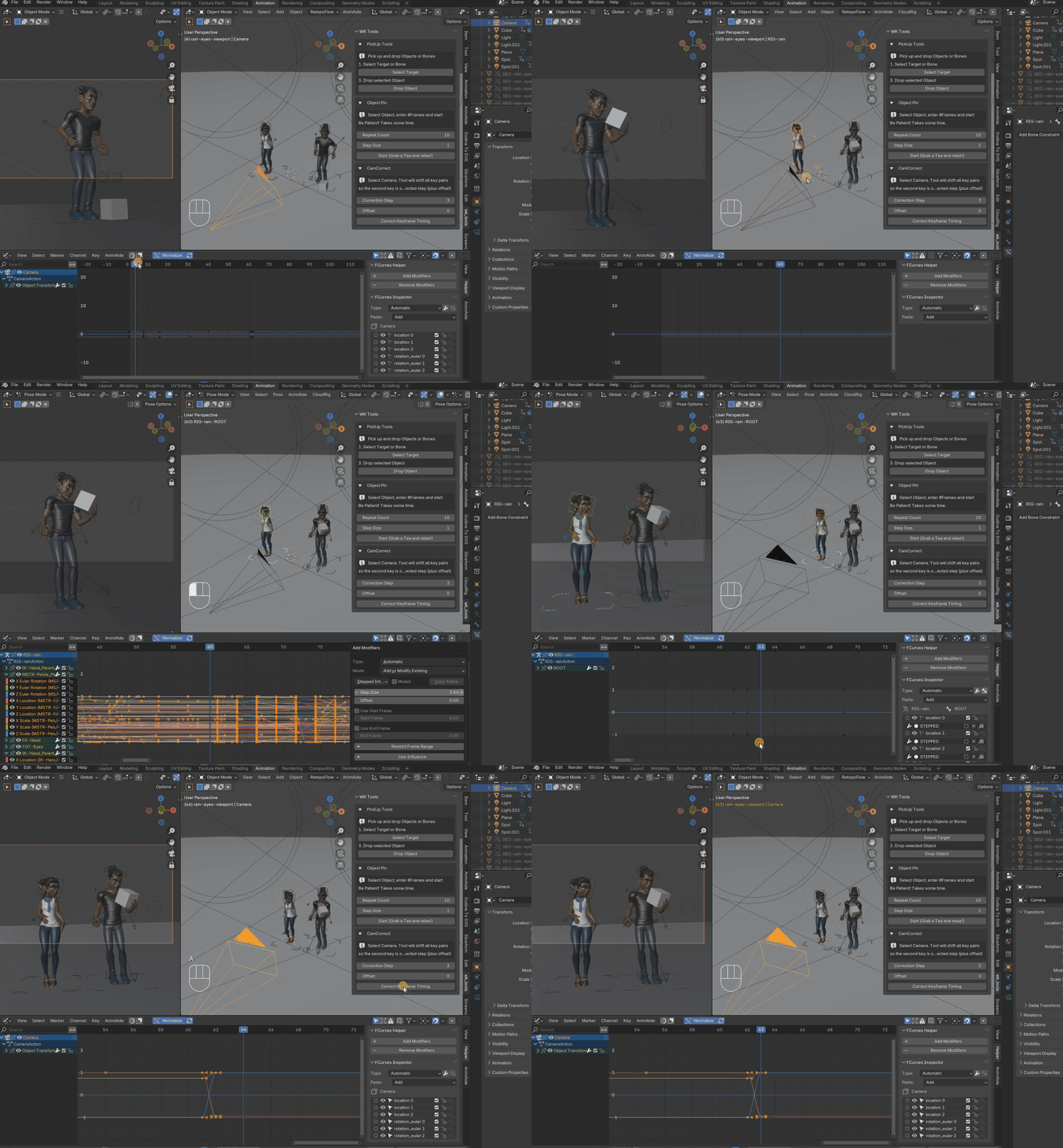
Viewport Render Stepped
Doing Render Preview (Render Viewport Animation) on 60fps could take really long. And, because on stepped animation with static cameras, only on every 5th frame something changes, it's much faster to capture only every 5th frame and duplicate the inbetweens.
In case of camera movement, you still want all frames to be captured for those frame ranges. Also, when lip sync is in between the "5ths", you want those frames captured too.
Easy with wk_tools: Simply pick camera and all relevant objects (mouth lip sync controller) and the tool will analyze it and capture the extra frames.

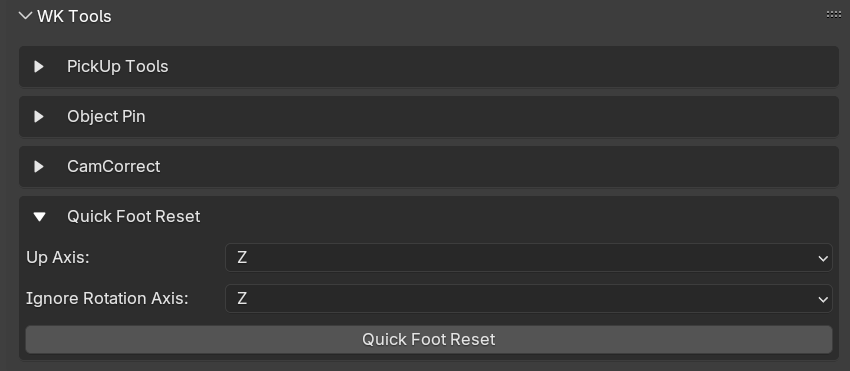
Quick Foot Reset

When animating walks, you have to set the foot to the floor on every step. You want to keep the orientation (e.g. Euler Z) but want to set X and Y to 0, so the foot isn't tilted. You also want the foot to Location Z=0 so it's flat on the floor.
Wouldn't it be great to have a Quick Favorite Button to do all this?
Done.
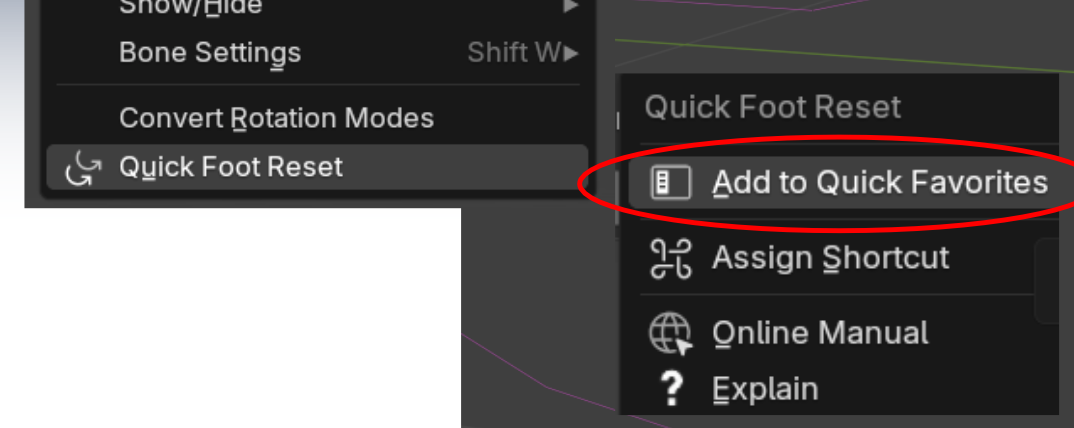
It's part of the wk_tool addon. And if you really need to tweak the axis, because your rig doesn't use the Z-Axis as up-axis, no problem, I have you covered.