 SkyVFX
Install
- Download
pin_it-1.1.0.zip(don't unzip it). - Blender › Edit › Preferences › Get Extensions › ⌄ menu (top right) › Install from Disk… › pick the zip. Or simply drag the zip onto the Blender window.
- Pin It is enabled automatically. Open the 3D Viewport sidebar (N) › Pin It tab.
Updating from 1.0: disable and remove the old "Pin It" in Preferences › Add-ons first, then install 1.1. Files made with 1.0 keep working.
Quick start (Auto mode)
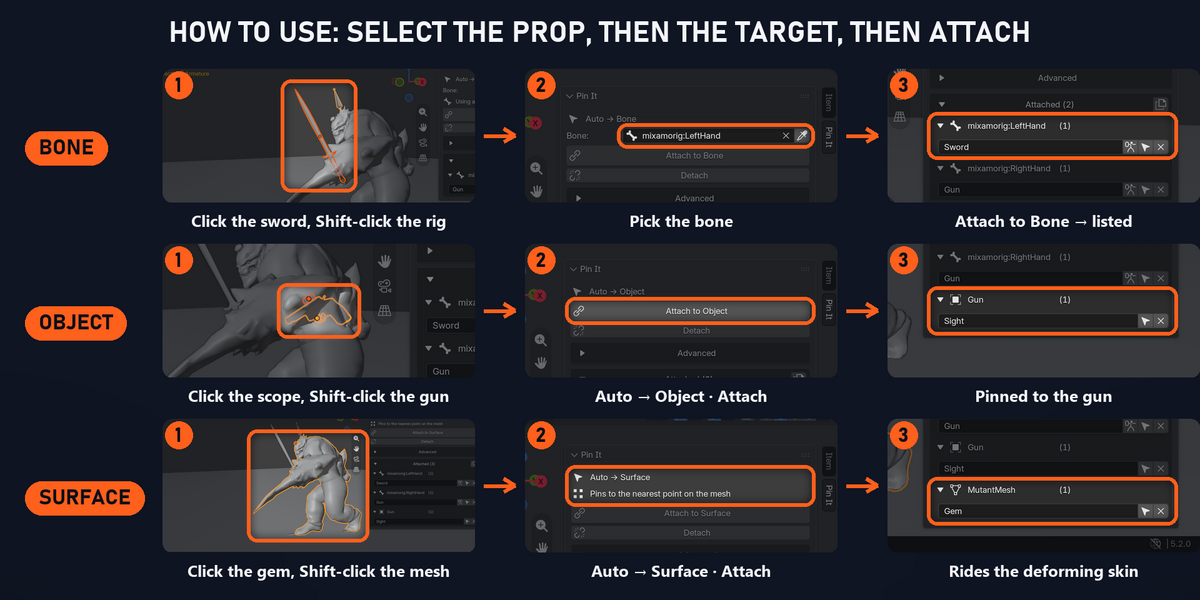
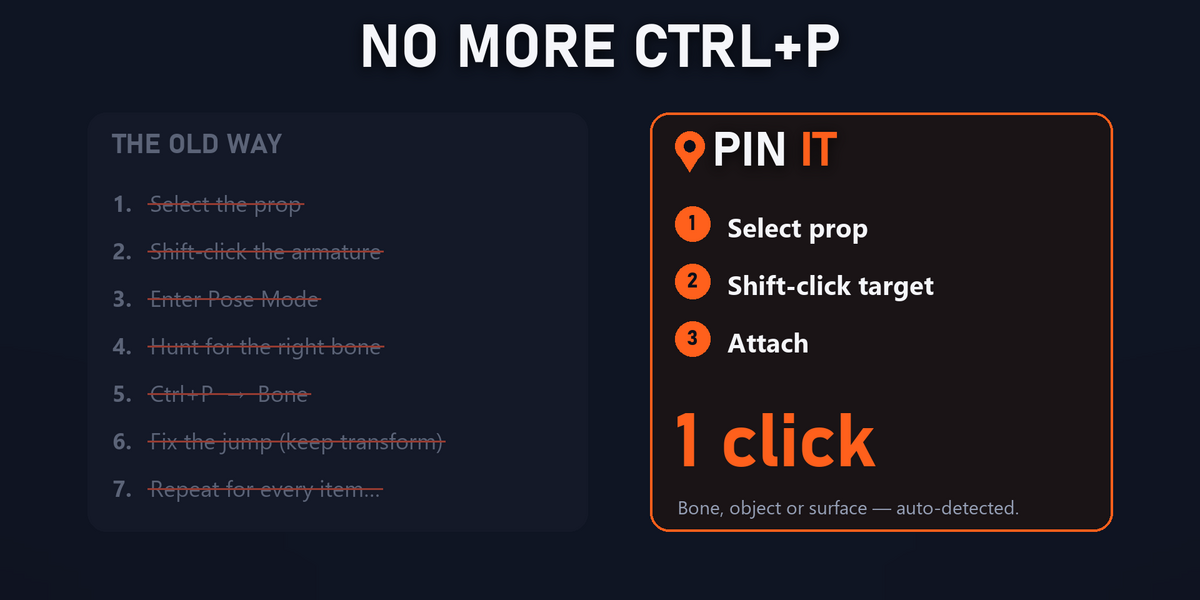
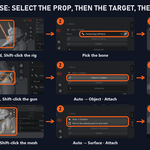
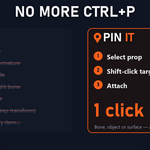
- Select your prop.
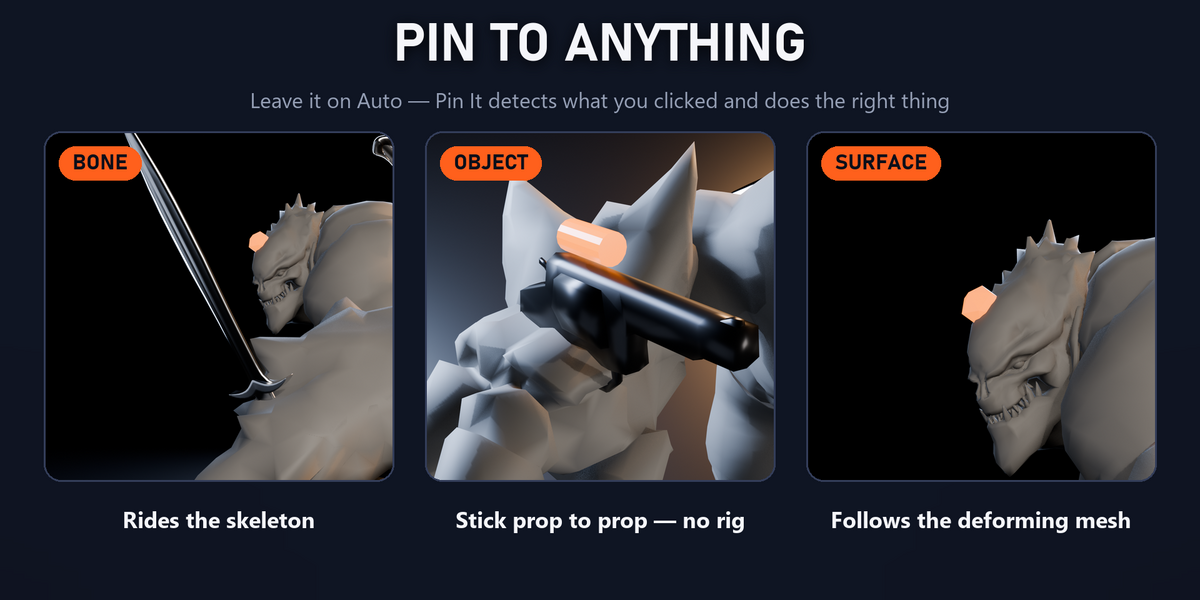
- Shift-click the target so it is the active (last selected) object:
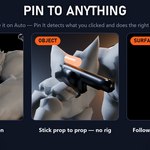
- an armature → attaches to a bone,
- a character mesh (has an Armature modifier) → attaches to the surface,
- any other object → attaches to that object.
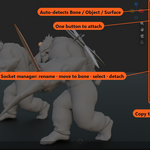
- Click Attach to Bone / Object / Surface (the button tells you what it will do).
Bone
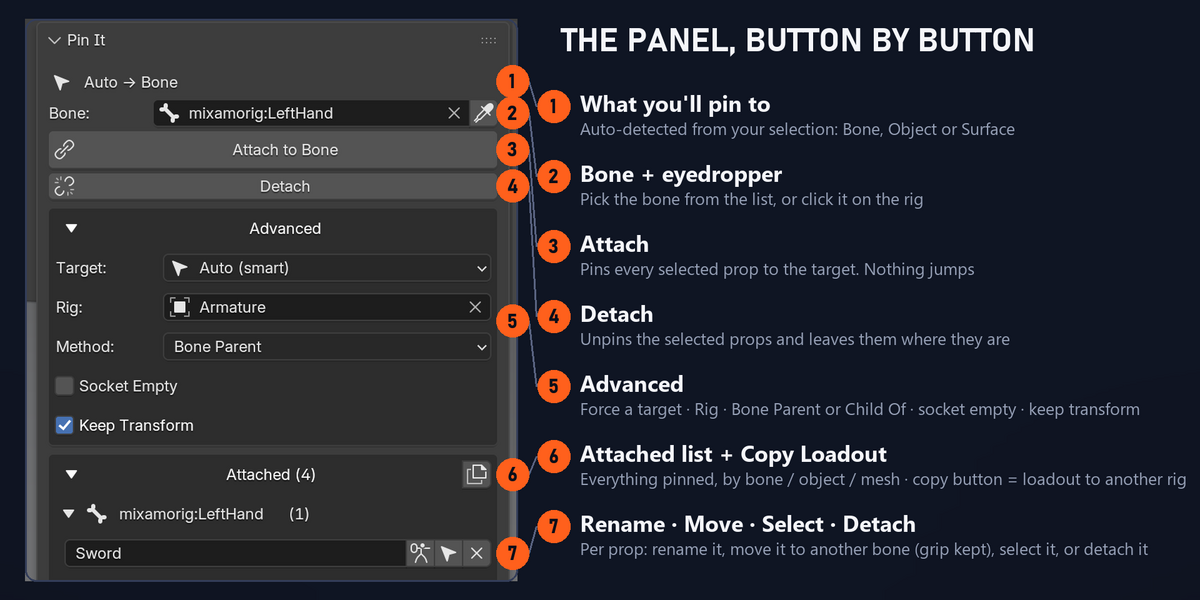
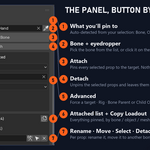
- Choose the bone in the Bone field, click the eyedropper to take the rig's active bone, or leave it empty and Pin It uses the rig's active bone (the panel shows which one).
- Advanced › Method: Bone Parent (rigid, fast) or Child Of (non-destructive constraint with an animatable influence).
- Advanced › Socket Empty: attaches through a reusable Empty placed at the bone.
Object
Select prop(s), then the target object last, then Attach to Object. Pin It refuses parent loops with a clear message.
Surface
Select prop(s), then the character mesh last, then Attach to Surface. Each prop pins to the nearest point on the posed mesh and follows its deformation.For an exact spot: Tab into Edit Mode on the mesh, select exactly 1 or 3 vertices, then click Attach.
Keep Transform
On by default — props never jump when attached. Turn it off (Advanced) to snap props onto the bone instead.
The Attached list
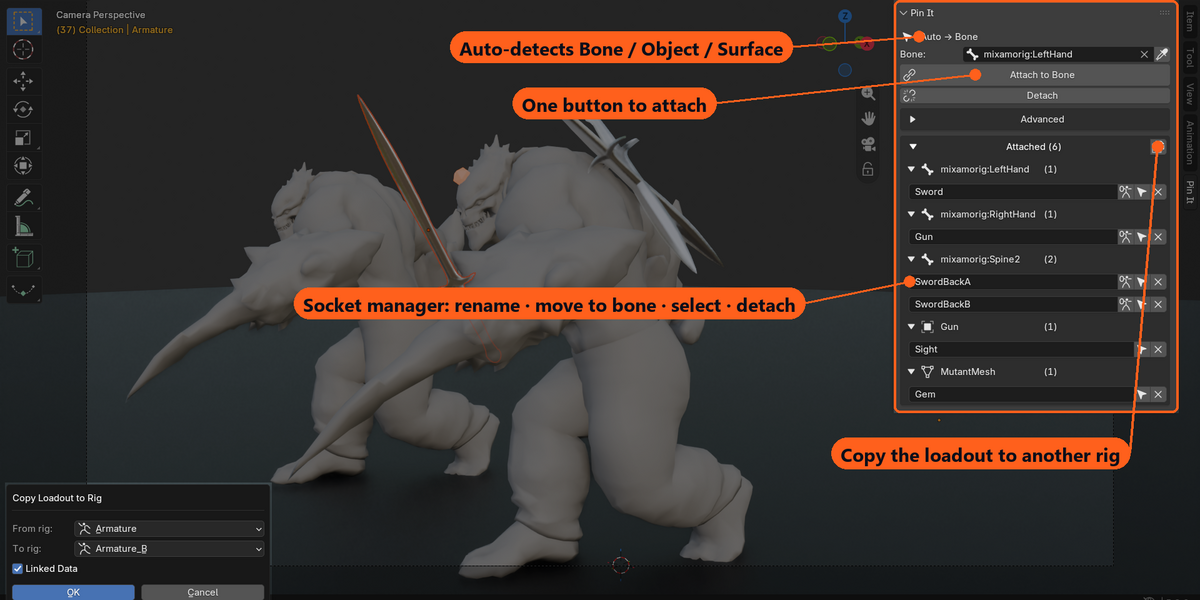
Every attachment, grouped by bone / object / mesh. Per item:- Name field — rename inline.- Bone icon — move to another bone; the grip is kept (works for Bone Parent, Child Of and Socket Empty).- Arrow icon — select the prop.- ✕ — detach, keeping its world position.
Collapse a group with its triangle, or the whole list with Attached (N).
Copy Loadout
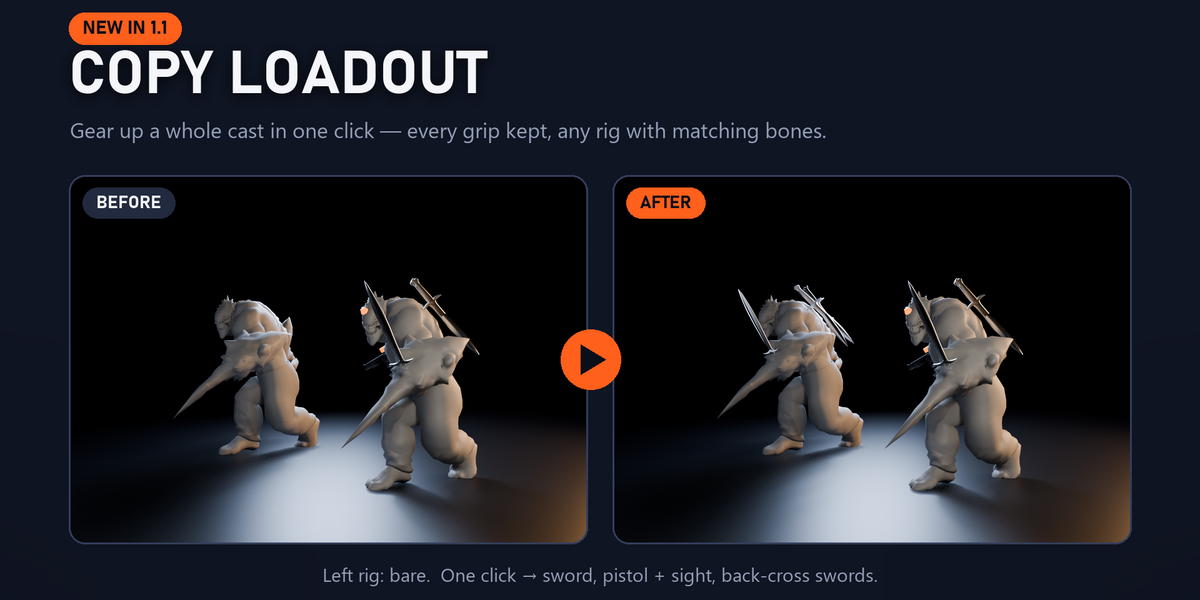
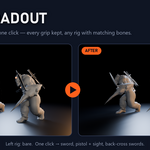
Click the copy icon next to Attached (N), choose From rig and To rig, click OK. Every prop attached to a bone on the source rig is copied to the bone with the same name on the target rig, keeping its grip; props parented to those props come along. Linked Data (on) shares mesh data so copies stay light. Bones the target doesn't have are listed in a warning.
Detach
Select prop(s) › Detach, or ✕ in the list. World position is always preserved; unused socket empties are cleaned up.
Shortcuts
- Right-click in the 3D Viewport (Object Mode) › Pin It: Attach / Pin It: Detach.
- Right-click the Attach button › Assign Shortcut for your own hotkey.
Troubleshooting
- Attach button greyed out — select at least one prop and make the target the active object; in Bone mode pick a bone or click one on the rig.
- "Pick exactly 1 or 3 vertices" — in Edit Mode select 1 or 3 vertices, or start from Object Mode to use the nearest point.
- A prop I unparented by hand disappeared from the list — expected: the list shows real attachments only.
Support: message me through this product page — I reply within 72 hours.
Video walkthrough
Have questions about this product?
Login to message
| Blender Extension Compatible | Yes |
| Dev Fund Contributor | |
| Published | about 21 hours ago |
| Blender Version | 4.2 - 5.2 |
| Extension Type | Add-on |
| Render Engine Used | Cycles, Eevee |
| License | GPL |