PlayRig
 Blender Procedural
DOCUMENTATION • PLAYRIG 1.4 • BLENDER 4.5+
PlayRig User Guide
Everything you need: installing, playing your first character, Mixamo packs, moves, the ragdoll, recording and every setting. All of PlayRig lives in one place: the PlayRig tab of the 3D Viewport sidebar (N).
|
🚀 Getting started 1 · Installation2 · Your first play 3 · Controls |
🎬 Characters & animation 4 · Mixamo packs5 · Single files & your own clips 6 · Moves and attacks |
⚙️ Going further 7 · Ragdoll · 8 · Recording9 · Collision · 10 · Settings 11 · Troubleshooting · 12 · Changelog |
1 · Installation
| 1 | Download playrig-1.4.0.zip from your Superhive library. Don't unzip it. |
| 2 | In Blender: Edit › Preferences › Get Extensions, open the ▾ menu at the top right and choose Install from Disk…. Pick the ZIP. You can also just drag the ZIP into the Blender window. |
| 3 | In the 3D Viewport press N to open the sidebar and click the PlayRig tab. |
Requirements: Blender 4.5 or newer (tested on 4.5 LTS, 5.1 and 5.2 LTS). Pure Python, nothing else to install.
2 · Your first play
Fastest way: PlayRig › Quick Start › Try the Demo. It adds a rigged mannequin and a test arena (stairs, ramps, a steep slope, jump boxes, a corridor and a moving platform) and starts playing right away.
Your own character:
- Select the character in the viewport (the armature, or any of its meshes), or pick it in the Character field at the top of the panel. The eyedropper next to it uses the active object.
- The panel shows what PlayRig found, e.g. Humanoid: hips, spine x3, head, legs x2, arms x2.
- Click Play. Missing animations are filled in automatically.
- Press Esc to stop. With Reset on Exit on, the character goes back to where it started, and the view, overlays and object mode are restored.
3 · Controls
These are the defaults. Every key can be rebound in Edit › Preferences › Add-ons › PlayRig.
| Action | Key |
|---|---|
| Move | W A S D or the arrow keys |
| Run / walk | Shift (hold) |
| Jump (hold = higher) | Space |
| Crouch | Ctrl (hold) / C (toggle) |
| Auto-run | X |
| Strafe (Classic MMO) | Q / E |
| Attack (Move 1) | Short left click |
| Moves: attacks, emotes | 1 – 9 or the numpad |
| Ragdoll / get up | F |
| Push the ragdoll | G |
| Respawn | R |
| Look and steer | Right mouse drag |
| Orbit the camera only | Left mouse drag |
| Run forward | Both mouse buttons |
| Zoom | Mouse wheel |
| Camera behind the character | Middle click / Z |
| Mouse look (lock the cursor) | Tab |
| Swap shoulder | V |
| Pause / photo mode | P |
| Slow motion | T |
| Show / hide the HUD | H |
| Stop | Esc |
|
🎮 Action MMO Camera-relative movement, like modern action MMOs: W runs where the camera looks and the character turns towards its movement. |
🛡️ Classic MMO World of Warcraft style: A/D turn the character, Q/E strafe, S walks backwards and the right mouse button steers. |
4 · Mixamo packs in one click
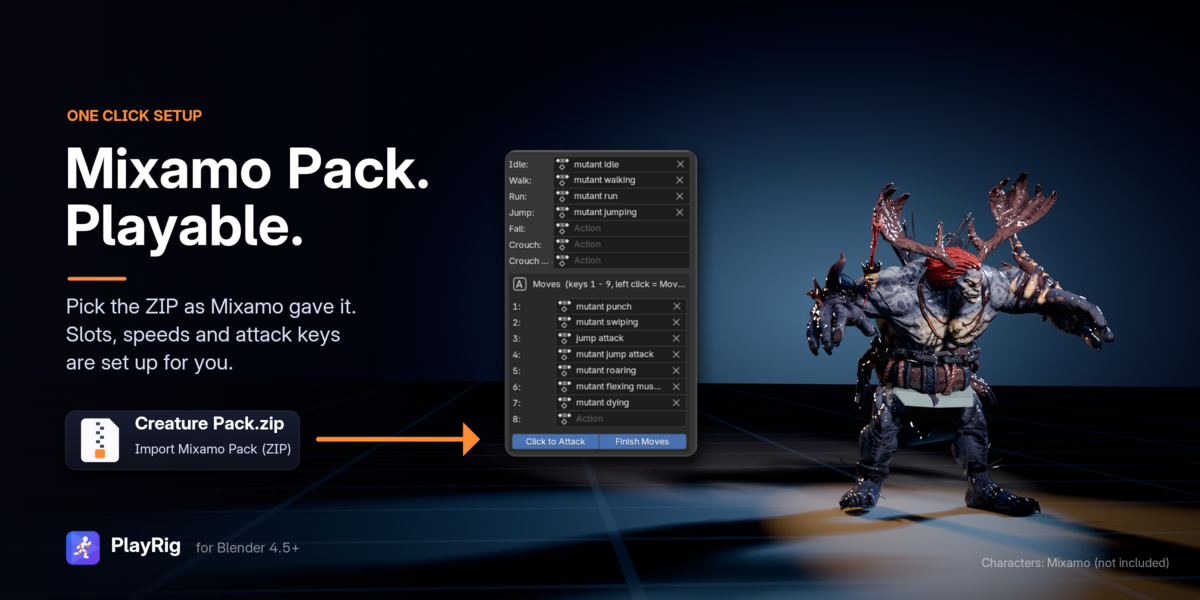
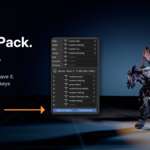
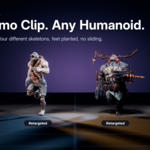
Mixamo's packs (Creature Pack, Sword and Shield Pack and others) download as one ZIP with the character and all its animations. PlayRig sets up the whole pack from that ZIP.
| 1 | On mixamo.com, download a pack. Keep the ZIP as it is. |
| 2 | PlayRig › Quick Start › Import Mixamo Pack (ZIP) and pick the ZIP. Leave Match Speeds on. |
| 3 | Press Play. |
What PlayRig does with the pack:
- The character (the biggest file, the one with the mesh) is imported, selected and stands in its idle pose.
- Idle, walk, run and jump clips go into their slots. If there are several, the plain one wins: mutant idle over mutant breathing idle or mutant idle (2).
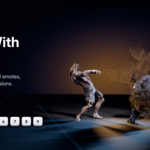
- Attacks, emotes and deaths go onto the move keys 1–9, attacks first, so a left click attacks right away.
- Turn-in-place clips are imported but left out of the slots.
- Walk and Run Speed are set to the speed of the clips, so the feet don't slide.
- Slots that stay empty (fall, crouch) get procedural clips when you press Play.
5 · Single files and your own clips
Mixamo in three steps (single files):
- Download the character With Skin (FBX), and each extra animation Without Skin. Name the files after what they are: Idle.fbx, Walking.fbx, Running.fbx, Jump.fbx…
- Quick Start › Import Character (FBX / glTF) and pick the character file. It becomes the PlayRig character, and its own clip goes into the matching slot.
- Animation › Import Animations (FBX) and select all the other files at once.
| Import Animations option | What it does |
|---|---|
| Fill Slots | Puts each clip into the slot its file name suggests (Running.fbx › Run). |
| Replace Filled Slots | Imported clips replace the ones already in their slots. |
| Match Speeds | Sets Walk / Run / Crouch Speed to the speed clips that aren't "In Place" were animated at (for example 6.05 m/s for Mixamo's Running). |
Clips that are already in your .blend file:
- PlayRig finds actions whose names contain idle, walk, run, jump, fall or crouch, and checks that they animate the character's bones. Click Find Animations, or drop actions into the slots by hand.
- Clips imported with Blender's own FBX importer are often all called Armature|mixamo.com|Layer0. Rename them, drop them into the slots, or use Import Animations instead.
- No clips at all? Generate creates procedural idle, walk, run, jump, fall and crouch clips for any humanoid rig. Shift-click overwrites filled slots.
- Keep In-Place Root Motion on for clips that walk forward on their own.
- Animation slots are stored per character, so every character keeps its own set.
6 · Moves and attacks
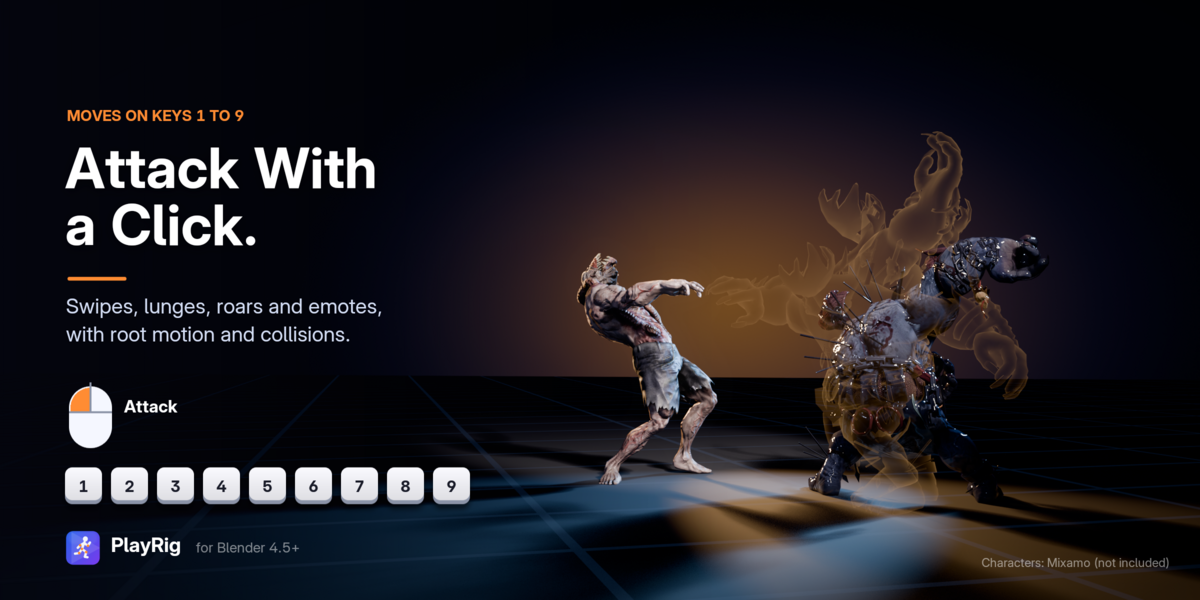
The Moves box under Animation has nine slots for one-shot clips: attacks, roars, emotes, a death. They are played with the keys 1–9 or the numpad. Drop any action into a slot.
- Click to Attack (on): a short left click plays Move 1. Dragging with the left button still orbits the camera.
- Finish Moves (on): movement waits until the move ends. Turn it off and a movement key cancels the move.
- Root motion is kept: lunges and leaping attacks carry the character forward, and it still collides with your scene.
- Clips whose names contain die, dying or death hold their last pose until you move again.
- Moves are recorded like everything else. Going ragdoll cancels the current move.
7 · The ragdoll
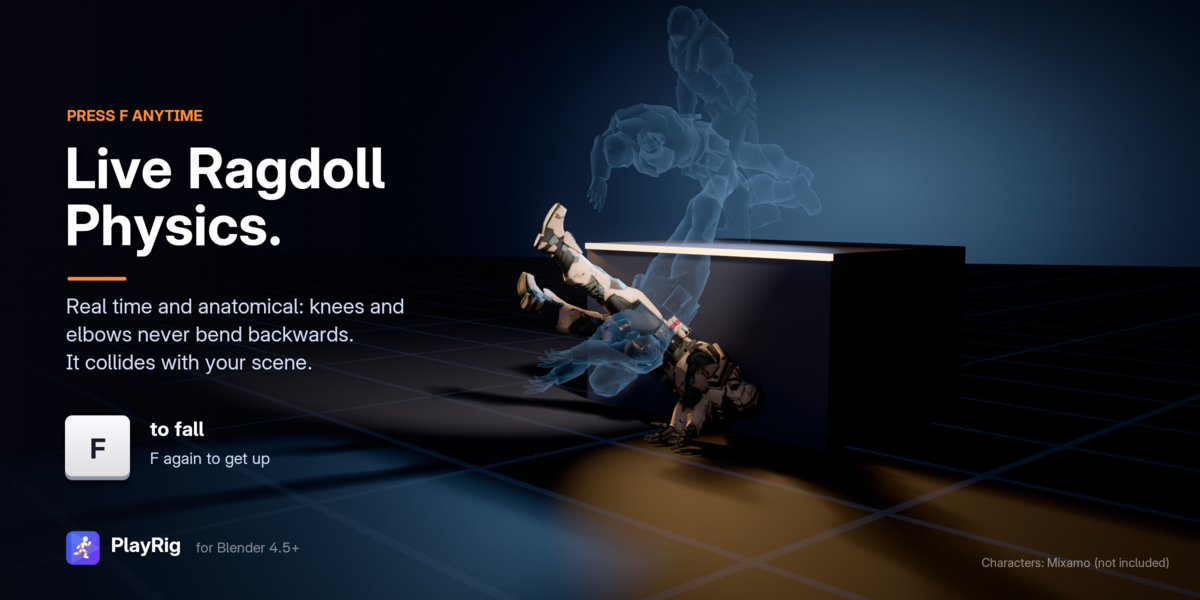
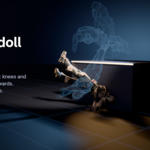
- Press F at any moment and the character collapses with real physics. Press F again and it gets up, blending through a crouch to standing. G pushes the body.
- Ragdoll on Hard Landing: falling from high up knocks the character out. Landing Speed sets how hard the impact has to be.
- Auto Get Up: the character stands up this long after the body comes to rest (0 = only with the key).
- Knees and elbows are real hinges that never bend backwards. Hips, shoulders, neck and spine have cone limits, and the torso has a twist limit.
- The body collides with your scene. It runs live, with no rigid body world, no timeline and no baking.
- Characters that aren't humanoid (animals, props, objects without a rig) tumble as a rigid box.
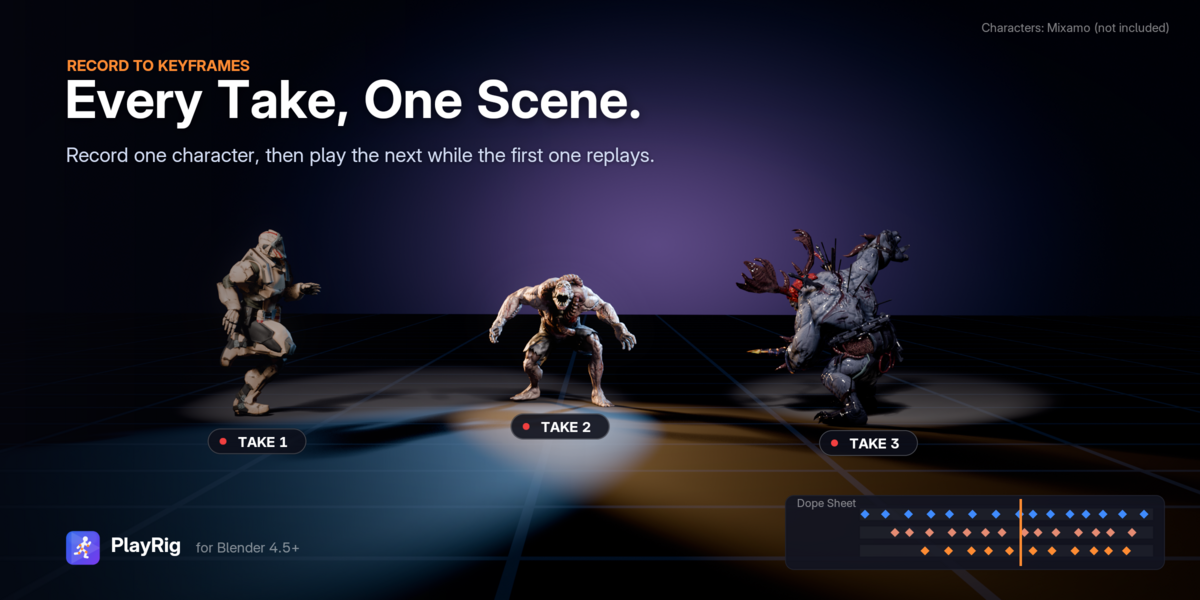
8 · Recording
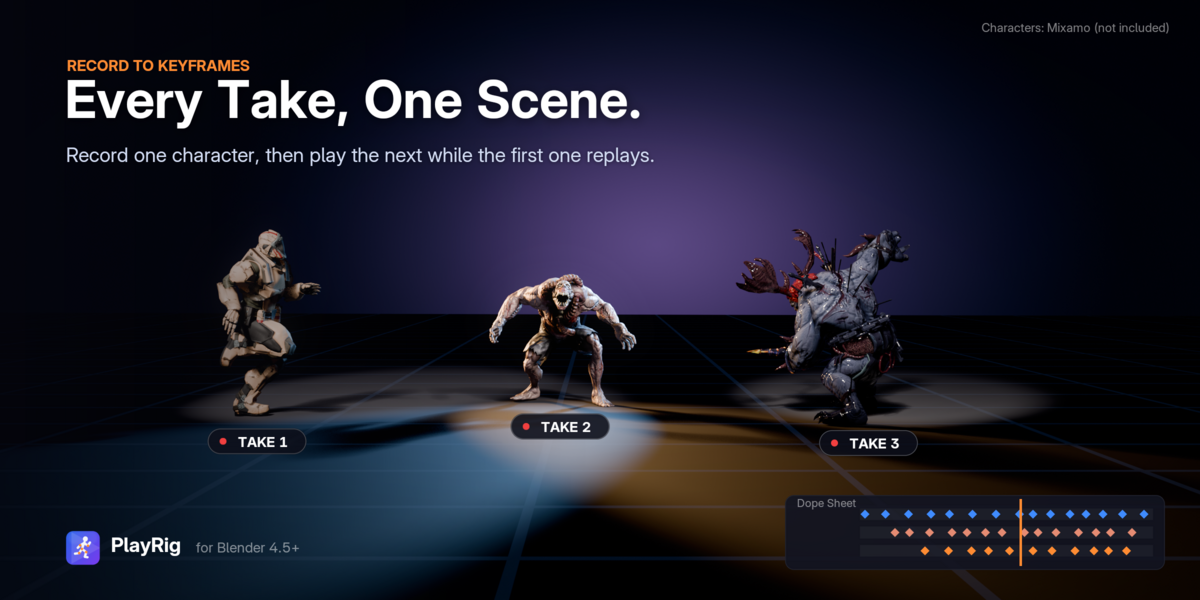
| 1 | Turn on Record (under the Play button, or the Recording section). |
| 2 | Put the playhead where the take should start, then press Play. The HUD shows a red REC timer. |
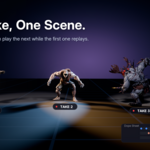
| 3 | Press Esc. The take is written to a new action (Take_001…) and assigned to the character, moves and ragdoll included. |
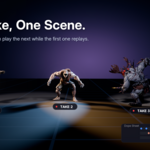
- Record Camera: with the Scene Camera view (Camera section), the camera gets its own take, so what you saw is what renders.
- Take Name sets the prefix of the takes.
9 · Collision with your scene
- By default every visible mesh collides. In heavy scenes, put simple collision meshes in a collection and pick it as Colliders (those meshes may be hidden).
- Per object (World & Collision › Active): Ignore for decals, grass and effects, Always for invisible walls.
- Step Height is the highest step the character walks up; Max Slope is the steepest slope it can climb, steeper ones make it slide.
- Animated objects (keyframes, drivers, constraints) are moving platforms. Turn on Play Scene Animation to make them move while you play.
- Safety Floor adds an invisible floor when there is nothing under the character, and falling out of the world respawns it.
10 · Settings reference
Every setting has a tooltip in Blender. The most useful ones, panel by panel:
| Panel | Settings |
|---|---|
| 🏃 Movement | Presets: Default, MMO, Realistic, Arcade, Heavy, Moon (pick one and press Apply). Walk / Run / Crouch Speed, Run by Default, Acceleration, Braking, Air Control, Turn Speed. Jumping: Jump Height, Jumps (2 = double jump), Hold for Higher Jump, Coyote Time, Jump Buffer. Gravity, Fall Gravity, Max Fall Speed, Step Height, Max Slope. |
| 🎥 Camera | View: Viewport or Scene Camera. Distance (with Min / Max), Default Pitch, Look-At Height, Shoulder Offset, Lens. Auto Follow (Off / Smart / Always) and Follow Speed, Follow Smoothing, Mouse Sensitivity, Zoom Step, Invert Y, Mouse Look, Camera Collision, Landing Shake, Hide Overlays, Scale with Character. |
| 🧍 Animation | Auto Setup, the animation slots and the Moves box. In-Place Root Motion, Override Bone Constraints, Character Front, Blend Time, Animation Speed, Lean into Turns, Head Look. |
| 💥 Ragdoll | On / off (header). Push, Ragdoll on Hard Landing, Landing Speed, Auto Get Up, Get Up Time, Gravity Scale, Friction, Bounce, Air Drag, Solver Iterations. |
| 🌍 World & Collision | Scene Collision, Colliders, Auto Radius / Radius, Safety Floor (Auto / Always / Off), Moving Platforms, Play Scene Animation, Spawn at 3D Cursor, and the per-object collision mode. |
| 🔴 Recording | Record (header), Take Name, Record Camera, Reset on Exit. |
| 🔊 Sound & Time | Sounds and Volume, your own Footstep / Jump / Land sound files (empty = built-in sounds), Slow Motion speed. |
| ⌨️ Preferences | In Edit › Preferences › Add-ons › PlayRig: Show HUD, Show Key Hints, Show FPS, HUD Scale, every key binding, and Reset Key Bindings. |
11 · Troubleshooting
The PlayRig tab doesn't show up.
Open Edit › Preferences › Add-ons, search for PlayRig and tick it. Then press N in the 3D Viewport. If it still doesn't appear, restart Blender.
The character doesn't animate.
Check the Animation slots. With rigs that drive their deform bones through constraints (Rigify control rigs, Auto-Rig Pro), keep Override Bone Constraints on, or play the metarig or an exported game rig.
The feet slide.
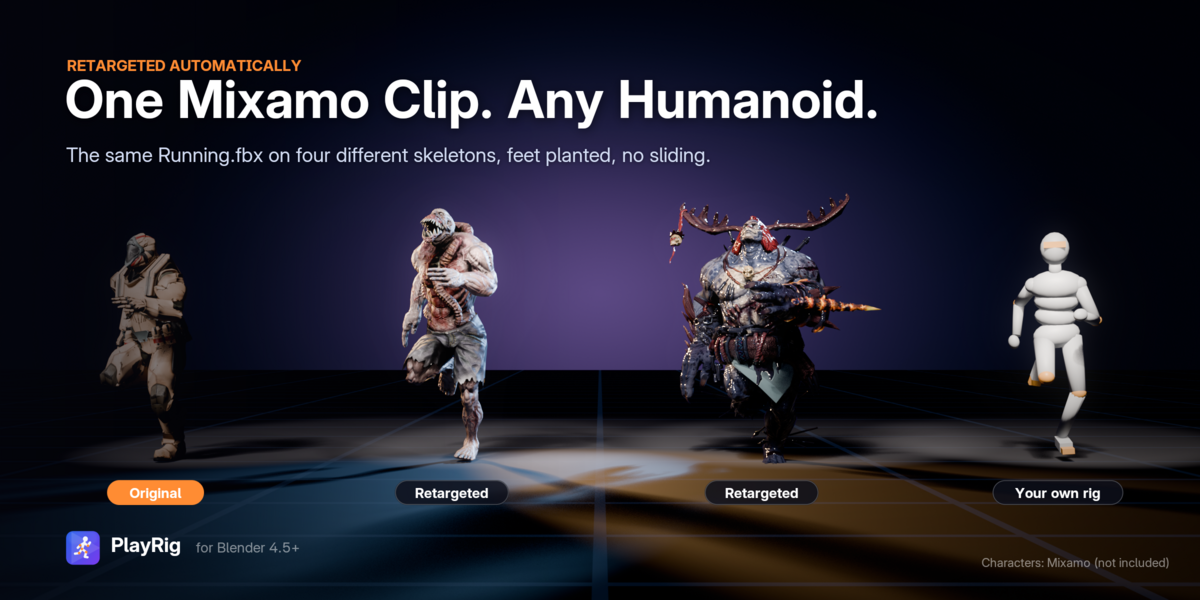
Import the clips with Match Speeds on, or set Walk / Run Speed close to the speed the clip was made for. Keep In-Place Root Motion on for clips that move forward on their own.
The camera is too close or too far.
Scale with Character (on by default) adapts the distances to the character's size. Adjust Distance and Look-At Height under Camera, or zoom with the mouse wheel.
Play takes a moment to start in a huge scene.
The collision data is built when you press Play. Put simplified meshes in a Colliders collection, and set heavy decorative objects to Ignore.
My Mixamo clips all have the same name.
That's how Blender's own FBX importer names them. Use Import Mixamo Pack or Import Animations instead: they name every clip after its file.
Will PlayRig change my scene?
Press Esc and the view, overlays, lens and object mode are restored. With Reset on Exit on, the character goes back to where it started. Recorded takes always go into new actions.
12 · Changelog
| 1.4.0 | Mixamo packs, attacks and moves. Import Mixamo Pack (ZIP) sets up a whole pack in one go. Nine move slots on keys 1–9, click to attack, root motion, deaths that hold their last pose. Clip names keep their numbers. Minimum Blender version: 4.5. |
| 1.3.0 | Mixamo import and retargeting. Import Character and Import Animations, automatic retargeting by bone name or humanoid role, speed matching, clips at their own frame rate. Big hands and claws no longer sink into the floor in the ragdoll. |
| 1.2.0 | Icons and branding. New logo and 16 custom UI icons on every panel and the main buttons. |
| 1.1.0 | Anatomical ragdoll. Joint limits based on human range of motion, twist-free limbs, a rigid pelvis and chest, body self-collision and much better stability. |
| 1.0.0 | First release. WASD movement, the MMO camera, the real-time ragdoll, scene collision, procedural animation, the HUD, rebindable keys and recording to keyframes. |
💬 Need help?
Message me here on Superhive. Please include your Blender version, your operating system, and where your character comes from (Mixamo, Rigify, Character Creator…). A screenshot of the PlayRig panel helps a lot.
PlayRig is licensed under GPL-3.0-or-later; the full source code is included.
 Included
Includes 12 months of
- Support from Blender Procedural
- Product updates
Extend this product’s Support Period +12 months: 50% of product price
Have questions before purchasing?
Login to message
| Blender Extension Compatible | Yes |
| Dev Fund Contributor | |
| Published | about 4 hours ago |
| Blender Version | 4.5 - 5.2 |
| Extension Type | Add-on |
| Render Engine Used | Cycles, Eevee |
| License | GPL |