PocketCam: Virtual Camera

Lewis Martin in Animation


● POCKETCAM PERSONAL · DOCUMENTATIONADD-ON 0.5.3 · PHONE APP 0.4.7

Set up once.
Then just shoot.

Everything you need to install PocketCam, create your own Cloudflare-hosted phone app, connect your iPhone, record takes and finish them in Blender. Jump to any section:

BLENDER
4.2 or newer
PHONE
iPhone + Safari
ACCOUNT
Your own Cloudflare
NETWORK
Internet required
VIDEO · SETUP TUTORIAL

Prefer to watch? Follow the setup step by step

This video walks you through the first-time setup from start to finish. Everything it covers is also written out below.

01 · BEFORE YOU START

What you need

PocketCam Personal is the full version: gyro and markerless tracking, live view, takes, lenses and joysticks. Here's what it needs, and what has been tested so far.

CURRENT RELEASE · v0.5.3
Personal and Studio use Blender extension 0.5.3 + iPhone app 0.4.7. Studio is the 10-seat edition of the same software and uses the Personal phone-app update stream; each workstation can deploy its own Worker. No separate Studio add-on or phone app is needed. Lite is a separate download with its own pocketcam-lite Worker, phone app 0.1.1 and restricted features. The instructions on this page primarily describe the full Personal/Studio feature set.
Blender
Blender 4.2 or newer, the minimum the extension declares, with Allow Online Access turned on. Tested on the creator's Mac. Windows and Linux haven't been independently tested yet.
Phone
An iPhone with Safari, with camera and motion access allowed. Adding PocketCam to the Home Screen is recommended. Other browsers, Android phones and tablets haven't been tested for this release.
Cloudflare
Your own Cloudflare account, with Workers, Durable Objects and a workers.dev subdomain. You create one API token in your browser, once, following steps Blender shows you. There's no Terminal, but it isn't a one-click sign-in, and Cloudflare may ask you to verify your account.
Internet
The computer and the iPhone both need internet. They don't need to share a Wi-Fi network. PocketCam doesn't work offline.
No App Store app
The phone app is a web app deployed to your own Cloudflare Worker. Open its URL directly in Safari and use Share › Add to Home Screen. Keep this Worker separate from any Lite installation.
CLOUDFLARE
Cloudflare is a separate company. PocketCam's price doesn't include Cloudflare: its plans, limits, possible fees, terms and availability apply to your account, and PocketCam can't control them. Check Cloudflare's current pricing before you set up.
TESTED SO FAR
On the creator's Mac and iPhone, PocketCam has been tested from a clean customer install through Cloudflare deployment, QR/Home Screen pairing, live tracking, recorded takes and playback. Later release tests also verified automatic recovery of an existing compatible Worker from fresh Blender preferences, phone-app updates to 0.4.7, and the iPhone Safari/Home Screen cache refresh. These are real-device checks, not a guarantee for every computer or phone.
02 · INSTALL

Install the add-on

1
Download PocketCam from your Superhive library and unzip it. You get a folder with START-HERE, Documentation, Licenses, Source-Code and the Blender extension zip (its name ends in Blender-Extension.zip).
2
In Blender, open Edit › Preferences › Get Extensions. Click the ▾ menu at the top right, choose Install from Disk and pick the Blender extension zip from that folder. Don't unzip this inner zip; Blender installs it as it is.
3
Enable PocketCam if Blender asks, then restart Blender.
4
In Preferences, open System › Network and turn on Allow Online Access. PocketCam needs it to reach Cloudflare and your phone. Until it's on, the PocketCam panel shows Turn on Allow Online Access.
5
In the 3D Viewport, press N and click the PocketCam tab. A Welcome to PocketCam message points you to the next step.
GOOD TO KNOW
Already using PocketCam? Install the new version the same way. Your linked phone app and your scenes' Movement Scale are kept, and you don't need to redeploy anything just because the add-on updated. See Updating.
03 · PHONE APP

Create your phone app (once)

PocketCam's phone app runs as a Worker on your own Cloudflare account. Blender builds it for you, with no Terminal and no code; it's a one-time setup that takes a few minutes. While you shoot, Cloudflare's network carries the motion data, controls and live preview between your iPhone and Blender.

NEW · SAFE WORKER RECOVERY
If Cloudflare creates a Worker but the first deployment check is not confirmed, do not delete the Worker, paste Worker source code or change its URL. Wait briefly, then click Create Phone App again using the same Cloudflare account and Worker name. PocketCam first checks whether a compatible installation exists and can link it automatically; use Recover Phone App if offered. The existing compatible Worker is reused without redeploying, while unrelated Workers are protected.

A · Connect Cloudflare

Earlier-release example of the Cloudflare & Updates first-run panel; current Personal versions are Blender 0.5.3 and phone 0.4.7
Cloudflare & Updates on first run (earlier-release screenshot; current add-on 0.5.3 / phone 0.4.7).
1
Open the Cloudflare & Updates panel. It shows the Blender and phone app versions, then 1 Connect Cloudflare.
2
No Cloudflare account? Click Sign up, create one and verify your email. Once created, head back to Blender.
3
Click Token setup guide to see the steps in Blender, then Get token. On Cloudflare's API Tokens page choose Create Token, then Create Custom Token.
4
Name it PocketCam Setup. Under Permissions choose Account › Workers › Admin. Under Account Resources choose Include › your Cloudflare account: just that one account, not all accounts. Leave IP filtering empty if your connection changes, for example when you travel. Only set an expiry if you're happy to make a new token for future updates.
5
Continue to the summary and check it gives Workers Admin to that one account. Create the token and copy it straight away: Cloudflare only shows it once.
6
Paste it into the Token field in Blender and click Connect. Got more than one Cloudflare account? Pick the right one under Advanced.
PocketCam's Token setup guide in Blender listing the Cloudflare token steps
The Token setup guide in Blender shows the same steps.
KEEP THE TOKEN SECRET
Paste the token only into Blender. Never send it to support, show it in a screenshot or use your Global API Key instead. The Workers Admin permission can manage every Worker in the account you chose, so if you'd like to keep PocketCam separate, use a dedicated Cloudflare account. You can revoke the token in Cloudflare at any time.
WHERE THE TOKEN IS KEPT
PocketCam keeps the token for your current Blender session only and never saves it in your .blend files, so you'll normally paste it again when you update the phone app. Optional: Advanced › Save in OS keychain stores it in your system's keychain, where one is available. If Blender shows Keychain unavailable, just paste the token when you update. Forget Token removes it.

B · Create the phone app

7
Click Create Phone App. Blender uploads your copy of the phone app to a new Worker on your account, named pocketcam unless you change it under Advanced, and checks it's online.
8
When the panel says Phone app created successfully, you're done. If the selected account already contains a verified compatible PocketCam Worker with that name, you may instead see Existing PocketCam recovered. Either way, Your Phone App shows the deployed version and an Add to Home Screen box.
GOOD TO KNOW
PocketCam does not overwrite or automatically adopt unrelated Workers. If Create Phone App finds an already-deployed, verified compatible PocketCam Worker in your selected account, it can recover that existing deployment and keep the same URL. If Cloudflare is still publishing, let the check finish and try Create Phone App again, or use Recover Phone App where shown. If the name belongs to an unrelated/incompatible Worker, choose a different name under Advanced. Link Existing is available for manually reconnecting a known installation.

Next, connect your iPhone. You'll add PocketCam to the Home Screen from there.

04 · CONNECT

Connect your iPhone

1
Click New Camera, or pick a camera in the Camera field. Leave it empty to use the scene camera.
2
Click Connect Phone. A QR code appears in the viewport.
3
Scan it with the iPhone's Camera app and PocketCam opens in Safari. Already inside PocketCam? Tap Scan the QR code in Blender.
4
Tap Start camera and allow motion access. Markerless tracking also asks for the camera.
5
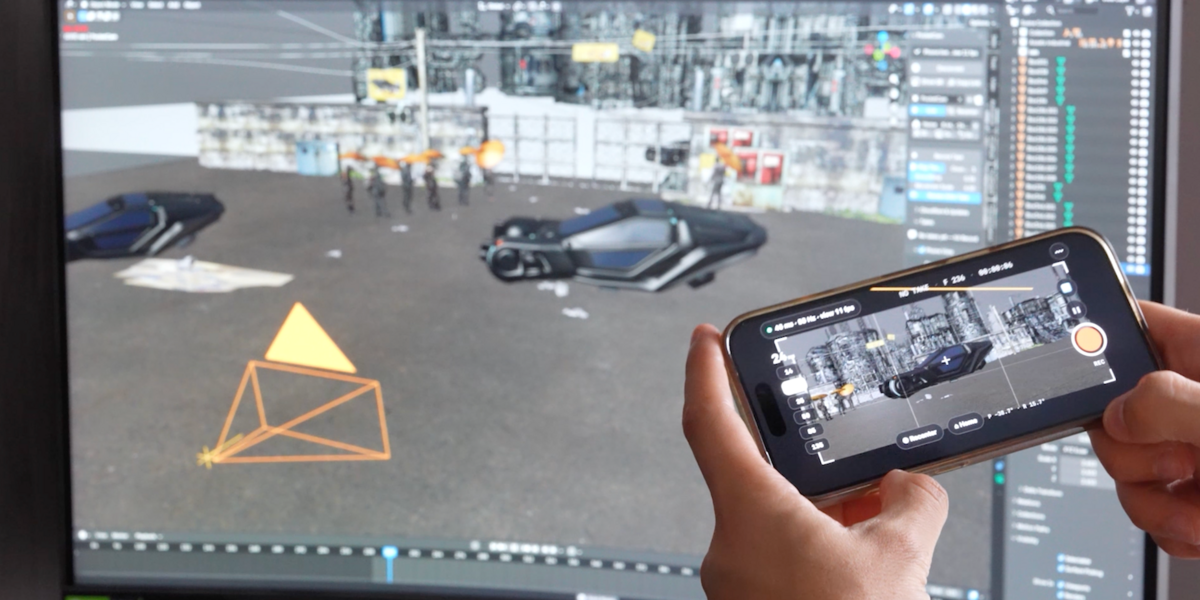
Move the phone. The Blender camera follows, and the status box shows the phone is live.

Add it to your Home Screen (recommended)

In Safari, tap Share › Add to Home Screen. From then on, open PocketCam from its icon and tap Reconnect to last session: no scanning. It opens full-screen like an app, but it's your own web app, not an App Store download.

TIP
No QR handy? Copy Link copies the pairing link so you can send it to your phone. Show QR / Hide QR toggles the code, and Disconnect ends the session.
KEEP THE PAIRING CODE PRIVATE
While a session is active, anyone with your QR code or pairing link could try to connect. Keep them out of screenshots, streams and tutorials. Quick Start & Help › Support & Diagnostics › Make New Pairing Code replaces them.
05 · BLENDER PANEL

The Blender panel

Everything lives in the PocketCam tab of the 3D Viewport sidebar.

PocketCam's main panel on first run, with the Allow Online Access reminder, Welcome message and Set Up Phone App First
The main panel on first run, before the phone app exists.

On first run you'll see, from the top:

1
Turn on Allow Online Access, until it's on.
2
The connection status, here Not connected.
3
Welcome to PocketCam, telling you the next step.
4
Connect Phone, shown as Set Up Phone App First until your phone app exists.
5
Your camera, Live and Recenter, Home, and the recording controls.
Status
Connection state, the phone's link speed and update rate, plus messages such as why a take stopped.
Connect Phone
Shows the pairing QR code. Reads Set Up Phone App First until section 03 is done.
Camera field
The camera the phone drives. + adds a new camera; the camera icon looks through it.
Live / Review
Live: the phone drives the camera. Untick it (Review) to release the camera; its take or original animation comes back.
Recenter
Levels the camera. However you're holding the phone now counts as level, still facing the same way. Also on the phone.
Home
3D Cursor or Camera sets Home, Go Home sends the camera there, × clears it. An orange marker shows Home in the viewport.
Record Take
Starts and stops a take. Shows Cancel Countdown and Stop while it's running.
Play Timeline
While recording, plays the timeline, with your scene's audio, from the first frame and stops at the end frame.
Countdown
Seconds before recording starts (0 to 10).
Smoothing
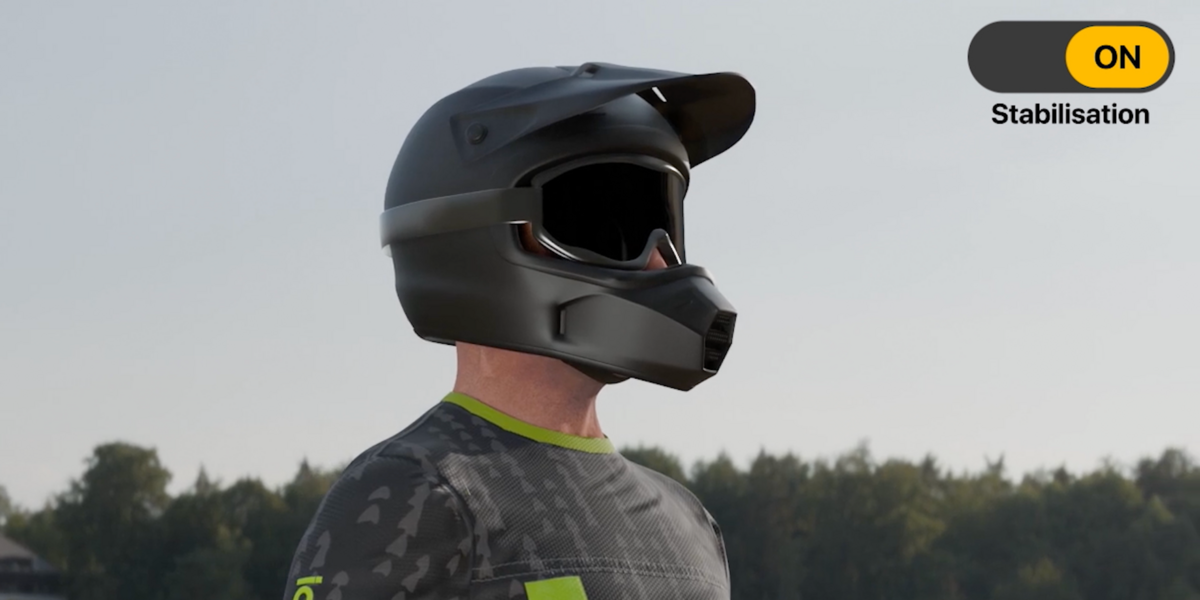
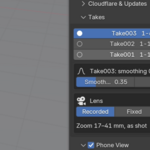
Live smoothing and the starting smoothing for new takes. 0 = raw handheld, 0.35 = natural, 1 = Steadicam.
Movement Scale
A creative multiplier for how far the camera travels when you move the phone. New scenes start at 6.0. It isn't a calibrated real-world scale, so set it to suit your scene. Same setting as Motion › Units per Metre.
Review After Take
After each take, puts it on the camera so it plays back and its keys show on the timeline.

Below these sit the Takes, Motion, Phone View, Cloudflare & Updates and Quick Start & Help panels, covered in the sections that follow.

06 · PHONE SCREEN

The phone screen

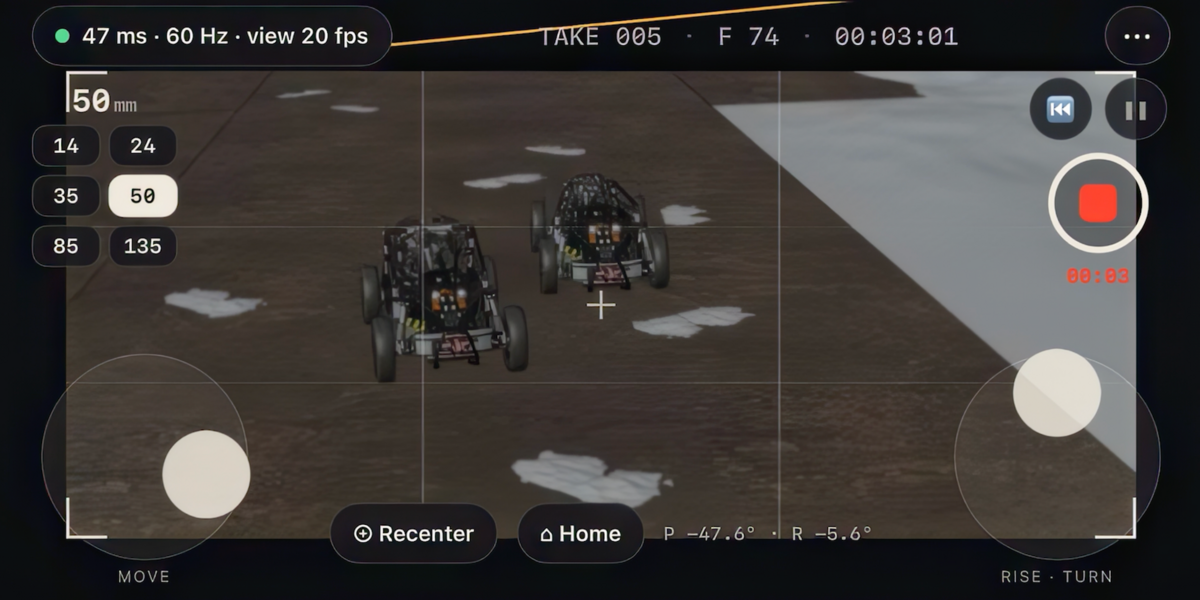
Viewfinder
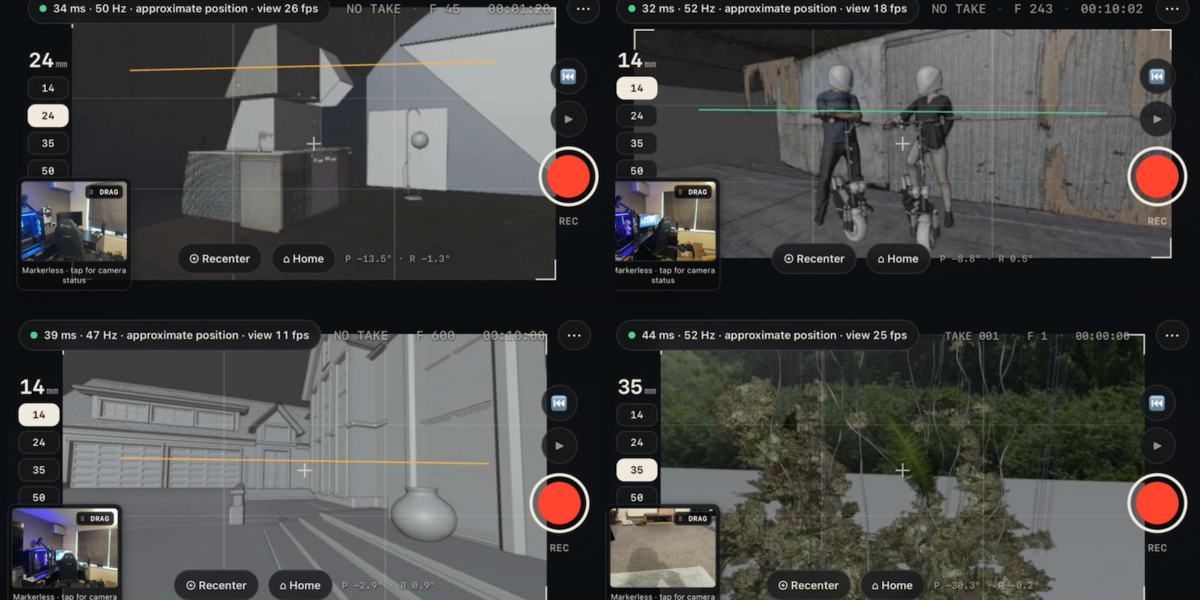
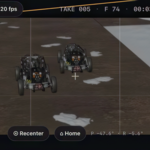
Blender's camera view, live, with a frame guide in your render's aspect ratio. A red border means you're recording.
Top bar
Connection status, take name, frame number, timecode and ⋯ for Settings.
Lens
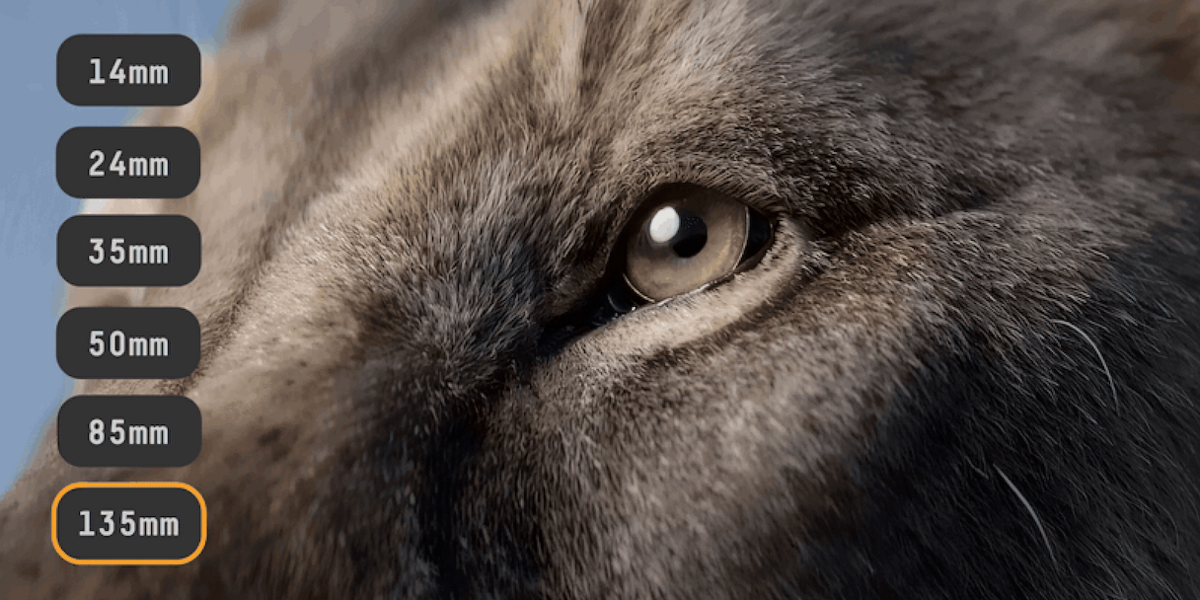
Prime lenses (14, 24, 35, 50, 85, 135 mm) or, with Zoom wheel chosen in Settings, a wheel for smooth zooms from 12 to 200 mm. Pinch to zoom works too.
⏮ ▶ ●
Go to the first frame, play the timeline, record.
⊕ Recenter ⌂ Home
Level the camera, or send it Home.
Joysticks
With Joysticks on in Settings: MOVE (left stick) flies forwards, back and sideways; RISE · TURN (right stick) cranes up and down and turns.
P · R
The phone's pitch and roll, so you can hold a level frame.
REVIEWING banner
Shown after a take while it plays back. Tap it to go live again.
07 · TRACKING

Tracking modes

Choose the mode on the phone in ⋯ › Tracking.

Gyro
ROTATION + JOYSTICKS
Rotation from the phone's motion sensors. Movement comes from the joysticks, plus a little natural hand movement from Hand Pivot and Hand Movement in Blender.
Markerless
TESTED ON IPHONE
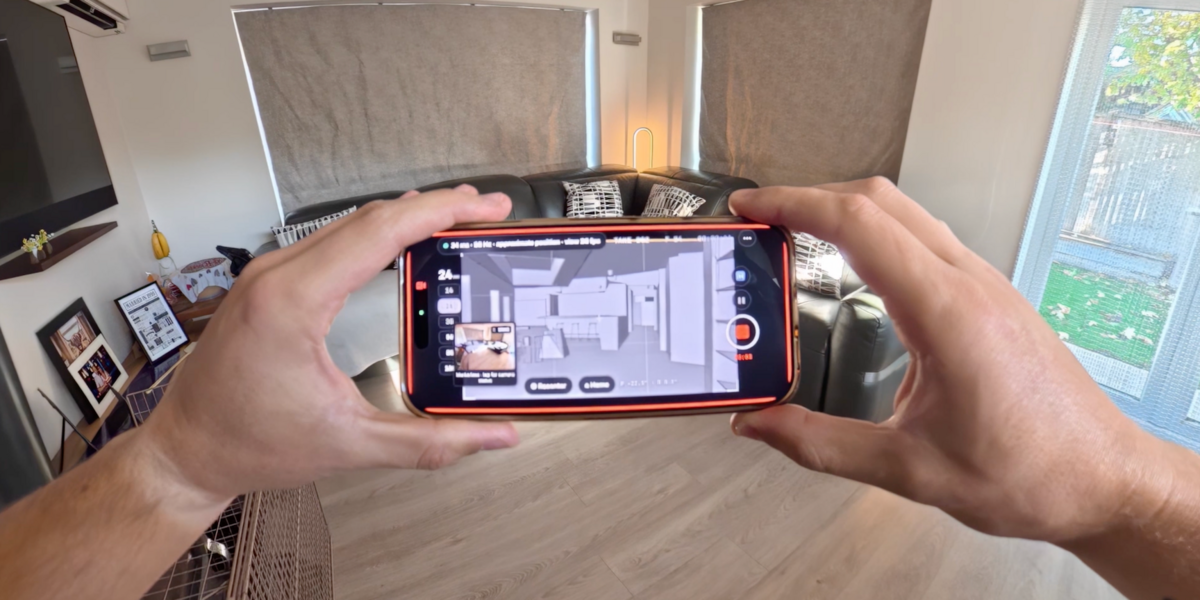
Rotation plus approximate walk-around movement, estimated on the phone from what its rear camera sees.
ESTIMATED POSITION
Android AR
ANDROID, UNTESTED
Listed in the phone menu, but Android hasn't been tested for this release. Use an iPhone for now.
NOT SUPPORTED YET

Using Markerless

1
Tap ⋯ › Tracking › Markerless and allow camera access. A camera preview appears.
2
Point the phone at a bright area with plenty of detail, then tap Use camera controls. The preview shrinks to a small window you can drag out of the way.
3
Set Approximate distance to visible surfaces to roughly how far away the things in view are, for example 2 m across a room.
4
Move and watch the Blender camera. If it travels too little or too much, adjust Movement Scale in Blender, or Markerless movement gain on the phone. The two multiply, so change one at a time.
5
Optional: tap Calibrate from a 50 cm move, move the phone about 50 cm while keeping it pointed the same way, then tap Finish. The result is approximate.
6
Reset position starts the position from zero again. Use Gyro switches back to Gyro mode.

Markerless movement smoothing on the phone smooths position only; rotation stays instant. Start with Balanced and Blender's Smoothing at 0, so the two don't stack.

TIP
Markerless estimates movement from what the camera sees, so it needs light and texture. It's happiest in a bright room with furniture, shelves or pictures in view, moving at a natural pace. Plain walls, mirrors, low light, people walking past and very fast whips can make it drift or pause. Position is estimated, not measured, so some drift and scale error is normal; set Movement Scale to suit your scene.
FRAME RATE
On a fresh setup, Camera capture FPS request defaults to 60 FPS · high-speed capture. Optical processing target defaults to Auto · up to 60 FPS with CPU backoff. You can choose 30 FPS capture or a 30/40/60 FPS processing cap under advanced settings. These are requests and limits, not guaranteed sustained frame rates; actual performance depends on Safari, iPhone hardware, lighting and heat.

Nonessential tracking controls are now grouped under Experimental & Advanced · tracking settings. The recommended defaults use Stable optical tracking, Fast · 320px analysis and automatic optical processing up to 60 FPS. Alternatives, including Detailed · 480px and Legacy, remain available for troubleshooting. Leave advanced calibration and passive-scale options alone unless you understand their experimental limitations. Test Blender movement (+1 m then back) checks that position updates reach Blender.

08 · RECORDING

Record a take

1
Set Countdown and choose whether Play Timeline is on. With it on, recording starts from the first frame and Blender plays the timeline, with your scene's audio, until the end frame.
2
Press Record Take in Blender or ● on the phone.
3
Perform the move. Press record again to stop early, or let the timeline reach its end.
4
Save your .blend file (File › Save). Takes live in your Blender project, so save after recording, just as you would after any other work.

PocketCam records camera animation, not sound from the phone. The take is keyed on every frame, using the phone's own timestamps so keys land on the right frame even if the viewport is slow. With Review After Take on, the take plays back straight away with its keys on the timeline. Record, Recenter or Home on the phone goes back to live.

TIP
Need a longer or shorter shot? Change the end frame from the phone in ⋯ › Timeline end frame › Set (not while recording).
GOOD TO KNOW
If the phone drops out for less than 3 seconds, the take carries on. Longer than that, the take ends where the phone dropped and is still kept, with a message explaining why.
09 · TAKES

Takes: choose, smooth, refine, re-lens

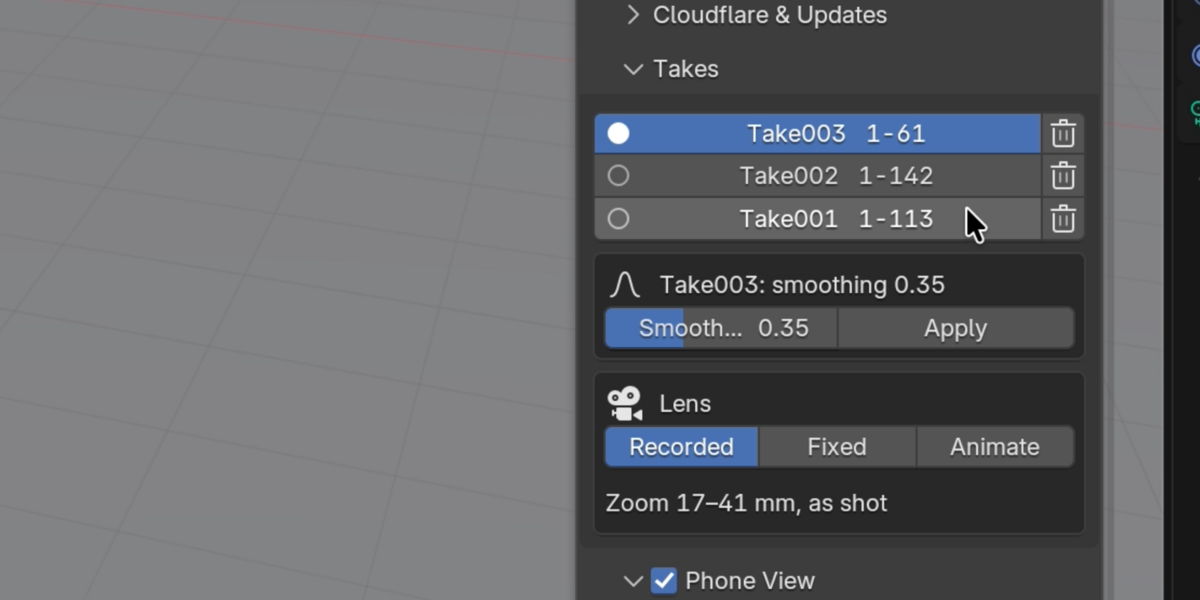
The Takes panel lists every take for the camera, newest first. Click one to put it on the camera; the bin deletes it. Takes are ordinary Blender actions, so they also work in the Action Editor and NLA.

CLEANER TAKES PANEL IN 0.5.3
The normal Takes controls focus on selecting, playing, re-smoothing, refining and re-lensing shots. The experimental Spike Cleanup and Returned to Physical Start switches have been removed from the everyday interface, although their underlying implementation remains in the add-on. There is nothing to enable to record normal takes.
Smoothing Apply
Rebuilds the selected take from its raw motion with new smoothing, 0 (raw) to 1 (maximum). The raw motion is kept, so you can change it again any time.
Create Refined Copy
Makes a separate refined copy of the take while preserving the original. The regular Takes panel no longer exposes the low-level experimental cleanup switches.
Lens Recorded
Exactly the lens you shot with, including any zooms.
Lens Fixed
One focal length for the whole take, typed in millimetres or as a field of view in degrees.
Lens Animate
Gives the take its own lens track, starting from the recorded zoom. Move the playhead, set Focal Length and click ◆. Start Over discards your lens keys.
GOOD TO KNOW
Each take remembers its own lens choice, and re-smoothing never touches your lens edits. Lens editing works in Review; untick Live first.
10 · SETTINGS

Settings reference

UPDATED PHONE DEFAULTS
For a fresh Personal/Studio phone setup, Markerless requests 60 FPS capture and uses Auto · up to 60 FPS with CPU backoff for optical processing. Advanced settings are grouped under Experimental & Advanced. The default Blender Movement Scale / Units per Metre is 6. Actual tracking frame rates and physical scale are not guaranteed.

Motion panel (Blender)

Horizon
Keeps roll at zero.
Height
The phone can't move the camera up or down; the joysticks still can.
Position (Tripod)
Rotation only, like a tripod head. Turn it off for walk-around movement.
Units per Metre
The Movement Scale multiplier (default 6.0 in new scenes). A creative setting, not a calibrated scale.
Hand Pivot
Gyro mode: adds the parallax of a camera held in front of your wrist. Default 0.15 m.
Hand Movement
Gyro mode: adds the small real movements of your hands from the accelerometer. Default 0.6.
Move, Rise, Turn Speed
Joystick speeds. Defaults 2 and 1 units per second, 45° per second.
Sync Offset
Fine-tunes take timing in milliseconds if moves land late against your animation.

Phone View panel (Blender)

Phone View
Tick in the panel header to send the live view to the phone.
Size
Low (480 px), Medium (640 px) or High (960 px).
Frame Rate · Quality
5 to 30 frames per second, and picture quality. Lower these first if the view stutters.
Show Overlays
Include viewport overlays such as the grid and outlines. The view uses the viewport's Solid or Material Preview shading.

Phone settings (⋯)

Tracking
Gyro or Markerless on iPhone. Android AR is listed, but not qualified for this release. The updated iPhone portrait settings sheet respects the safe area and scrolls so controls are reachable.
Lens
Primes or Zoom wheel.
Live view from Blender
Turn the live picture on or off.
Joysticks
Show the MOVE and RISE · TURN sticks.
Smoothing
Raw (0), Hand (0.35) or Steady (0.75), sent to Blender's Smoothing.
Lock horizon
Keeps roll at zero.
Timeline end frame
Sets the scene's end frame from the phone.
Tracking diagnostics
Export CSV saves Markerless tracking data for support. No camera images are stored.
Disconnect
Ends the session on the phone.
11 · UPDATING

Updating PocketCam

The Blender extension and phone app have separate version numbers, and they do not always change together. Personal 0.5.3 includes phone app 0.4.7. Studio uses the same Personal software and phone-app update stream; Lite is a separate, limited-feature edition.

VERIFY BOTH VERSION NUMBERS
The final release is Blender 0.5.3 with bundled phone 0.4.7. After updating, the Cloudflare panel should report On Cloudflare: 0.4.7 / Up to date. If the iPhone still looks old, inspect the actual Worker URL in Safari before reinstalling anything. Removing and re-adding only a stale Home Screen shortcut is sometimes necessary.
Earlier-release screenshot showing a linked Cloudflare Worker and Up to date status; current Personal versions are 0.5.3 and 0.4.7
Linked and up to date (earlier-release screenshot; current phone version 0.4.7).
1
Download the new version from your Superhive library, unzip it, and install the inner Blender extension zip the same way as before (Get Extensions › ▾ › Install from Disk).
2
Open Cloudflare & Updates and click Check Version first.
3
Up to date? You're done; your phone app needs nothing. The button then reads Reinstall Phone App, which you don't need.
4
New phone version available? Paste your token into Update token if asked, then click Update Phone to …. Your app keeps the same address and Home Screen icon.
5
On the iPhone, open the same Worker URL directly in Safari to load the deployed version. If an older Home Screen app remains cached, remove only that PocketCam Home Screen icon and add it again via Safari Share › Add to Home Screen. Keep your Worker and its address.
IMPORTANT
If an update is interrupted or Cloudflare publication is delayed, do not repeatedly click Update or Reinstall. Wait, restore your connection and click Check Version. If Blender reports On Cloudflare: 0.4.7 · Up to date, you do not need to redeploy; check Safari/Home Screen caching instead.
GOOD TO KNOW
Updates target only your verified, linked PocketCam Worker. The app will not overwrite an incompatible or unverified Worker or deliberately downgrade a newer phone version. Free Lifetime Updates refer to PocketCam product updates supplied without separate upgrade fees while offered; any Cloudflare usage fees remain separate.
12 · TROUBLESHOOTING

Troubleshooting

“Turn on Allow Online Access”
In Blender, open Edit › Preferences › System › Network, turn on Allow Online Access, then try again.
Connect Phone says Set Up Phone App First
First pairing waits until your phone app exists. Finish section 03.
“Cloudflare rejected the token”
Make a new Custom Token with Account › Workers › Admin for the right account and paste it again. Never use the Global API Key.
“Cloudflare denied access”
Check the token has Account › Workers › Admin and includes the right account. With several accounts, or if the account can't be found, enter it under Advanced › Account (Find Account ID helps).
workers.dev subdomain message
In the Cloudflare dashboard, open Workers & Pages once to set up your workers.dev subdomain. Cloudflare may also ask you to verify your email. Then try again.
“Deployment not confirmed” / Worker created
Cloudflare may publish the Worker before its public URL becomes reachable. Wait for the current check, then click Create Phone App again with the same account and Worker name, or use Recover Phone App. PocketCam verifies the existing Worker identity and reconnects if compatible. Do not delete it or repeatedly upload while publication is pending.
“Worker name is already in use”
First confirm you selected the correct Cloudflare account and Worker name. Create Phone App now checks for an existing compatible PocketCam Worker and can recover it automatically. If the Worker is unrelated or cannot be verified, it will not be overwritten: choose a different name in Advanced. You can also use Link Existing for a Worker you know is yours.
“Update not confirmed” or the network dropped
Allow Cloudflare publication time to finish; do not keep pressing Update or Reinstall. Restore your connection, click Check Version and retry an update only when an older deployed version is actually confirmed. Keep your existing Worker and URL.
Keychain unavailable
Your system's keychain isn't available to Blender. Paste the token when you update instead.
The phone won't pair
Make sure it's your own PocketCam app open on the iPhone. Show the QR and scan again, allow motion (and camera) access, and check both devices are online. Make New Pairing Code if it still won't connect.
The phone disconnected
Give it a few seconds; it usually reconnects by itself. If not, reopen PocketCam from the Home Screen and tap Reconnect to last session, or scan the QR again. Finished takes stay in Blender.
“Taken over by another phone or tab”
PocketCam is open somewhere else with the same pairing. Close the other tab, or make a new pairing code.
Rotation works, but walking doesn't move the camera
Turn off Motion › Position (Tripod), check Tracking is Markerless, and raise Movement Scale. Test Blender movement (+1 m then back) in the Markerless panel checks movement is reaching Blender.
Markerless jitters or drifts
Add light, aim at a more detailed part of the room, move a little slower, then Reset position or Recenter. A moderate smoothing setting helps; Direct shows the raw input.
The camera points at the floor
You tilted the phone to see it. Tap Recenter.
The phone view is black or stutters
Switch the viewport to Solid or Material Preview; lower Phone View size or frame rate.
The phone app looks out of date after an update
If Blender shows On Cloudflare: 0.4.7 / Up to date but the Home Screen app still shows 0.4.5, Markerless (test), or an older settings layout, open the same Worker URL directly in iPhone Safari. If Safari loads the new version but the Home Screen icon does not, remove only that icon and use Safari Share › Add to Home Screen again. Do not delete the Worker or clear unrelated app data.
Recording stopped on its own
The phone lost connection for over 3 seconds; the status message says why. Keep the screen on and the connection strong.
13 · SUPPORT

Getting help

1
In Blender, open Quick Start & Help › Support & Diagnostics and click Copy Safe Support Report. It copies your versions and connection status, and is designed to leave out your token, account ID, Worker address and pairing code.
2
Read the report before you send it, and never add a token, account ID or pairing code yourself.
3
For Markerless tracking issues, also export ⋯ › Tracking diagnostics › Export CSV on the phone.
4
Message me through Superhive with the report, what you expected and what happened.
TIP
Make New Pairing Code in the same panel forgets the current pairing. Your phone will need to scan the new QR code.
14 · PRIVACY & LICENCES

Privacy, Cloudflare and licences

Where your data goes

Your phone app runs on a Cloudflare Worker in your own Cloudflare account. While you shoot, Cloudflare's network relays the phone's motion data and controls to Blender, and Blender's live preview to the phone. You own the Worker; Cloudflare runs the servers it runs on.

Camera picture
For Markerless, the iPhone analyses its camera picture on the phone. PocketCam sends the resulting motion, not the camera images.
Your takes
Recorded camera animation is saved in your Blender project. The relay isn't designed to store your takes.
Web address
Your phone app's workers.dev address is an ordinary public web address: anyone who has it can open the page. Joining a session also needs your current pairing code.
Pairing
Treat your QR code and pairing link as private while a session is active.
Cloudflare
A separate company, with its own terms, limits, availability and possible fees.

Licences and source code

The PocketCam Blender add-on is free software under the GPL-3.0-or-later licence, and you keep every right that licence gives you. The phone app's QR scanner (jsQR) is Apache-2.0; the QR code generator (Project Nayuki) and some tracking helpers are MIT. The full licence texts are in the Licenses folder of your download, and the source code is in Source-Code.

  • Gyro and Joysticks for Movement Only

    $12
  • The Full Version of PocketCam with all features including full 6 DoF Camera Tracking + Gyro Movements.

    $24
  • Designed for Studios up to 10 Seats. All features from Personal.

    $69
$12

Have questions about this product?
Login to message

Details
Blender Extension Compatible Yes
Sales 10
Dev Fund Contributor
Published about 10 hours ago
Blender Version 4.2 - 5.2
Extension Type Add-on
Render Engine Used Blender-Internal, Cycles, Eevee
License GPL