 redjeb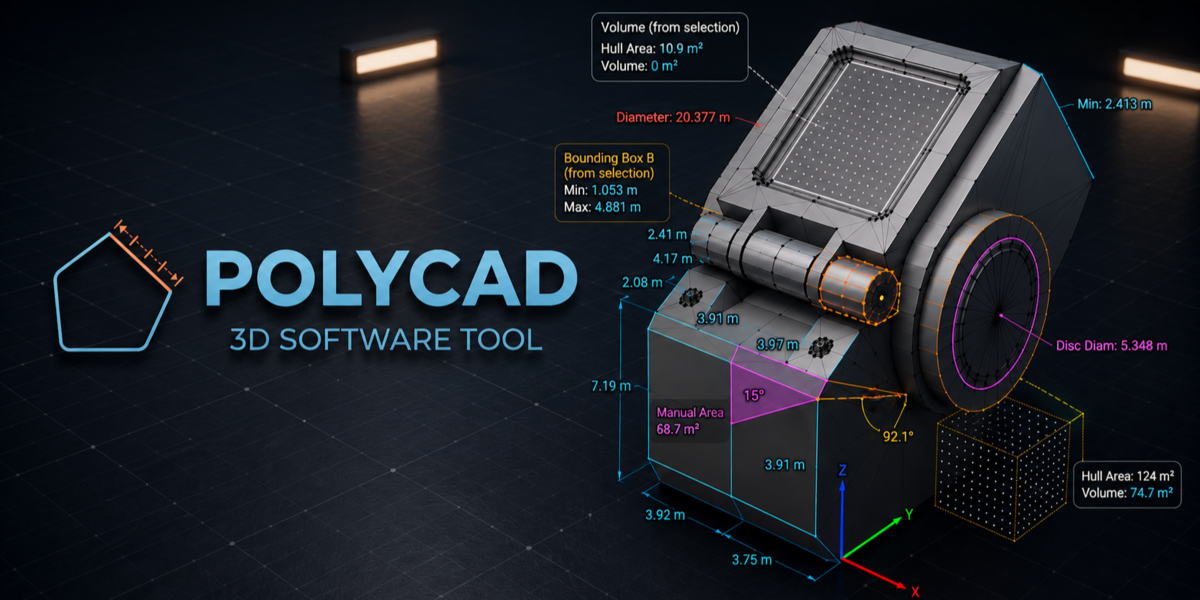
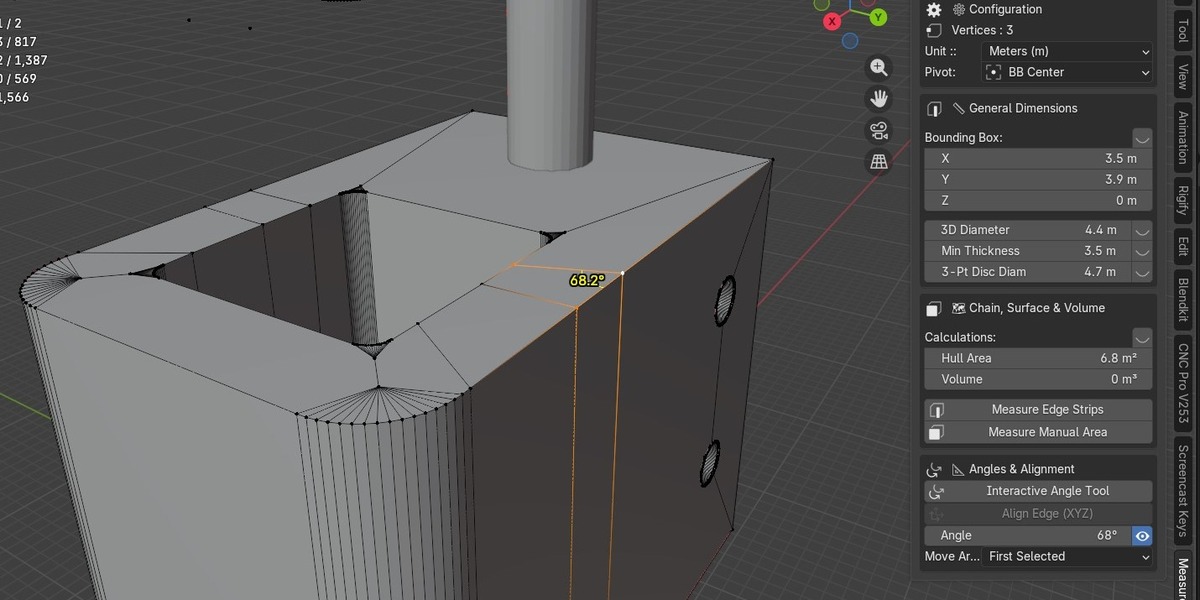

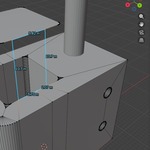
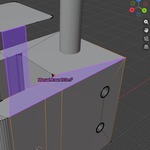
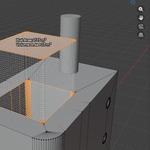
## Installation
1. Download the .zip file from your purchases.
2. In Blender, go to Edit → Preferences → Add-ons → Install.
3. Select the downloaded .zip and click Install Add-on.
4. Enable the add-on by checking the checkbox next to "PolyCAD Measure Pro".
## Requirements
- Blender 4.2 or higher (Blender 5.0 recommended).
- Download the latest Blender for free at: https://blender.org
## Before You Start — CRITICAL
⚠️ Always apply Object Scale (Ctrl+A → Apply → Scale) to your object BEFORE using any tool. Unapplied scale will produce incorrect measurements.
⚠️ Subdivision Surface modifier warps raw geometry. Use this addon on Hard Surface meshes without active Subdivision for accurate results.
## How to Use
1. Select any object in Object Mode and apply scale (Ctrl+A → Scale).
2. Enter Edit Mode (Tab).
3. Open the N-Panel (press N) → find the "PolyCAD" tab on the right.
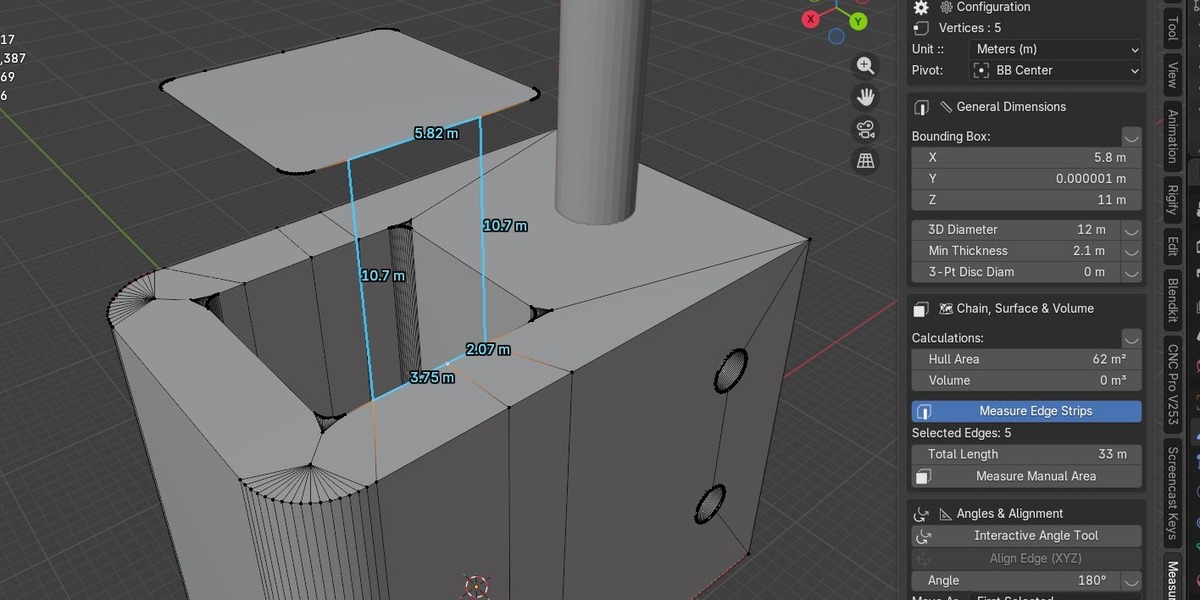
4. Select vertices, edges, or faces to see live measurements in the HUD.
5. Type a new value in any field to parametrically resize your geometry.
## Tools Overview
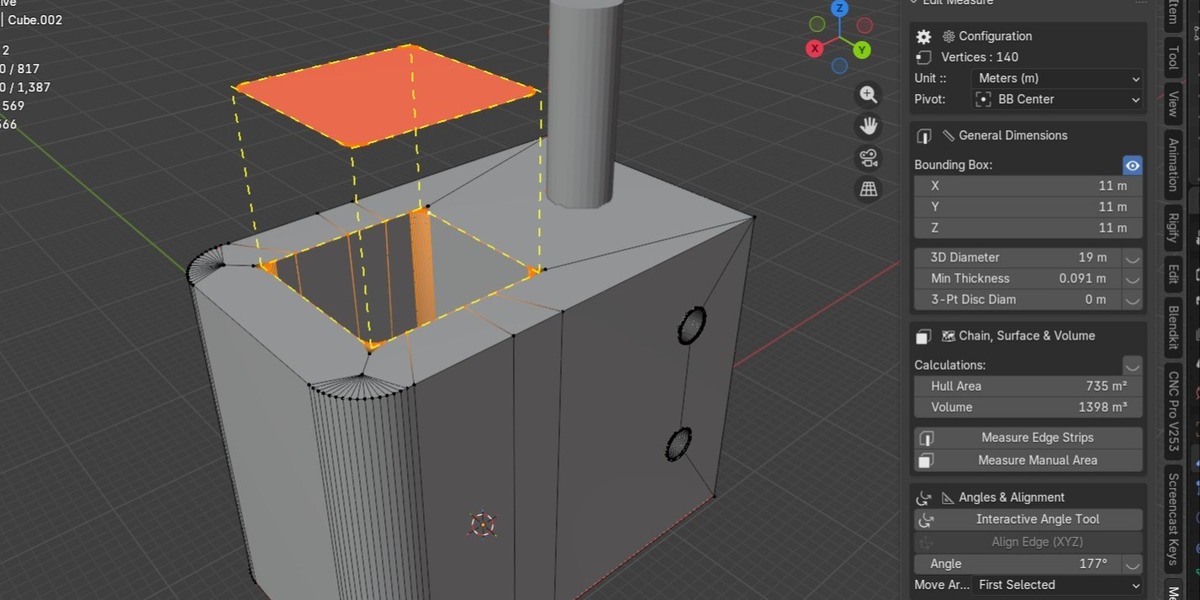
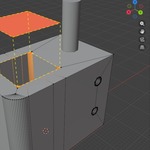
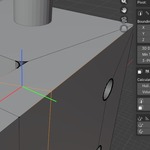
- **Bounding Box:** Shows X/Y/Z dimensions of selected vertices.
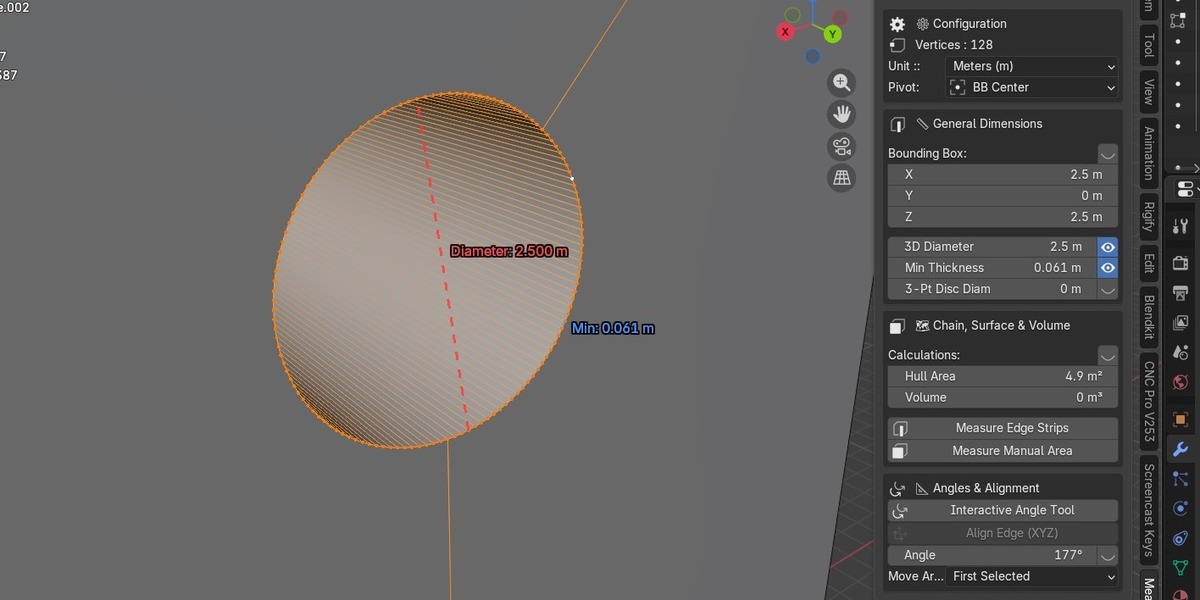
- **Diameter (Max/Min):** Calculates max and min distances in a selection.
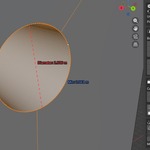
- **3-Point Circle:** Select 3 vertices on any arc to compute and resize its true diameter.
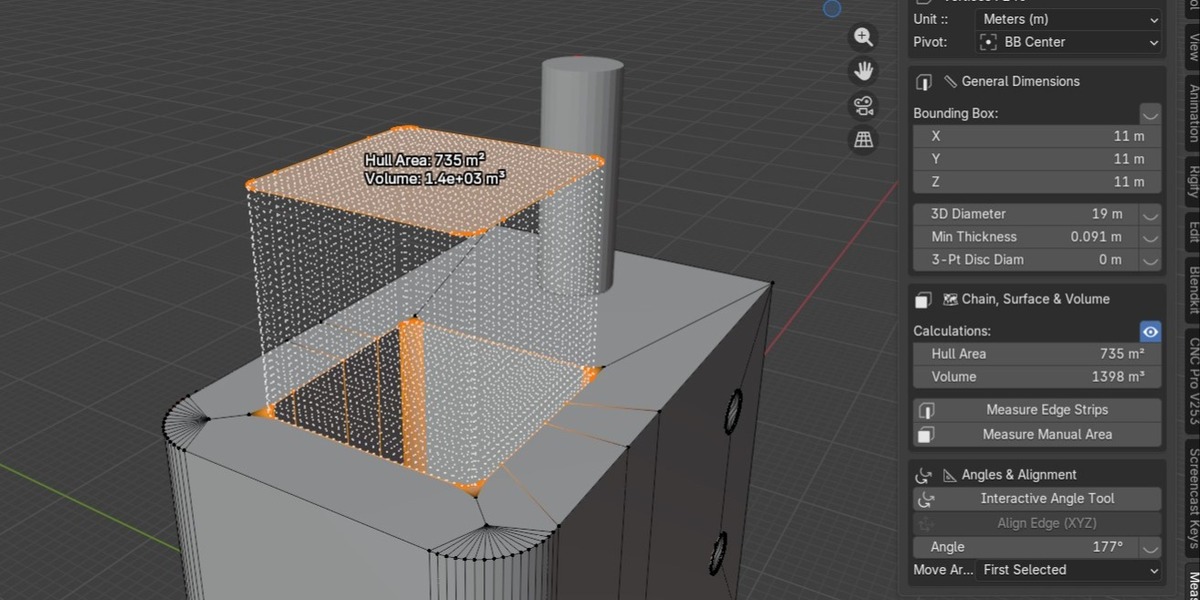
- **Hull Area & Volume:** Shows and edits the convex hull area and volume.
- **Edge Strip Length:** Measures and resizes total selected edge length.
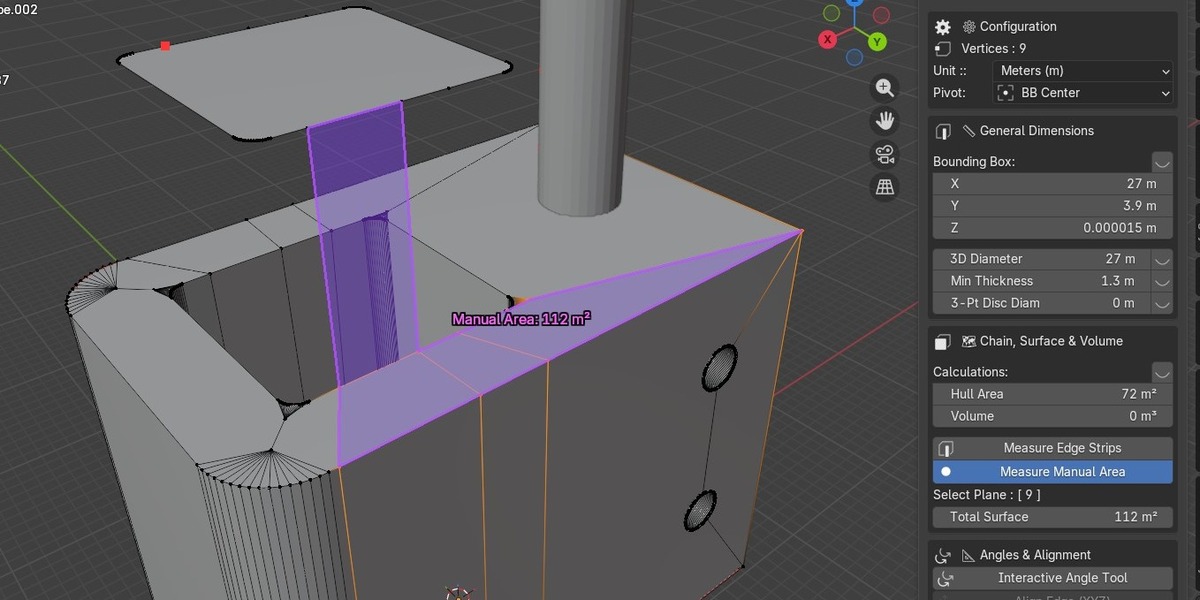
- **Manual Area:** Click and drag to trace custom polygon areas directly in the viewport.
- **Interactive Angle:** Drag to measure and set precise angles between edges.
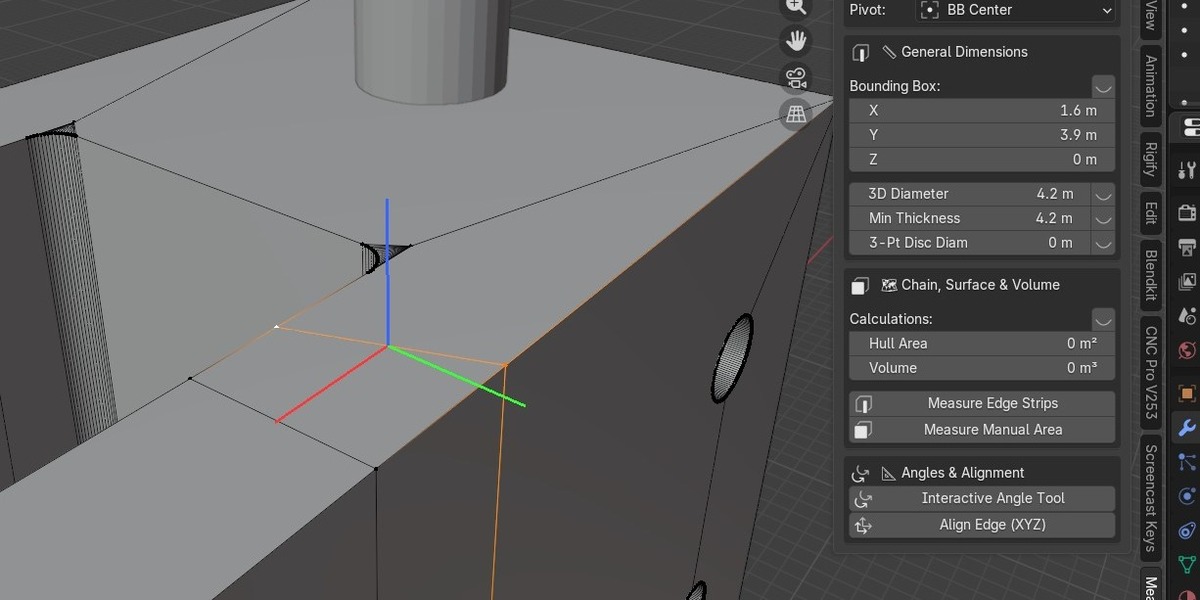
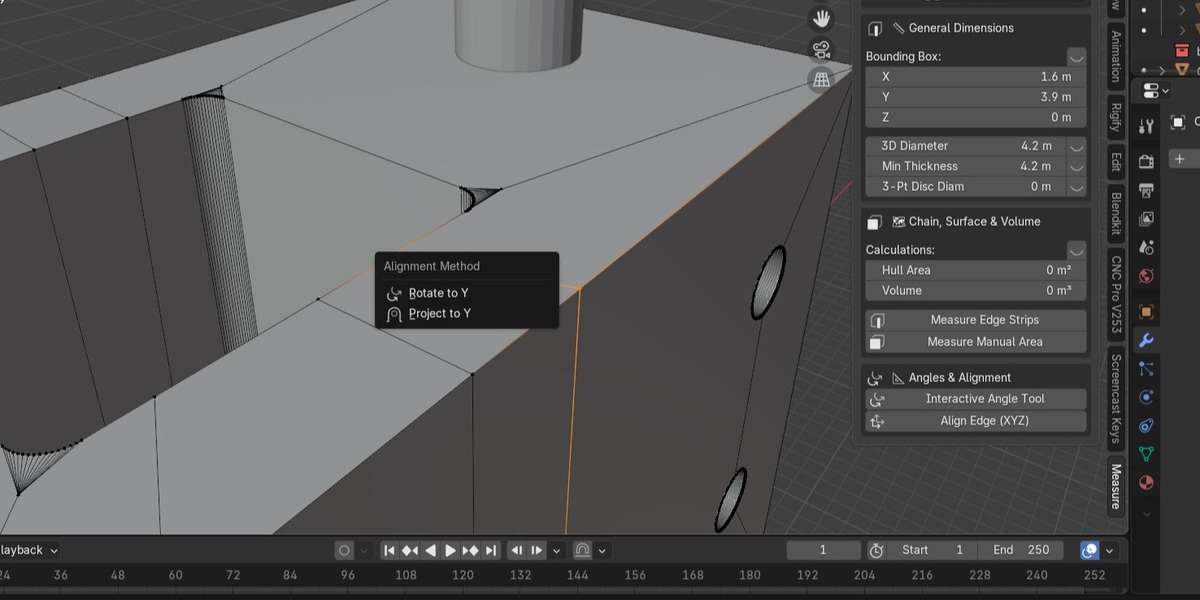
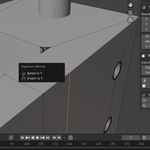
- **Align Edge (XYZ):** Rotate or project a single edge along a world axis.
## Support
For bug reports or questions, use the support tab on this product page.
## Video Guide
Watch the complete step-by-step tutorial: https://www.youtube.com/watch?v=1iFRId3V-QE
Have questions about this product?
Login to message
| Published | 1 day ago |
| Blender Version | 5.0 |
| Extension Type | N/A |
| Render Engine Used | Cycles, Eevee |
| License | GPL |