 ZEG
ZEG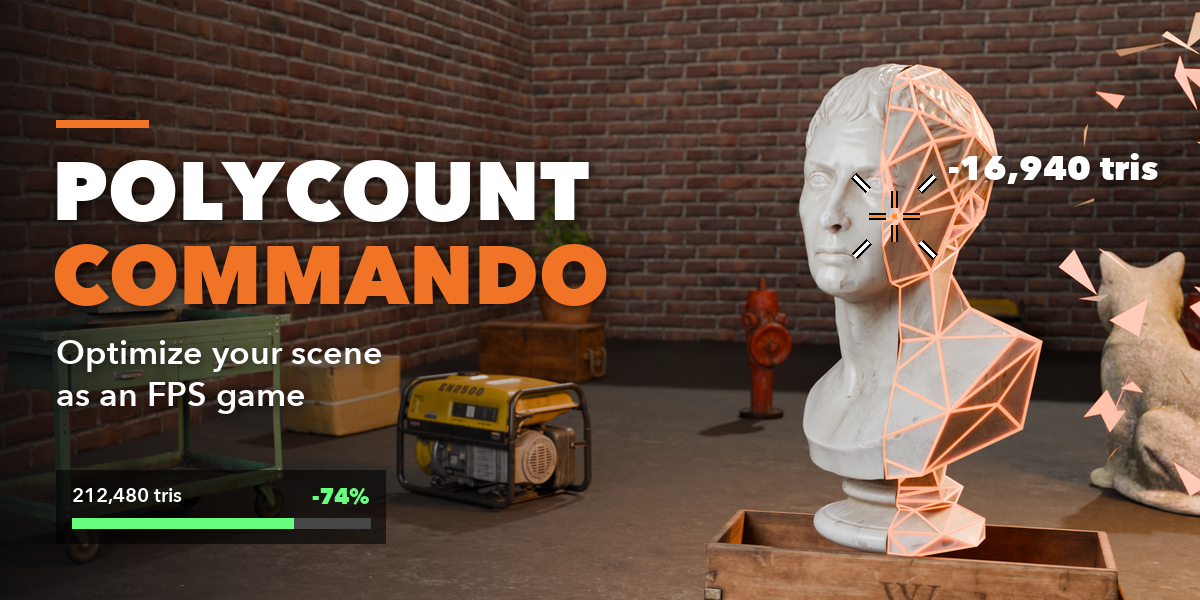
Installation
In Blender open Edit, Preferences, Get Extensions, then use Install from Disk and pick the polycount_commando zip.
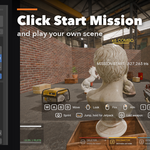
Start a mission
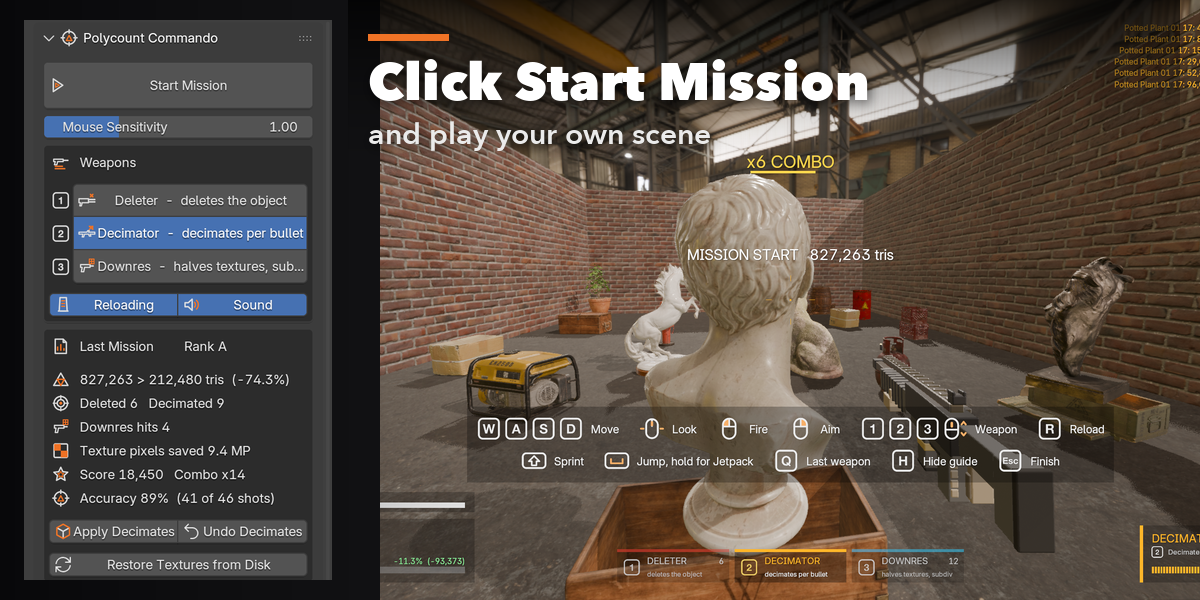
- Open the Commando tab in the 3D viewport sidebar (N).
- Pick the weapon you start with (the Decimator is the default) and set Mouse Sensitivity if needed. Select any objects you want to protect: they are shielded during the mission.
- Place your viewport camera where you want to start, then click Start Mission (also in Object, Clean Up). The viewport fills the window and you play from that spot.
Controls
- WASD move, mouse look, Shift sprint
- Left mouse fire, right mouse aim down sights
- 1, 2, 3 or the mouse wheel switch weapons, Q last weapon, R reload
- Space jump, hold Space for the jetpack
- H shows or hides the key guide, Esc ends the mission
Weapons
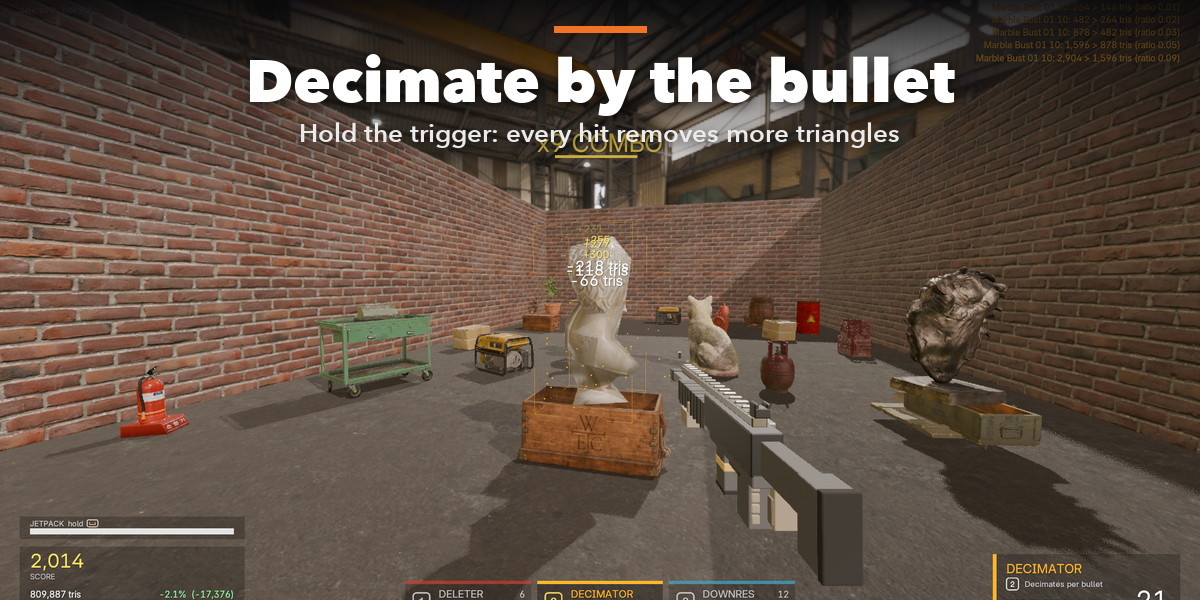
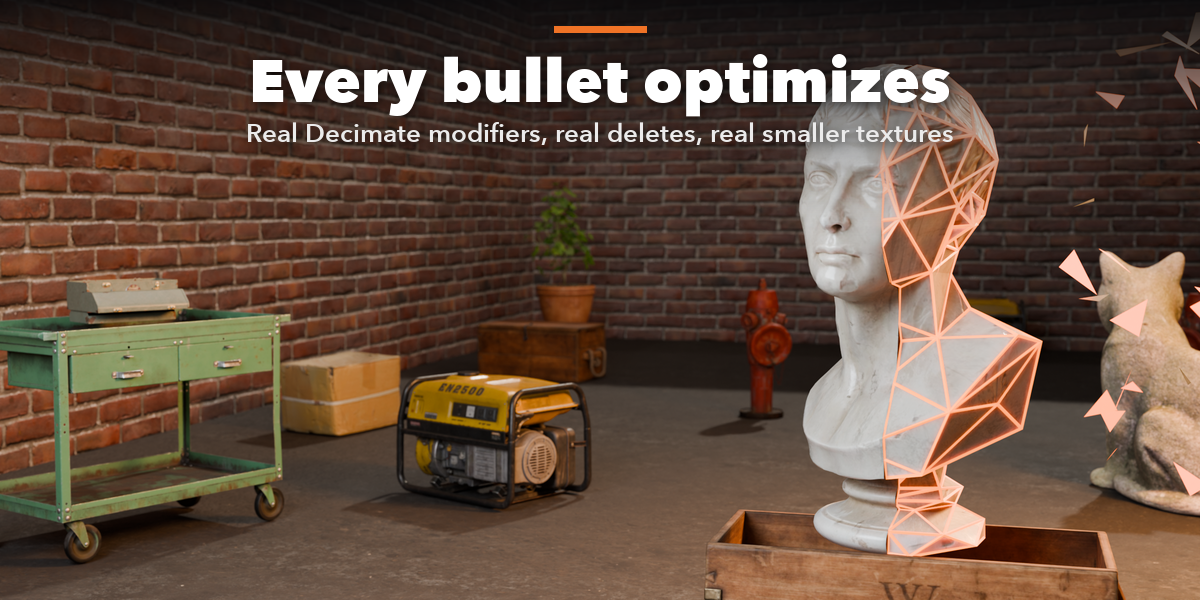
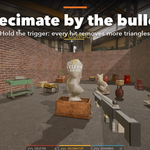
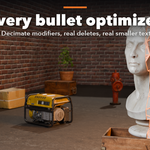
- Decimator: each bullet multiplies the target's Decimate ratio by Keep per Hit (0.6 by default), never below Minimum Faces.
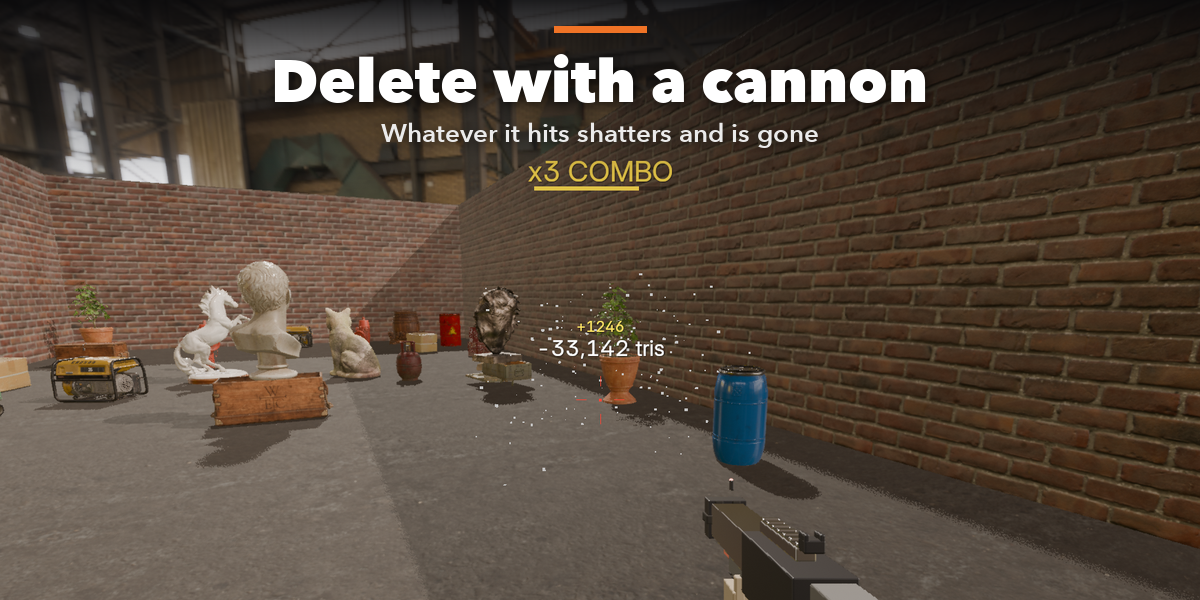
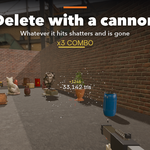
- Deleter: deletes the object (optionally with its children) and purges its unused mesh data.
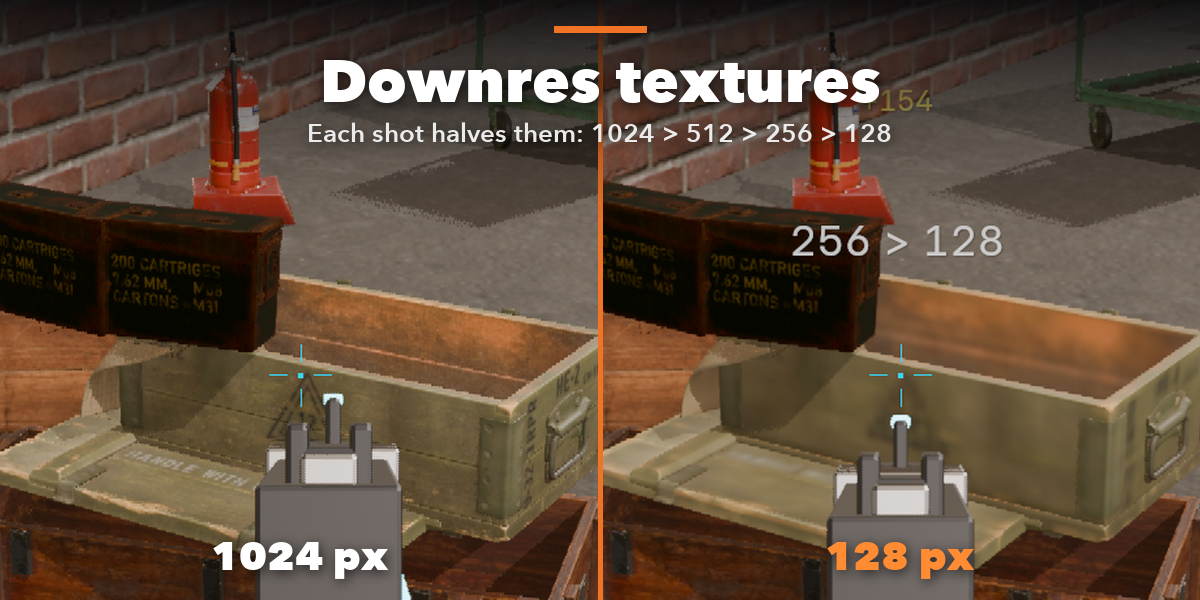
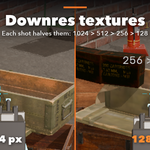
- Downres: steps the object's image textures to the next lower power of two, never below Minimum Texture Size, and lowers Subdivision and Multires by one level. Save the images (Image, Save All) to keep the smaller files.
After the mission
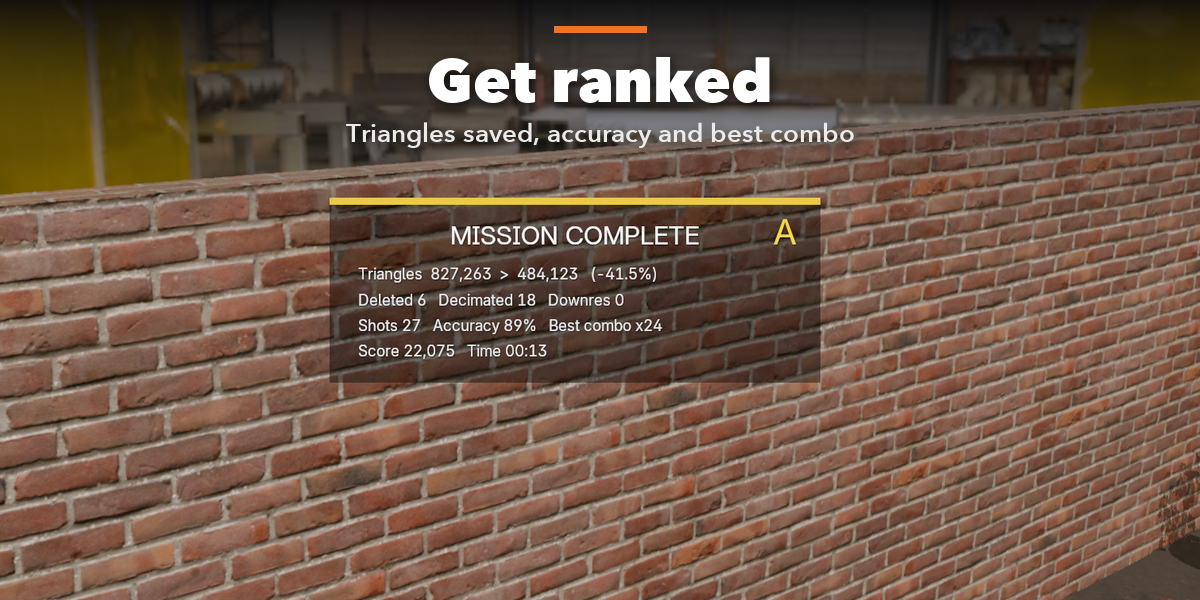
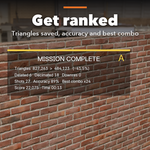
The sidebar shows the mission report. Apply Decimates makes the decimation permanent, Undo Decimates removes the modifiers the mission added, Restore Textures from Disk reloads the original images, and Ctrl+Z undoes the whole mission in one step.
Have questions about this product?
Login to message
| Blender Extension Compatible | Yes |
| Published | about 20 hours ago |
| Blender Version | 4.2 - 5.2 |
| Extension Type | Add-on |
| Render Engine Used | Cycles, Eevee |
| License | GPL |

Discover more products like this
polycount Game optimization game-dev performance LOD decimate scene cleanup fun fps low poly textures