 3D CADence


Polygon Smoothing Groups
A Professional Tool for Polygon Management in Blender
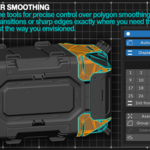
This add-on is designed for artists, modelers, and technical specialists who need to quickly and conveniently manage shading, sharp edges, and UV seams on 3D models. It introduces a powerful and intuitive workflow with interactive previews, dynamic tools, and comprehensive group management, allowing for precise control over mesh shading.
Main Panel


-
Auto Sharp
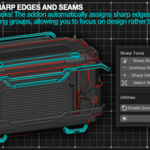
- When this mode is active, edges between different groups become sharp, and edges within the same group become smooth.
-
Auto Seam
- When this mode is active, seams are created on the edges between different groups.
-
Display Sharp / Display Seams
- Toggles the visibility of the overlay for sharp edges and UV seams in the viewport.
-
Group By Angle
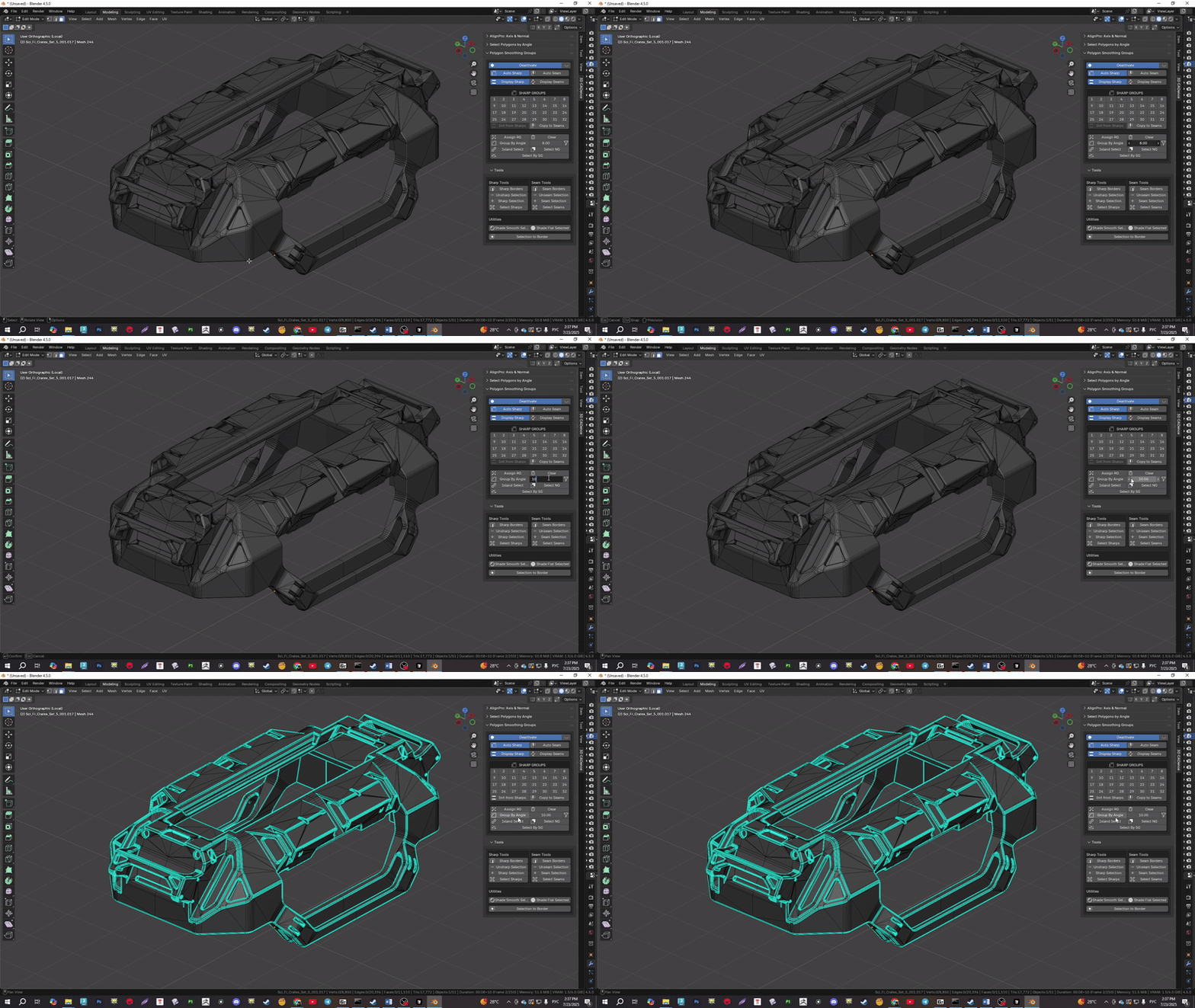
- Creates smoothing groups based on the angle between adjacent polygons. If the angle between polygons is less than the specified threshold, they will be placed in the same group. It works on selected polygons, or on the entire object if nothing is selected.
-
- Strict Mode: Toggles 'strict' mode. When active, the 'Group By Angle' operation ignores islands consisting of a single polygon, not assigning them a group.
-

-
Preview Button
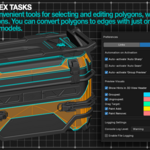
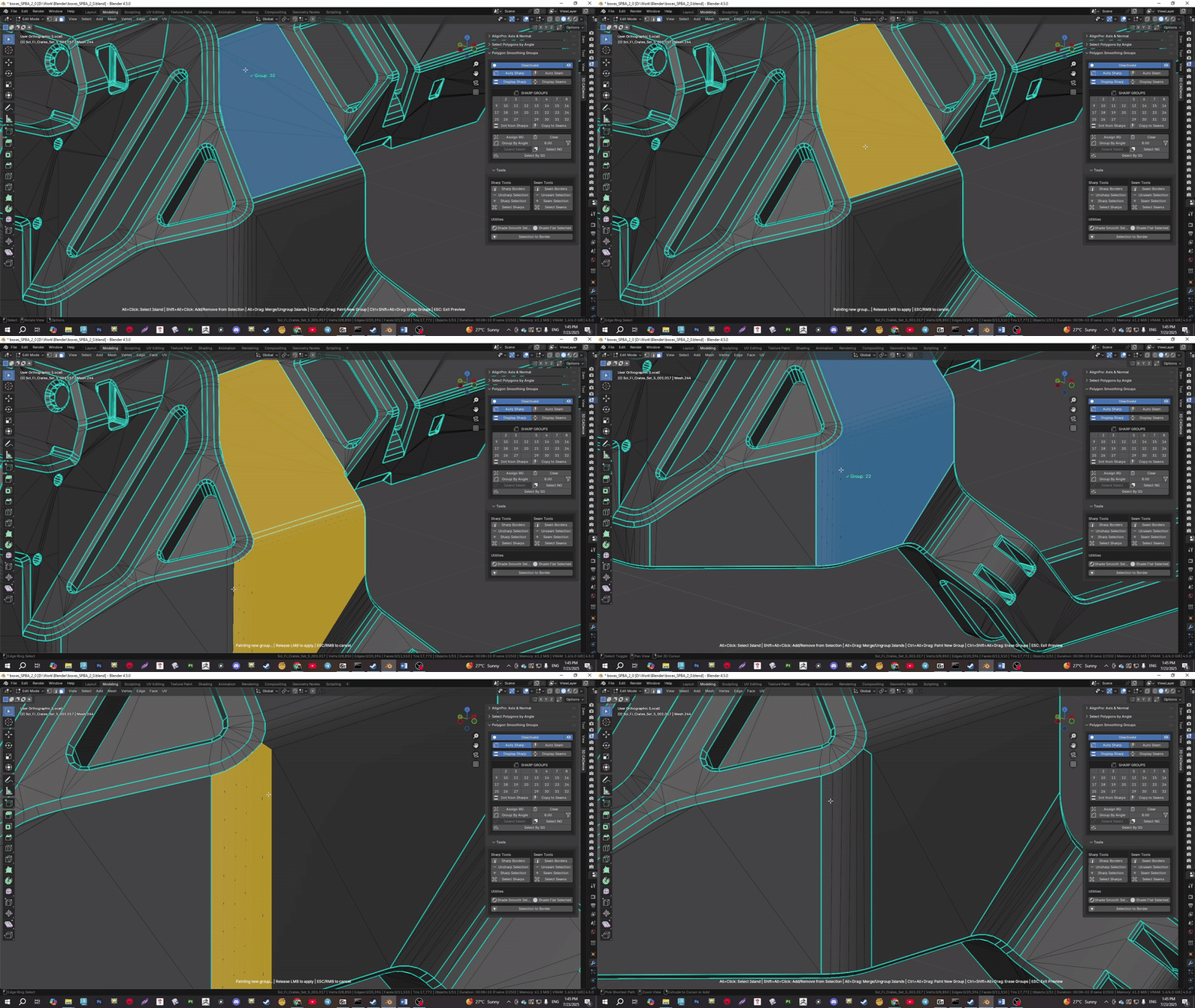
- In this mode, hovering over a polygon displays its group number. It allows you to interactively select, merge, create new groups, and delete assigned groups.


-

-
Init from Sharps / Init from Seams
- Initializes the group creation process based on existing boundaries on the mesh. In 'Auto Sharp' mode, groups will be created from sharp edges, and in 'Auto Seam' mode — from UV seams. This is useful if you haven't used the add-on before and want to continue working on an old model that already has sharps and seams assigned.
-

-
Copy to Sharps / Copy to Seams
- Copies the group layout from the currently active mode (Sharp or Seam) to the other. For example, if 'Auto Seam' is active, this button will copy all 'Seam groups' to 'Sharp groups', creating the corresponding sharp edges.
-

-
Assign RG (Random Group)
- Assigns a unique smoothing group to the selected polygons. The add-on automatically picks a group number that is not used by adjacent polygons to avoid unwanted merging.
-

-
Clear
- Removes the selected polygons from their smoothing groups. If nothing is selected, it clears the groups for all polygons on the object.
-

-
Island Select
- In this mode, clicking on a single polygon automatically selects all polygons belonging to the same smoothing group.
-

-
Select NG (Non-Grouped)
- Selects all polygons on the object that do not belong to any smoothing group.
-

-
Select By SG (Smoothing Group)
- Opens a panel for selecting polygons by group number. This panel only displays buttons for groups that are already assigned on the object.
-

Tools Panel
Sharp / Seam Tools
-
Sharp Borders / Seam Borders
- Marks the boundary edges of the current polygon selection as sharp or as a UV Seam. Works in vertex or face selection mode.
-
Sharp Selection / Seam Selection
- Marks all edges related to the current selection (vertices, edges, or faces) as sharp or as a UV seam.
-
Unsharp Selection / Unseam Selection
- Makes all edges related to the current selection smooth (unsharp) or removes the UV seam mark from them.
-
Select Sharps / Select Seams
- Selects all sharp edges or all UV seams on the object. Automatically switches to edge selection mode.

-

Utilities
-
Shade Smooth Selected
- Applies smooth shading (Shade Smooth) to the selected polygons.
-
Shade Flat Selected
- Applies flat shading (Shade Flat) to the selected polygons.
-

-
Selection to Border
- Converts the current polygon selection into a selection of its boundary edges.
-

Pie Menu
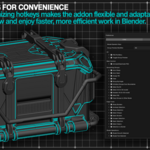
For maximum workflow acceleration, all key add-on functions are available in a convenient pie menu. It is called by a hotkey (assigned by the user in Blender's preferences) and provides instant access to the entire toolkit directly under the cursor, eliminating the need to move the mouse to the side panel.

Patch Notes
Polygon Smoothing Groups v0.9.3 — Full Update Overview
Version 0.9.3 is not just a set of new features, but a fundamental rethinking of the entire workflow. We have moved from a simple set of tools to an interactive and flexible system. The main goal is to make your work faster, more visual, and give you more control.
🆕 Brand New Features
1. Interactive Group Preview
This is the main star of the update that changes everything. We've added a full-fledged modal mode that allows you to manage groups directly in the viewport.
How it was before: Select polygons -> press a number button -> deselect. The process was mechanical and required many clicks.
How it is now:
Press the new button with the "eye" icon (or call the Pie Menu) to enter Group Preview mode. In this mode:
- Visual Feedback: Simply hover your cursor over any polygon, and a tooltip with its group number (e.g., `Group: 5`) or `Ungrouped` status will appear next to it. You always know what you're working with.
- Island Selection (Alt + LMB): Click on a polygon to instantly select the entire smoothing island. No more need to manually select adjacent polygons.
- Interactive Group Merging (Alt + Drag): Press and hold Alt, click on one island, and drag it to another. Both islands will be highlighted. Release the mouse button, and they will automatically merge into a new, unique group.
- "Painting" New Groups (Ctrl + Alt + Drag): Press and hold Ctrl+Alt and simply "paint" over the model. All polygons you drag the cursor over will be added to a new unique group.
- "Erasing" Groups (Ctrl + Shift + Alt + Drag): Need to quickly clear an area? Press and hold Ctrl+Shift+Alt and drag over the model to remove polygons from their groups.
- Full Customization: In the addon's preferences, you can change the highlight color for each action and reassign the Alt key to any other key you prefer.
⚡ Key Changes
2. Complete Separation of Groups into Two Independent Layers (Sharp and Seam)
This is the main conceptual change.
How it was before: The "Auto Sharp" and "Auto Seam" modes were mutually exclusive. You could either work with groups for smoothing or groups for seams, but not at the same time.
How it is now: Groups for Sharp Edges and UV Seams are now two completely independent data layers on the same object.
- Two Sets of Groups: Your model now has 32 groups for shading and 32 separate groups for UV seams.
- One-Click Switching: The `Auto Sharp` and `Auto Seam` buttons no longer just enable automation; they now switch the entire addon interface to work with the corresponding layer. The entire panel, including the 32-button grid, updates to work with either Sharp groups or Seam groups.
- Flexible Workflow: You can create one set of groups for perfect smoothing, then switch to the Seam layer and create a completely different layout for easy UV unwrapping without affecting your shading.
- Copying Between Layers: Have you set up the perfect groups for shading? Click the `Copy to Seams` button, and the entire group structure will be copied to the seam layer, giving you an excellent starting point for your UVs. This also works in the other direction.
3. New UI Elements and Logic
The addon panel has become "smarter" and provides more contextual tools:
- Display Sharps / Display Seams: Two new buttons that allow you to quickly toggle the display of overlays for sharp edges and seams directly from the addon panel, without going into Blender's overlay menu.
- Init from Sharps / Init from Seams: This button is now context-sensitive. If the Sharp layer is active, it will offer to create groups based on existing sharp edges. If the Seam layer is active, it will do so based on UV seams. This is a powerful tool for "importing" an existing layout into the group system.
- Strict Mode (Filter): The option for the "Group By Angle" operation is now a convenient icon button. Enable it to prevent the addon from creating dozens of useless groups for single polygons.
4. Added Pie Menu and Reworked Main Panel
- New Pie Menu: To maximize your speed, all key functions are now available through a pie menu, which can be called with a single hotkey (configurable in Preferences).
- Clean Design: The main N-panel has been redesigned for better clarity. The main mode switches and tools are grouped logically.
- Context-Aware: The panel changes depending on the active mode (Sharp/Seam), showing only the relevant tools and data.
🛠️ Improvements and Refinements
-
Flexible Customization
The Preferences menu has been significantly expanded. You can now customize the addon's behavior to your liking: from highlight colors to automatically enabling certain modes on activation. -
Cache Optimization
The caching and state management system has been centralized. The addon now tracks changes to selection and geometry more intelligently, updating only the necessary data. This improves overall performance and UI responsiveness, especially when working with high-poly models. -
Modular Architecture
The code has been completely rewritten from scratch. This is a change that is invisible to the user, but it has a radical impact on everything:- Speed: The addon runs faster.
- Stability: The likelihood of bugs and conflicts with other addons is significantly reduced.
- Reliability: The handling of all standard Blender events (undo/redo, mode changes, scene loading) has been improved, making the addon's behavior more predictable.
🟢 Summary
Polygon Smoothing Groups 0.9.3 is more than just an update. It's a new tool.
-
Main new feature
Interactive Group Preview — now you work with groups visually and intuitively. -
Main change
Two independent layers (SHARP/SEAM) — giving you full control over shading and UV seams separately. -
The UI is smarter
The panel and tools adapt to your workflow, and the new Pie Menu speeds up access to functions.
Most of the old functions are still in place, but they now operate within a new, more powerful, and flexible logic. Update now and feel the difference!