Polygon Smoothing Groups
 3D CADence


Polygon Smoothing Groups
Documentation
1. Introduction
Welcome to the documentation for the Polygon Smoothing Groups addon for Blender. This addon is designed to fundamentally improve and accelerate the process of managing shading, sharp edges, and UV seams in Edit Mode. It offers a powerful set of tools based on two key concepts: interactive visual editing and independent operation with information systems for shading and UVs.
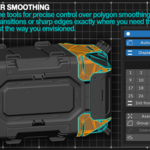
The core philosophy of the addon is built around an innovative interactive group preview system. It allows you to see and edit smoothing sets directly in the viewport using intuitive mouse actions like dragging and "painting." This eliminates the need for manual switching between polygons and buttons, turning a monotonous task into a fast and visual creative process.
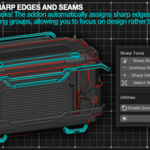
The second key concept is the complete separation of groups into two independent systems: one for sharp edges (Sharp) and another for UV seams (Seam). You can create entirely different group layouts for perfect shading and convenient UV unwrapping on the same object, without fear that one will affect the other.
This guide will help you install the addon, understand all its features in detail, configure it to your needs, and use it effectively in your workflow.
2. Installation
The addon is installed in the standard Blender way:
- Download the
.ziparchive with the addon. Do not unzip the archive! - In Blender, open
Edit > Preferences.... - Go to the
Add-onstab. - Click the
Install...button. - In the file browser that opens, find and select the downloaded
.ziparchive. ClickInstall Add-on. - Activate the addon by checking the box to the left of its name.
3. Interface Location
The main control panel for the addon is located in the 3D Viewport:
-
Location: UI Panel (the sidebar opened with the
Nkey) >3D CADenceTab. -
Panel Name:
Polygon Smoothing Groups.
This panel groups all the main operation toggles, management tools, and quick access to settings. Additional utilities are located in the Tools sub-panel.
4. Feature and Functionality Descriptions
Main Concept: Two Independent Systems (Sharp & Seam)
This is a fundamental change that defines the entire logic of the addon. The Auto Sharp and Auto Seam buttons no longer just enable automation; they act as operation switches for the entire addon.
-
Auto Sharp: Activates the functionality for working with sets for sharp edges. The entire panel, including the 32-button grid and all operations, will only affect the
Sharpsystem and, consequently, the model's smoothing. -
Auto Seam: Activates the functionality for working with sets for UV seams. All operations will only affect the
Seamsystem and, consequently, the creation of UV seams.
These two systems are completely independent. You can have entirely different layouts on each of them.
Interactive Preview: The Core Feature
This is the central feature of the addon, turning a routine task into a fast, interactive process.
- Activation: The eye icon button (👁️) on the main panel.
-
Capabilities:
- Visual Feedback: When you hover the cursor over a polygon, a tooltip with its set number (`Set: 5`) or `Ungrouped` status appears next to it.
- Island Highlighting (Alt + LMB): A single click on a polygon instantly highlights the entire "island"—all connected polygons with the same set number.
- Interactive Merging (Alt + Drag): Drag one island onto another to automatically merge them into a new, unique set.
- "Painting" New Sets (Ctrl + Alt + Drag): "Paint" directly on the model to combine all affected polygons into a new unique set.
- "Erasing" Sets (Ctrl + Shift + Alt + Drag): "Erase" assignments from polygons, quickly clearing the desired areas.
- Full Customization: In the addon's preferences, you can customize the colors for all highlight elements and change the modifier key (`Alt`) to any other key.
Main Management Tools
- Display Sharps / Display Seams: Two new buttons for quickly enabling/disabling the display of overlays for sharp edges and seams in the viewport.
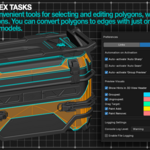
- 32-Button Grid: The primary tool for manually assigning sets. Clicking a button assigns the corresponding number to the chosen polygons (or removes it if they were already assigned). It works with the active system (Sharp or Seam).
- Init from Sharps / Init from Seams: A context-sensitive button. It creates sets based on pre-existing sharp edges or UV seams on the model. Ideal for starting work on models that have already been partially set up.
- Copy to Seams / Copy to Sharps: Copies the entire structure from one system to the other. For example, after creating a perfect shading layout, you can transfer it to the Seam system in one click as a basis for UV unwrapping.
-
Angle-Based Creation: Creates sets based on the angle between adjacent polygons. Works on chosen polygons or the entire object.
- Strict Method (Filter): An option that allows you to ignore single-polygon islands to avoid creating many unnecessary sets.
- Assign Unique Set: Assigns a unique number to the chosen polygons that does not conflict with neighboring sets, avoiding unwanted smoothing.
- Clear: Removes the chosen polygons from their assignments. If nothing is chosen, it clears assignments for the entire object.
- Island Highlighting: A new toggle. When active, a regular click on a polygon automatically highlights the entire island of that set.
- Find Non-Assigned: Highlights all polygons that do not belong to any set.
- Find by Set Number (SG): Opens a panel that displays only the numbers already in use on the model for quick highlighting.
"Tools" Sub-panel
-
Sharp / Seam Tools: A set of utilities for direct editing of sharp edges and seams:
- Sharp/Seam Borders: Creates edges/seams along the border of the chosen polygons.
- Sharp/Seam from Selection: Creates edges/seams on all edges related to the current selection.
- Unsharp/Unseam Selection: Removes sharpness/seams from the chosen elements.
- Find all Sharps/Seams: Highlights all sharp edges or seams on the object.
-
Utilities:
- Shade Smooth/Flat Selected: Applies the corresponding shading type to the chosen polygons.
- Selection to Border: Converts a polygon selection into a selection of its boundary edges.
5. Addon Preferences
To access the settings, go to Edit > Preferences... and find Polygon Smoothing Groups in the Add-ons tab.
- "Links" Tab: Quick access to the Blender Market page, the Discord support server, and other resources.
-
"General" Tab:
- "Automation on Activation": Configure which functionalities (`Auto Sharp`, `Auto Seam`, `Group Preview`) will be enabled automatically when the addon is activated.
- "Preview Visuals": Full customization of colors for all highlight elements in the `Group Preview` functionality.
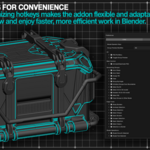
- "Keymaps" Tab: Displays a complete list of all addon operators for convenient assignment or modification of hotkeys.
6. Performance
Version 0.9.3 has been completely re-engineered from the ground up with a focus on performance. Thanks to an advanced caching system and centralized state management, the addon ensures a perfectly smooth workflow, even on models with over a million polygons.
7. Contact and Support
If you have questions, suggestions, or encounter a bug, the best way to get in touch is via the Discord server:
-
$30
Individual License
-
$200
License for a studio of up to 10 people
Have questions about this product?
Login to message